
The Tenants section allows administrators to control how users from the organization access Yarken.
Tenant access settings determine:
-
Whether users must be manually invited before they can access Yarken
-
Whether users from an approved organization domain can sign in automatically
-
Whether Yarken roles are managed directly in Yarken or through Microsoft Entra ID
To access tenant settings, navigate to Admin → Settings → Tenants.
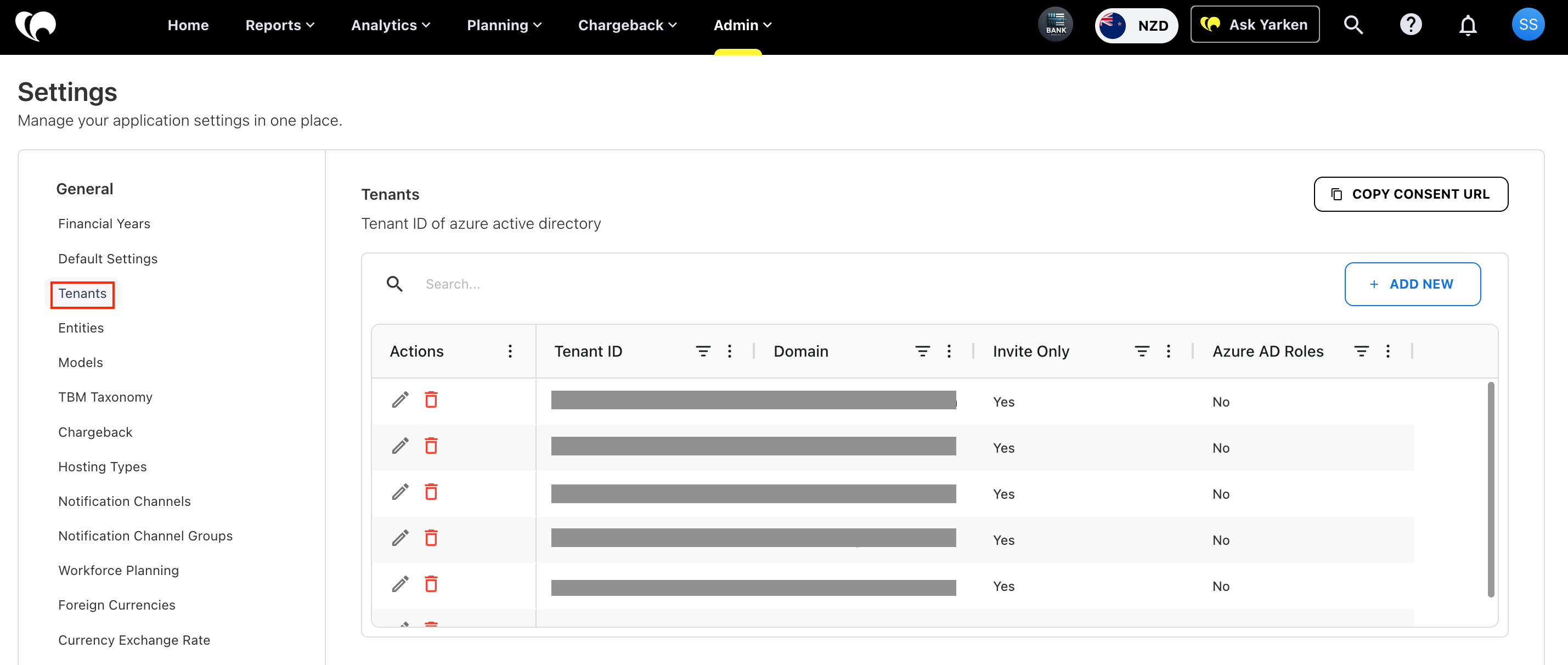
Tenant access settings
The main tenant access settings are:
|
Setting |
Description |
|---|---|
|
Invite Only |
Controls whether users must be manually invited or added before they can access Yarken. |
|
Azure AD Roles |
Controls whether Yarken roles are managed through Microsoft Entra ID app role assignments. |
Invite Only enabled
When Invite Only is enabled:
-
New users must be added manually by an administrator.
-
Only approved users can access the Yarken environment.
-
Users from the organization domain cannot automatically access Yarken unless they have been added.
-
Administrators retain full control over onboarding.
-
This model is recommended for highly controlled onboarding workflows.
Use this setting when your organization wants to manually approve each user before they can access Yarken.
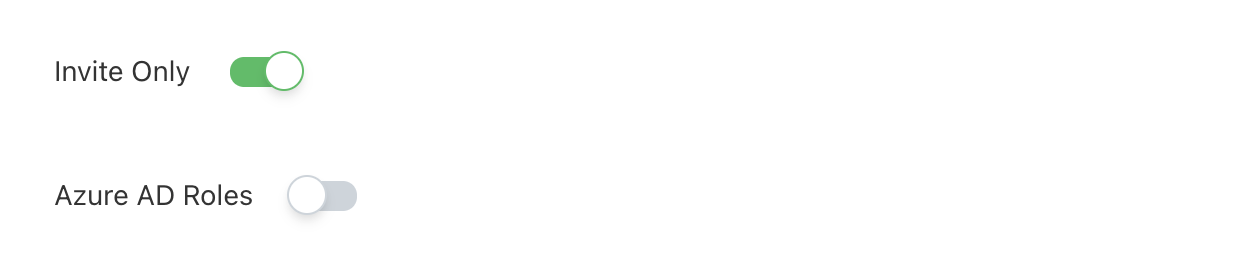
Invite Only disabled
When Invite Only is disabled:
-
Any user from the organization domain can authenticate into Yarken
-
New users automatically appear in the Users list
-
Users receive no functional access until roles are assigned
This allows organizations to simplify onboarding while still maintaining governance over permissions and data visibility.
-
Users without assigned roles cannot access dashboards, analytics, or planning functions.
-
Use this setting when your organization wants users from an approved domain to be able to sign in without being manually invited first.
Azure AD Roles enabled
When Azure AD Roles is enabled, Yarken roles are managed through Microsoft Entra ID app role assignments.
Use this setting when your organization wants to manage access centrally from Microsoft Entra ID.
When this setting is enabled:
-
Users and groups should be assigned to the Yarken Enterprise Application in Microsoft Entra ID.
-
Yarken roles are assigned through Microsoft Entra ID app roles.
-
Administrators should manage role changes in Microsoft Entra ID instead of manually assigning roles in Yarken.
-
Users must still authenticate using Microsoft sign-in.
Azure AD Roles disabled
When Azure AD Roles is disabled, Yarken roles are managed directly in Yarken.
Use this setting when administrators want to manually assign user roles from within the Yarken platform.
When this setting is disabled:
-
Users can be created or managed in Yarken directly.
-
Roles are assigned from the Yarken user management screen.
-
Microsoft Entra ID app role assignments are not used to determine Yarken roles.
-
Microsoft authentication is still used for sign-in.
Recommended tenant configurations
Use the following table to choose the correct tenant access configuration.
|
Onboarding model |
Invite Only |
Azure AD Roles |
Recommended when |
|---|---|---|---|
|
Manual user management in Yarken |
Enabled |
Disabled |
Administrators manually add users and assign roles inside Yarken. |
|
Microsoft Entra ID role management |
Disabled |
Enabled |
Users and roles are managed centrally through Microsoft Entra ID. |
Related content