
Yarken integrates with Microsoft Entra ID (Azure AD) to provide centralized identity and access management across your organization. This allows administrators to manage user access through existing enterprise identity controls while simplifying onboarding and improving governance.
With Azure AD integration, organizations can:
-
Centralize user access management
-
Align access with enterprise security policies
-
Reduce manual onboarding effort
-
Assign permissions through Azure roles and groups
-
Govern access consistently across users and teams
How Azure AD integration works
The Azure AD onboarding flow works as follows:
-
Yarken establishes trust with your Azure tenant
-
Administrators approve Microsoft consent permissions
-
Azure AD Roles are enabled in Yarken
-
Users and groups are assigned through Enterprise Applications
-
Users authenticate into Yarken using Microsoft login
Before you begin
Before integrating Microsoft Entra ID with Yarken, ensure the following prerequisites are available.
Required access
You must have:
-
Yarken Administrator access
-
Microsoft Entra ID Administrator access
Required Azure roles
The Microsoft user configuring integration should hold one of the following roles:
-
Global Administrator
-
Application Administrator
Tenant configuration requirements
Before assigning users from Azure AD:
|
Tenant setting |
Required value |
|---|---|
|
Invite Only |
Disabled |
|
Azure AD Roles |
Enabled |
Approve Microsoft admin consent
Depending on your organization's Azure policies, users may encounter an admin approval request when attempting to access Yarken.
Non-admin users
If a standard user encounters a consent request:
-
The organization’s Azure administrator must approve the request
Azure administrators
Azure administrators can approve permissions directly from the Azure Portal.
Navigate to Microsoft Entra ID → Enterprise Applications → Yarken.
From there, review and approve the requested permissions.
Enable Azure AD Roles in Yarken
Before managing users through Azure AD, administrators must enable Azure AD Roles inside Yarken application.
Steps to enable Azure AD Roles
-
Sign in to Yarken as an Admin.
-
Navigate to Admin > Settings.
-
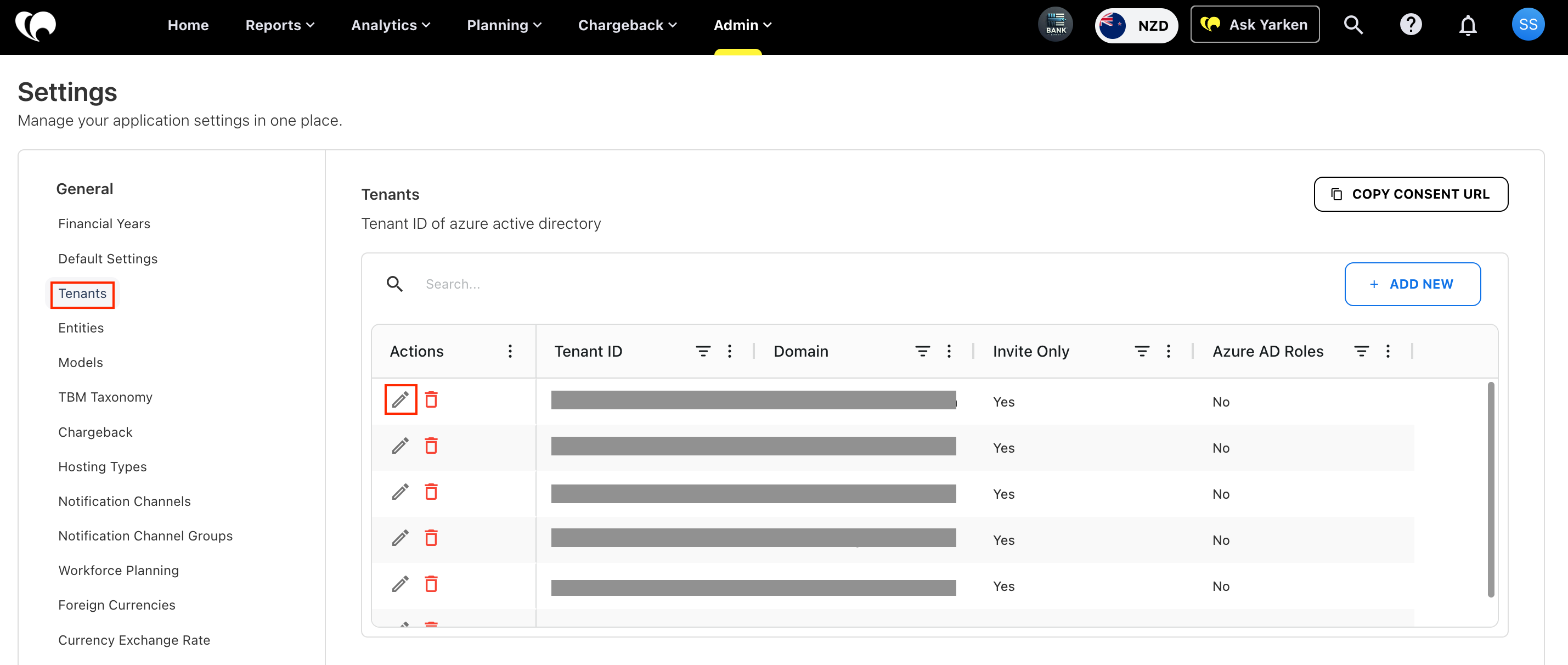
In the left pane, select Tenants under the General section.
-
Click Edit.
-
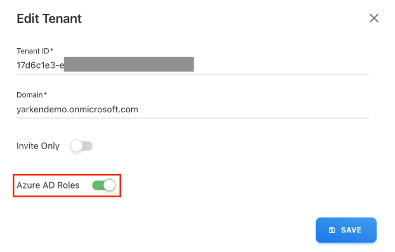
In the Edit Tenant popup, toggle on the Azure AD Roles setting.
-
Click SAVE to confirm the changes.
Once Azure AD Roles are enabled, you can begin adding and managing users directly from Azure AD.
Assign users or groups from Microsoft Entra ID
Organizations can grant access to Yarken through either individual user assignments or Microsoft Entra ID group assignments.
-
Individual assignments are suitable for smaller teams or limited user counts.
-
Group-based assignments are recommended for enterprise environments because they simplify administration and support centralized identity governance.
The following procedure describes how to assign individual users. For large-scale deployments, refer to Assign users or groups from Microsoft Entra ID.
To provide access to a specific user,
-
Sign in to Azure Portal using an administrator account.
-
On the left menu bar, select Microsoft Entra ID.
-
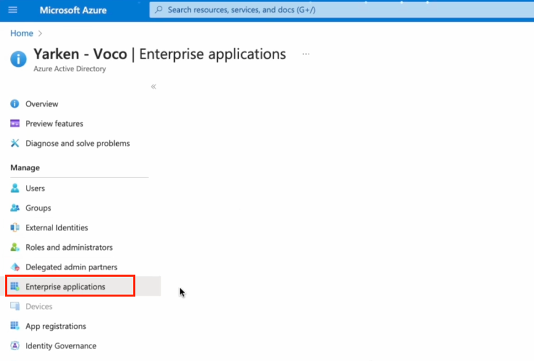
Under the Manage section on the left, select Enterprise applications.
-
Locate the Yarken application from the list and double-click it.
-
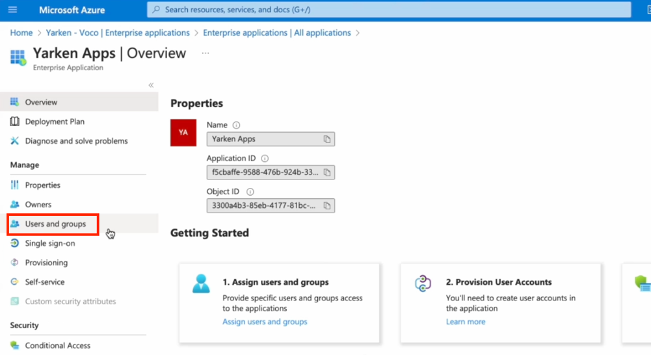
Select Users and Groups.
-
Click Add user. The Add Assignment form appears.
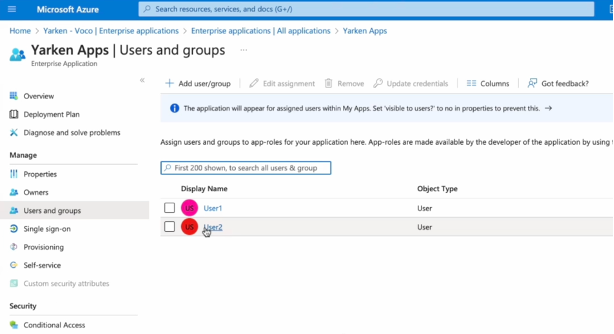
Note: The Add Assignment screen supports assigning either individual users or Microsoft Entra ID groups. If your organization manages access through security groups, refer to Assign access using Azure AD groups.
-
Select Users. A list of Azure instance users appears.
-
Select the users you want to assign to the Yarken application, and then click Select.
-
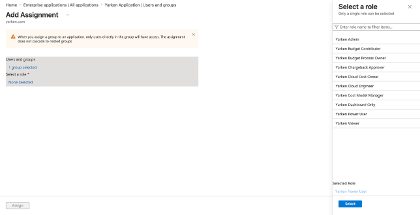
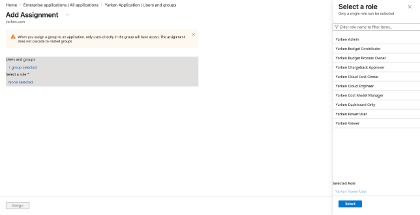
On the Add assignment form, click Select a role to display a list of the app roles that Yarken has created.
-
Select the app role and then click Select.
-
Click Assign.
The user is granted access to the application. The added users will be able to login to the Yarken application, and the details of the users will be captured in the Admin > User Management > Users tab.
Assign access using Azure AD groups
For enterprise environments with large user populations, Yarken recommends assigning Microsoft Entra ID groups instead of individual users. Group-based assignments reduce administration effort and ensure access is governed through existing identity management processes.
With this approach:
-
Users are assigned to Microsoft Entra ID groups.
-
Groups are mapped to Yarken application roles.
-
Access is automatically granted based on group membership.
-
Administrators manage access from Microsoft Entra ID instead of updating users individually.
Example Group Structure
The following table shows example Microsoft Entra ID groups aligned to corresponding Yarken roles.
|
Azure AD Group |
Yarken Role |
|
Yarken-Admin |
Admin |
|
Yarken-PowerUser |
Power User |
|
Yarken-Viewer |
Viewer |
|
Yarken-BudgetContributor |
Budget Contributor |
|
Yarken-BudgetProcessOwner |
Budget Process Owner |
Create a Security Group in Microsoft Entra ID
-
Sign in to the Azure Portal.
-
Navigate to Microsoft Entra ID → Groups
-
Select New Group
-
Configure:
|
Field |
Example |
|
Group Type |
Security |
|
Group Name |
Yarken-PowerUser |
|
Membership Type |
Assigned |
-
Select Create
Repeat this process for each role your organization plans to manage through groups.
Add Users to a Group
After creating the group:
-
Open the required group.
-
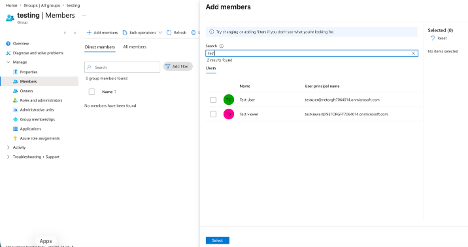
Select Members
-
Select Add Members
-
Choose the required users.
-
Save your changes.
Once added, users inherit any permissions associated with the mapped Yarken role.
Assign Groups to the Yarken Enterprise Application
After groups have been created:
-
Navigate to Microsoft Entra ID > Enterprise Applications > Yarken > Users and Groups.
-
Select Add User/Group.
-
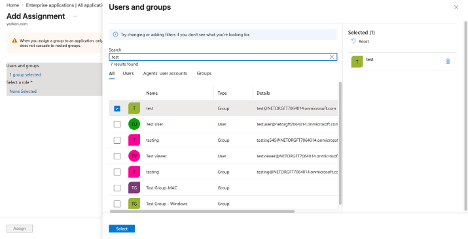
Select Users and Groups.
-
Choose the required Azure AD group.
-
Select Assign
Assign a Yarken Application Role
When assigning the group:
-
Select Select a role.
-
Choose the required Yarken role.
-
Select Assign
All users within the selected group now inherit the assigned Yarken role.
Related content