
What are Guardrails?
Guardrails are controls that help manage how AI handles sensitive information during supported Yarken conversations and workflows. Administrators can use them to apply protections before information appears in AI-generated responses or other supported outputs.
The PII guardrail detects supported personally identifiable information in agent conversations and applies the handling action configured for each information type. Yarken supports Email addresses, Phone numbers, and Credit / Debit card numbers. You can configure each type independently.
For supported agent interactions, the guardrail uses deterministic processing rather than relying only on instructions to the AI model. Protection can apply before information is passed to the AI and to AI-generated responses, including supported interactions with Audit Logs, Contracts, and Knowledge Base content.
Guardrails apply only to the information types and AI experiences supported by the configured guardrail. They do not replace source-system permissions, data access controls, or wider organizational security policies.
Supported PII types
|
Information type |
What it detects |
|---|---|
|
Email addresses |
Email addresses detected in supported agent conversations. |
|
Phone numbers |
Supported phone number patterns detected in conversations. |
|
Credit / Debit card numbers |
Supported credit and debit card number patterns detected in conversations. |
For each information type, independently select None, Mask, or Redact. The selected action determines how matching values are handled.
Configure PII settings
-
Go to Admin > AI Studio > Guardrails.
-
On the PII card, select the settings icon to open PII settings.
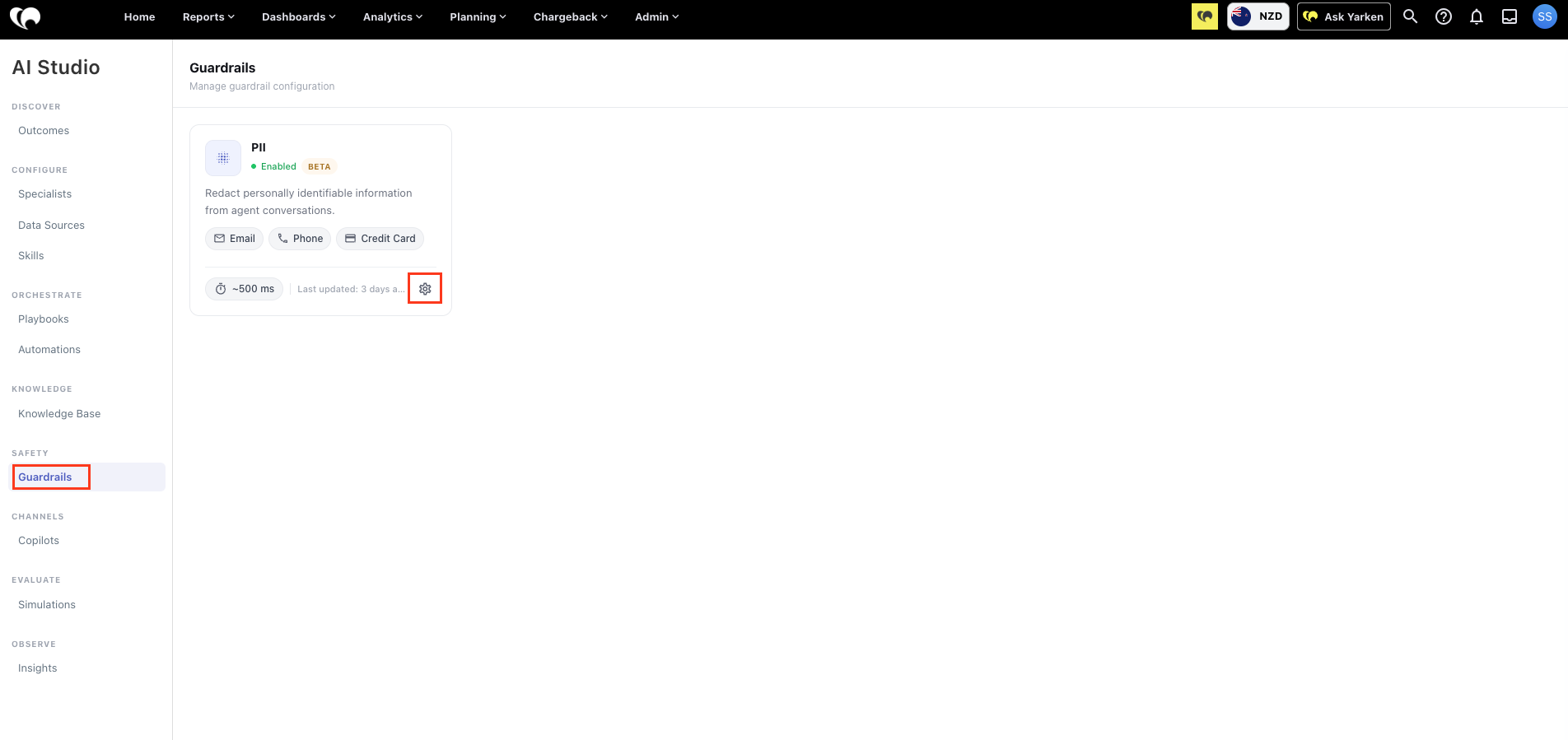
Setting icon on Guardrails -
Turn on the Enabled toggle to activate the PII guardrail.
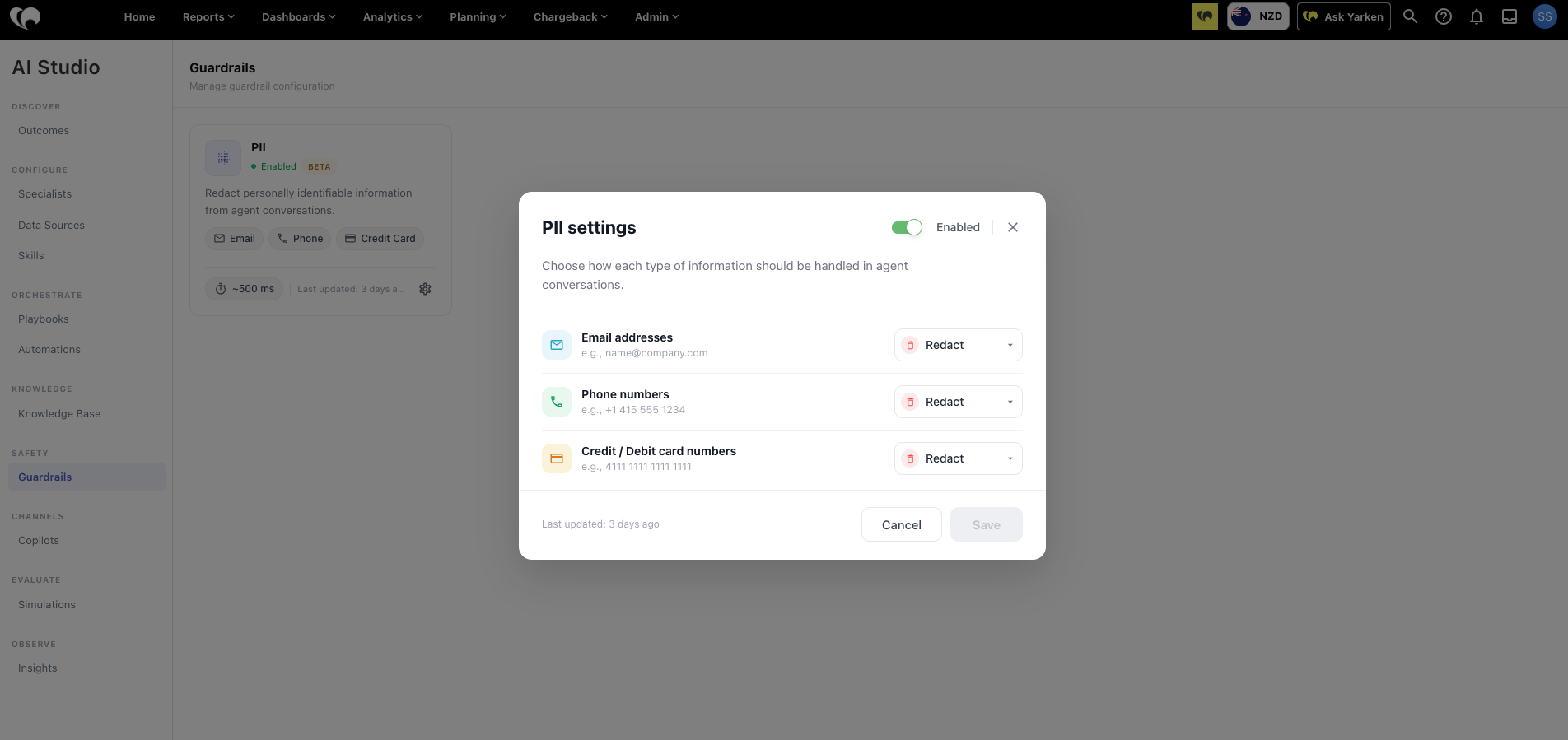
-
For Email addresses, choose the required action from the dropdown.
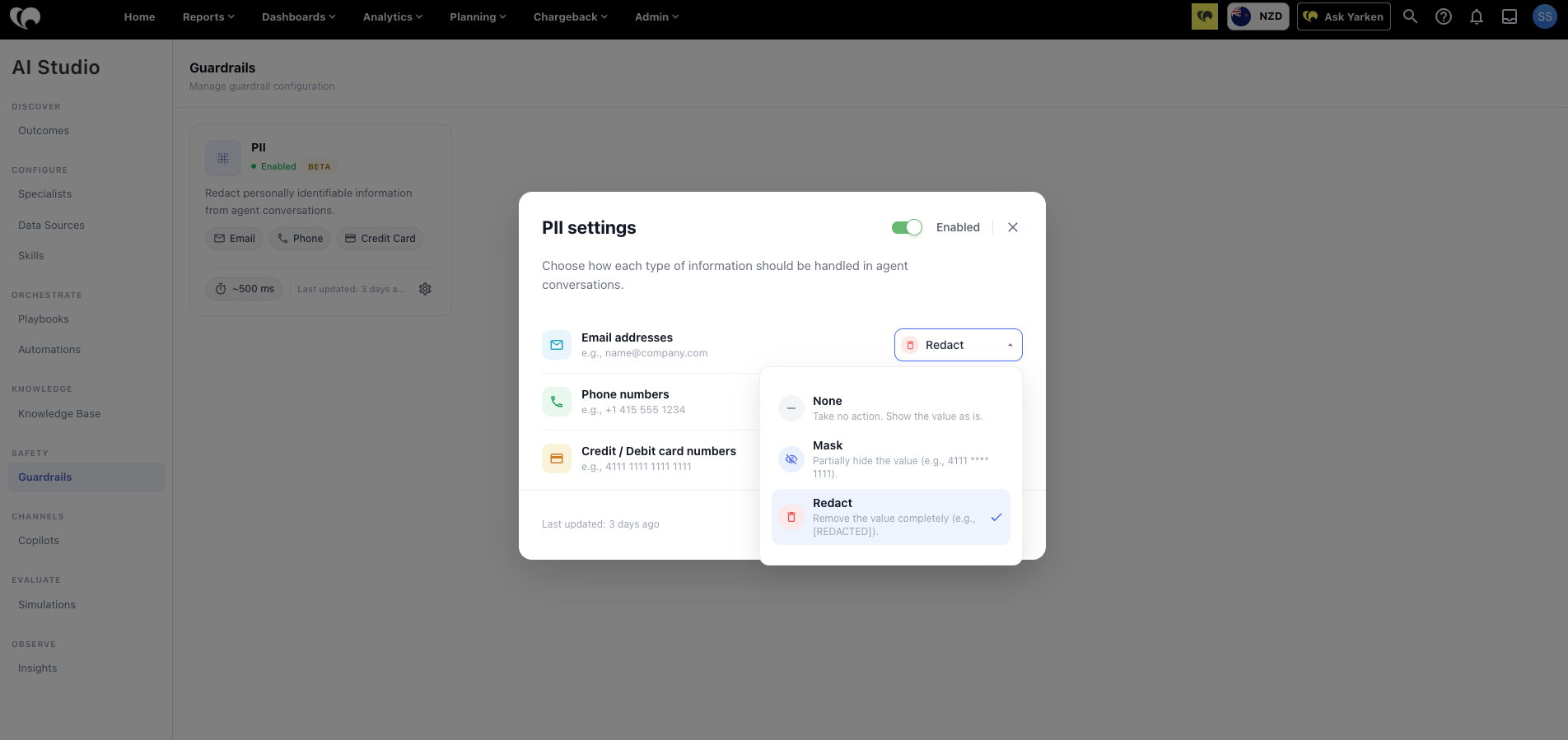
Configure the handling action for each PII type -
For Phone numbers, choose the required action.
-
For Credit / Debit card numbers, choose the required action.
-
Select Save to apply the configuration.
Important: The main Enabled toggle controls whether the PII guardrail is active. Configuring actions for individual information types does not activate a disabled guardrail.
Choose how to handle detected information
|
Action |
Behavior |
|---|---|
|
None |
Display the detected value as-is without modifying it. |
|
Mask |
Partially hide the detected value, retaining only a limited visible portion. |
|
Redact |
Remove the detected value and replace it with [REDACTED]. |
None
Select None when you do not need the PII guardrail to modify the detected value for that information type. The original value remains visible.
Mask
Select Mask to conceal part of a detected value. For example, the UI illustrates a card number with most digits hidden and a small portion still visible. The displayed characters depend on the detected information type.
Redact
Select Redact to remove a detected value and replace it with [REDACTED]. This action applies to whichever of the three information types you configure with Redact.
Example: Use different actions for different PII types
|
Information type |
Example action |
Expected result |
|---|---|---|
|
Email addresses |
Redact |
Replace the detected email address with [REDACTED]. |
|
Phone numbers |
Mask |
Partially hide a detected phone number. |
|
Credit / Debit card numbers |
Redact |
Replace the detected card number with [REDACTED]. |
These actions are independent, so you can choose different levels of protection for each information type.
Understand the PII guardrail status and latency
|
UI element |
What it means |
|---|---|
|
Enabled / Disabled |
Indicates whether the PII guardrail is active. |
|
BETA |
Displays the feature's Beta designation. |
|
Email, Phone, Credit Card |
Identifies the supported information types. |
|
Est. latency: ~500 ms |
Displays the estimated processing latency associated with the guardrail. |
|
Last updated |
Indicates when the configuration was last updated. |
|
Settings icon |
Opens the PII settings dialog. |
Latency: The displayed ~500 ms is an estimate, not a guarantee of processing time for every request.
What users see
When a configured action is applied, matching values in supported conversations and AI responses are handled according to that action. For example, selecting Redact for email addresses replaces detected email values with [REDACTED]. Selecting Mask for phone numbers partially hides the detected phone value.
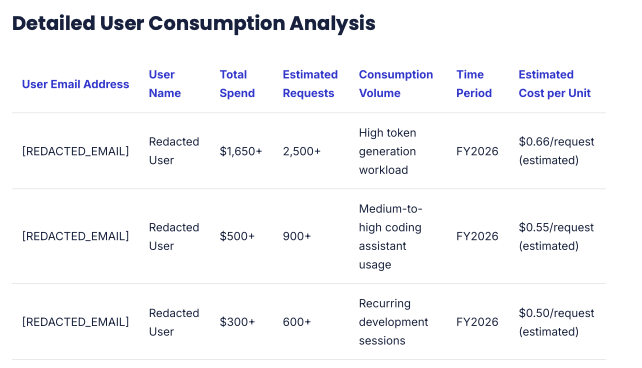
Scope: The guardrail covers only the supported information types and agent interactions where PII handling is applied. It does not automatically remove names, financial amounts, or all possible sensitive information, and it does not replace permissions or broader organizational security controls.
Check the configuration
-
Save the PII settings and confirm that the card shows Enabled.
-
Run a representative agent conversation using approved synthetic test data with an email address, phone number, or test card number, as applicable.
-
Review the resulting conversation or generated response and confirm that each value is handled according to its selected None, Mask, or Redact action.
-
If the handling is not as expected, verify that the main Enabled toggle is on, check the action selected for that information type, save any changes, and repeat the test.
Use approved test data: Avoid using real personal details or payment card information when checking the configuration.
Related content