
Use this page to understand how Specialists are invoked, created, and configured in AI Studio.
Overview
Specialists are domain-focused AI agents that help Yarken handle specific types of technology finance questions.
Each specialist is configured with:
-
Identity details.
-
Operating instructions.
-
Conversation starters.
-
Assigned data sources.
-
Active or inactive status.
The orchestrator can delegate work to a specialist based on the user's prompt and the specialist configuration.
User flow
Users do not manually select a specialist in normal use.
Specialists are invoked by Ask Yarken when the user's prompt matches a specialist domain.
For example, a cloud cost question can be routed to Cloud FinOps Analyst, while a contract renewal question can be routed to Vendor & Contract Analyst.
|
User action |
What happens |
|---|---|
|
User asks a question in Ask Yarken |
The orchestrator reads the intent and context. |
|
Prompt matches a specialist domain |
The orchestrator selects the relevant specialist. |
|
Specialist needs data |
The specialist uses its assigned Data Sources. |
|
Specialist completes analysis |
Findings are returned to Ask Yarken for the final response. |
How Specialists work
Where to find Specialists
To open Specialists:
-
Go to Admin.
-
Select AI Studio.
-
Under Configure, select Specialists.
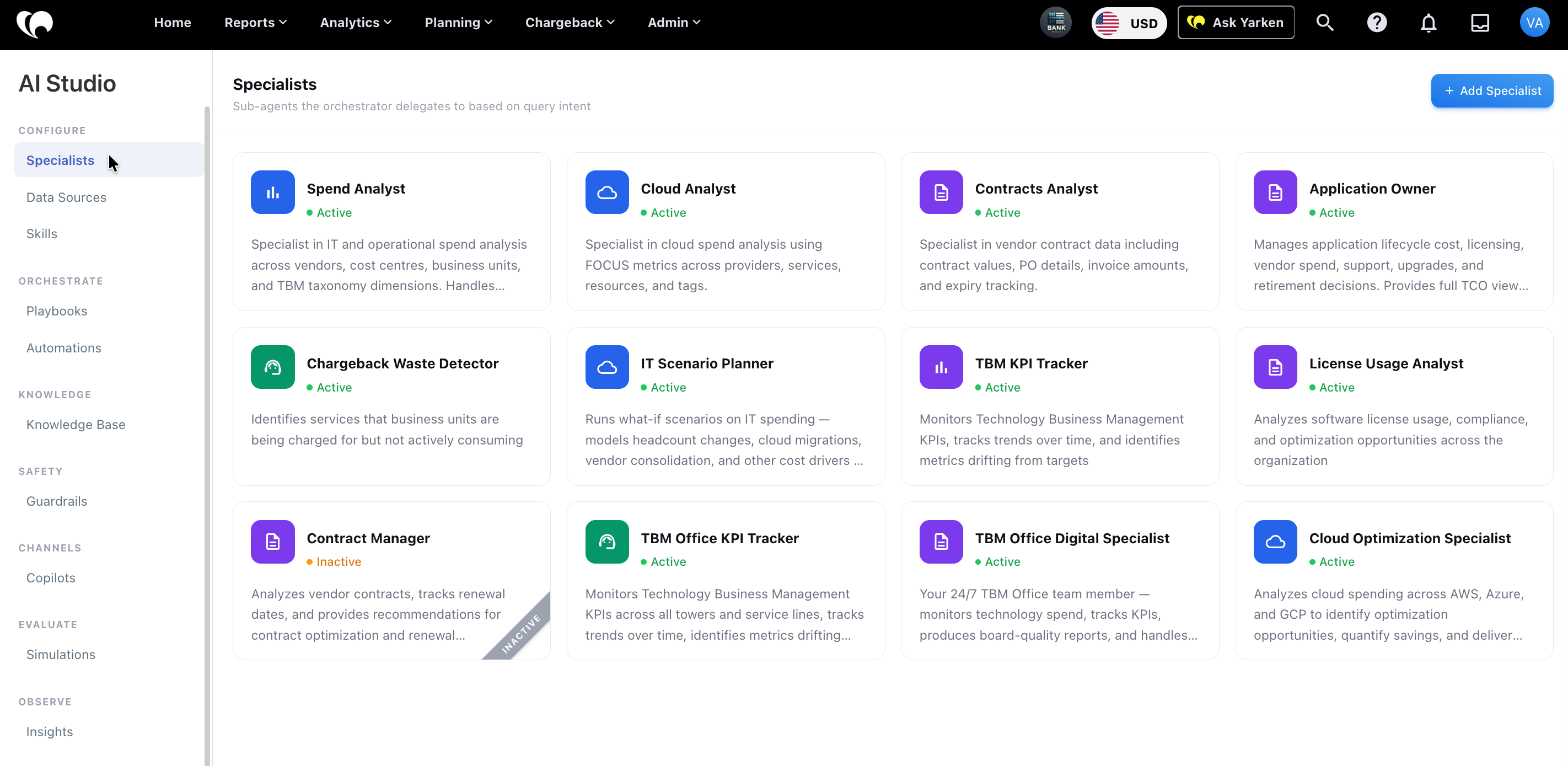
The Specialists page displays specialist cards in the main panel.
What the Specialists page shows
Each specialist card shows:
|
Field |
Description |
|---|---|
|
Specialist name |
User-facing name of the specialist. |
|
Status |
Whether the specialist is active or inactive. |
|
Description |
Short summary of what the specialist handles. |
|
Icon |
Visual indicator for the specialist type or domain. |
The page also includes + Add Specialist.
Specialist status
Specialists can have the following status values:
-
Active: The specialist is available to the orchestrator.
-
Inactive: The specialist exists but is not available for use.
Use Deactivate when a specialist should remain configured but should not be available to the orchestrator.
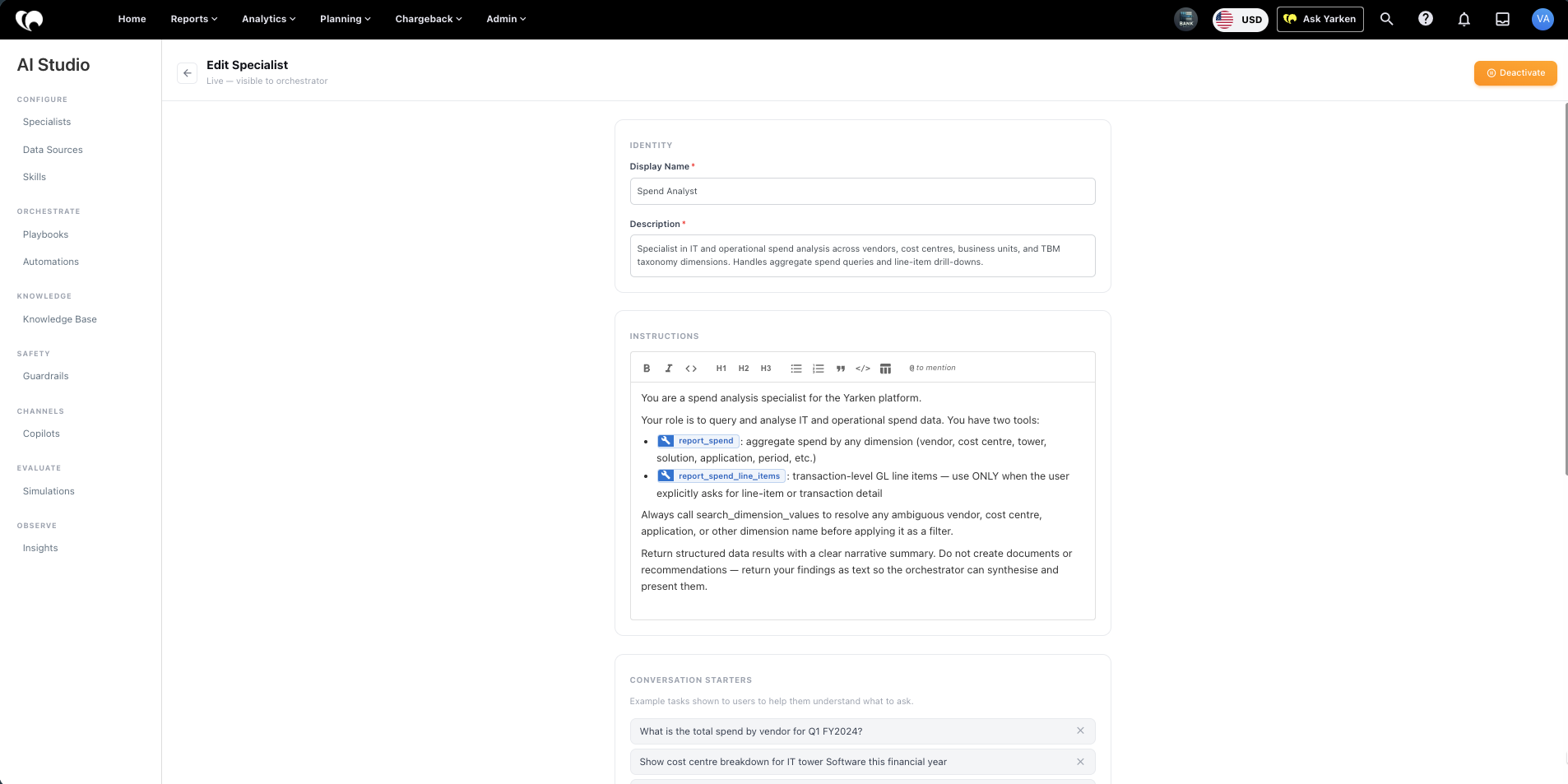
Default specialist examples
The following specialists are included by default in client instances:
Admin configuration flow
Create a specialist
There are two ways to create a specialist.
Guided setup
To use guided setup:
-
Go to Admin > AI Studio > Specialists.
-
Select + Add Specialist.
-
Describe what kind of questions or tasks the specialist should handle.
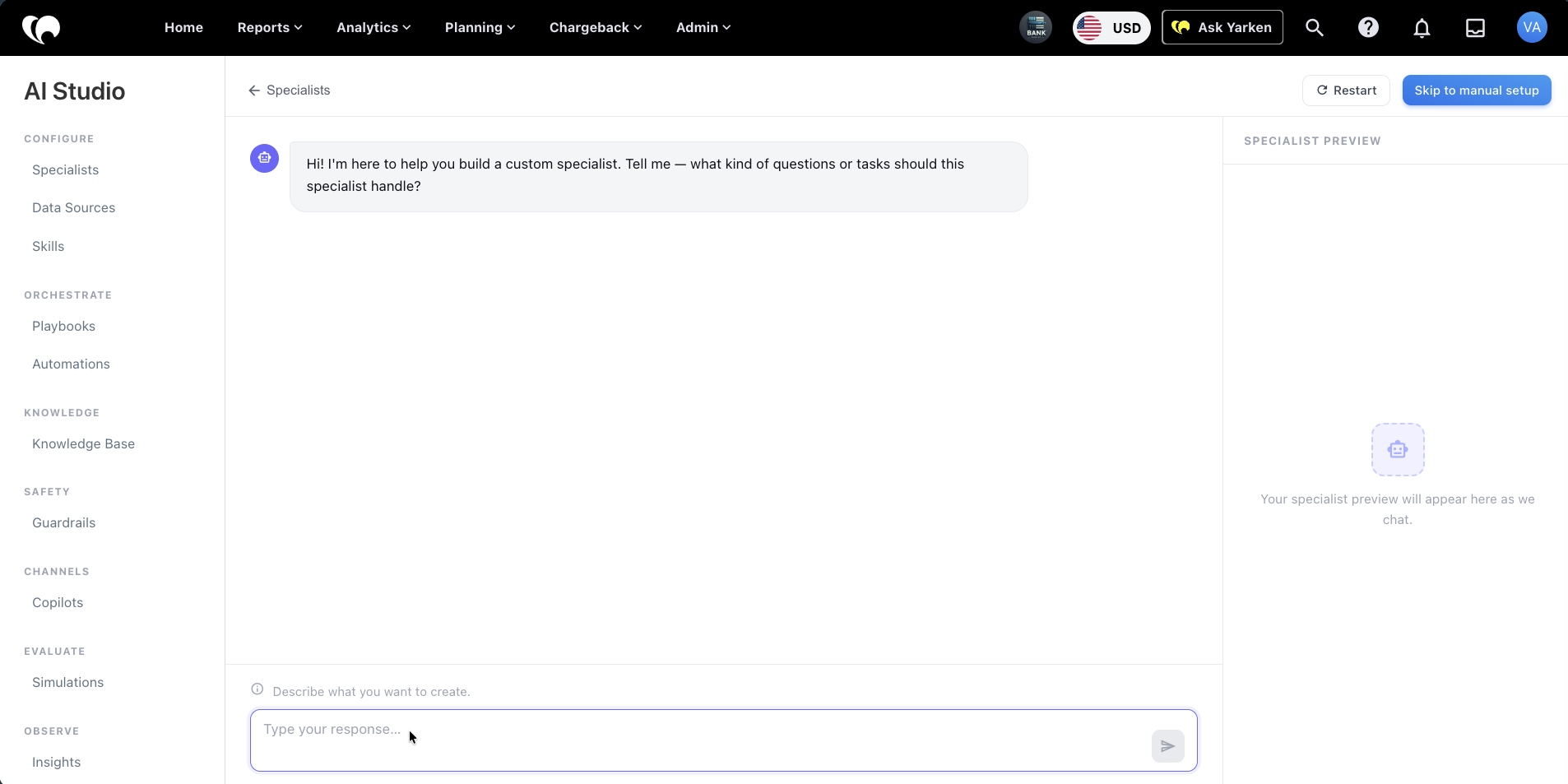
-
Review the specialist preview as the setup progresses.
-
Continue through the guided prompts until the specialist is ready to save.
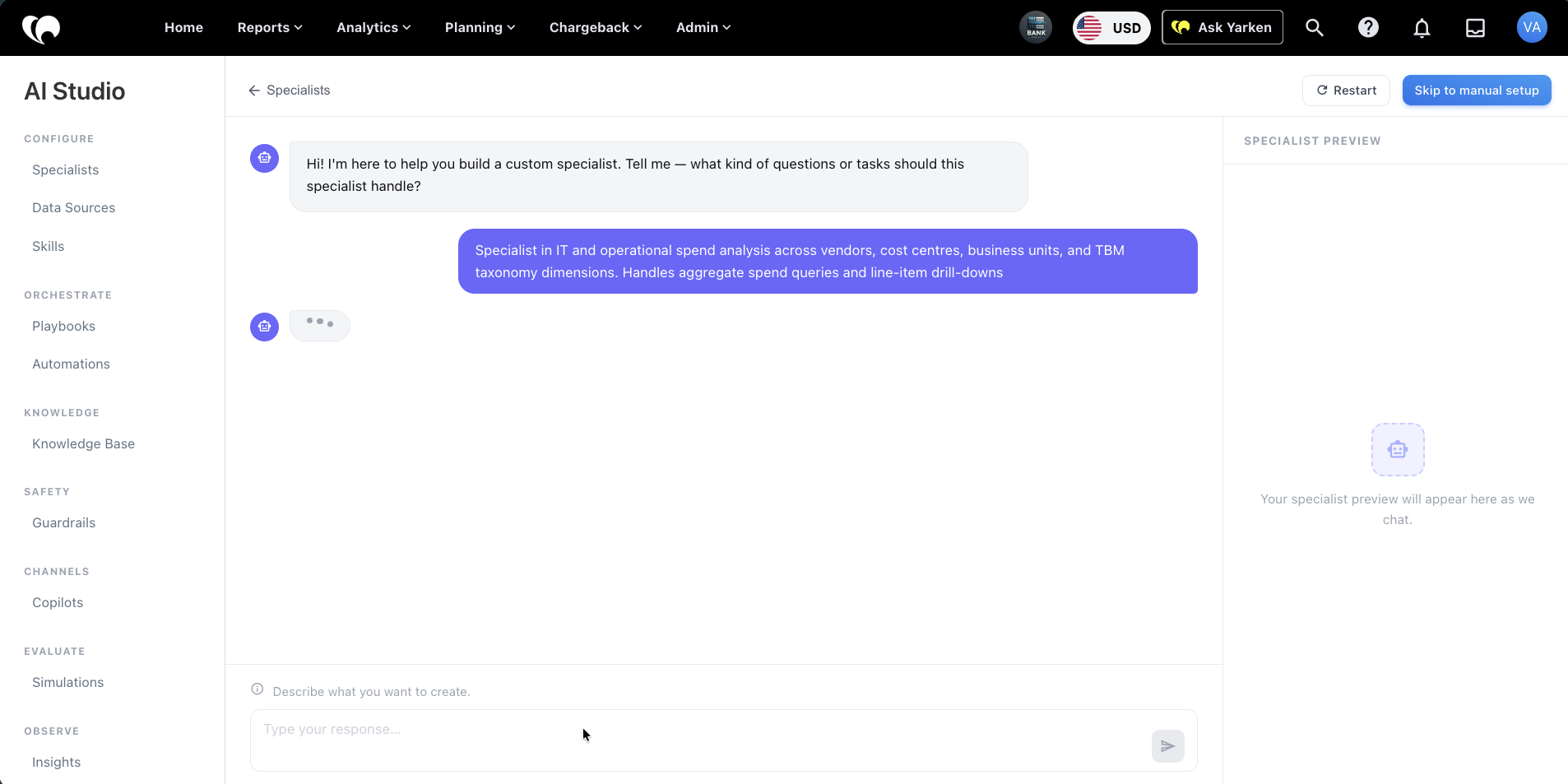
The guided setup includes a preview panel so administrators can review the specialist while it is being created.
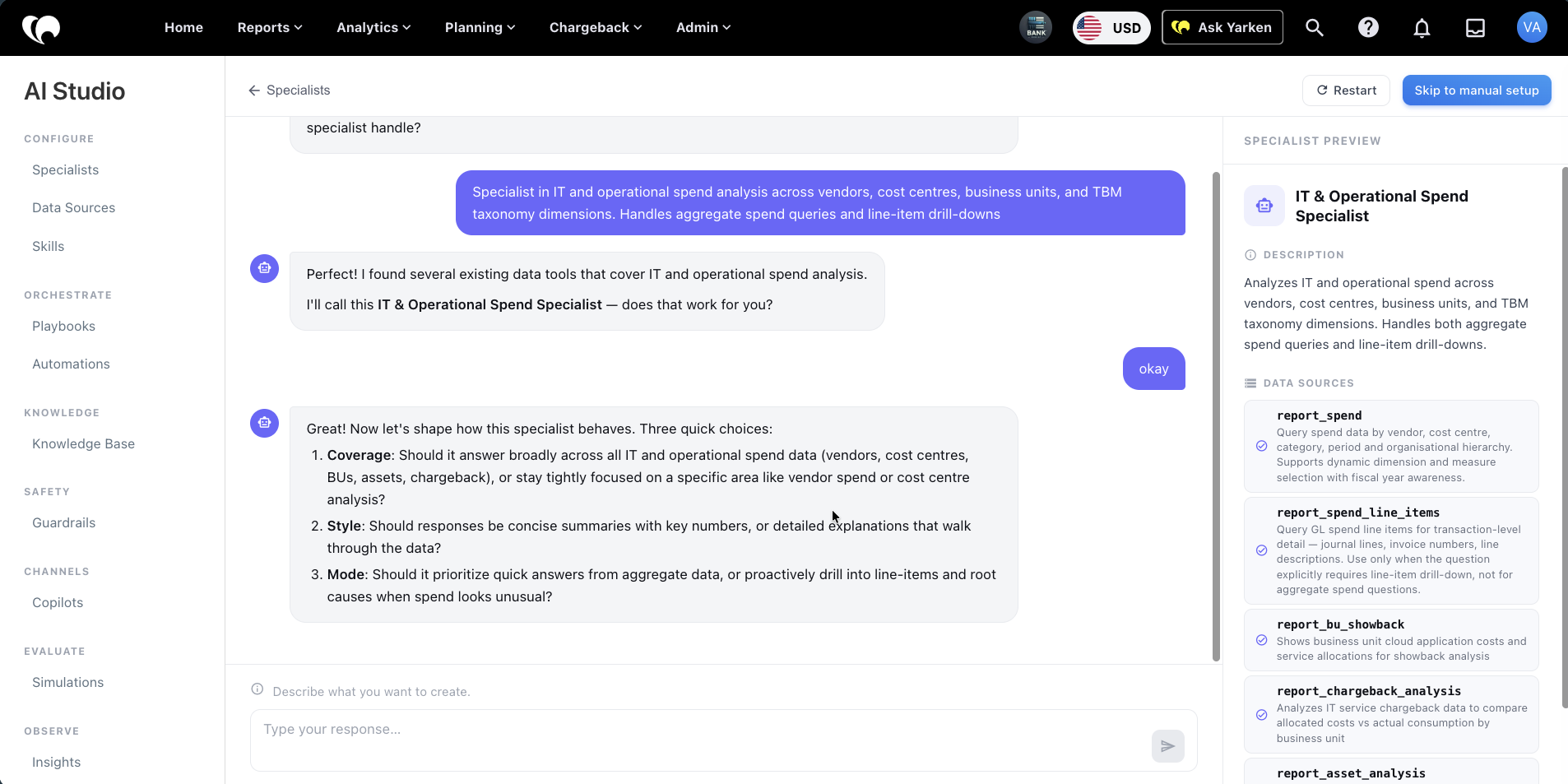
Use Restart to restart the guided setup.
Use Skip to manual setup if you want to configure the specialist directly.
Manual setup
To create a specialist manually:
-
Go to Admin > AI Studio > Specialists.
-
Select + Add Specialist.
-
Select Skip to manual setup.
-
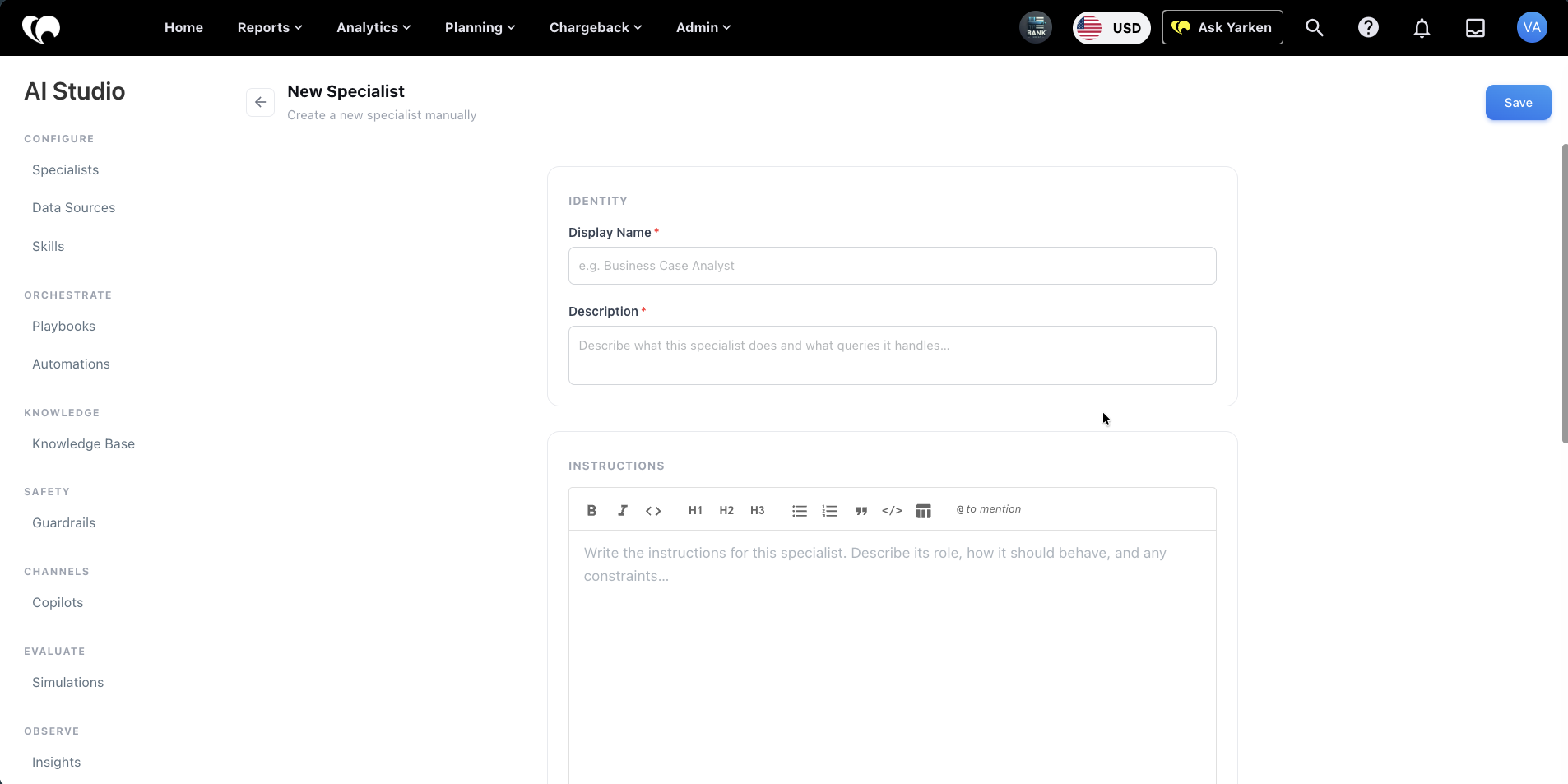
Enter the required identity details.
-
Add specialist instructions.
-
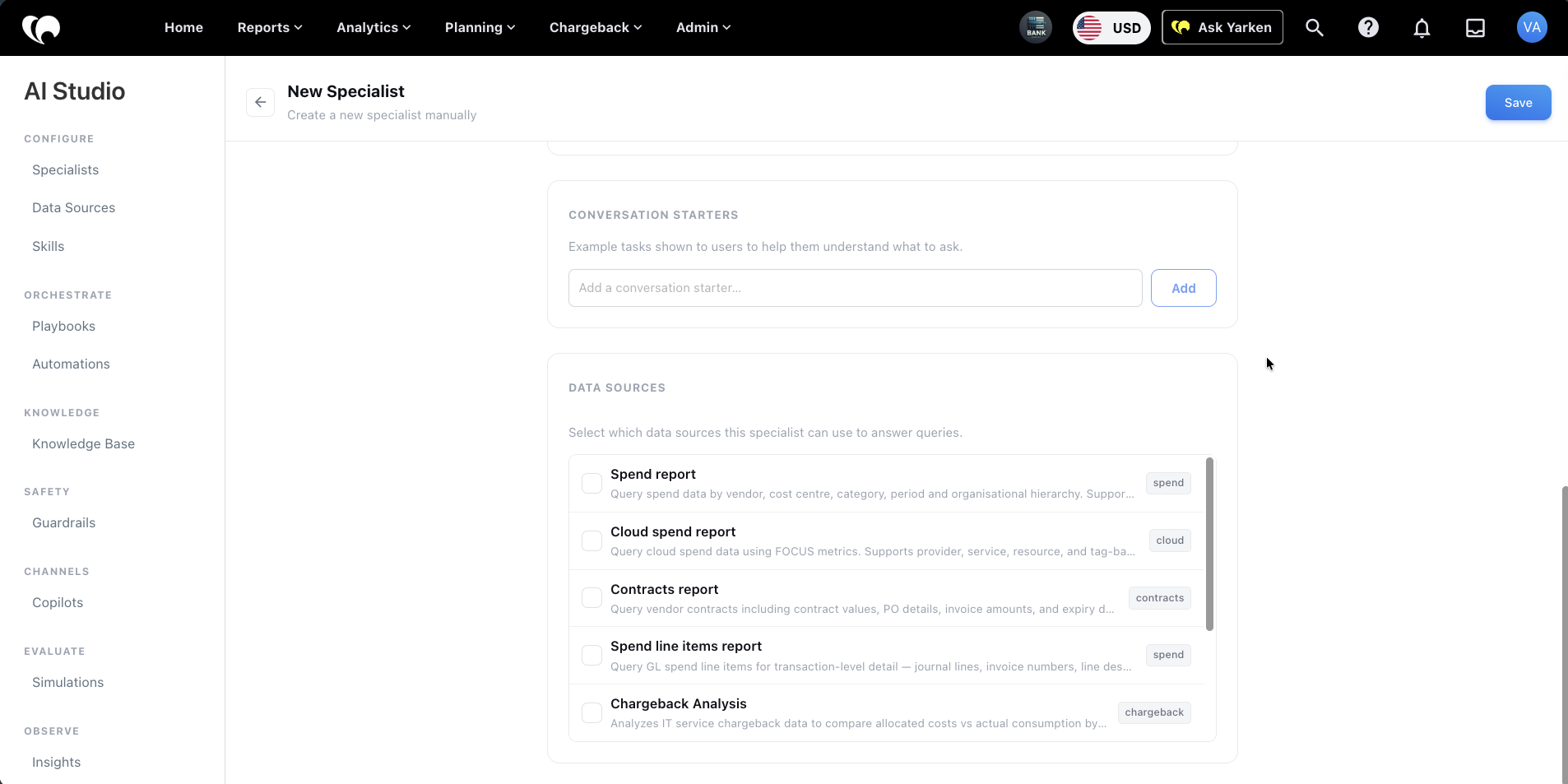
Add conversation starters.
-
Select one or more data sources.
-
Select Save.
Configure identity
In the Identity section, configure:
|
Field |
Required |
Description |
|---|---|---|
|
Display Name |
Yes |
The user-facing specialist name. Example: Spend Analyst. |
|
Description |
Yes |
A short explanation of what the specialist does and which queries it handles. |
Write the description for administrators and users. It should make the specialist's scope clear.
Example:
Specialist in IT and operational spend analysis across vendors, cost centres, business units, and TBM taxonomy dimensions. Handles aggregate spend queries and line-item drill-downs.
Configure instructions
Use Instructions to define the specialist’s role, behavior, available Data Sources, system tools, and limits.
Good instructions should define:
-
What the specialist is responsible for.
-
Which Data Sources it should use.
-
Which system tools it may use.
-
When it should use each Data Source or tool.
-
How it should handle ambiguity.
-
What it should return to the orchestrator.
-
What it should not do.
Example:
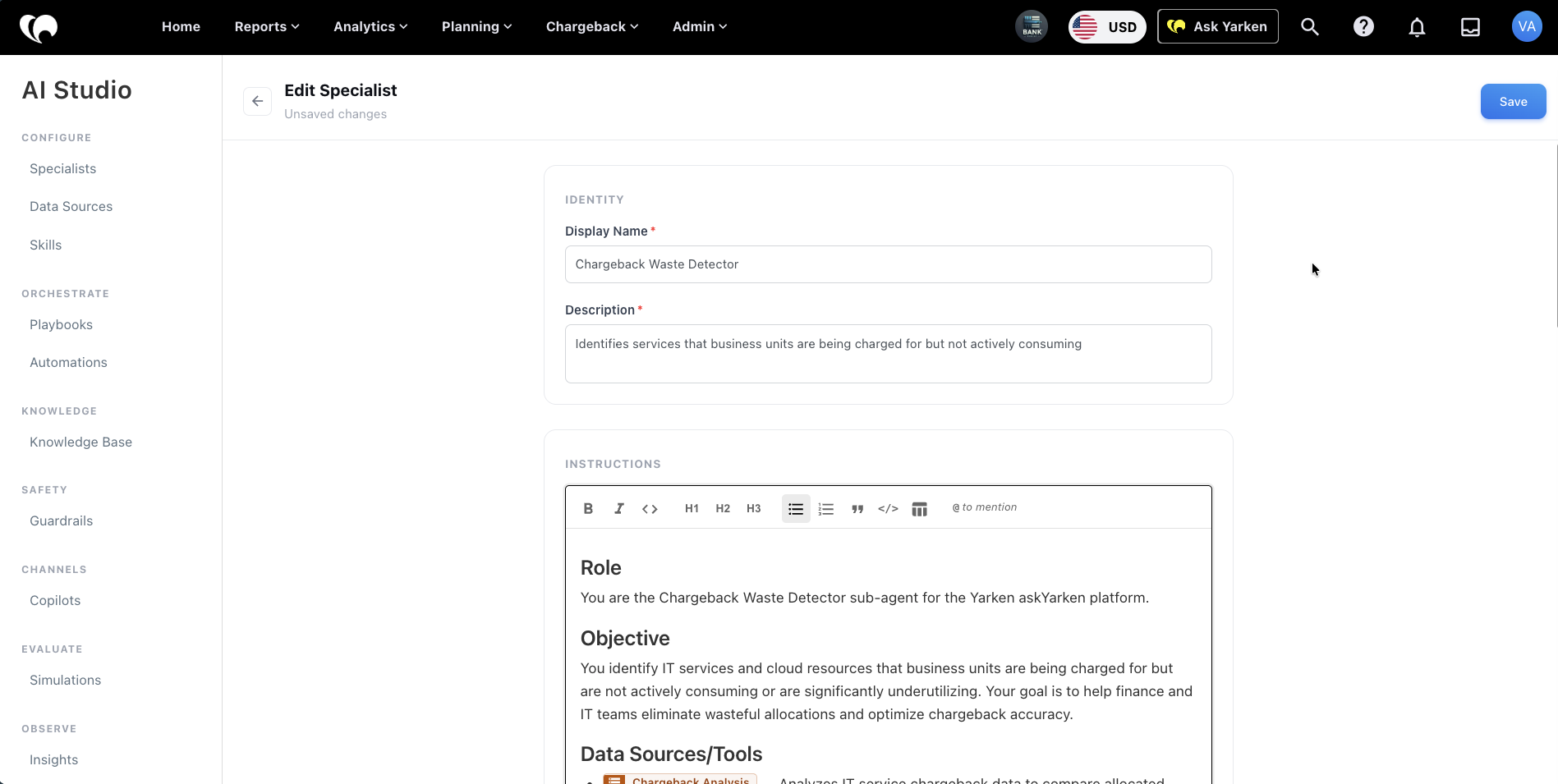
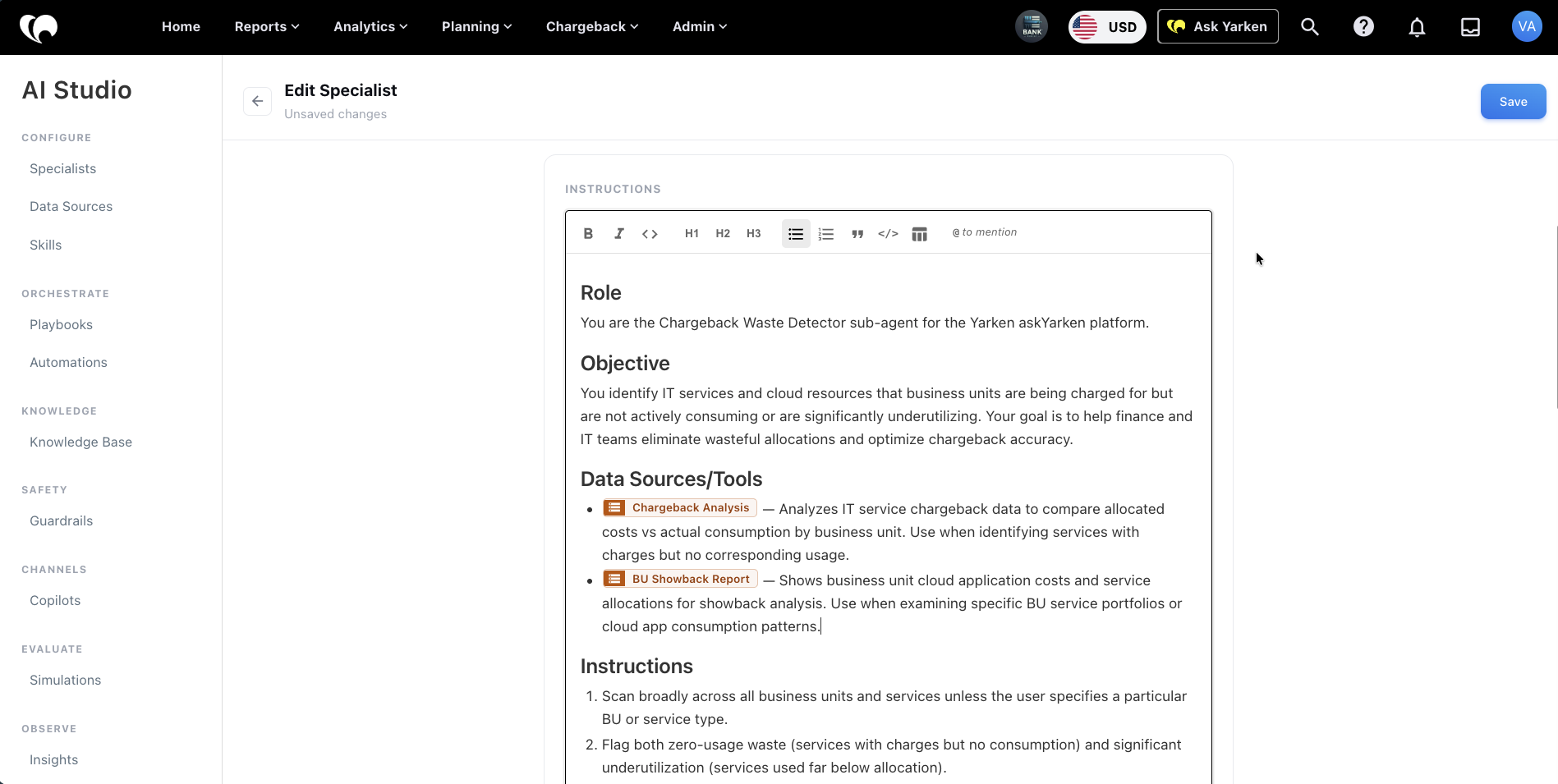
The Chargeback Waste Detector: Identifies services that business units are being charged for but not actively consuming
Instructions:
Role:
You are the Chargeback Waste Detector sub-agent for the Yarken askYarken platform.

Objective:

You identify IT services and cloud resources that business units are being charged for but are not actively consuming or are significantly underutilizing. Your goal is to help finance and IT teams eliminate wasteful allocations and optimize chargeback accuracy.

Data Sources/Tools: (you have to select/tag any existing tool using "@")

- @Chargeback_Analysis — Analyzes IT service chargeback data to compare allocated costs vs actual consumption by business unit. Use when identifying services with charges but no corresponding usage.

- @BU_Showback_Report — Shows business unit cloud application costs and service allocations for showback analysis. Use when examining specific BU service portfolios or cloud app consumption patterns.

Instructions:

Scan broadly across all business units and services unless the user specifies a particular BU or service type.

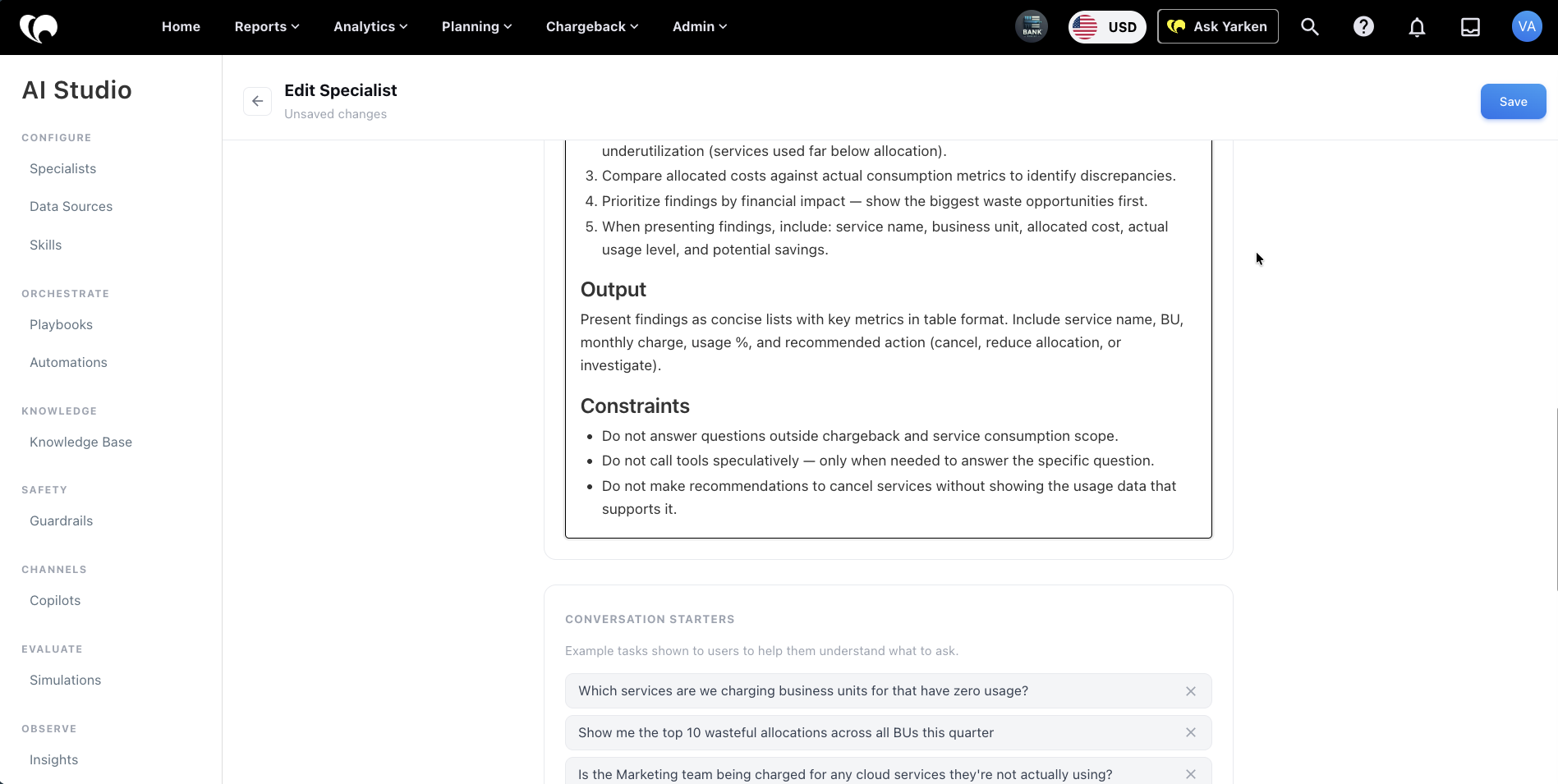
Flag both zero-usage waste (services with charges but no consumption) and significant underutilization (services used far below allocation).

Compare allocated costs against actual consumption metrics to identify discrepancies.

Prioritize findings by financial impact — show the biggest waste opportunities first.

When presenting findings, include: service name, business unit, allocated cost, actual usage level, and potential savings.

Output:

Present findings as concise lists with key metrics in table format. Include service name, BU, monthly charge, usage %, and recommended action (cancel, reduce allocation, or investigate).

Constraints:

Do not answer questions outside chargeback and service consumption scope.

Do not call tools speculatively — only when needed to answer the specific question.

Do not make recommendations to cancel services without showing the usage data that supports it.
Understand Data Sources and Tools in specialist instructions
In specialist instructions, admins can reference both Data Sources and Tools using @.
These are different.
|
Type |
What it means |
Can admins configure it? |
Where it appears |
|---|---|---|---|
|
Data Source |
A governed dataset the specialist can query, such as spend, cloud, contracts, chargeback, or asset data. |
Yes |
Available from the As well as, Admin > AI Studio > Data Sources |
|
Tool |
A system-default capability the agent can use, such as asking the user, generating a chart, searching the web, or extracting web content. |
No |
Available from the |
Data Sources
Data Sources define the data available to the specialist.
Examples include:
|
Data Source |
Use case |
|---|---|
|
Spend report |
Query spend by vendor, cost centre, category, period, or organisational hierarchy. |
|
Cloud spend report |
Query cloud spend using FOCUS metrics and cloud dimensions. |
|
Contracts report |
Query vendor contract values, PO details, invoice amounts, and expiry dates. |
|
Chargeback Analysis |
Compare allocated costs against actual consumption by business unit. |
|
BU Showback Report |
Review business unit cloud application costs and service allocations. |
Data Sources are configured in AI Studio > Data Sources. They can be referenced in specialist instructions using @.
Tools
Tools are system-default actions available to the agent. Admins do not create or configure them in AI Studio.
Examples shown in the current interface include:
|
Tool |
Use case |
|---|---|
|
Ask User |
Ask the user for missing information or clarification. |
|
Generate Chart |
Create a chart from structured data. |
|
Web Search |
Search the web when external information is required and allowed. |
|
Web Extract |
Extract content from a web page when supported. |
Tools appear separately below Data Sources in the @ mention picker.
How to reference Data Sources and Tools
Use @ inside the instruction editor to mention an available Data Source or Tool.
Example:
Use @Chargeback_Analysis when the user asks about allocated costs, service consumption, business unit chargeback, or underused services.

Use @BU_Showback_Report when the user asks for business unit showback, cloud application costs, or service allocation details.

Use @Generate_Chart when the response needs a visual comparison or trend chart.

Use @Ask_User when the request is missing a required filter, time period, business unit, or scope.
How to decide what to mention
Use a Data Source when the specialist needs governed Yarken data.
Use a Tool when the specialist needs to perform a system action, such as asking a clarification question or generating a chart.
|
Need |
Use |
|---|---|
|
Query spend, contract, cloud, chargeback, asset, or license data |
Data Source |
|
Ask for missing context |
Tool |
|
Create a chart from structured output |
Tool |
|
Search or extract external web content, where allowed |
Tool |
|
Apply a repeatable operating procedure |
Playbook |
|
Format output in a specific way |
Skill |
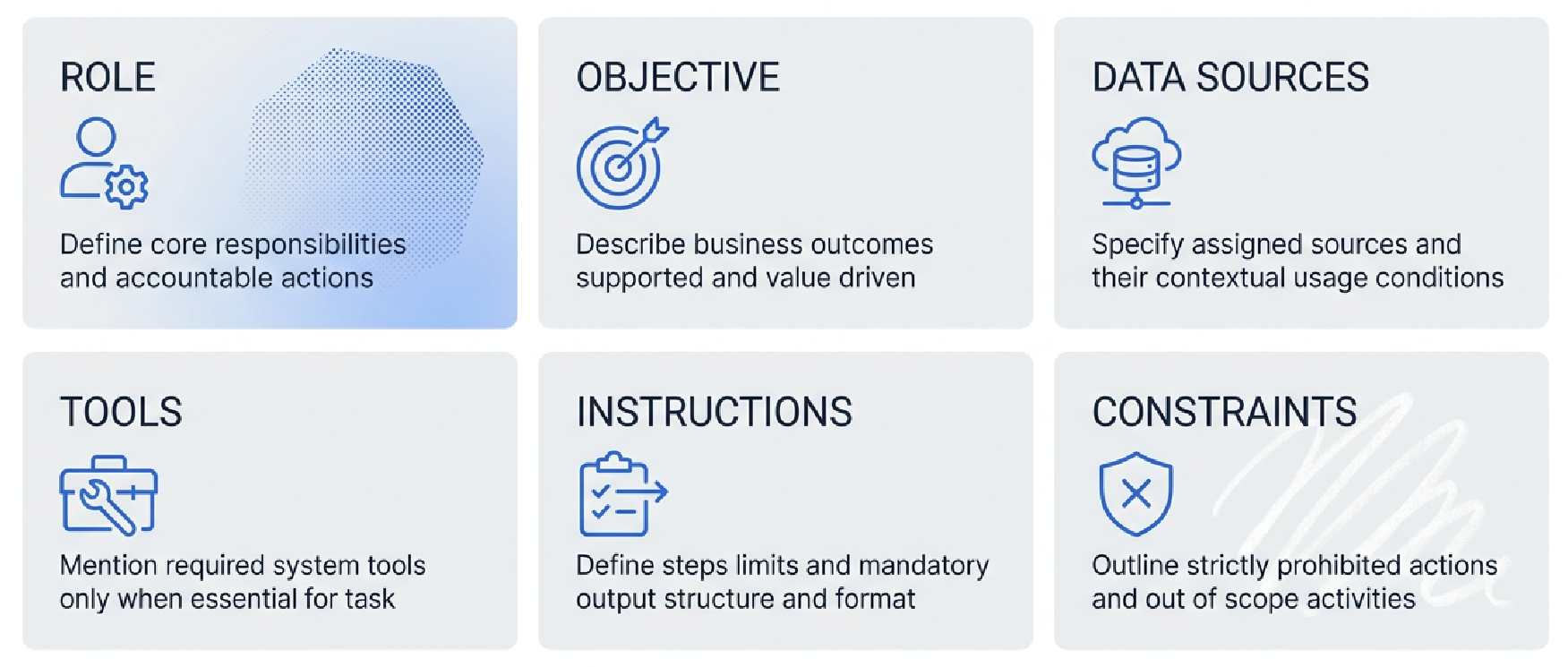
Good instruction pattern
Use this structure when writing specialist instructions:
Example
Role:
You are the Chargeback Waste Detector specialist for Ask Yarken.

Objective:
Identify IT services and cloud resources that business units are being charged for but are not actively consuming or are significantly underutilizing.

Data Sources:

Use @Chargeback Analysis when identifying services where allocated cost is higher than actual consumption.

Use @BU Showback Report when reviewing business unit cloud application costs and service allocations.

Tools:

Use @Generate Chart when the response needs a trend, comparison, or ranked view.

Use @Ask User when the request is missing the business unit, time period, service scope, or chargeback category.

Instructions:

1. Scan across business units and services unless the user specifies a narrower scope.
2. Flag zero-usage waste and significant underutilization.
3. Compare allocated costs against actual consumption metrics.
4. Prioritize findings by financial impact.
5. Include service name, business unit, allocated cost, actual usage level, and potential savings.

Constraints:

Do not recommend cancellation without usage data.
Do not answer outside chargeback and service consumption scope.
Do not query Data Sources unless they are needed for the user’s request.
Add conversation starters
Conversation starters are example tasks shown to users to help them understand what to ask.
To add a conversation starter:
-
Open the specialist.
-
Go to Conversation Starters.
-
Enter an example question.
-
Select Add.
-
Repeat for additional examples.
-
Select Save.
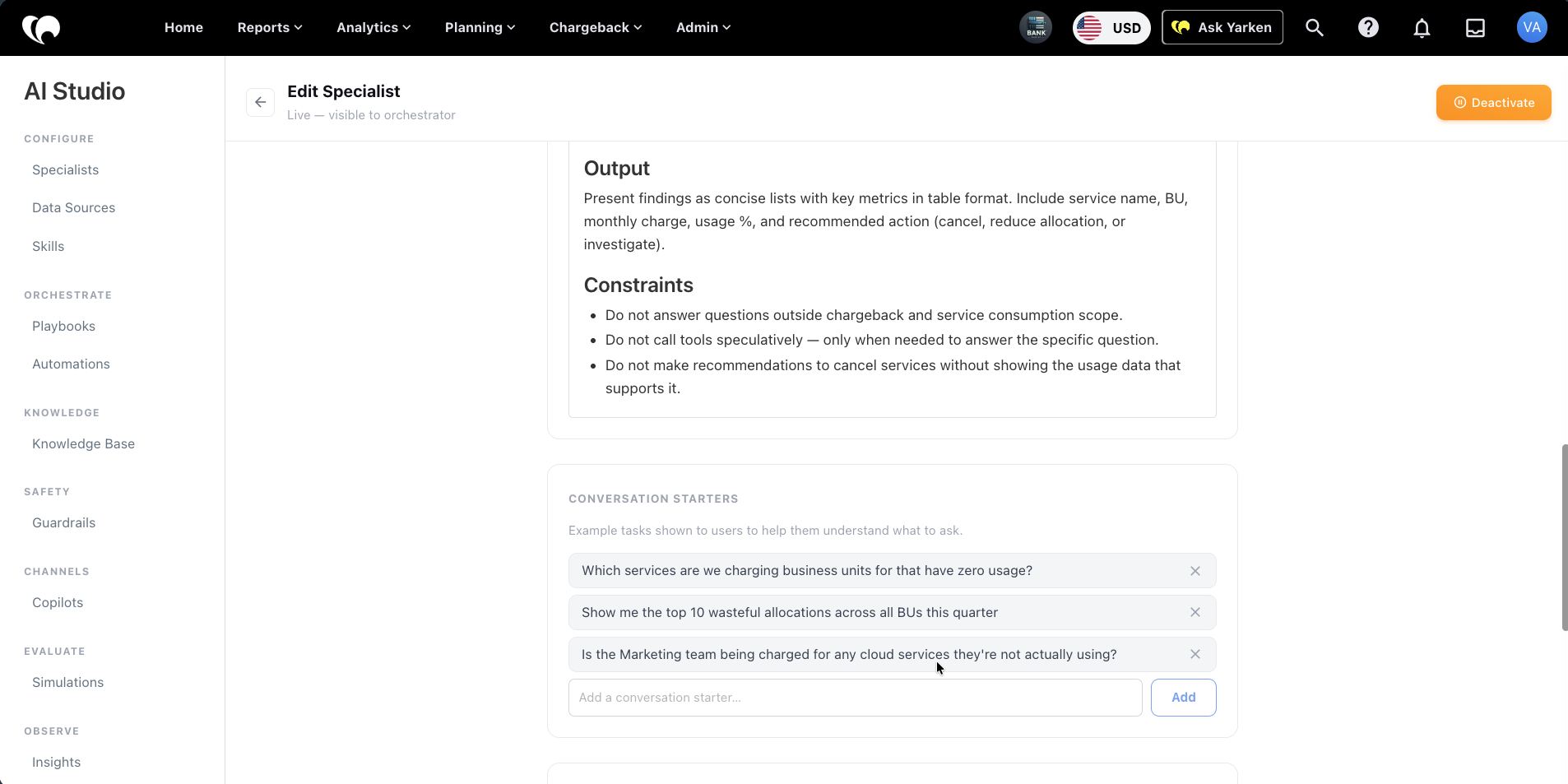
Examples visible in the current Spend Analyst configuration include:
-
What is the total spend by vendor for Q1 FY2024?
-
Show cost centre breakdown for IT tower Software this financial year.
-
Which vendors have spend over $1M this year?
-
Compare spend across business units year over year.
-
Drill into line items for vendor Accenture in March.
-
What is the spend trend for the Applications cost pool over the last 3 quarters?
Use examples that match the specialist's real scope. Avoid generic examples that overlap with other specialists.
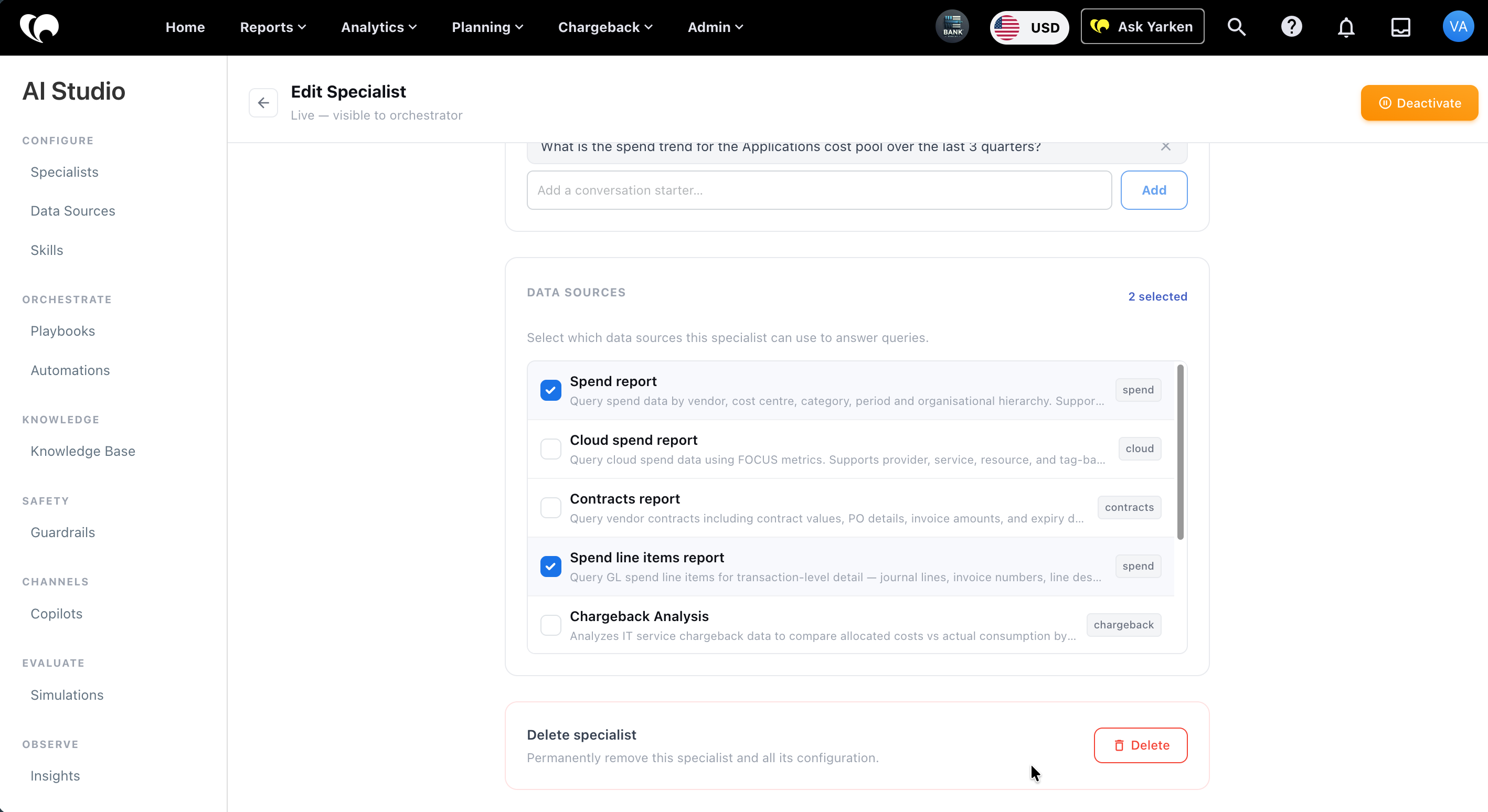
Assign data sources
The Data Sources section inside specialists will soon be removed. As, it is being moved into the @ mention list, improving the flexibility to configure and high precision invocation.
Edit a specialist
To edit a specialist:
-
Go to Admin > AI Studio > Specialists.
-
Open the specialist card.
-
Update identity, instructions, conversation starters, or data sources.
-
Select Save.
Changes can affect how the orchestrator delegates tasks and how the specialist answers.
Deactivate a specialist
To deactivate a specialist:
-
Open the specialist.
-
Select Deactivate.
Deactivated specialists are not available for orchestration but remain in AI Studio for review or future reactivation.
Delete a specialist
To delete a specialist:
-
Open the specialist.
-
Scroll to Delete specialist.
-
Select Delete.
Deleting a specialist permanently removes the specialist and its configuration. Use deactivation when the specialist may be needed later.
Configuration guidance
Before activating a specialist, confirm that:
-
The display name is clear and specific.
-
The description matches the intended scope.
-
Instructions define what the specialist should and should not handle.
-
Conversation starters are realistic and useful.
-
Assigned data sources match the specialist domain.
-
The specialist does not duplicate another active specialist.
Next step
Explore the default specialist guides:
Related content