
Use this page to understand how Skills are invoked, created, imported, and configured in AI Studio.
Overview
Skills are reusable instruction sets that shape how the agent responds when a specific response behavior is needed.
A Skill does not define source data. It defines how an answer should be structured, formatted, reasoned through, or delivered.
The Skills page describes this area as reusable instruction sets injected into the agent based on query context.
User flow
Users do not usually select Skills directly.
Skills are applied when the user's request calls for a specific output format, analysis behavior, or response pattern.
For example, a request for a board pack, leadership report, or QBR can invoke a report generation skill.
|
User action |
What happens |
|---|---|
|
User asks for a structured output |
The orchestrator identifies the required response format. |
|
A matching Skill exists |
The Skill instructions shape the response. |
|
Data or analysis is needed |
Specialists, Data Sources, and Playbooks can be used before the final output is generated. |
|
Response is returned |
The user receives the answer in the format defined by the Skill. |
How Skills work
Where to find Skills
To open Skills:
-
Go to Admin.
-
Select AI Studio.
-
Under Configure, select Skills.
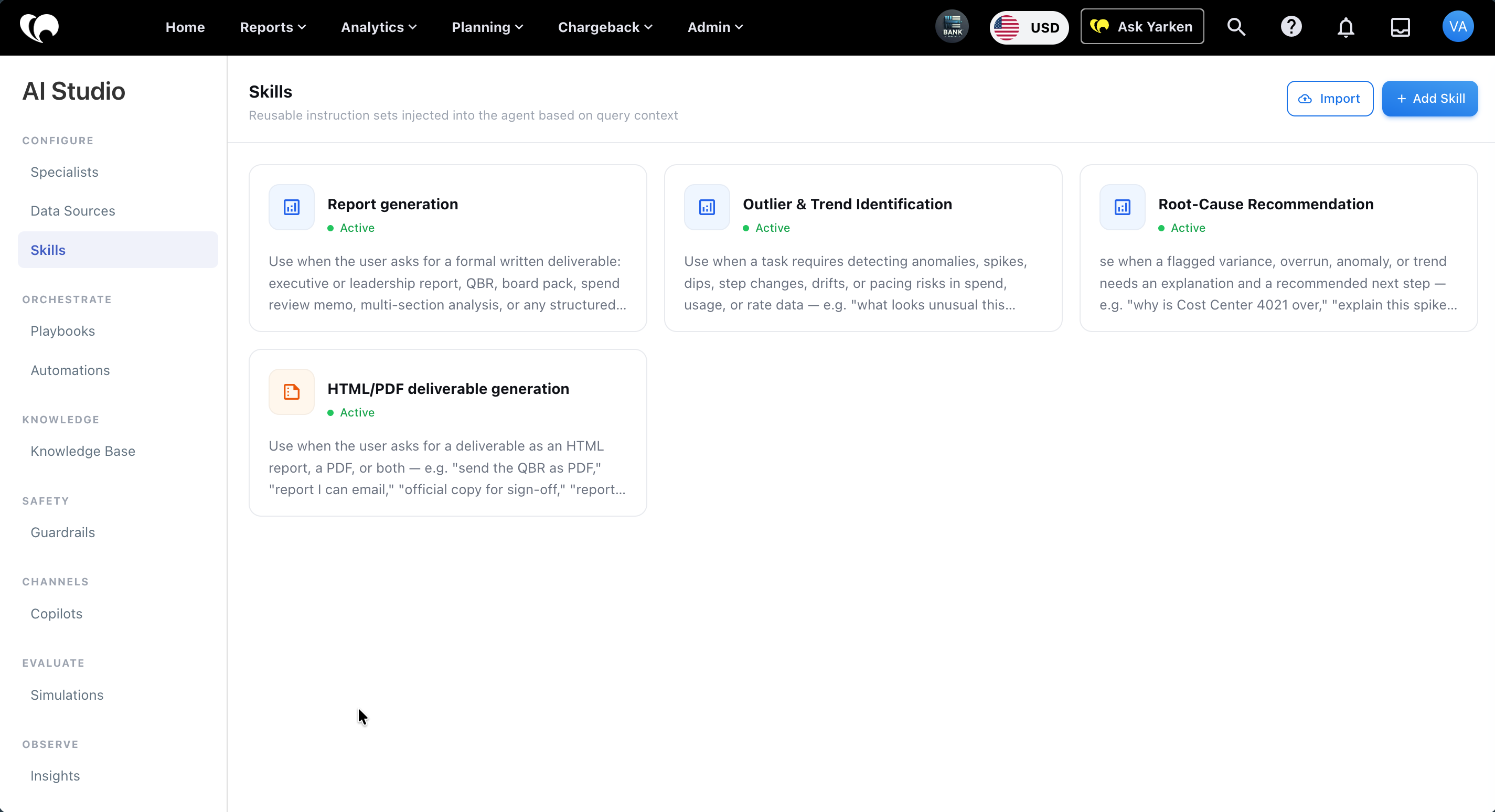
The Skills page displays skill cards in the main panel.
What the Skills page shows
Each skill card shows:
|
Field |
Description |
|---|---|
|
Skill name |
User-facing name of the skill. |
|
Status |
Whether the skill is active. |
|
Description |
Short explanation of when the skill should be used. |
The page also includes:
-
Import: Upload skill definitions.
-
+ Add Skill: Create a new skill manually.
Current skills shown
The current Skills screen shows these active skills:
|
Skill |
When to use it |
|---|---|
|
Report generation |
Use when the user asks for a formal written deliverable, such as an executive report, leadership report, QBR, board pack, spend review memo, or multi-section analysis. |
|
Outlier & Trend Identification |
Use when a task requires detecting anomalies, spikes, dips, step changes, drifts, or pacing risks in spend, usage, or rate data. |
|
Root-Cause Recommendation |
Use when a flagged variance, overrun, anomaly, or trend needs an explanation and recommended next steps. |
|
HTML/PDF deliverable generation |
Use when the user asks for a deliverable as an HTML report, a PDF, or both. |
This list may change as AI Studio evolves.
Create a skill
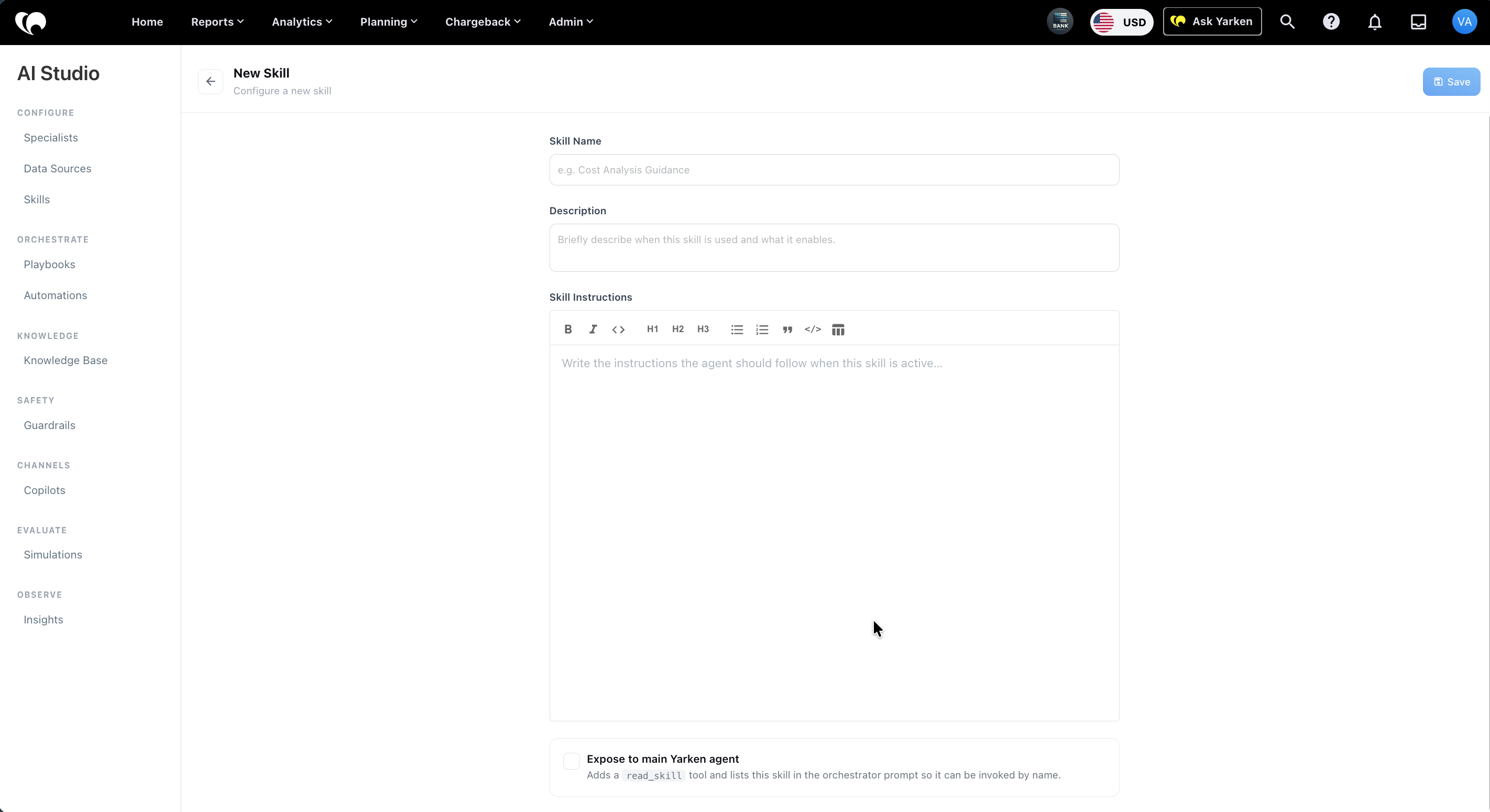
To create a new skill:
-
Go to Admin > AI Studio > Skills.
-
Select + Add Skill.
-
Enter the Skill Name.
-
Enter the Description.
-
Add the Skill Instructions.
-
Choose whether to expose the skill to the main Yarken agent.
-
Select Save.
Import skills
Use Import when you need to upload one or more skill definitions instead of creating them manually.
The imported skill should still be reviewed after upload. Confirm the name, description, instructions, and exposure setting before making it available for use.
Configure skill identity
The top section defines basic skill details.
|
Field |
Description |
|---|---|
|
Skill Name |
The user-facing skill name. Example: Report generation. |
|
Description |
Explains when the skill should be used and what it enables. |
Write the description as a trigger condition. It should help the orchestrator understand when the skill applies.
Example:
Use when the user asks for a formal written deliverable: executive or leadership report, QBR, board pack, spend review memo, multi-section analysis, or any structured report that should read like a polished document.
Configure skill instructions
Use Skill Instructions to define how the agent should behave when the skill is active.
Good skill instructions should define:
-
When the skill applies.
-
What output the skill should produce.
-
What the skill should not produce.
-
How to structure the response.
-
How charts, tables, sources, or deliverables should be handled.
-
Any limits or exclusions.
The current Report generation skill includes guidance for producing a structured report, using charts where needed, and avoiding spreadsheet-style or bullet-only output.
Expose to main Yarken agent
The Expose to main Yarken agent option adds the Skill to the main orchestrator so it can be invoked when a matching user request is detected.
Enable this option when the Skill should be available to the main Yarken agent.
Leave it disabled when the Skill should remain available only for specific internal workflows or specialist use cases.
Edit a skill
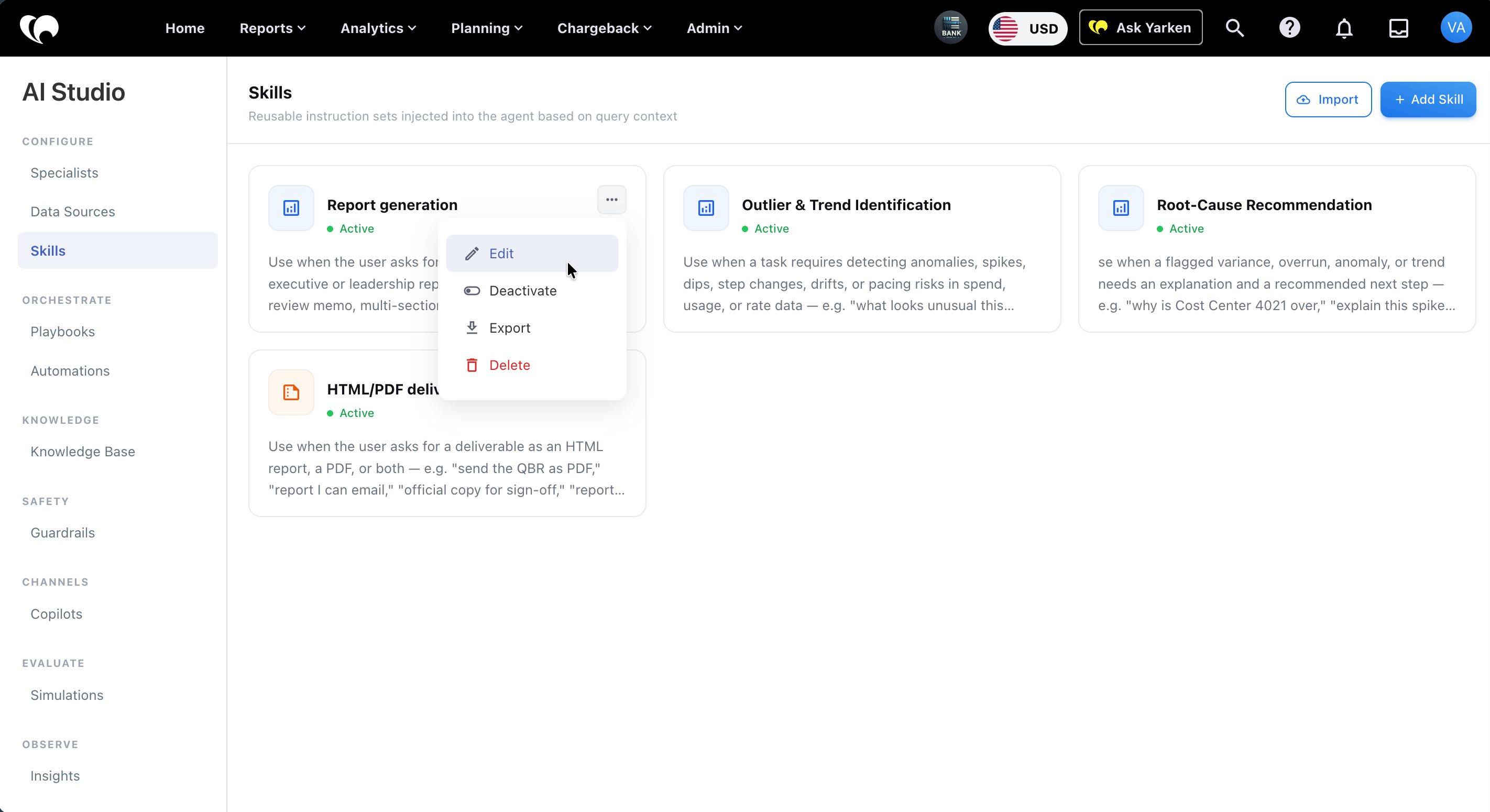
To edit a skill:
-
Go to Admin > AI Studio > Skills.
-
Open the skill card or select edit from the action menu.
-
Update the name, description, instructions, or exposure setting.
-
Select Save.
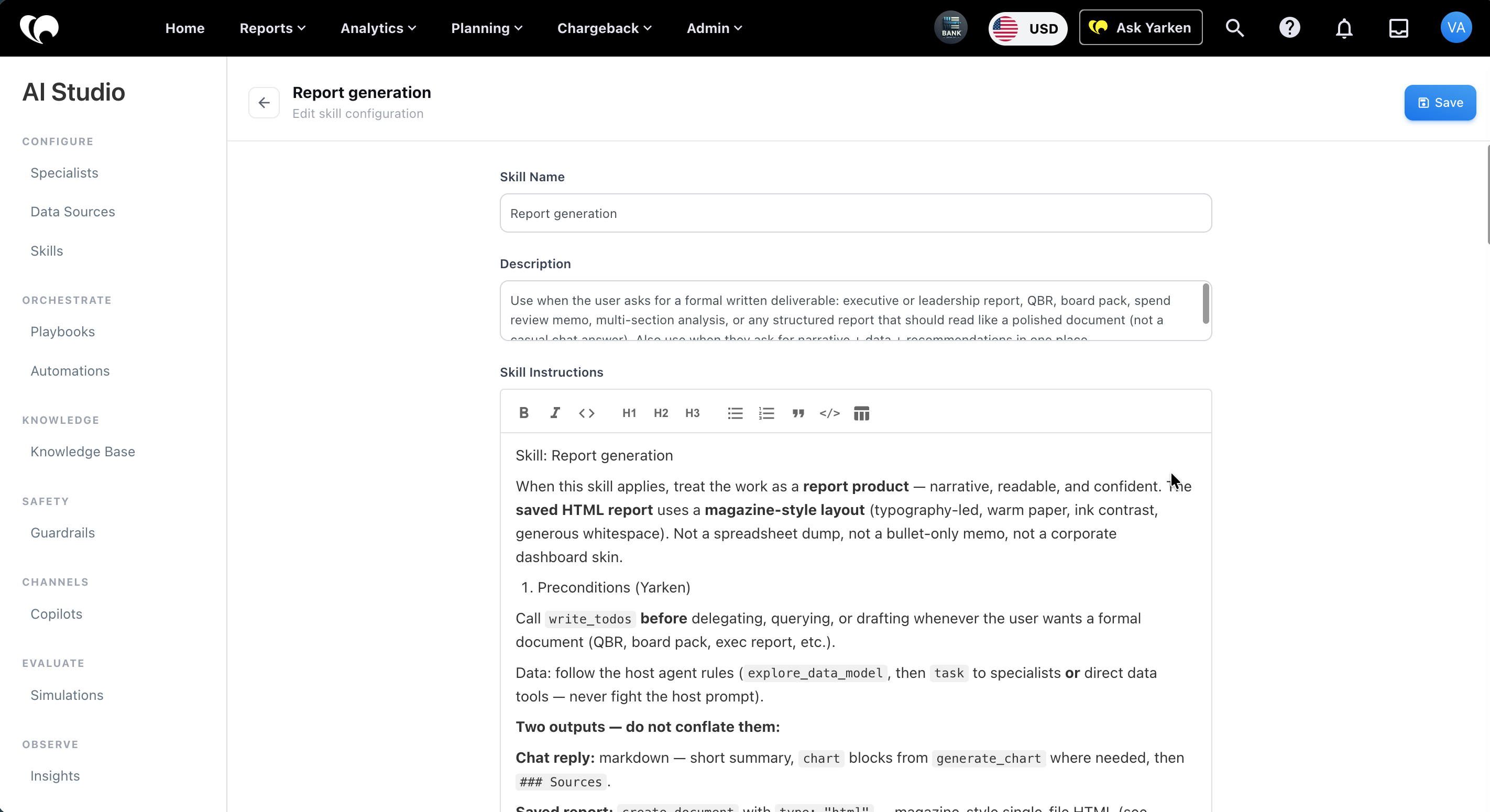
Changes can affect any agent, specialist, playbook, or automation that uses the Skill.
Example: Report generation skill
Use the Report generation skill when a user asks for a formal written deliverable.
Recommended behavior:
-
Treat the output as a report product.
-
Ask clarifying questions if the audience, time period, or deliverable shape is unclear.
-
Use clear sections.
-
Include charts only when they support the analysis.
-
Use data-backed findings.
-
Provide a short summary in chat when a saved report or document is generated.
Do not use this skill for casual chat answers or simple one-off questions.
Configuration guidance
Before saving a Skill, confirm that:
-
The Skill has a clear use case.
-
The description explains when the Skill should be used.
-
Instructions focus on response behavior, not source data.
-
The Skill does not duplicate another existing Skill.
-
The exposure setting matches the intended scope.
-
Instructions do not conflict with Yarken data governance or permission behavior.
-
The Skill has been tested with prompts that should and should not invoke it.
Next step
Related articles