
Use this page to understand how Insights are used in AI Studio.
Overview
Insights provide an operational view of AI request activity across Yarken.
Use Insights to review adoption patterns, request volume, execution duration, user activity, and the AI features involved. The initial experience focuses on operational activity; it does not present AI spend or token consumption.
User flow
Insights are mainly used by administrators and AI owners.
Users interact with AI features in Ask Yarken, Copilots, or configured workflows. Insights help admins review what happens after those features are used.
|
Platform activity |
What Insights help review |
|---|---|
|
Ask Yarken or Specialists are used |
Usage patterns, outputs, and possible configuration gaps. |
|
Skills are applied |
Skill usage, output behavior, and usage frequency. |
|
Playbooks or Automations run |
Execution patterns, outcomes, and operational reliability. |
|
AI workflows take longer than expected |
Latency and performance signals. |
|
Runs fail or behave unexpectedly |
Execution logs and related signals. |
How Insights work
The AI Request Details table shows activity for the selected date range. Visible dimensions include Feature, Specialist, User, Automation, Date/Time, Duration, and Number of Requests.
Use the table to compare activity, identify high-volume features, review who is using AI capabilities, and investigate requests that take longer than expected.
Where to find Insights
To open Insights:
-
Go to Admin.
-
Select AI Studio.
-
Under Observe, select Insights.
Current screen state
The current Insights screen displays AI Request Details for the selected period. Use the date control or add a filter to narrow the activity before reviewing the table.
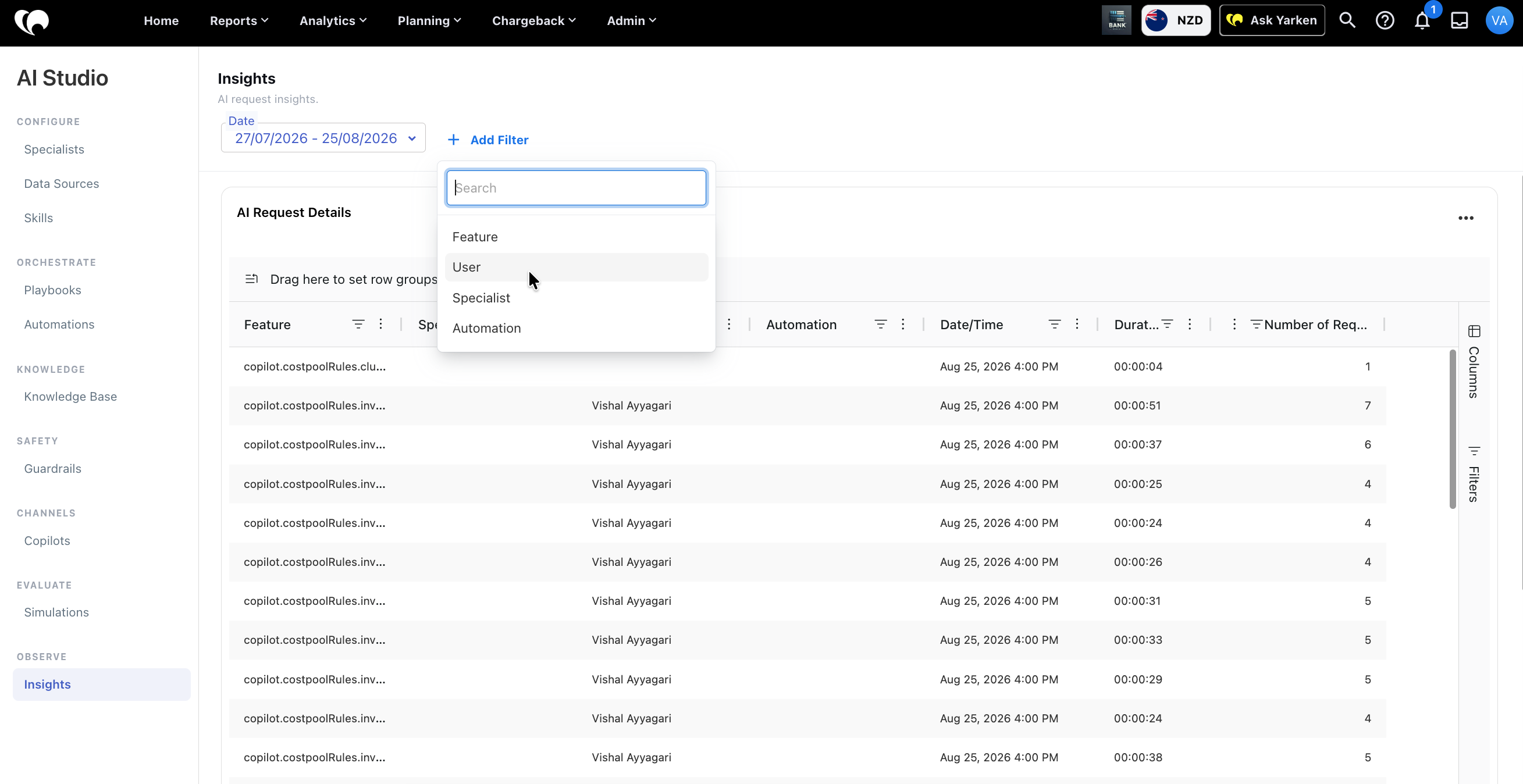
The table can show Feature, Specialist, User, Automation, Date/Time, Duration, and Number of Requests. A blank value means that the dimension is not recorded for that activity row.
Use the side panels to configure columns and filters without changing the underlying activity records.
What Insights may support
Use the current Insights controls to:
-
Filter activity by date using is equal to, is before, is after, or is in between.
-
Add filters for Feature, User, Specialist, or Automation.
-
Search for and select values in the Filters panel.
-
Show or hide columns and choose fields for row grouping in the Columns panel.
-
Move through results and adjust the page size.
-
Download the displayed data or open the table in fullscreen view from the more-actions menu.
Admin review flow
When to review Insights
Review Insights when:
-
A new AI Studio configuration is rolled out.
-
A Specialist, Skill, Playbook, or Automation is updated.
-
Users report poor or inconsistent answers.
-
Automation run history shows failures.
-
AI responses are slower than expected.
-
Skill or Playbook usage needs to be measured.
Configuration guidance
Use Insights to decide when to refine:
-
Specialist instructions.
-
Data Source descriptions or authorization.
-
Skill output behavior.
-
Playbook logic.
-
Knowledge Base content.
-
Guardrail strictness.
-
Copilot behavior.
-
Automation triggers, steps, or recipients.
Governance notes
Insights help administrators review AI behavior after rollout. They should be used with Simulations: Simulations test behavior before rollout, while Insights help observe behavior after use.
Related content