
Create a workforce plan
Budget Process Owners can create workforce plans from the Budget or Forecast module.
Before entering workforce data, you must:
-
Define roles and rate
-
Map the roles to accounts and define distribution percentage
-
Setup the dimensions such as cost centers, vendors, employee, and entities.
To create a plan:
-
Go to Planning > Budgets and Forecasts
-
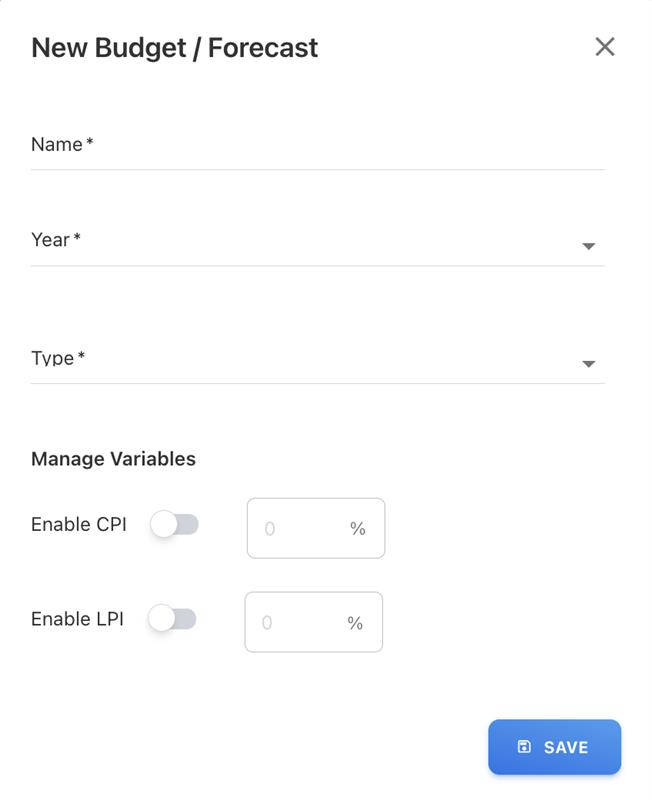
Click + New Budget / Forecast
-
Enter the required details, such as name, year, type, and variables (optional)
-
Click Save
-
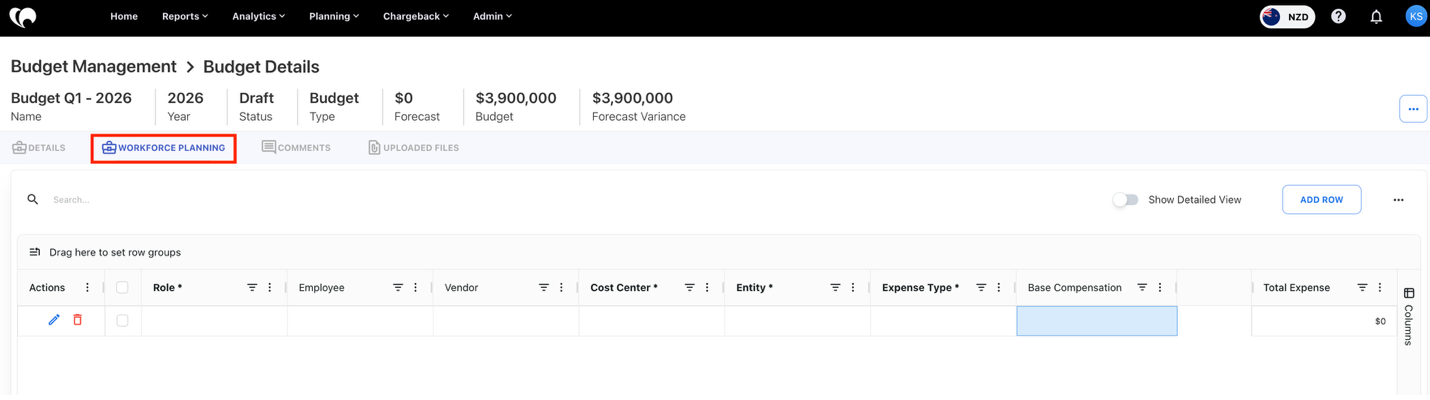
Open the Workforce Planning tab
Add a workforce entry
In the Workforce Planning grid, create a new entry and select the required values:
-
Role
-
Cost Center
-
Entity
-
Expense Type
-
Employee or Vendor or Both

Add monthly headcount
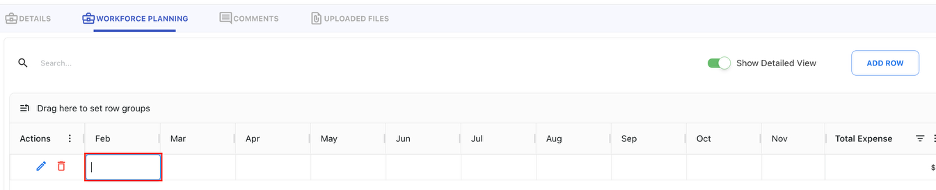
Turn on Show Detailed View to see the monthly columns.

Enter the planned headcount for each month.
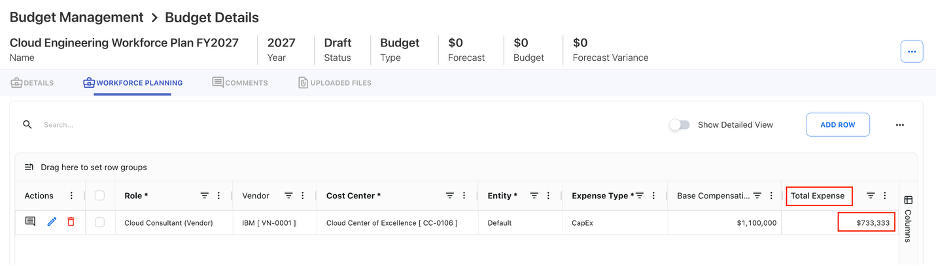
As you enter headcount, Yarken automatically:
-
Calculates Total Expense
-
Applies account distribution rules
-
Creates budget values in the Details tab
-
For employees, we are considering each employees' percentage allocation of work for that particular account in decimal values, such as 0.1 (10%) to 1 (100%).
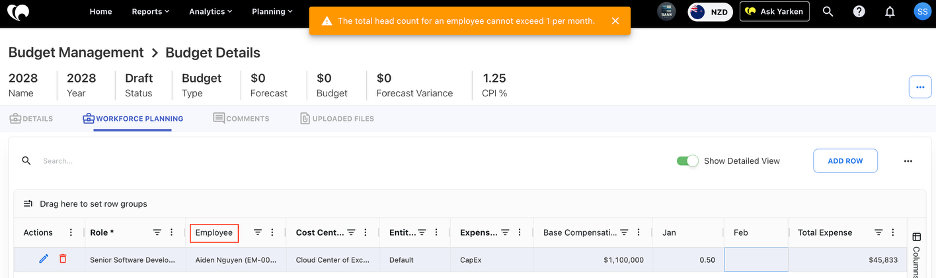
-
For vendors, there is no such restriction on monthly headcount.

Review and submit a workforce plan
When the workforce plan is ready, the Budget Process Owner can submit it to the Budget Contributor for review.
To submit:
-
Open the Workforce Planning screen
-
Click the three-dot menu
-
Select Submit
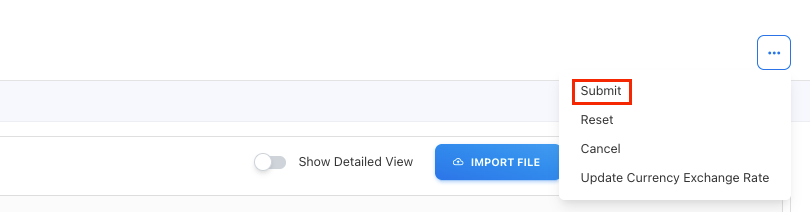
After submission, the status changes to In Progress.
-
Once submitted, the Edit option is disabled for the Budget Process Owner
-
Any further updates must be made by the Budget Contributor
Next Steps
Related Content
Configuring Workforce Planning: Steps to Create Roles