
Review as a Budget Contributor
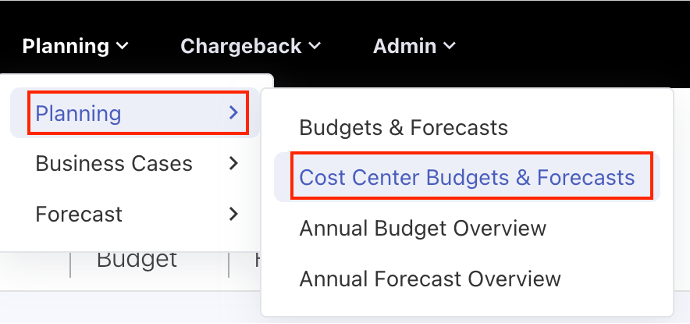
Budget Contributors can review assigned budgets or forecasts from:
Planning > Cost Centre Budgets & Forecasts
They can:
-
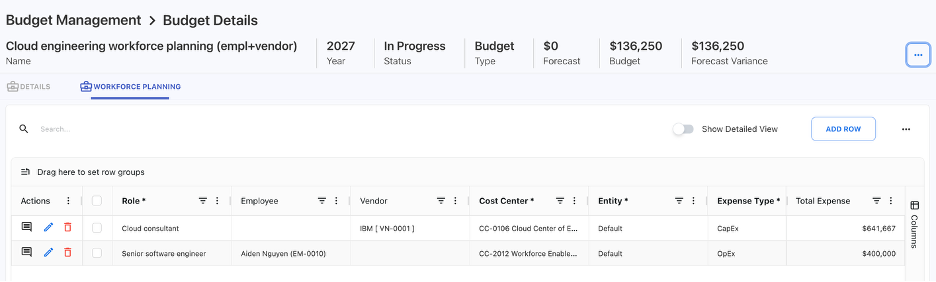
Review workforce entries
-
Edit headcount and assumptions
-
Delete items if required
-
Add comments
-
Submit the plan back for approval
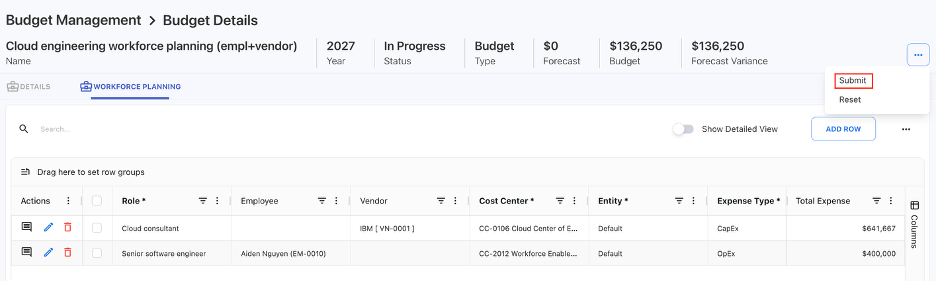
After submission, the Budget Contributor can no longer edit the plan.
Approve or reject a plan as a Budget Process Owner
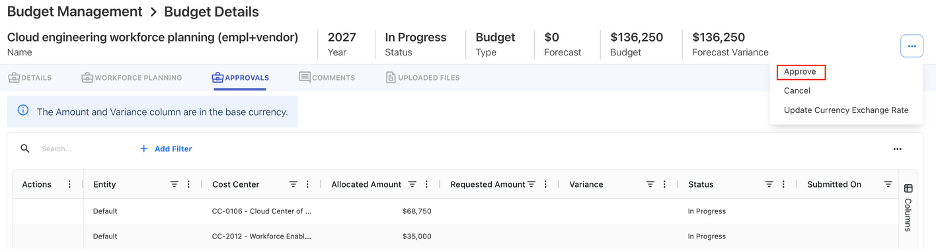
The Budget Process Owner reviews the submitted plan from the Approvals tab.
They can:
-
Approve the plan
-
Or Reject the plan and send it back for changes
Once approved, the plan can be set as the baseline budget or forecast.
Set as baseline
After approval, select Set as Baseline Budget / Forecast.
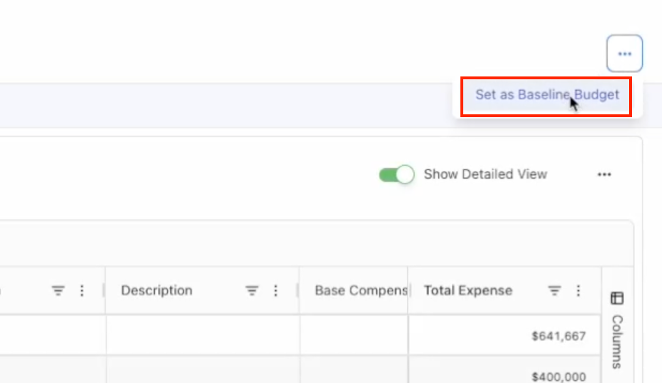
This publishes the approved workforce plan into the chosen budget model for reporting and analysis.
Important behavior
-
Workforce-generated budget entries are non-editable
-
Employee headcount cannot exceed 1 per employee per month
-
Vendor headcount can be scaled across months
-
Account distribution is based on the role configuration
-
Workforce plans follow the same review and approval workflow as budgets and forecasts
Example
A Senior Software Engineer role has a Base Compensation of $1,200,000.
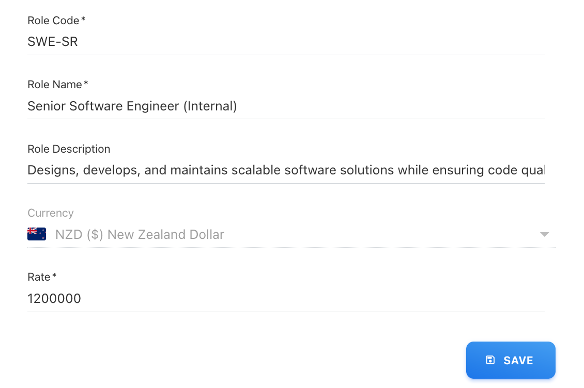
The monthly cost is:
$1,200,000 ÷ 12 = $100,000
If you enter this headcount:
-
January: 1
-
February: 0.5
-
March: 0.5
Total headcount = 2
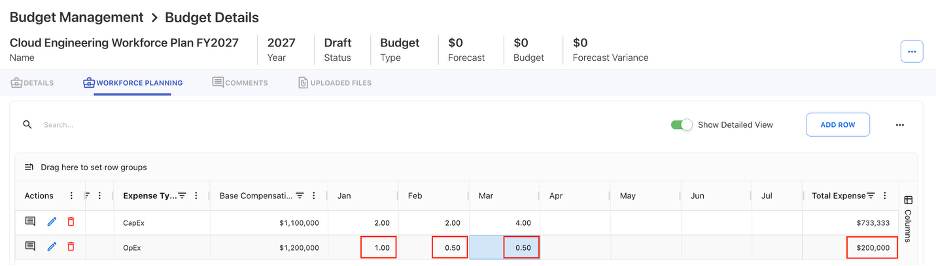
Total Expense = $100,000 × 2 = $200,000
If Software Licenses is configured at 10%, Yarken creates a Software Licenses budget value of $20,000.