
The JSON formats described in this section apply only when rules that are created using mapping files (for example, Cost Pool rules, Tower rules, Asset rules, or Solution rules uploaded via Excel or CSV).
When uploading rules through files:
-
Certain fields such as Filter, Condition, Rule, To Asset Rule, and Solution Rules must be provided in JSON format.
-
These JSON fields define the logic used to select source records, apply conditions, and distribute spend.
This section explains the required and optional JSON fields used in each rule, along with examples to help you build them correctly.
Cost Pool rules
Filter (mandatory field)
The Filter defines which spend records from the source data the Cost Pool rule should apply to.
It evaluates attributes such as Account Code, Cost Center Code, Vendor Code, and similar dimensions.
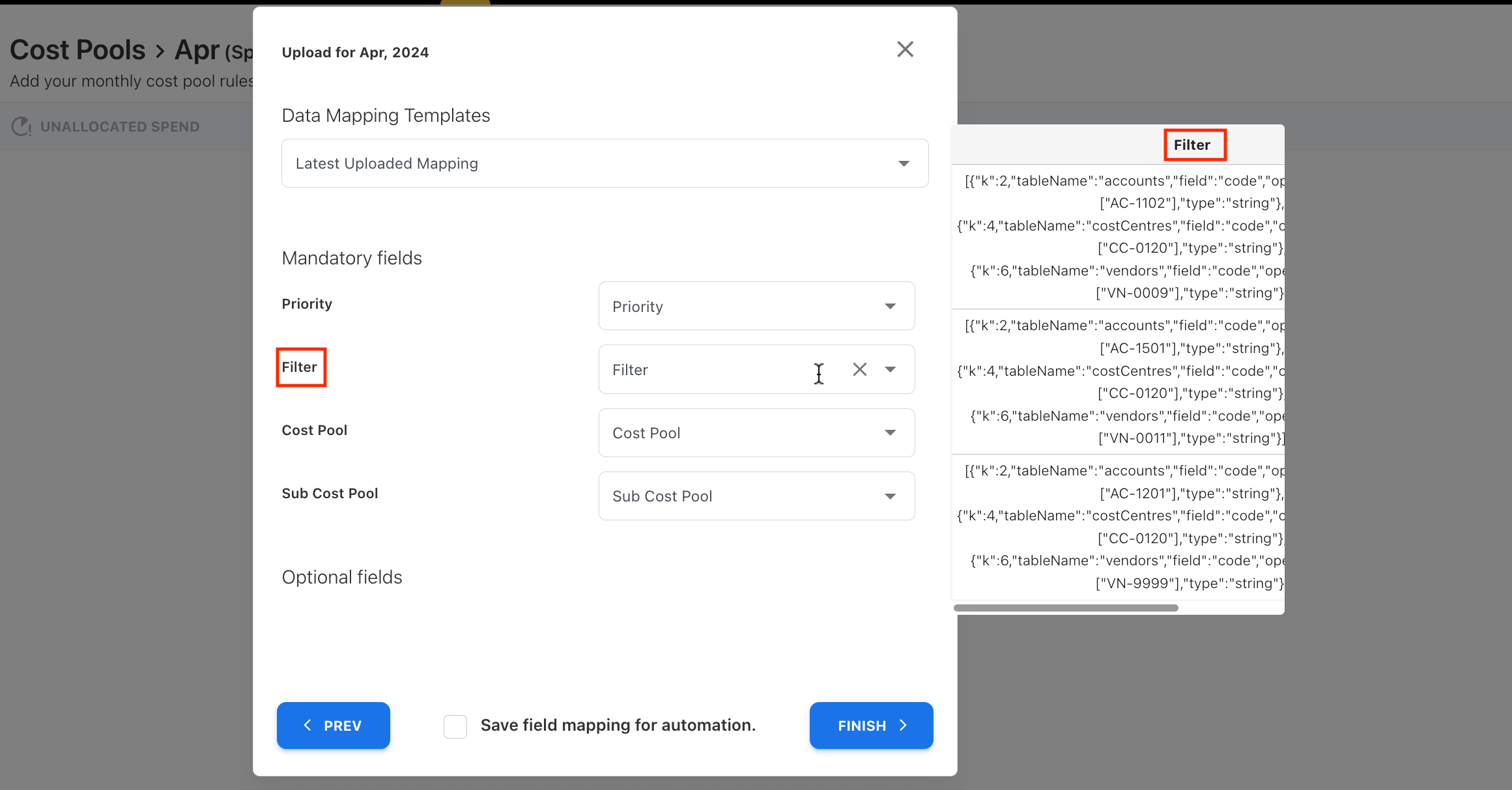

Example 1: Single filter condition
Scenario:
Apply a rule only when the Account Code is AC-1102.
[{"k":2,"tableName":"accounts","field":"code","operator":"eq","value":["AC-1102"],"type":"string"}]
This rule applies only to spend records with Account Code AC-1102.
Example 2: Multiple filter conditions
Scenario:
Apply the rule only when:
-
Account Code =
AC-1102 -
Cost Center Code =
CC-0120 -
Vendor Code =
VN-0009
[{"k":2,"tableName":"accounts","field":"code","operator":"eq","value":["AC-1102"],"type":"string"},{"k":4,"tableName":"costCentres","field":"code","operator":"eq","value":["CC-0120"],"type":"string"},{"k":6,"tableName":"vendors","field":"code","operator":"eq","value":["VN-0009"],"type":"string"}]
Tower rules
Filter (mandatory field)
Same as Cost Pool.
Condition (optional field)
The Condition defines which assets or offerings are grouped under the Tower once spend reaches it.
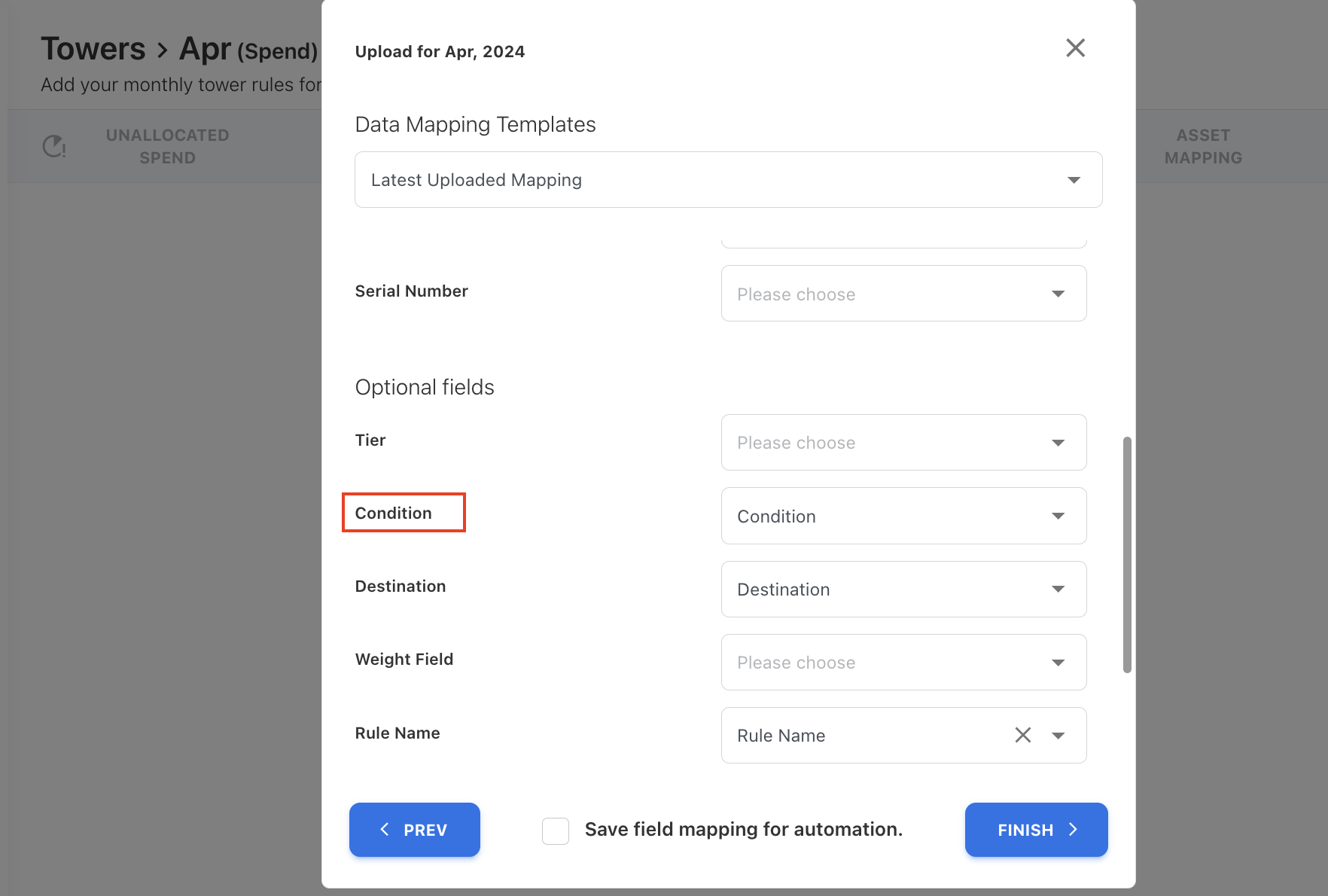
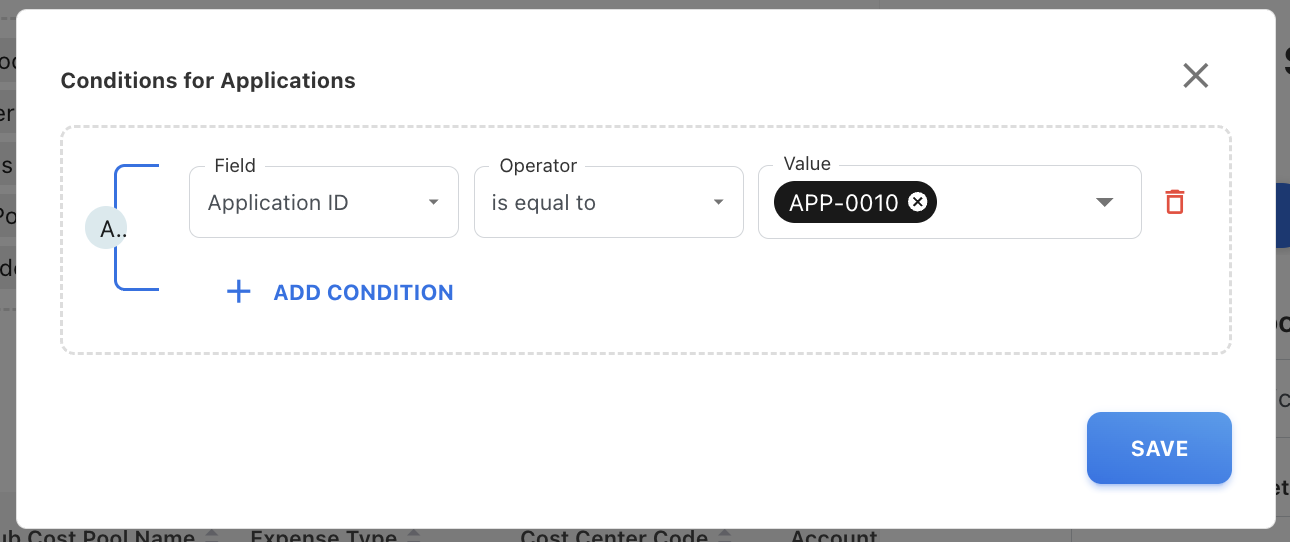
Example: Add a filter condition for Application asset
Scenario: Apply a rule only when the Application ID is APP-0010.
[{"k":1,"field":"code","operator":"eq","value":["APP-0010"],"type":"textbox"}]
Asset rules
Asset Rules use two mandatory JSON components—one for identifying the source assets and another for defining the target assets and distribution logic.
Rule (mandatory field)
The Rule defines the condition on the source asset from which spend should be mapped.
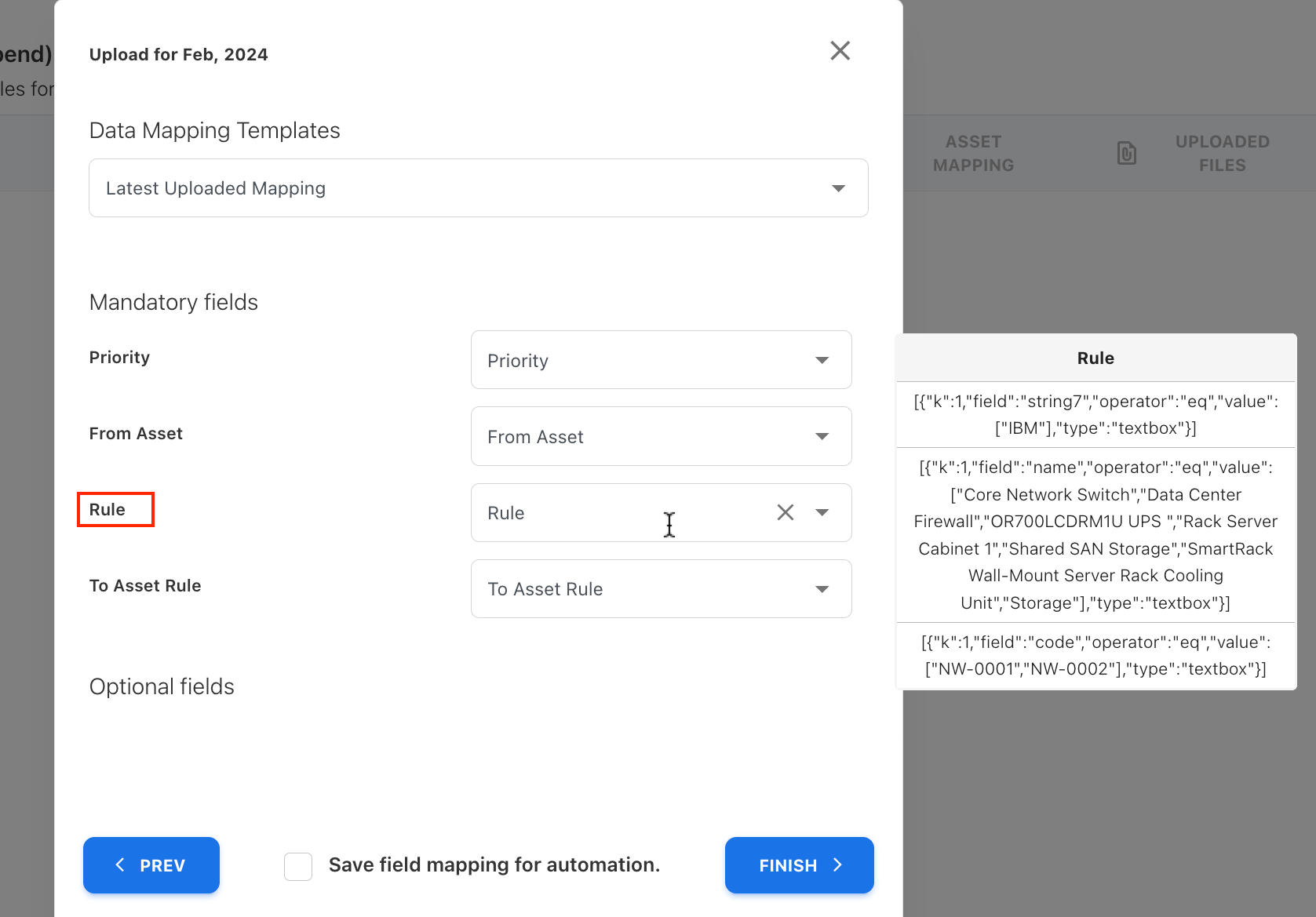
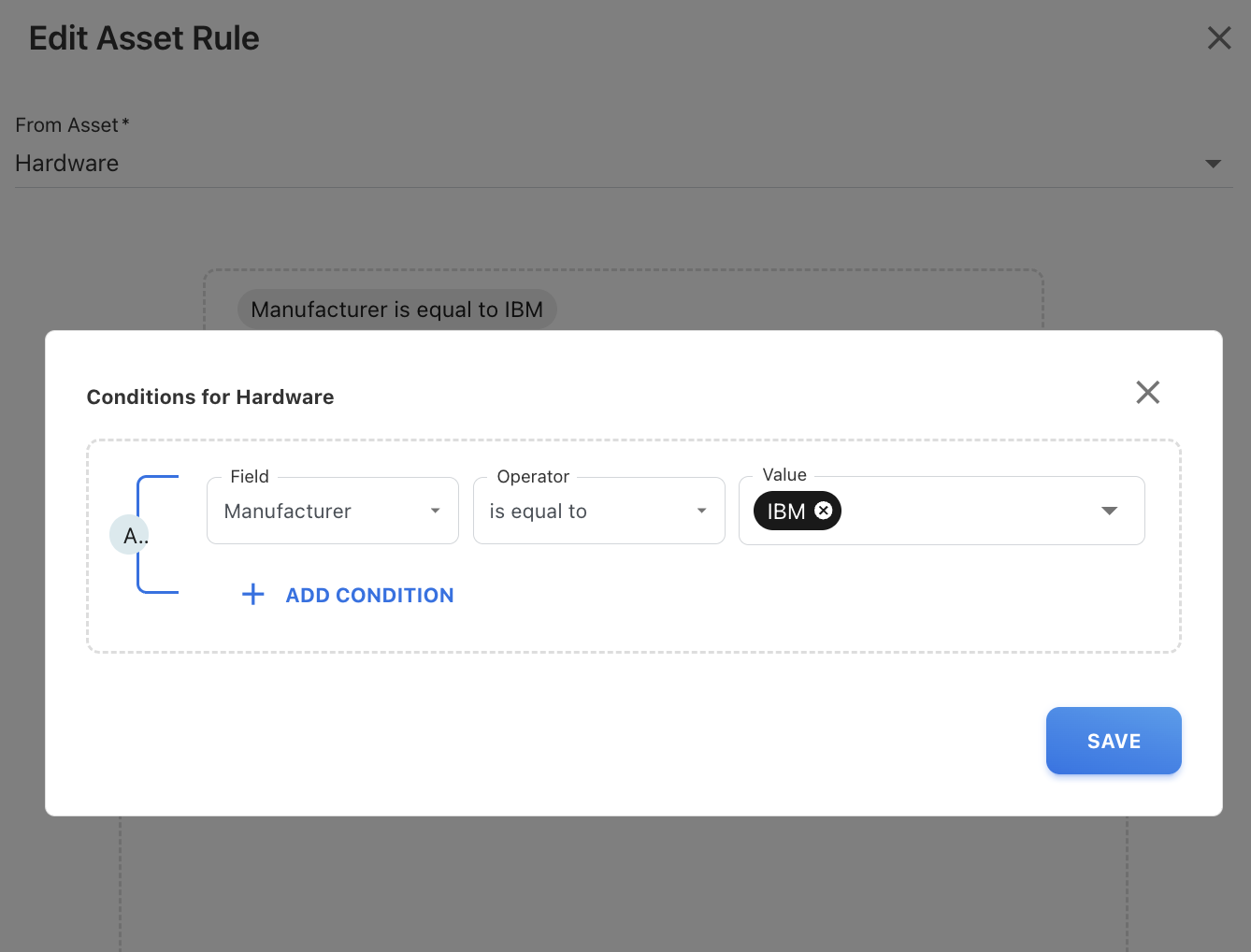
Example: Add a filter condition to the source asset Hardware
Scenario: Apply a rule only when the Manufacture is IBM.
[{"k":1,"field":"string7","operator":"eq","value":["IBM"],"type":"textbox"}]
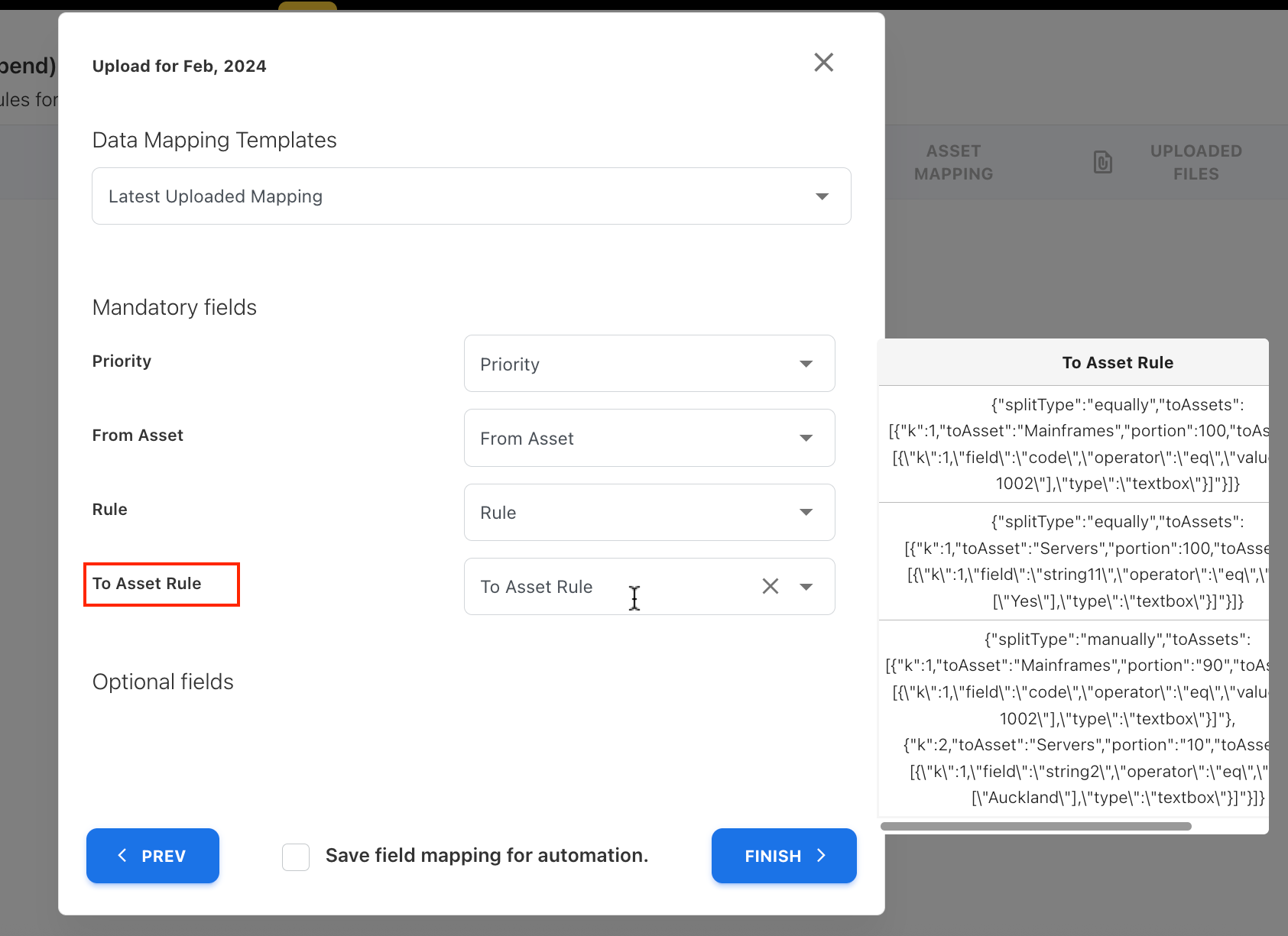
To Asset Rule (mandatory field)
The To Asset Rule defines:
-
The target asset type
-
The distribution method
-
The condition used to select target assets
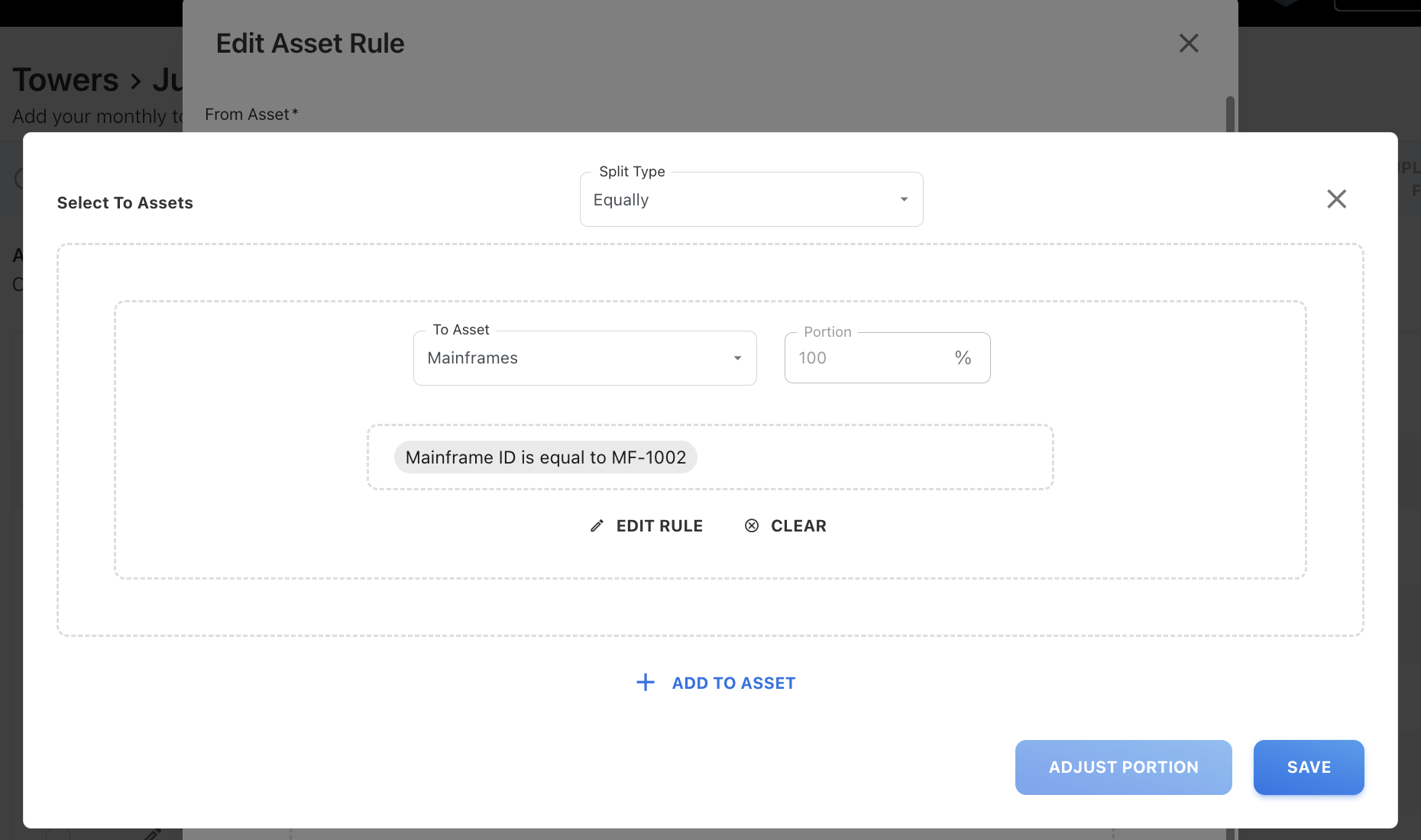
Example: Distribute spend to Mainframe asset and add a filter condition
Scenario: Apply Equally split type with potion as 100, and Mainframe ID is MF-1002.
{"splitType":"equally","toAssets":[{"k":1,"toAsset":"Mainframes","portion":100,"toAssetRule":"[{\"k\":1,\"field\":\"code\",\"operator\":\"eq\",\"value\":[\"MF-1002\"],\"type\":\"textbox\"}]"}]}
Solution rules
Solution Rules also use two mandatory JSON components, similar to Asset Rules, but are designed specifically for distributing asset spend to Solution Offerings.
Rule (mandatory field)
The Rule defines the condition used to select source assets whose spend will be distributed to solutions.
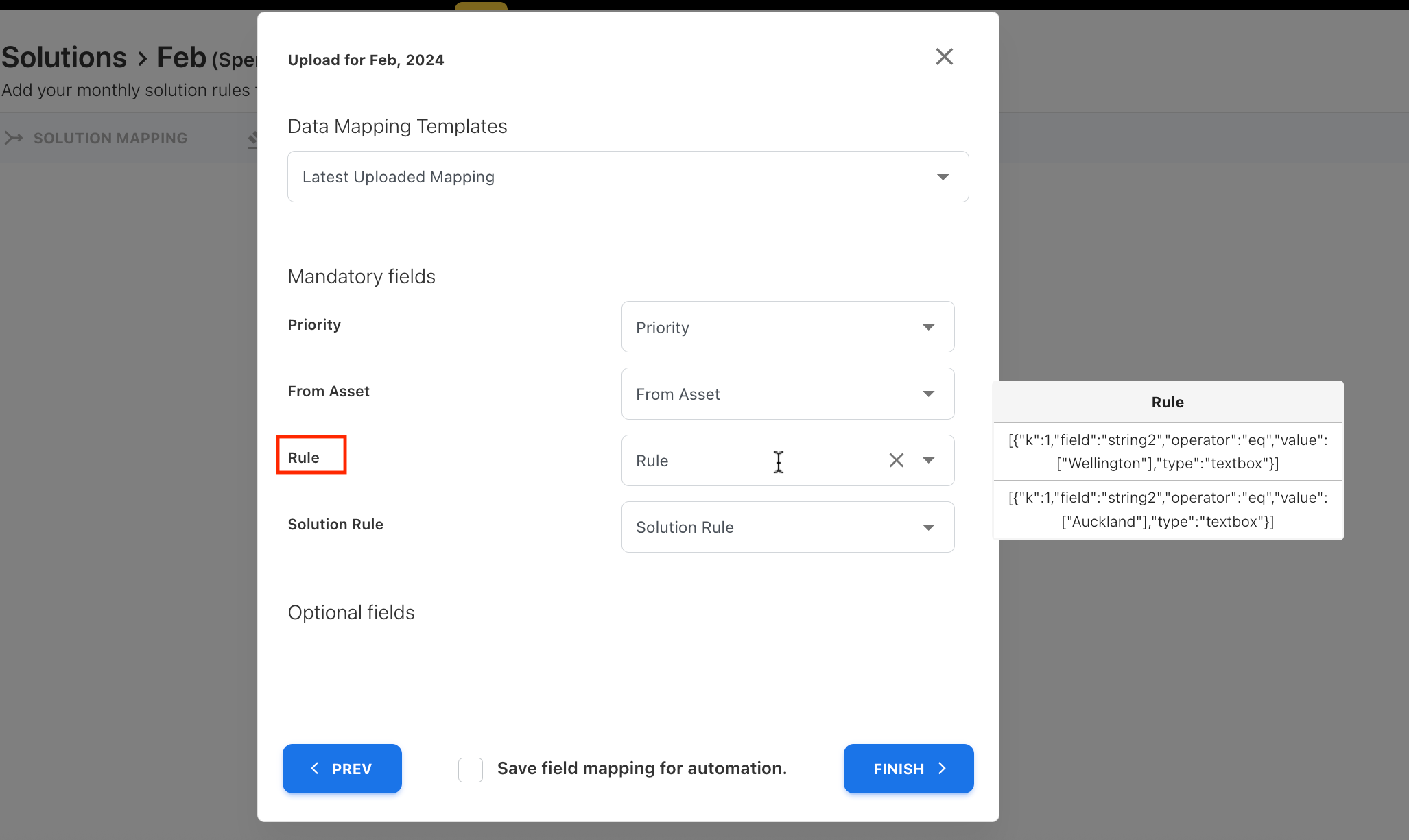
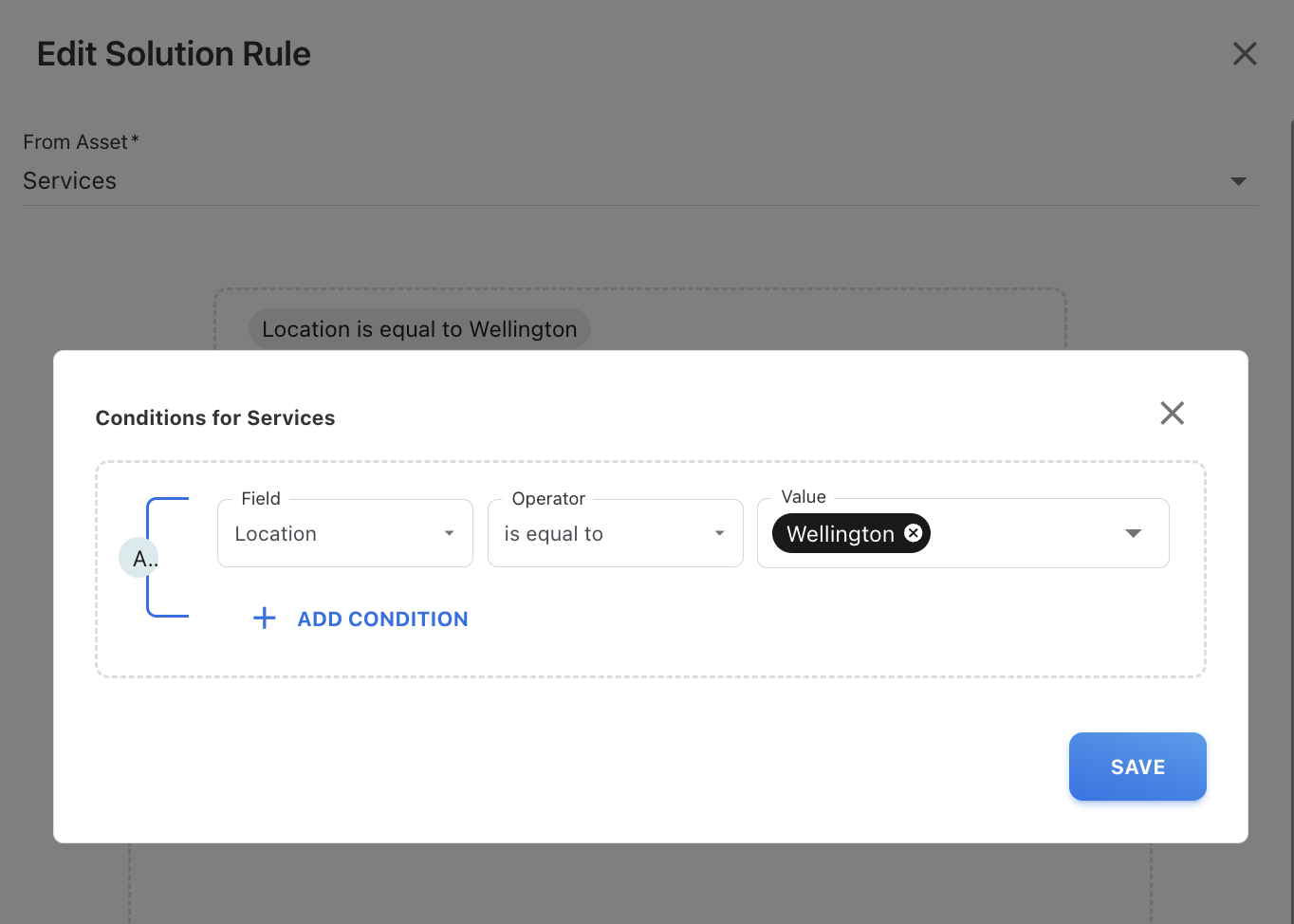
Example: Add a filter condition from Services asset
Scenario: Apply a rule only when the Location is Wellington.
[{"k":1,"field":"string2","operator":"eq","value":["Wellington"],"type":"textbox"}]
Solution Rule (mandatory field)
The Solution Rule define:
-
How spend is split
-
Which Solution Offerings receive the spend
-
The condition used to identify target offerings
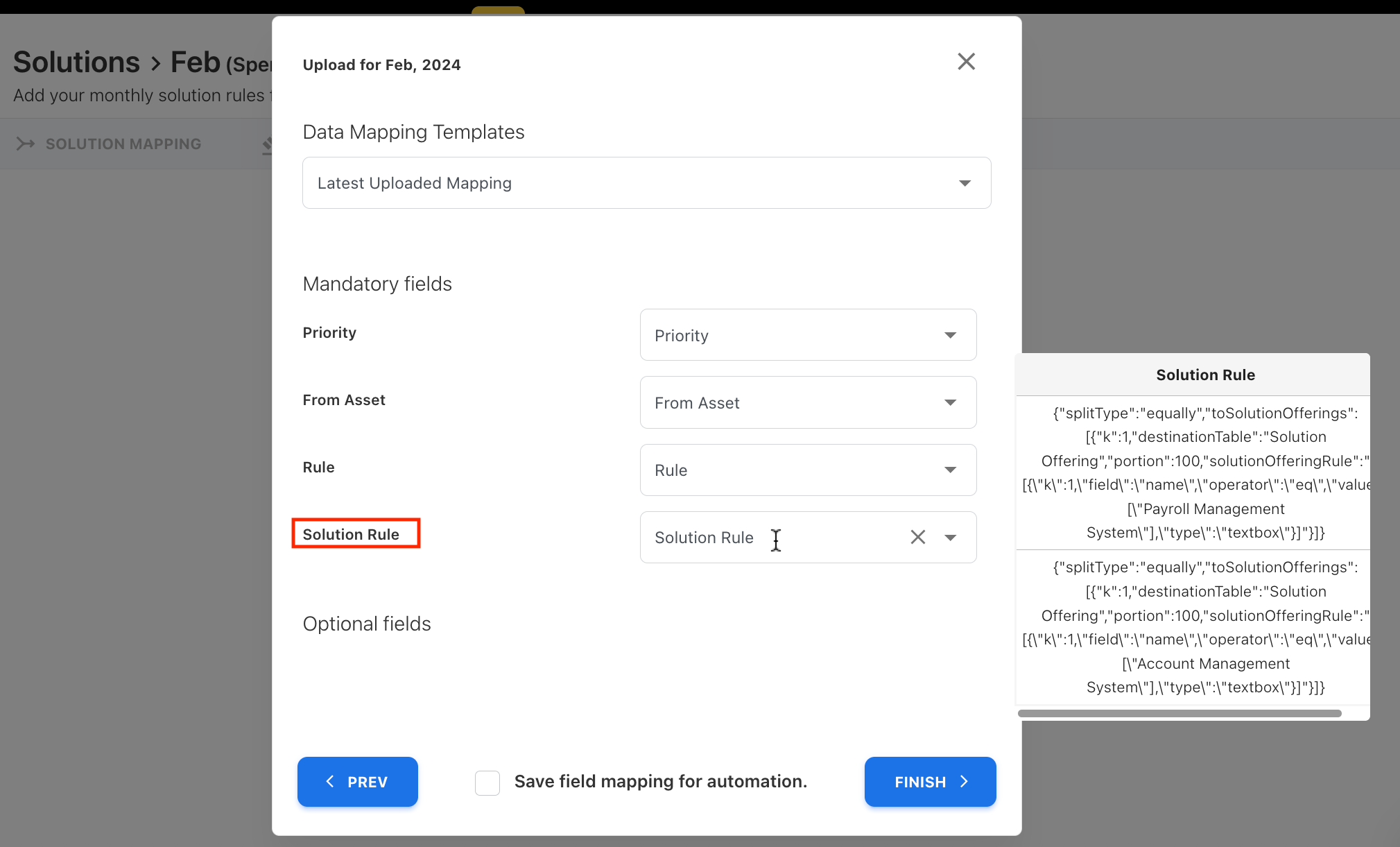
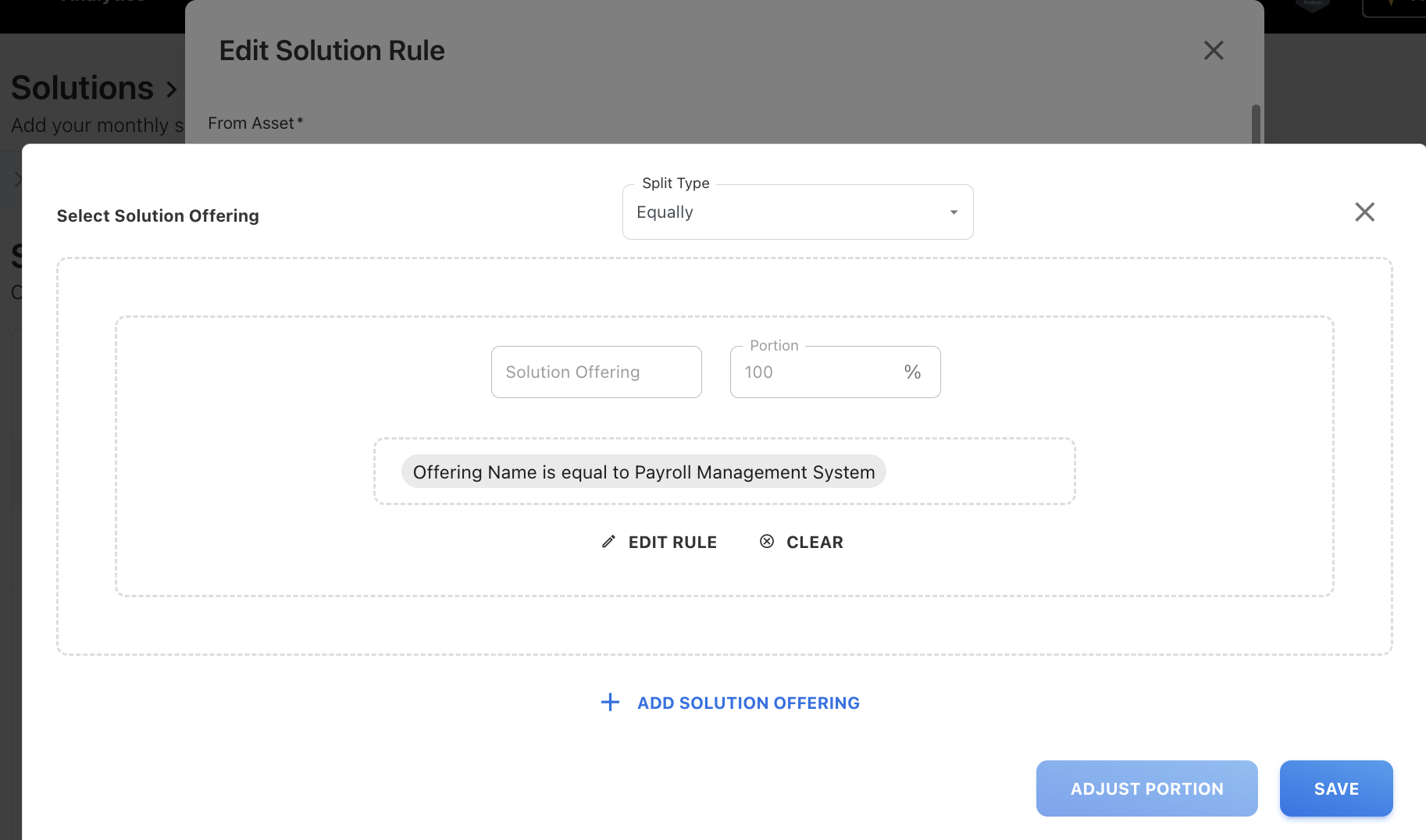
Example: Distribute spend to Solution Offering and add filter condition
Scenario: Apply Equally split type with potion as 100 to the Payroll Management System offering.
{"splitType":"equally","toSolutionOfferings":[{"k":1,"destinationTable":"Solution Offering","portion":100,"solutionOfferingRule":"[{\"k\":1,\"field\":\"name\",\"operator\":\"eq\",\"value\":[\"Payroll Management System\"],\"type\":\"textbox\"}]"}]}
How to enter JSON in Excel
-
Open the mapping template (Cost Pool / Tower / Asset rules).
-
Locate the column where you want to add the JSON format.
-
Paste the full JSON into one single cell.

-
Do not add:
-
Line breaks
-
Extra quotes
-
Excel formulas
-
-
Save the file as
.xlsxor.csvand upload.
Key notes
-
The JSON must always start with
[and end with] -
Each condition must be separated by a comma
-
valuemust always be an array, even for a single value -
kvalues should be unique and increment logically -
Codes must exactly match Master Data values