
This article explains how to create cloud assets dynamically during cloud consumption uploads using an Upload Rule.
When to create cloud asset using Upload Rule
Create cloud asset when:
-
You want to publish cloud spend to specific cloud assets, but
-
The required cloud assets do not already exist, and
-
You want the assets to be created automatically during file upload rather than manually in advance.
Rule type used
-
Copy Column
What the rule does
The Copy Column rule copies values from a selected Source Column in the file and populates them into the Cloud Asset Name field.
This allows the application to:
-
Create new cloud assets automatically, and
-
Assign cloud spend to those assets during publishing.
Procedure
-
Navigate to UPLOAD RULES tab.
-
Click + ADD NEW.
-
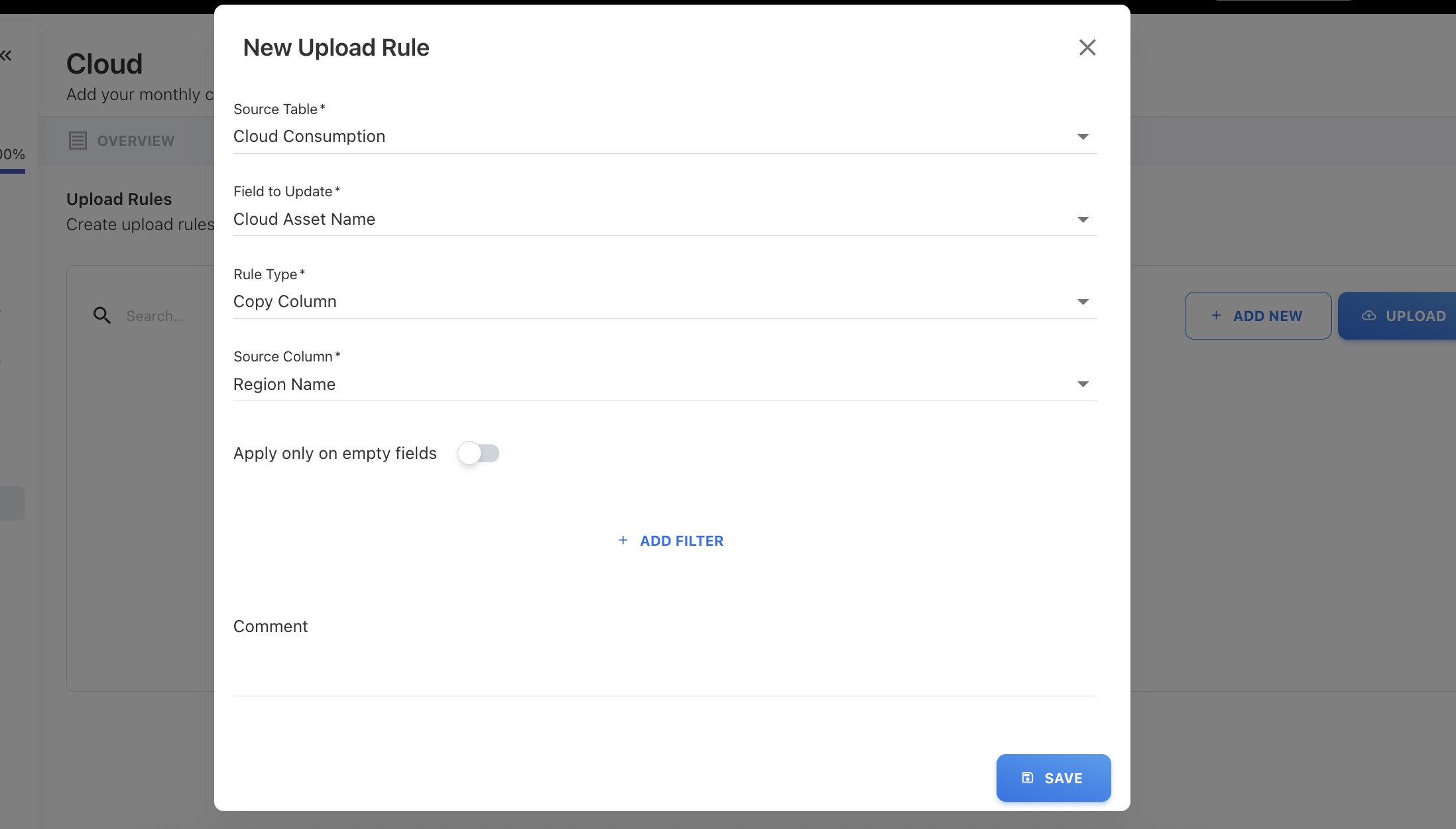
In the New Upload Rule popup:
-
Source Table - Select Cloud Consumption.
-
Field to Update - Select Cloud Asset Name.
-
Rule Type - Select Copy Column.
-
Source Column - Select the column from the file that contains the values you want to use as cloud asset names.
-
-
(Optional) Add filters or comment.
-
Click SAVE.
The rule is now active and will run automatically during cloud consumption uploads.
What happens after execution
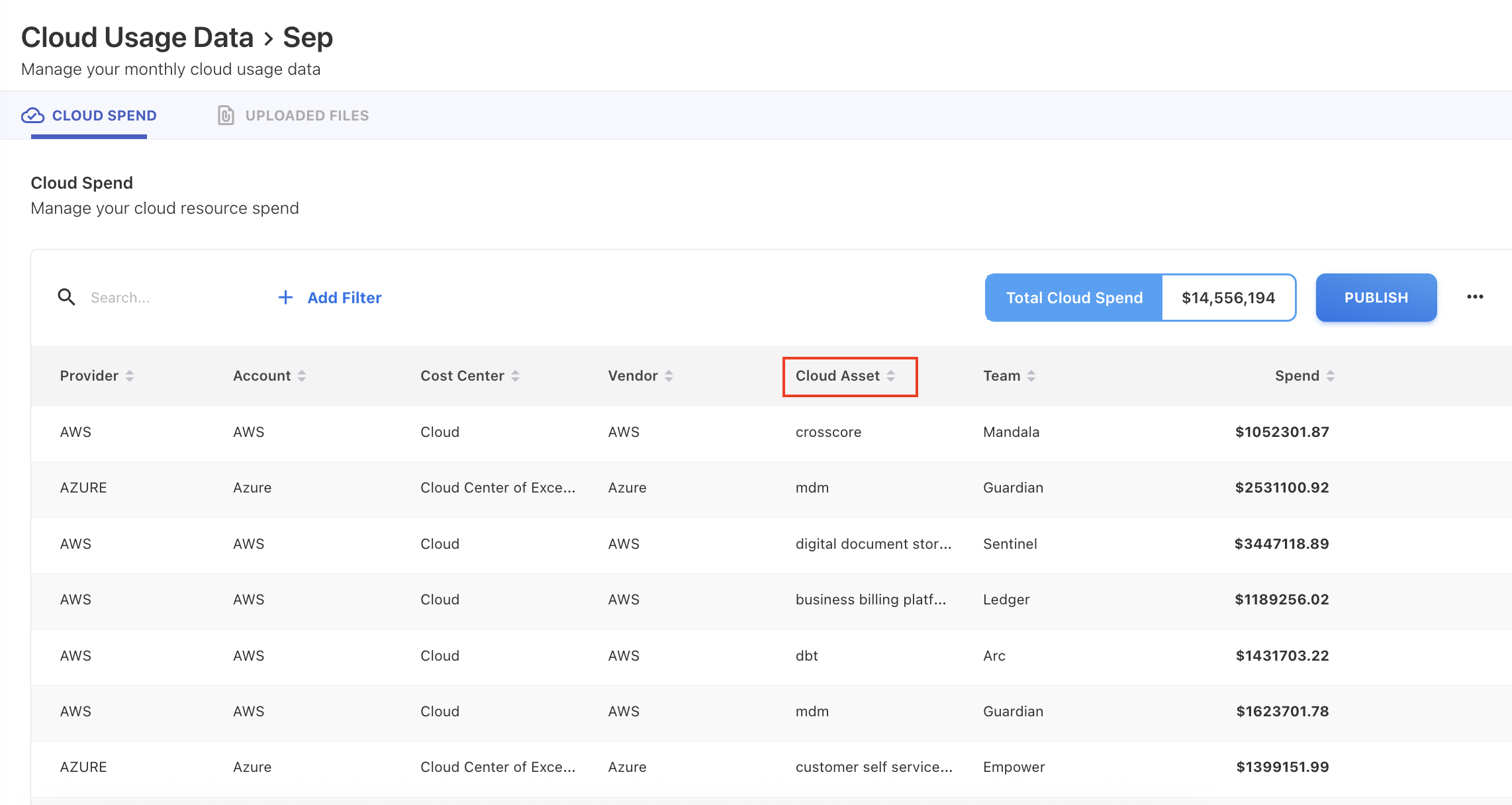
After the rule executes:
-
New cloud assets are created based on the copied values.
-
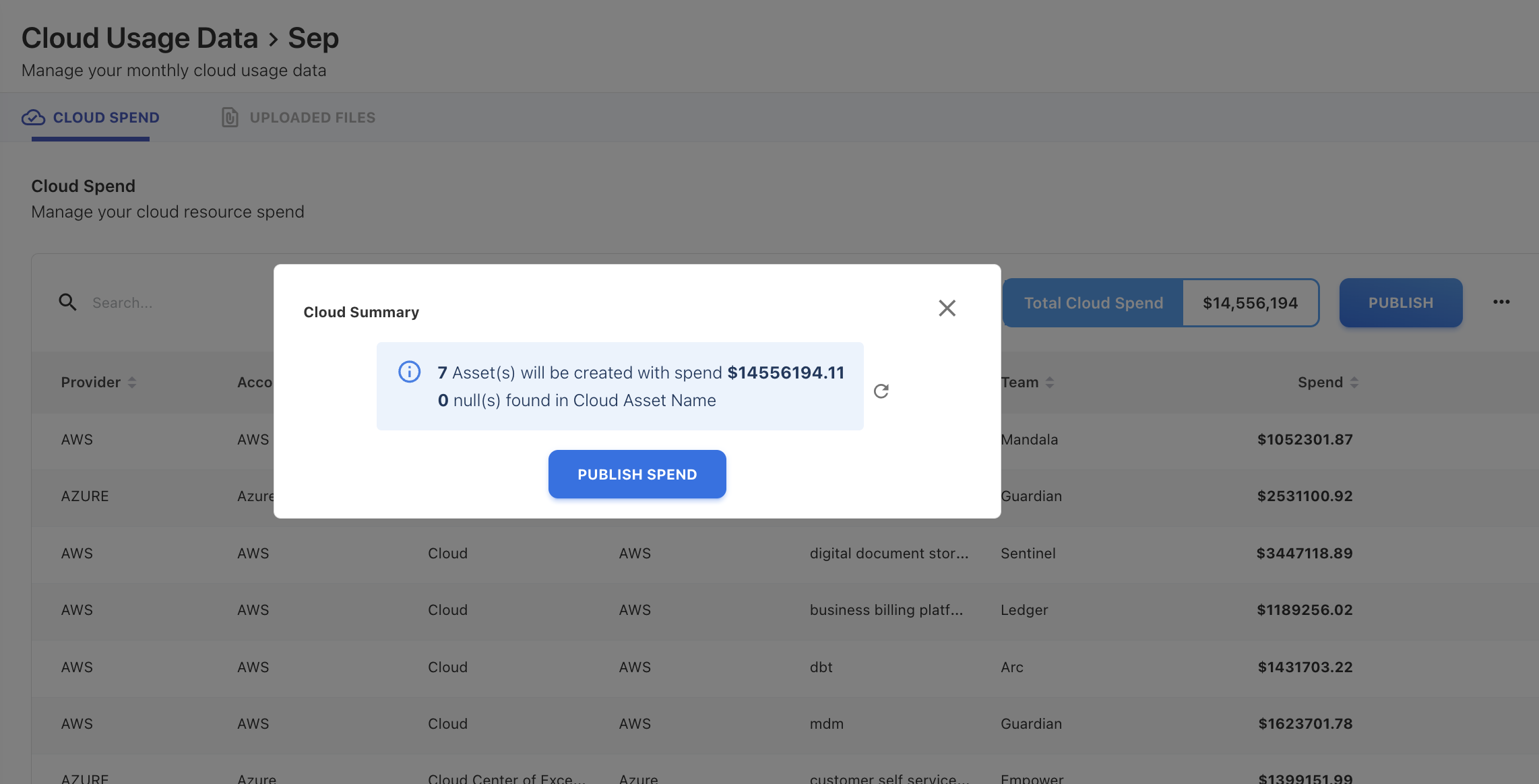
Cloud spend can be published to the newly created assets.
-
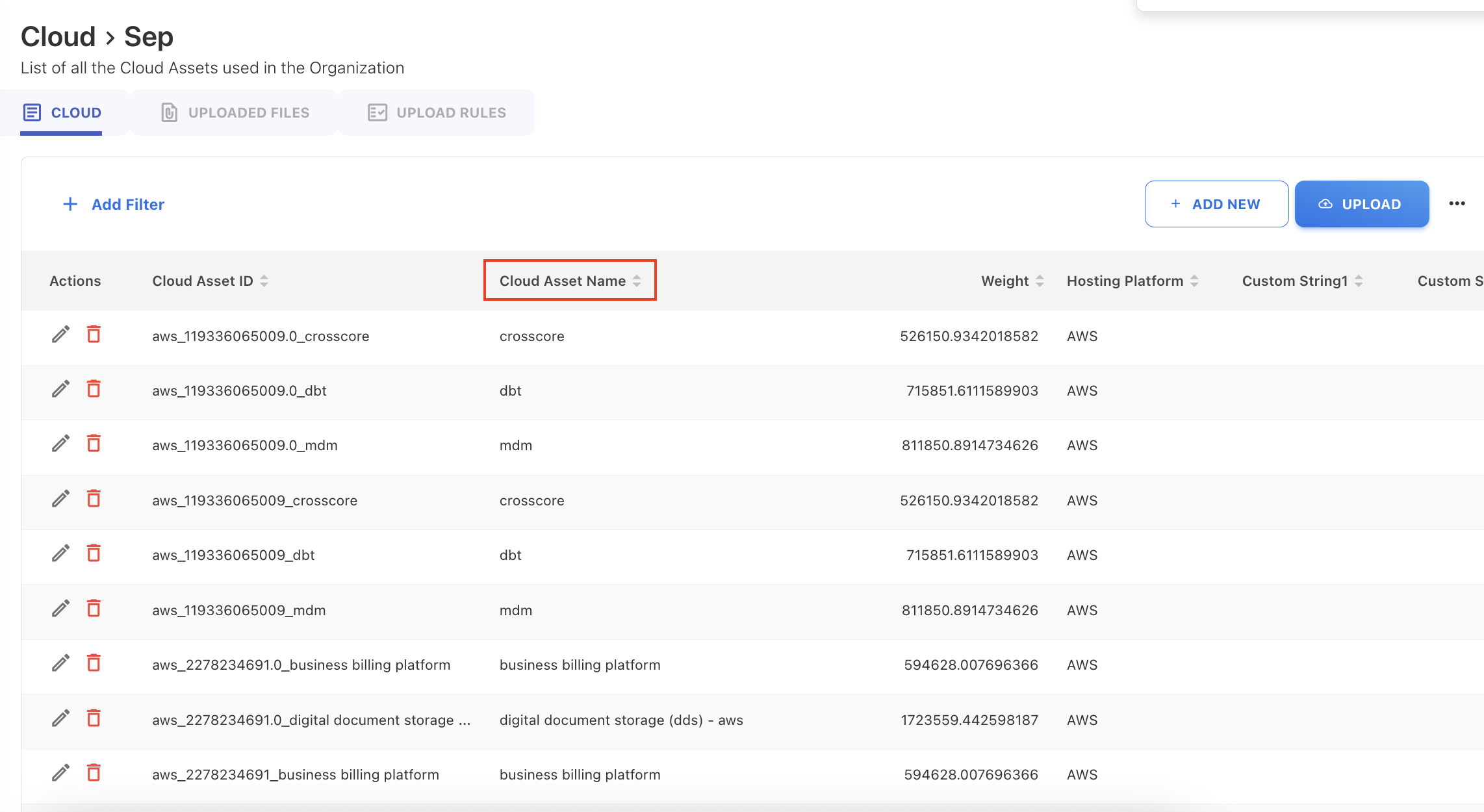
Once published:
-
The new cloud assets appear in Assets for the month in which the spend was published.
-
These assets become available for reporting, allocation, and analysis.
-
If the source column has no value
-
If the selected source column contains no value, the system creates a Cloud Asset named Unknown and spend associated with these records cannot be published or distributed.
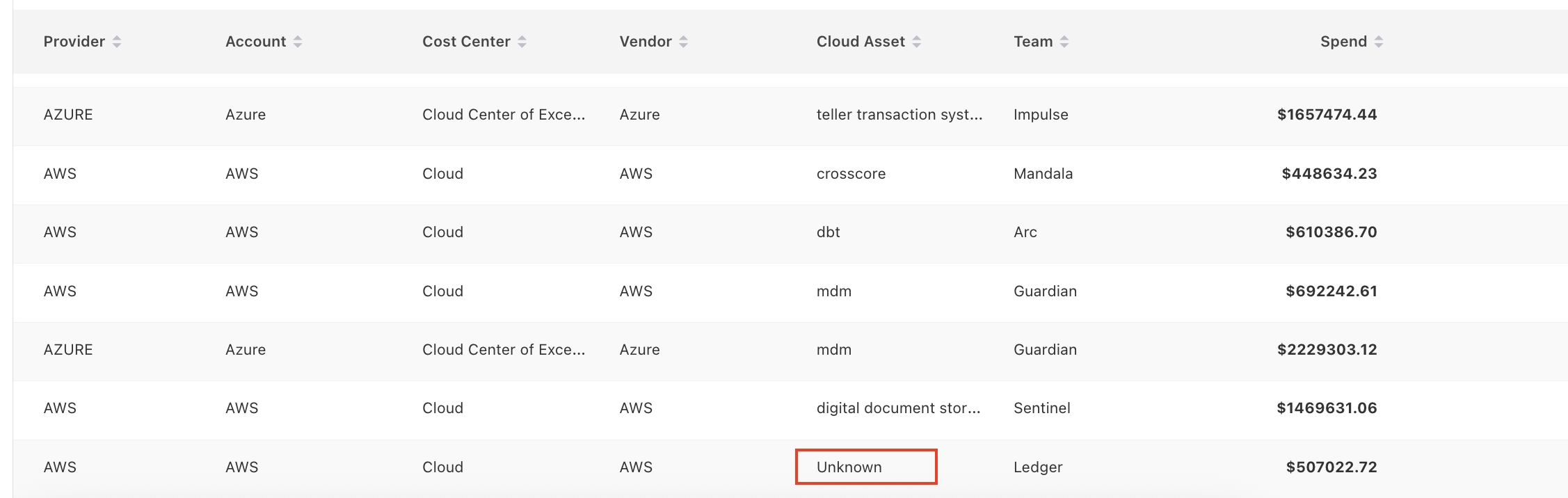
To avoid this scenario:
-
Review the source column for null or empty values before uploading the file.
-
Refine the Upload Rules by adding filters or conditions to exclude or handle records with missing values.
Mapping AI Attributes for Cloud Assets
When configuring an Upload Rule to create or update Cloud assets, it is highly recommended to include a mapping for the AI Service field.
-
Field to Update: Select AI Service.
-
Logic: Map this to the source column in your cloud consumption file that identifies the AI-specific workload (e.g., a tag like
Project: AI-Chatbotor a specific service name likeAzure OpenAI). -
Result: By mapping this field, the system automatically populate the AI Service attribute in Cloud asset during the publish process.
Related content