
Before you can receive alerts from Insights, you must create Notification Channel Groups.
A Notification Channel Group defines which email addresses, Slack channels, or Microsoft Teams channels receive Insight alerts. You select this group when creating a rule.
Prerequisite
For Slack or Microsoft Teams notifications, at least one notification channel must be configured in the application using incoming webhooks. For more information on how to configure channels, refer Configure Notification Channels.
Procedure
To create,
-
Navigate to Admin > Settings > Notification Channel Groups.
-
Click + ADD NEW.
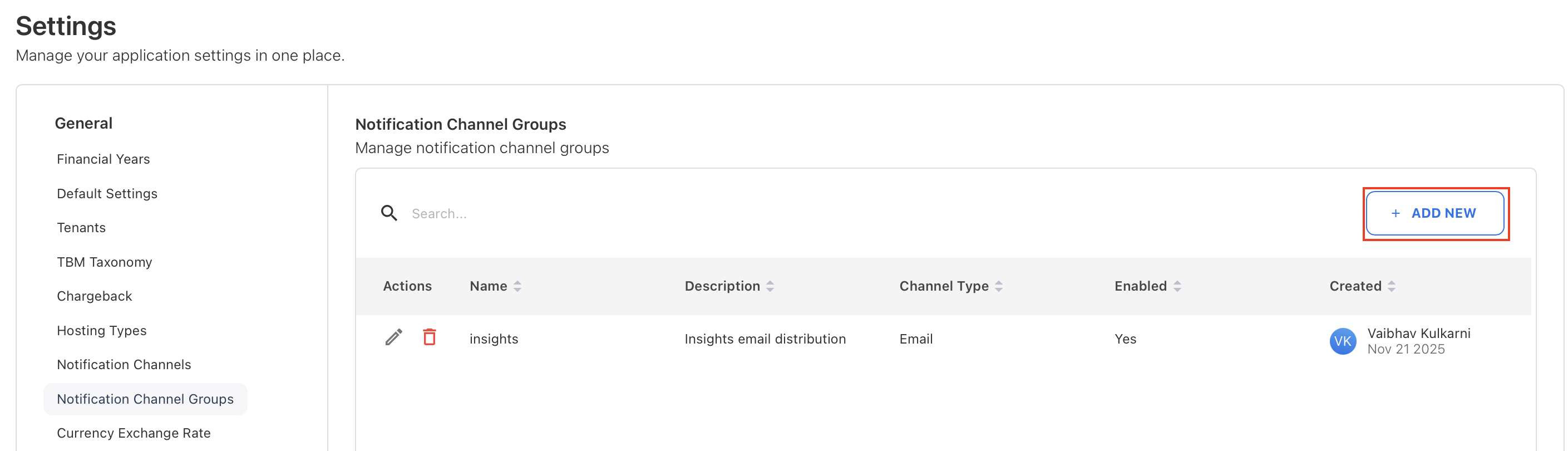
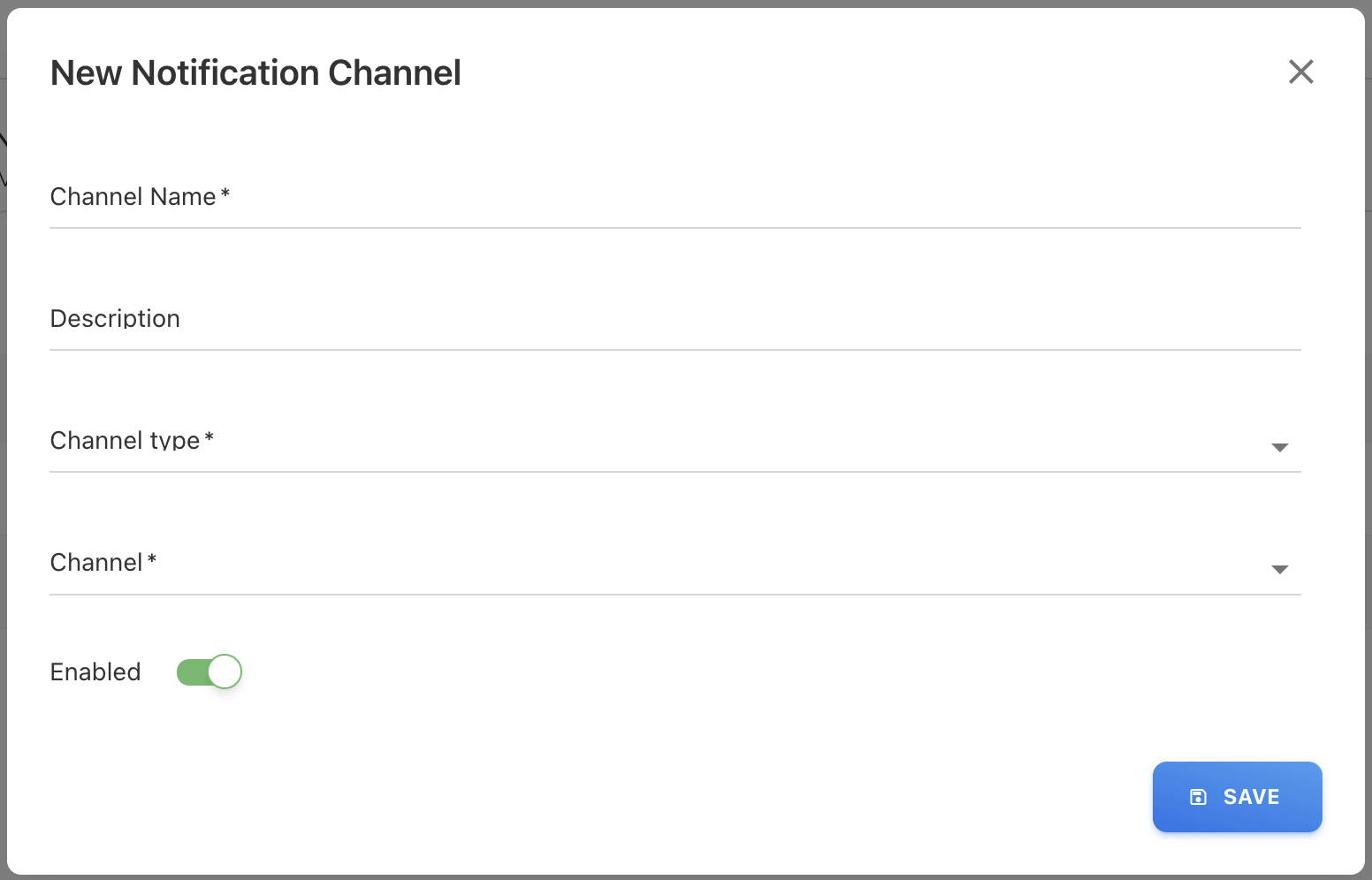
A New Notification Channel popup appears.
-
On the popup, provide the below details:
-
Channel Name: Enter a unique channel name.
-
Description: Add summary or details about the notification channel.
-
Channel type: Select a channel type, Teams, Slack, or Email.
-
Channel or Recipients:
-
Channel (Teams or Slack)- Select the Teams or Slack channel where notifications should be sent. The list shows only pre-configured channels. Make sure these are set up before creating notification groups. Refer to the prerequisites for details.
-
Recipients (Email) - Add one or more email addresses. Use a comma (,) to separate multiple addresses.
-
-
(Optional) Enabled: Active by default. If you disable, the group will not be available in Insight rule.
-
-
Click SAVE.
The notification group is now available for selection when configuring insights.
Related content
Get Incoming Webhooks URL for Microsoft Teams and Slack