
Before configuring the Power BI API connection in YäRKEN using the Consent URL, additional setup is required in Microsoft Entra ID (Azure AD) and the Power BI Admin portal.
These steps ensure the application has the correct permissions to access Power BI APIs securely using a service principal.
Overview of Power BI–specific requirements
To enable Power BI API access for YäRKEN, complete the following configuration:
-
Create a Microsoft Entra (Azure AD) Security Group dedicated to service principals or apps that will access Power BI.
-
Add the App Registration's service principal (app object) to that security group as a member.
-
Enable service principals access (read-only) in Power BI Admin portal to access Power BI APIs and apply it to the security group created earlier.
Once these steps are complete, you can proceed with configuring the Power BI API connection in YäRKEN using the Consent URL flow.
Create a Microsoft Entra security group
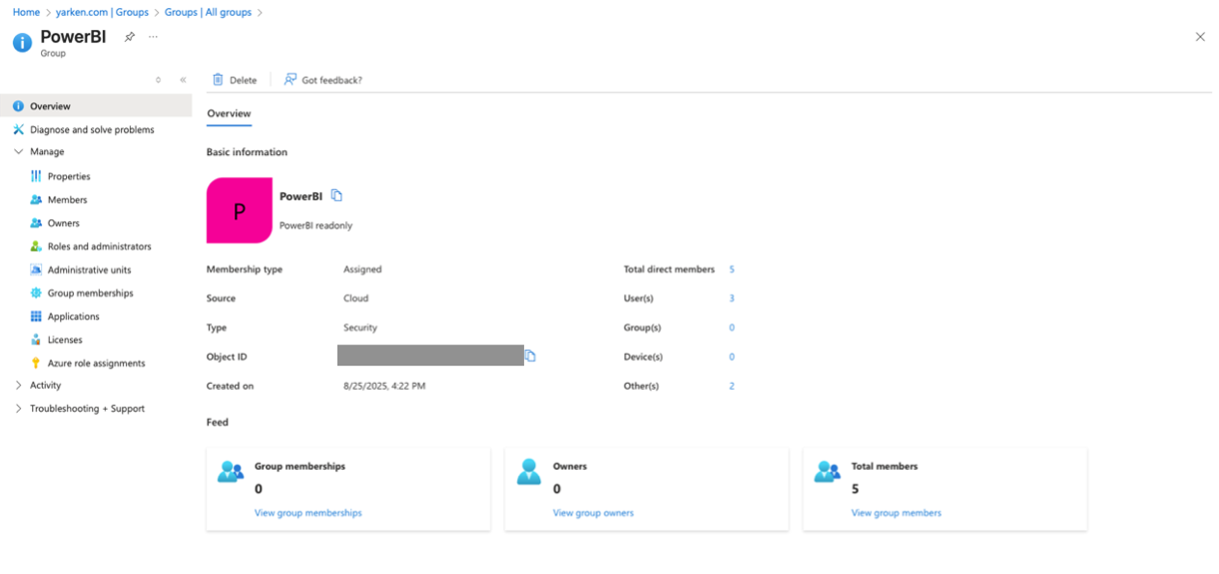
To control which service principals are allowed to access Power BI APIs, you must create a Microsoft Entra (Azure AD) security group (for example, PowerBI).
You must have one of the following roles to complete this step:
-
Groups Administrator
-
User Administrator
To create a the security group,
-
Sign in to the Microsoft Entra admin center.
-
Navigate to Entra ID > Groups > All groups.
-
Select New group.
-
On the New Group page, provide the following details:
-
Group type: Security
-
Group name: For example, PowerBI
-
Group description: Add a brief description explaining the group’s purpose
-
Membership type: Select the appropriate membership type for your organization
-
-
Create and save the group.
Add an application to the Power BI security group
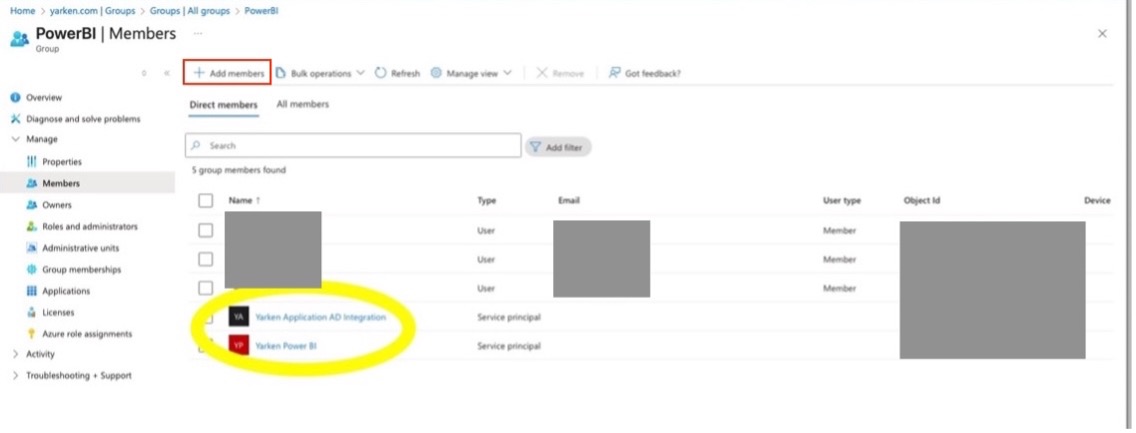
After creating the security group, add the App Registration’s service principal (for example, YäRKEN Power BI) as a member.
To add a member,
-
In the Microsoft Entra admin center, navigate to Entra ID > Groups > All groups.
-
Select the previously created group (for example, PowerBI).
-
Select + Add members.
-
Search for and select the application (for example, YäRKEN Power BI).
-
Choose Select to add the application to the group.
Enable Power BI service principals access (read-only) in the Tenant Admin portal
To allow the service principal to use Power BI APIs, enable service principal access in the Power BI Admin portal.
To enable,
-
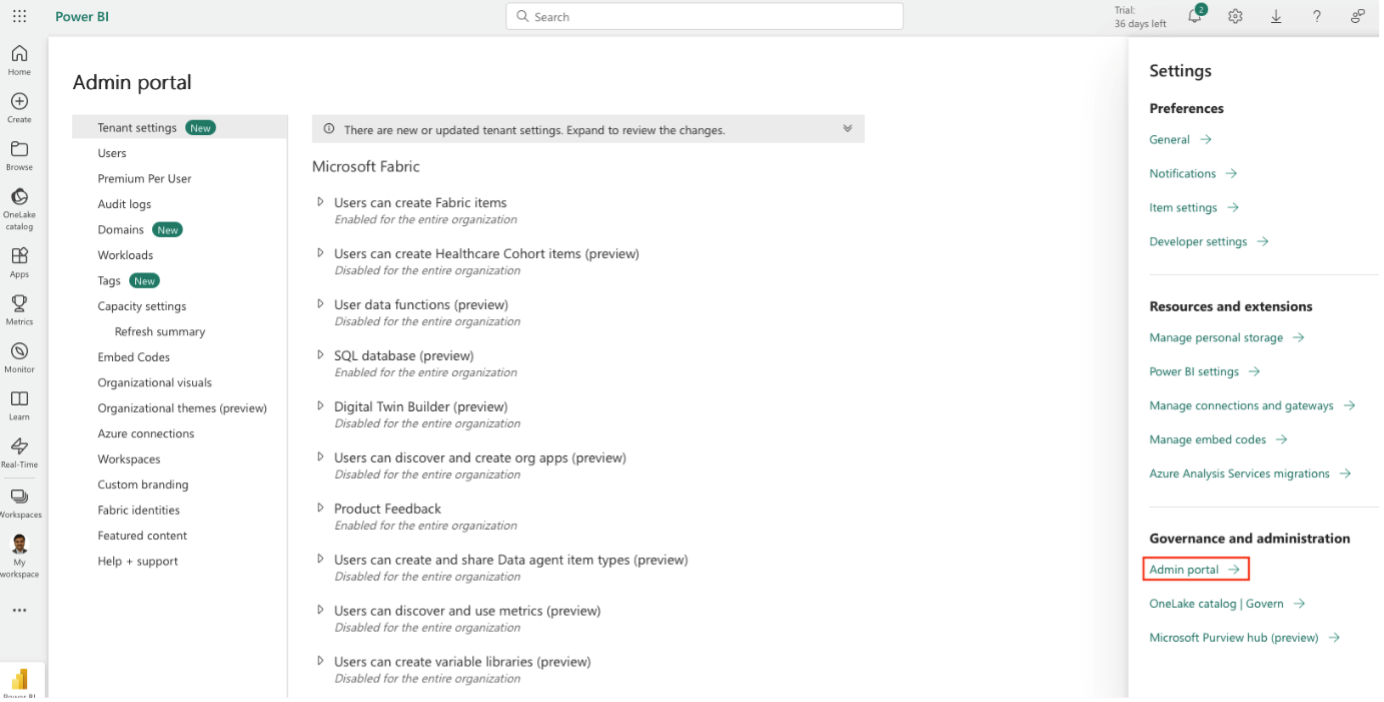
login to the Power BI admin console.
-
Navigate to Admin portal > Tenant settings.
-
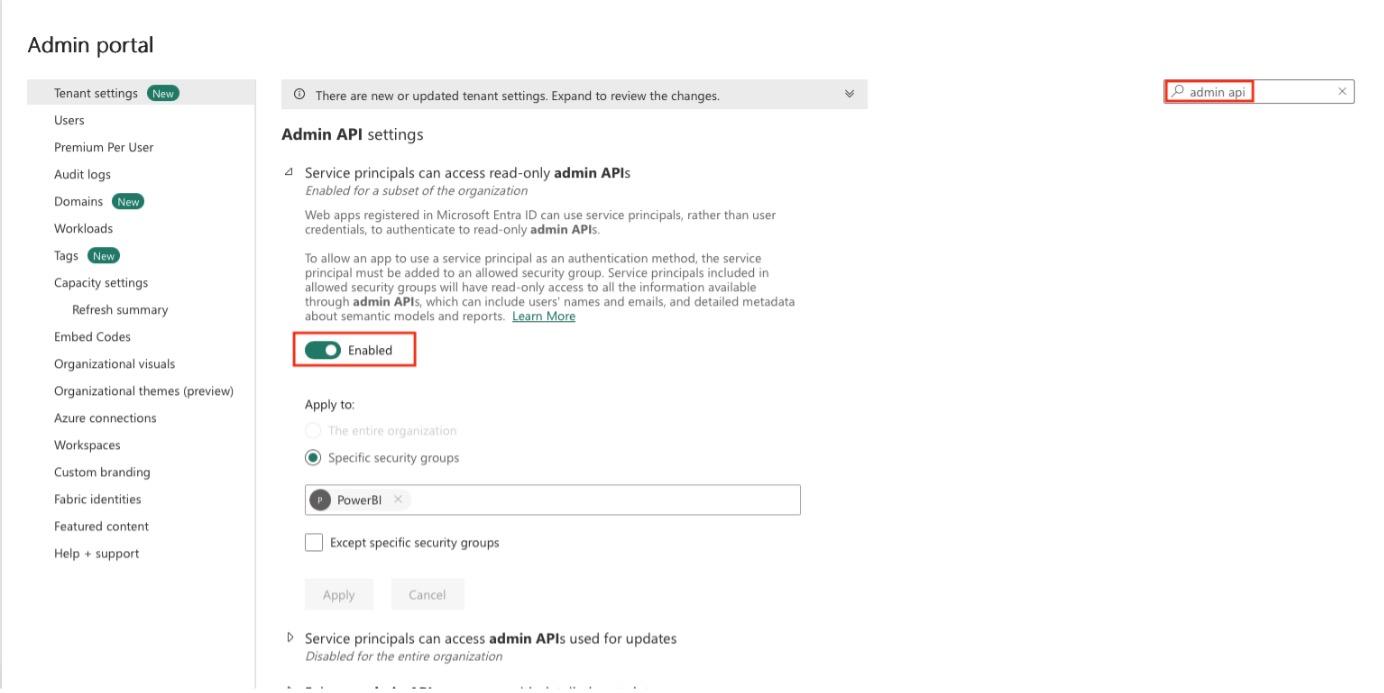
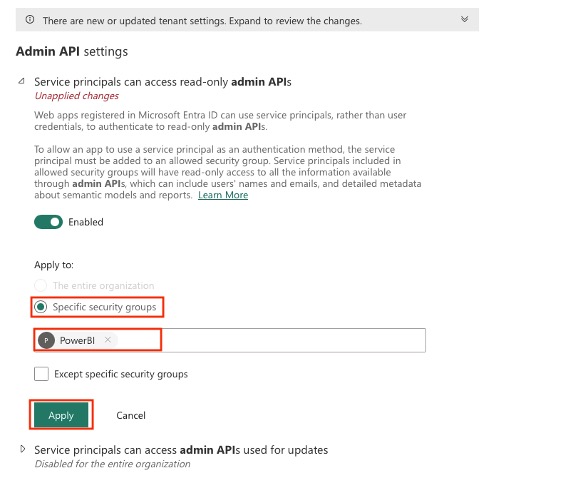
In the Tenant settings, search for the Admin API settings and toggle Service principals can access read-only admin APIs to Enabled.
-
Choose to apply it to the specific security group (for example, PowerBI) that you created earlier and add the security group.
-
Click Apply.
Once these steps are complete:
-
The service principal has permission to access Power BI APIs.
-
You can proceed with configuring the Power BI API connection in YäRKEN using the Consent URL flow.
Next step
Related content