
A Webhook URL is a unique endpoint used to send notifications to a specific Microsoft Teams or Slack channel. You must obtain a Webhook URL from the respective platform before configuring notification channels in YäRKEN.
This section explains how to retrieve Webhook URLs for both Microsoft Teams and Slack.
Before you begin, navigate to the channel for which you want to generate the Webhook URL and follow the below described procedure:
Microsoft Teams
To generate a Webhook URL for a Teams channel:
-
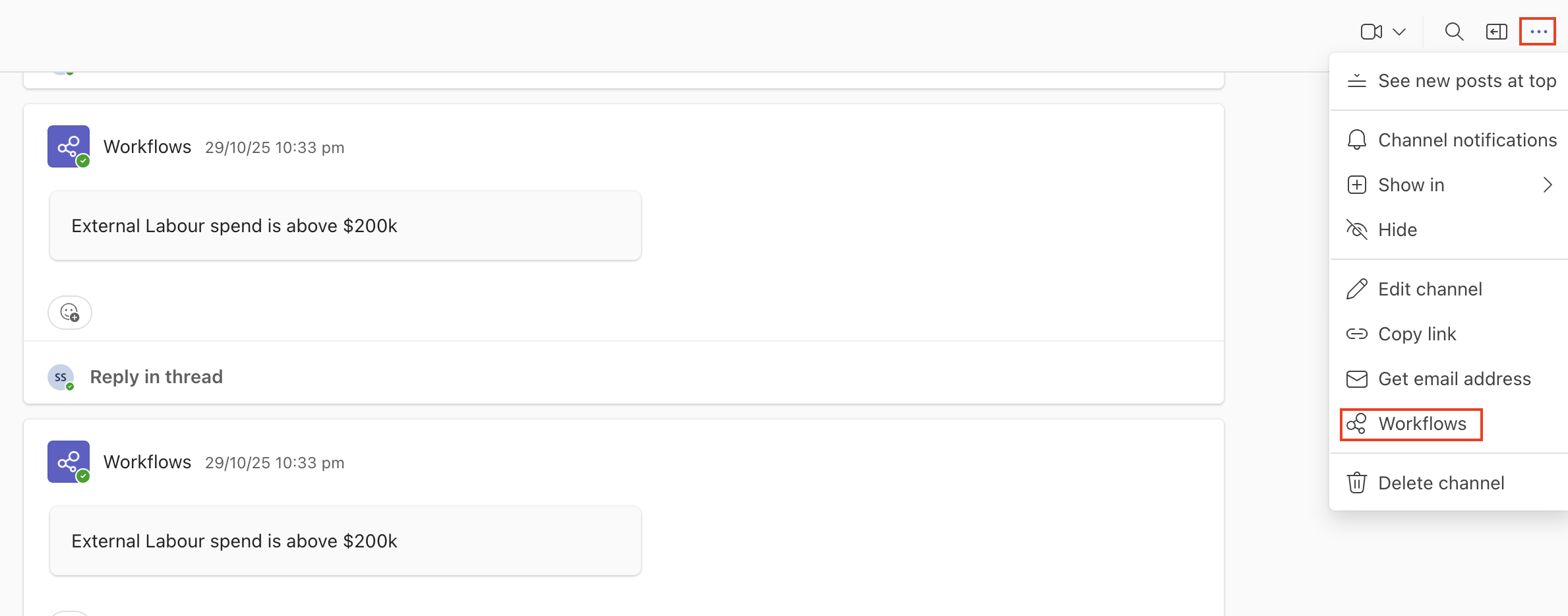
On the upper-right corner, select More channel options next to the channel you want to create a workflow for, and then select Workflows.
-
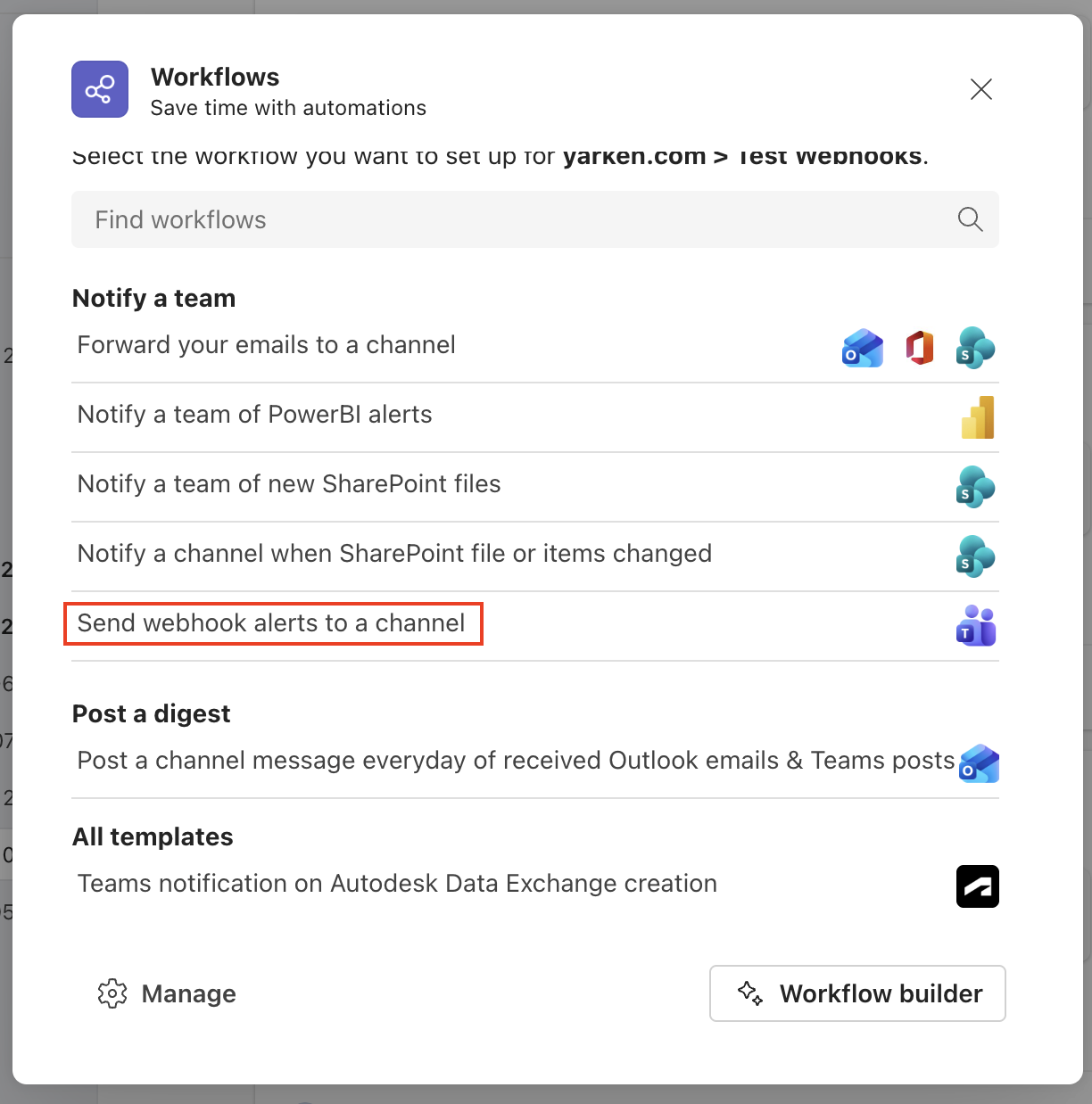
From the available templates, choose Send webhook alerts to a channel.
-
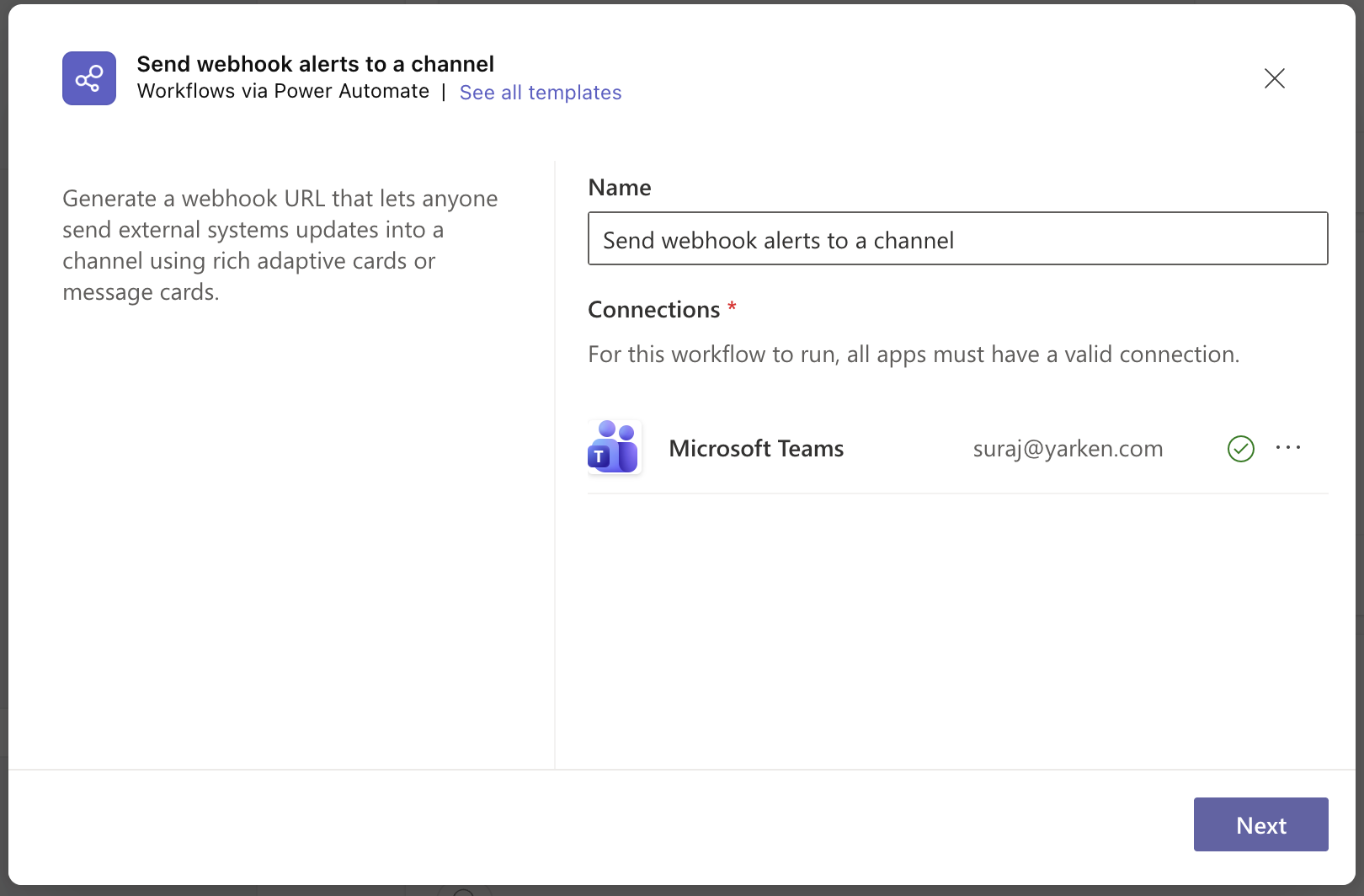
Select Next.
-
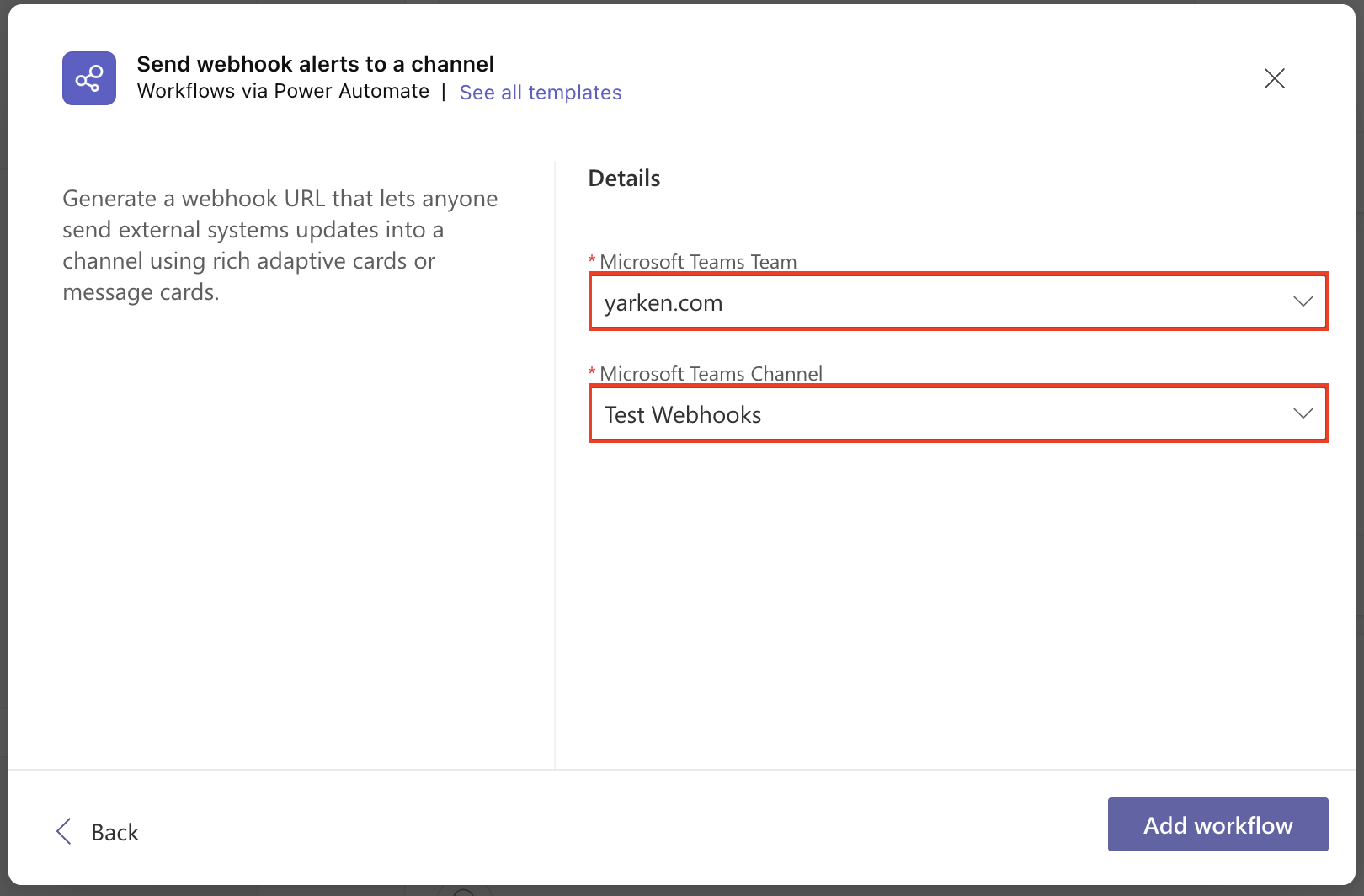
Choose the Team and Channel that this notification will post to. If you’re using the same channel for notification then these fields are auto-populate for you.
-
Select Add workflow.
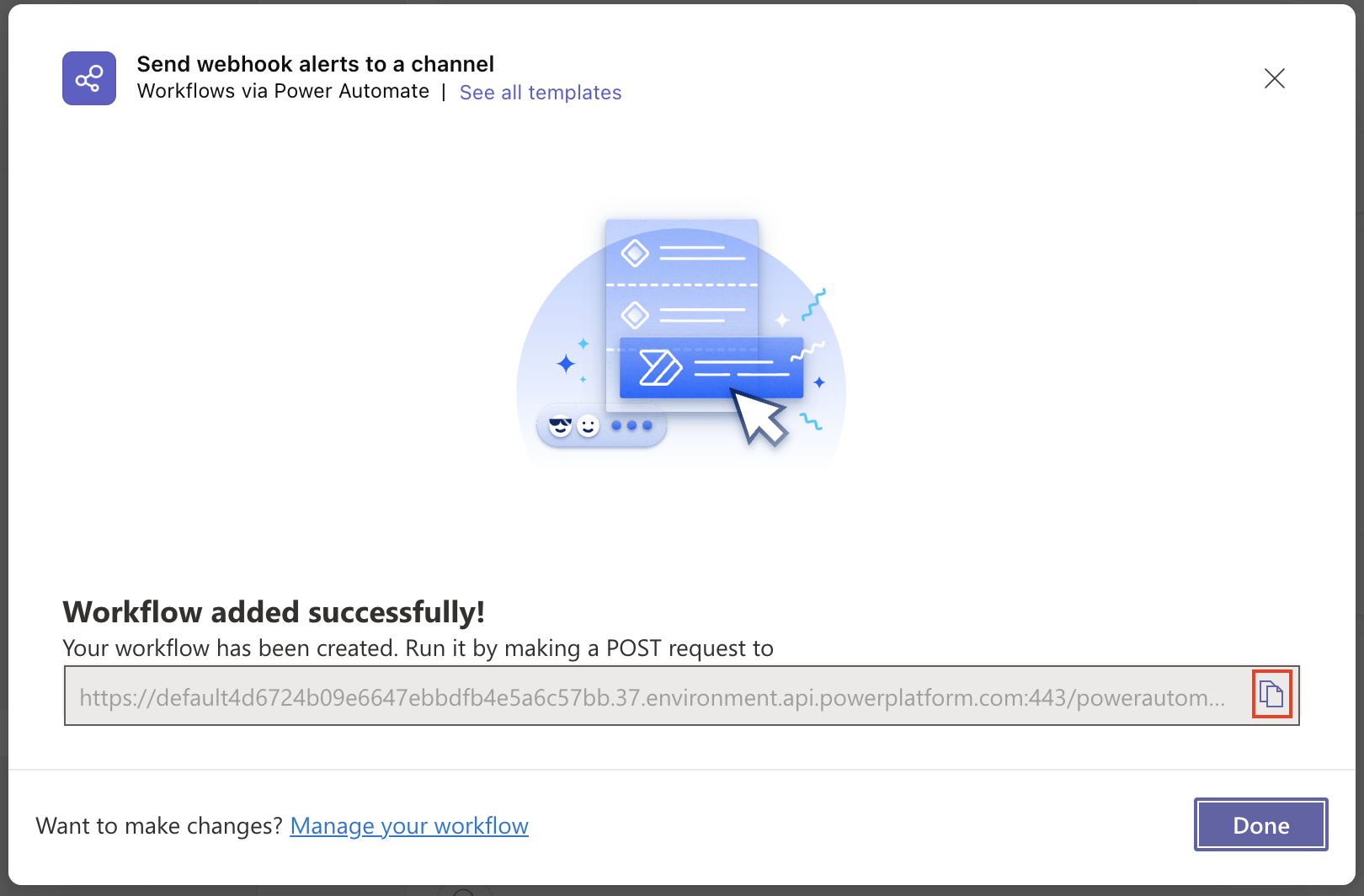
After adding workflow, you will get a new dialog with the webhook URL that you can copy.
-
Select Done.
Use this URL when configuring the Microsoft Teams channel in YäRKEN.
Slack
Creating a Webhook URL in Slack involves a three-step process.
Step 1: Create a Slack app (if you don't have one already)
Note: If you have already created an app, you can directly refer step 2 for enabling incoming webhooks.
To add,
-
Go to a link https://api.slack.com/apps to create a new app.
-
Select Create New App.

-
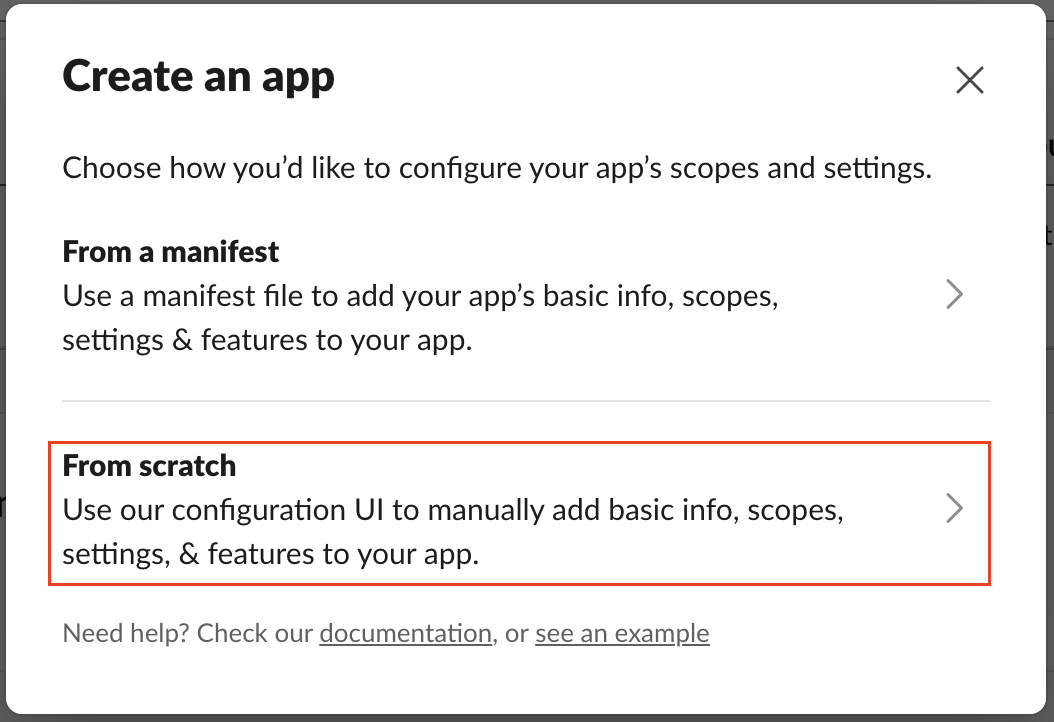
On the Create an app popup, choose From scratch.
-
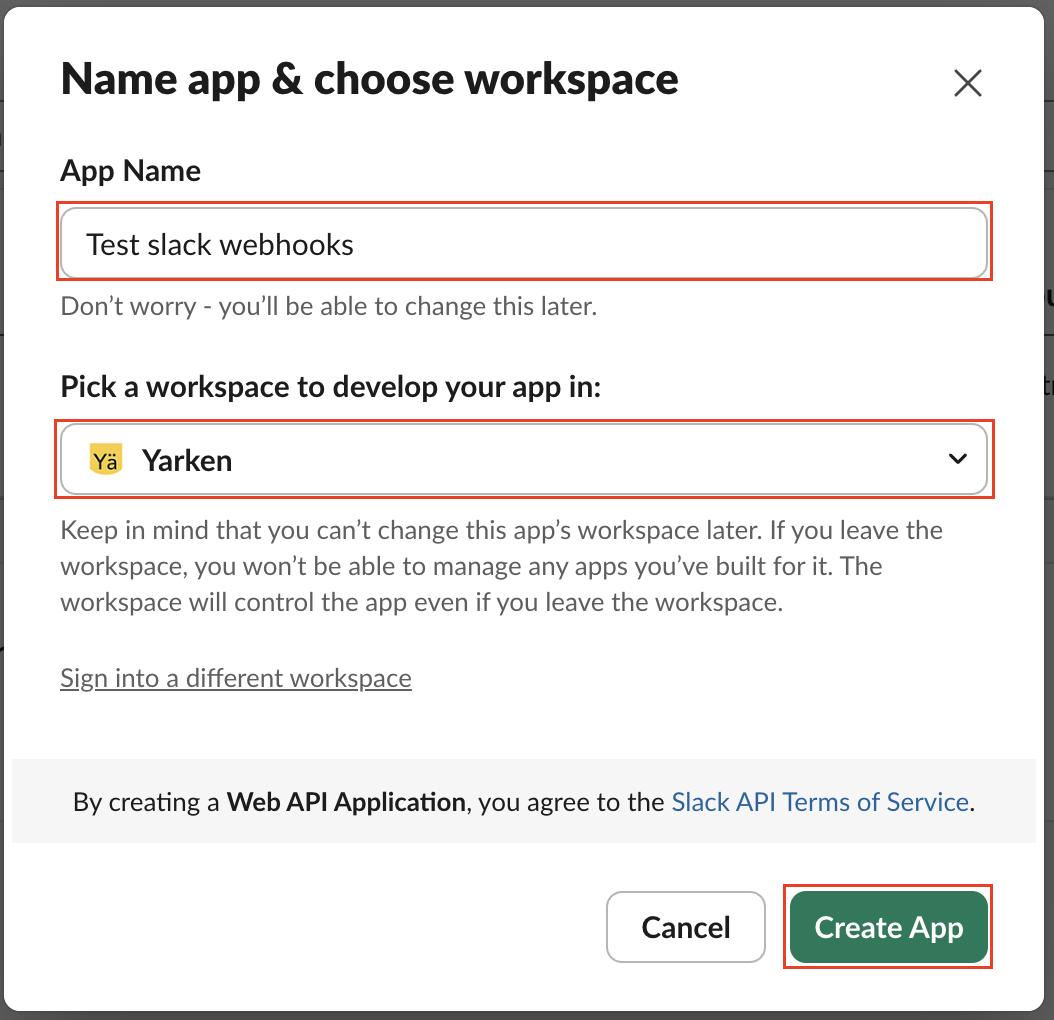
Add a name and choose a workspace to associate your app.
-
Click Create App.
You'll be redirected to the Settings page for your new app. After creating new app, you need to enable the incoming webhook.
Step 2: Enable incoming webhooks
To enable,
-
From Settings page, select Incoming Webhooks, and toggle Activate Incoming Webhooks to enable.
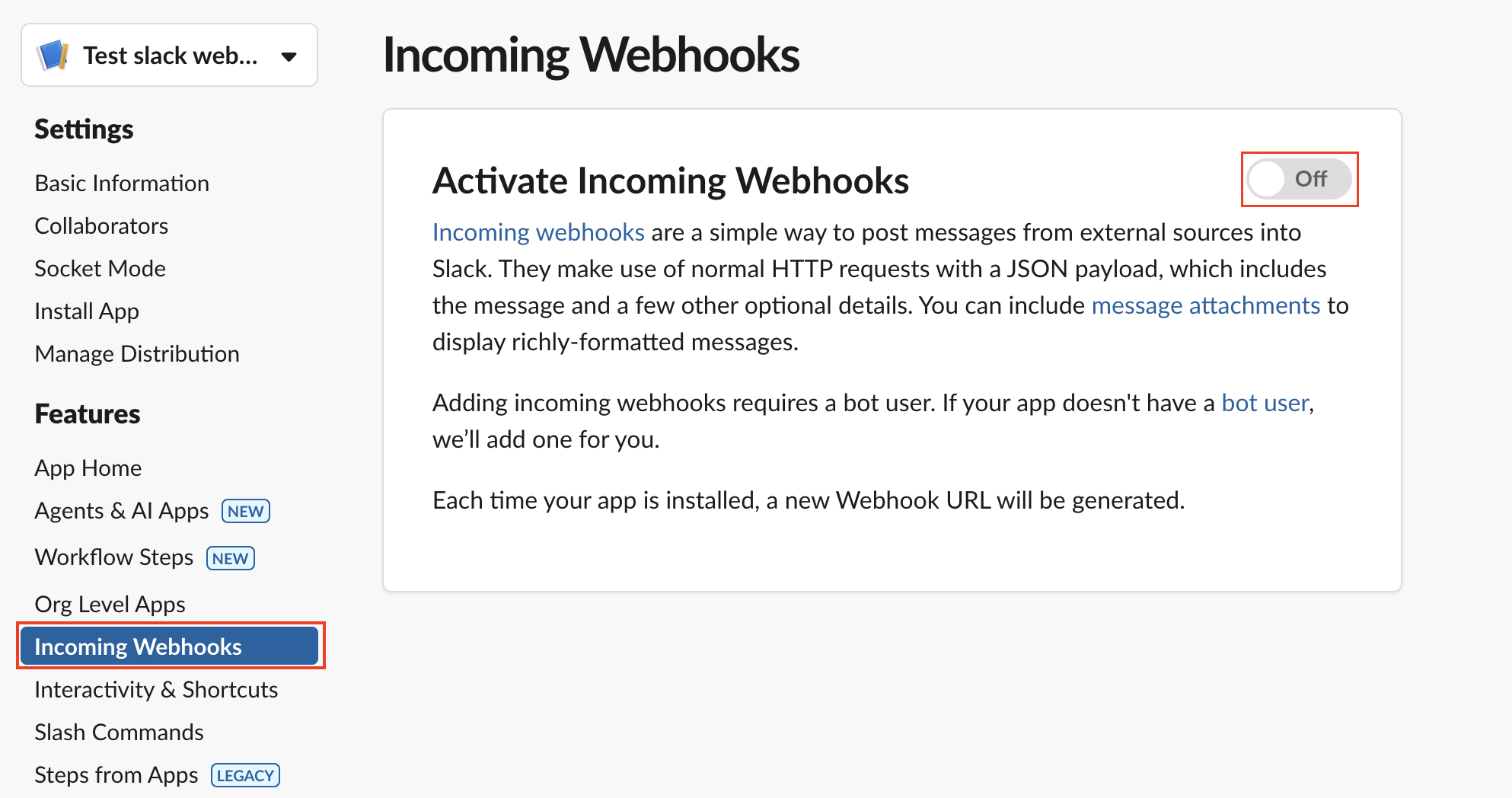
After enabling, an option for creating incoming webhook appears at the bottom of the page.
Step 3: Create an incoming webhook
To create,
-
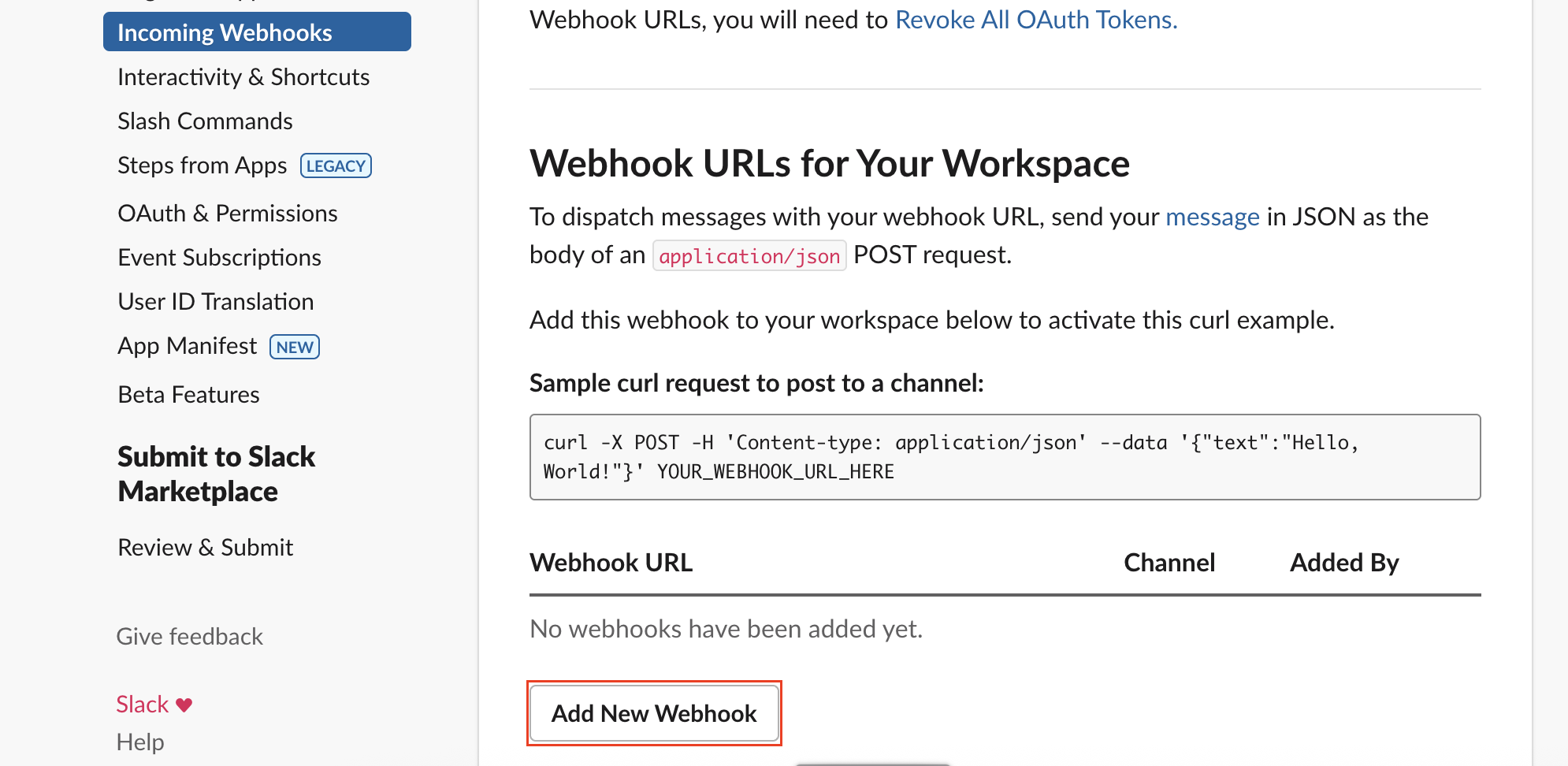
In Webhook URLs for Your Workspace section, click Add New Webhook button.
-
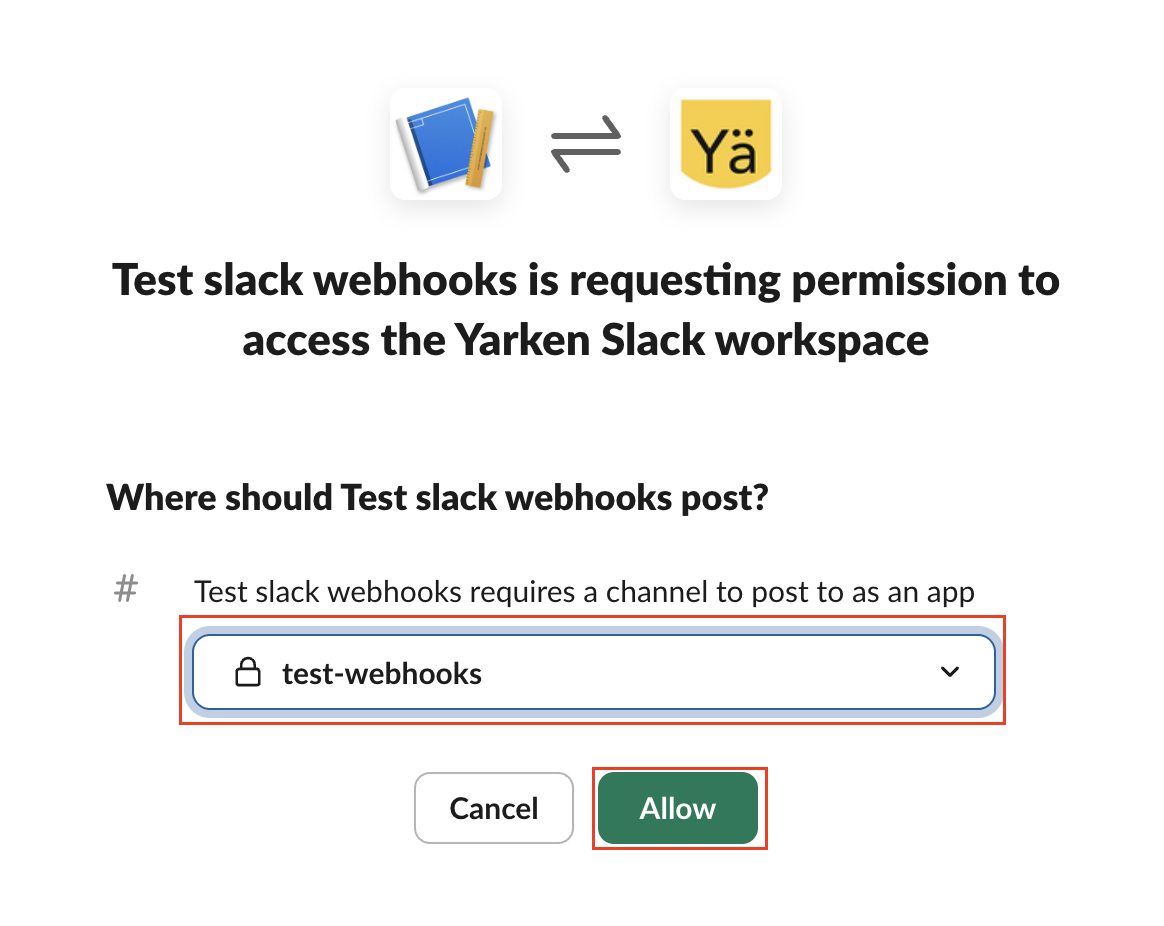
Select a channel that the app will post to, and then select Allow.
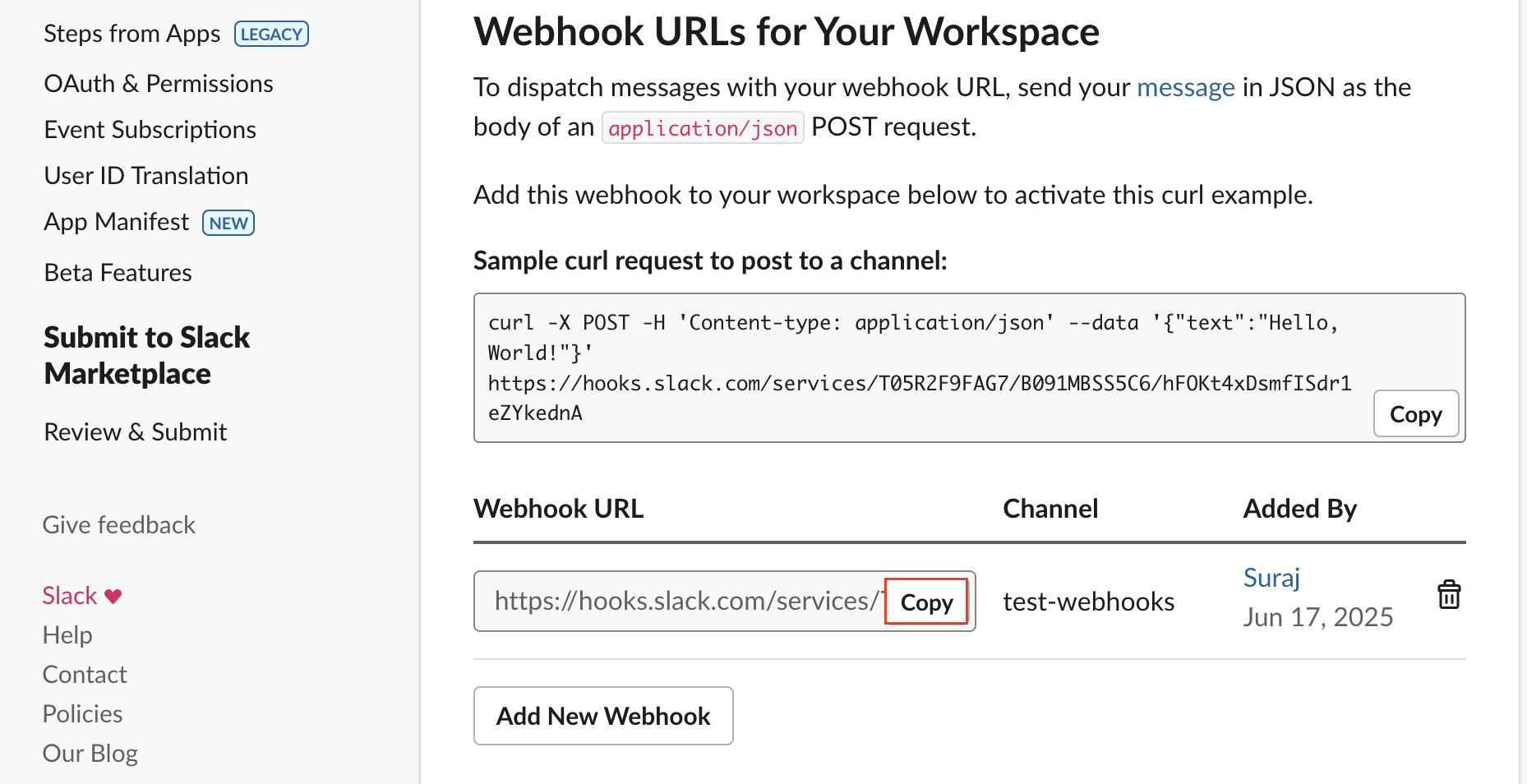
You’ll be redirected to your app settings page, where you should see a new entry under the Webhook URLs for Your Workspace section.
-
Copy the given URL under Webhook URL.
Use this Webhook URL when configuring the Slack notification channel in YäRKEN.
Next steps
After obtaining the Webhook URL:
-
Return to YäRKEN and configure a Notification Channel using the copied URL.
Related content
Configure Notification Channels
Set up notification channel group