
Use this page to understand where Copilots appear in Yarken, how users invoke them, and how Copilots support contextual analysis.
Overview
Copilots are contextual AI experiences available from specific Yarken screens, charts, workflows, and configuration areas.
A Copilot uses the context of the page where it is opened. This may include the selected dashboard, chart, filters, time period, spend view, allocation state, or mapping workflow.
Copilots are different from the main Ask Yarken button in the top navigation.
|
Entry point |
Purpose |
|---|---|
|
Ask Yarken icon on charts or widgets |
Opens a contextual Copilot for that chart, metric, or dashboard component. |
|
Investigate with AI in Yarken Designer |
Opens a guided Copilot workflow to investigate allocation gaps and propose rules. |
|
Dashboard AI Narrative |
Generates AI-written narratives and summaries for selected custom-dashboard widgets and reports. |
User flow
Users invoke Copilots from the screen or workflow they are working in.
|
User action |
What happens |
|---|---|
|
User opens a page, dashboard, chart, or mapping workflow |
Yarken provides page-level or widget-level context. |
|
User selects the Copilot or Ask Yarken icon |
The Copilot opens with that context. |
|
Copilot analyzes the selected context |
It uses available filters, chart data, allocation state, or workflow details. |
|
User asks a follow-up question or starts an investigation |
Copilot responds with focused guidance, explanation, or proposed action. |
|
User reviews the result |
The user can continue the conversation, accept a recommendation, reject it, or continue manually where supported. |
Where Copilots appear
Copilots currently appear in three main ways.
-
Ask Yarken Copilot on dashboards, charts, and report widgets
-
Investigate with AI Copilot in Yarken Designer
-
Dashboard AI Narrative on custom dashboards
Ask Yarken Copilot on dashboards and charts
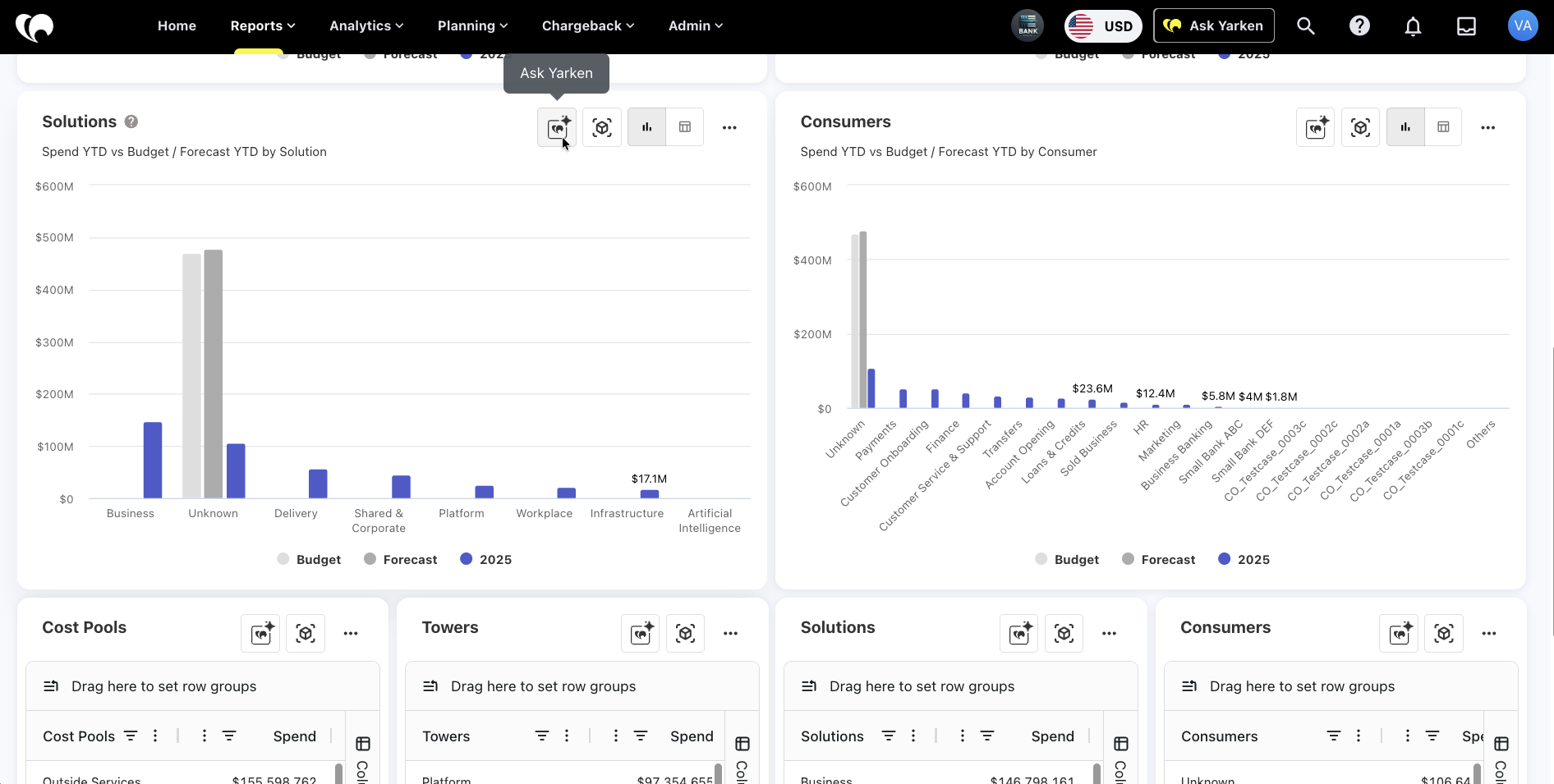
Some charts and dashboard widgets include an AI icon. When users hover over the icon, the tooltip says Ask Yarken.
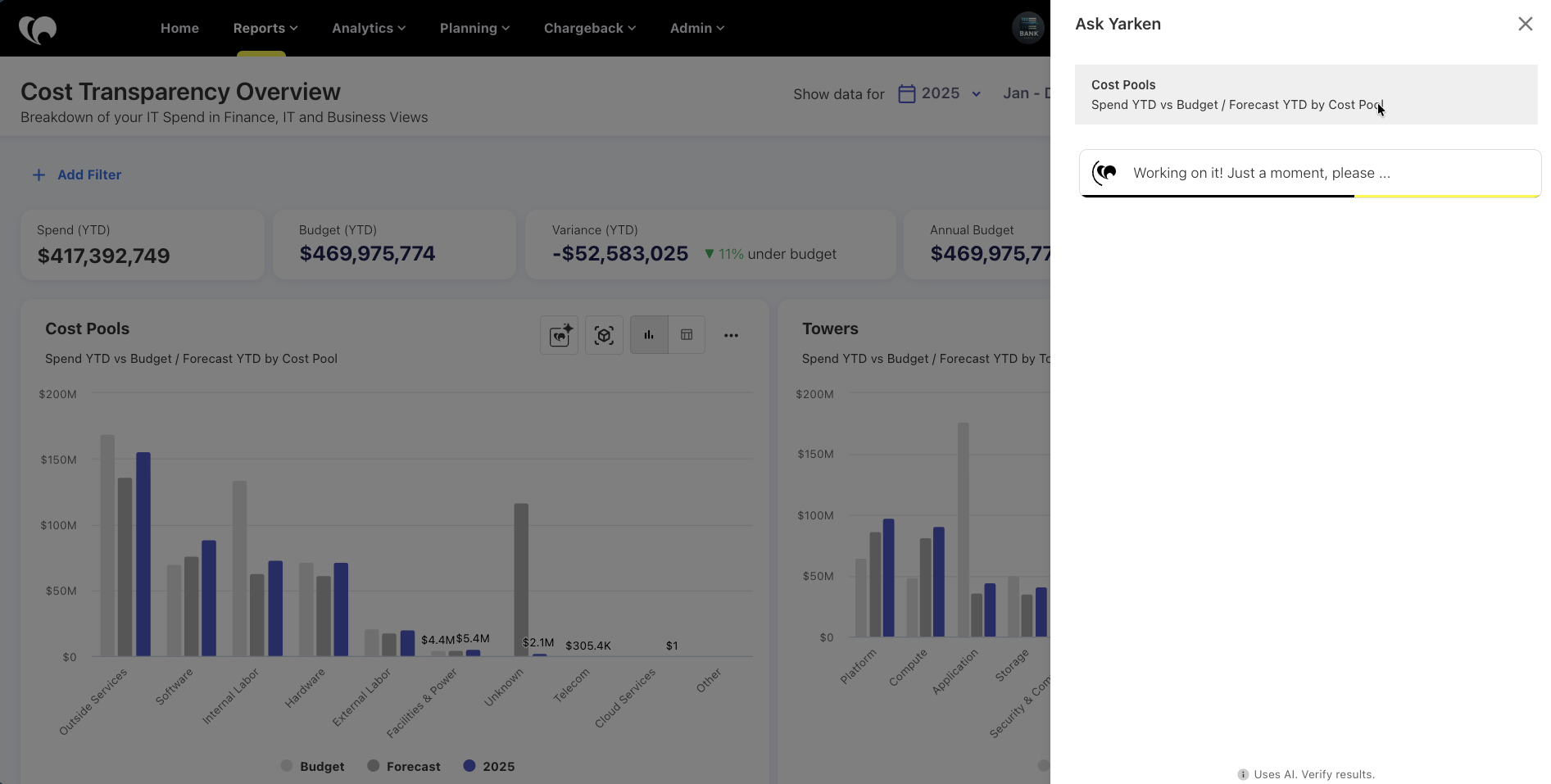
Selecting this icon opens a contextual Copilot for that chart or widget.
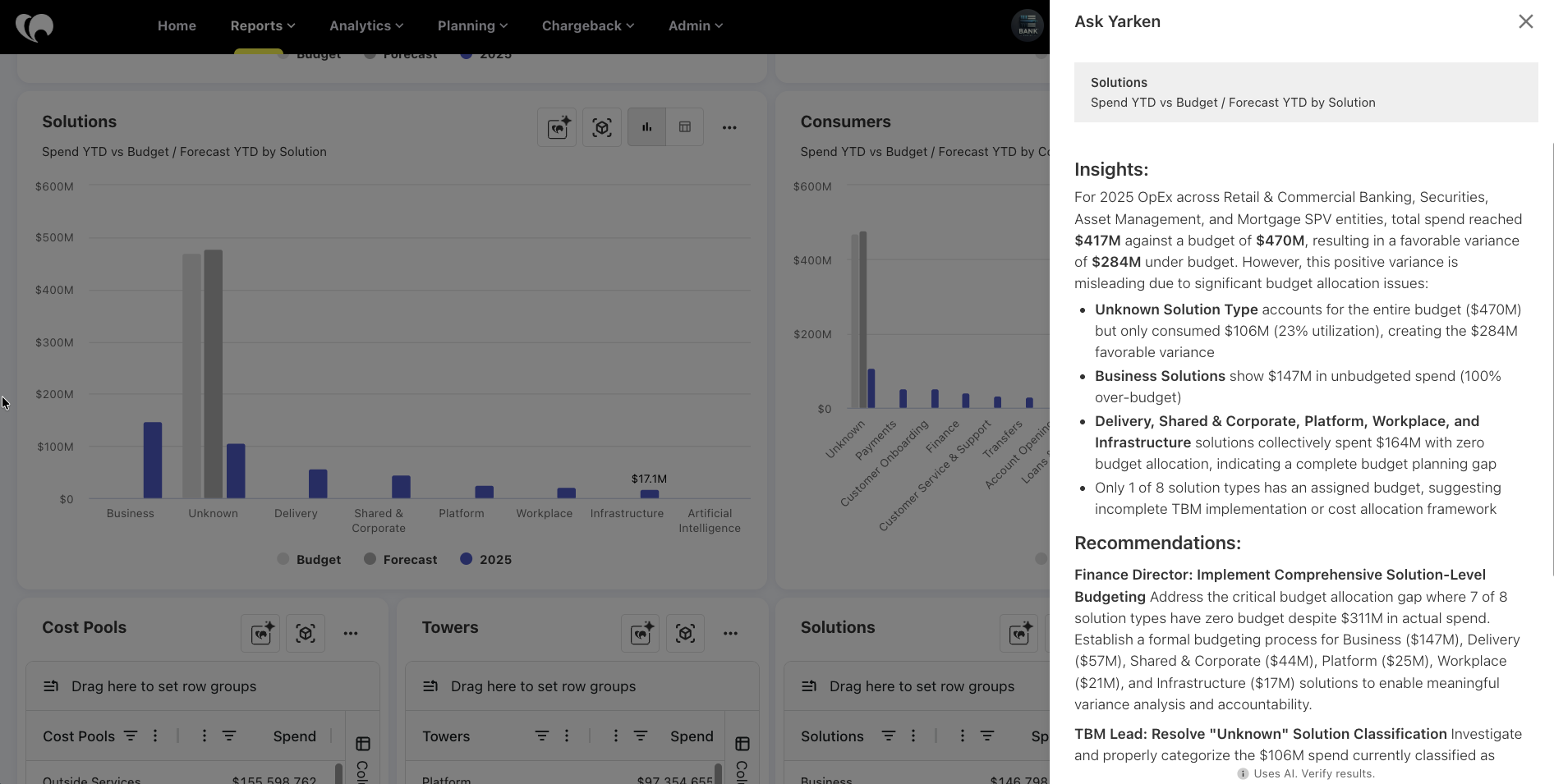
The Copilot can help users understand the data shown in the selected visual, explain trends, investigate changes, or ask follow-up questions based on the current screen context.
Common locations
Ask Yarken Copilot can appear on charts and widgets in areas such as:
|
Area |
Examples |
|---|---|
|
Home |
Monthly Spend graph, Total Spend, Labor, and other dashboard widgets. |
|
Reports |
Report dashboards under Cost Transparency, Finance, Vendor, Contract, Technology, Platform, Cloud, Applications, Solutions, and Consumers. |
|
Planning |
Selected planning pages such as Annual Budget Overview, Annual Forecast Overview, and Business Case Overview. |
|
Chargeback |
Chargeback Overview. |
Availability may vary by page, chart type, and environment.
Use Ask Yarken Copilot on a chart
To use the Copilot from a chart or widget:
-
Open a supported dashboard, report, planning page, or chargeback page.
-
Locate the chart or widget you want to investigate.
-
Select the Ask Yarken icon on the chart or widget.
-
Ask a question about the selected visual.
-
Review the response.
-
Continue with follow-up questions where supported.
Example questions:
Why did monthly spend increase in March?
Which cost centres are driving this budget variance?
Explain the trend shown in this chart.
What should I review next based on this widget?
Summarize the key drivers behind this chargeback trend.
Dashboard AI Narrative on custom dashboards
The Dashboard AI Narrative is a Copilot that generates AI-written narratives and summaries from selected custom-dashboard widgets or instructions supplied by the dashboard editor.
An administrator must enable Dashboard AI Narrative under Admin > AI Studio > Channels > Copilots. Users with permission to edit the custom dashboard can then add and configure the widget under Analytics > Custom Dashboards.
Use the settings on the Dashboard AI Narrative Copilot card to enable or disable it for the environment. Admin > AI Studio > Channels > Copilots is the current configuration location.
Narratives can run manually or on a schedule, generate in the background, and use the dashboard's configured Year or Month filter scope. The generated narrative is stored in the widget until it is regenerated. A separate AI Studio Automation is not required.
For setup steps, source selection, instructions, voice, detail, filter scope, run modes, and run history, see Add and configure a Dashboard AI Narrative widget.
Configuration flow
Investigate with AI in Yarken Designer
Yarken Designer includes a Copilot workflow for investigating incomplete spend allocations.
This workflow is available from the Spend Model configuration area and helps users identify unallocated expenses, review signals, and generate proposed mapping rules.
The Copilot supports allocation review for:
-
Cost Pools
-
Towers
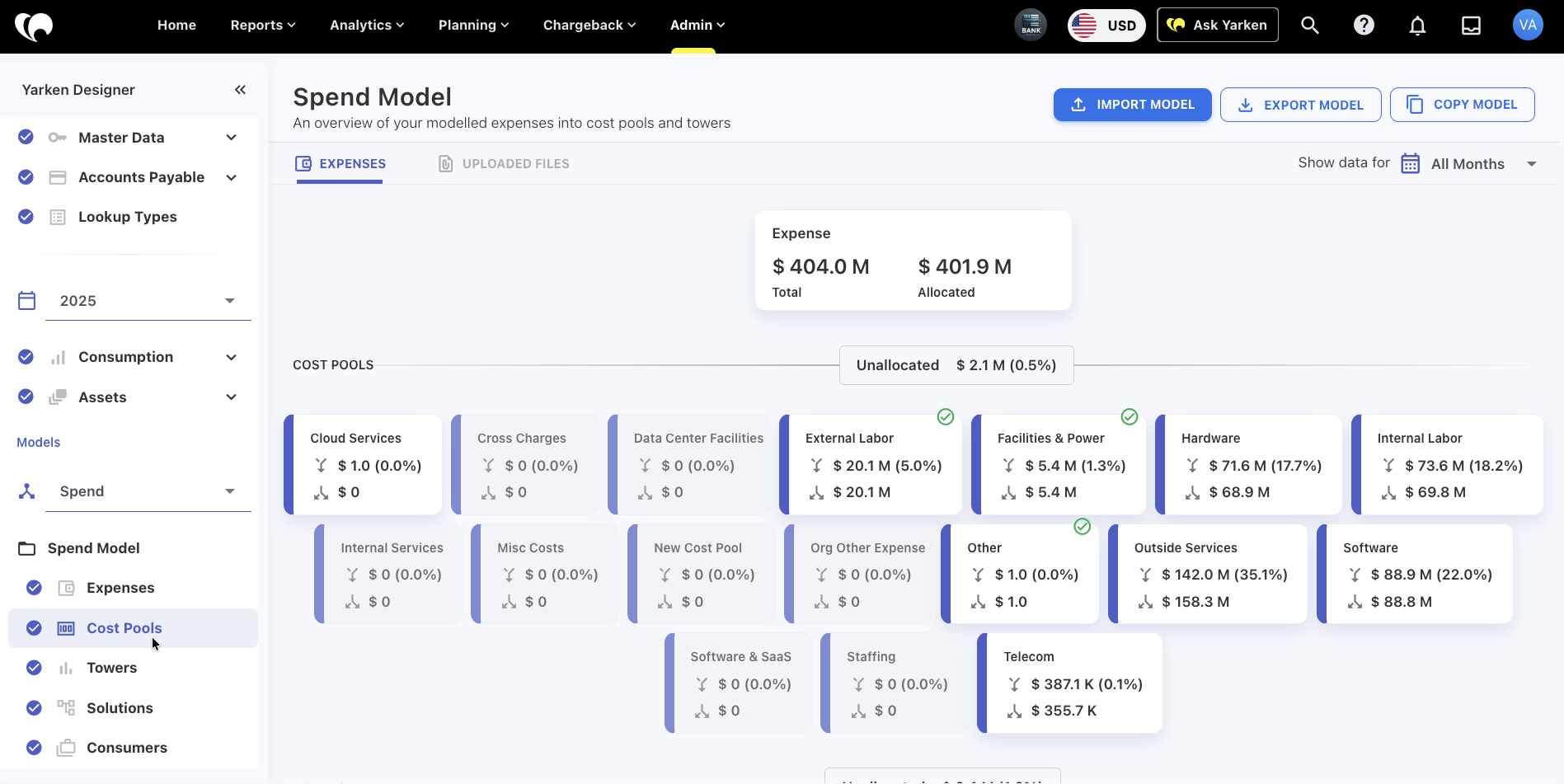
Use Investigate with AI for Cost Pools
To investigate Cost Pool allocation gaps:
-
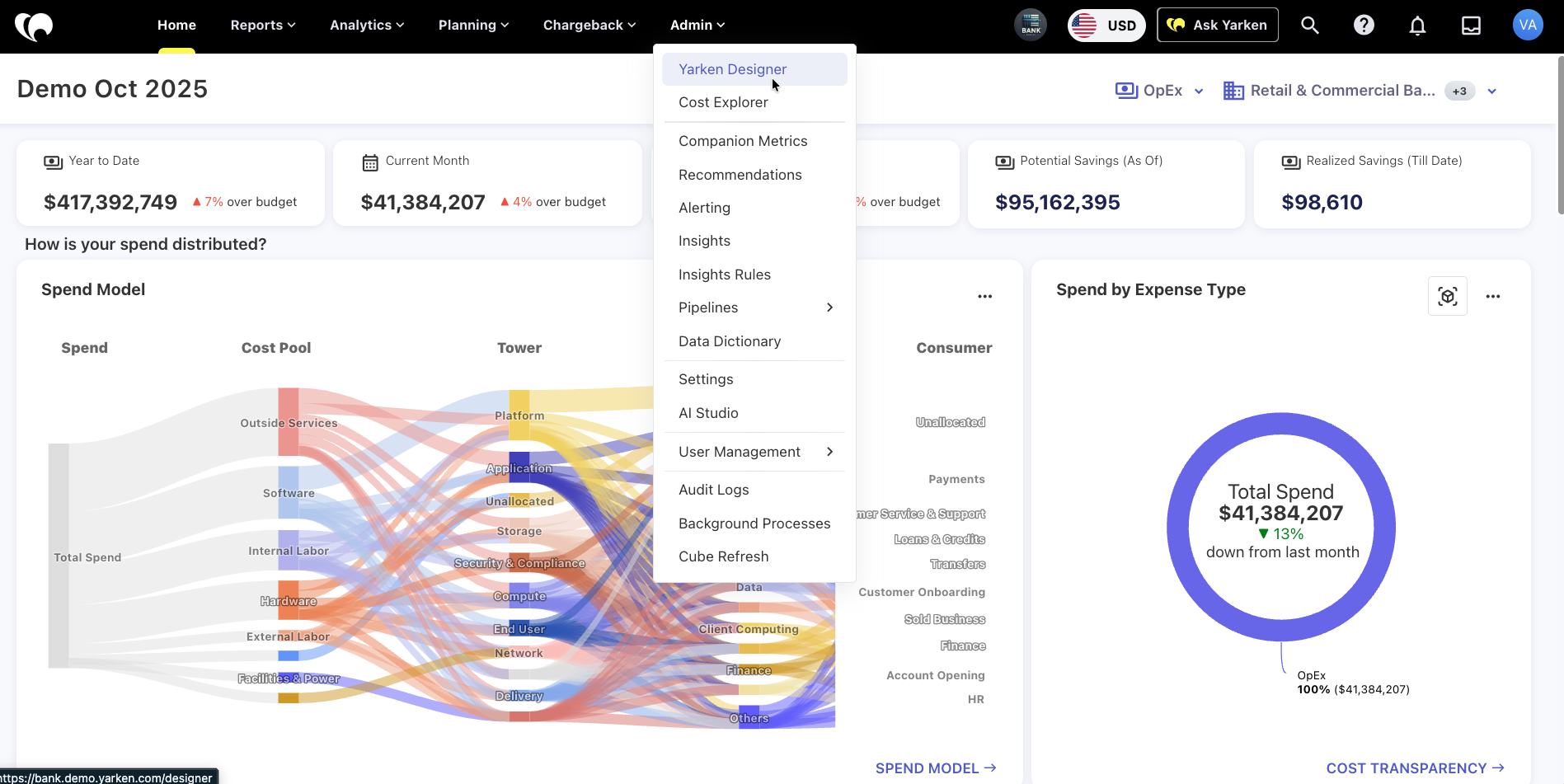
Go to Admin > Yarken Designer.
-
Under Spend Model, select Cost Pools.
-
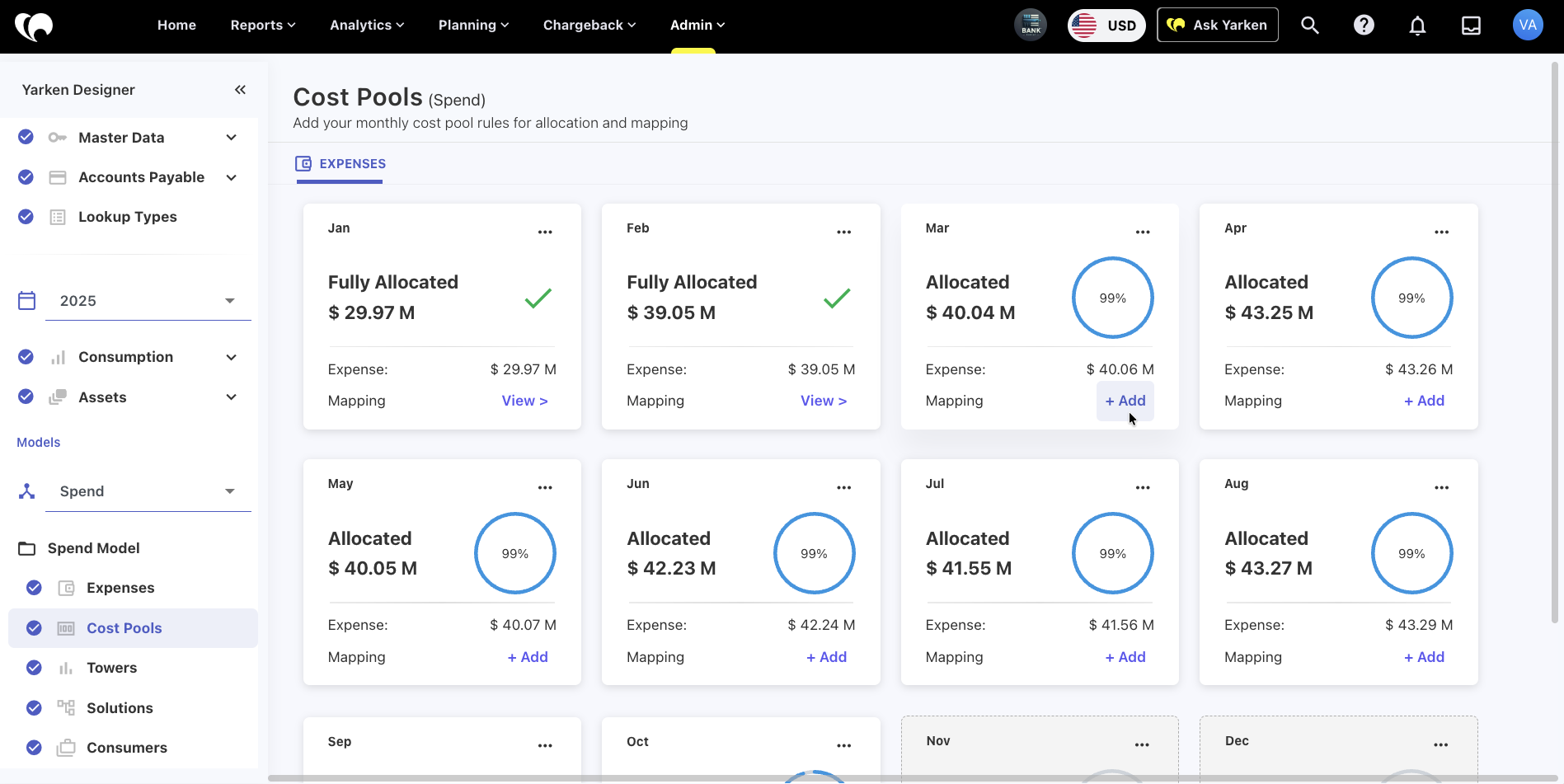
Find a month with incomplete allocation.
-
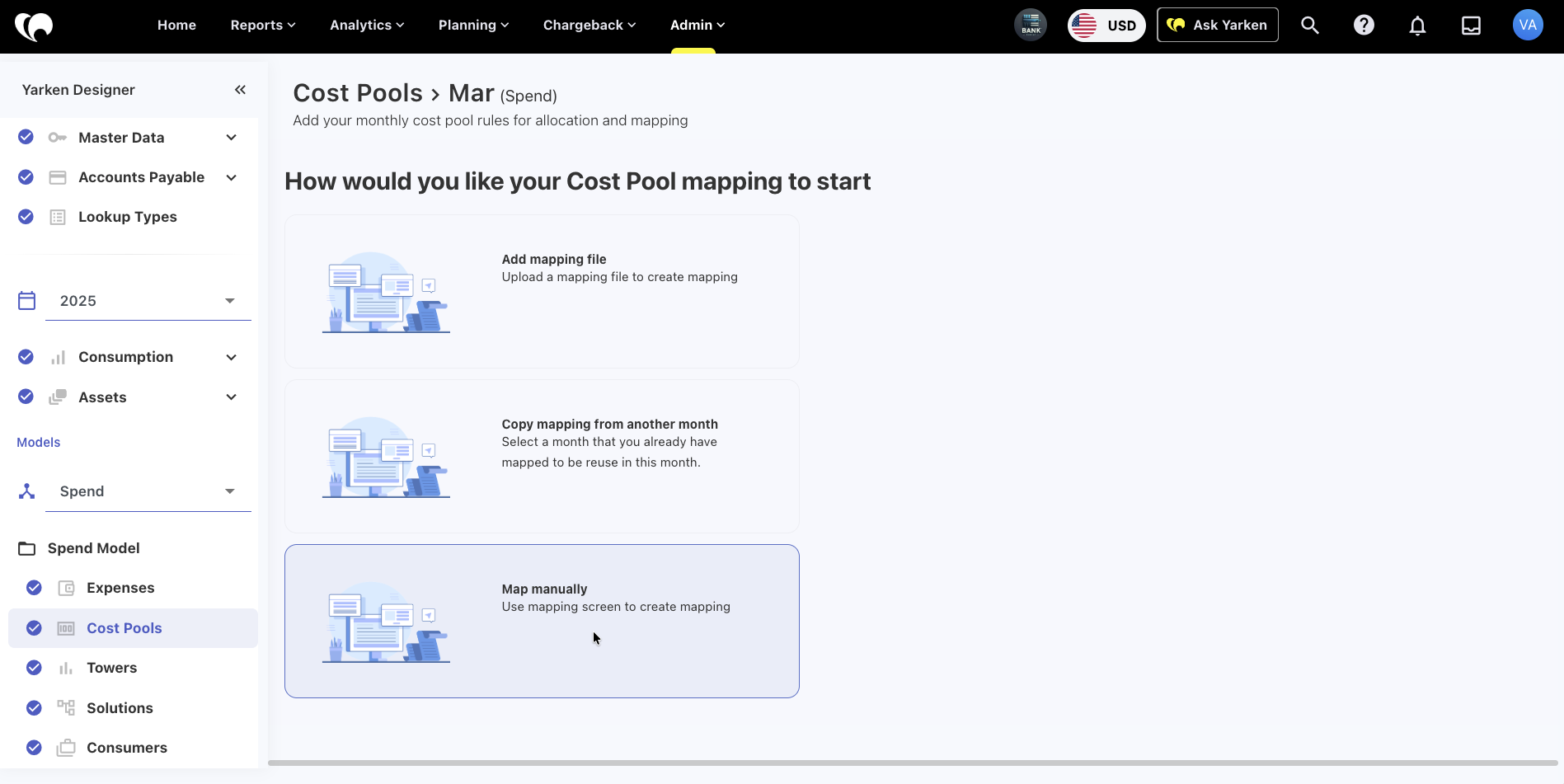
Select + Add on the relevant month card.
-
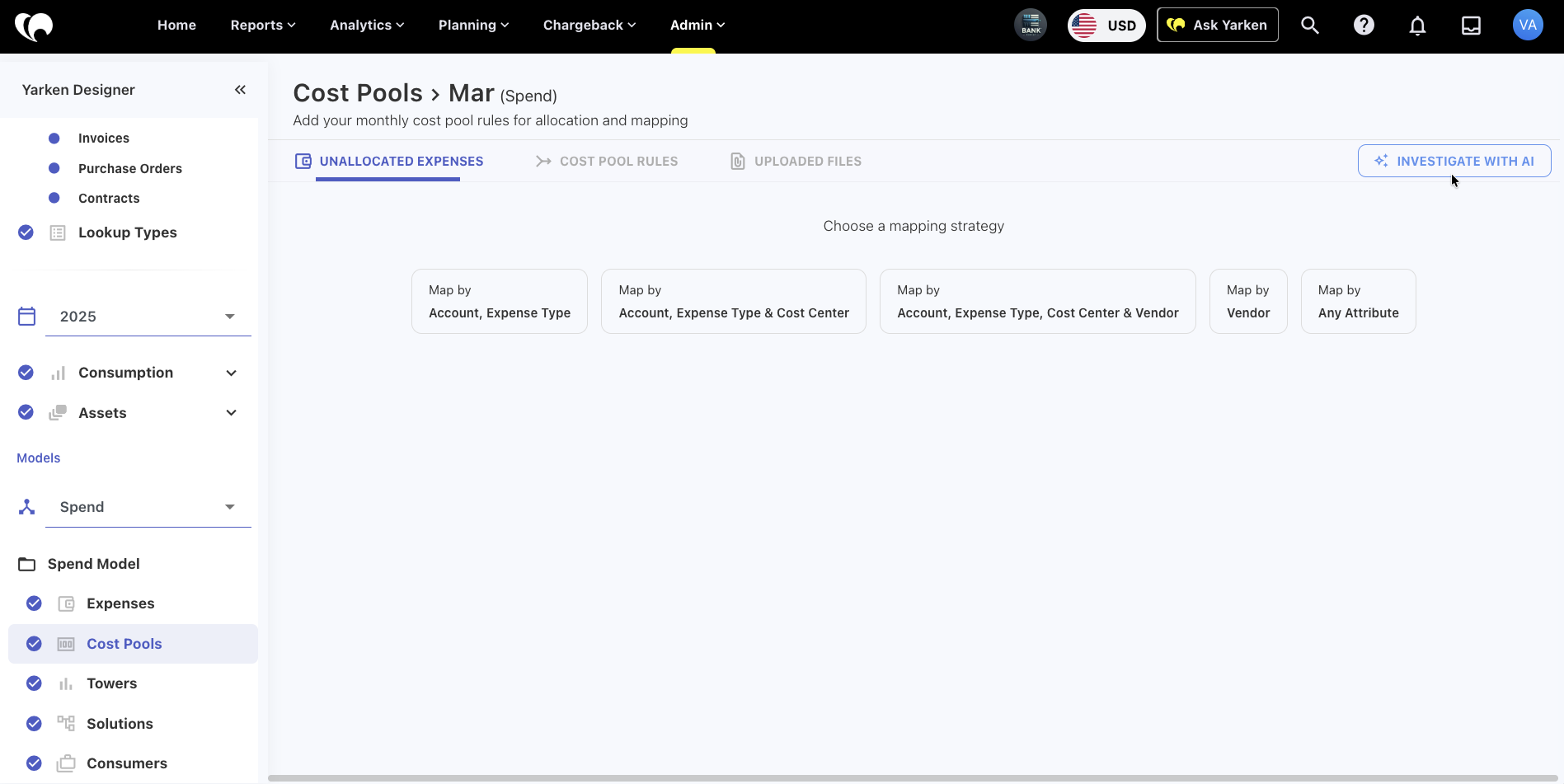
Choose Map manually.
-
Select Investigate with AI.
-
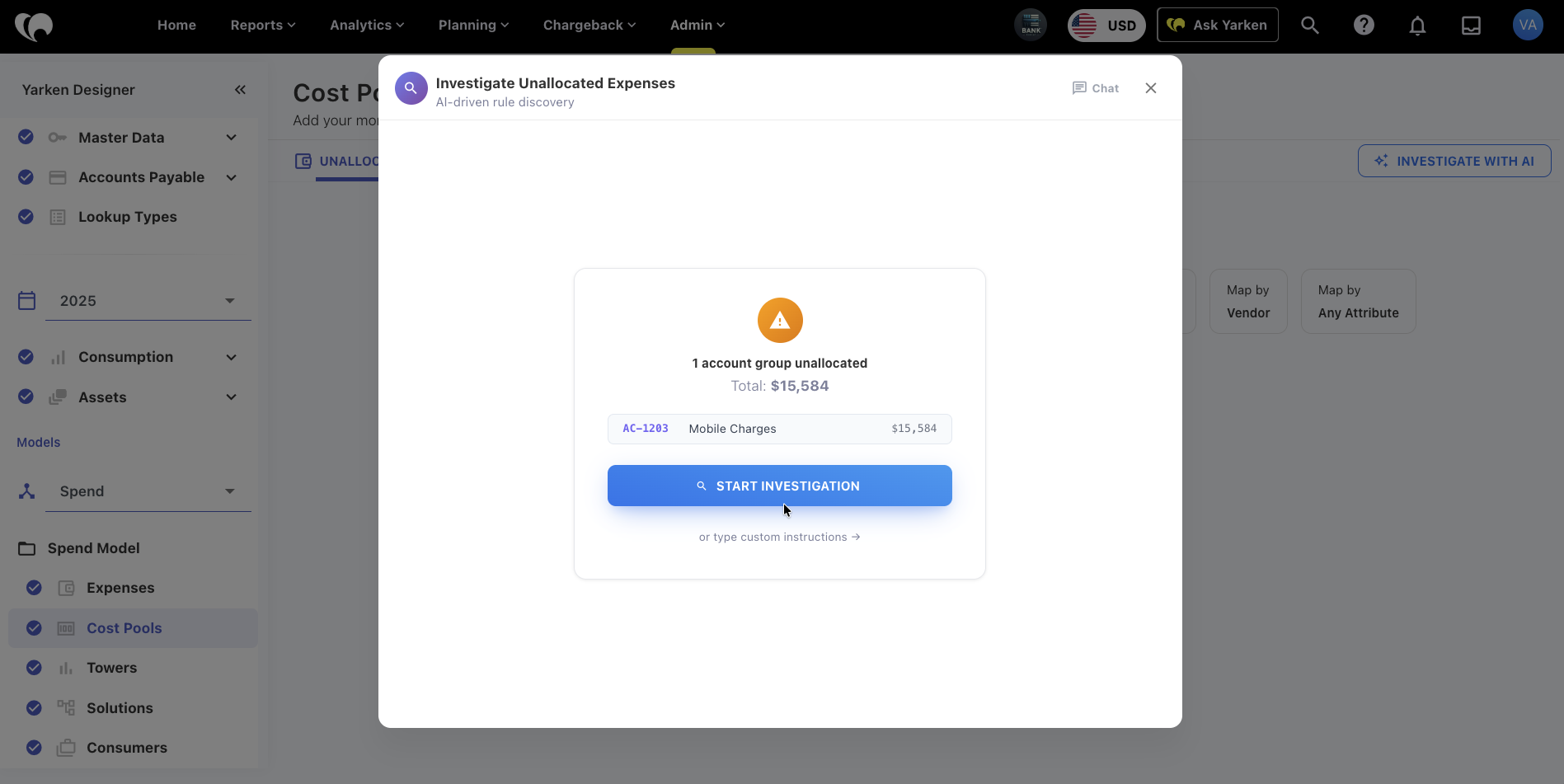
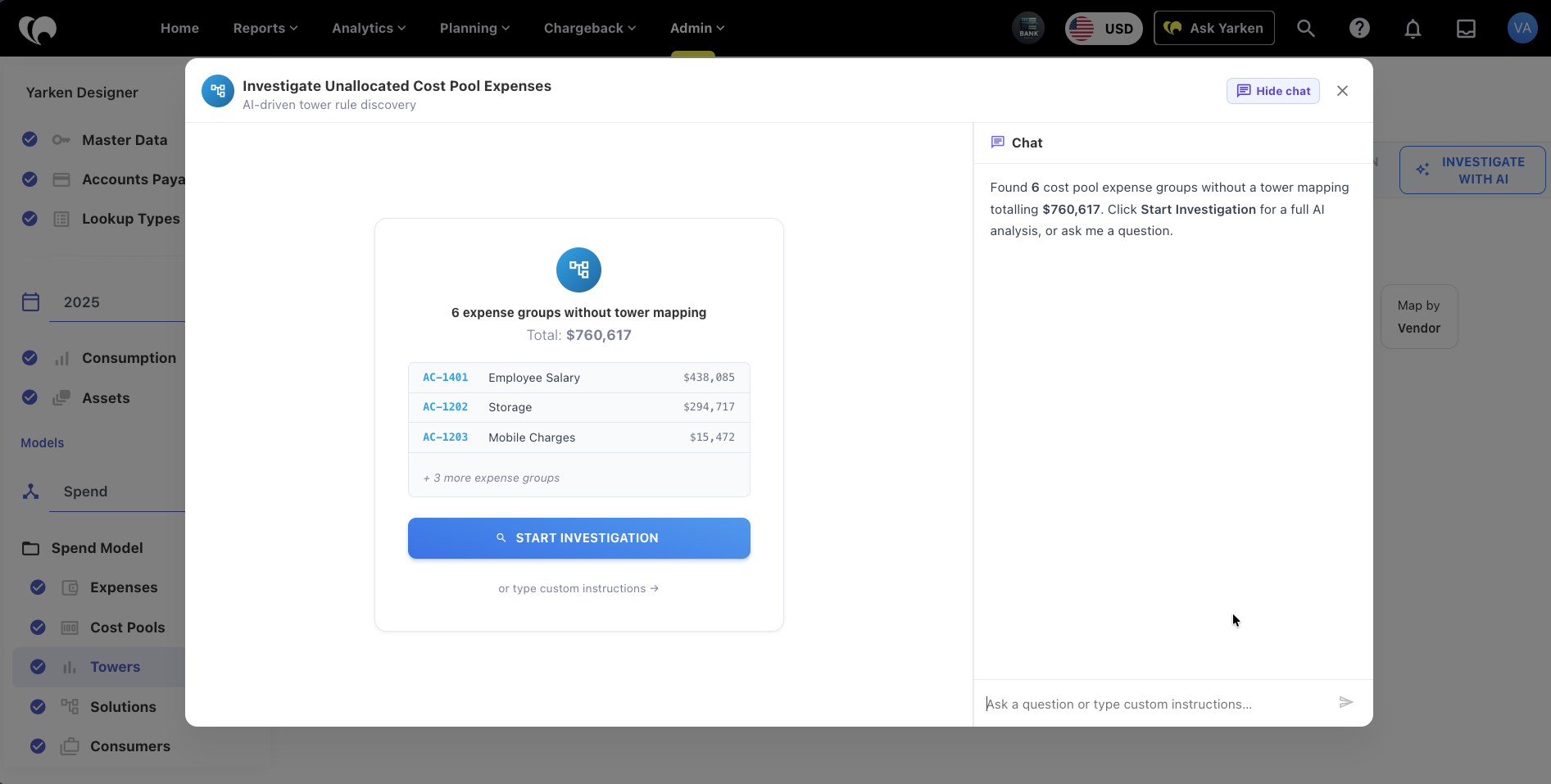
In the investigation modal, choose one of the available options:
-
Start the investigation.
-
Open chat.
-
Enter custom instructions.
-
Continue manually.
-
-
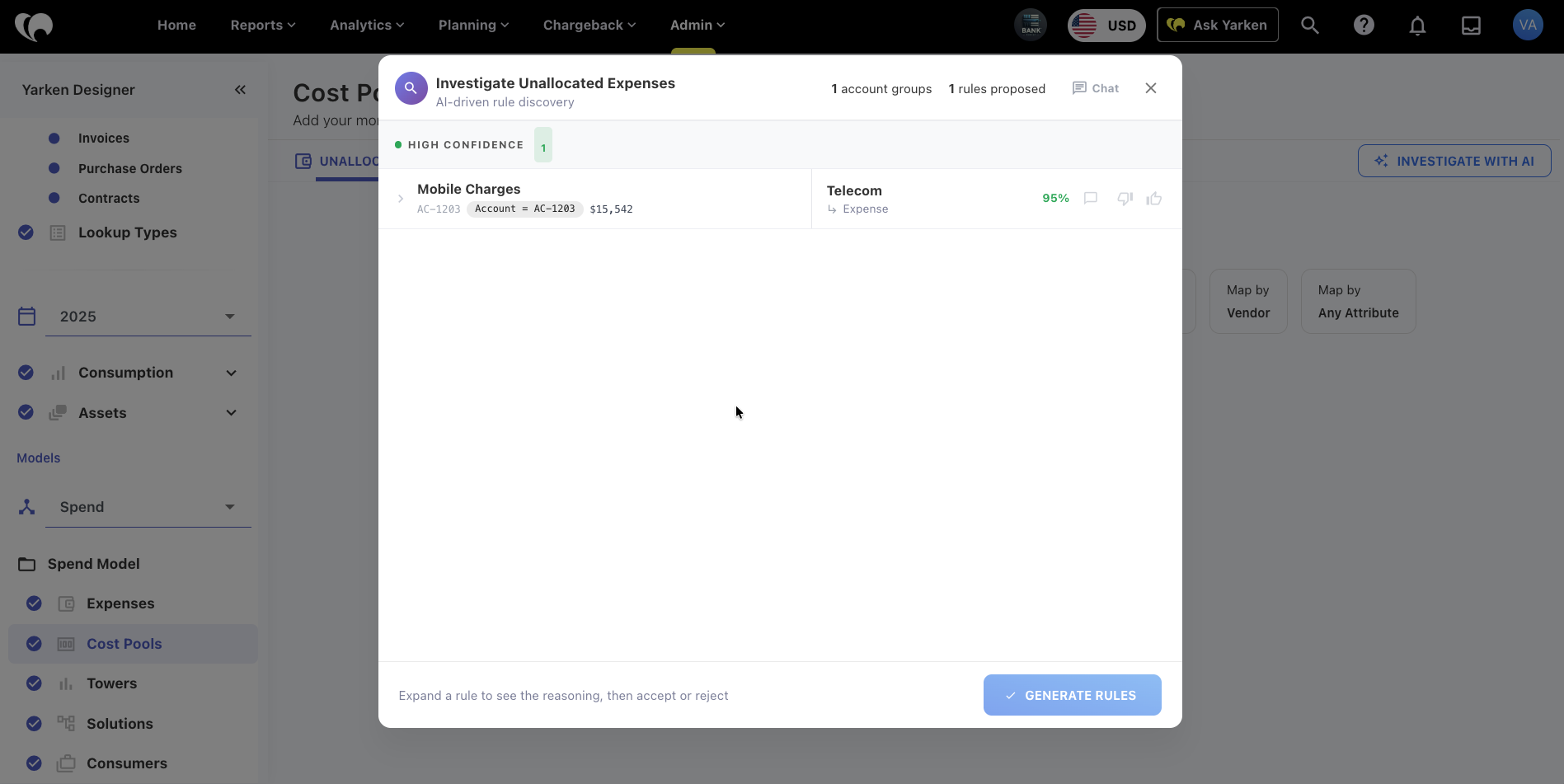
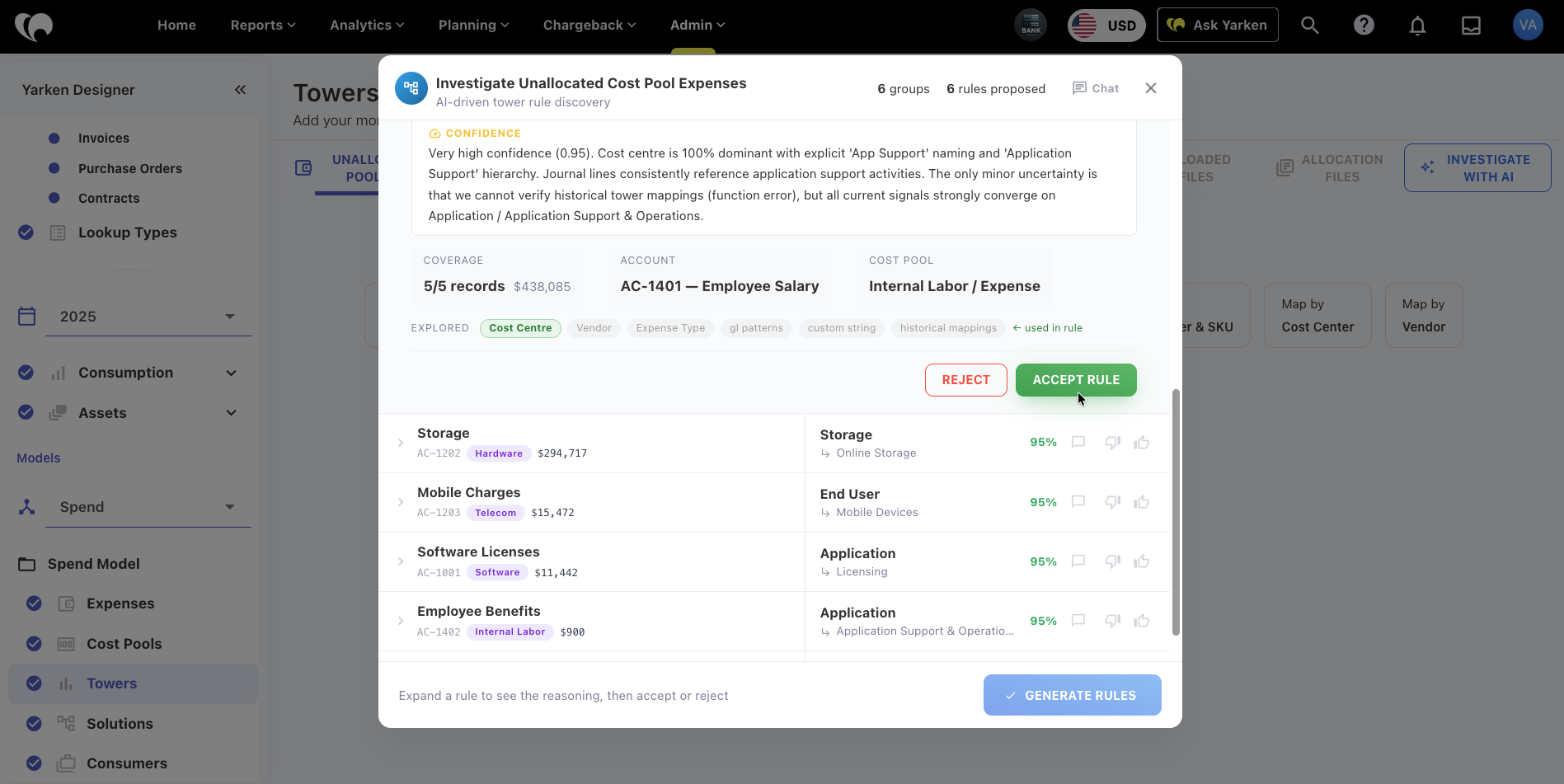
Review the proposed mapping rule.
-
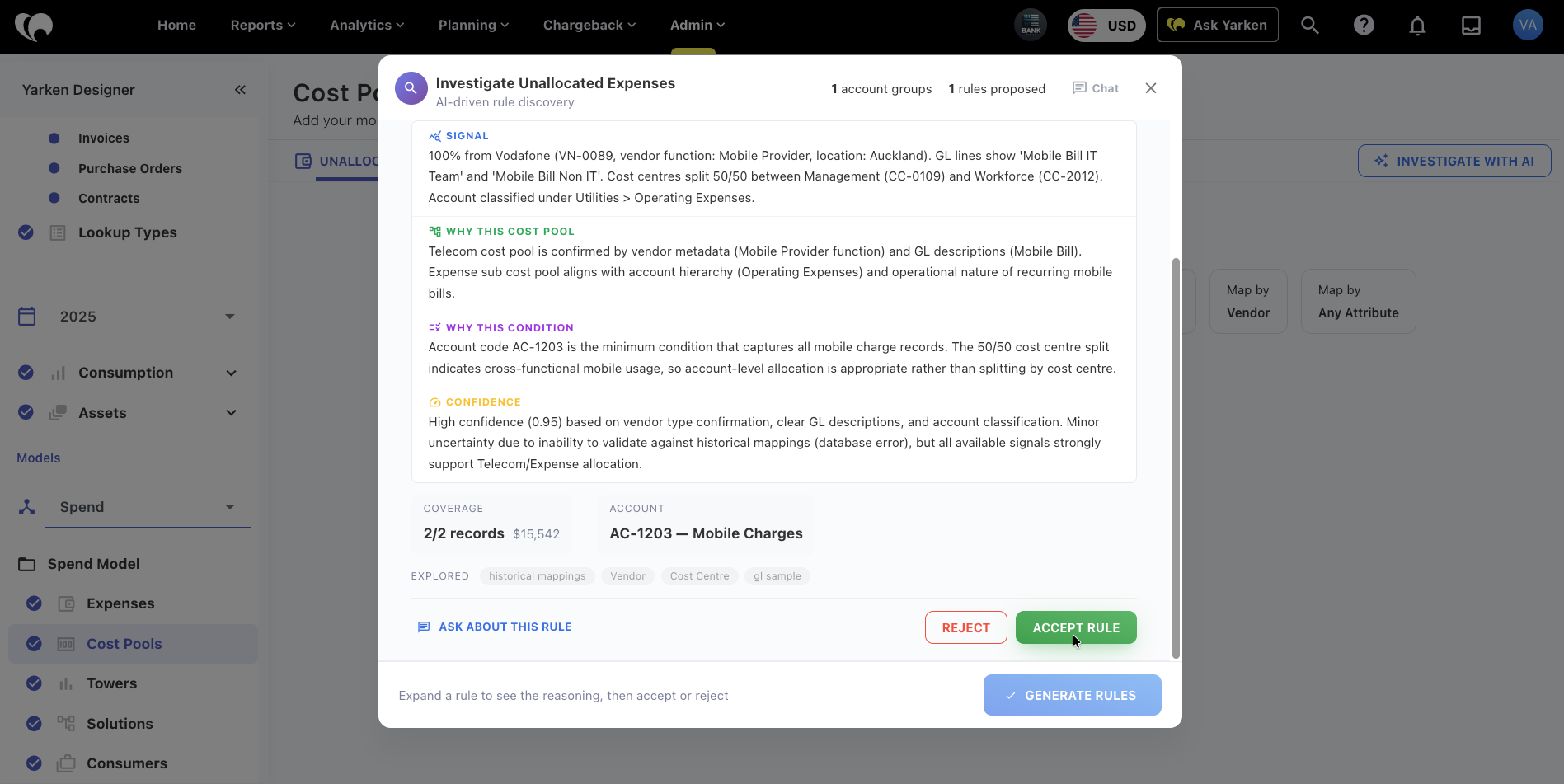
Expand the rule to review the reasoning, signal, condition, and confidence.
-
Choose Accept Rule or Reject.
-
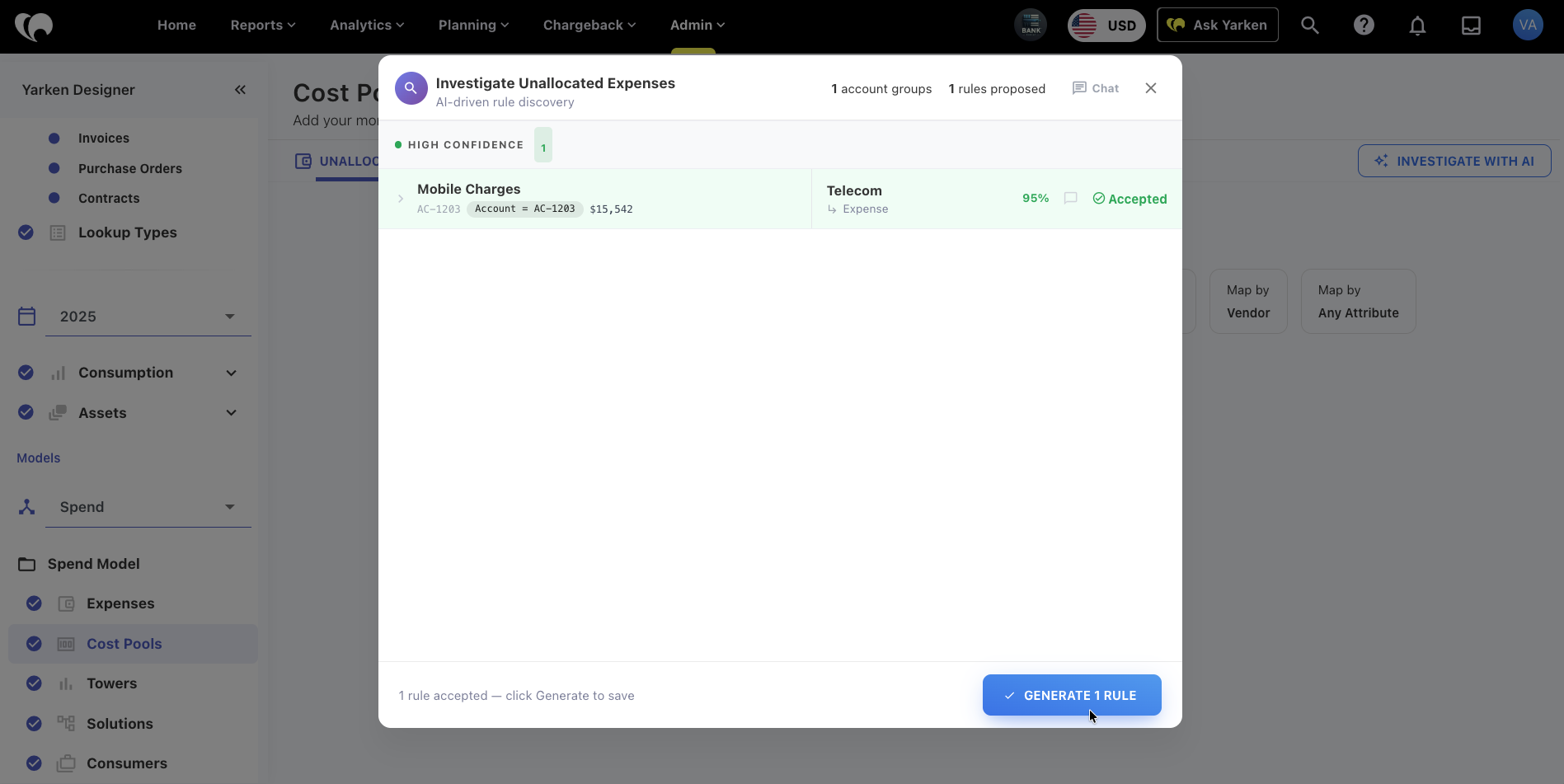
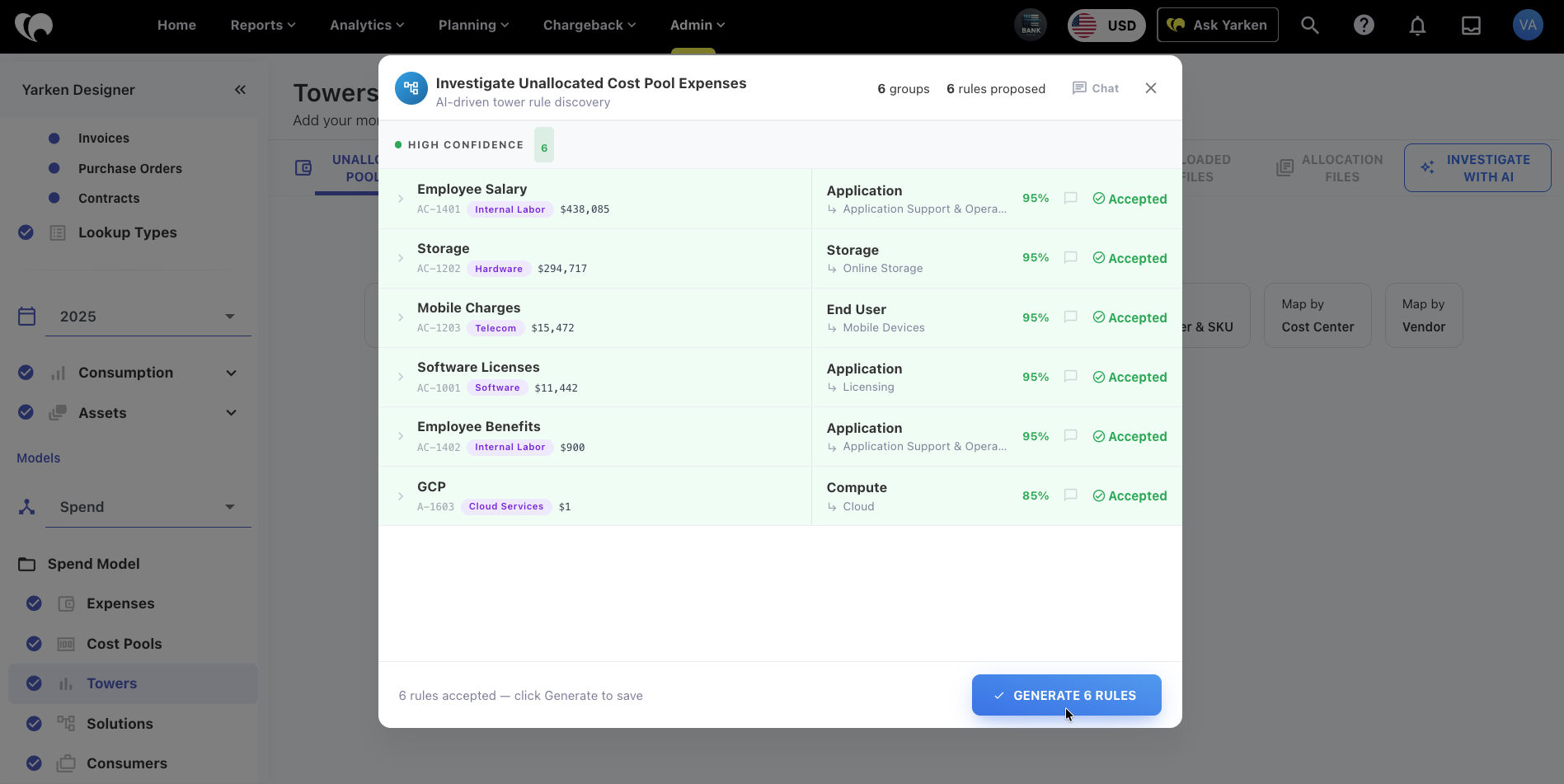
Select Generate Rule to save the accepted rule.
Use Investigate with AI for Towers
The Towers workflow follows the same pattern as Cost Pools.
To investigate Tower allocation gaps:
-
Go to Admin > Yarken Designer.
-
Open Spend Model.
-
Select Towers.
-
Find a month with incomplete allocation.
-
Select + Add on the relevant month card.
-
Choose Map manually.
-
Select Investigate with AI.
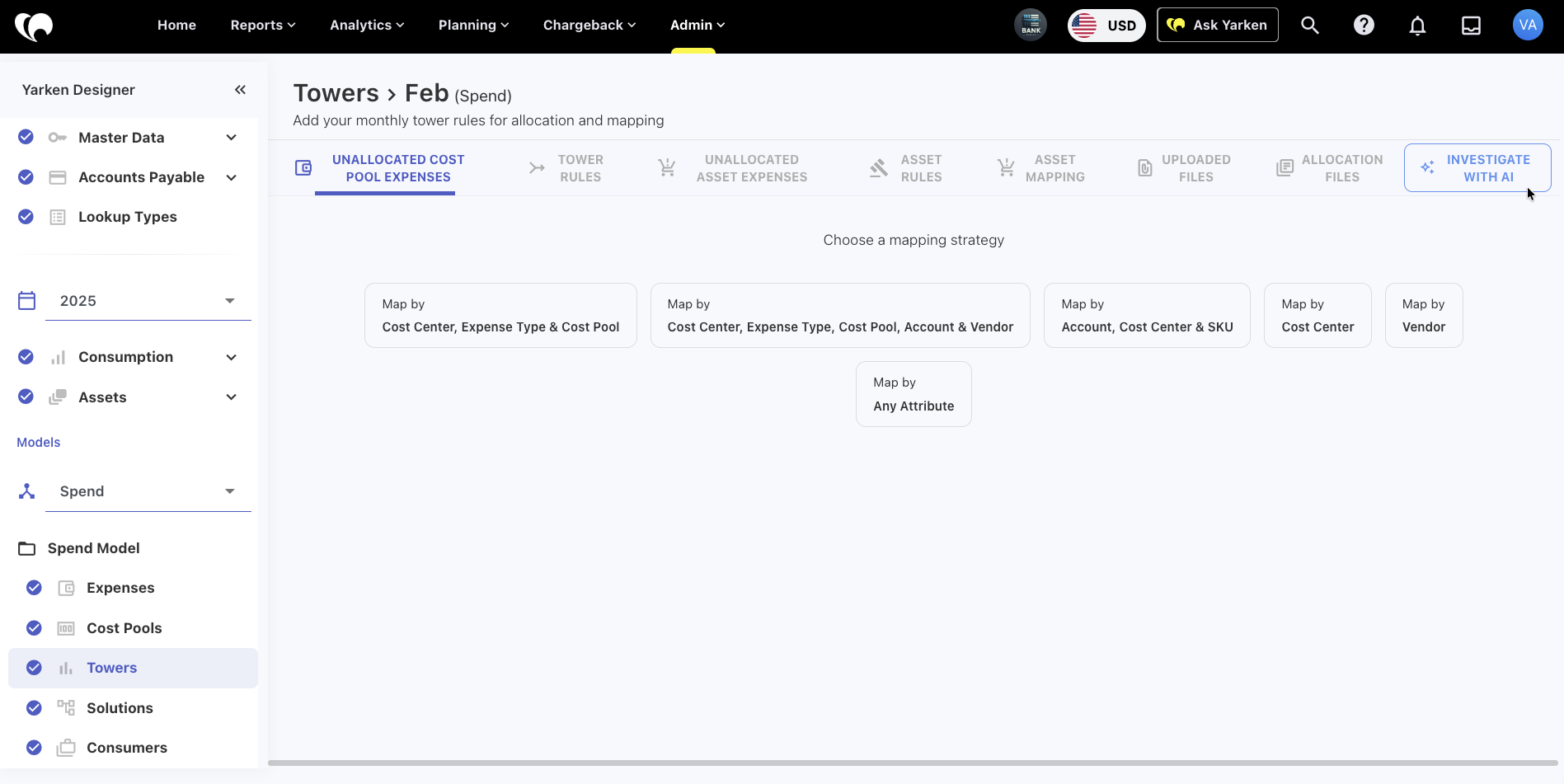
-
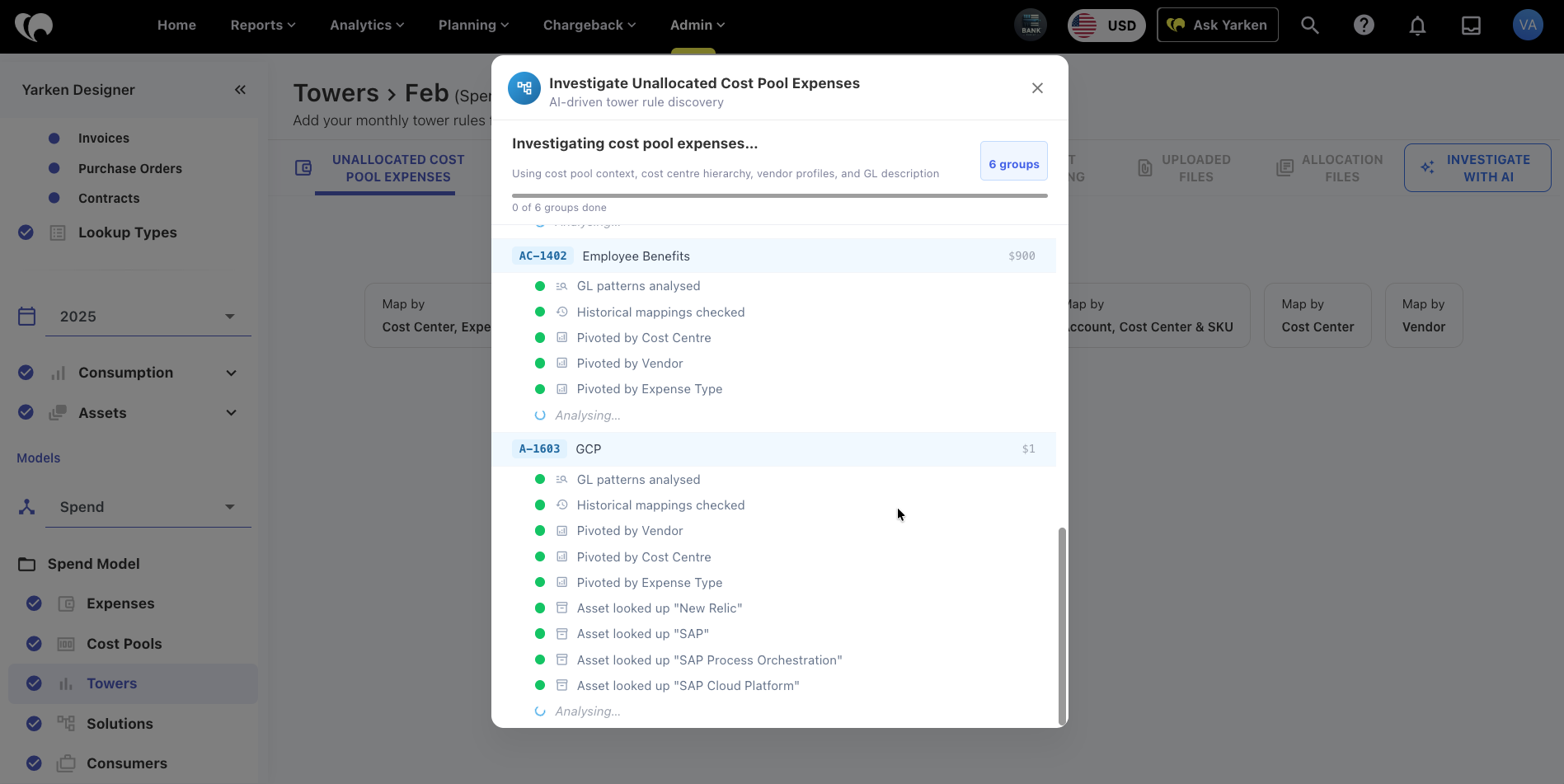
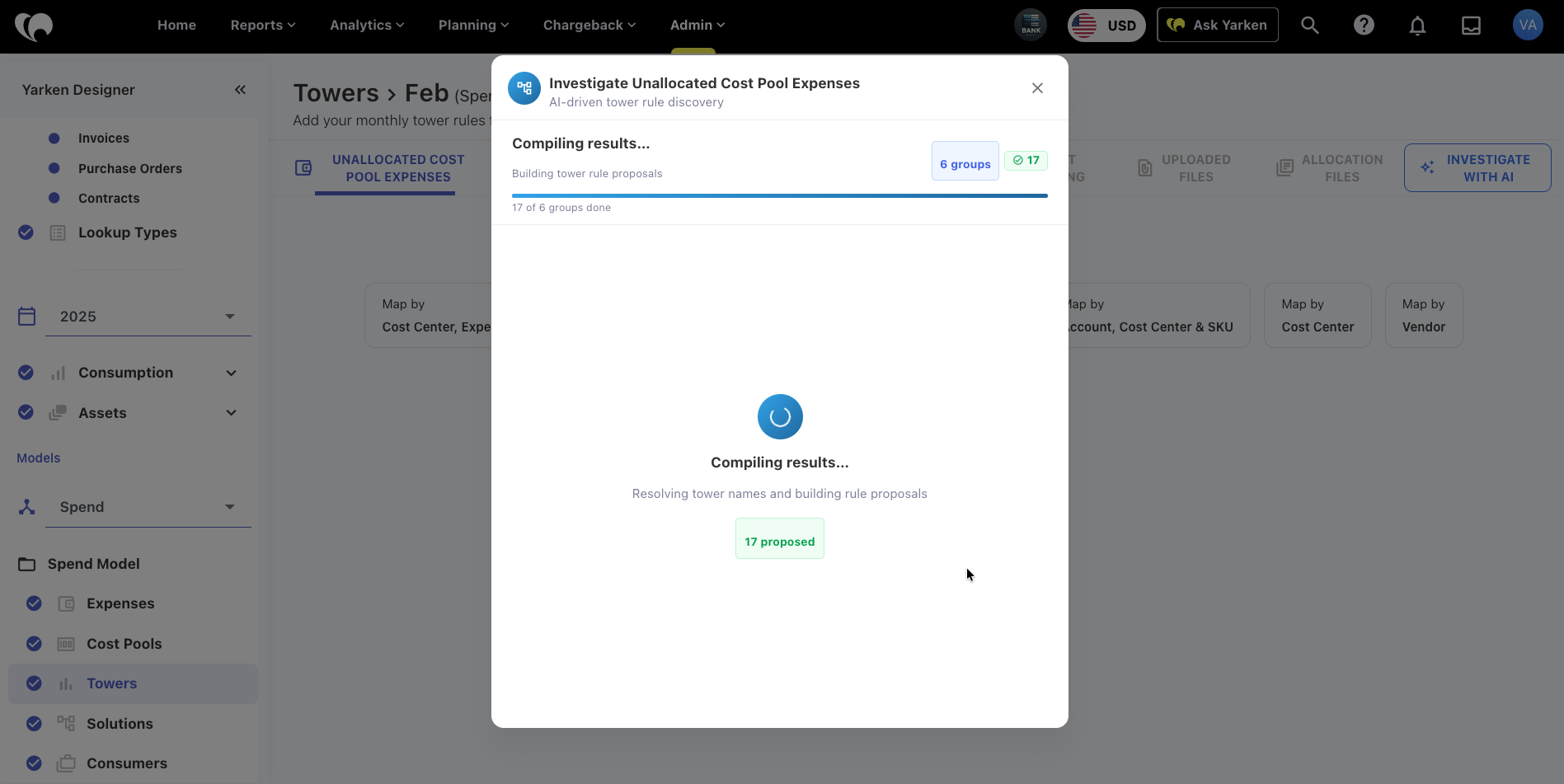
Start the investigation, open chat, or enter custom instructions.
-
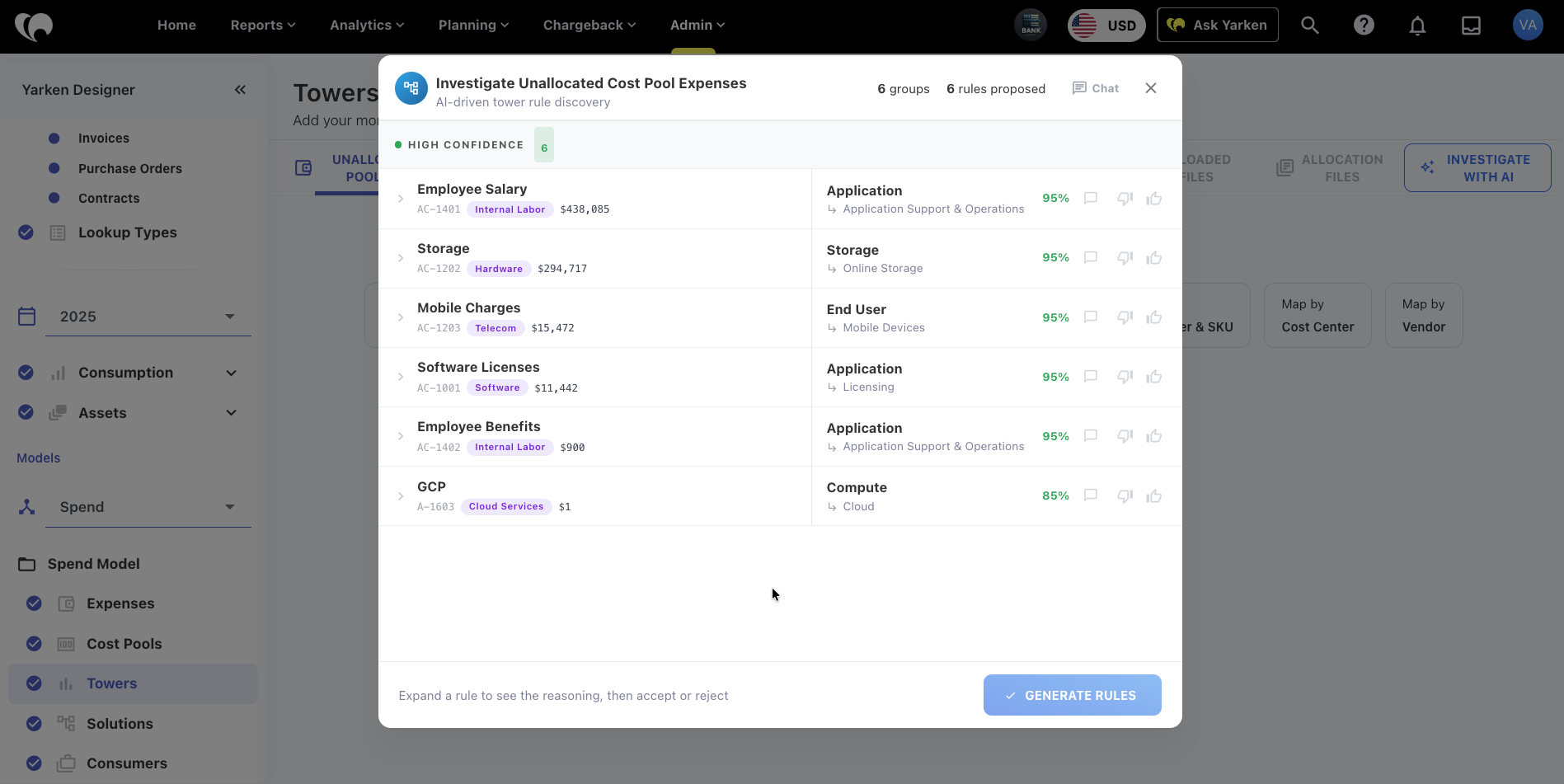
Review the proposed Tower mapping rule.
-
Accept or reject the recommendation.
-
Generate the accepted rule.
What the Investigate with AI Copilot shows
During an investigation, the Copilot may show:
|
Item |
Description |
|---|---|
|
Unallocated group |
The account group, vendor group, or expense group that still needs mapping. |
|
Amount |
The value associated with the unallocated item. |
|
Proposed rule |
The recommended Cost Pool or Tower mapping. |
|
Confidence score |
The Copilot’s confidence in the proposed rule. |
|
Signal |
The supporting evidence used to make the recommendation. |
|
Reasoning |
Why the Copilot recommends the selected mapping. |
|
Condition |
The rule condition used to capture matching records. |
|
Coverage |
The records or spend amount covered by the proposed rule. |
|
User action |
Accept, reject, ask about the rule, or continue manually. |
Review a proposed rule
Before accepting a rule, review the Copilot’s reasoning.
Check:
-
Whether the account, vendor, cost centre, or attribute signal is correct.
-
Whether the proposed Cost Pool or Tower matches the business meaning of the spend.
-
Whether the rule condition is specific enough.
-
Whether the confidence level is acceptable.
-
Whether the rule could incorrectly classify future records.
-
Whether Finance or TBM review is needed before saving.
Accept a rule only when the recommendation matches the intended allocation logic.
Reject the rule if the reasoning is weak, the mapping is incorrect, or the condition is too broad.
Chat with the Copilot during investigation
The investigation modal includes a chat option where supported.
Use chat when you want to ask why a rule was suggested, request more detail, or provide custom instructions.
Example prompts:
Why did you map this account to Telecom?
Show the signals used for this recommendation.
Only consider vendor and account name for this mapping.
Do not use cost centre as a mapping condition.
Suggest a narrower rule condition.
When to use each Copilot entry point
|
Need |
Use |
|---|---|
|
Ask a broad question across Yarken |
Main Ask Yarken button in the top navigation. This is not a Copilot |
|
Understand a specific chart, card, or report widget |
Ask Yarken icon on the chart or widget. |
|
Generate a written summary for dashboard widgets or reports |
Dashboard AI Narrative on a custom dashboard. |
|
Investigate unallocated Cost Pool mapping |
Investigate with AI in Cost Pools. |
|
Investigate unallocated Tower mapping |
Investigate with AI in Towers. |
|
Create or review AI configuration |
AI Studio configuration pages. |
How Copilots work
Copilots in AI Studio
In AI Studio, go to Channels > Copilots.
The current Copilots screen shows the message:
Configure chat, wizard, and investigative copilot modes.
This screen is intended to manage Copilot modes as they become configurable in AI Studio.
For the current agentic framework, administrators can enable or disable Copilots under Admin > AI Studio > Channels > Copilots. Copilot configuration has moved from general AI settings into AI Studio.
Current configurable Copilots include:
-
Cost Pool Rules Copilot.
-
Tower Rules Copilot.
-
Dashboard AI Narrative.
-
Graph Explanation Copilot.
|
Mode |
Purpose |
|---|---|
|
Chat |
Conversational assistance inside supported workflows. |
|
Wizard |
Guided, step-based AI interactions. |
|
Investigative |
Deeper analysis workflows such as allocation investigation. |
In some environments, Copilot behavior is managed by system configuration and may not be editable from this page yet. Users may still see Copilot entry points in supported dashboards, charts, and Yarken Designer workflows.
Copilot experiences are currently tied to specific Yarken workflows and entry points.
Some Copilot behavior may be managed by system configuration and may not be editable from the AI Studio > Copilots page in all environments.
If the Copilots page shows an empty state, it means no configurable Copilot modes are currently available in that environment. Users may still see Copilot entry points in supported dashboards, charts, and Yarken Designer workflows.
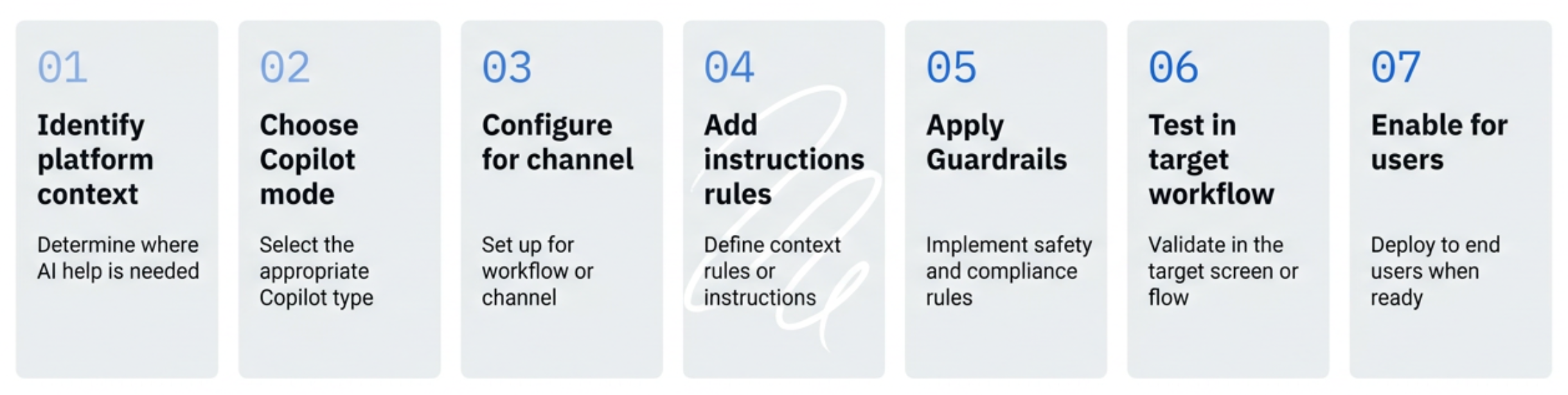
Admin configuration flow
Governance notes
Copilots use the context available from the page or workflow where they are opened.
They do not bypass user permissions or replace review steps. For allocation workflows, users should review the reasoning, signal, condition, and confidence before accepting a generated rule.
Accept a rule only when it matches the intended allocation logic.
Next step
Related articles