
Use this page to understand how Playbooks are invoked, created, imported, and managed in AI Studio.
Overview
Playbooks are standard operating procedures that the agent can look up and follow.
They define repeatable AI workflows and help administrators control how recurring analysis, reporting, and review tasks are handled.
Use Playbooks when a repeated business question needs a consistent method, data handling approach, output structure, or operating procedure.
User flow
Users do not usually choose a Playbook directly.
A Playbook is applied when the user's request matches a repeatable workflow, such as budget variance analysis, cloud spend review, vendor review, QBR creation, or financial root cause analysis.
When a user asks a question in Ask Yarken, the orchestrator evaluates:
-
The user’s intent.
-
Whether the task follows a repeatable workflow.
-
Whether specialist domain expertise is needed.
-
Whether a specific output format is required.
-
Whether a system action is needed.
The orchestrator may use one or more AI Studio components.
|
User request type |
What the orchestrator may use |
Why |
|---|---|---|
|
Repeatable business workflow |
Playbook |
The request follows a standard procedure, such as variance analysis, vendor review, or QBR creation. Specialists are also mentioned in the Playbook’s instructions to invoke. |
|
Domain-specific question |
Specialist |
The user needs expertise in a specific area, such as spend, cloud, contracts, chargeback, licensing, or applications. |
|
Data-backed question |
Data Source |
The answer needs governed Yarken data. |
|
Chart or clarification needed |
Tool |
The agent needs a system action, such as generating a chart or asking the user for missing context. |
|
Formal output required |
Skill |
The response needs a specific format, structure, or deliverable behavior. |
Example scenarios
|
Ask Yarken prompt |
Likely orchestration path |
|---|---|
|
“What is spend by vendor this quarter?” |
Spend Analyst specialist uses a Spend report Data Source. |
|
“Analyze budget vs forecast variance for Q2 and explain the drivers.” |
A Playbook defines the process. A Specialist performs the analysis. Data Sources provide the values. |
|
“Create a QBR report for cloud spend and savings opportunities.” |
A Playbook defines the report workflow. A Cloud Analyst performs the analysis. A Skill controls the report format. A chart Tool may create visuals. |
|
“Which business units are being charged for services they are not using?” |
Chargeback Waste Detector specialist uses Chargeback Analysis and BU Showback Report Data Sources. |
|
“Show this as a chart.” |
Generate Chart Tool may be used if structured data is available. |
A Playbook does not replace a Specialist. A Playbook defines the method. A Specialist provides domain analysis. Data Sources provide governed data. Tools perform system actions. Skills control output behavior.
How Playbooks work
Where to find Playbooks
To open Playbooks:
-
Go to Admin.
-
Select AI Studio.
-
Under Orchestrate, select Playbooks.
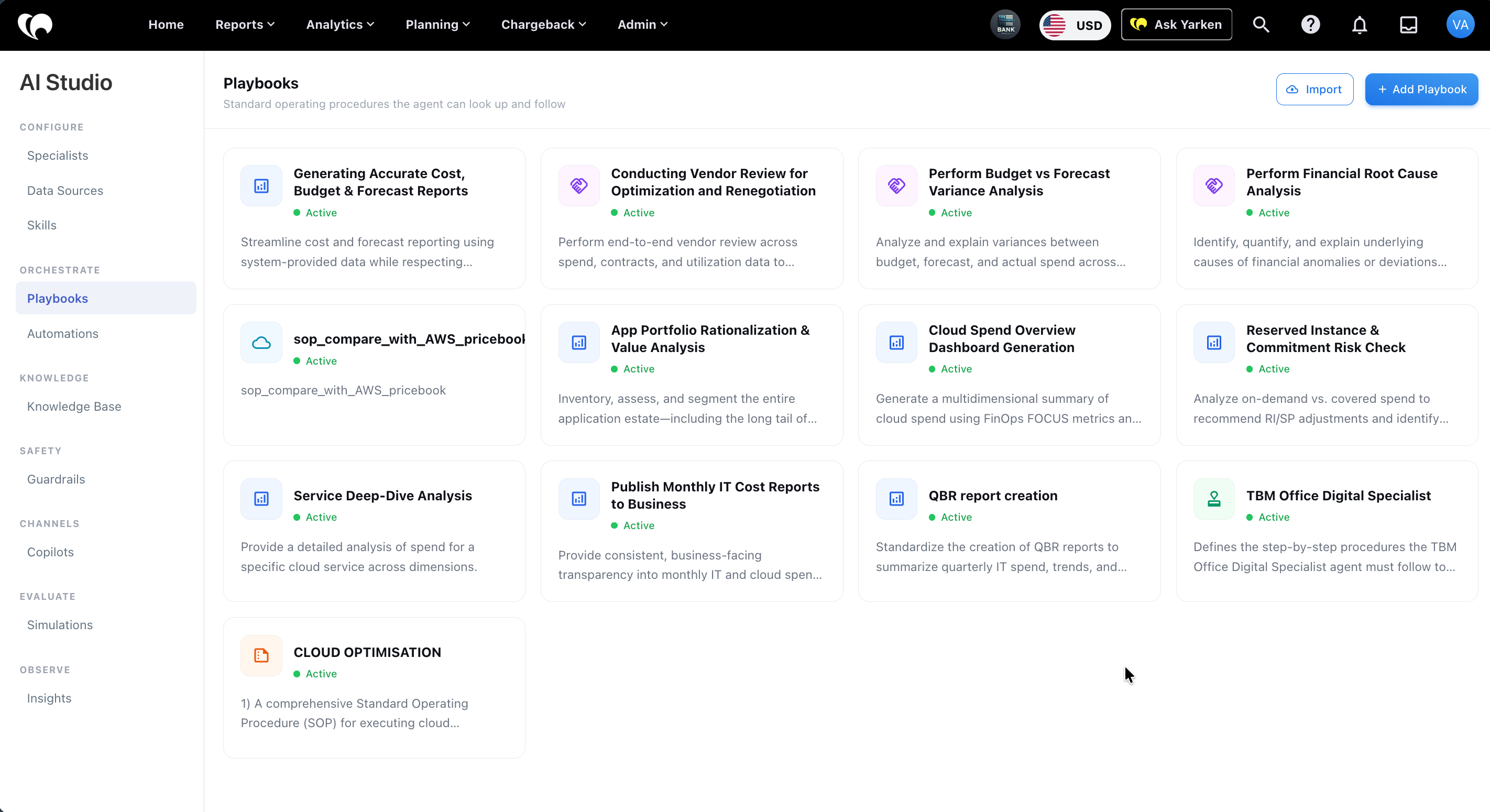
The Playbooks page displays playbook cards in the main panel.
What the Playbooks page shows
Each playbook card shows:
|
Field |
Description |
|---|---|
|
Playbook title |
User-facing name of the playbook. |
|
Status |
Whether the playbook is active. |
|
Description |
Short explanation of what the playbook covers. |
|
Icon |
Visual indicator for the playbook type or domain. |
The page also includes:
-
Import: Upload playbook definitions.
-
+ Add Playbook: Create a new playbook manually.
Current playbooks shown
The current Playbooks screen shows examples such as:
-
Generating Accurate Cost, Budget & Forecast Reports.
-
Conducting Vendor Review for Optimization and Renegotiation.
-
Perform Budget vs Forecast Variance Analysis.
-
Perform Financial Root Cause Analysis.
-
sop_compare_with_AWS_pricebook.
-
App Portfolio Rationalization & Value Analysis.
-
Cloud Spend Overview Dashboard Generation.
-
Reserved Instance & Commitment Risk Check.
-
Service Deep-Dive Analysis.
-
Publish Monthly IT Cost Reports to Business.
-
QBR report creation.
-
TBM Office Digital Specialist.
-
CLOUD OPTIMISATION.
This list may change as AI Studio evolves.
Admin configuration flow
Create a playbook manually
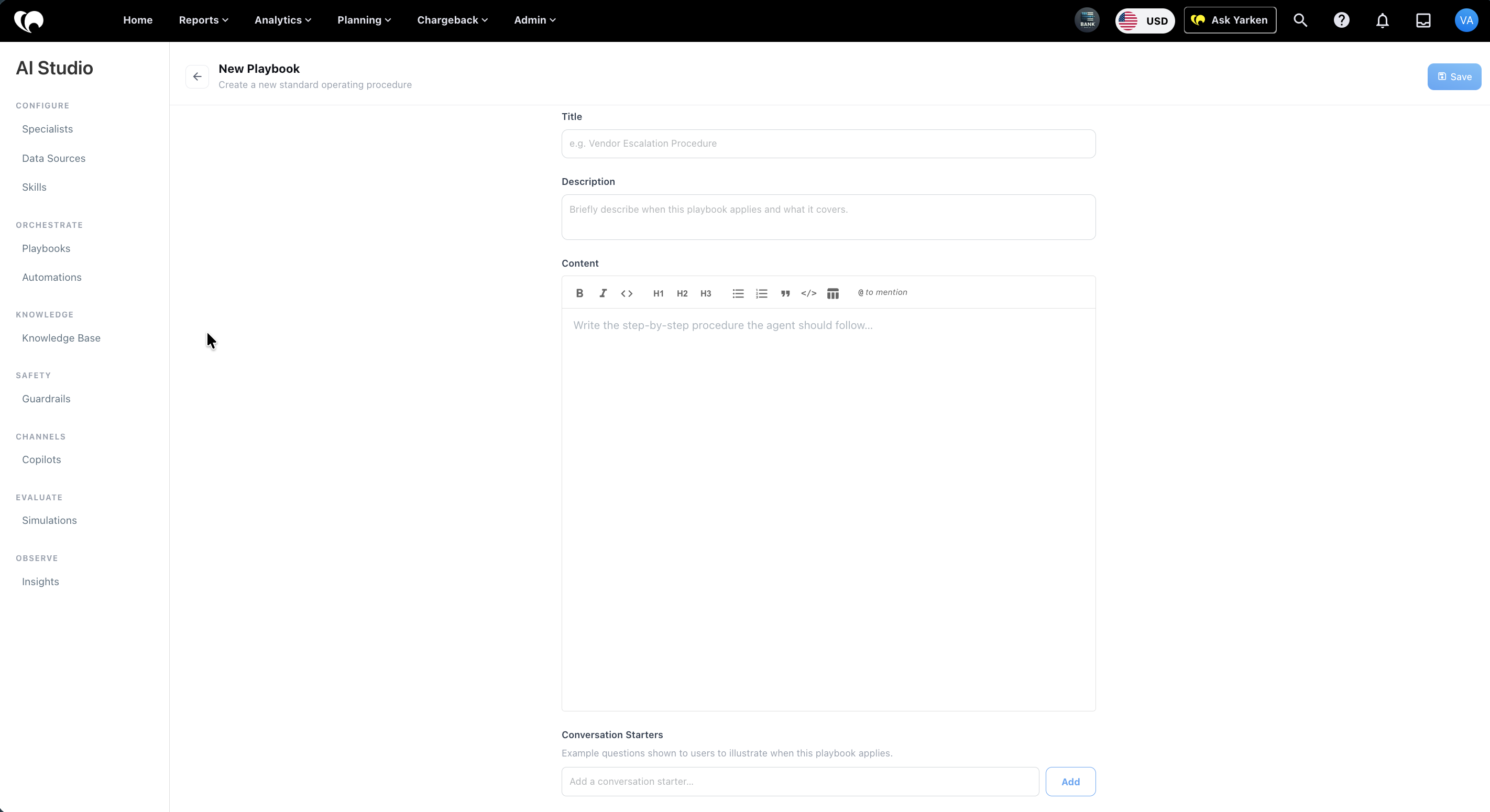
To create a Playbook manually:
-
Go to Admin > AI Studio > Playbooks.
-
Select + Add Playbook.
-
Enter the Title.
-
Enter the Description.
-
Add the Content.
-
Add conversation starters, if required.
-
Select Save.
Import playbooks
Use Import when you need to upload Playbooks instead of creating them manually.
The upload modal supports drag and drop or file browse.
Supported file types shown in the current interface:
-
.xlsx -
.csv
After importing, review the Playbook before relying on it. Confirm the title, description, content, conversation starters, and active status.
Configure playbook identity
The top section defines the Playbook identity.
|
Field |
Description |
|---|---|
|
Title |
The user-facing Playbook name. Example: Generating Accurate Cost, Budget & Forecast Reports. |
|
Description |
Explains when the Playbook applies and what it covers. |
Write the description as a clear scope statement. It should help the orchestrator understand when the Playbook applies.
Example:
Streamline cost and forecast reporting using system-provided data while respecting calculation constraints.
Configure playbook content
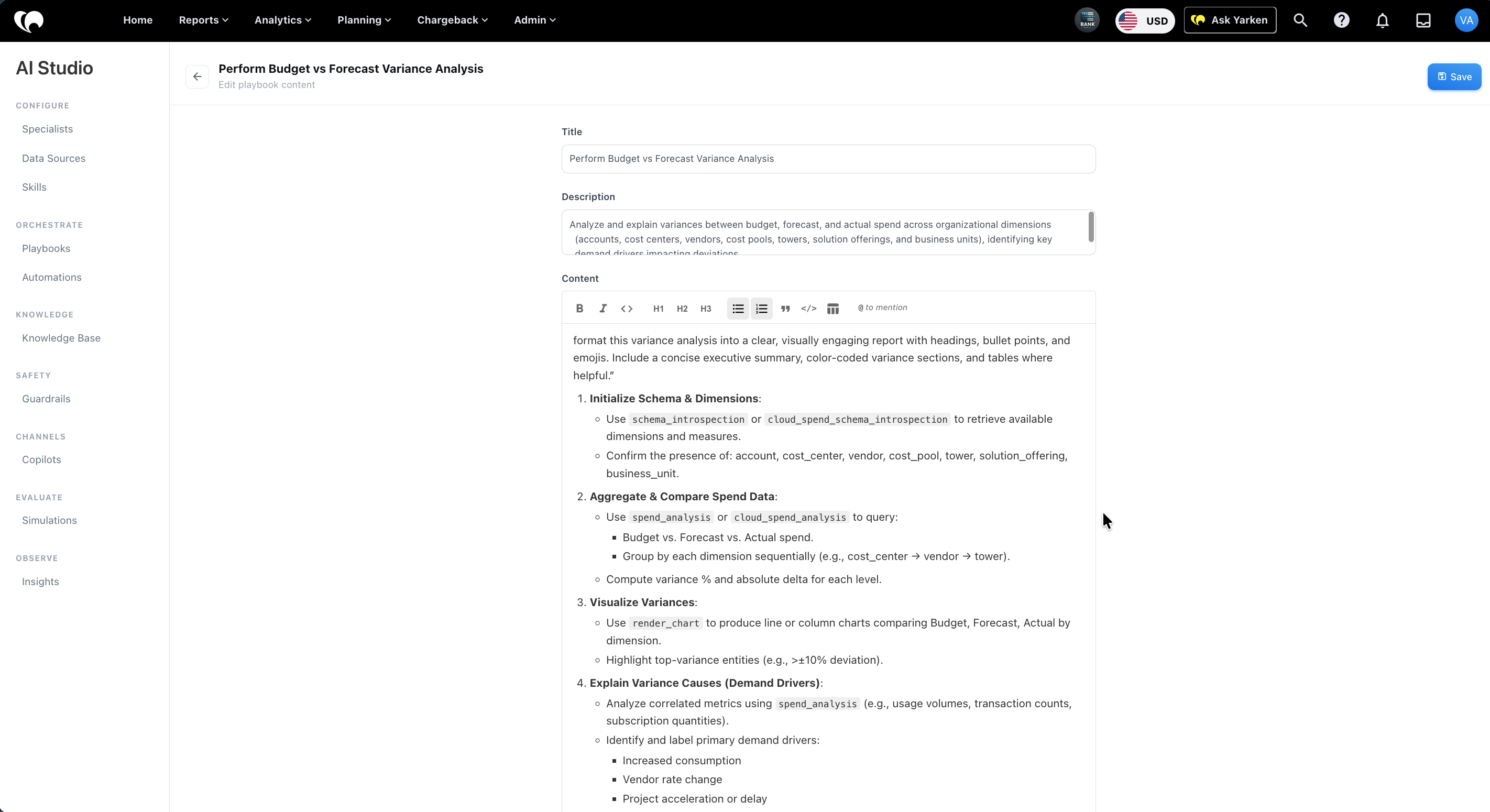
Use Content to define the procedure the agent should follow.
Good Playbook content should define:
-
The objective.
-
Required parameters, such as time period, scope, audience, and report type.
-
Required data inputs.
-
Validation checks.
-
Analysis steps.
-
Calculation rules and constraints.
-
Chart or table instructions, where relevant.
-
Required caveats.
-
Recommended next steps.
-
What the agent must not infer or calculate.
Example from the current cost, budget, and forecast Playbook:
-
Define the report objective.
-
Validate data inputs.
-
Confirm required columns are available.
-
Use existing forecast values where available.
-
Do not invent or derive forecast values when they are missing.
-
Summarize insights using existing values only.
-
Document limitations and recommend next steps.
Add conversation starters
Conversation starters are example questions shown to users to illustrate when a Playbook applies.
To add a conversation starter:
-
Open the Playbook.
-
Go to Conversation Starters.
-
Enter an example question.
-
Select Add.
-
Select Save.
Use examples that match the Playbook's real scope.
Deactivate a playbook
To deactivate a Playbook:
-
Open the Playbook.
-
Select Deactivate.
Use deactivation when the Playbook should remain configured but should not be available for orchestration.
Delete a playbook
To delete a Playbook:
-
Open the Playbook.
-
Scroll to Delete playbook.
-
Select Delete.
Deleting a Playbook permanently removes the Playbook and its configuration. Use deactivation when the Playbook may be needed later.
Configuration guidance
Before enabling a Playbook, confirm that:
-
The workflow is repeatable.
-
The trigger use case is clear.
-
The analysis steps are specific.
-
Required Data Sources are available.
-
Required Specialists or Skills are available.
-
Calculations, filters, and constraints are defined.
-
Output sections are specified.
-
The Playbook does not overlap with another active Playbook.
-
The Playbook has been tested with representative prompts.
Governance notes
Playbooks guide analysis. They do not override permissions, create missing data, or change source records.
Use Playbooks to standardize the method. Use Data Sources to control data access. Use Skills to control response format.
For financial and forecasting workflows, avoid instructions that ask the agent to invent missing values, override system data, or derive forecasts when the source data is unavailable.
Next step
Related articles