
Use this page to understand where AI Studio sits in Yarken, how to open it, and how the workspace is organized.
Overview
AI Studio is the admin workspace for configuring and governing Yarken's AI capabilities.
It contains the controls for Specialists, Data Sources, Skills, Playbooks, Automations, Knowledge Base, Guardrails, Copilots, Simulations, and Insights.
Users experience these capabilities in Ask Yarken, Copilot modes, scheduled workflows, or other AI-enabled areas of the platform. Admins configure the behavior in AI Studio.
This includes the Dashboard AI Narrative is a Copilot that turns selected custom-dashboard content into a written summary. Administrators enable it under Admin > AI Studio > Channels > Copilots, and dashboard editors add and configure its widget from Analytics > Custom Dashboards. See Add and configure a Dashboard AI Narrative widget.
Open AI Studio
To open AI Studio:
AI Studio is available to users who have Admin privileges, a Yarken AI licence, and the required environment access. Access is available to all administrators who meet these requirements and is not limited to Yarken administrators.
The environment must also have Ask Yarken Beta enabled under Admin > Settings > AI > Ask Yarken. Administrators no longer need to add individual email addresses for Beta access. Non-admin users cannot open AI Studio configuration, but can use other enabled Beta features when their licence, role, and feature access allow it. See Ask Yarken (Admin Settings).
-
Open Yarken.
-
Go to Admin in the top navigation bar.
-
Select AI Studio.
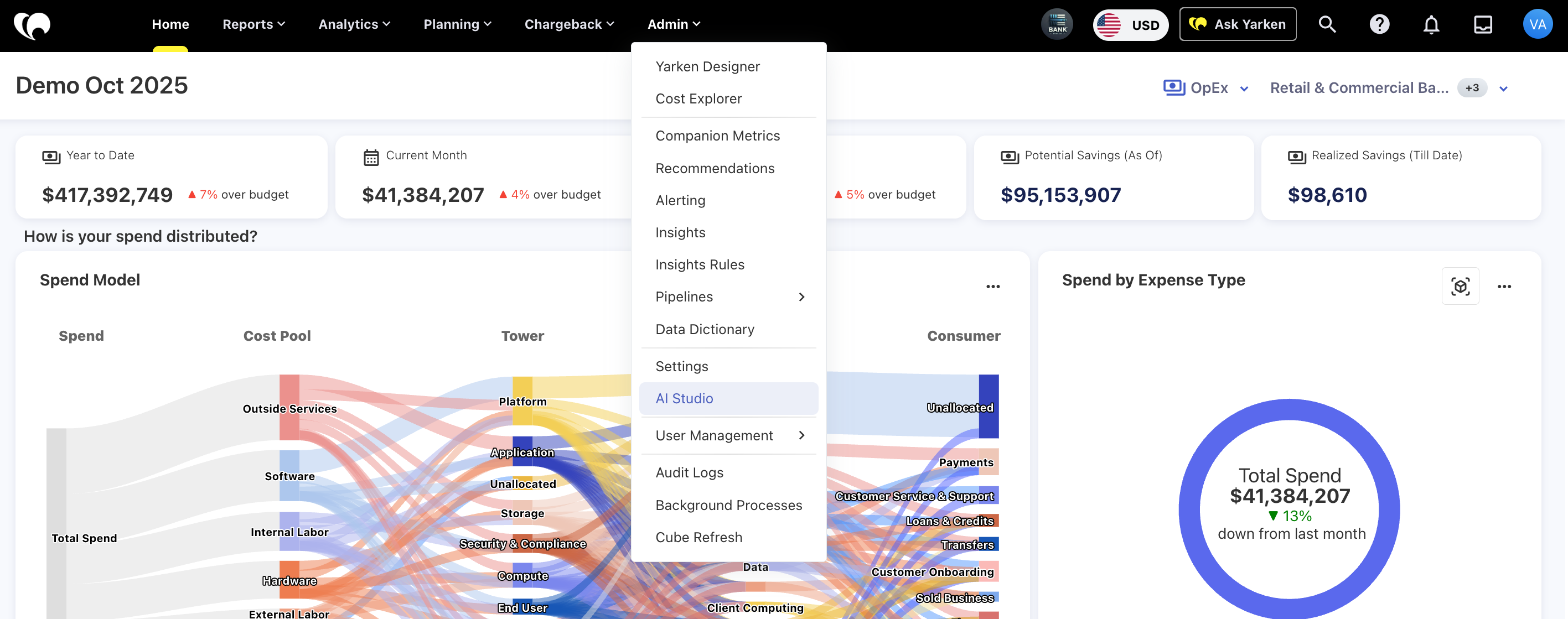
AI Studio opens with the left navigation menu and the selected workspace in the main panel.
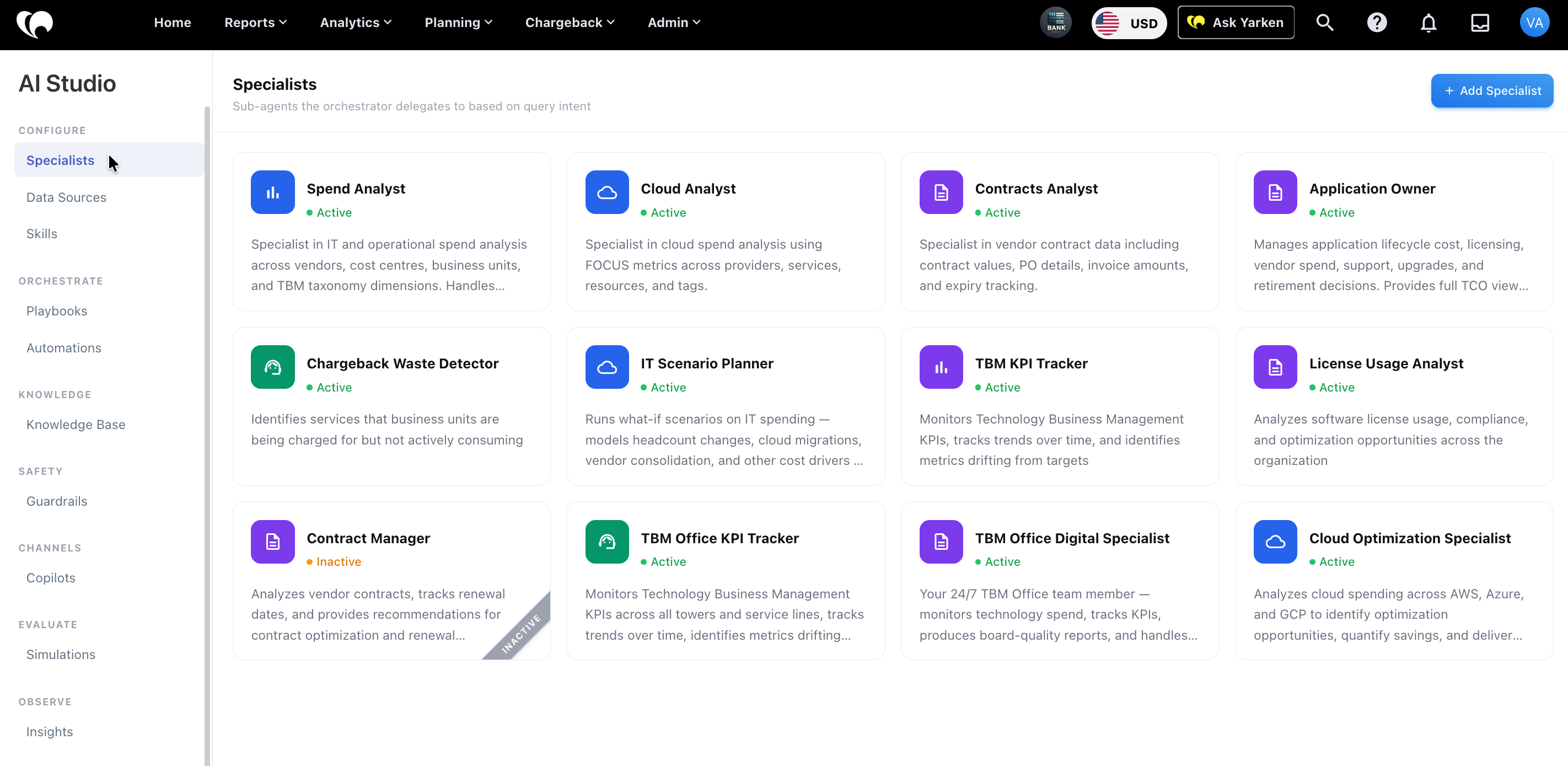
User flow
AI Studio is not the primary workspace for daily users. It controls how AI features behave when users invoke them elsewhere in Yarken.
Common user paths include:
|
User action |
AI Studio components involved |
|---|---|
|
User asks a spend question in Ask Yarken |
Specialist, Data Source, Guardrails, Playbook(depending on the trigger word) |
|
User asks for a formal report |
Skill, Specialist, Data Source, Playbook, Guardrails |
|
User asks for variance analysis |
Playbook, Specialist, Data Source, Skill |
|
User asks a question that needs approved reference material |
Knowledge Base, Guardrails |
|
User opens a Copilot mode (Ask Yarken icon on charts and widgets, Investigate with AI, etc.) |
Copilot, Guardrails, available screen or workflow context |
|
A scheduled AI workflow runs |
Automation, Specialist, Data Source, Skill, Notify step |
|
A workflow requires approval |
Automation, Wait for approval step, reviewer branch |
How AI Studio works
Admin flow
Admins use AI Studio to configure and manage the components behind those user experiences.
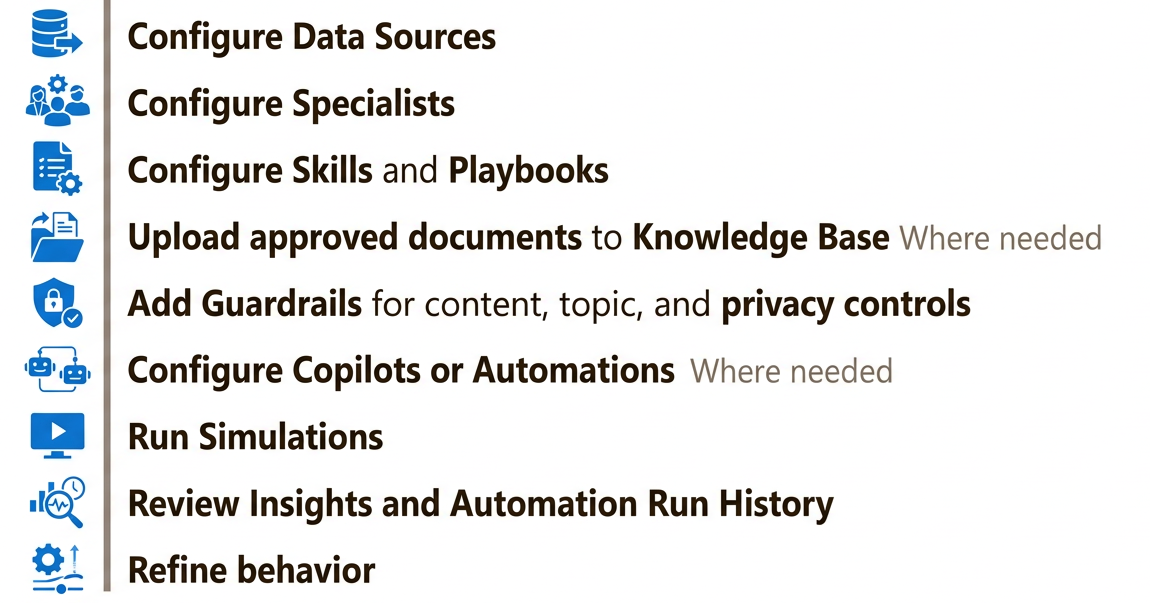
Current landing page
The current landing page opens to Specialists.
Specialists are domain-focused agents that the orchestrator can delegate to based on query intent. Each specialist appears as a card with a name, short description, and status.
Visible status values include:
-
Active.
-
Inactive.
Current navigation
The current navigation includes:
-
Specialists.
-
Data Sources.
-
Skills.
-
Playbooks.
-
Automations.
-
Knowledge Base.
-
Guardrails.
-
Copilots.
-
Simulations.
-
Insights.