
Before you begin
Before using Ask Yarken, confirm that:
-
Ask Yarken is enabled for the environment.
-
Your account has the required Yarken Intelligence access.
-
You have permission to view the cost center, account, entity, cloud, contract, vendor, or planning data you want to analyze.
-
Required financial, cloud, vendor, contract, and master data has been loaded.
-
Cost allocation mappings are configured where your analysis depends on allocated spend.
-
The Knowledge Base dimensions index is current.
Ask Yarken answers are only as complete as the governed data and permissions available to the user.
Open Ask Yarken
To open Ask Yarken:
-
Open Yarken.
-
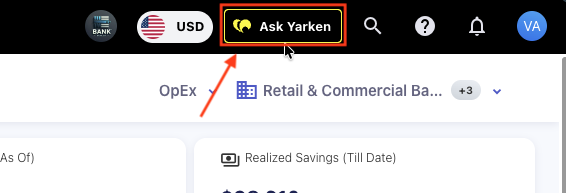
Select Ask Yarken from the top navigation bar.
-
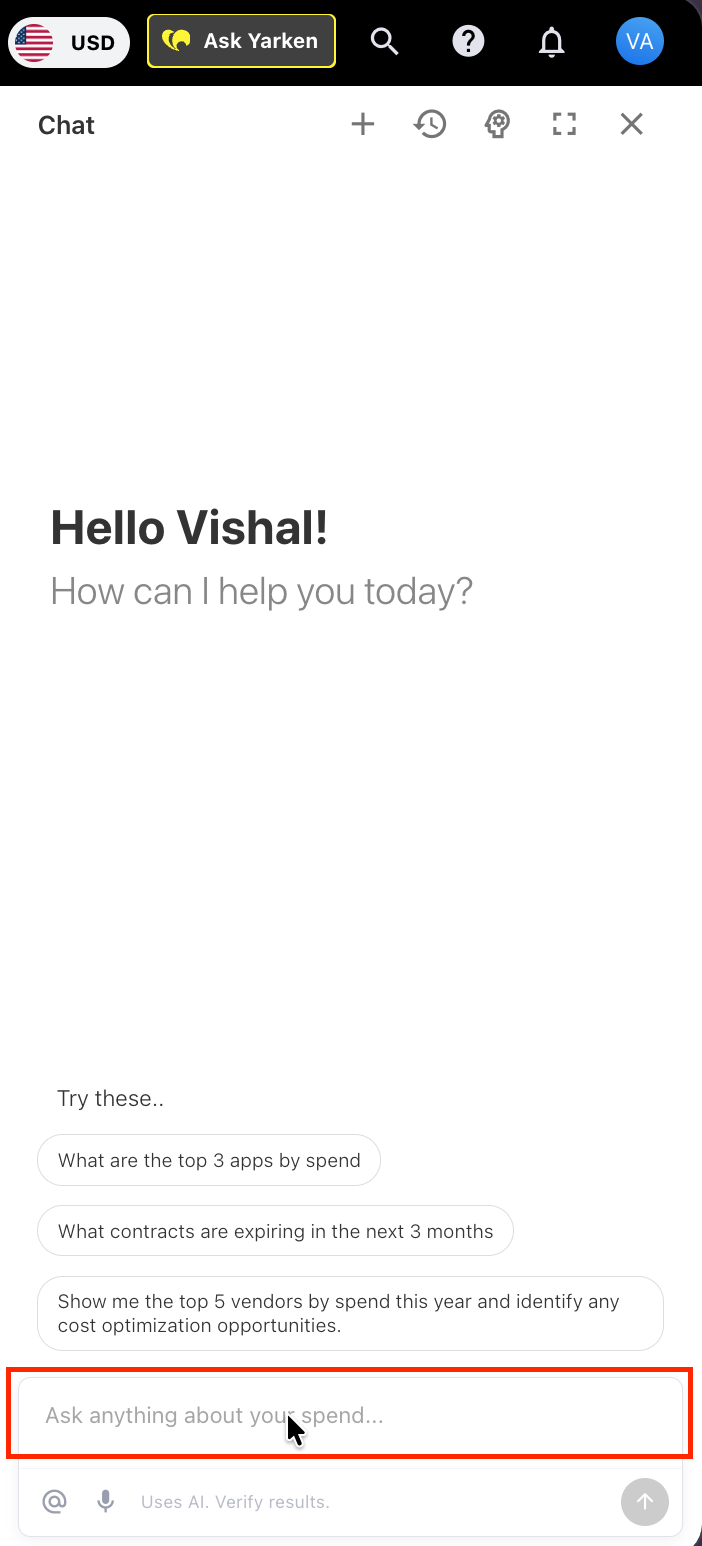
Enter your question in the chat box.
-
Select Send.
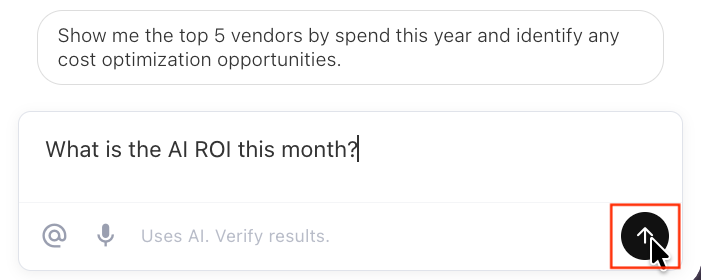
Ask Yarken opens first in a sidebar view so you can ask a question while staying on your current page.
You can also use the microphone button for voice-to-text input. Review dictated text before sending it, especially for vendor names, account names, cost centers, project names, and acronyms.
Use Ask Yarken in Custom Dashboards
Ask Yarken can also be added directly to a Custom Dashboard, allowing you to ask questions while reviewing dashboard information.
Dashboard designers can customize the Ask Yarken widget and optionally provide suggested questions to help you start your analysis.
For configuration steps, see Add and configure an Ask Yarken widget.
Sidebar view
Sidebar view is optimized for quick questions and follow-up analysis.
The sidebar includes:
-
Three Suggested prompts under Try these.
-
Prompt box.
-
Send button.
-
Stop button while a response is running.
-
Microphone button for voice-to-text input.
-
New Chat.
-
Chat History.
-
My Memories.
-
Full Screen.
-
Close.
Use sidebar view when you want to ask a quick question while staying on the current Yarken screen.
Full-screen view
Open full-screen view when you need more space and better view for complex analysis and investigations.
Full-screen view is useful for:
-
Reviewing previous conversations.
-
Continuing earlier threads.
-
Sharing conversations.
-
Deleting or unsharing conversations.
-
Multi-step analysis.
To open full-screen view, select the full-screen icon from the Ask Yarken sidebar.
Ask your first question
Use a clear question with a topic, time period, dimension, and expected outcome.
Example:
Compare cloud spend against budget for this quarter by provider and identify the largest variance drivers.
Other examples:
-
What are the top 10 vendors by spend this year?
-
Explain why cloud spend increased last month.
-
Show actuals versus budget by cost center for this quarter.
-
Which contracts are expiring in the next 90 days?
-
Create a line chart of monthly cloud spend by provider.
Understand responses
Ask Yarken responses may include:
-
Summary.
-
Variance explanation.
-
Tables.
-
Charts.
-
Recommendations.
-
Supporting analysis.
-
Caveats when data or permissions limit the answer.
Recommendations are intended to support decision-making. Review them with the appropriate business, finance, IT, or FinOps owner before taking action.
Ask follow-up questions
Ask Yarken maintains context within a conversation thread.
For example, you can ask:
Show cloud spend by provider for this quarter.
Then follow up with:
Which provider increased the most?
Useful follow-ups include:
-
Break that down by cost center.
-
Show the same view for last quarter.
-
Which vendors contributed most?
-
Create a chart for that trend.
-
Recommend actions for the top variance.
Stop a response
Select Stop when:
-
You submitted the wrong question.
-
You want to refine the request.
-
The response is no longer relevant.
-
The analysis is taking longer than needed.
After stopping a response, reframe the question or start a new chat.
Start a new chat
Use a new chat whenever you change topics.
To start a new chat:
-
Open Ask Yarken.
-
Select “+” to start a New Chat.
-
Enter a new question.
-
Send the question.
Starting a new chat keeps context clean and reduces the risk of carrying old assumptions into a new analysis.
View and continue chat history
In full-screen view, use the left-side history panel to view previous conversations.
Continue an existing chat when the next question depends on earlier analysis.
Example:
After asking for the top cloud spend drivers, you can continue the thread and ask:
Break that down by business consumer.
Share, unshare, or delete a conversation
Ask Yarken supports sharing a chat thread with other authorized users.
Use sharing when a conversation contains analysis that should be visible to Finance, IT leadership, FinOps, TBM, or business stakeholders.
Shared conversations remain governed by Yarken access controls. Users cannot use a shared conversation to view data they are not authorized to access.
In full-screen view, open the chat history menu for a thread. Depending on the thread status, you can:
-
Share the thread.
-
Unshare the thread.
-
Delete the thread.
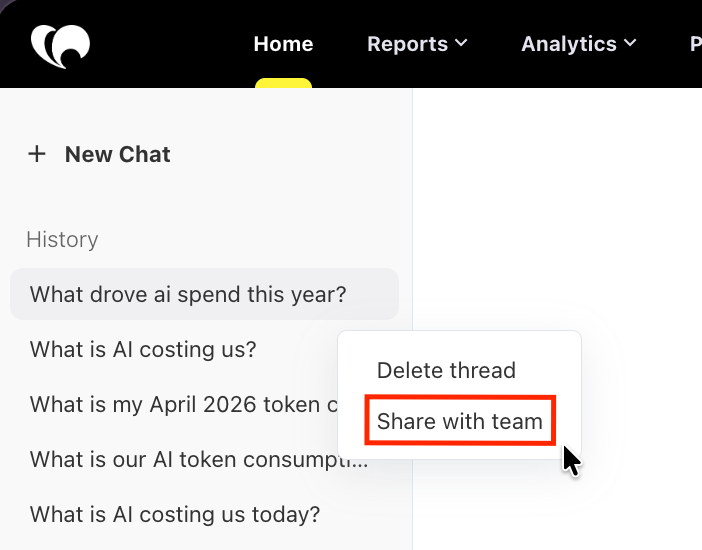
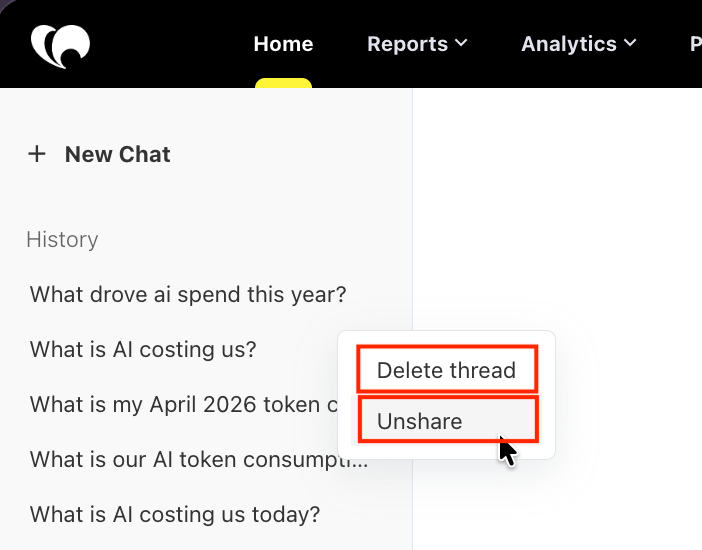
Use Delete thread for conversations that no longer need to be retained.
Use Unshare when analysis should no longer be visible to other users.
Ask questions from a chart or widget
You can open Ask Yarken directly from supported charts and widgets.
When you open Ask Yarken from a visual, Yarken automatically adds the selected Dashboard and Widget to the conversation context.
To investigate a chart or widget:
-
Open the required page or dashboard.
-
Locate the chart or widget you want to investigate.
-
Select the Ask Yarken icon.
-
Ask Yarken opens with the selected dashboard and widget in the conversation context.
-
Review the initial response.
-
Ask follow-up questions to continue the analysis.
You can use follow-up questions to explore trends, compare periods, investigate variances, or understand the underlying data. You do not need to restate the dashboard or widget in each follow-up question.
Ask Yarken answers questions using the data available within the selected widget's context and active filters. It does not use data outside the current filter scope.
For example, if Expense Type is filtered to OpEx and you ask about CapEx spend, Ask Yarken explains that CapEx data is not available in the current view. Change the applicable filter before asking about CapEx data.
Note: Review the selected dashboard, widget, and active filters before asking questions. The active filters determine the data available to Ask Yarken for the selected chart or widget.
Next step
Ask better questions (scenario based examples)
Related content