
The Ask Yarken widget adds an embedded Ask Yarken experience to a Custom Dashboard. It lets dashboard viewers ask questions in natural language while reviewing dashboard information, without leaving the dashboard.
Ask Yarken can use the dashboard context to help you investigate the data, explore cost drivers, and continue with follow-up questions. You can also provide suggested questions to help users start their analysis.
What you can do with Ask Yarken
Use the Ask Yarken widget to explore dashboard information using natural-language questions.
You can:
-
Ask questions about spend, cost drivers, budgets, forecasts, vendors, and other available dashboard data.
-
Explore information beyond what is immediately visible in the dashboard widgets.
-
Receive data-backed answers and summaries.
-
Continue the analysis with follow-up questions.
-
Use suggested questions configured by the dashboard designer to start common analysis workflows.
For example, you can ask:
-
What is my top vendor by spend this quarter?
-
Show me the cost pool breakdown for Software.
-
What is driving the increase in spend?
Add an Ask Yarken widget
-
Open the required Custom Dashboard.
-
Select Edit.
-
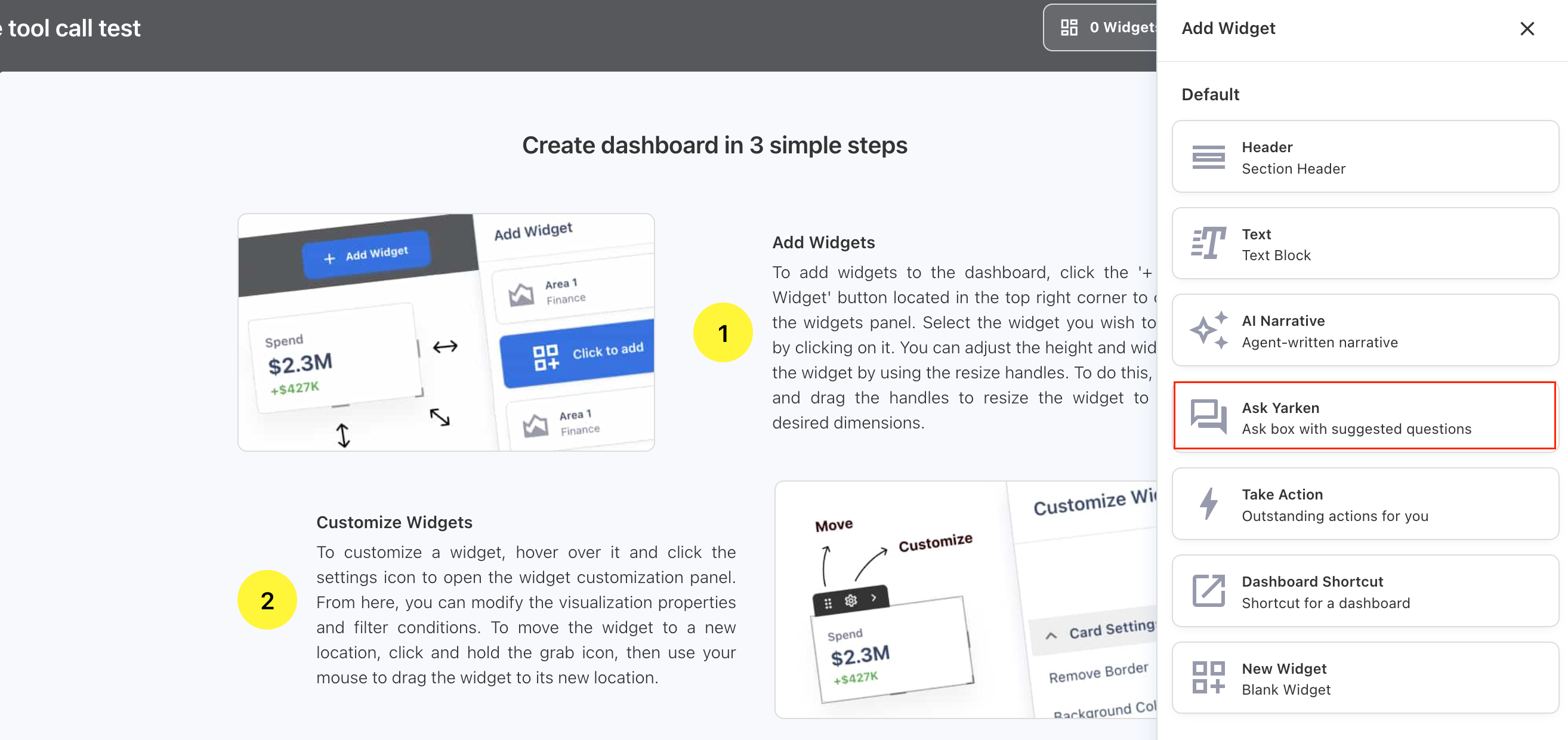
Select Add Widget.
-
Under Default, select Ask Yarken.
-
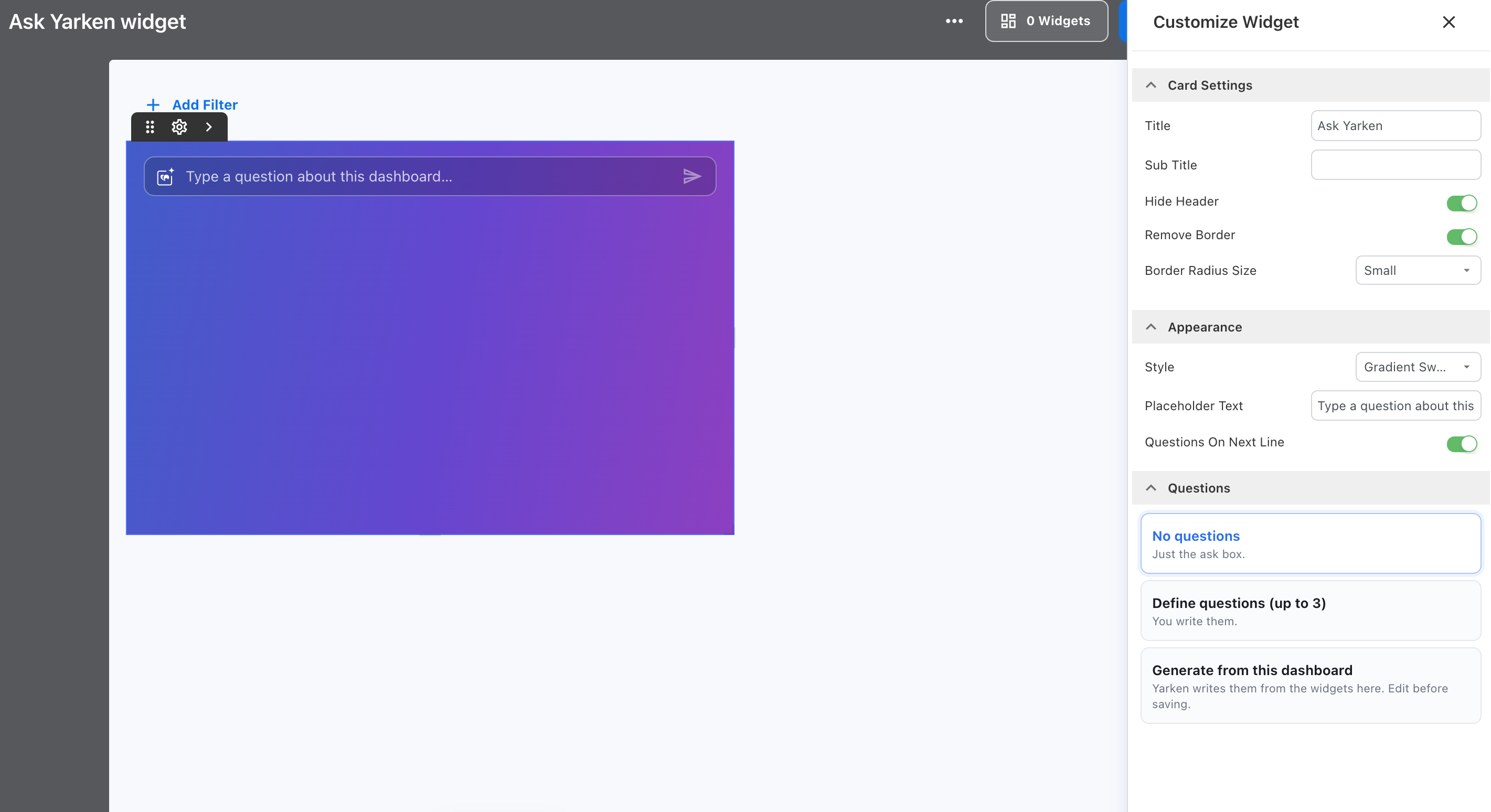
Position and resize the widget as required.
-
Open the widget settings.
-
Configure the card, appearance, and suggested questions.
-
Select Done when you finish editing the dashboard.
The widget displays an Ask Yarken question box directly on the dashboard.
Configure card settings
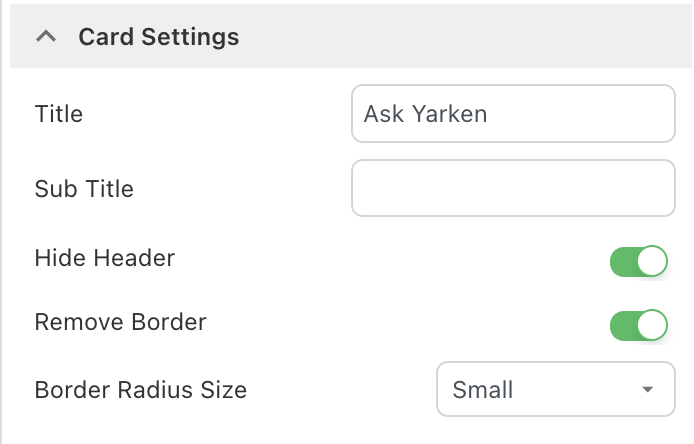
Under Card Settings, configure the widget container and header.
|
Setting |
Description |
|---|---|
|
Title |
Sets the title displayed for the widget. |
|
Sub Title |
Adds optional supporting text below the title. |
|
Hide Header |
Hides the widget header when enabled. |
|
Remove Border |
Removes the border around the widget. |
|
Border Radius Size |
Controls the rounding of the widget corners. |
Use these settings to align the Ask Yarken widget with the surrounding dashboard layout.
Customize the appearance
Under Appearance, configure how the Ask Yarken input is displayed.
Choose a style
Under Style, select a predefined style or customize the widget appearance.
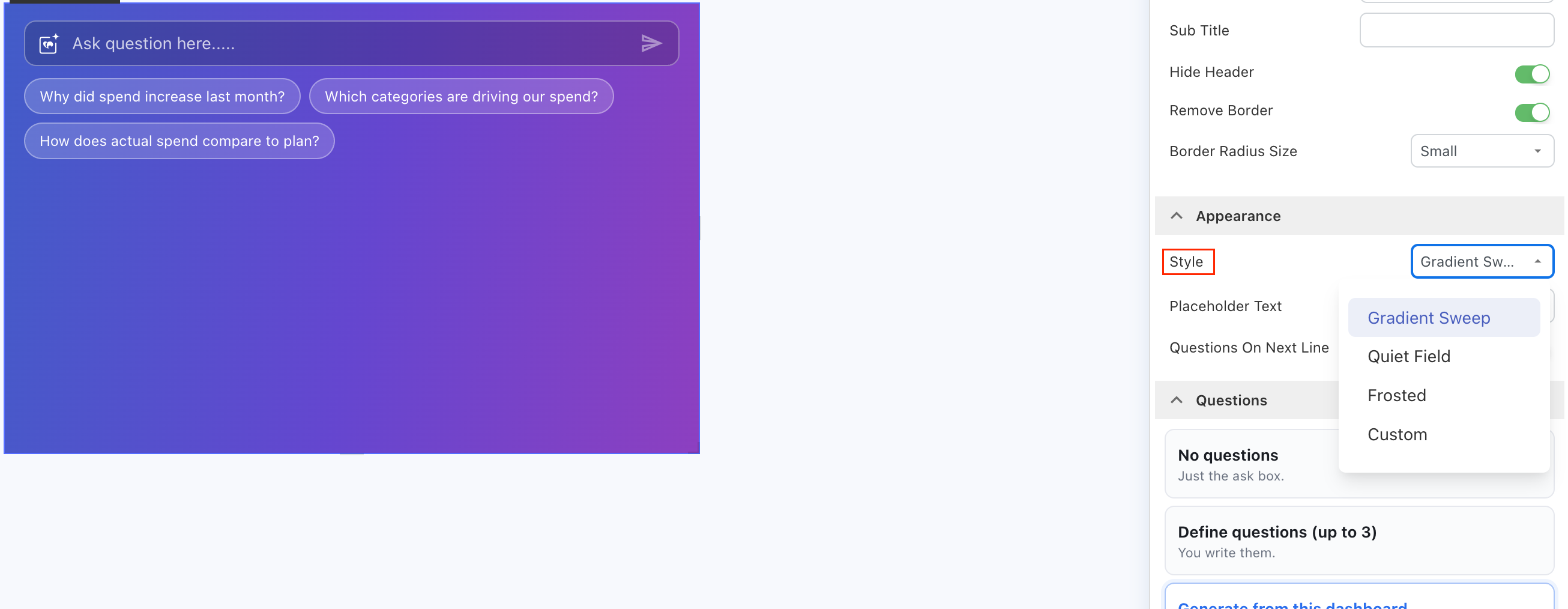
The predefined styles are:
-
Gradient Sweep
-
Quiet Field
-
Frosted
Choose a predefined style when you want to quickly apply a consistent appearance to the widget.
Select Custom when you want more control over the widget colors and how suggested questions appear.
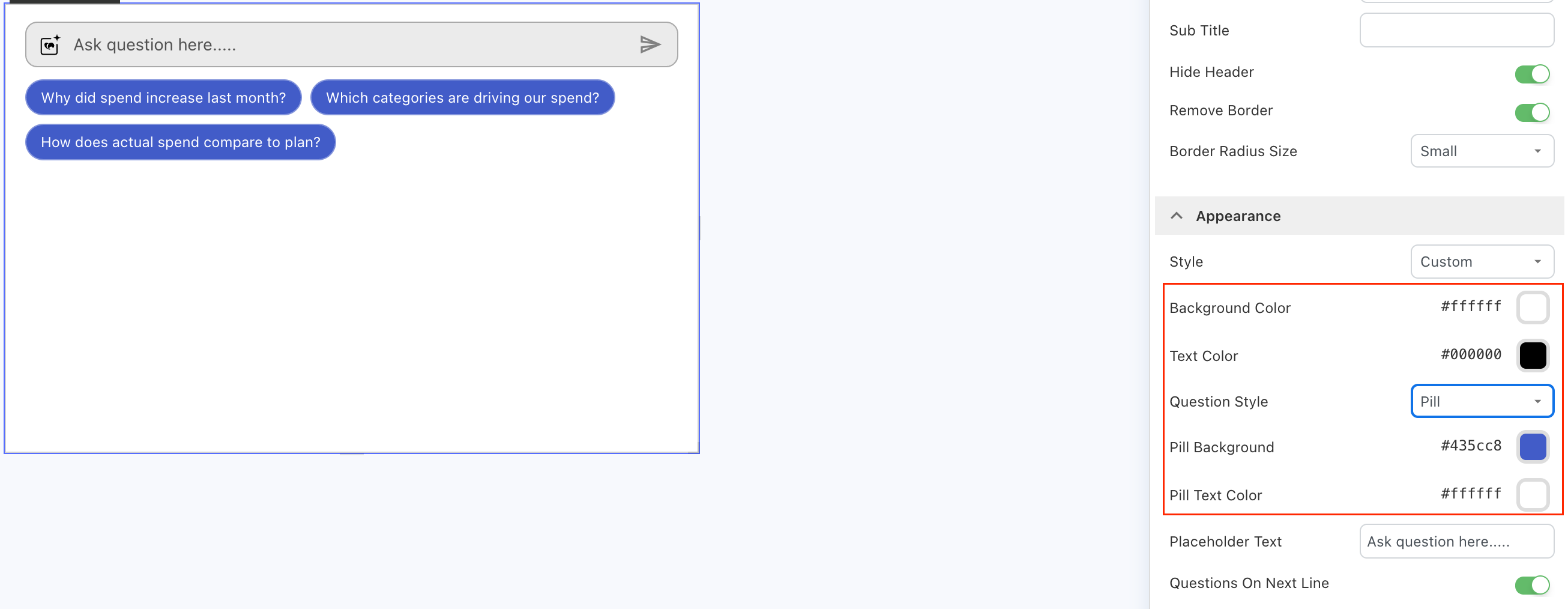
When you select Custom, configure the following options:
|
Setting |
Description |
|---|---|
|
Background Color |
Sets the background color of the Ask Yarken widget. |
|
Text Color |
Sets the text color used in the widget. |
|
Question Style |
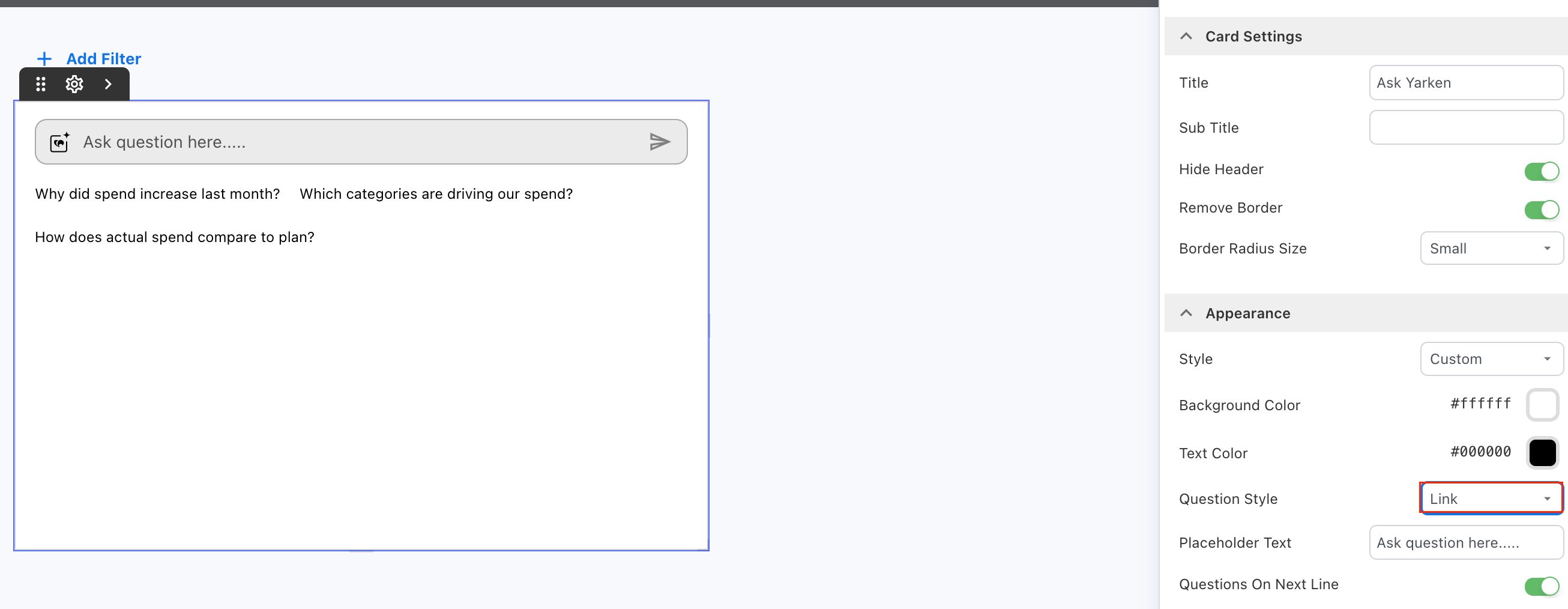
Controls how suggested questions appear. Select Link or Pill. |
|
Pill Background |
Sets the background color of suggested question pills. Available when Question Style is set to Pill. |
|
Pill Text Color |
Sets the text color of suggested question pills. Available when Question Style is set to Pill. |
With Link, suggested questions appear as text links:
With Pill, each suggested question appears in a pill-style container:
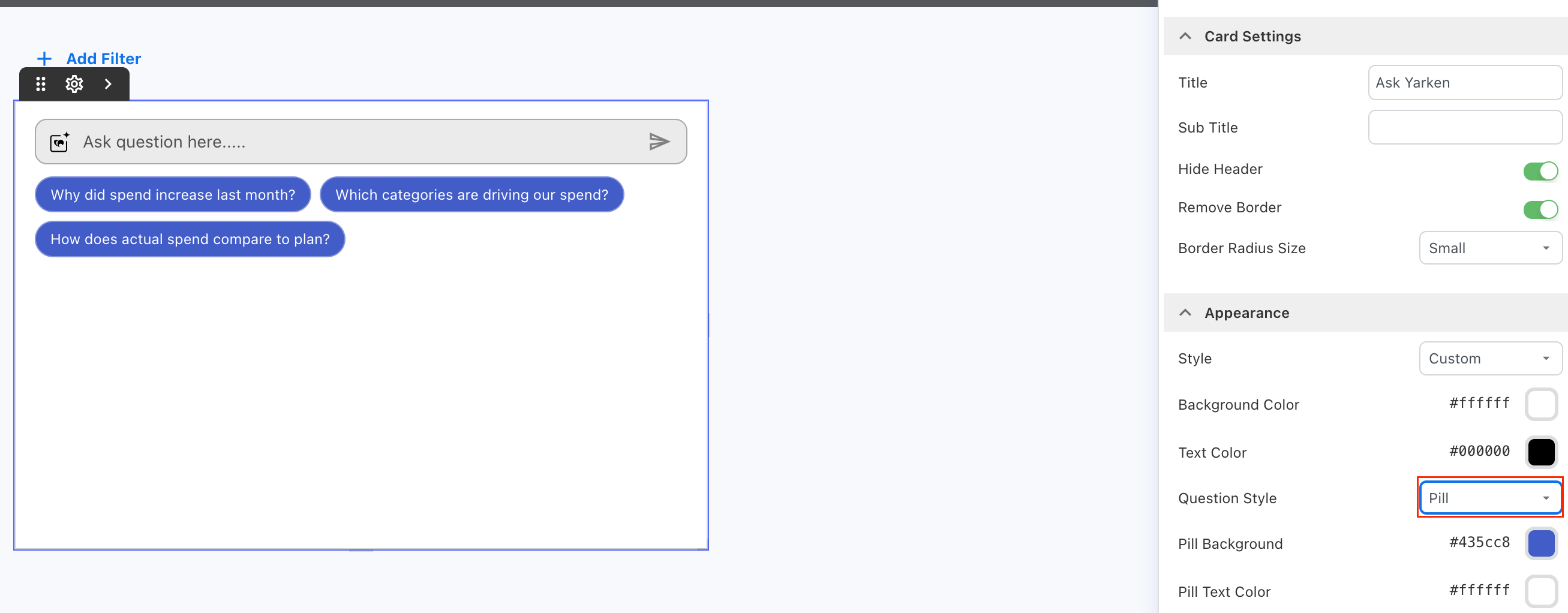
You can customize the pill background and text colors to match the dashboard design.
Configure the placeholder text
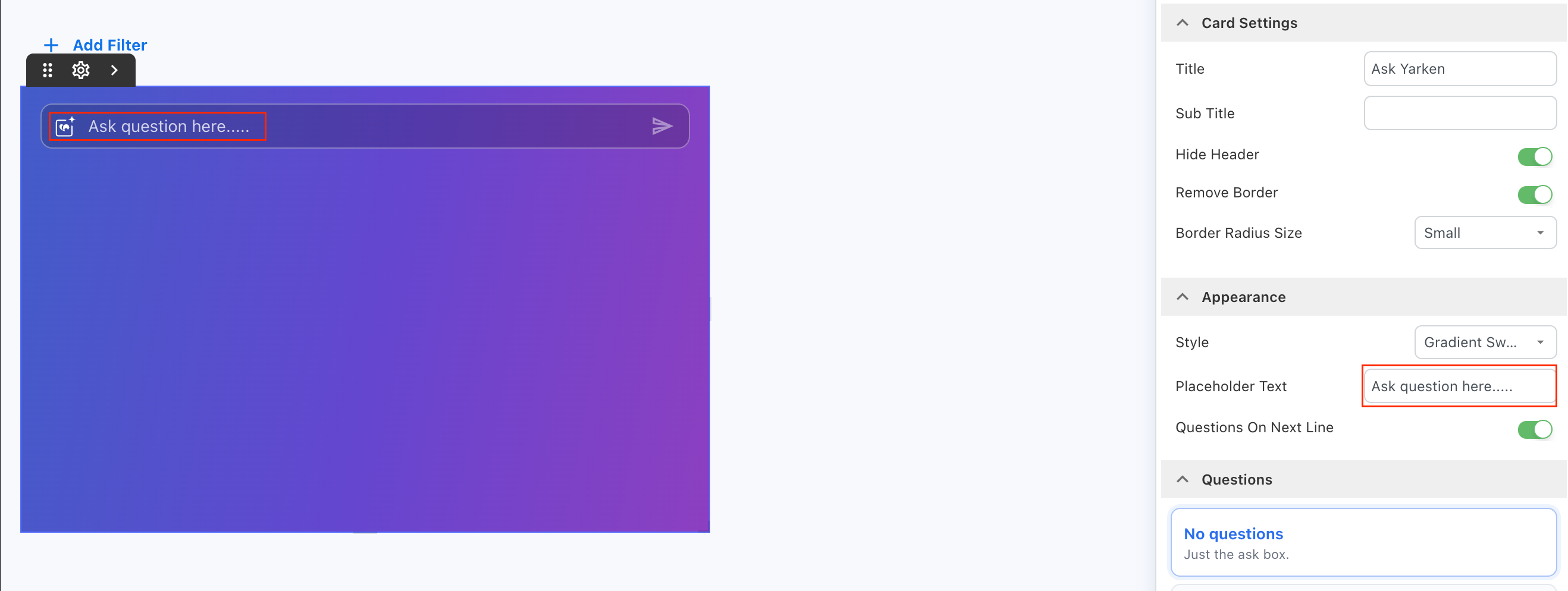
For example:
Ask question here….
Use short, action-oriented text that helps users understand what they can ask.
Position suggested questions
-
Use Questions On Next Line to control where suggested questions appear.
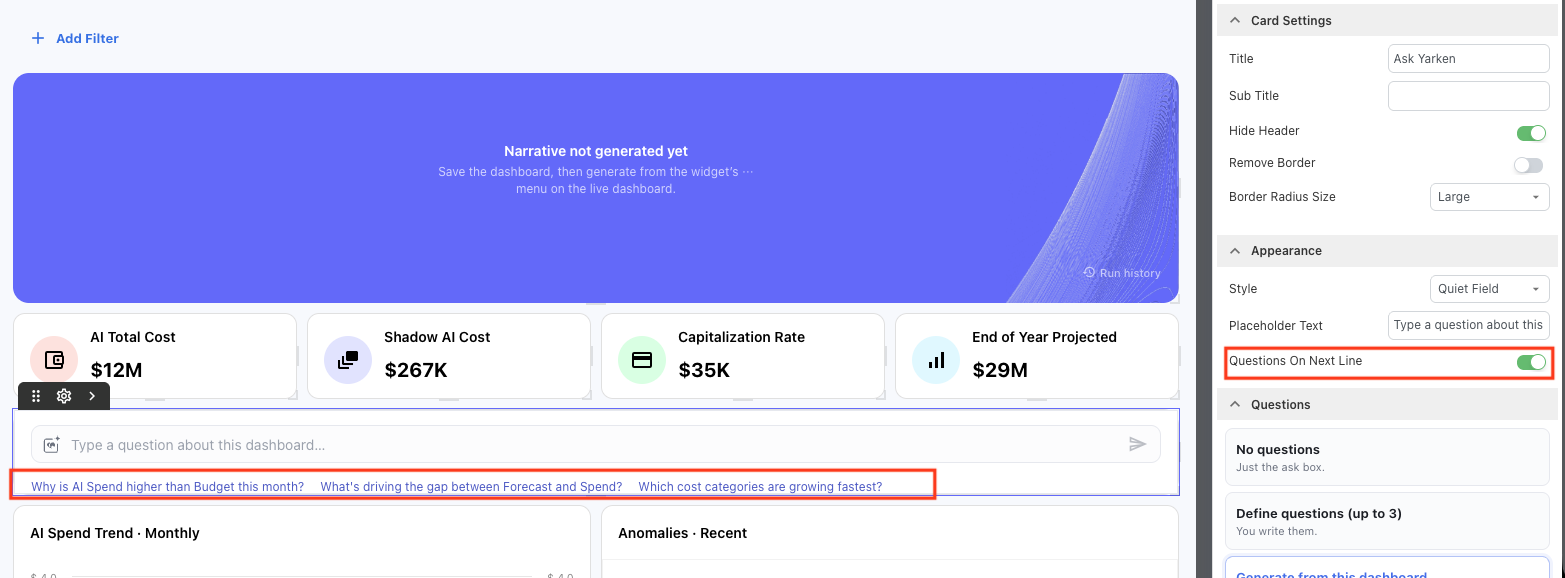
-
Turn it off to display suggested questions on the same line where space allows.
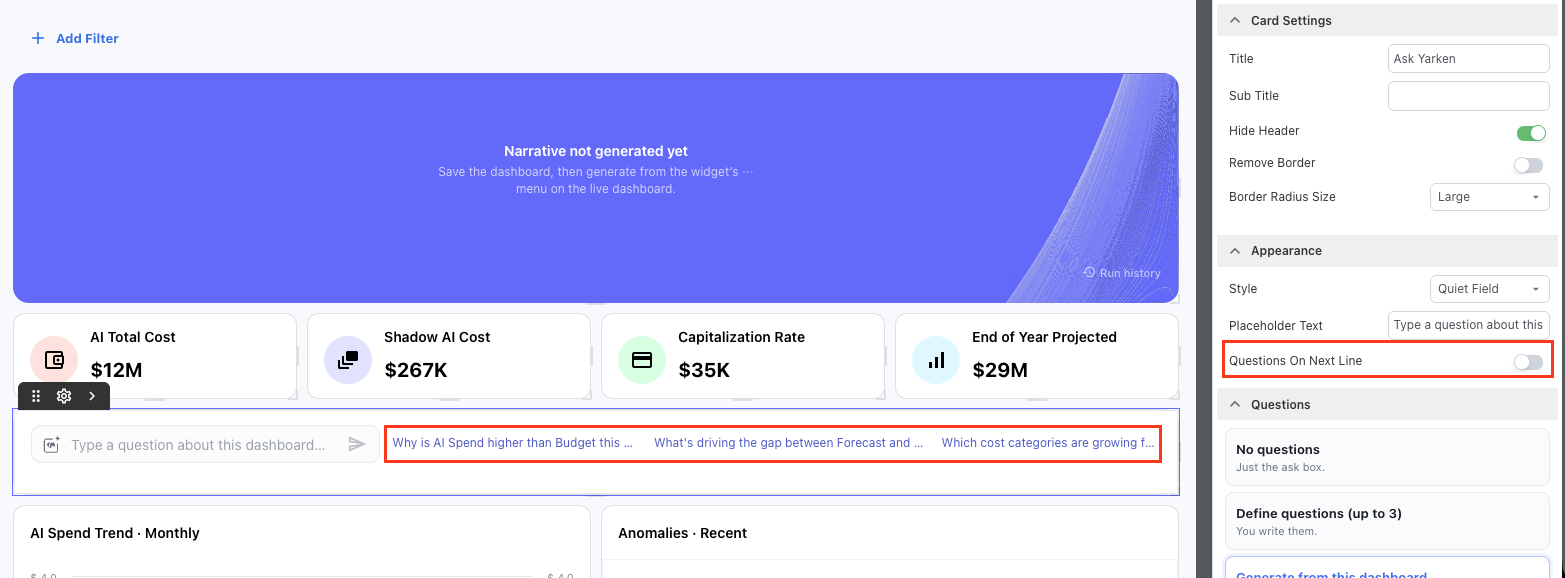
Use the option that best fits the available widget width and dashboard layout.
Configure suggested questions
Under Questions, choose how suggested questions should be provided.
You can select one of three options.
No questions
Select No questions to display only the Ask Yarken input.
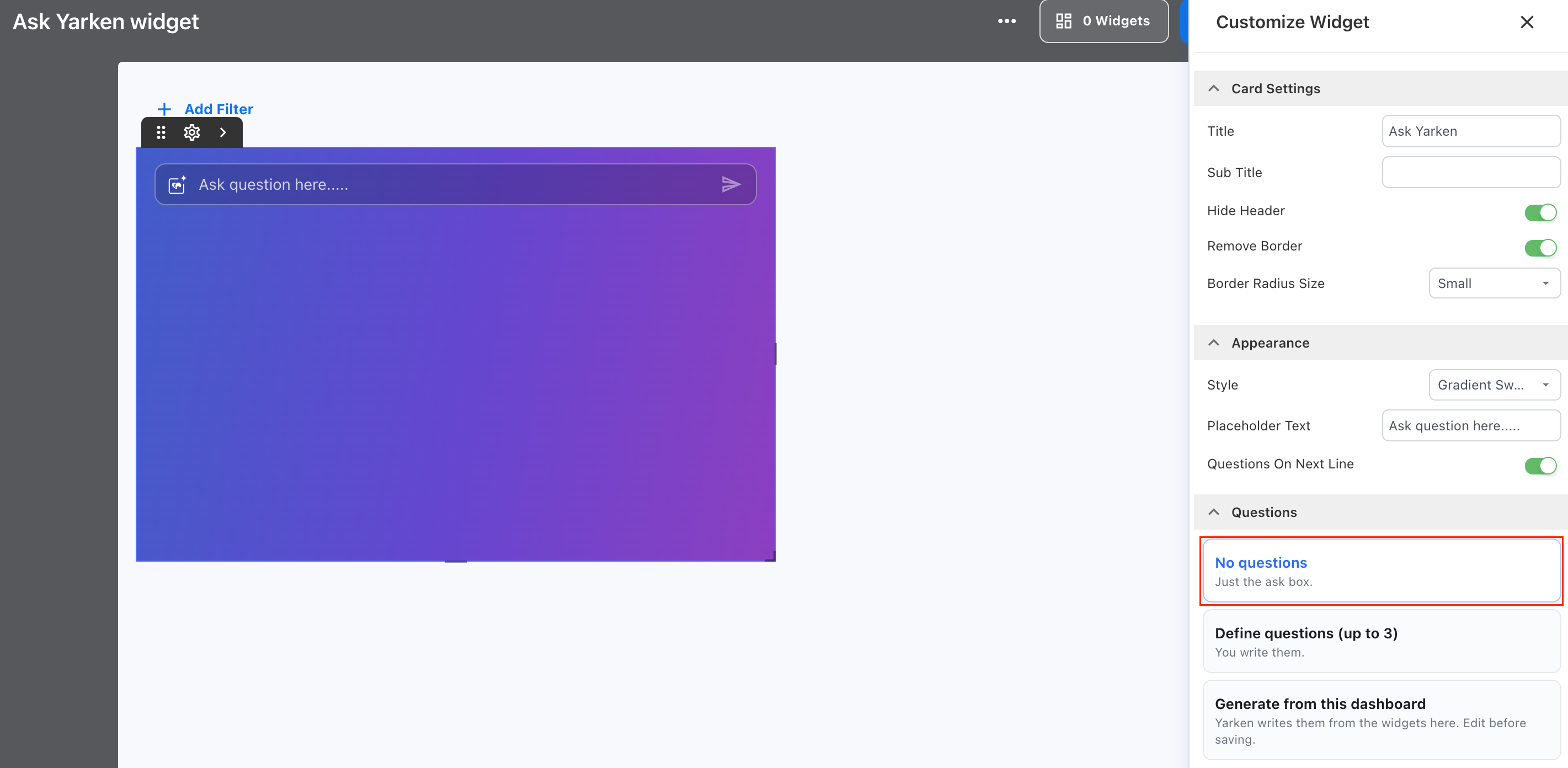
Use this option when dashboard viewers already know what they want to explore or when you want to keep the widget simple.
Define questions
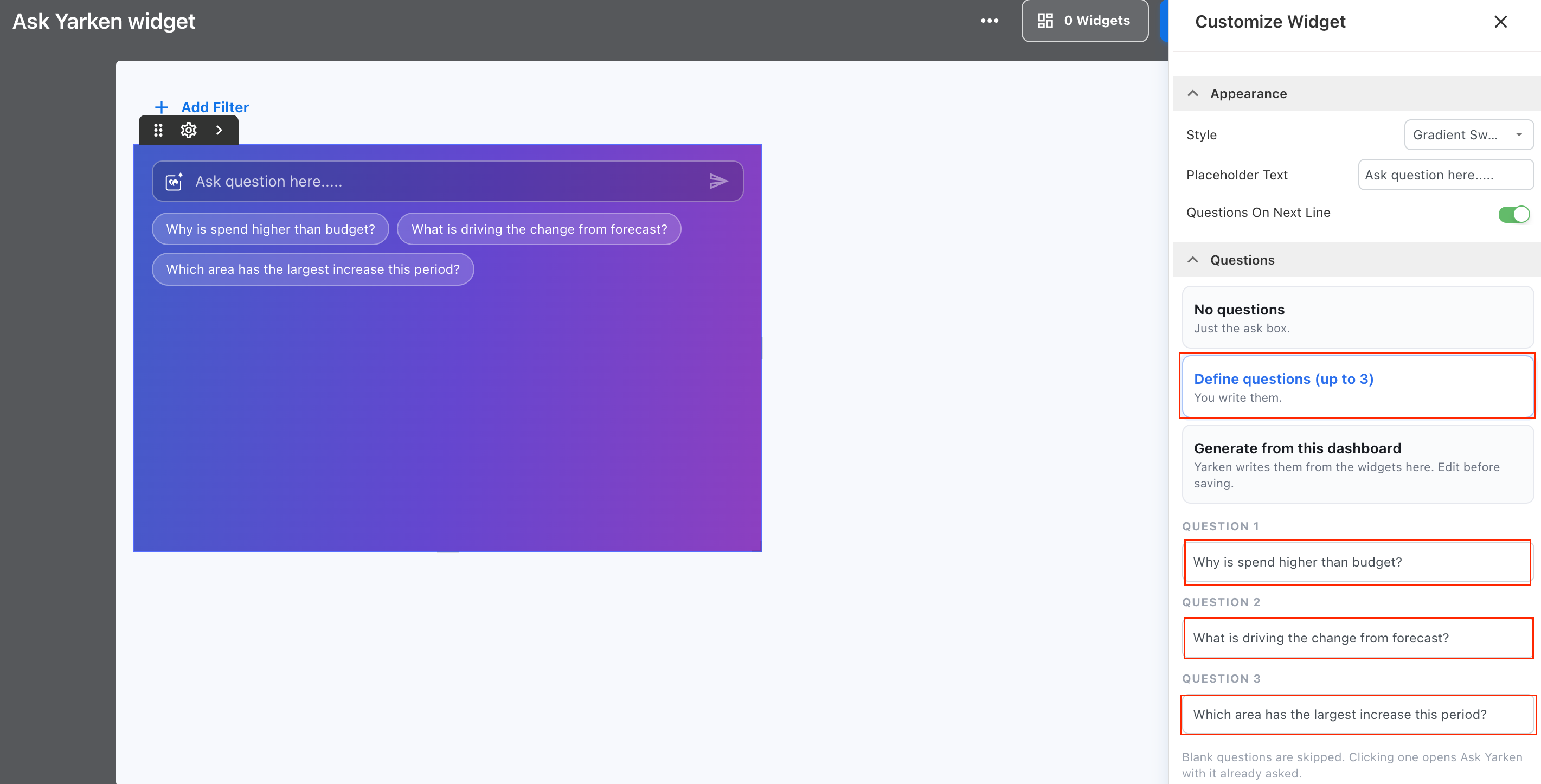
For example:
-
Why is spend higher than budget?
-
What is driving the change from forecast?
-
Which area has the largest increase this period?
Use suggested questions to guide users toward common or useful dashboard analysis. Blank question fields are skipped.
Generate questions from the dashboard
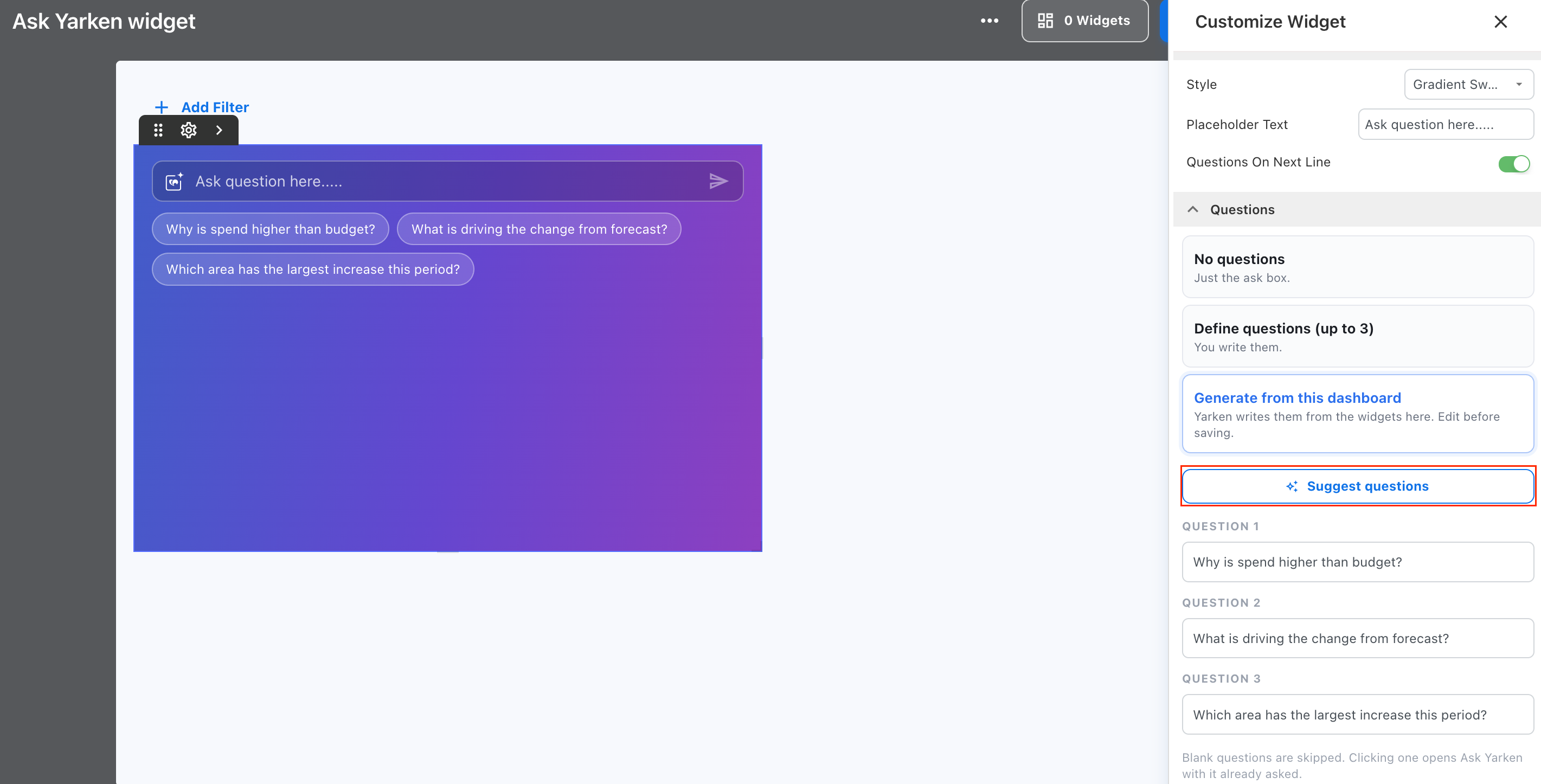
Select Generate from this dashboard when you want Yarken to suggest questions based on the widgets available on the current dashboard.
To generate suggested questions:
-
Under Questions, select Generate from this dashboard.
-
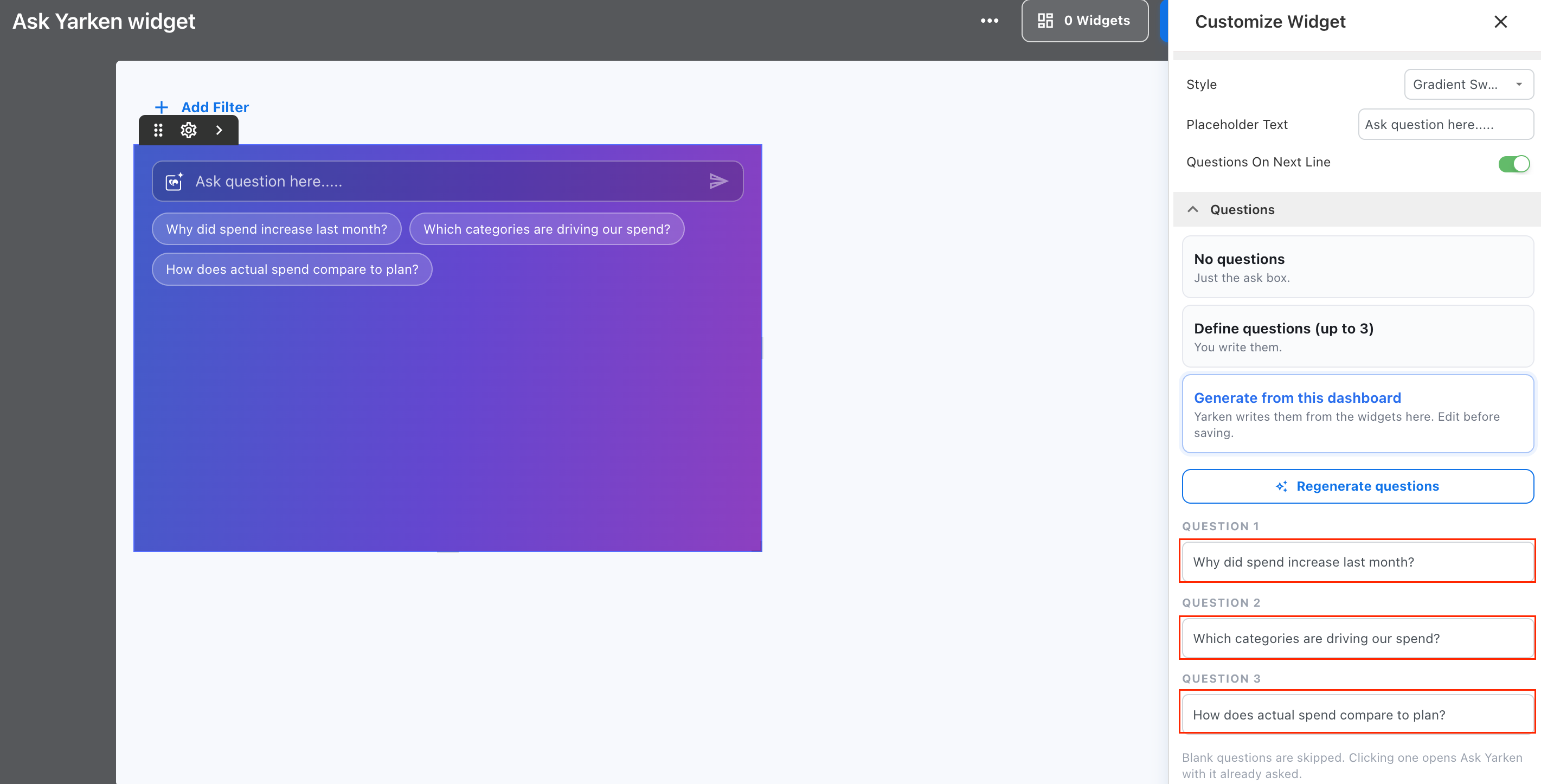
Review the generated questions.
-
Edit or regenerate the questions where required.
-
Leave blank any question you do not want to display.
-
Select Done when you finish editing the dashboard.
Yarken generates the suggestions from the dashboard content. Review them before saving to make sure they are relevant to the dashboard audience and reporting purpose.
Note: Generated questions are suggestions. Dashboard designers can review and edit them before making the widget available to viewers.
How dashboard context works
When you use Ask Yarken from a Custom Dashboard, Yarken uses the current dashboard context to help interpret your questions.
Ask Yarken can inspect the underlying data of analytical widgets, regardless of how that data is visualized. This allows you to explore the data behind supported charts and tables without being limited to the values currently visible in the visualization.
Ask Yarken can also go beyond the current dashboard view. You can ask it to:
-
Analyze any year available in your data, not only the current financial year.
-
Analyze data by financial year, quarter, month, or a custom date range.
-
Compare periods, including year-over-year comparisons.
-
Analyze trends across multiple periods.
-
Run an analytical widget's underlying query with modified filters, time periods, or dimensions to investigate the data in more detail.
For example, if a widget shows spend for the current financial year, you can ask Ask Yarken to compare the results with the prior year or investigate the same data for a different period or dimension.
Dashboard filters
Dashboard filters contribute to the context available to Ask Yarken.
However, your analysis is not limited to the exact filters currently displayed on the dashboard. Ask Yarken can run supported analytical queries with modified filters, time periods, or dimensions when needed to answer your question.
This allows you to investigate the data in more detail without changing the dashboard configuration.
Data access and permissions
Ask Yarken respects your existing Yarken data access.
The information available in responses depends on your permissions and configured access restrictions. For example, your view may be restricted by cost center, account, or other configured access controls.
Use the Ask Yarken widget
When viewing the dashboard, enter a question in the Ask Yarken input or select one of the suggested questions.
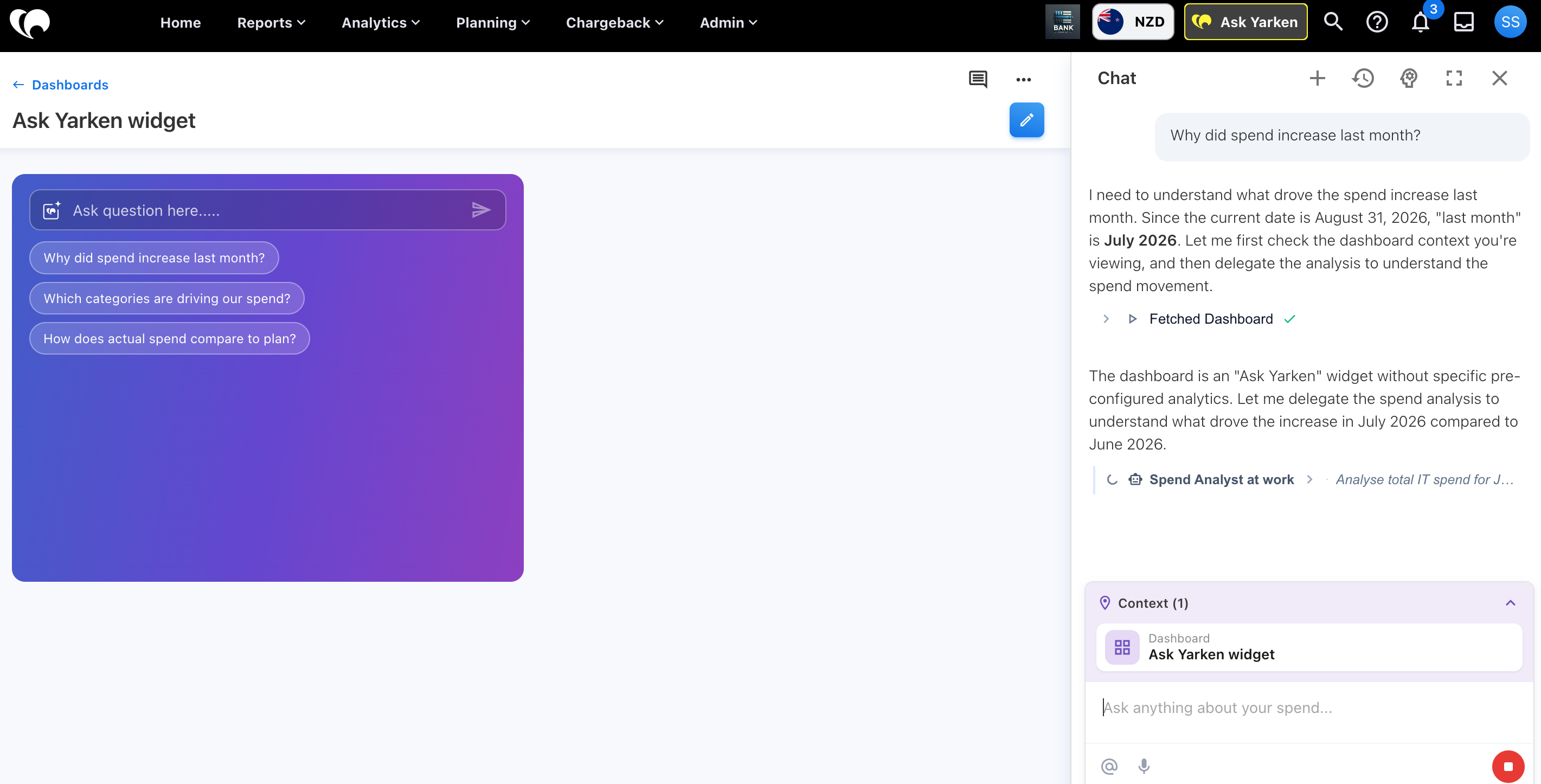
Selecting a suggested question opens Ask Yarken with the question already asked. You can then review the response and continue with follow-up questions to investigate the result in more detail.
For example, you might start with:
Which vendors have the highest spend?
Then continue with:
Which of those vendors increased the most from the previous period?
Recommended practices
-
Use suggested questions that reflect the purpose of the dashboard.
-
Keep suggested questions short and specific.
-
Avoid multiple questions that ask for the same analysis.
-
Review dashboard-generated questions before saving.
-
Use No questions when a simple Ask Yarken input is more appropriate.
-
Choose a predefined style for a consistent appearance, or use Custom to match the widget colors and suggested questions to your dashboard design.
-
Use Questions On Next Line when suggested questions need more horizontal space.
Troubleshooting
Suggested questions do not appear
Check the selected option under Questions.
If No questions is selected, the widget displays only the Ask Yarken input.
If Define questions (up to 3) is selected, confirm that at least one question contains text.
Generated questions are not what you expected
Review the widgets available on the dashboard. Yarken generates suggestions from the current dashboard content.
Edit the generated questions before saving if they do not match the dashboard purpose.
Suggested questions do not fit the widget
Turn on Questions On Next Line or increase the widget width.
The Ask Yarken input is difficult to see
Review the selected Style, dashboard background, border, and card settings. If you use Custom, check the Background Color and Text Color and choose colors that provide clear contrast.
Related content