
Use Dashboard Shortcuts to connect related dashboards and make common destinations easier to access from a Custom Dashboard.
You can configure shortcut labels, icons, destinations, and appearance to create clearer dashboard navigation.
Add a Dashboard Shortcut widget
-
Open the required Custom Dashboard.
-
Select Edit.
-
Add or select the Dashboard Shortcut widget.
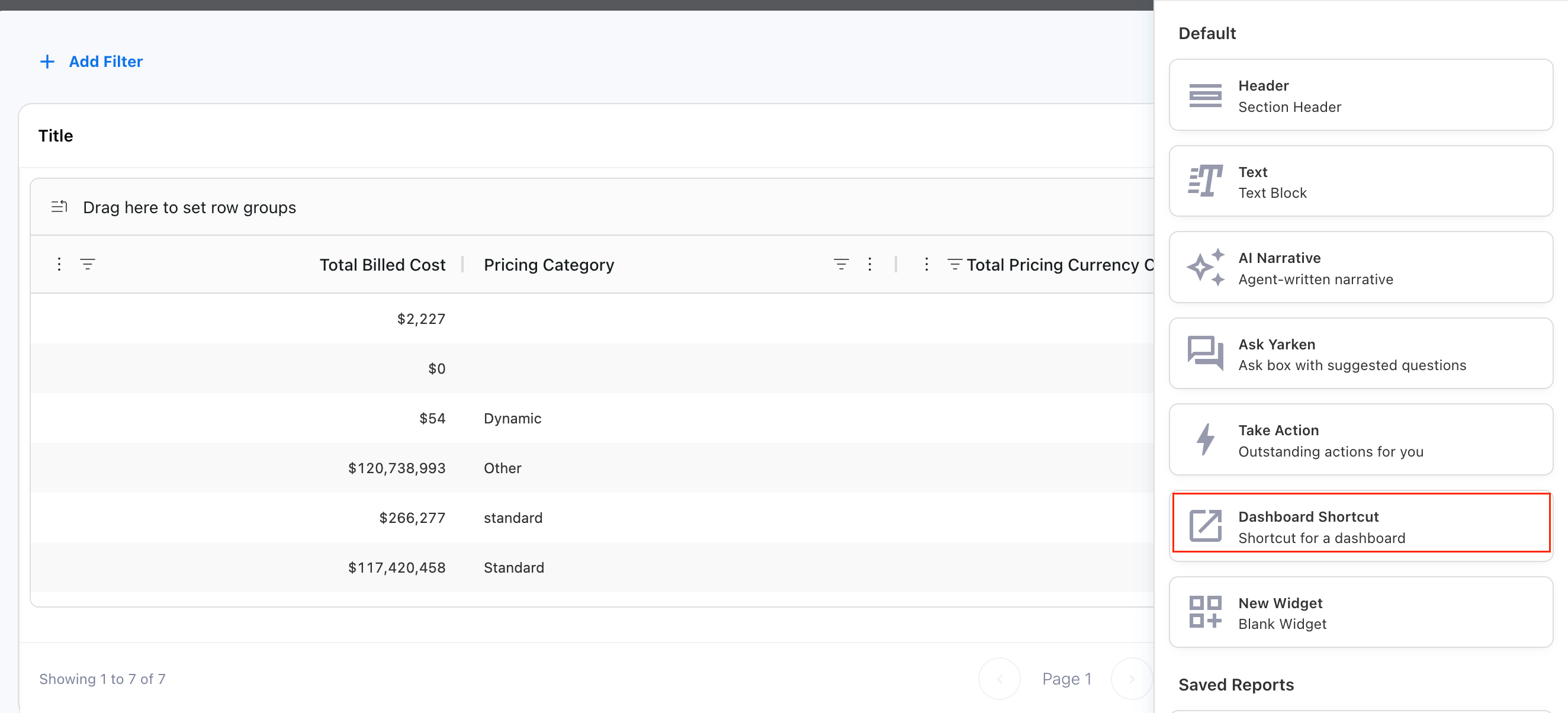
-
Open the widget settings.
-
Configure the shortcut destinations and appearance.
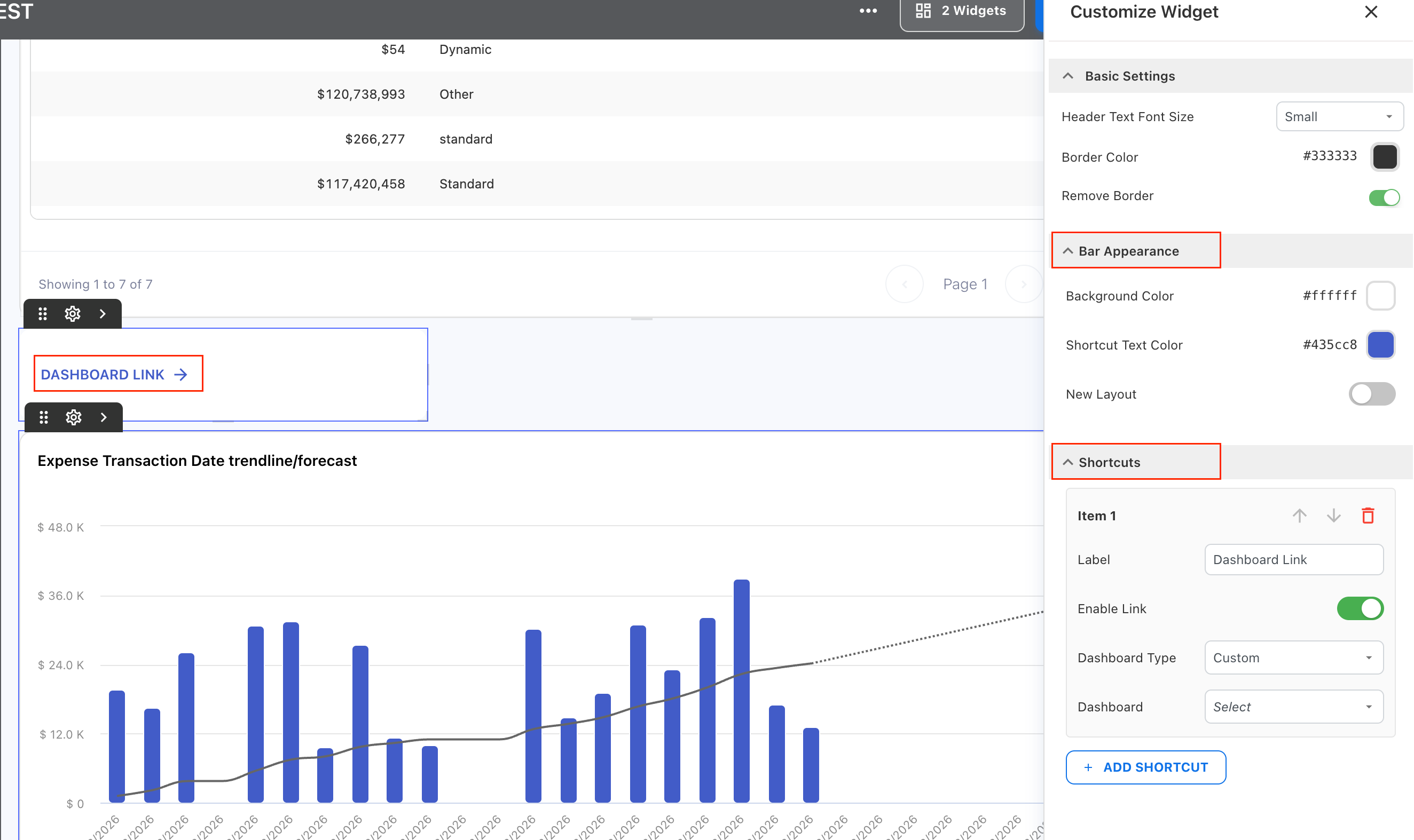
-
Review the widget.
-
Save or finish editing the dashboard.
Configure the shortcut layout
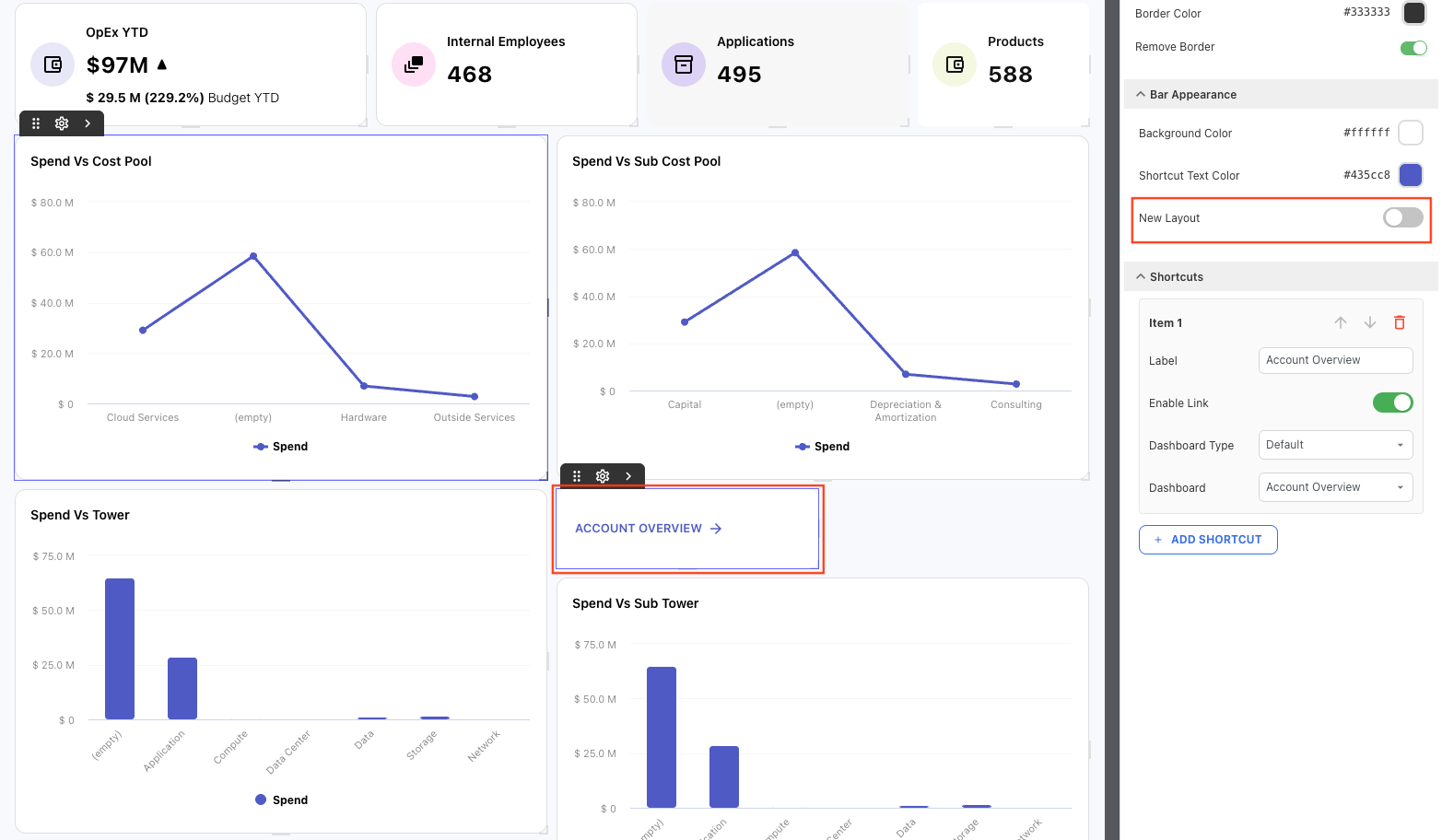
Under Bar Appearance, turn on New Layout to use the enhanced shortcut layout.
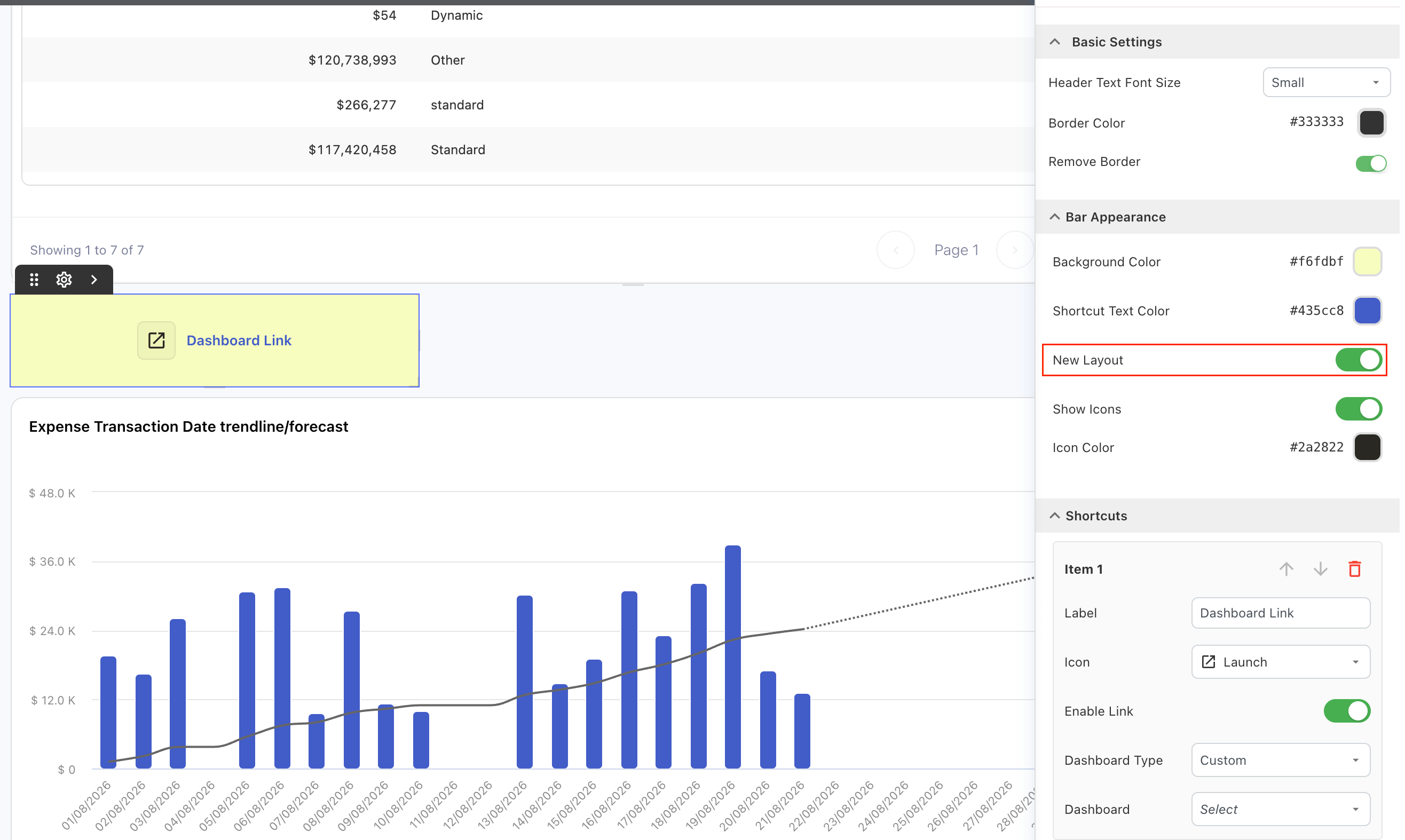
When New Layout is enabled, you can configure the following options:
|
Setting |
Description |
|---|---|
|
Background Color |
Sets the background color of the shortcut bar. |
|
Shortcut Text Color |
Sets the text color used for shortcuts. |
|
New Layout |
Enables the enhanced shortcut layout. |
|
Show Icons |
Shows or hides icons for shortcuts. |
|
Icon Color |
Sets the color used for shortcut icons. |
Configure a dashboard shortcut
For each shortcut:
-
Enter a Label.
-
Select an Icon from the available Yarken-styled icon library.
-
Turn Enable Link on or off.
-
Select the Dashboard Type.
-
Select the destination Dashboard.
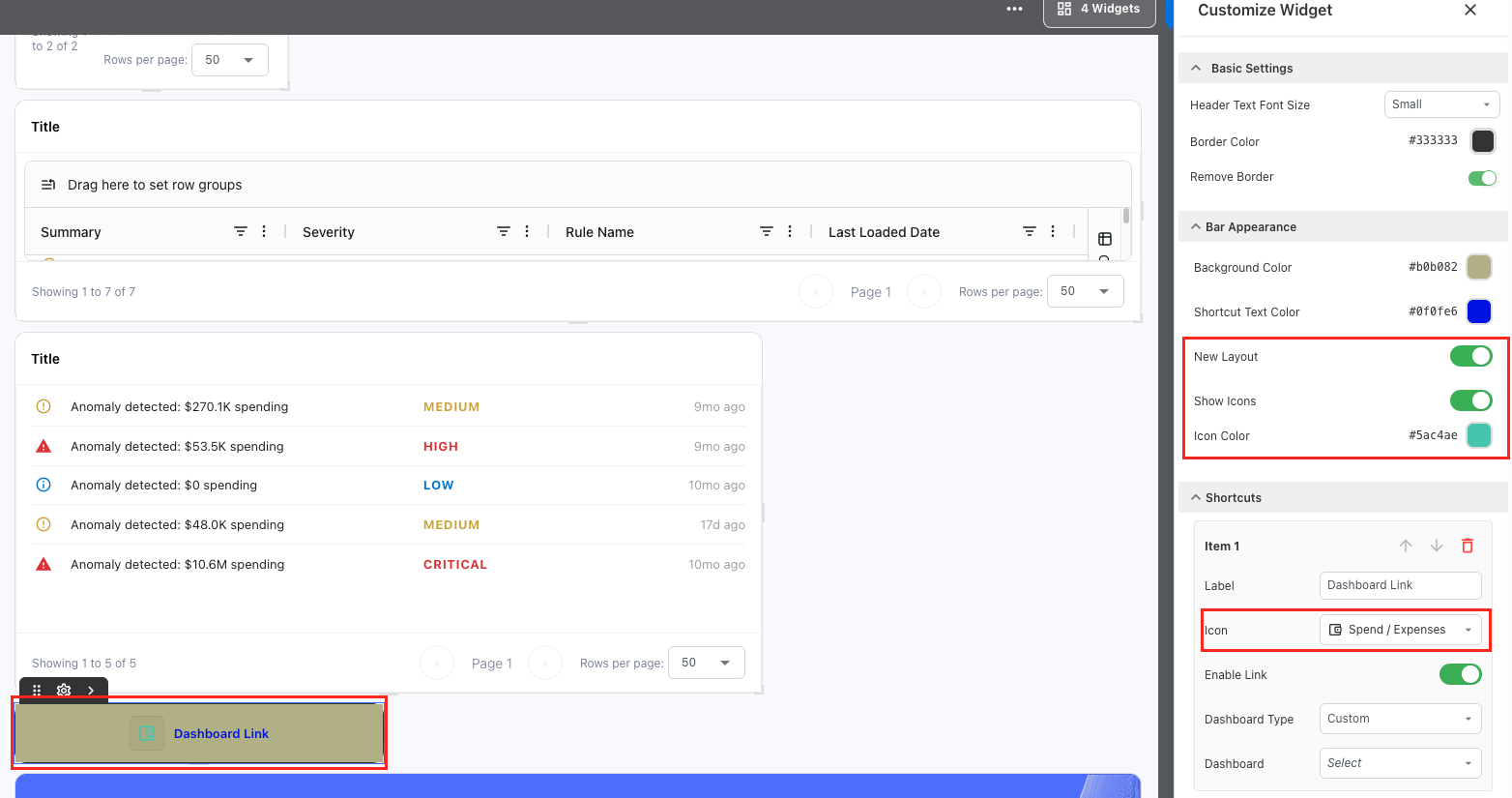
-
Select Add Shortcut to add another destination.
The configured shortcuts appear together in the shortcut bar, making related dashboards easier to identify and access.
Apply the enhanced layout to an existing shortcut widget
You can apply the enhanced layout to an existing Dashboard Shortcut widget without recreating it.
-
Open the dashboard in Edit mode.
-
Select the existing Dashboard Shortcut widget.
-
Open the widget settings.
-
Expand Bar Appearance.
-
Turn on New Layout.
-
Configure the icon and appearance options as required.
-
Save or finish editing the dashboard.
When New Layout is off, the widget continues to use its existing presentation.
Recommended practices
-
Use concise labels that clearly identify the destination.
-
Use icons consistently across related shortcuts.
-
Group shortcuts that support the same reporting workflow.
-
Keep the number of shortcuts focused on useful dashboard destinations.
-
Review shortcut destinations when dashboards are renamed, replaced, or removed.
Troubleshooting
A shortcut does not open the expected dashboard
Review the configured Dashboard Type and destination Dashboard. Confirm that the destination dashboard still exists and that you have access to it.
Shortcut icons do not appear
Confirm that New Layout and Show Icons are enabled. Check that an icon is configured for the shortcut.
Related content