
Use filters to control the reporting context displayed in a Custom Dashboard.
Custom Dashboards support dashboard-level and widget-level filters. Choose the filter level based on whether the reporting context should apply across the dashboard or only to a specific widget.
Dashboard-level filters
Use dashboard-level filters to control the reporting context across multiple widgets.
When you add a filter, select the field you want to use. You can search the available fields to quickly find the required dimension.
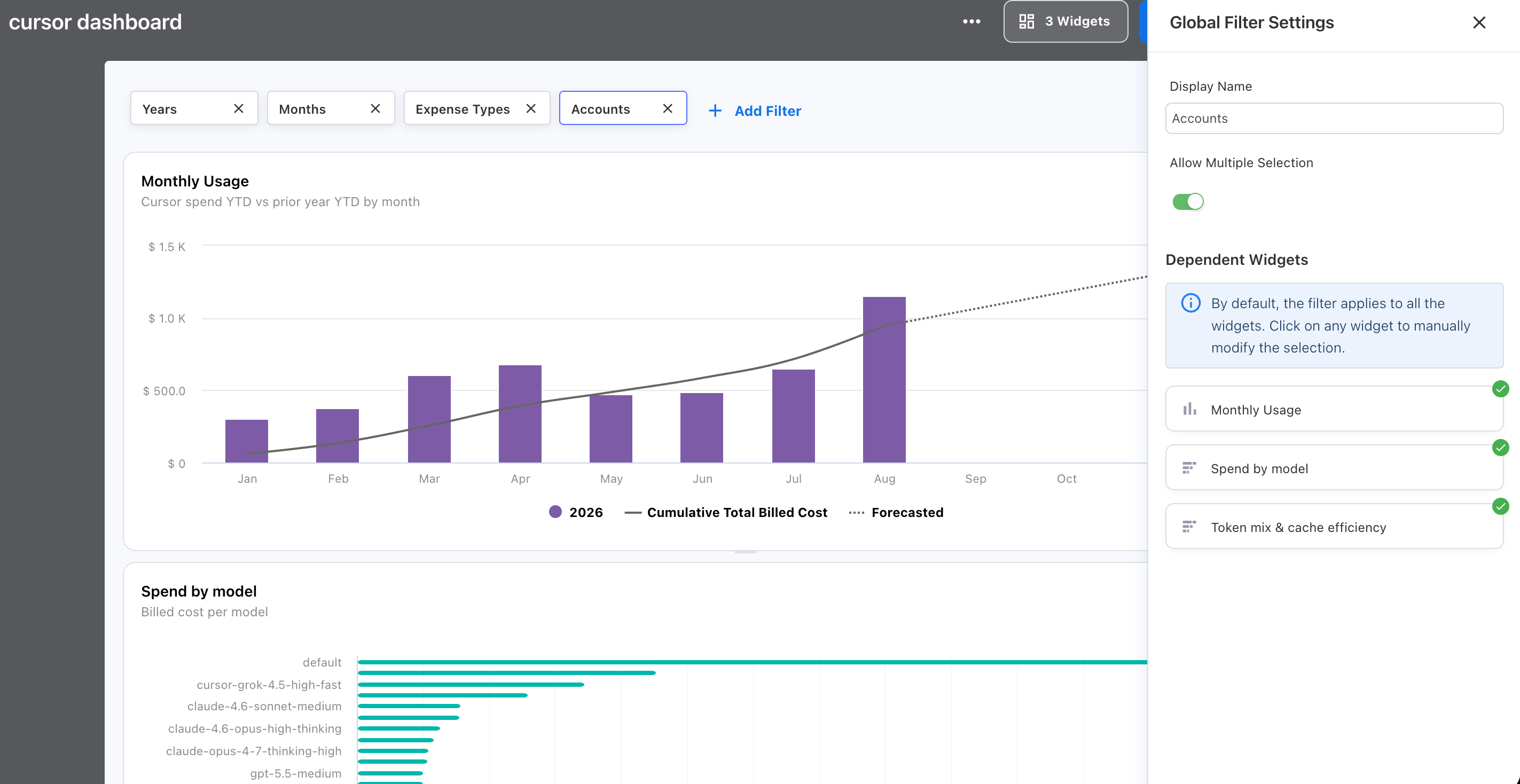
In Global Filter Settings, you can configure:
-
Display Name — Defines the filter name displayed on the dashboard.
-
Allow Multiple Selection — Allows dashboard users to select more than one filter value.
-
Dependent Widgets — Controls which widgets respond to the filter.
By default, a global filter applies to all widgets on the dashboard. To limit the filter to specific widgets, select or deselect widgets under Dependent Widgets.
For example, you can configure an Expense Types filter to update selected reporting widgets while leaving other dashboard widgets unchanged.
This allows one dashboard to contain global filters that apply to all widgets and global filters that apply only to selected widgets.
Widget-level filters
Use widget-level filters when an individual widget needs a narrower or different scope from the overall dashboard.
For example, a dashboard may show organization-wide spend while one widget focuses on a specific provider or cost center.
Widget-level filters apply only to the configured widget.
Note: A dashboard-level filter can also be limited to selected widgets through Dependent Widgets. Use a widget-level filter when the filter belongs only to one widget's configuration.
Review active filters
Review active filters before interpreting dashboard results, especially when using a dashboard for:
-
Finance reviews
-
Executive reporting
-
Budget and forecast reviews
-
FinOps analysis
-
Chargeback analysis
If a widget does not show the expected data, compare its widget-level filters with the dashboard-level reporting context and confirm whether the global filter includes that widget under Dependent Widgets.
Recommended practices
-
Use dashboard-level filters for reporting context shared across multiple widgets.
-
Review Dependent Widgets when a global filter should apply only to selected widgets.
-
Use Allow Multiple Selection only when selecting several filter values supports the reporting workflow.
-
Use widget-level filters only when a filter belongs to a single widget's configuration.
-
Keep filter selections relevant to the purpose of the dashboard.
-
Review active filters before validating totals or comparing results.
-
Apply an appropriate date or reporting-period filter when using daily forecasting.
Troubleshooting
A widget does not respond to a global filter
Open the filter's Global Filter Settings and review Dependent Widgets. Confirm that the widget is selected.
A widget shows different results from the rest of the dashboard
Check whether the widget has its own filter configuration. Also review whether dashboard-level filters are limited to selected widgets under Dependent Widgets.
Multiple values cannot be selected in a global filter
Open Global Filter Settings and confirm that Allow Multiple Selection is turned on.
Expected data is missing
Review dashboard-level and widget-level filters. Confirm that the selected reporting period and dimensions include the data you expect, and verify that the relevant global filters apply to the widget.
A daily forecast does not extend into the expected period
Check the applicable date or reporting-period filter. The filter defines the forecast range for daily forecasting.
Related content