
When Cloud Recommendations are imported, Yarken attempts to associate each recommendation with the relevant Application, Service, or Product asset.
This association helps recommendations appear in the appropriate asset and dashboard views (Application, Product, or Service Portfolio dashboards) without requiring you to assign every recommendation manually.
Automatic association applies to recommendations imported through:
-
Recommendation file uploads
-
Advanced Integrations
Prerequisites
For automatic asset association, confirm that:
-
The recommendation file contains the cloud Resource ID.
-
Cloud Consumption data has already been loaded for the affected resources.
-
Application, Service, or Product tags are populated in the Cloud Consumption records.
-
Tag values match existing asset names in Yarken.
The recommendation can still be imported when these conditions are not met, but it will not be automatically associated with an asset.
How automatic association works
For each imported Cloud Recommendation, Yarken:
-
Reads the Resource ID from the recommendation.
-
Searches Cloud Consumption data for a record with the same Resource ID.
-
Checks the asset tags on the matching consumption record in the following order:
-
Application Tag
-
Service Tag
-
Product Tag
-
-
Uses the first populated tag as the asset name.
-
Searches the Assets table for an asset with the same name.
-
Associates the recommendation with the matching asset.
Only the first populated tag is evaluated. For example, when an Application Tag is available, Yarken does not evaluate the Service Tag or Product Tag.
Manual associations take precedence
When a recommendation already has an asset assigned manually, Yarken retains that association.
The automatic process does not replace an existing manual asset assignment.
When an asset is not associated
The recommendation remains available even when Yarken cannot determine an asset.
The Asset ID remains blank when:
-
No Cloud Consumption record has the same Resource ID.
-
The matching consumption record has no Application, Service, or Product tag.
-
The selected tag does not match an asset name in Yarken.
A missing association does not cause the recommendation import to fail. Yarken continues processing the remaining records.
Example
Consider an imported recommendation with the following value:
-
Resource ID:
/subscriptions/123/resourceGroups/production/providers/Microsoft.Compute/virtualMachines/vm-01
Yarken finds a Cloud Consumption record with the same Resource ID and the following tags:
-
Application Tag: Customer Portal
-
Service Tag: Web Hosting
-
Product Tag: Digital Services
Because Application Tag has the highest priority, Yarken selects Customer Portal.
If an asset named Customer Portal exists in Yarken, the recommendation is associated with that asset. The recommendation can then appear in views and reports related to the Customer Portal application.
If the Application Tag were blank, Yarken would use Web Hosting, the Service Tag. The Product Tag would only be considered when both the Application Tag and Service Tag are blank.
Validate automatic asset associations
After the recommendation import completes:
-
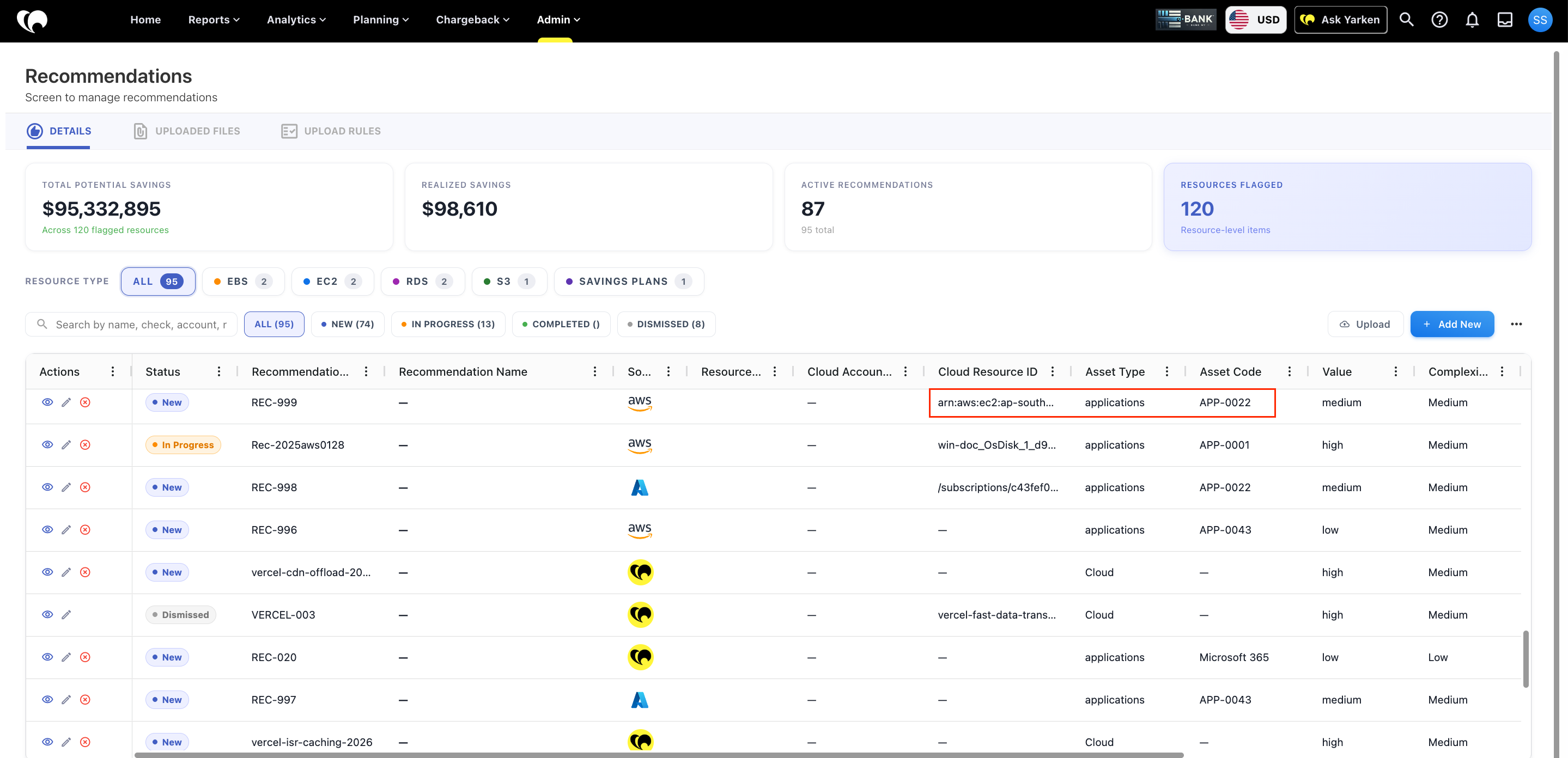
Open Admin > Recommendations.
-
Select the Details tab.
-
Find a sample of the imported recommendations.
-
Confirm that Cloud Resource ID contains the expected resource.
-
Review Asset Type and Asset Code.
-
Confirm that the recommendation is associated with the expected Application, Service, or Product.
-
Open the relevant asset or Application Portfolio view and verify that the recommendation appears.
When the asset fields are blank, compare the recommendation Resource ID with Cloud Consumption data. Then verify that the selected Application, Service, or Product tag exactly matches an existing asset name.
Related content