
Once a pipeline is created, you can manage it from the Pipelines page to control execution, scheduling, and configuration. Managing pipelines allows you to monitor data ingestion, make updates when requirements change, and ensure pipelines continue to run as expected.
Edit a Pipeline
You can edit an existing Pipeline to update:
-
Schedule frequency
-
Data mapping template (for Cloud Storage pipelines)
-
Selected API data (for API pipelines)
-
Pipeline name or description
Note: The edit capability is disabled for the active Pipeline connection. To edit such connection, you must deactivate it and then make an edit.
To edit,
-
Go to Admin > Pipelines > Pipelines.
-
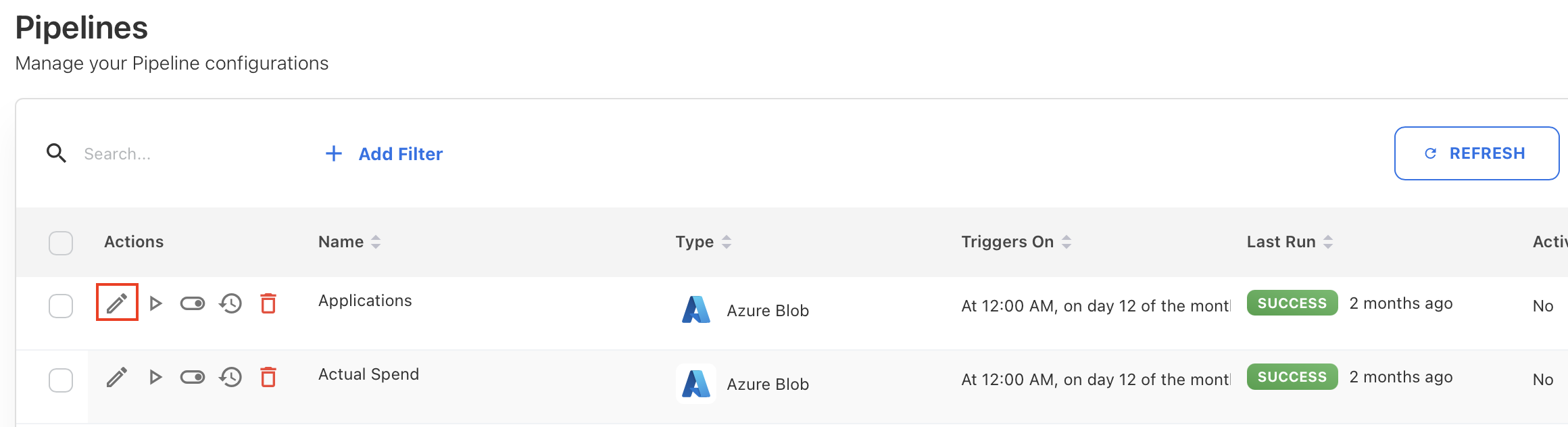
Click edit icon next to the Pipeline that you want to update.
-
Update the details and click SAVE.
The changes take effect from the next scheduled or manual run.
Run a Pipeline manually
In addition to automated schedules, you can use the Run Once option to trigger an immediate pipeline execution. This On-demand runs do not affect the existing schedule and is useful for testing, validation, or refreshing data immediately.
-
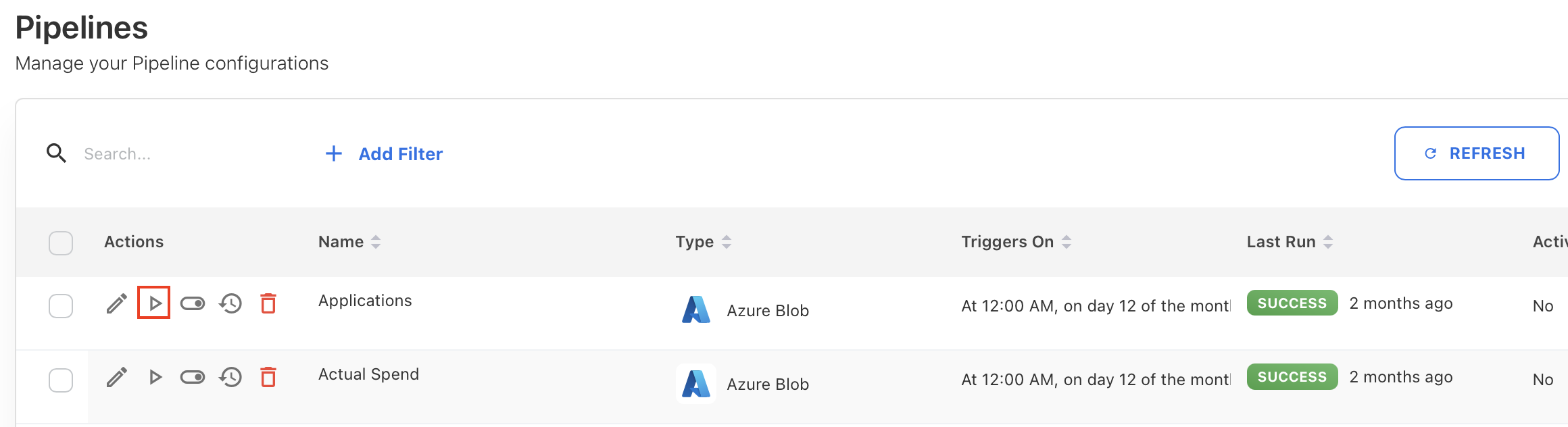
To run, Click Run Once icon next to the Pipeline that you want to run.
-
On confirmation popup, click OK.
The system will immediately start fetching data from the configured source. You can view the progress to confirm successful execution.
Activate or deactivate a Pipeline
A newly created Pipeline is deactivated by default. You can activate it to enable scheduled and on-demand execution.
To activate,
-
Find the inactive Pipeline connection.
-
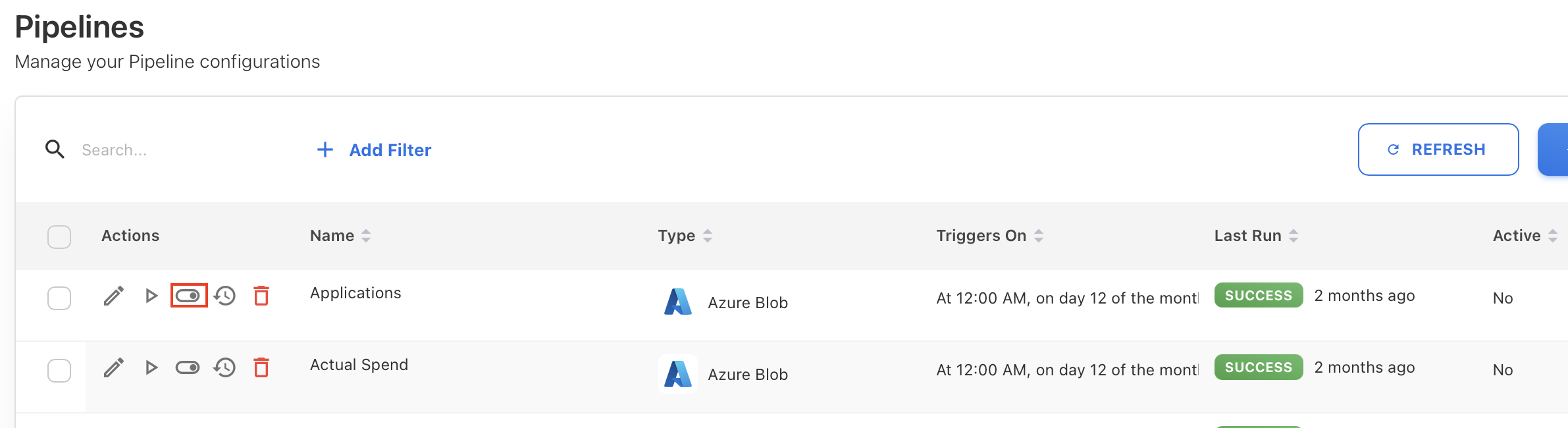
Toggle Activate button.
-
On confirmation popup, click OK.
You deactivate a pipeline to temporarily stop data ingestion without deleting the pipeline configuration.
To deactivate,
-
Find the active Pipeline connection.
-
Toggle Deactivate button.

-
On confirmation popup, click OK.
After deactivation, the Pipeline does not run on the scheduled timeframe.
View Pipeline running history
You can check the Pipeline running history to know,
-
Previous runs status for each execution
-
Number of files processed
-
Running interface (Azure Blob, AWS S3, or GCS)
-
Error details
To view,
-
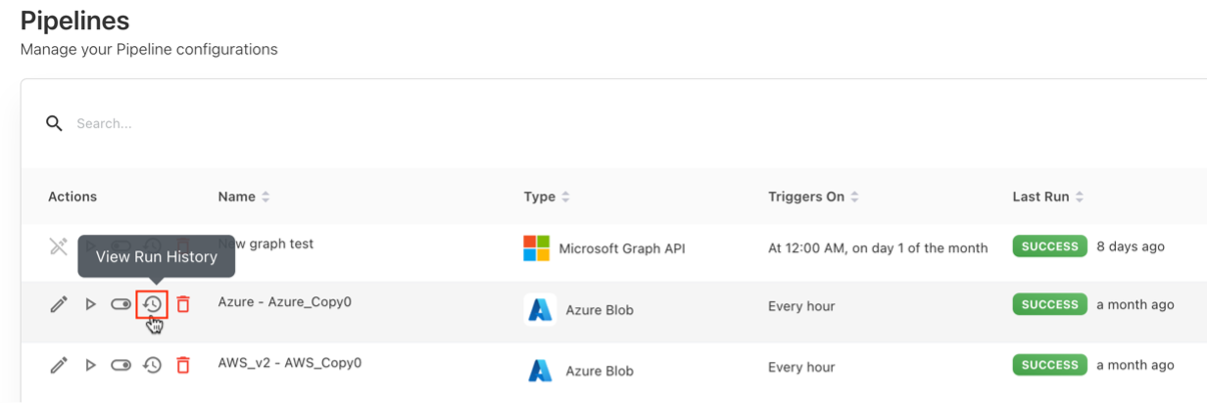
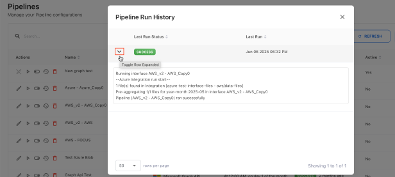
Click View Run History on Pipeline.
-
On Pipeline Run History popup, toggle row expander to view additional details.
Delete a Pipeline
You can permanently delete the Pipeline that no longer needed. Deleting a pipeline permanently removes its configuration and run history.
Note: A deleted Pipeline cannot be recovered.
To delete,
-
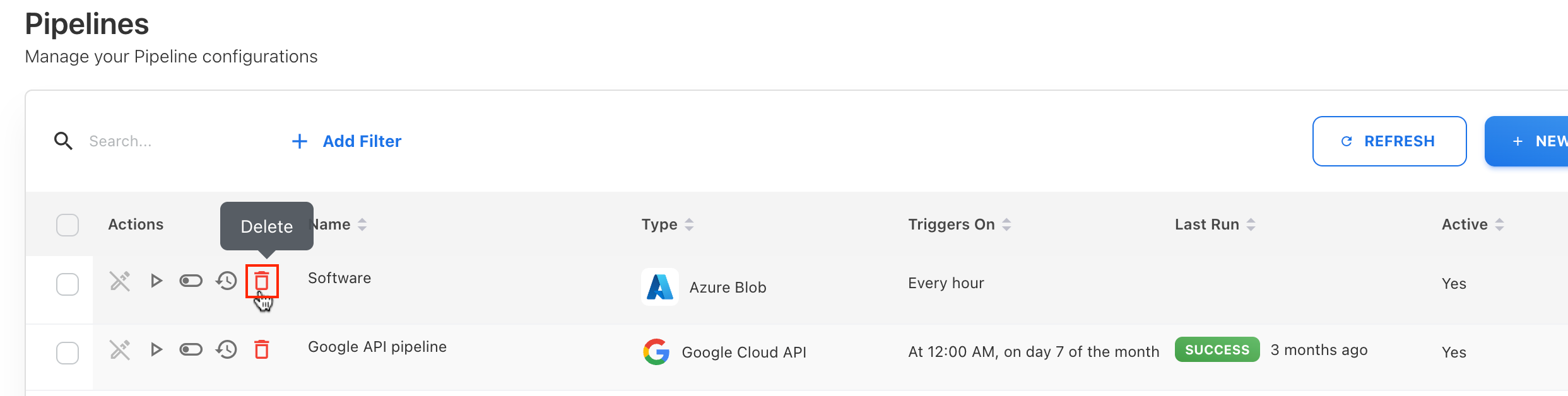
Click Delete icon next to the Pipeline.
-
On confirmation popup, click OK.
Related content