
Monitoring pipeline execution helps ensure data is ingested correctly and issues are identified early. Yarken provides multiple options—View Run History, Background Processes, and Audit Logs—to support monitoring, traceability, and troubleshooting.
Monitoring pipeline runs
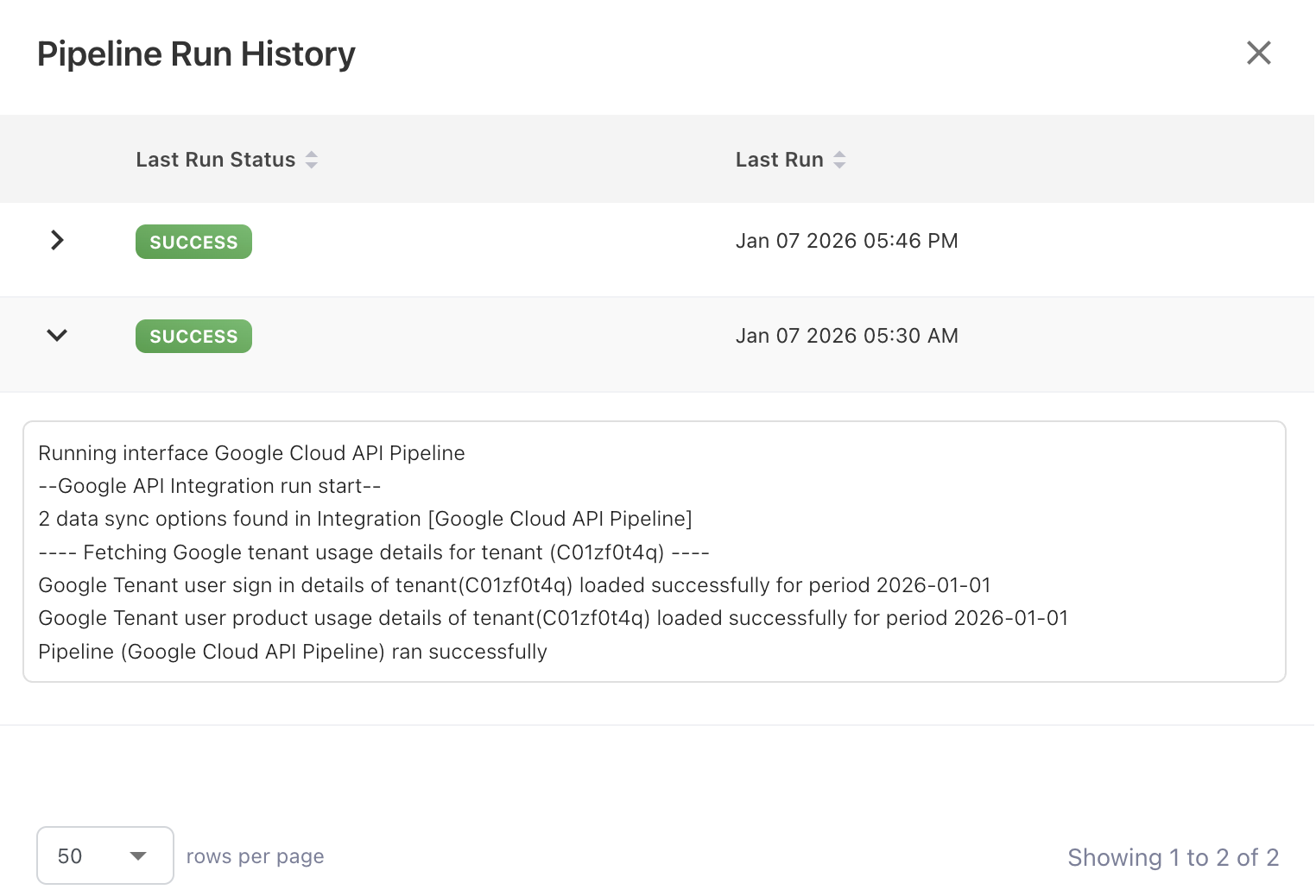
View Run History
Each pipeline execution is recorded in the View Run History with a clear status, such as Success, or Failed.
View Run History includes:
-
Execution date and time
-
Number of records processed
-
Error details, if occurred
Use this information to confirm successful ingestion or identify runs that require attention.
Background Processes
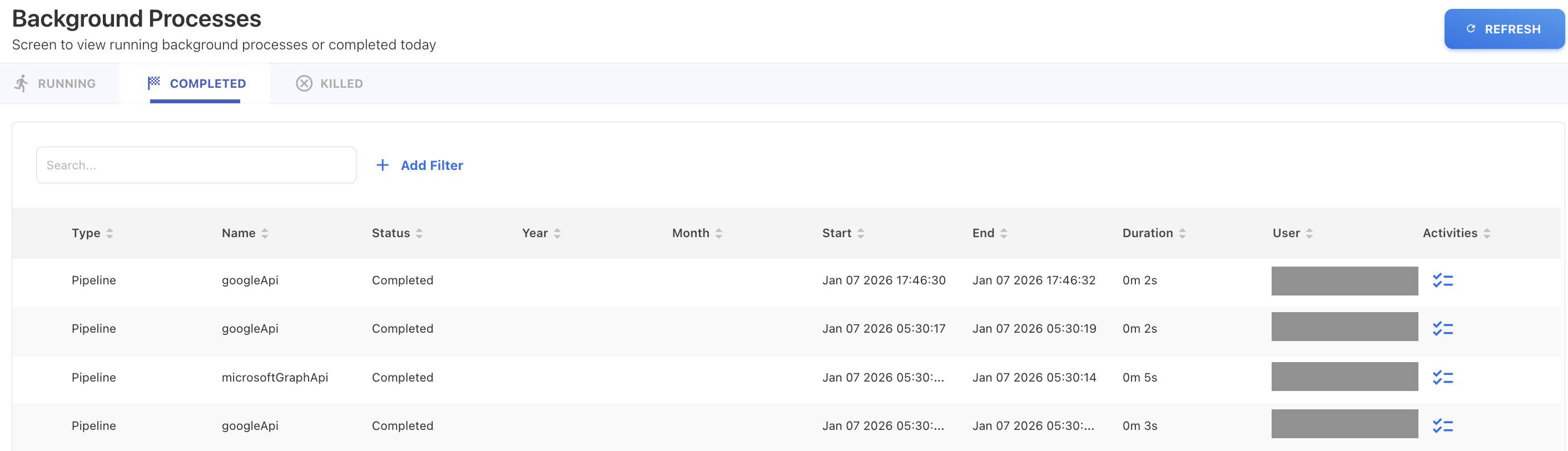
The Background Processes view shows the real-time and completed execution status of pipelines.
This view allows you to:
-
Monitor currently running pipelines
-
Confirm when a pipeline run has completed
-
Check individual pipeline execution activity.
Background Processes is useful for tracking long-running pipelines and confirming that scheduled executions are progressing as expected.
Audit Logs
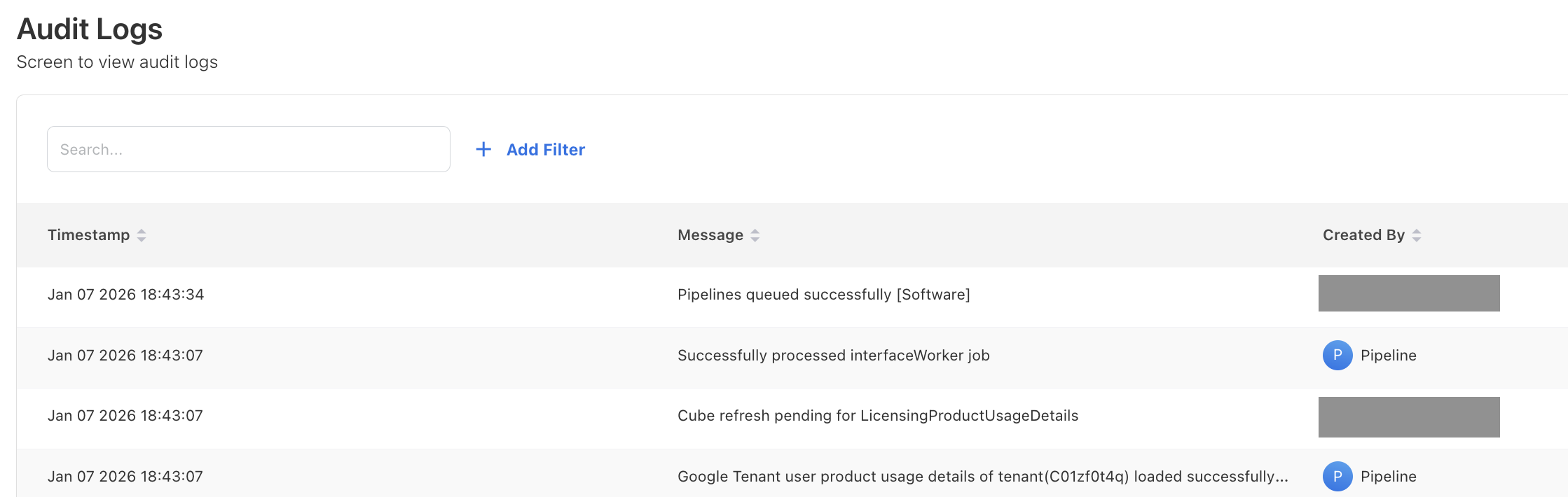
Audit Logs provide a record of pipeline-related system actions and configuration changes.
Use Audit Logs to:
-
Immediately track when pipelines are created, updated, enabled, or disabled
-
Filter pipeline events by execution message, time, or user.
Audit Logs focus on who changed and when, while View Run History and Background Processes focus on execution behavior.
How Yarken handles files in cloud storage
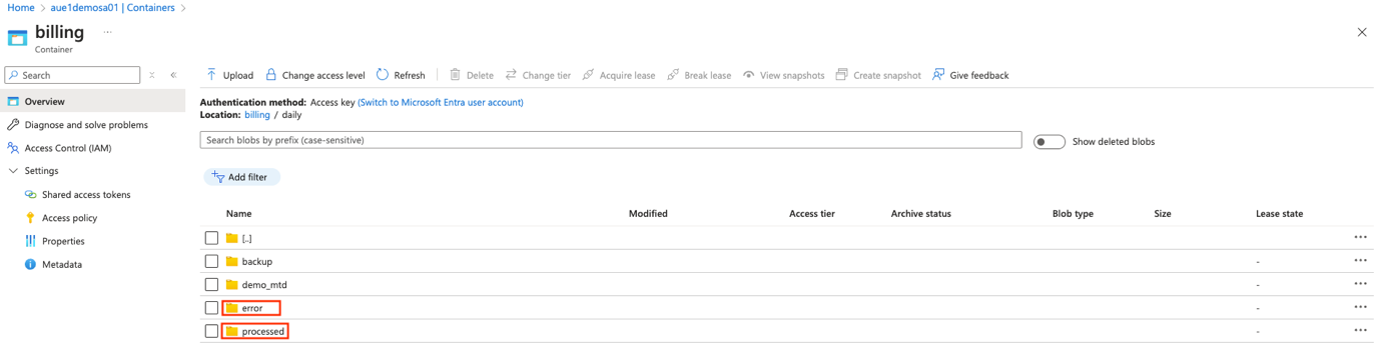
When a Cloud Storage Pipeline processes files, Yarken automatically organizes them in the configured storage location to prevent duplicate processing and improve traceability.
Two folders are created automatically:
-
processed
Contains files that were successfully ingested. -
error
Contains files that could not be processed due to validation, format, or mapping issues.
After each pipeline run, files are moved into one of these folders to ensure the same files are not processed again.
Important guidelines
-
Do not upload, modify, or reuse files in the processed or error folders.
-
If files appear in the Error folder, review the pipeline logs, correct the issue, and then reprocess the data using corrected files.
💡 Tip: The Processed and Error folders act as an audit trail for file-level ingestion and simplify troubleshooting.
Common troubleshooting scenarios
Pipeline did not ingest data
-
Confirm new files exist in the configured folder.
-
Verify the pipeline is active and scheduled correctly.
-
Check Background Processes for active or stalled runs.
Pipeline is running but not completed
-
Review Background Processes for execution status.
-
Check logs for long-running steps or errors.
Files moved to the Error folder
-
Review mapping templates and required fields.
-
Validate file format and schema consistency.
Missing data in dashboards or reports
-
Confirm the pipeline run completed successfully.
-
Ensure the affected cube has been refreshed.
Related content