
What are Lookup Types?
Lookup Types let you create and manage your own reference tables that the system uses to enrich, normalize, or transform incoming data during file uploads.
Each Lookup Type contains a set of key–value pairs, along with optional custom fields. These act as a mapping source for Upload Rules.
When Lookup Types are useful
Use a Lookup Type when the information needed to enrich your dataset:
-
Isn’t included in the uploaded file, and
-
Cannot be retrieved from any existing data source in the application
By creating your own mapping table and uploading custom reference values, the system can apply those mappings automatically during ingestion—ensuring consistent, and reliable data enrichment.
How Lookup Types work
Each Lookup Type is a reference table made up of three core elements. These values are uploaded by you and used by the application during Upload Rule execution.
-
Lookup Key
The key is the value from the incoming file that the application should match against.
Examples: SKU, service name, region code, identifier.
-
Lookup Value
The value is what the application returns when it finds a matching key.
Examples: category, description, region name, product type.
-
Custom fields (optional)
You can include additional attributes in your lookup table if you want to store extra context.
Examples: tower, owner, region, business unit, cost classification.
These fields may or may not be used in your Upload Rules, depending on your mapping needs.
Using Lookup Types in Upload Rules
After you upload your reference file into the Lookup Type, you can use that lookup table in your Upload Rules. During ingestion, the system compares each incoming key value against your table and applies the corresponding lookup value (and any relevant custom fields).
Note: If an Upload Rule that references a Lookup Type is disabled, the lookup is not executed during ingestion. The Lookup Type data remains intact, but the rule must be enabled for the lookup to be applied. See Manage Upload Rules for details on enabling and disabling rules.
Creating a Lookup Type
Prerequisite
Before creating a Lookup Type, download the Lookup Types template file from the Data Dictionary and fill in the mandatory fields—Lookup Type and Lookup Key—in the template.
Note: You may also upload your own custom lookup table instead of using the template, but ensure that all fields are correctly mapped to the required system fields during the upload process.
Procedure
-
Navigate to YäRKEN Designer > Lookup Types in the application.
-
Click UPLOAD.
-
On data upload popup, drag and drop your file.
-
Review the file data and click NEXT.
-
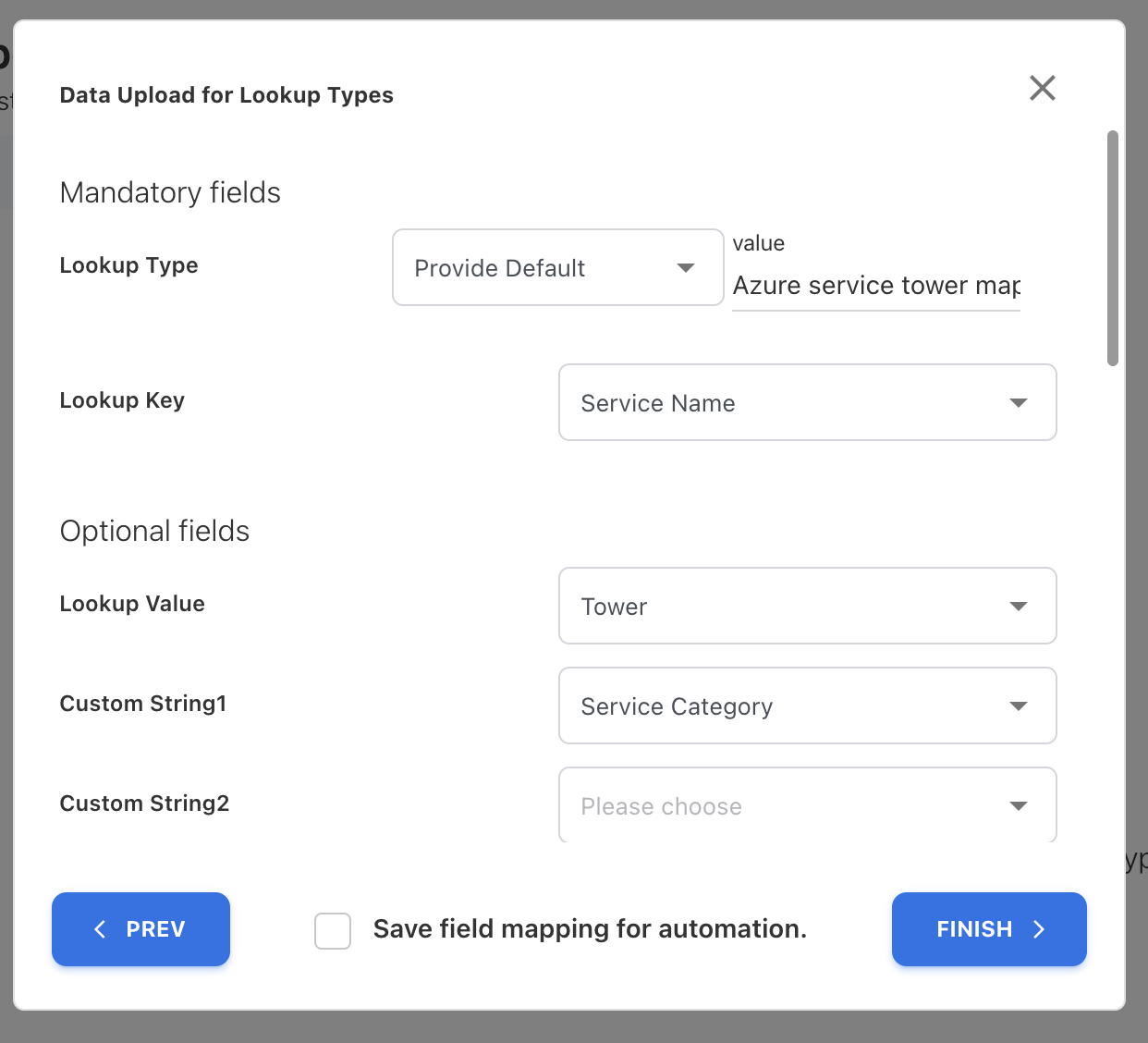
Map the fields:
-
Lookup Type (mandatory) - The name of the lookup table you are defining. All lookup records uploaded under this name will belong to the same lookup group. For example, Azure services tower mapping. If you’re uploading through the non-template file, you can provide the default value.
-
Lookup Key (mandatory) - Unique value used to search and retrieve the corresponding lookup value. This is a field the application will match against during upload. For example, Service Name.
-
Lookup Value (optional depending on your use case) - The primary value that the application will return when a match is found. For example, Tower.
-
Custom fields (optional, flexible attributes for additional metadata)
-
-
Click FINISH to save the lookup.
Once saved, it becomes available in Upload Rules for selection under Lookup Table drop-down field.
Using Lookup Type in Upload Rules
Prerequisite
Ensure that the Lookup Type you intend to use in Upload Rules is already created and contains the necessary lookup values.
Procedure
-
Navigate to UPLOAD RULES.
-
Click + ADD NEW.
-
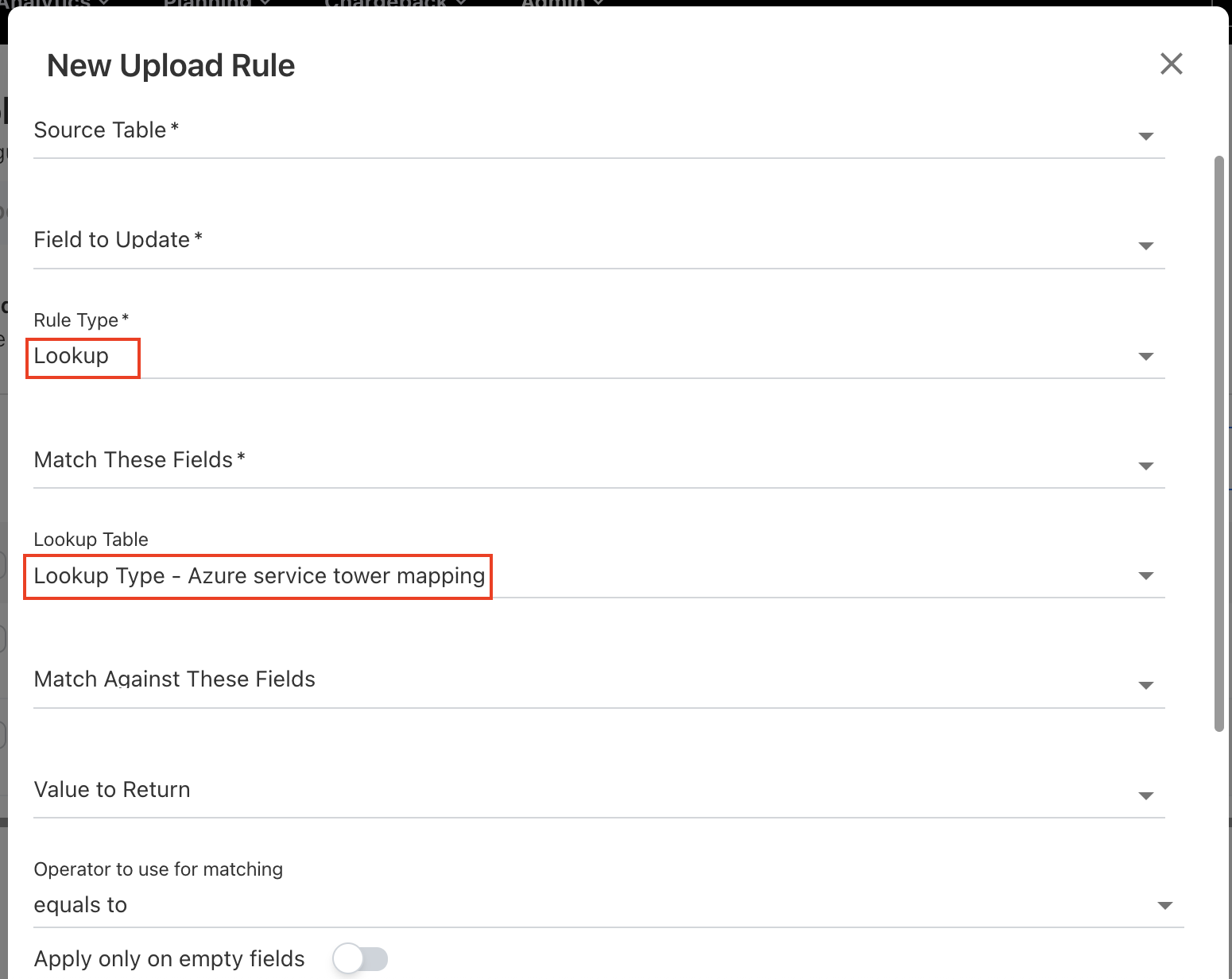
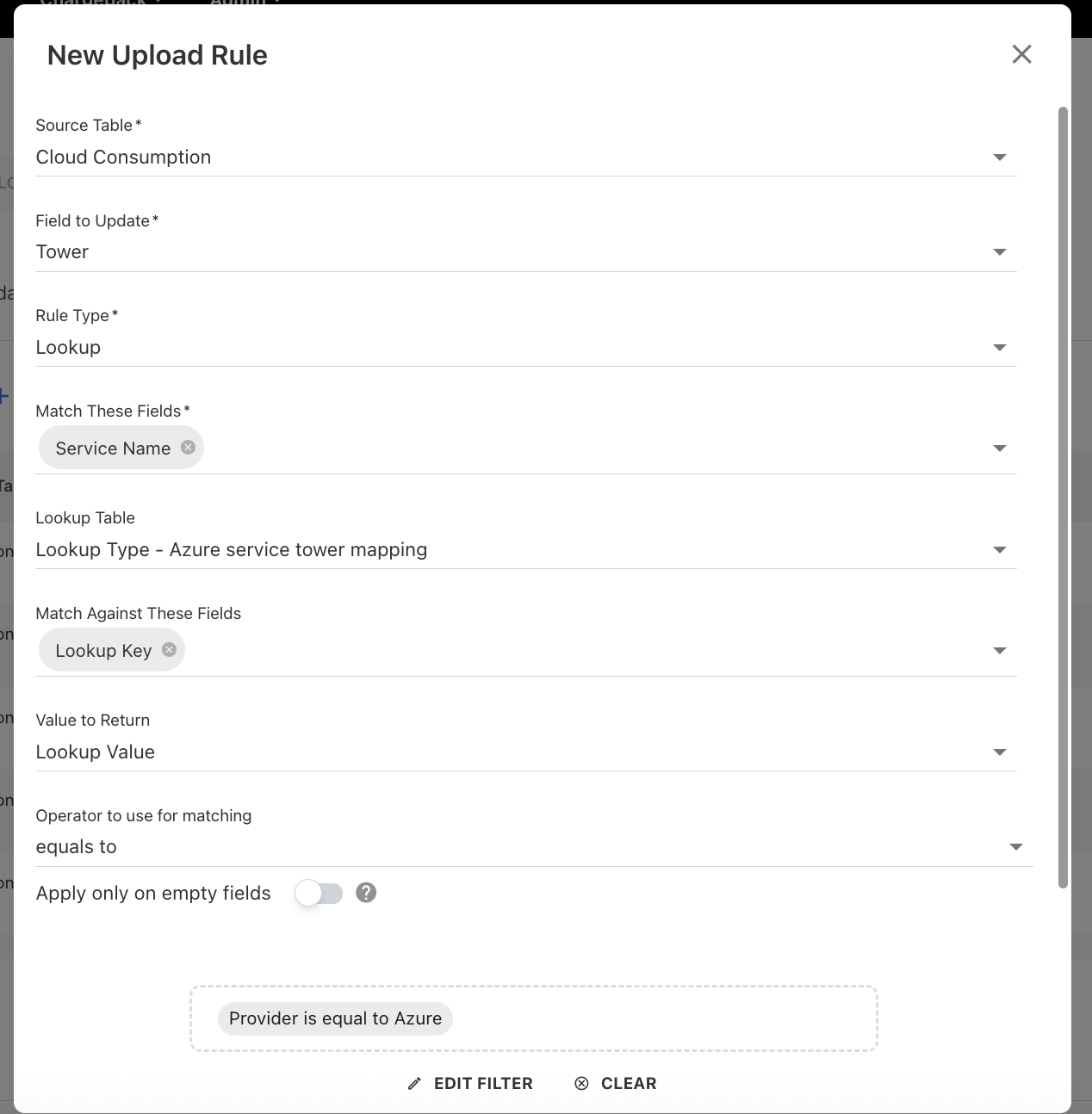
On New Upload Rule popup, select a Source Table , for example, Cloud Consumption.
-
In Field to Update, select the target field in the Source Table that will receive the returned lookup value, for example, Tower.
-
Set Rule Type = Lookup and provide the details in the below fields:
-
Match These Fields - Select the field in your source table that the system will use to find a match, for example, Service Name.
-
Lookup Table - Select the lookup table that you have defined in Lookup Types, for example, Lookup Type – Azure service tower mapping. The system will search this lookup table to find the matching Lookup Key and return the value.
-
Match Against These Fields - Select the field(s) in lookup table that will be compared with your source table’s match field, for example, Lookup Key. In most cases, this will be the Lookup Key, but it may also include custom keys depending on your configuration.
-
Value to Return - Choose which field from the lookup table should be returned when a match is found. for example, Lookup Value. This can be Lookup Value or any custom fields.
-
(Optional) Depending on your use cases, select operator, add filter or comment.
-
-
Click SAVE.
The Lookup rule type is defined in the application.
Example
How to use lookup types to auto-populate the Tower field during Azure consumption uploads?
Scenario
You are uploading an Azure cloud consumption file, and you want the system to automatically populate the Tower field based on the Service Name in each row.
Because the Tower information is not included in the Azure billing file, you create a Lookup Type to map each Service Name to its corresponding Tower.
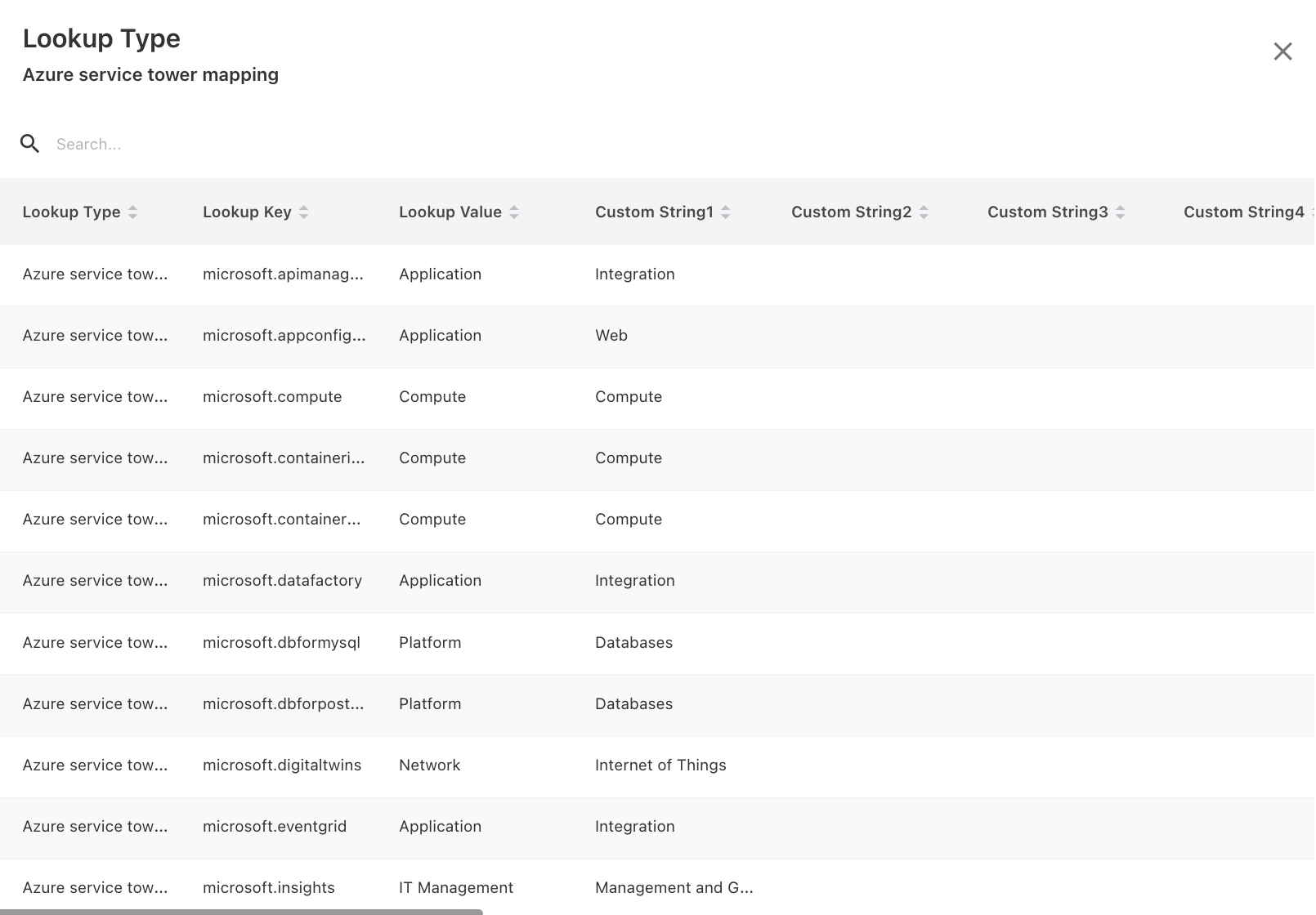
Step 1 — Create the lookup type
In the Lookup Type definition:
-
Lookup Type = Azure service tower mapping
-
Lookup Key = Service Name
-
Lookup Value = Tower
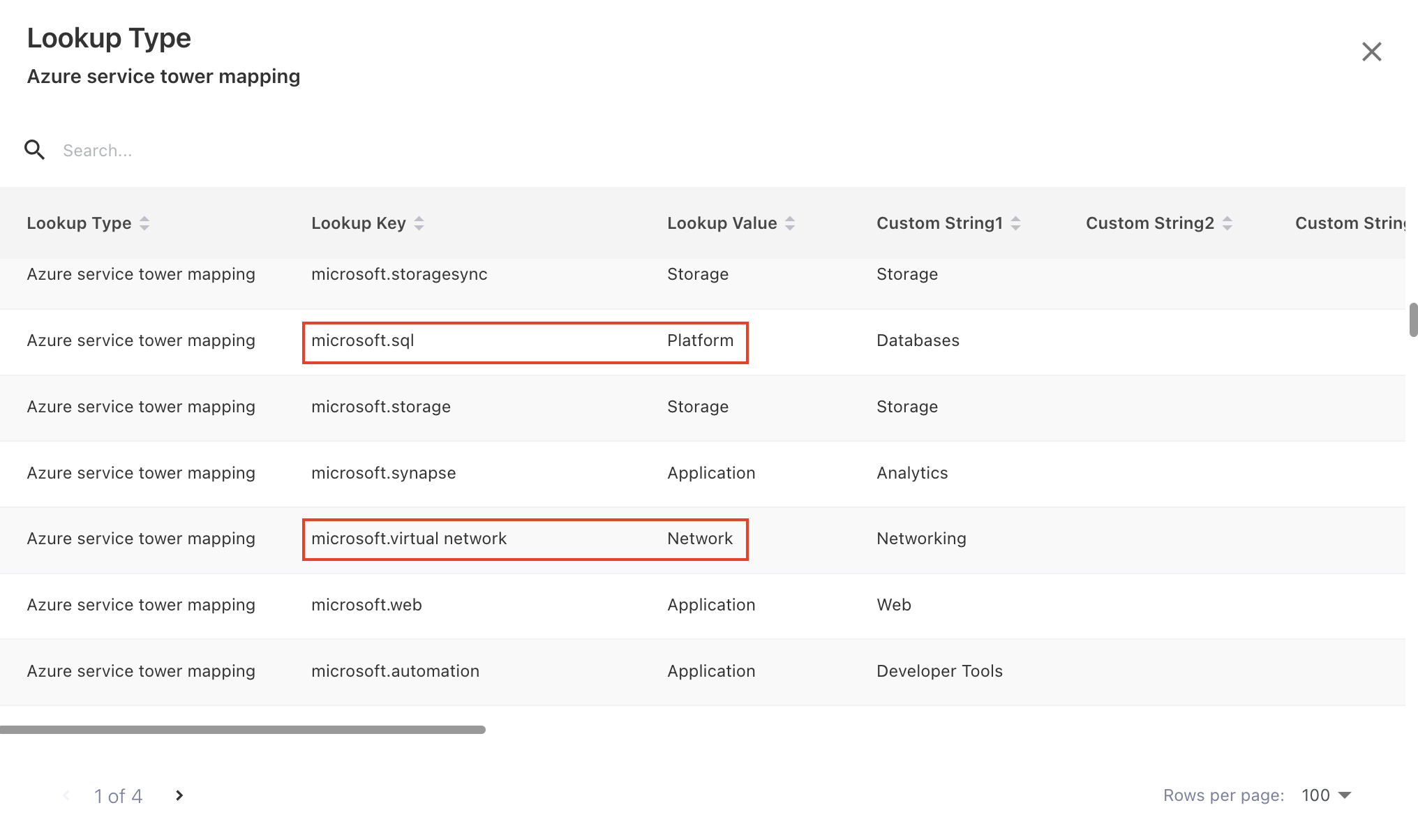
You upload a lookup table that may look like this:
Step 2 — Configure the upload rule
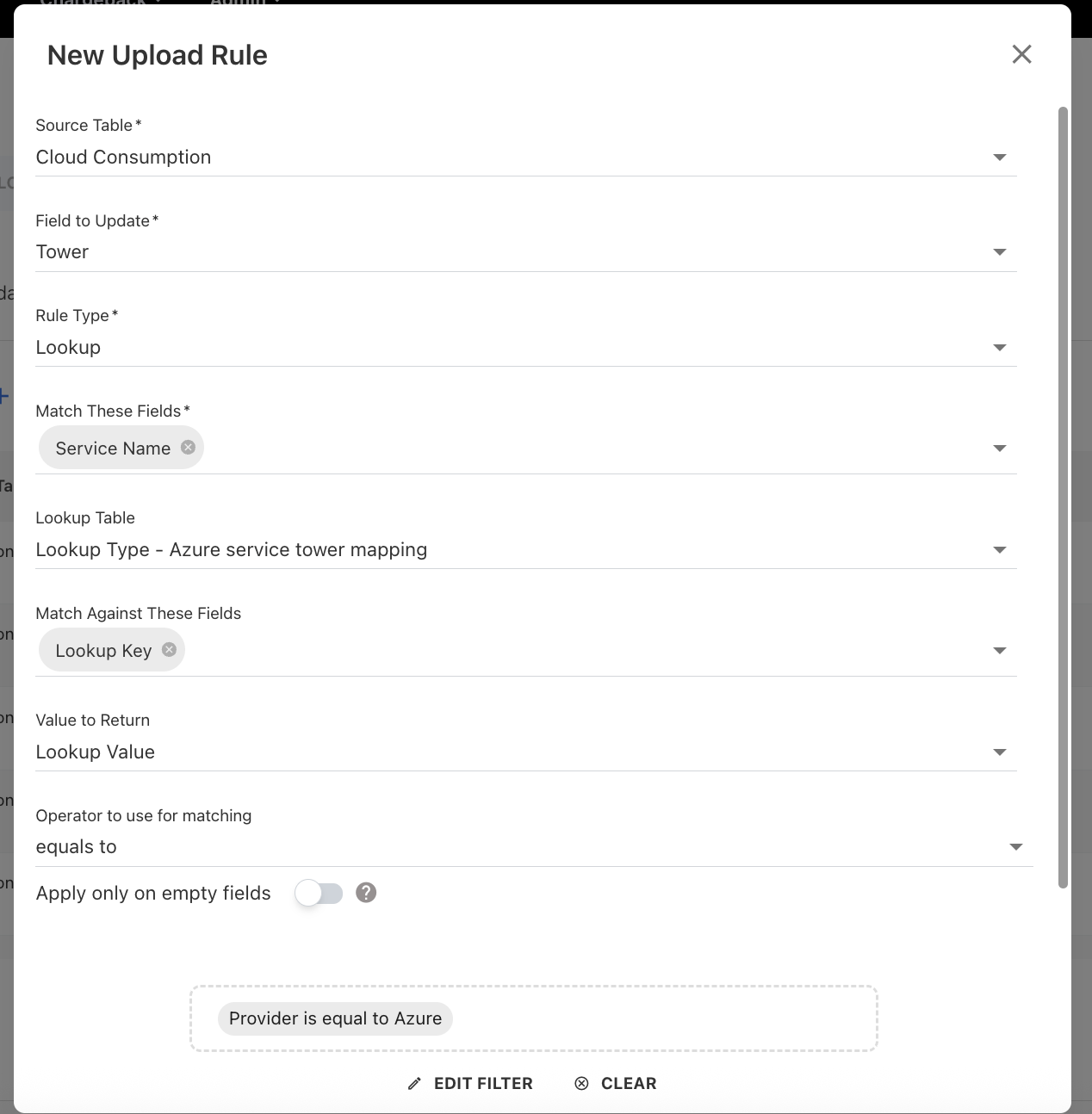
In Upload Rules, you configure the Lookup rule as follows:
-
Source Table: Cloud Consumption
-
Field to Update: Tower
-
Rule Type: Lookup
-
Match These Fields: Service Name
-
Lookup Table: Lookup Type - Azure service tower mapping
-
Match Against These Fields: Lookup Key
-
Value to Return: Lookup Value
-
Filter: Operator = Azure
This rule instructs the system:
When the Service Name matches a Lookup Key, return the Tower value stored in Lookup Value.
Step 3 — After lookup rule is applied file
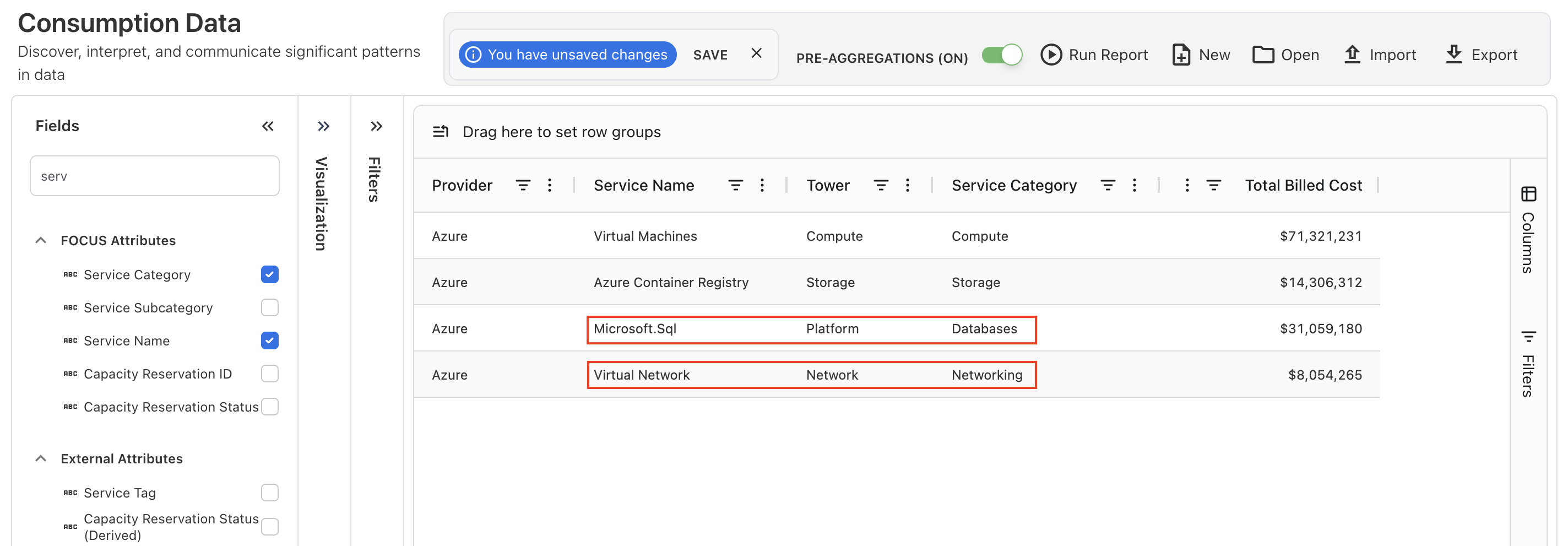
When you upload an Azure cloud consumption file, the application automatically assigns the Tower value using your configured lookup rule. The system compares the Service Name (or any defined match field) in the Azure file against your lookup table and returns the corresponding Tower value during ingestion.
Screenshot - After lookup rule is applied:
Screenshot - Lookup Type defined in the application
Managing Lookup Types
After creating lookup types, you can manage them from the Lookup Types page. This section describes how to view and delete existing lookup types.
View Lookup Types
When you open the Lookup Types page, you will see a list of all configured lookup types.
Each row displays:
-
Lookup Type – the identifier for your lookup table
-
Number of items – total lookup entries stored under that lookup type
-
Actions – options to view or delete the lookup type
To view Lookup Type,
-
Locate the lookup type in the list.
-
Click the View icon next to it.
-
The application displays all lookup entries, including:
-
Lookup Key
-
Lookup Value (if applicable)
-
Custom fields (if defined)
-
Use this view to confirm your mappings, verify uploads, or check the completeness of your lookup data.
Delete Lookup Types
You may delete a lookup type if it is no longer needed or was created incorrectly.
To delete a Lookup Type,
-
Go to the Lookup Types page.
-
Find the lookup type you want to remove.
-
Click Delete icon.
-
Confirm the deletion when prompted.
Notes:
-
Deleting a lookup type will remove all associated lookup entries.
-
Any upload rule that references the deleted lookup type will no longer function correctly and must be updated.
Related content