
This section explains how to create, update, duplicate and delete Upload Rules to control how data is processed during file uploads.
Create an Upload Rule
Before creating a rule, it is important to understand:
-
Upload Rules are applied only during file upload
-
They are not dependent on month or year and apply to all future uploads
-
You can control rule execution using filters
Cloud consumption uploads (Azure, AWS, and FOCUS)
The Account, Cost Center, and Vendor fields are no longer available on the manual upload screen. You must create Upload Rules to populate these fields during file upload. Cloud spend cannot be published without these fields being assigned.
Procedure
To create the upload rules:
-
Navigate to the section where you want to create the upload rules.
-
Click the UPLOAD RULES tab.
-
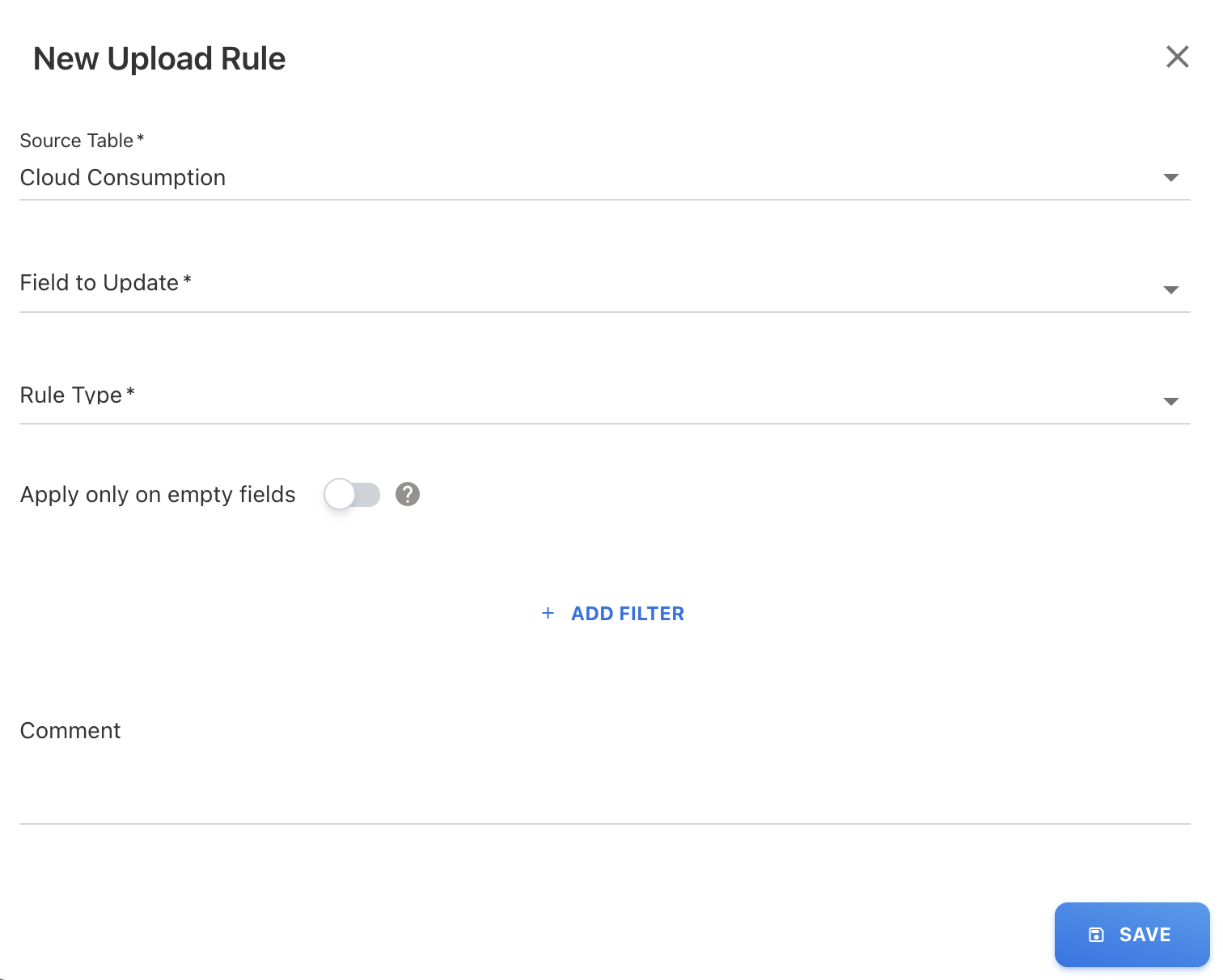
Click + ADD NEW. A New Upload Rule screen appears.
-
On the New Upload Rule screen, select the value from below required fields:
-
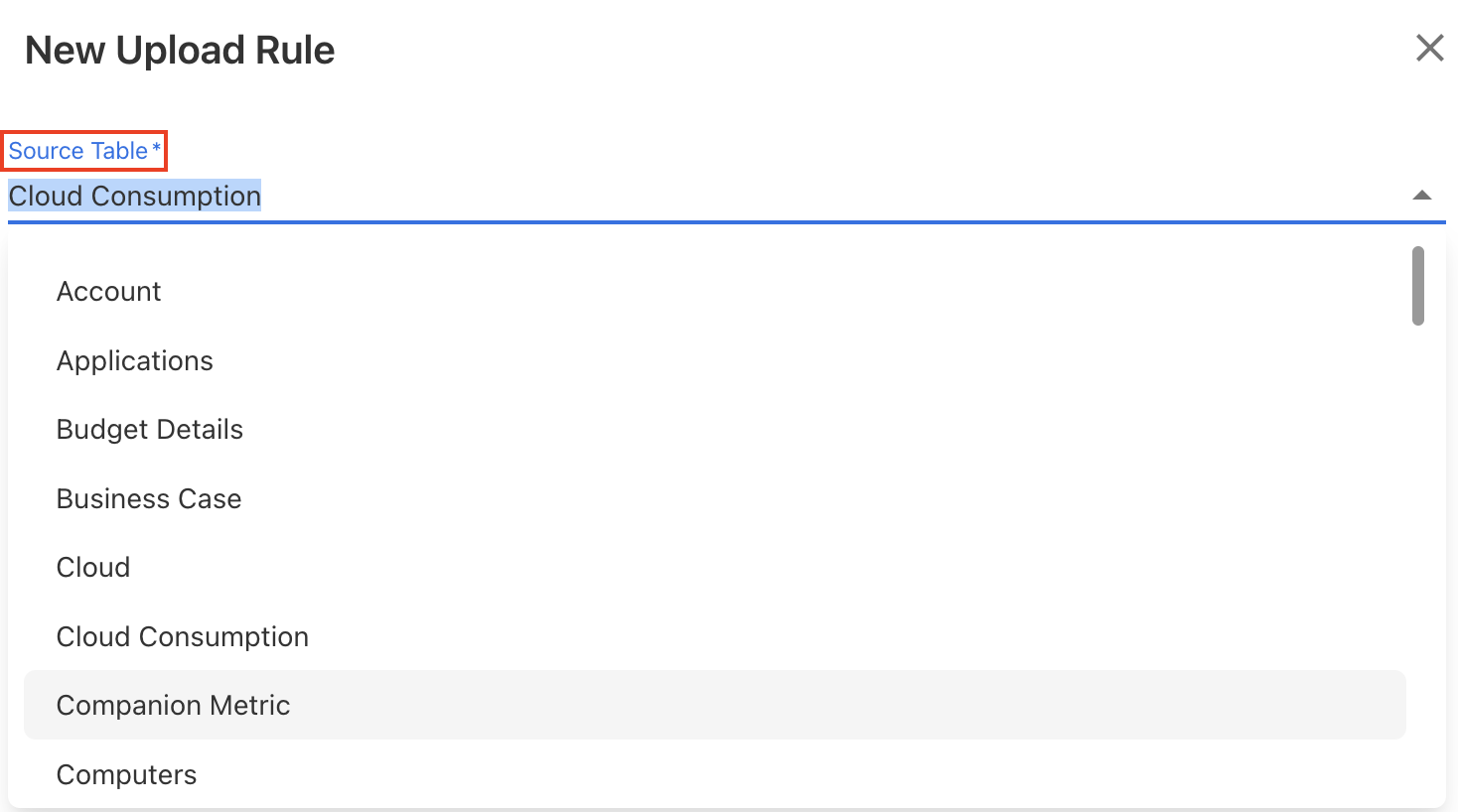
Source Table: Choose the name of the data table from the application where the data will be uploaded according to specified rules. For example, Account, Actual Spend, or any other table.
-
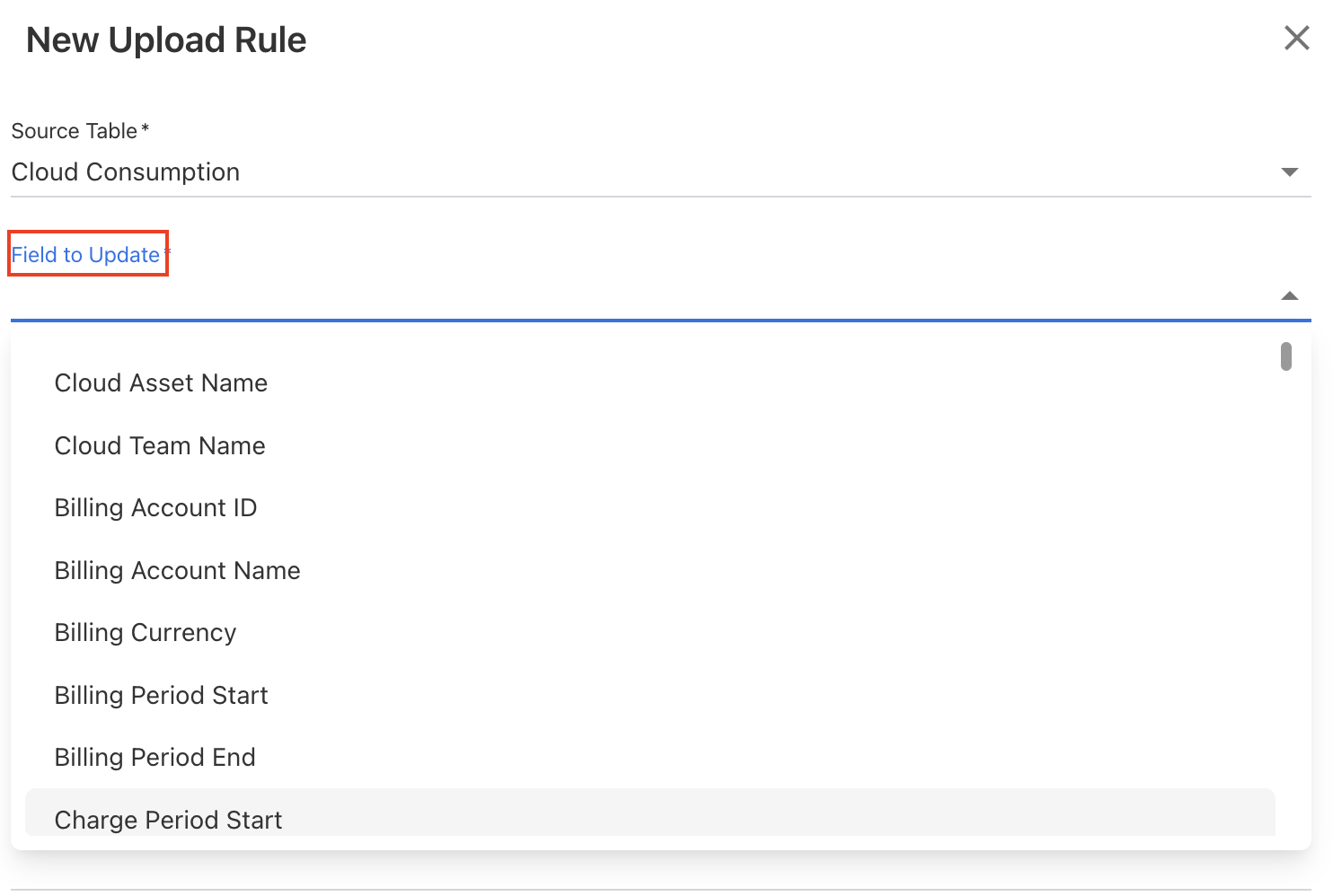
Field to Update: Select the destination column within the selected table where the rule will be applied.
-
-
Select the Rule Type from various rule types:
-
Default String / Integer / Float / Date
Adds a fixed value to a field (text, number, decimal, or date). -
Copy Column
Copies data from one column to another. -
Extract Column (Regex)
Extracts specific values from a column using a pattern. -
Function
Applies predefined system functions (e.g., convert data types, handle active status, extract tags). -
Lookup
Retrieves and populates values from a predefined lookup table based on matching conditions. -
Concat
Combines multiple fields (or values like default, sequence, file name) into a single field. -
Extract Tag
Extracts specific tag values from a tag column in cloud data. -
Spend Reversal
Excludes selected records and creates reversal entries. -
Ignore Rows
Skips specific rows from being uploaded. -
Generate Date
Automatically generates a date based on the upload month and year.
-
-
Configure the rule-specific fields depending on the selected rule type.
-
(Optional) Enable Apply on empty fields toggle button if you want to apply the rules on empty or blank fields.
-
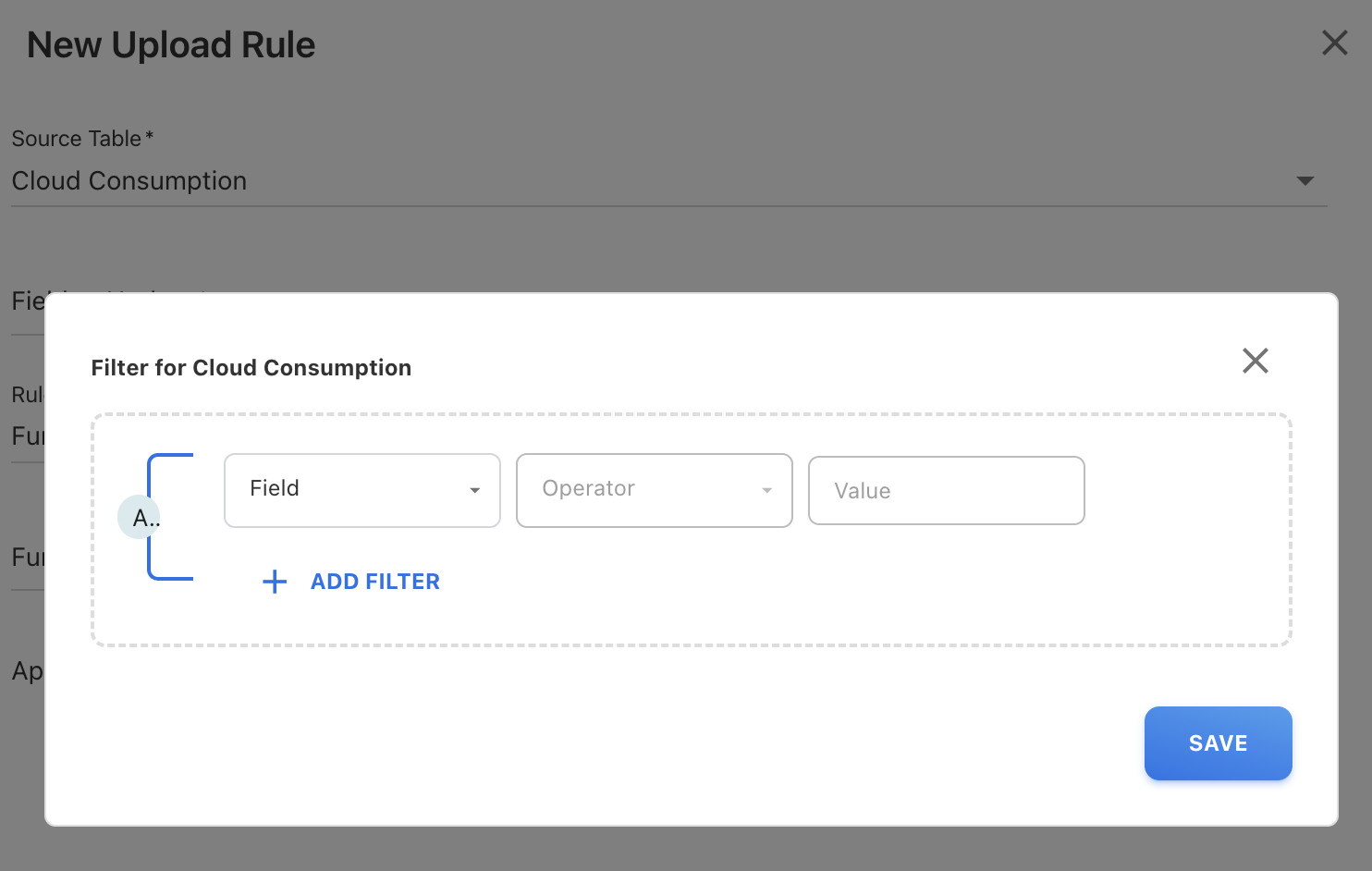
(Optional) Click + ADD FILTER to add additional filter criteria to the upload rules.
-
(Optional) Add a Comment to describe the purpose of the rule.
-
Click SAVE to activate the rule.
The upload rule is created. You can find a list of all the rules in the UPLOAD RULES tab.
Edit an upload rule
-
Navigate to the Upload Rules tab in the required module.
-
Locate the rule you want to modify.
-
Click the Edit icon.
-
Update the required fields:
-
Rule configuration
-
Filters
-
Apply on empty fields setting
-
Comment
-
-
Click SAVE.
Notes:
-
Editing a rule will apply only to future uploads and will not automatically update existing data.
-
To apply the updated rule to previously uploaded records, you must re-upload (reload) the file so the changes can take effect during the upload process.
Duplicate an upload rule
-
Navigate to the Upload Rules tab in the required module.
-
Locate the rule you want to duplicate.
-
Click the Duplicate icon.
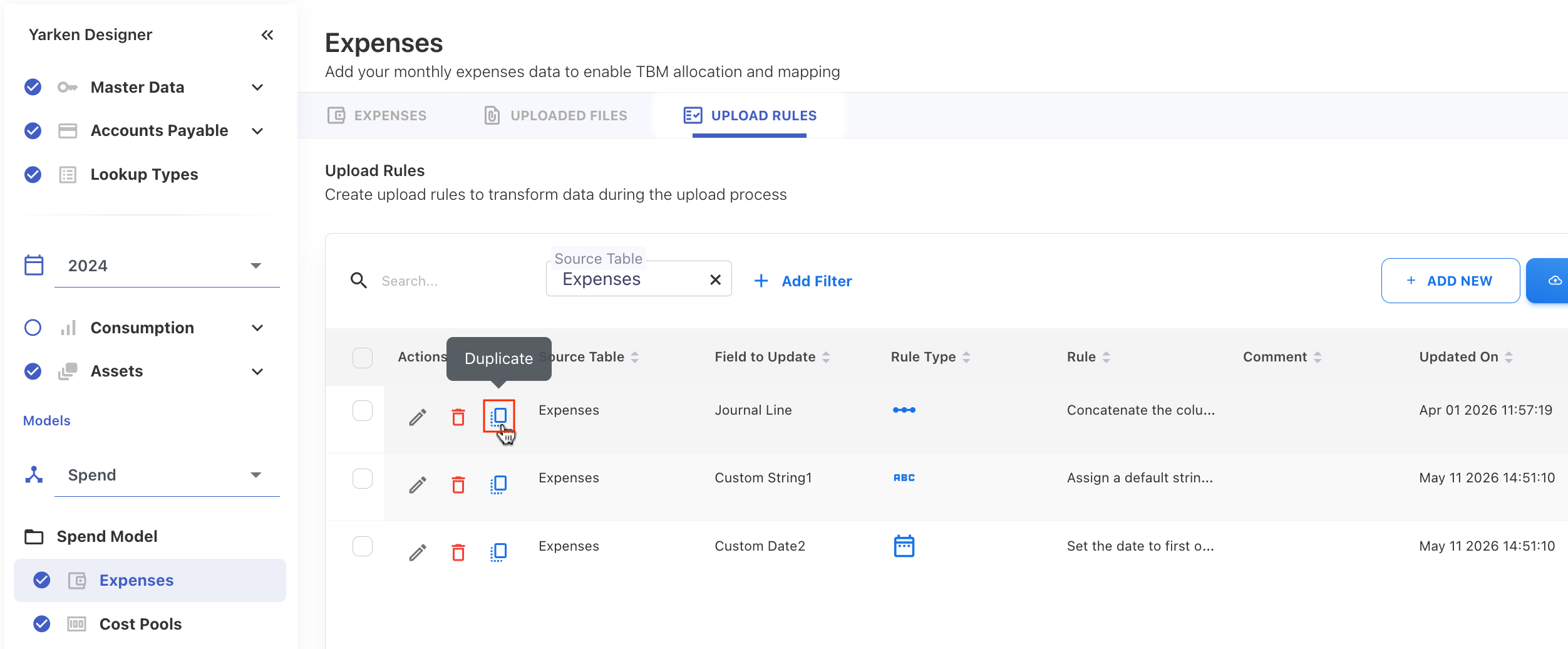
-
A copy of the rule is created with the same configuration, including:
-
Source Table
-
Field to Update
-
Rule Type and rule-specific settings
-
Filters
-
Apply on empty fields setting
-
Enabled or disabled status
-
Comment
-
-
Modify the duplicated rule as needed.
-
Click SAVE.
Notes:
-
The duplicated rule is created as a new independent rule. Changes to the original rule will not affect the duplicate, and vice versa.
-
The duplicated rule will apply only to future uploads.
Delete an upload rule
-
Navigate to the Upload Rules tab.
-
Locate the rule you want to remove.
-
Click the Delete icon.
-
Confirm the deletion.
Notes:
After deleting upload rules,
-
The rule will no longer be applied to future uploads.
-
Existing data that was processed using the rule will remain unchanged.
Enable or disable an upload rule
Use the enabled or disabled status to control whether an upload rule runs during file upload processing without deleting the rule.
-
Navigate to the Upload Rules tab.
-
Locate the rule you want to enable or disable.
-
Use the Enabled toggle or status control for the rule.
-
Save your changes, if prompted.
Notes:
-
Disabled upload rules are skipped during future uploads and data reloads.
-
Disabling a rule does not delete the rule or change data that has already been processed.
-
All new and existing upload rules are enabled by default.
-
Auto-created upload rules from Budget and Forecast cannot be disabled.
Related content