
The Pipeline feature enables you to automatically fetch, process, and upload data from various cloud storage locations—such as Azure Blob, AWS S3, Google Cloud Storage, and API services, for example, Microsoft Graph API, Power BI API, Google APIs—without requiring any manual intervention.
Pipelines help you:
-
Auto-fetch cloud usage files (AWS CUR, Azure Usage Details, GCP Billing Exports) directly from your cloud storage.
-
Retrieve license usage and other metrics via APIs (e.g., Microsoft Graph API, Power BI API, Google APIs).
-
Automatically map fields from your source data to fields in the application.
-
Run data loads on a schedule or on-demand.
Type of Pipelines
Cloud Storage Pipelines (manual configuration)
-
Cloud storage pipelines are used when your data exists as files stored in cloud object storage providers such as Azure Blob Storage, AWS S3, or Google Cloud Storage. Before creating the pipelines, the connection must be manual configured for individual providers and then linked the connection with corresponding pipelines.
-
Once configured, the pipeline automatically fetches cloud usage files like AWS Cost and Usage Reports, Azure Usage Details, and GCP Billing Export files. The system then applies automatic field mapping, processes the file, and imports the data into the application on your defined schedule.
API Pipelines (auto-configured via Consent URL)
-
API Pipelines require no manual configuration. They are automatically created through a secure consent URL flow, where an administrator authorizes the application to access API data.
-
After consent is granted, the system automatically sets up all necessary API endpoints and predefined mappings. These pipelines continuously fetch structured usage and license data from services such as Microsoft Graph API, Power BI API, and Google APIs, ensuring accurate reporting without file handling.
Benefits of Pipelines
-
Fully automated data retrieval: No need to manually download or upload usage files or reports from your cloud vendors.
-
Real-time updates: Ensures your dashboards, reports, and insights always reflect the latest data.
-
Automatic field mapping: Cloud Storage Pipelines detect and map fields from your files to application fields.
-
Zero manual API configuration: API Pipelines automatically configure themselves through a consent URL process.
-
Centralized management: All pipelines can be viewed, configured, and monitored from a single interface.
-
Flexible scheduling: Define customized schedules or trigger pipelines manually.
-
Detailed logs & transparency: View run history, record counts, errors, and timestamps.
Key features
-
Multi-source support for Azure Blob Storage, AWS S3, Google Cloud Storage, and major APIs.
-
Automatic file fetching including:
-
AWS Cost and Usage Reports (CUR)
-
Azure Usage Details / Cost Management Exports
-
GCP Billing Export files
-
-
API-based ingestion for Microsoft Graph, Power BI, and Google Workspace usage data.
-
Automatic field mapping for file-based pipelines.
-
Consent-based auto-configuration for API pipelines.
-
Scheduling engine to automate recurring runs.
-
Run now, enabling instant data refresh.
-
Logging and monitoring for each pipeline execution.
Pipeline process overview
The Pipeline system follows a structured, automated workflow that connects your data sources to the application. Below is a detailed breakdown of each phase of the process.
Step 1: Configure the connection
Before creating a Pipeline, the connection must be configured. The connection setup differs depending on whether you are connecting to cloud storage or an API.
-
Cloud storage connection
-
Cloud storage connections are configured manually.
-
Authentication details such as access keys, secret keys, or an account name are stored securely. The storage location—including the bucket or container name—is defined so the system knows where to retrieve files.
-
Once saved, the connection is used to automatically fetch usage files during scheduled or on-demand pipeline runs.
-
-
API connection
-
API connections are configured automatically through a secure Consent URL flow.
After a tenant administrator grants consent, the system automatically:
-
Configures the required API endpoints
-
Applies permission scopes
-
Sets predefined field mappings
-
Assigns a default schedule
The API Pipeline is then ready to retrieve license usage or analytics data without additional setup.
-
-
Step 2: Create the Pipelines
After the connection is configured, Pipelines are created to control how data is ingested and processed.
-
Cloud Storage Pipelines
-
A Cloud Storage Pipeline is created by:
-
Selecting the storage provider
-
Assigning a data mapping template
-
Selecting the date format (for cloud consumption data mapping templates)
-
Defining a schedule frequency
-
Providing a pipeline name
Once created, the pipeline retrieves and processes files from cloud storage based on the selected mapping and schedule.
-
-
-
API Pipelines
-
API Pipelines are typically created automatically during the consent process.
-
When created manually, the pipeline:
-
Is assigned an API data type (such as license usage or analytics data)
-
Uses a defined schedule to retrieve data
-
-
After creation, the API Pipeline runs on schedule and keeps data up to date.
-
Step 3: Automated data retrieval
-
Cloud Storage Pipelines automatically detect and fetch newly available usage files—such as AWS CUR files, Azure Usage Details, or GCP Billing Exports—from the specified bucket or container.
-
API Pipelines retrieve fresh data directly from the selected API endpoints.
Step 4: Data processing and mapping
-
The Cloud Storage Pipelines apply the selected data mapping template and ensures the fields in the source file match the correct fields in application.
-
API Pipelines use predefined mappings because the API structure is standardized and consistent.
Step 5: Data ingestion
-
Processed data is ingested into the application based on the configured schedule or when the pipeline is run manually.
-
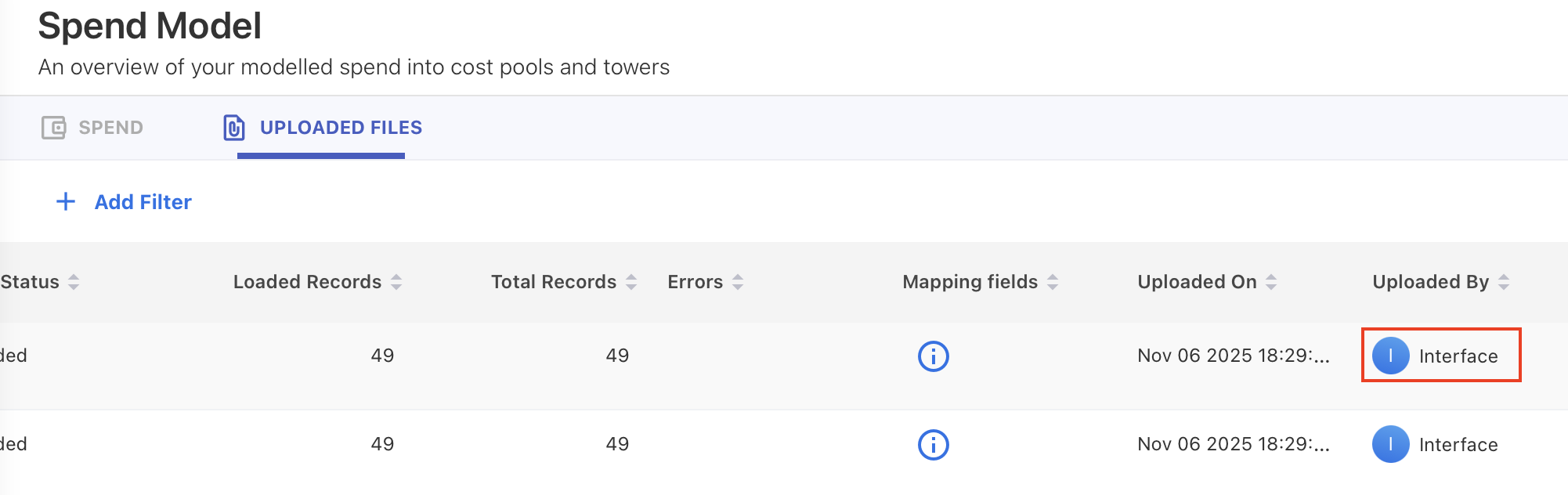
Files ingested through Pipelines can be identified in the UPLOADED FILES tab. Check the Uploaded By column and the files loaded via Pipelines are marked as Interface.
Step 6: Logging and monitoring
-
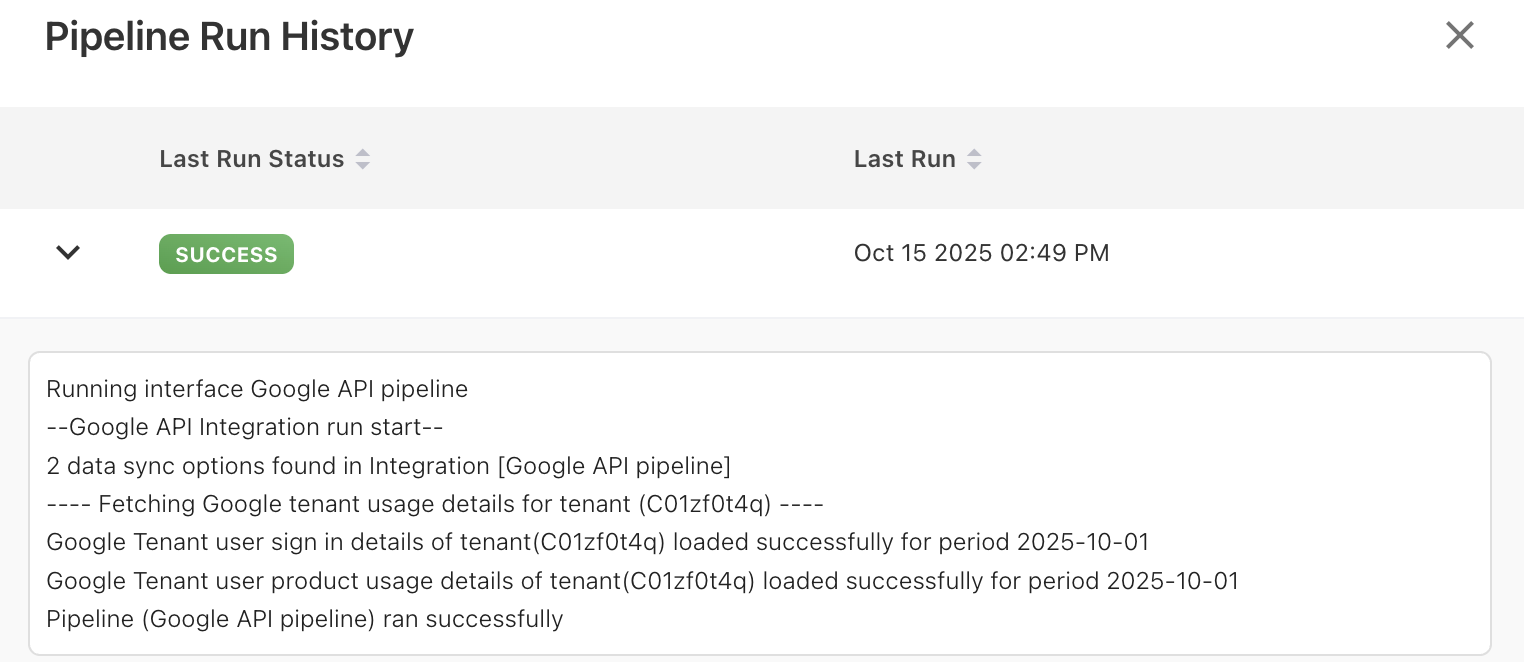
Each pipeline run generates detailed logs that you can review at any time. The logs show run status, record counts, timestamps, and error details. You can also view the last run time, active status, and overall pipeline health.
-
After each run, Yarken automatically moves successfully processed files to a Processed folder and files with errors to an Error folder in the configured cloud storage location.
Step 7: Cube refresh after ingestion
After data ingestion:
-
You can manually refresh the affected cube to see updates immediately.
-
If no manual action is taken, Yarken performs an automatic cube refresh within 24 hours of the last data change.
Next step
Related content
Creating a new Pipeline Connection | Create API Connection using Consent URL