
General prerequisites
These apply to all Cloud Storage Pipelines:
-
You must have the admin rights within the application to create and manage pipelines.
-
The data you plan to import must follow a supported format, such as CSV, GZ, or Parquet.
-
The data mapping templates should be define. For more information about the data mapping template, refer Data Mapping Templates.
-
A connection must be available for the selected cloud storage or API source. You can create a connection before configuring the pipeline or during pipeline setup. For more information about configuring a Cloud Storage connection, see Creating a new Pipeline Connection | Create Cloud Storage Connection (manual only)
Create a Cloud Storage Pipeline
Cloud Storage Pipelines allow you to automatically fetch usage and billing files from cloud object storage and import them into the application. During setup, you select the storage provider, configure access, choose a data mapping template, define the schedule, and assign a pipeline name. Once created, the pipeline runs automatically based on the configured frequency.
Azure Blob Storage
Prerequisites
Before creating an Azure Cloud Storage Pipeline, ensure you have:
-
A valid Azure Storage account with Blob Storage enabled.
-
An Azure Blob Storage connection configured in Yarken using one of the following authentication methods:
-
Account Key — Uses your Azure Storage Account name and access key.
-
Service Principal — Uses Microsoft Entra ID credentials to authenticate with Azure Blob Storage.
If you use Service Principal authentication, see Create an Azure Service Principal to create a Service Principal and obtain the required credentials.
-
-
Access to the container and folder path where usage files are stored.
-
Azure usage files available in Blob Storage, such as:
-
Azure Usage Details or
-
Azure Cost Management Export
-
-
A data mapping template to define how Azure file fields map to Yarken fields.
-
File location details, including container name and file path or naming convention.
Procedure
To create,
-
Navigate to Admin > Pipelines > Pipelines.
-
On the Pipelines page, click + NEW PIPELINE.
-
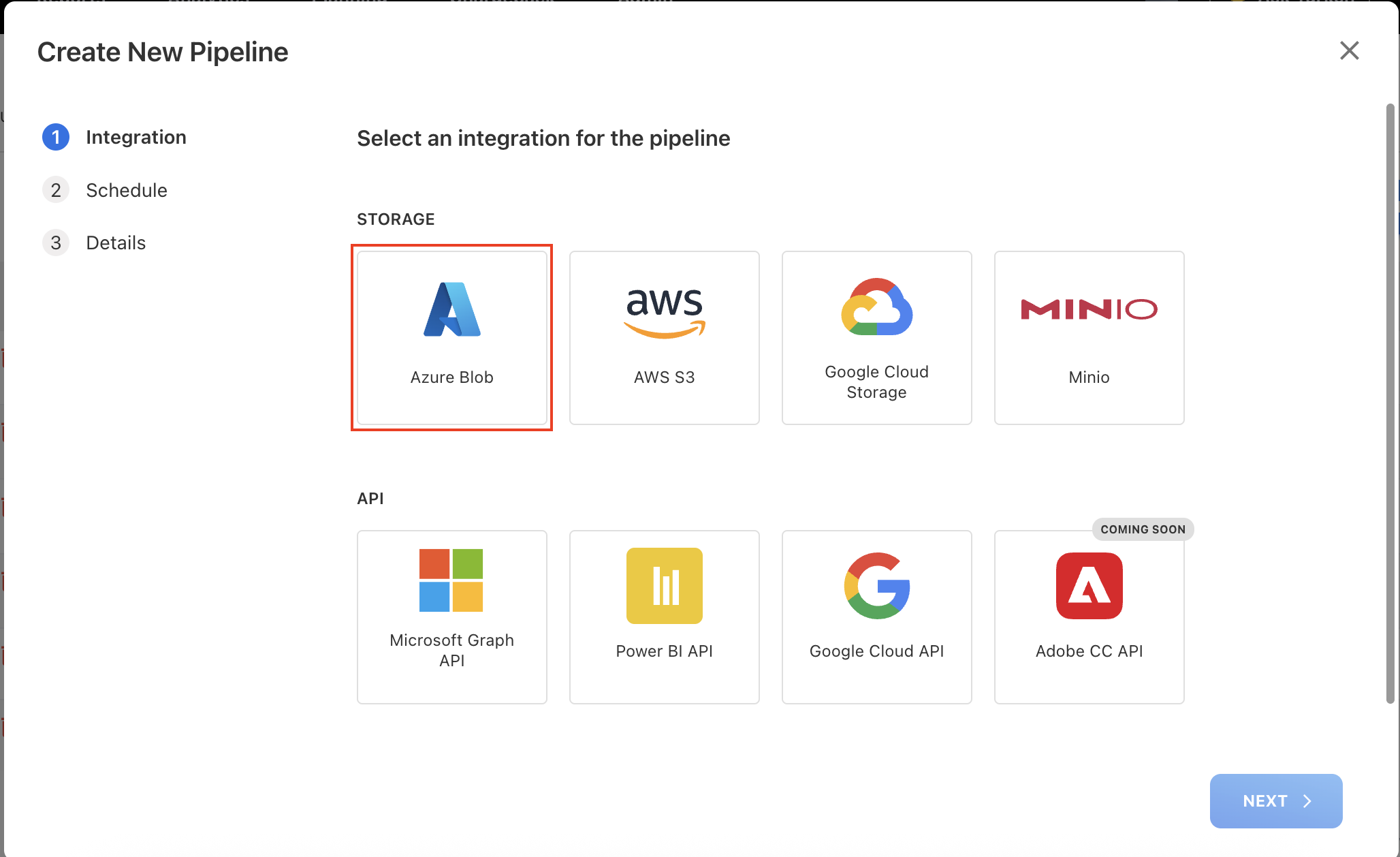
On the Create New Pipeline dialog box, choose the storage type as Azure Blob and click NEXT.
-
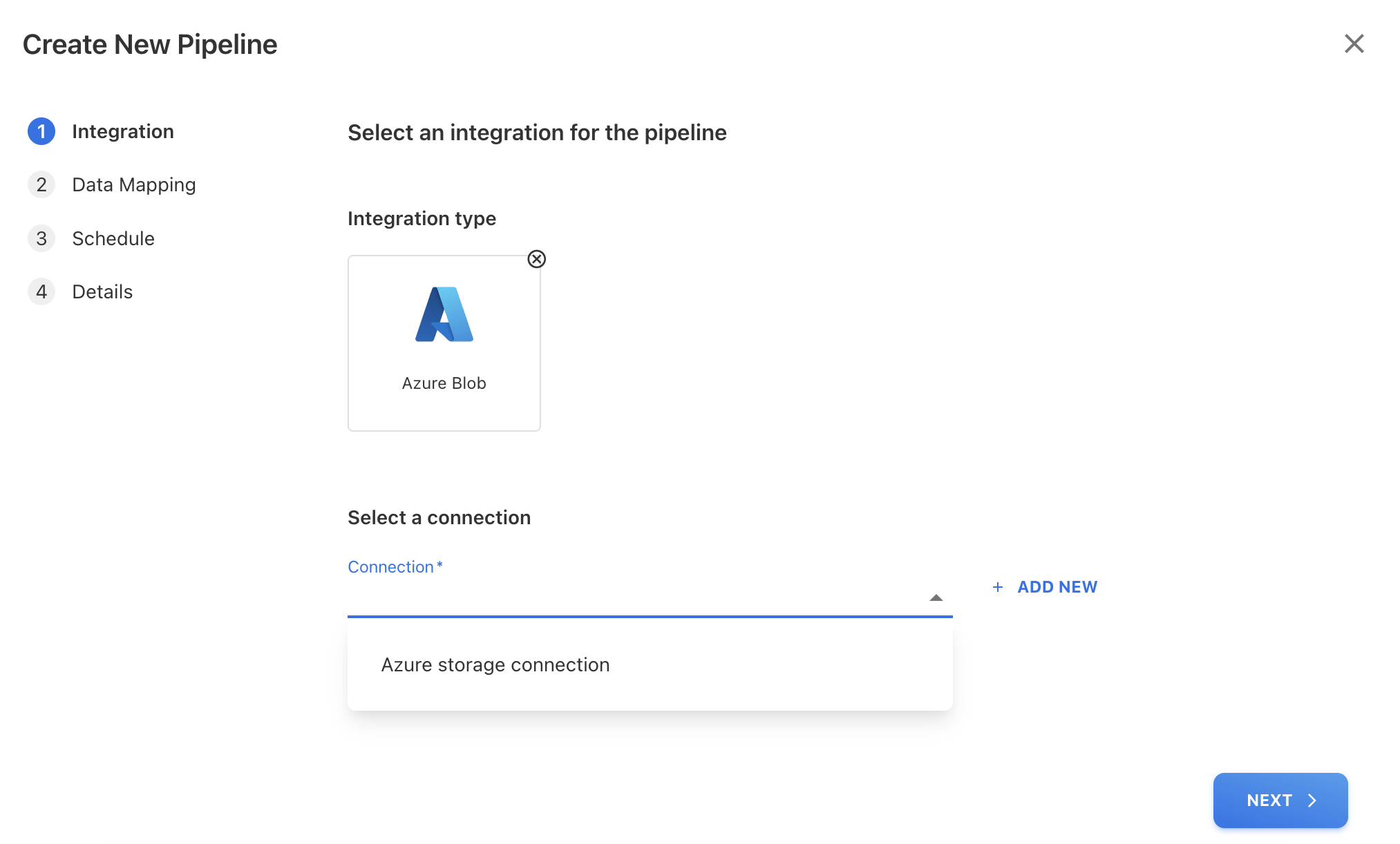
Select an existing Connection, or create a new connection. For more information about creating a connection before you create the pipeline, see Creating a new Pipeline Connection.
-
(Optional) To create a new connection, click + ADD NEW.
-
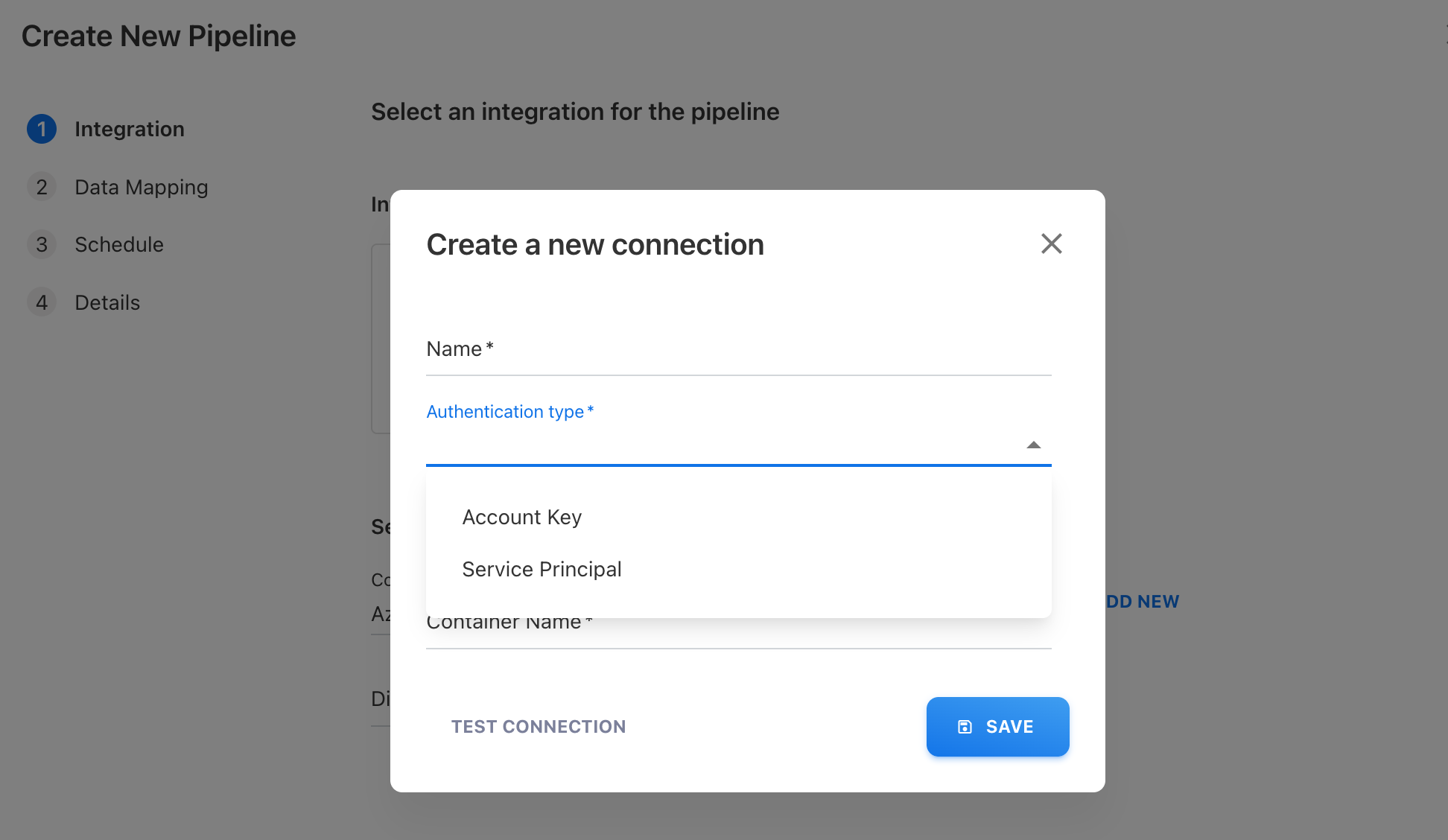
On the Create a new connection dialog, enter a Name for the connection.
-
From Authentication type, select one of the following:
-
Account Key — Authenticate using your Azure Storage Account credentials.
-
Service Principal — Authenticate using Microsoft Entra ID Service Principal credentials. If you need to create a Service Principal, see Create an Azure Service Principal.
-
-
Enter the required connection details for the selected authentication type. For detailed information about the required fields for each authentication method, see Creating a new Pipeline Connection
-
Enter the Container Name where the files are stored.
-
Click TEST CONNECTION to verify the connection.
-
After the connection is successfully verified, click SAVE.
-
-
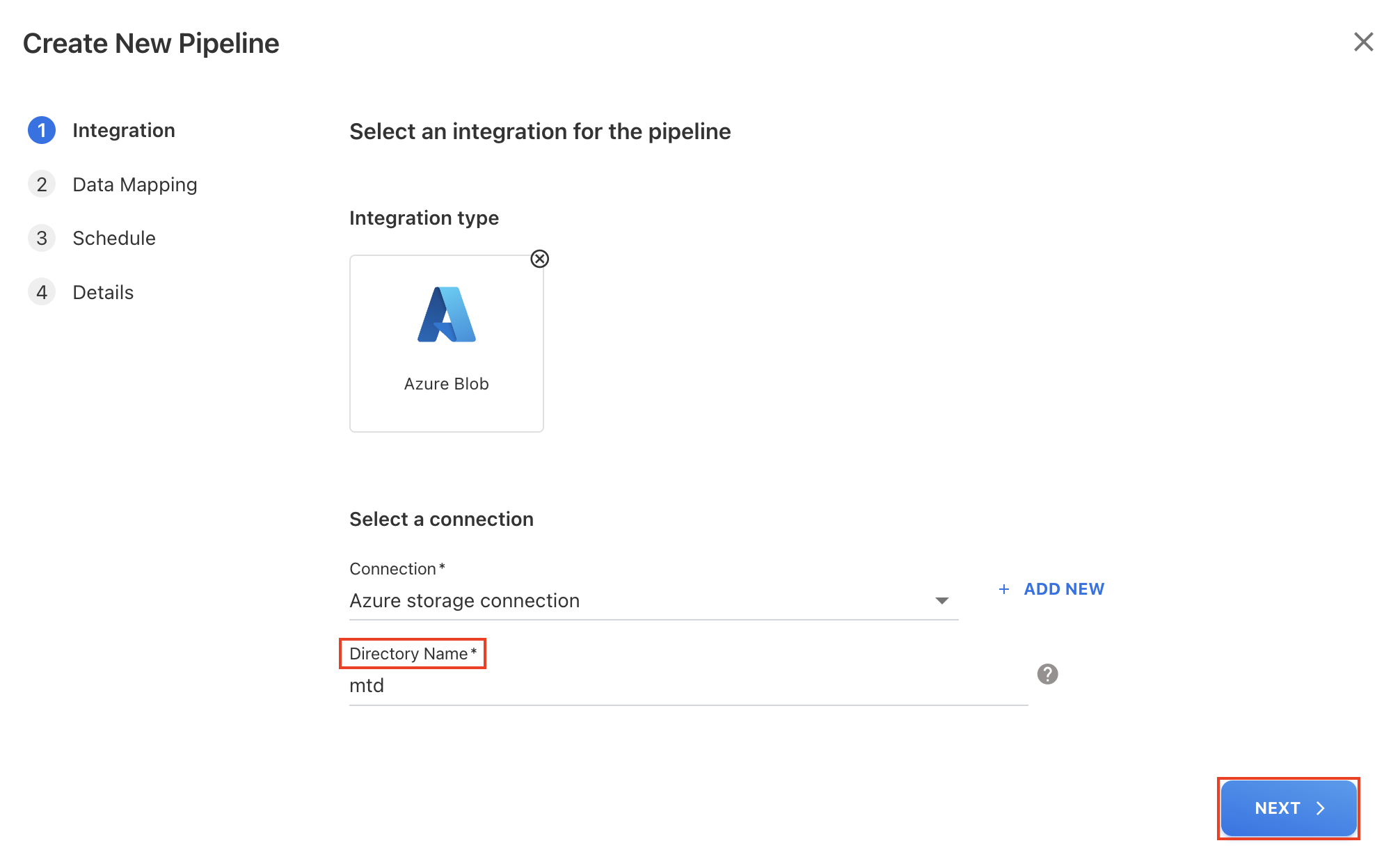
Enter a Directory Name from which you want to retrieve files and select NEXT.
-
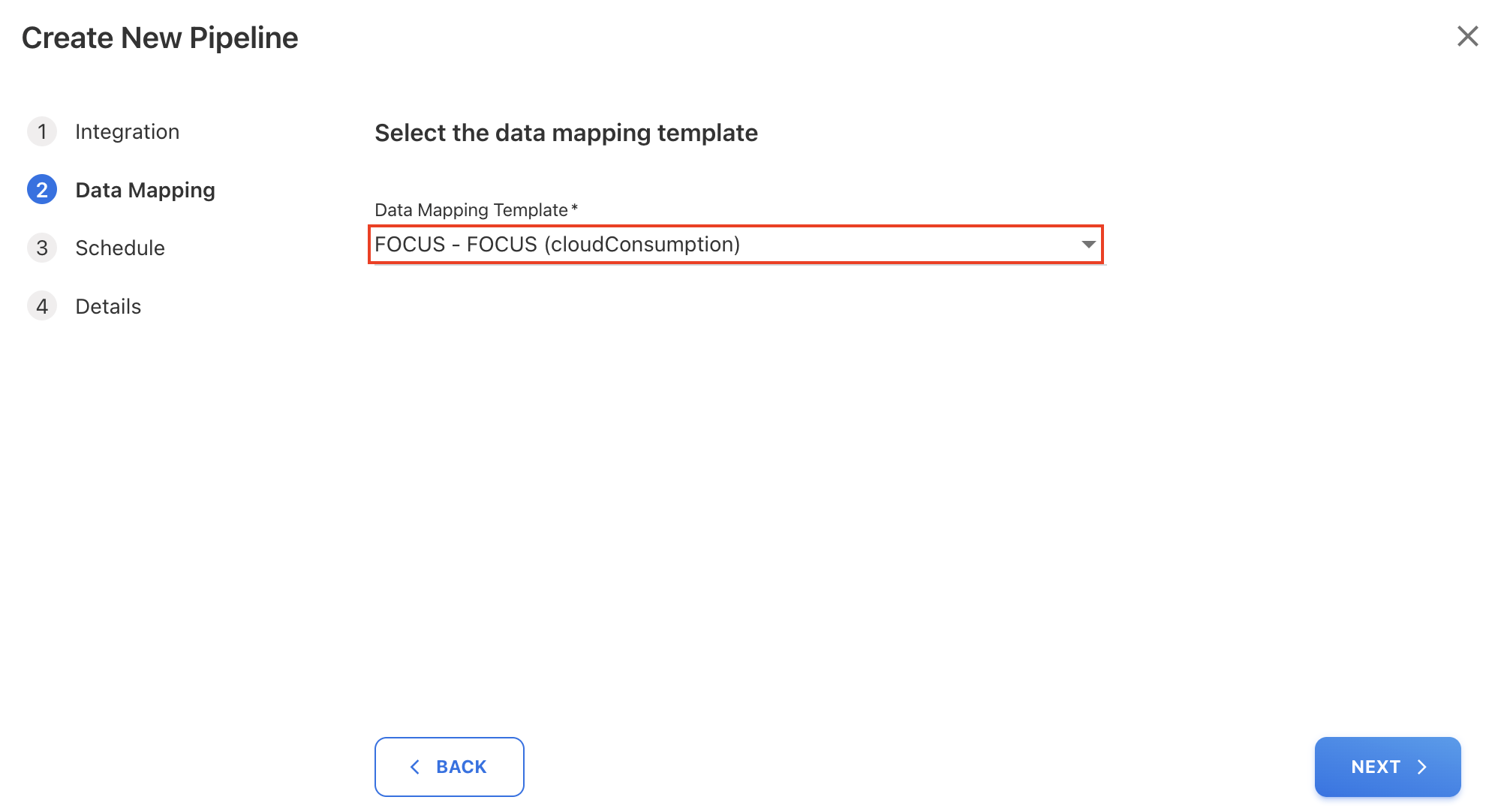
Select a Data Mapping Template from the dropdown list and click NEXT. For more information on Data Mapping Template, refer Data Mapping Templates.
-
Delete before import: For Expenses (spend) file uploads, the Delete before load warning appears only if the source file is loaded with the Delete before import option enabled.
-
-
(Optional) If a FOCUS (Cloud Consumption) mapping template is selected, specify the
Date Format.
-
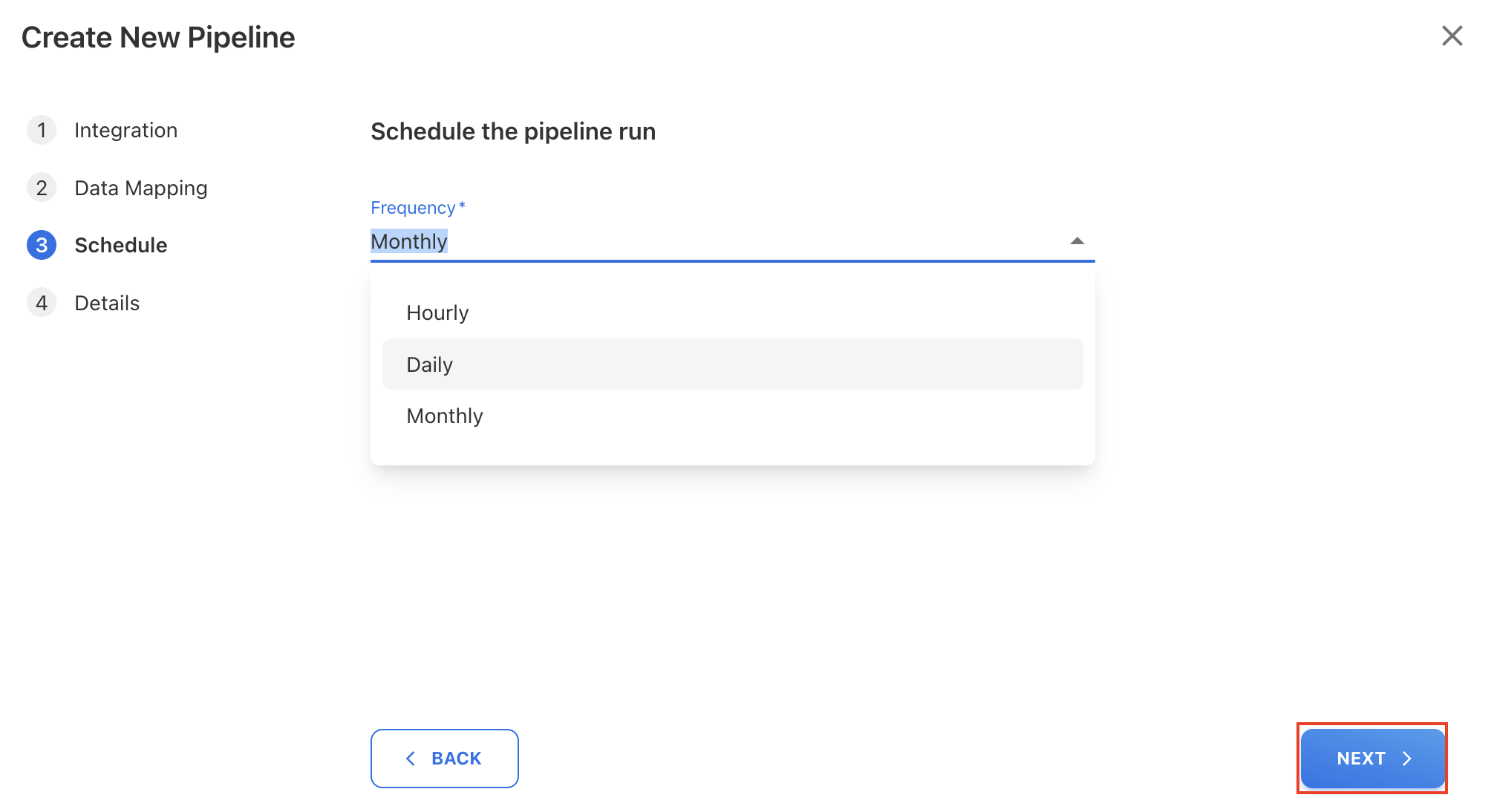
On Schedule tab, select Frequency for the pipeline to run from the dropdown list and then click NEXT:
-
Hourly: Select the hour(s) between 0 to 12 for the pipeline to start run in the field labelled. The run will occur at your defined intervals.
-
Daily: Occurs every day, starting at 12:00 AM.
-
Monthly: Specify the day of the month and select the month interval.
-
-
Enter the Pipeline Name and click SAVE.
The new pipeline is created in the application and remains deactivated by default. You must activate the pipeline to start scheduled or on-demand runs.
AWS S3
Prerequisites
Before creating an AWS Cloud Storage Pipeline, ensure you have:
-
A valid AWS S3 account with access to the required bucket.
-
An AWS connection configured in Yarken using:
-
Access key
-
Secret key
-
-
Access to the S3 bucket and folder path where usage files are stored.
-
AWS usage files exported to S3, such as:
-
AWS Cost and Usage Report (CUR). For more information on how to export the billing data in S3, refer Create AWS Billing Data Export.
-
-
A data mapping template to map fields from AWS usage files to Yarken fields.
-
File location details, including folder path and/or file naming patterns.
Procedure
To create,
-
Navigate to Admin > Pipelines > Pipelines.
-
On the Pipelines page, click + NEW PIPELINE.
-
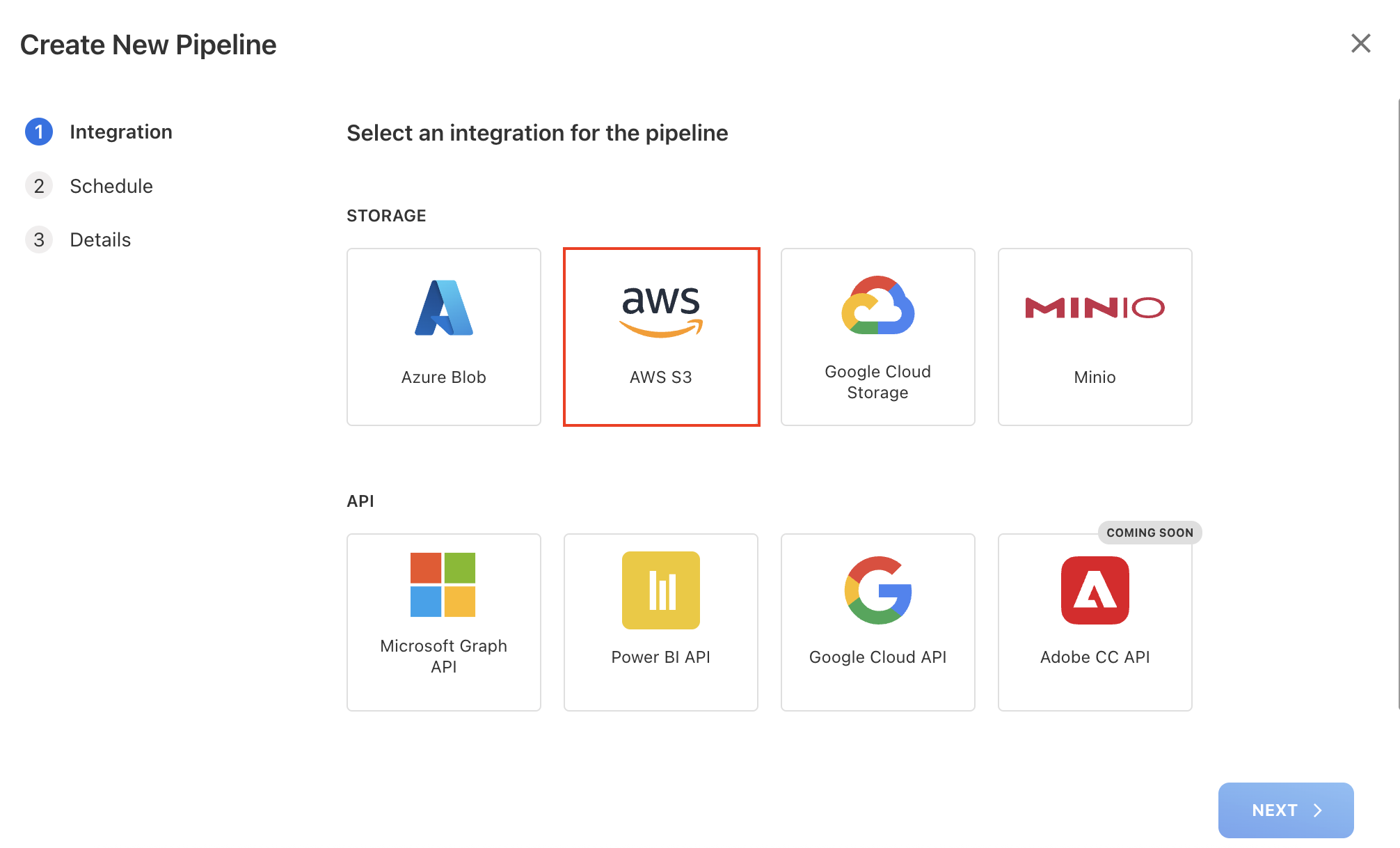
On the Create New Pipeline dialog box, choose the storage type as AWS S3 and click NEXT.
-
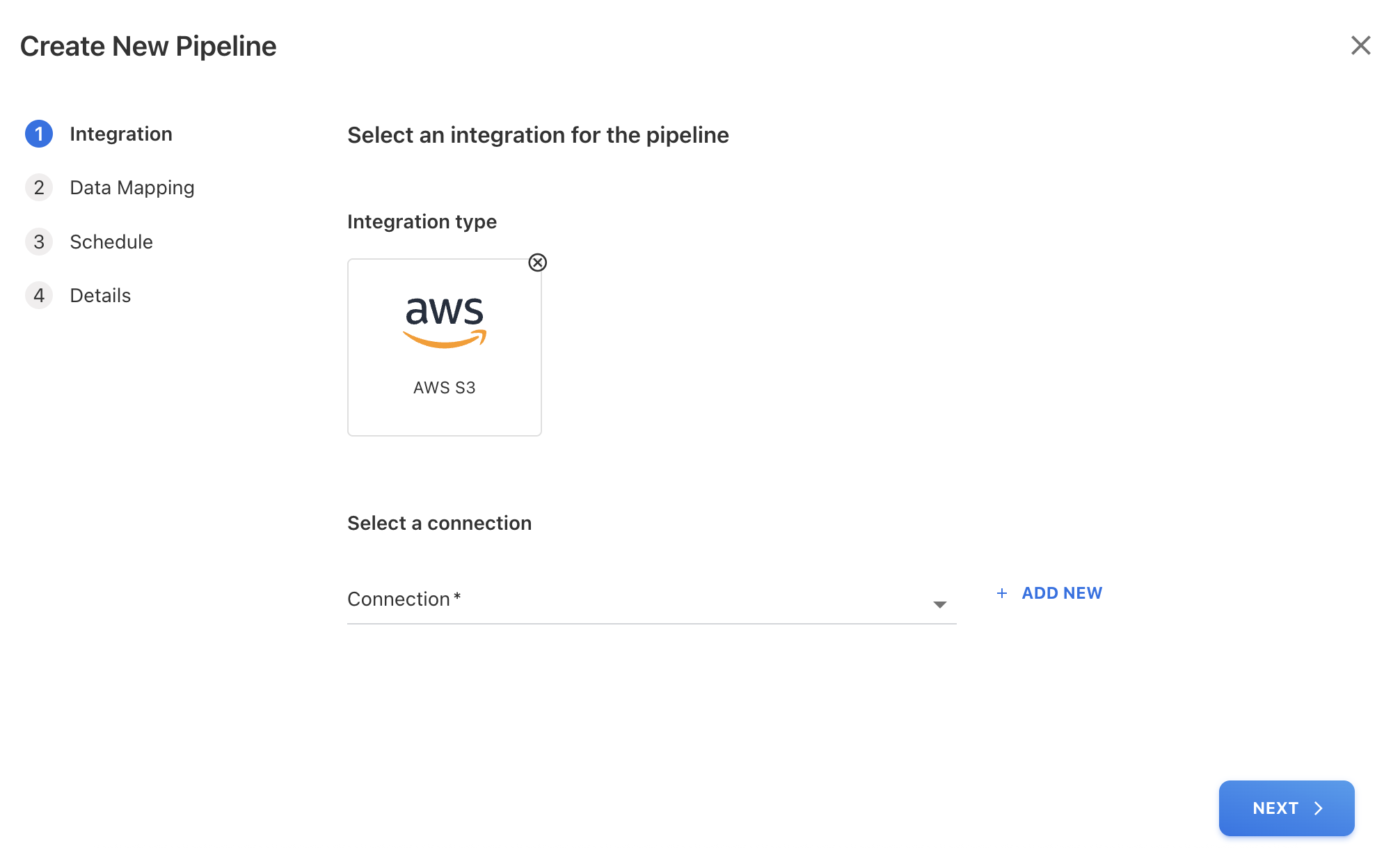
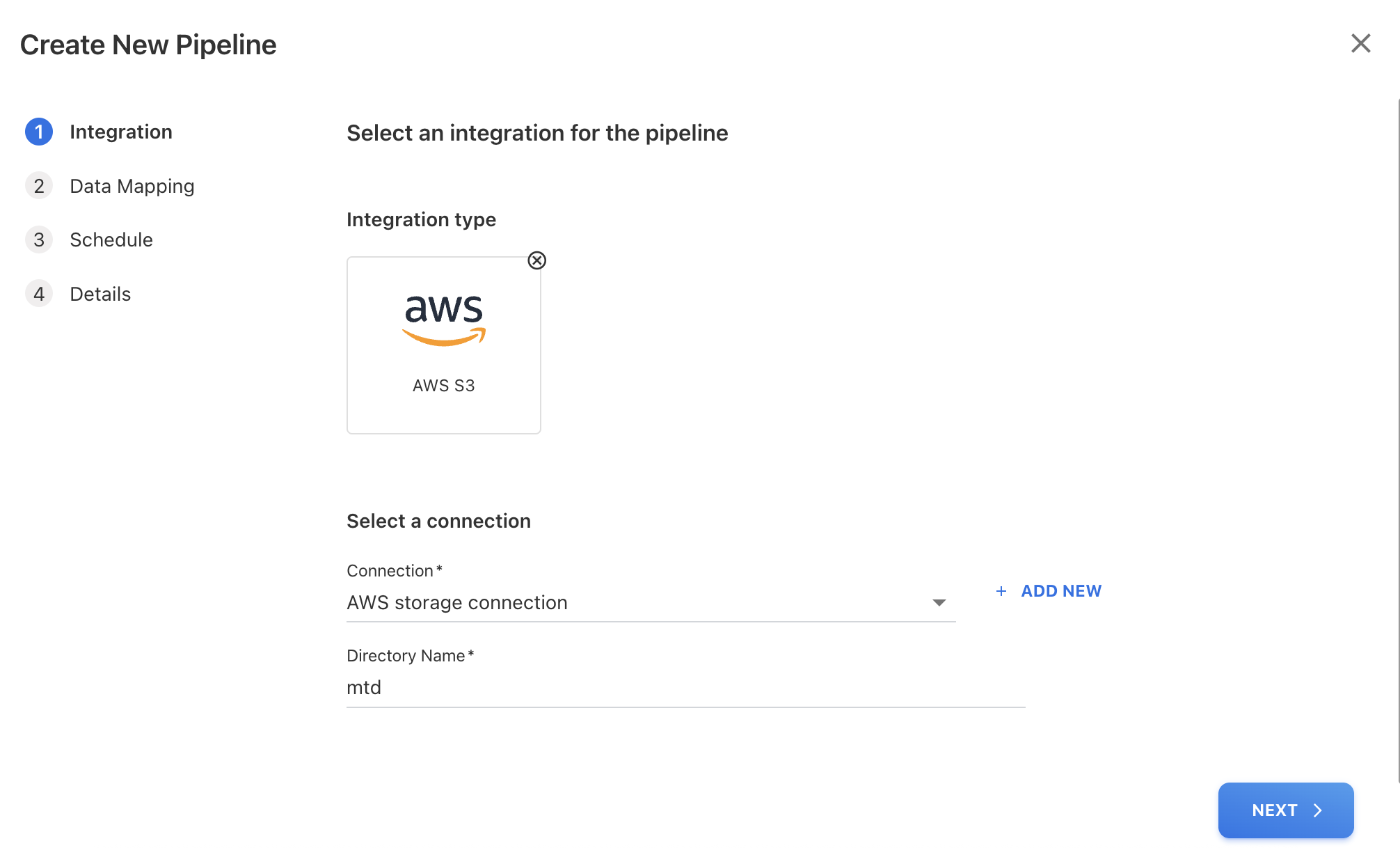
Select an existing configured Connection or create a new. For more information on how to configure a connection prior to creating the pipeline, refer Creating a new Pipeline Connection | Create Cloud Storage Connection (manual only).
-
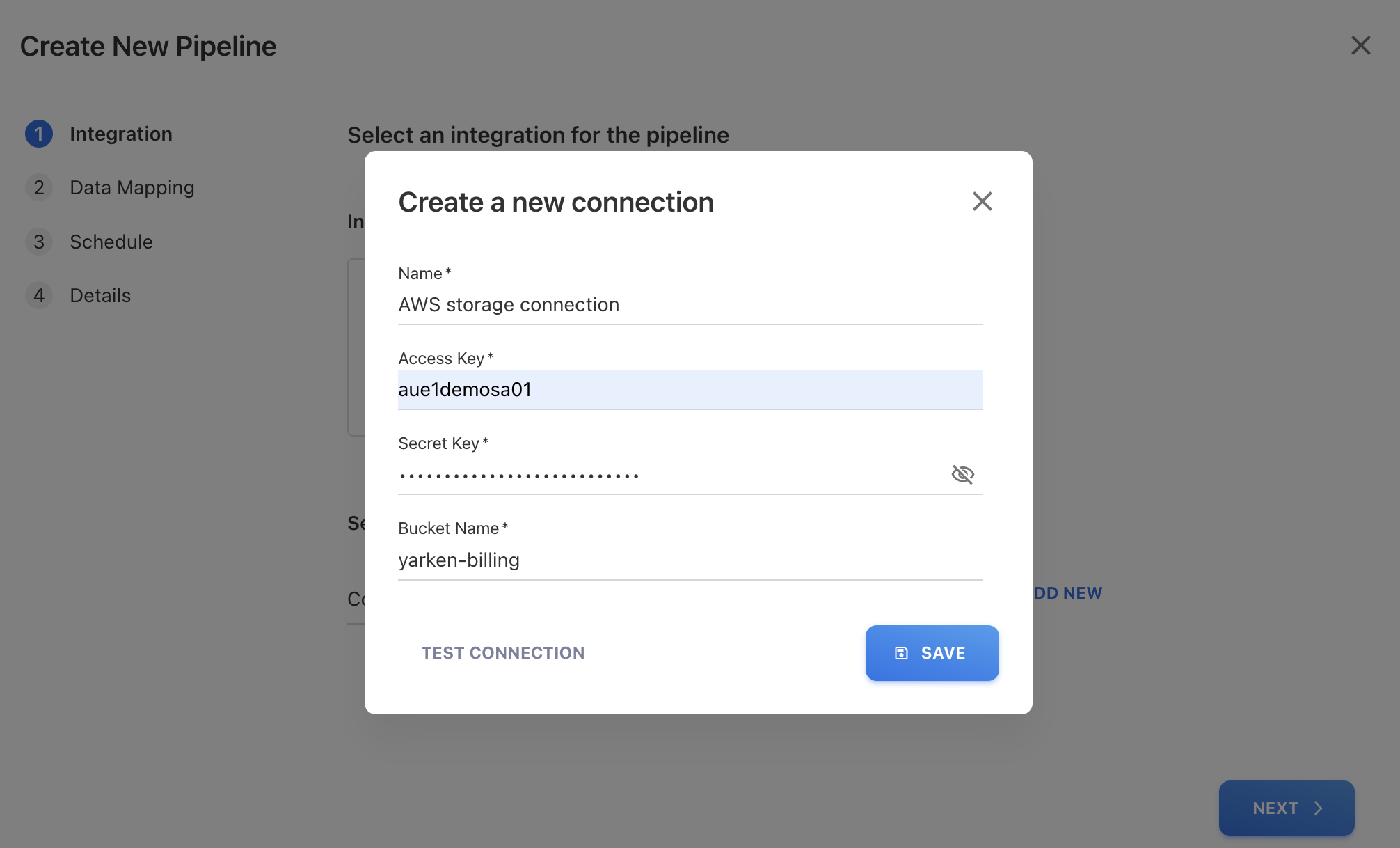
(Optional) To create a new connection, click + ADD NEW and enter the below details on Create a new connection dialog box:
-
Name: The name of the connection.
-
Access Key: The Azure Storage Account Access Key for accessing the storage account data.
-
Secret Key: The AWS Secret Key used along with the Access Key to access the S3 storage bucket.
-
Bucket Name: The name of the S3 bucket where the exported files are being stored, for example, yarken-billing.
-
Region (optional): The AWS region the bucket is in (e.g. ap-southeast-2). Leave blank to auto-detect it on test connection.
-
Click SAVE.
-
-
-
Enter a Directory Name from which you want to retrieve files and select NEXT.
-
Select a Data Mapping Template from the dropdown list and click NEXT. For more information on Data Mapping Template, refer Data Mapping Templates.
-
Delete before import: For Expenses (spend) file uploads, the Delete before load warning appears only if the source file is loaded with the Delete before import option enabled.
-
-
On Schedule tab, select Frequency for the pipeline to run from the dropdown list and then click NEXT:
-
Hourly: Select the hour(s) between 0 to 12 for the pipeline to start run in the field labelled. The run will occur at your defined intervals.
-
Daily: Occurs every day, starting at 12:00 AM.
-
Monthly: Specify the day of the month and select the month interval.
-
-
Enter the Pipeline Name and click SAVE.
The new pipeline is created in the application and remains deactivated by default. You must activate the pipeline to start scheduled or on-demand runs.
Google Cloud Storage
Prerequisites
Before creating a Google Cloud Storage Pipeline, ensure you have:
-
A valid Google Cloud Storage (GCS) bucket.
-
A Google Cloud Storage connection configured in Yarken using:
-
Access key
-
Secret key
-
-
Access to the GCS bucket and folder path containing usage files.
-
GCP usage files exported to GCS, such as:
-
GCP Billing Export files
-
-
A data mapping template to map GCP file fields to Yarken fields.
-
File location details, including bucket path and file naming patterns.
Procedure
To create,
-
Navigate to Admin > Pipelines > Pipelines.
-
On the Pipelines page, click + NEW PIPELINE.
-
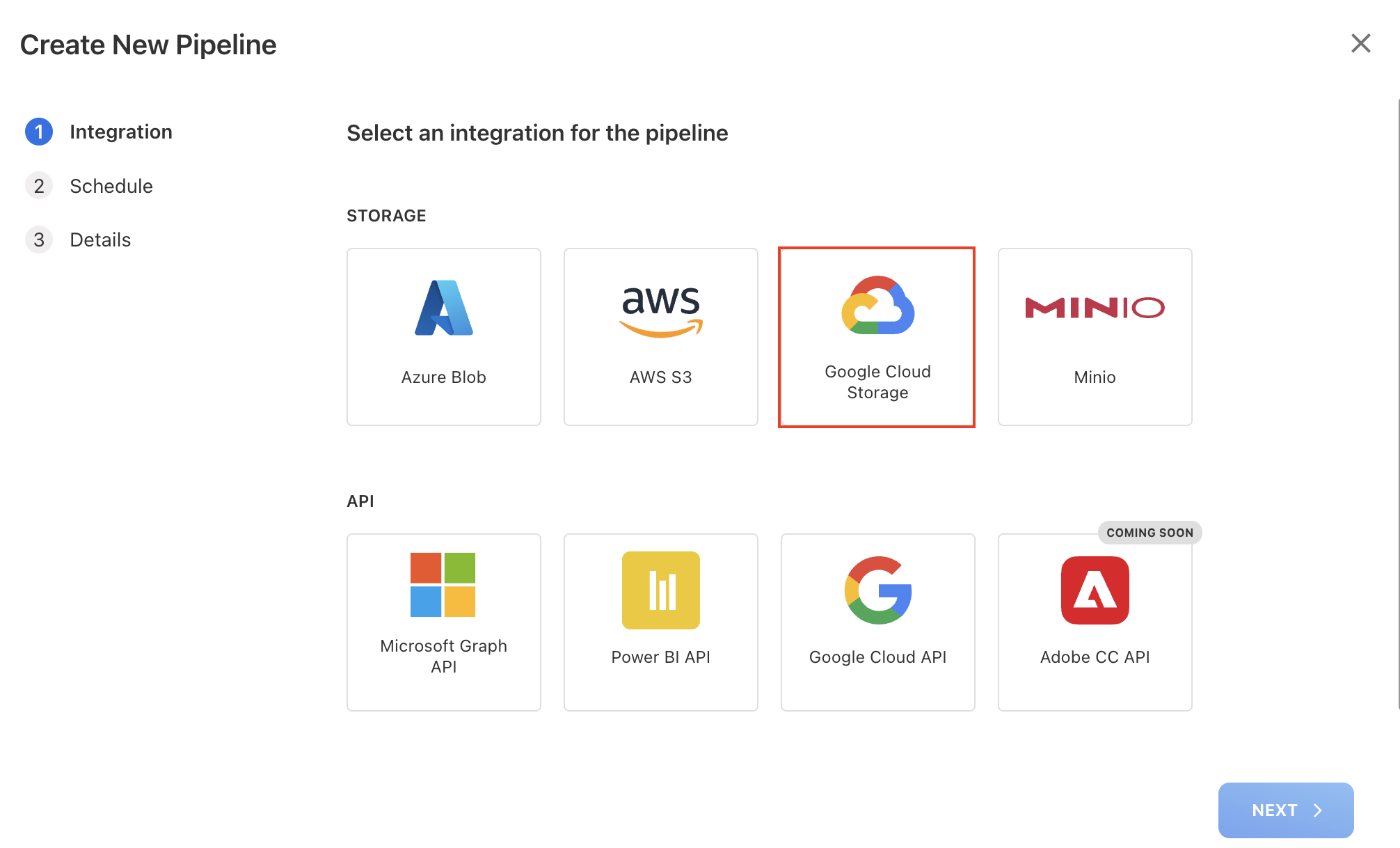
On the Create New Pipeline dialog box, choose the storage type as Google Cloud Storage and click NEXT.
-
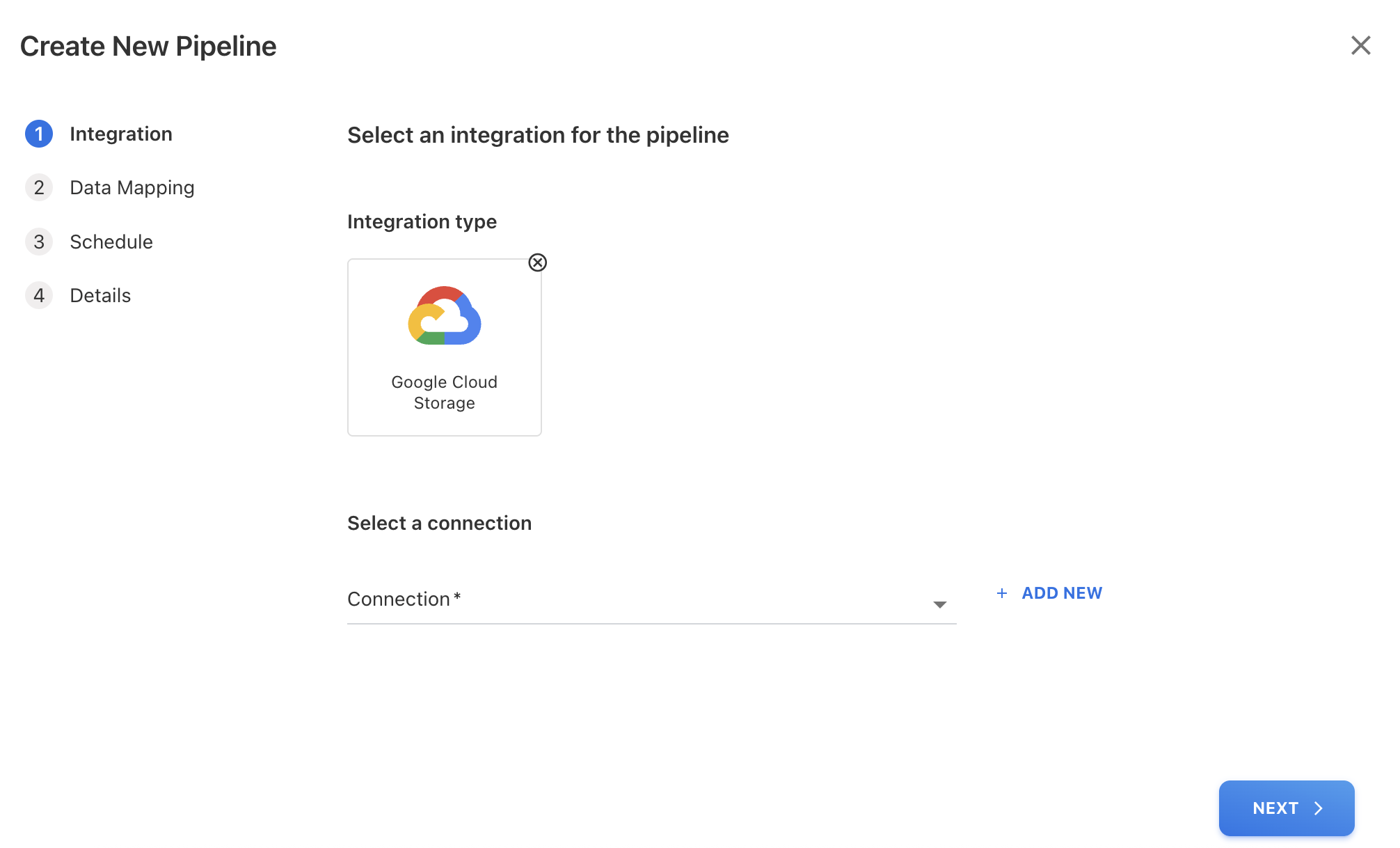
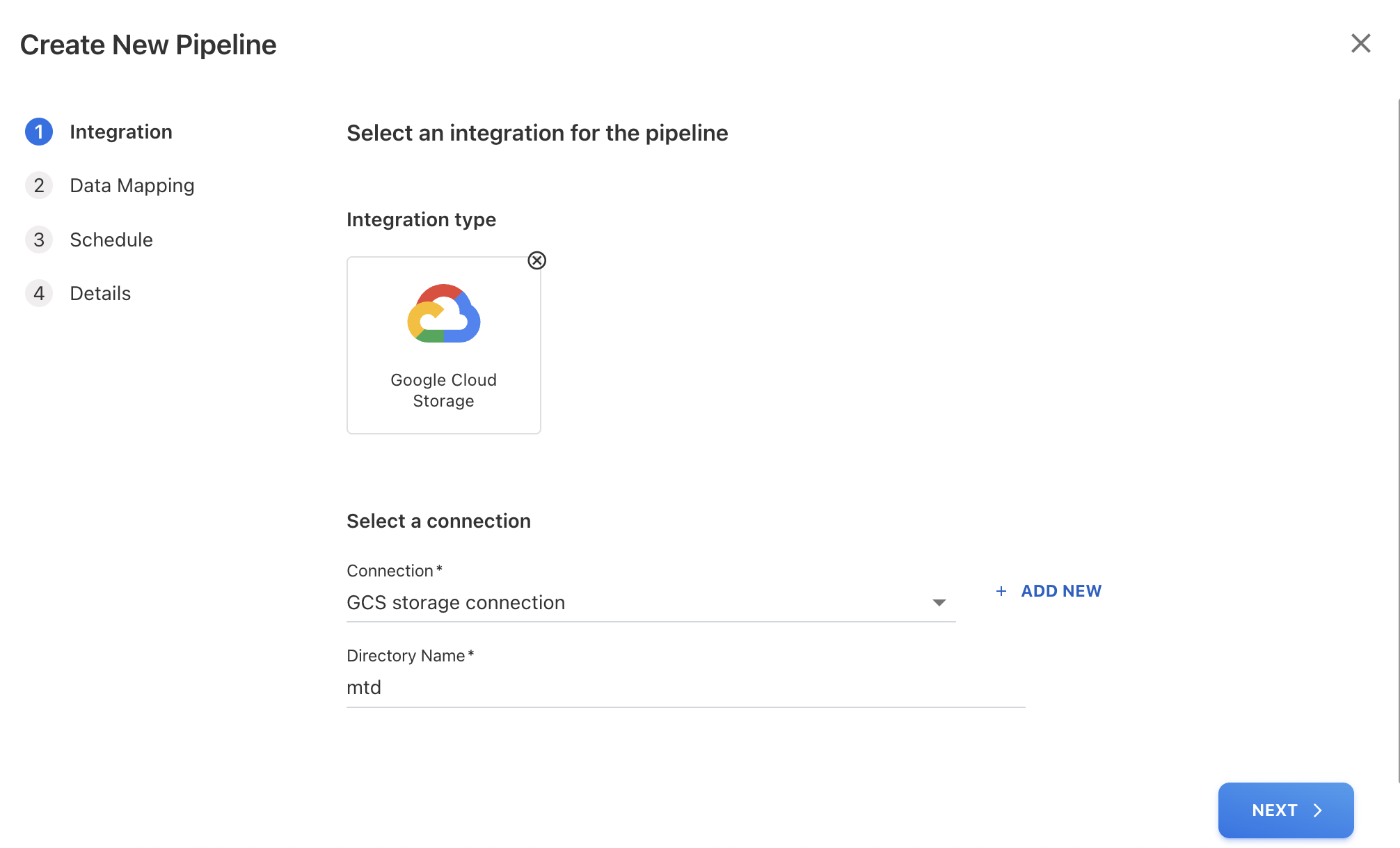
Select an existing configured Connection or create a new. For more information on how to configure a connection prior to creating the pipeline, refer Creating a new Pipeline Connection | Create Cloud Storage Connection (manual only).
-
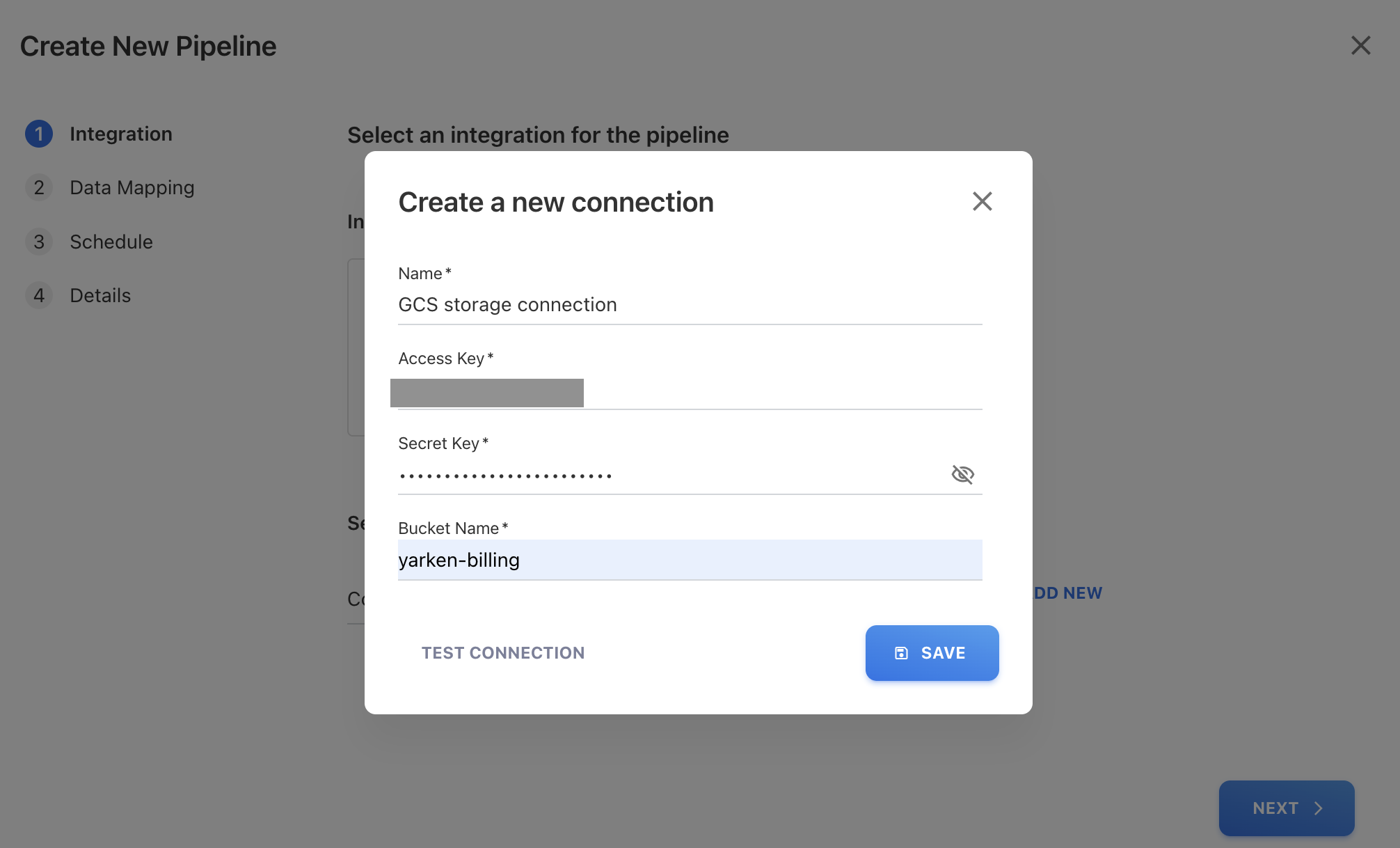
(Optional) To create a new connection, click + ADD NEW and enter the below details on Create a new connection dialog box:
-
Name: The name of the connection.
-
Access Key: The access key used to authenticate and authorize the access to the storage service.
-
Secret Key: A secret key associated with the access key used to authenticate and authorize secure access to the storage service.
-
Bucket Name: The name of the GCS bucket where the exported files (objects) are being stored, for example, yarken-billing.
-
Click SAVE.
-
-
-
Enter a Directory Name from which you want to retrieve files and select NEXT.
-
Select a Data Mapping Template from the dropdown list and click NEXT. For more information on Data Mapping Template, refer Data Mapping Templates.
-
Delete before import: For Expenses (spend) file uploads, the Delete before load warning appears only if the source file is loaded with the Delete before import option enabled.
-
-
On Schedule tab, select Frequency for the pipeline to run from the dropdown list and then click NEXT:
-
Hourly: Select the hour(s) between 0 to 12 for the pipeline to start run in the field labelled. The run will occur at your defined intervals.
-
Daily: Occurs every day, starting at 12:00 AM.
-
Monthly: Specify the day of the month and select the month interval.
-
-
Enter the Pipeline Name and click SAVE.
The new pipeline is created in the application and remains deactivated by default. You must activate the pipeline to start scheduled or on-demand runs.
Create an API Pipeline manually
Note: Manual API pipeline creation is not recommended because pipelines are automatically created via the Consent URL. These steps should be used only when manual setup is required.
As part of the consent-link process, when a tenant accepts the consent links, the application automatically creates the API connections and their corresponding API pipelines. Use the below section to create an API Pipelines manually.
Microsoft Graph API
The Microsoft Graph API pipeline is used to collect:
-
License details
-
Product usage details
-
Entra ID activity details
-
Teams activity details
-
Defender enrolled device details
Prerequisite
-
A Microsoft Graph API connection must already be configured in the application.
Procedure
To configure,
-
Navigate to Admin > Pipelines > Pipelines.
-
On the Pipelines page, click + NEW PIPELINE.
-
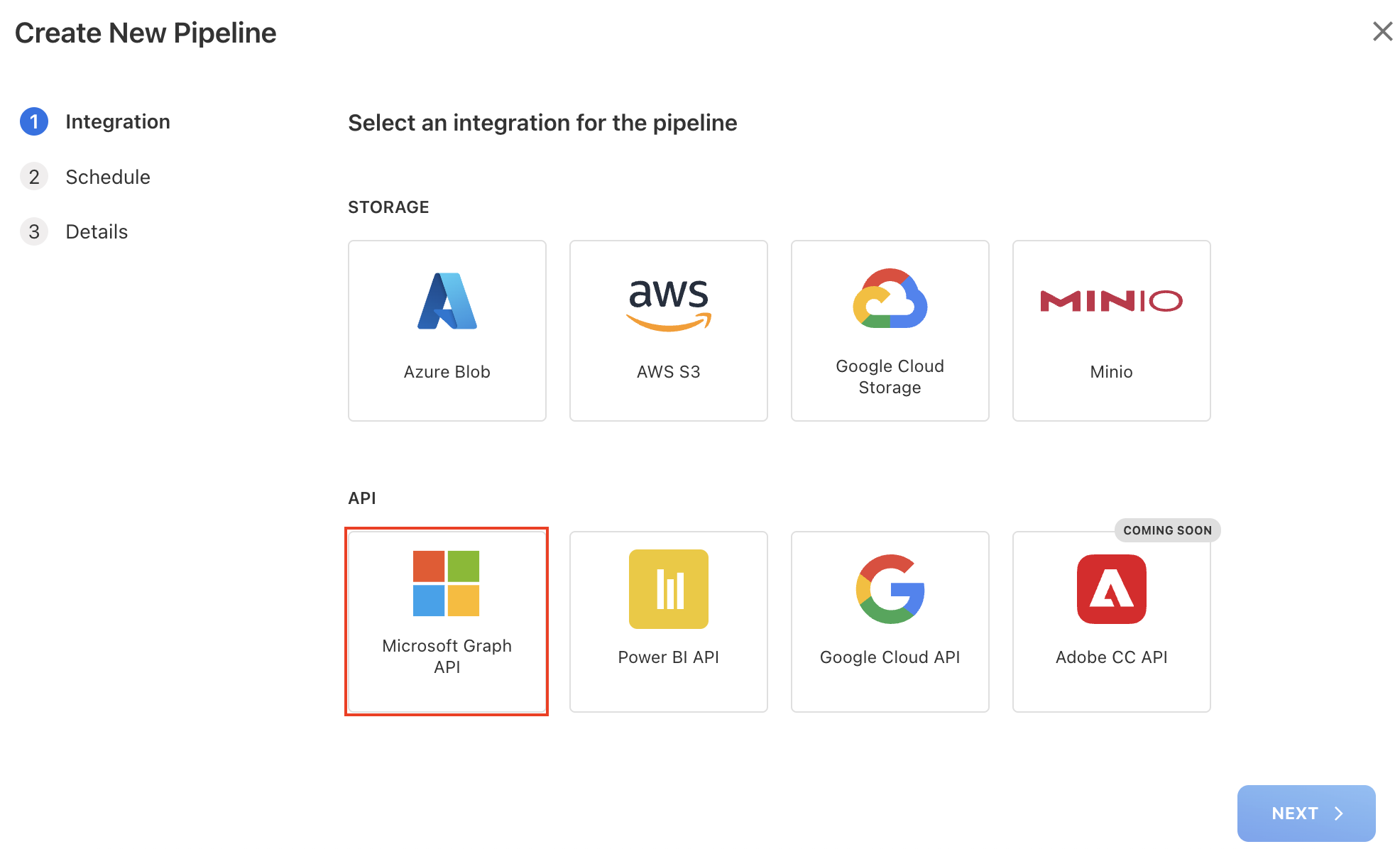
On the Create New Pipeline dialog box, select Microsoft Graph API and click NEXT.
-
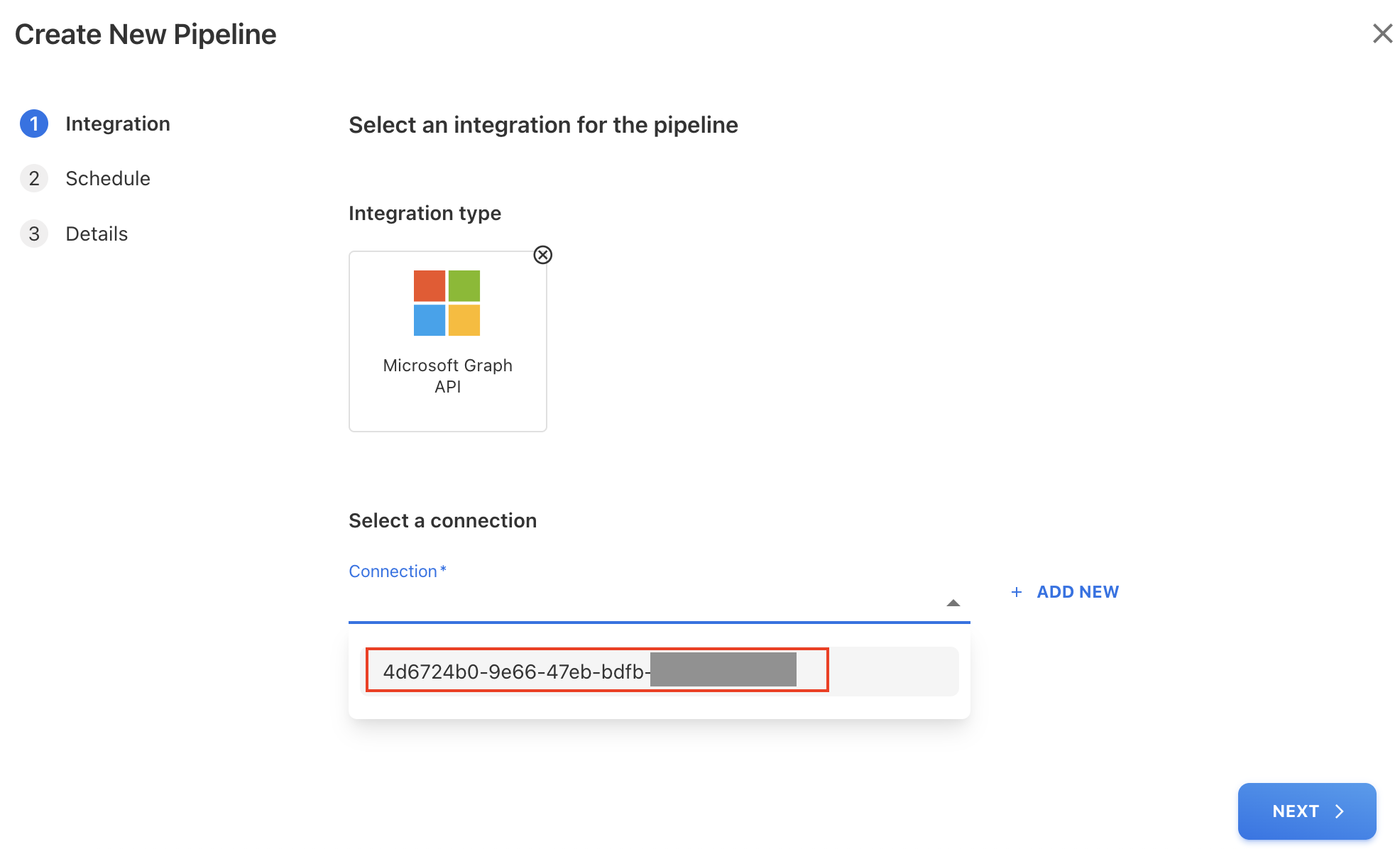
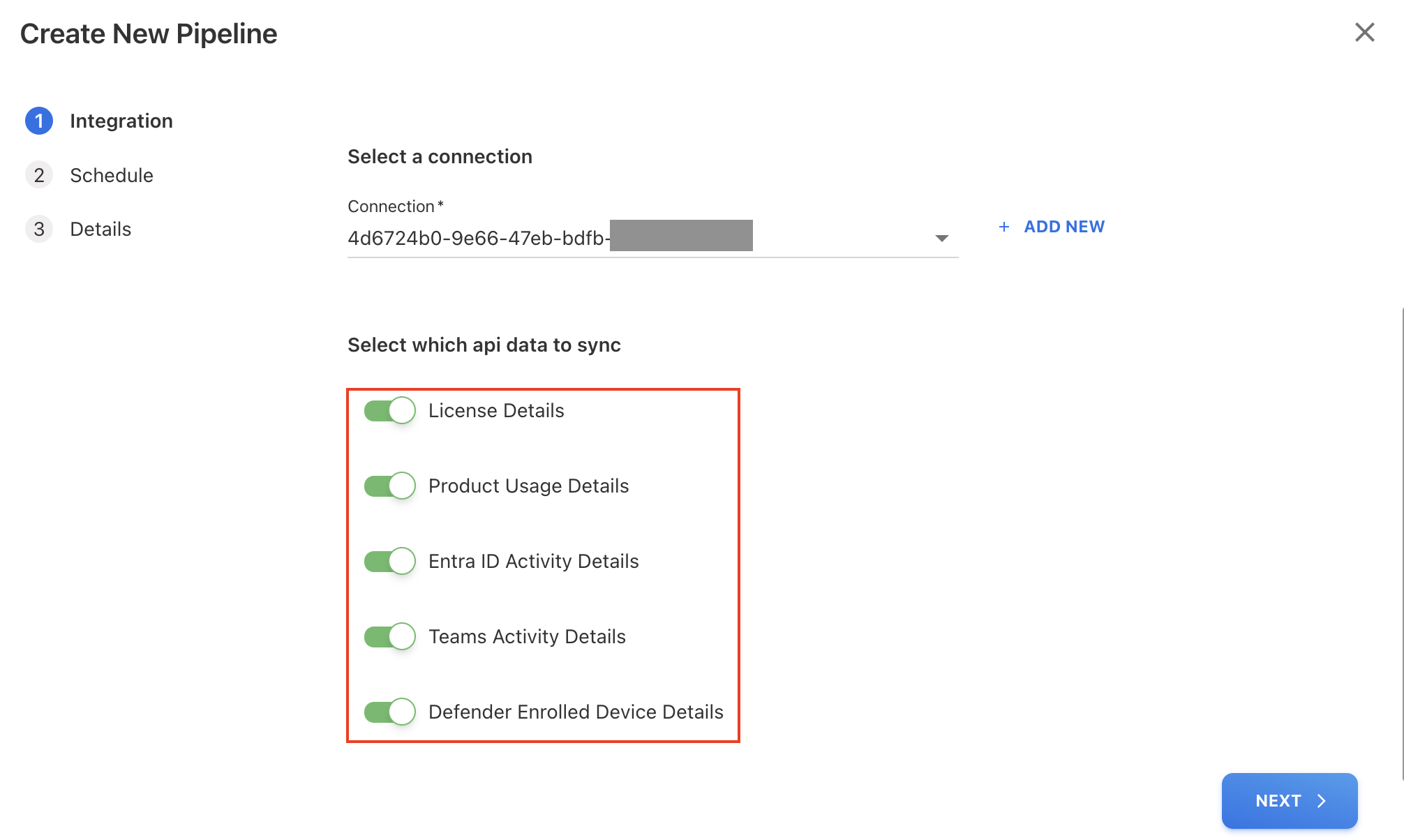
Under Select a connection, click the dropdown icon and select already configured API connection for Microsoft Graph API.
-
Select the API data to sync and click NEXT:
-
License Details
-
Product Usage Details
-
Entra ID Activity Details
-
Teams Activity Details
-
Defender Enrolled Details
-
-
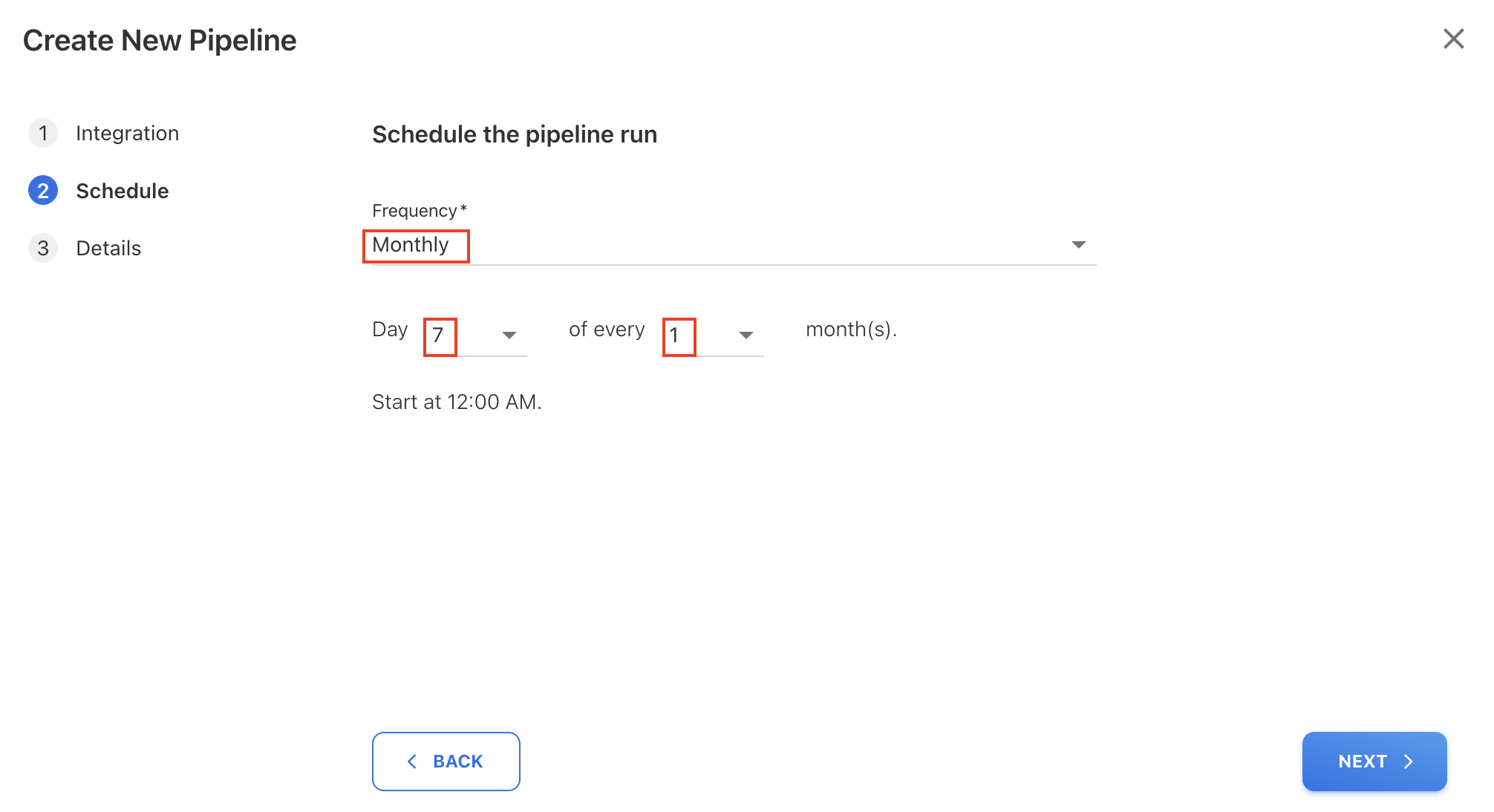
On the Schedule tab, choose Monthly frequency and select Day 7 of every 1 month (recommended).
-
Click NEXT.
-
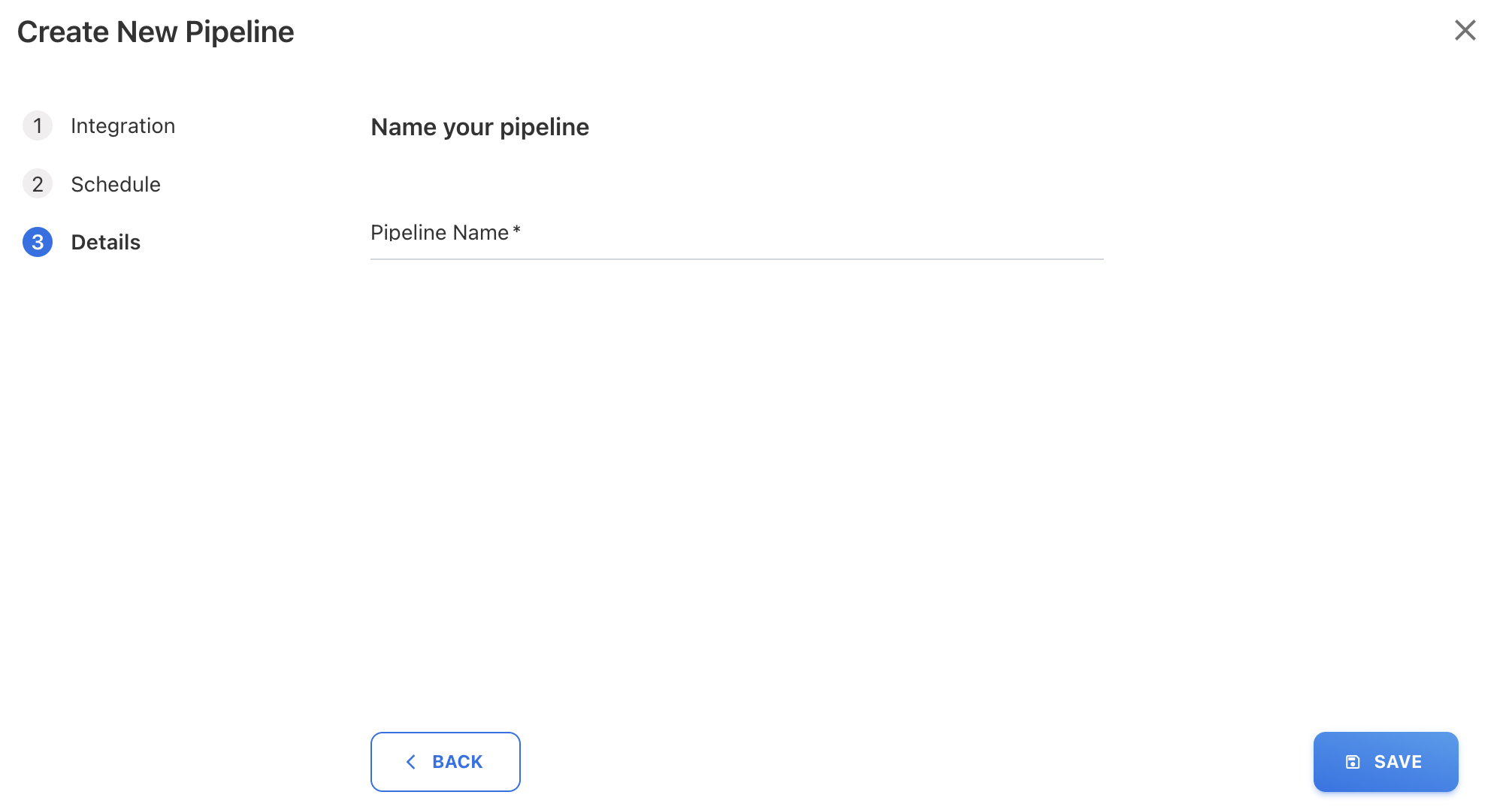
On the Details tab, enter a Pipeline Name and click SAVE.
-
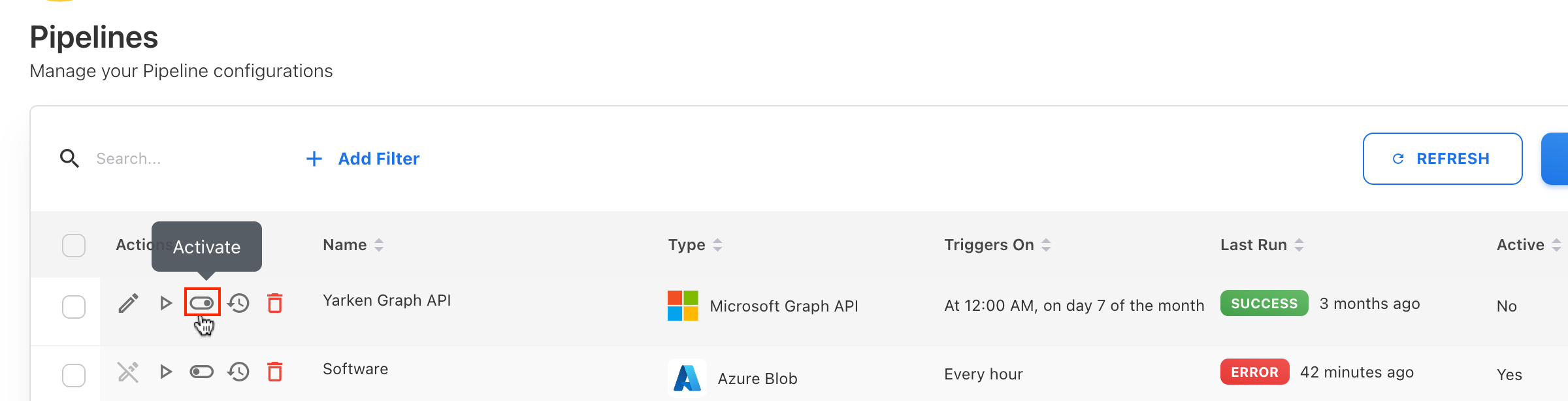
The new pipeline is created in a deactivated state. Activate it using the Activate toggle and click OK on confirmation popup.
-
Once activated, the pipeline runs on the scheduled timeframe. You may also use Run Once to trigger an immediate execution.
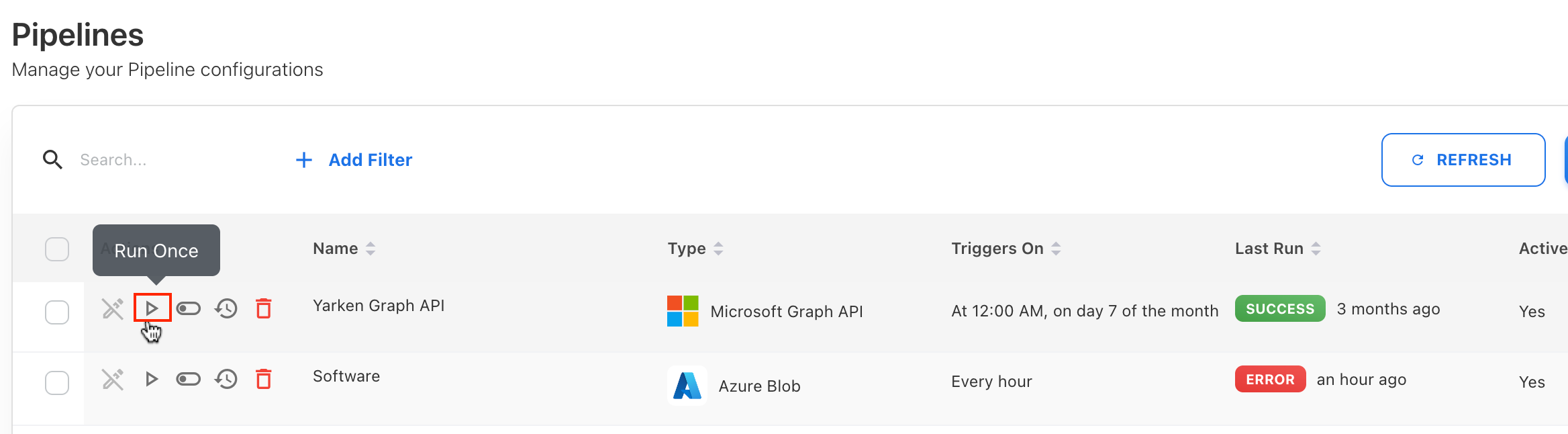
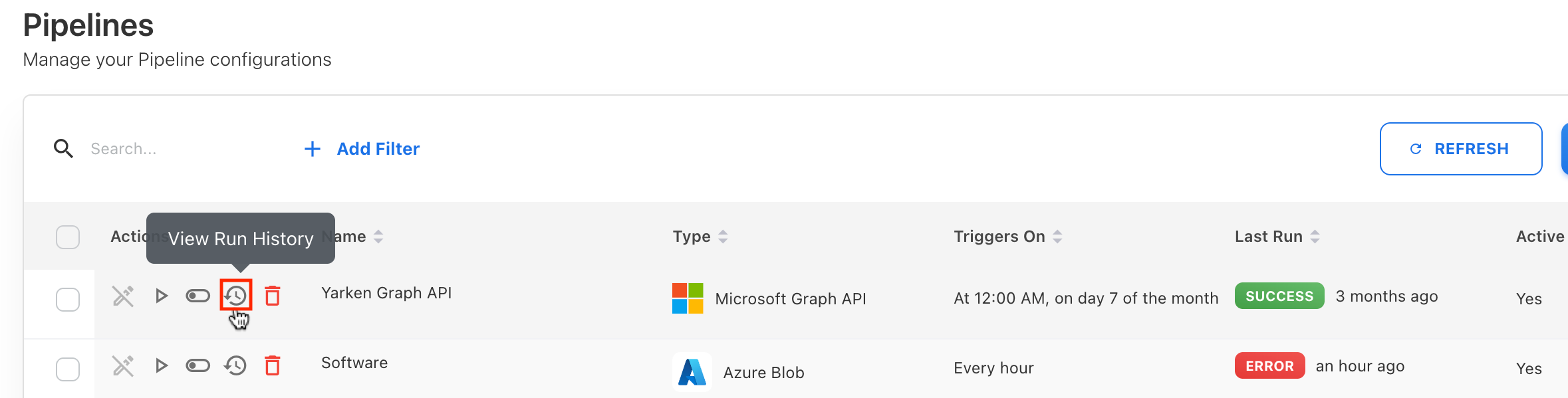
The Yarken application immediately starts fetching data. You can click View Run History icon to check the last running status.
Power BI API
For Power BI, two separate pipelines must be created using the same Power BI connection:
-
One for daily usage details
-
One for monthly workspace details.
Prerequisite
-
A Power BI API connection must already be configured.
Procedure
Pipeline 1: Power BI Usage Details (Daily)
To configure,
-
Navigate to Admin > Pipelines > Pipelines.
-
On the Pipelines page, click + NEW PIPELINE.
-
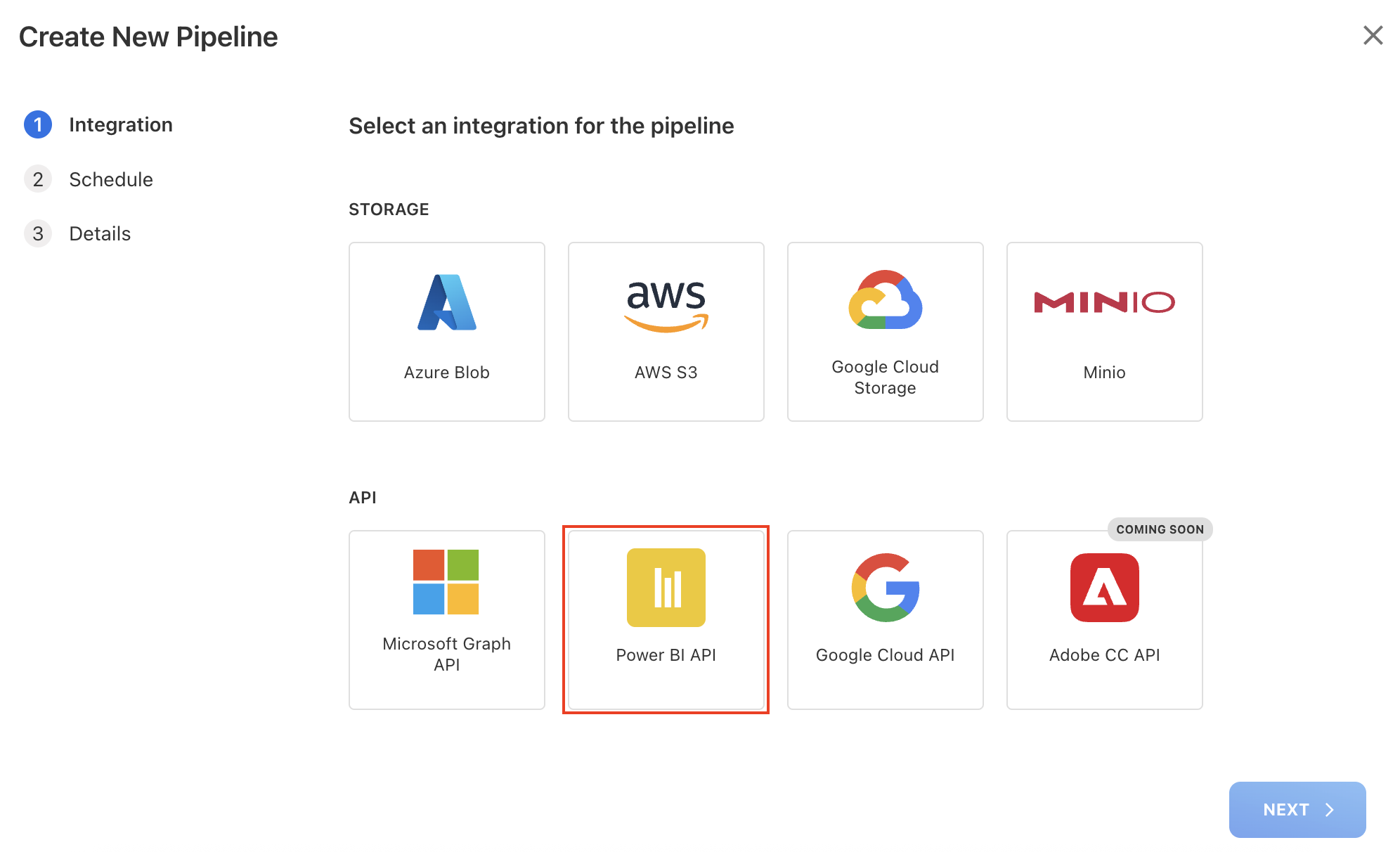
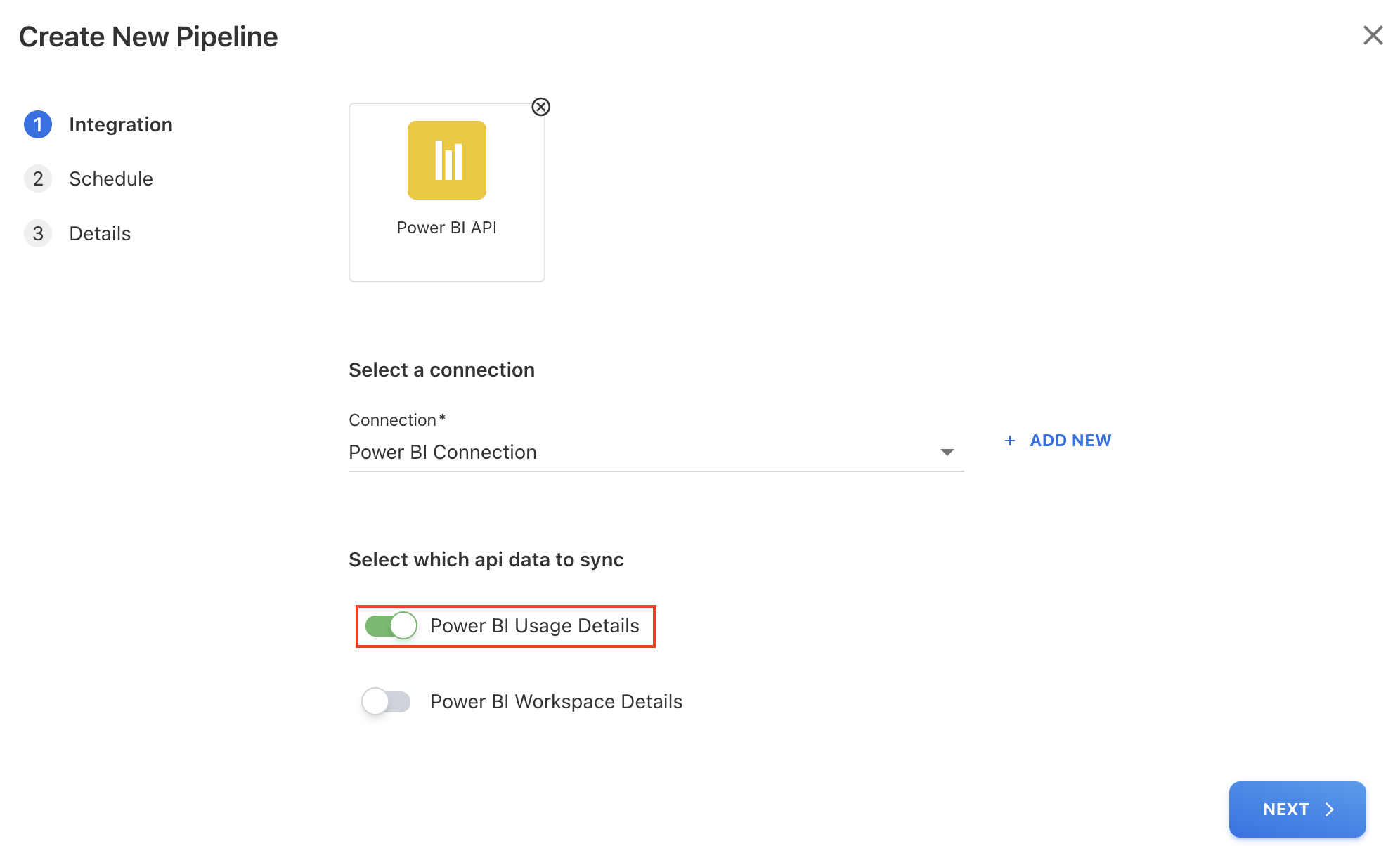
On the Create New Pipeline dialog box, select Power BI API and click NEXT.
-
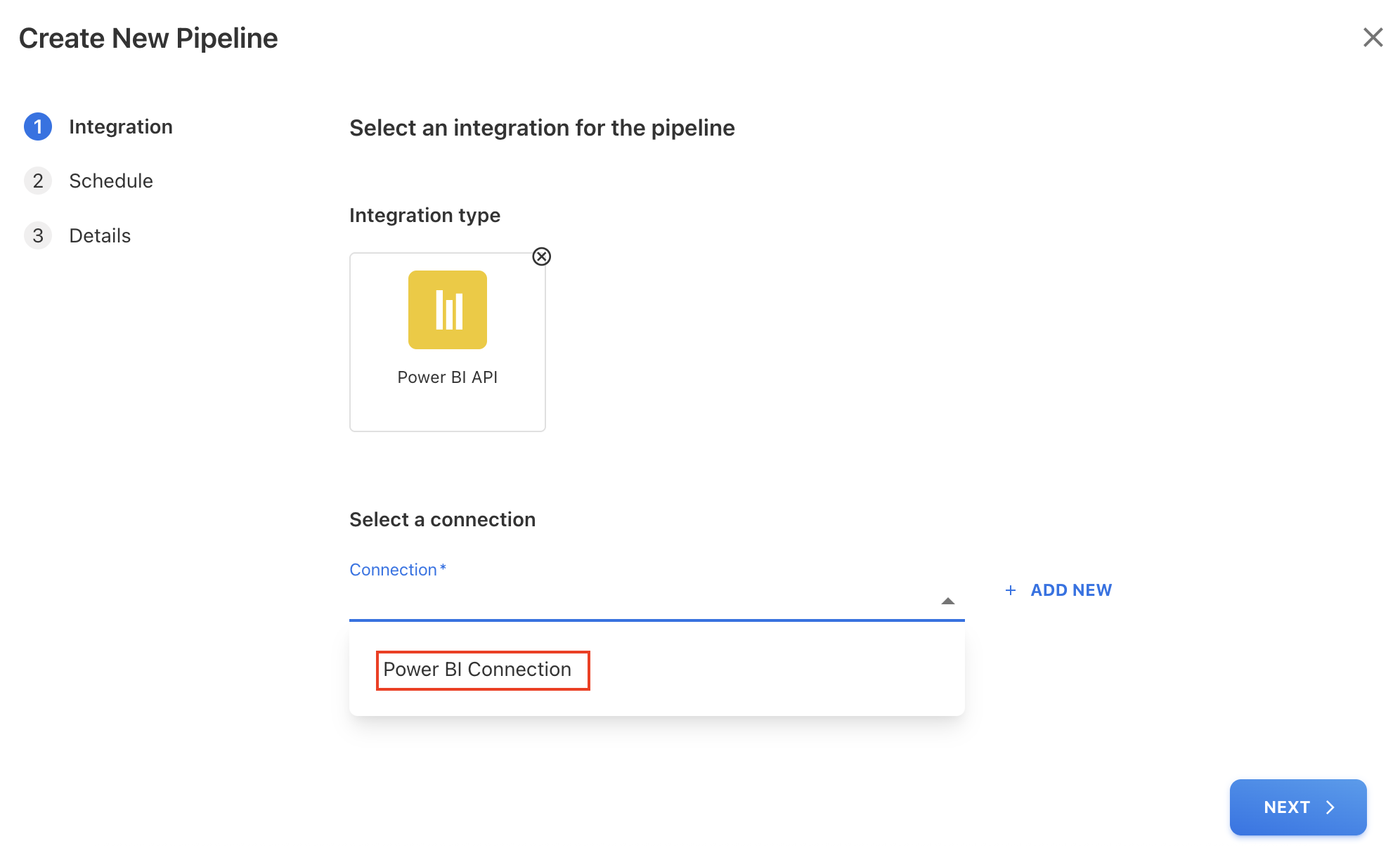
Under Select a connection, click the dropdown icon and select already configured API connection for Power BI API.
-
Select Power BI Usage Details to sync and click NEXT.
-
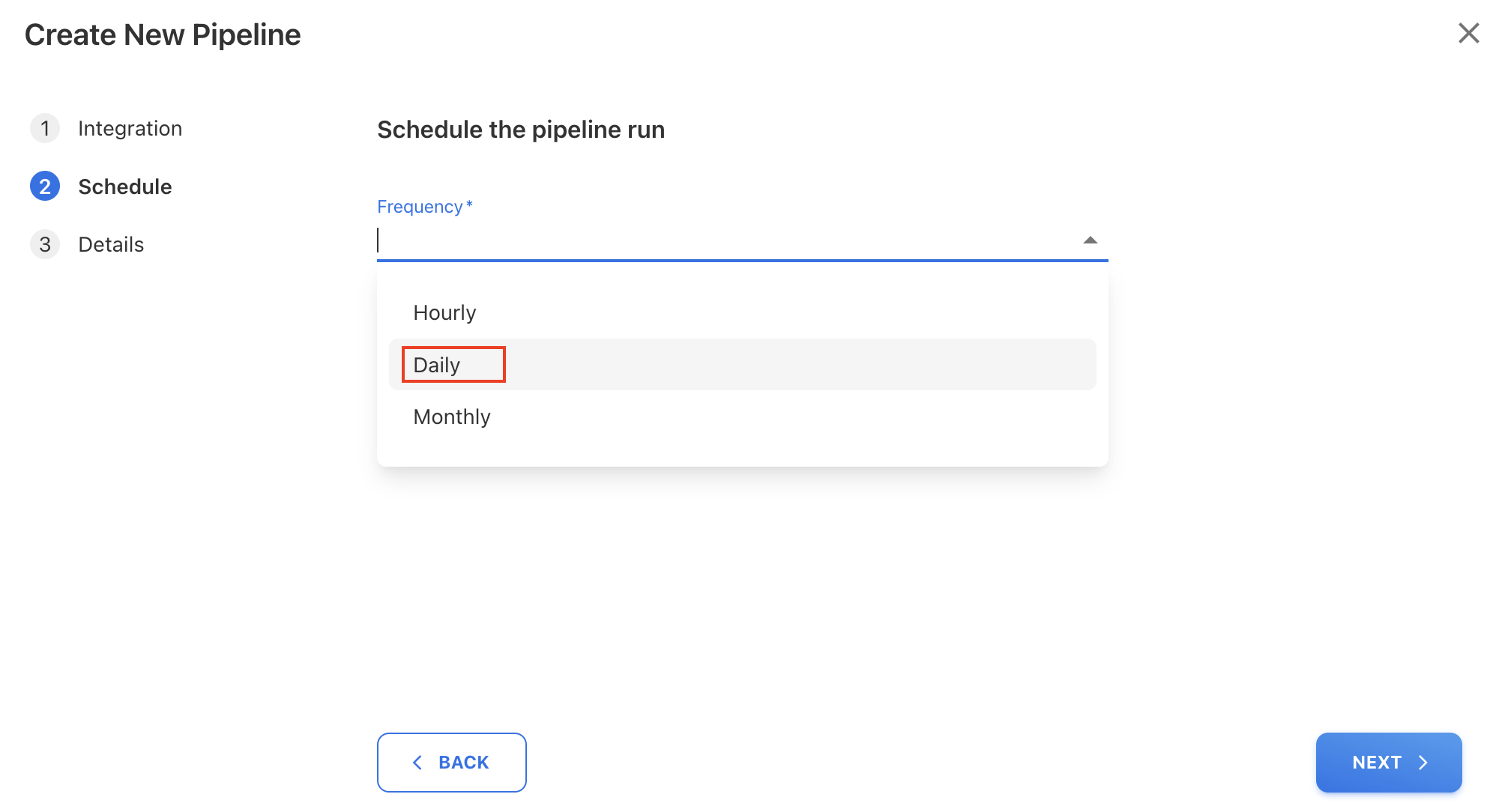
On the Schedule tab, select Daily frequency.
-
Click NEXT.
-
On the Details tab, enter a Pipeline Name and click SAVE.
-
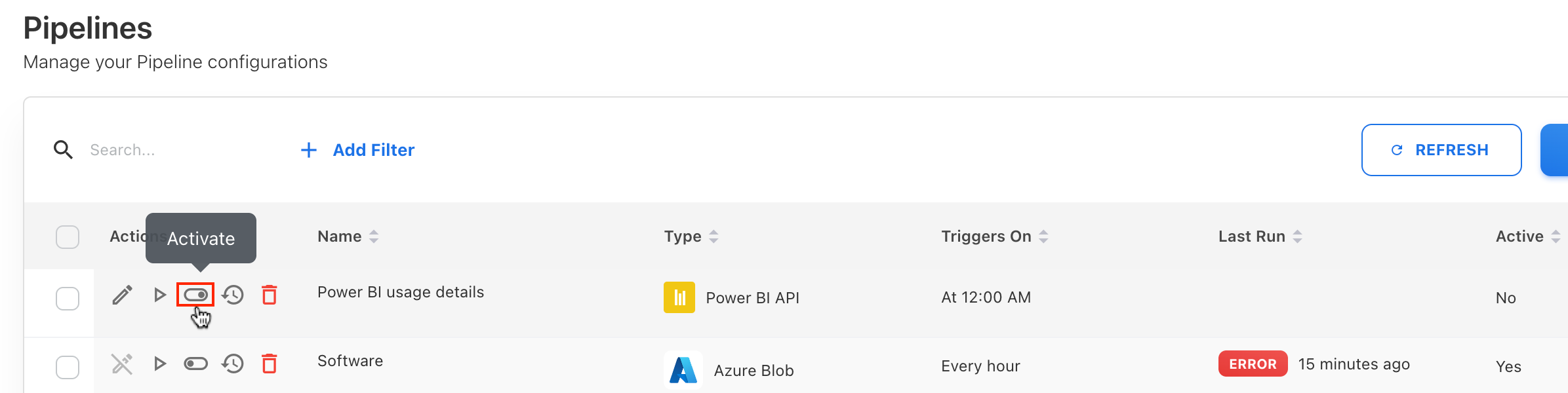
The new pipeline is created in a deactivated state. Activate it using the Activate toggle and click OK on confirmation popup.
-
Once activated, the pipeline runs on the scheduled timeframe. You may also use Run Once to trigger an immediate execution.
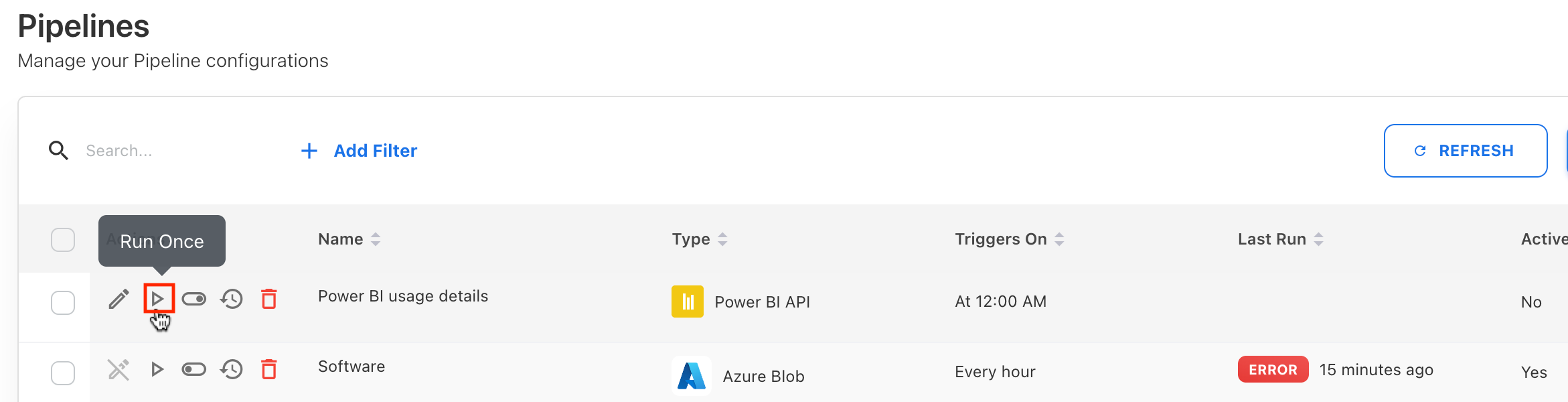
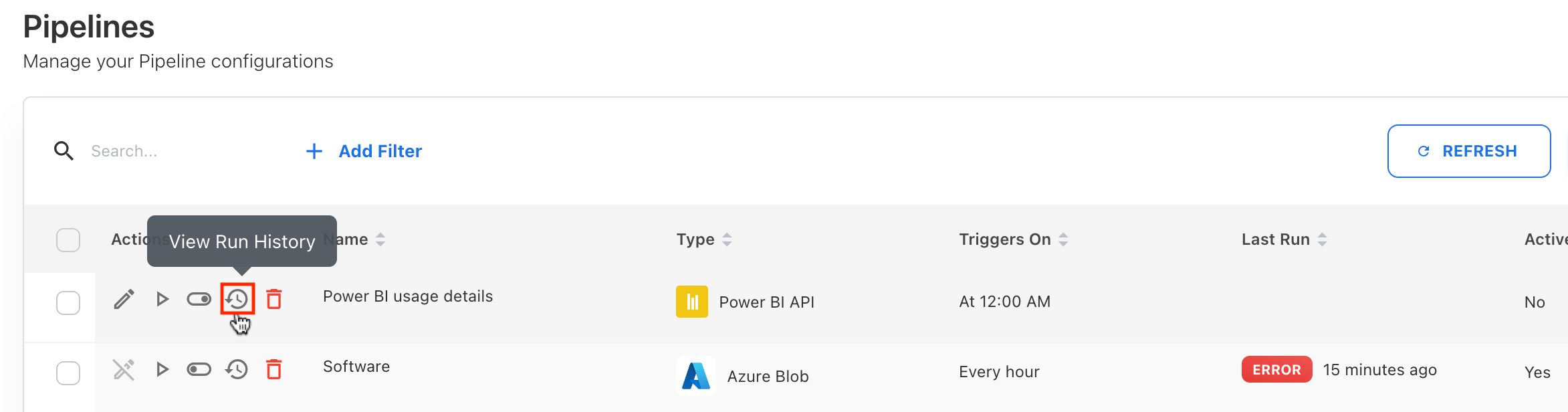
The Yarken application immediately starts fetching data. You can click View Run History icon to check the last running status.
Pipeline 2: Power BI Workspace Details (Monthly)
Procedure
To configure,
-
Navigate to Admin > Pipelines > Pipelines.
-
On the Pipelines page, click + NEW PIPELINE.
-
On the Create New Pipeline dialog box, select Power BI API and click NEXT.
-
Under Select a connection, click the dropdown icon and select already configured API connection for Power BI API.
-
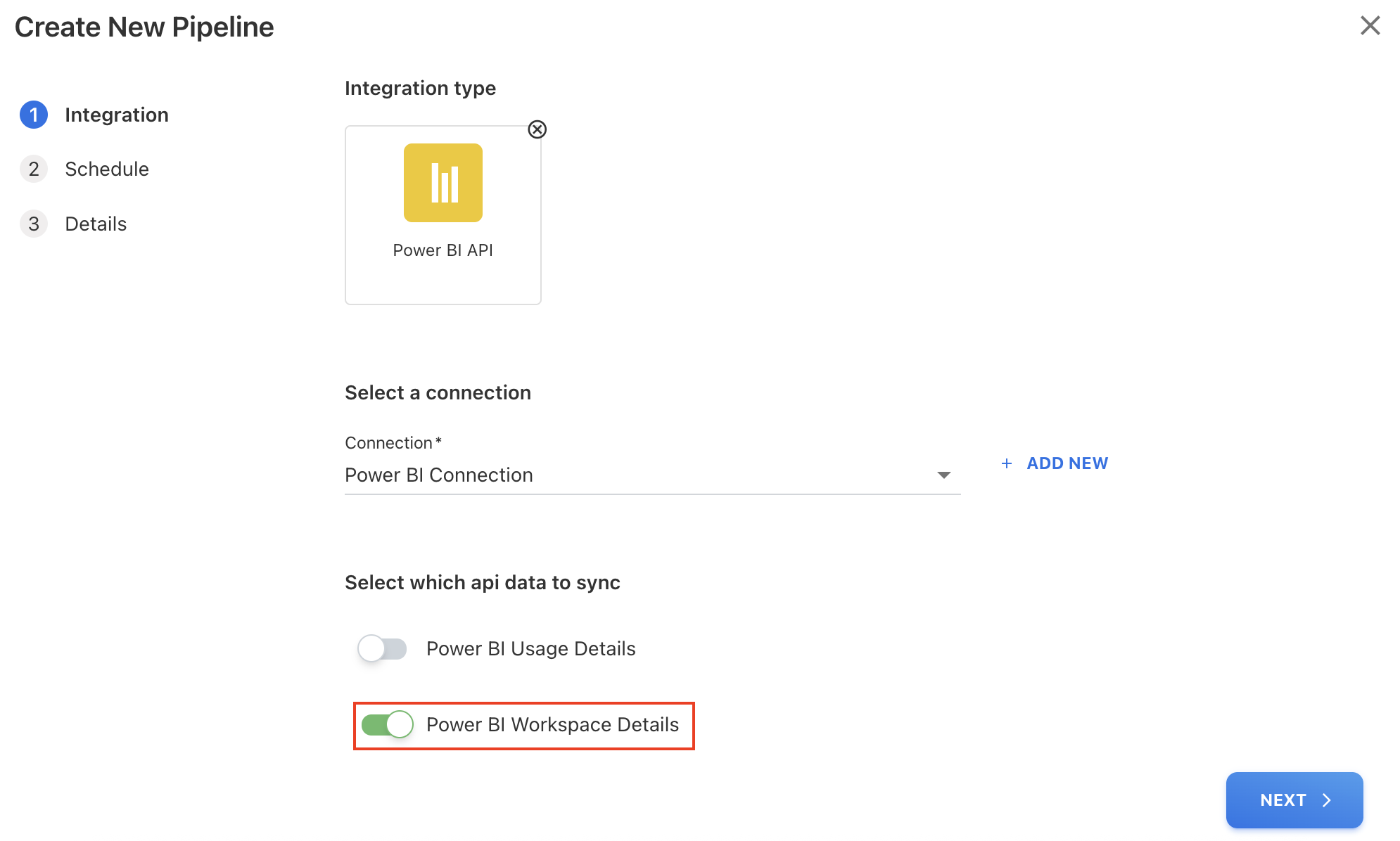
Select Power BI Workspace Details to sync and click NEXT.
-
On the Schedule tab, select Monthly frequency and choose Day 7 of every 1 month.
-
Click NEXT.
-
On the Details tab, enter a Pipeline Name and click SAVE.
-
The new pipeline is created in a deactivated state. Activate it using the Activate toggle and click OK on confirmation popup.
-
Once activated, the pipeline runs on the scheduled timeframe. You may also use Run Once to trigger an immediate execution.
The Yarken application immediately starts fetching data. You can click View Run History icon to check the last running status.
Google Cloud API
The Google Cloud API pipeline is used to collect:
-
Sign-in details
-
Product usage details
Prerequisite
-
A Google API connection must be configured before creating the pipeline.
Procedure
To configure,
-
Navigate to Admin > Pipelines > Pipelines.
-
On the Pipelines page, click + NEW PIPELINE.
-
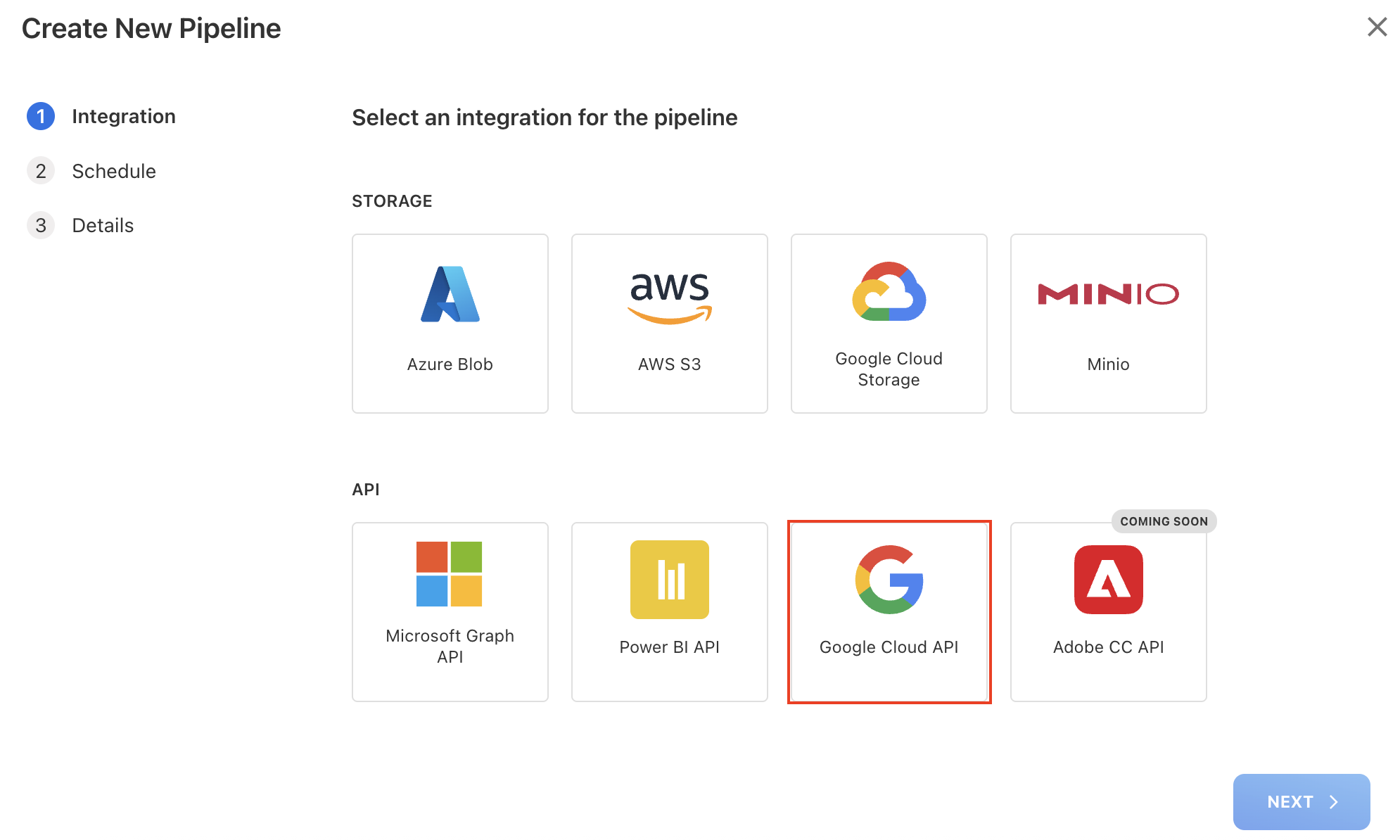
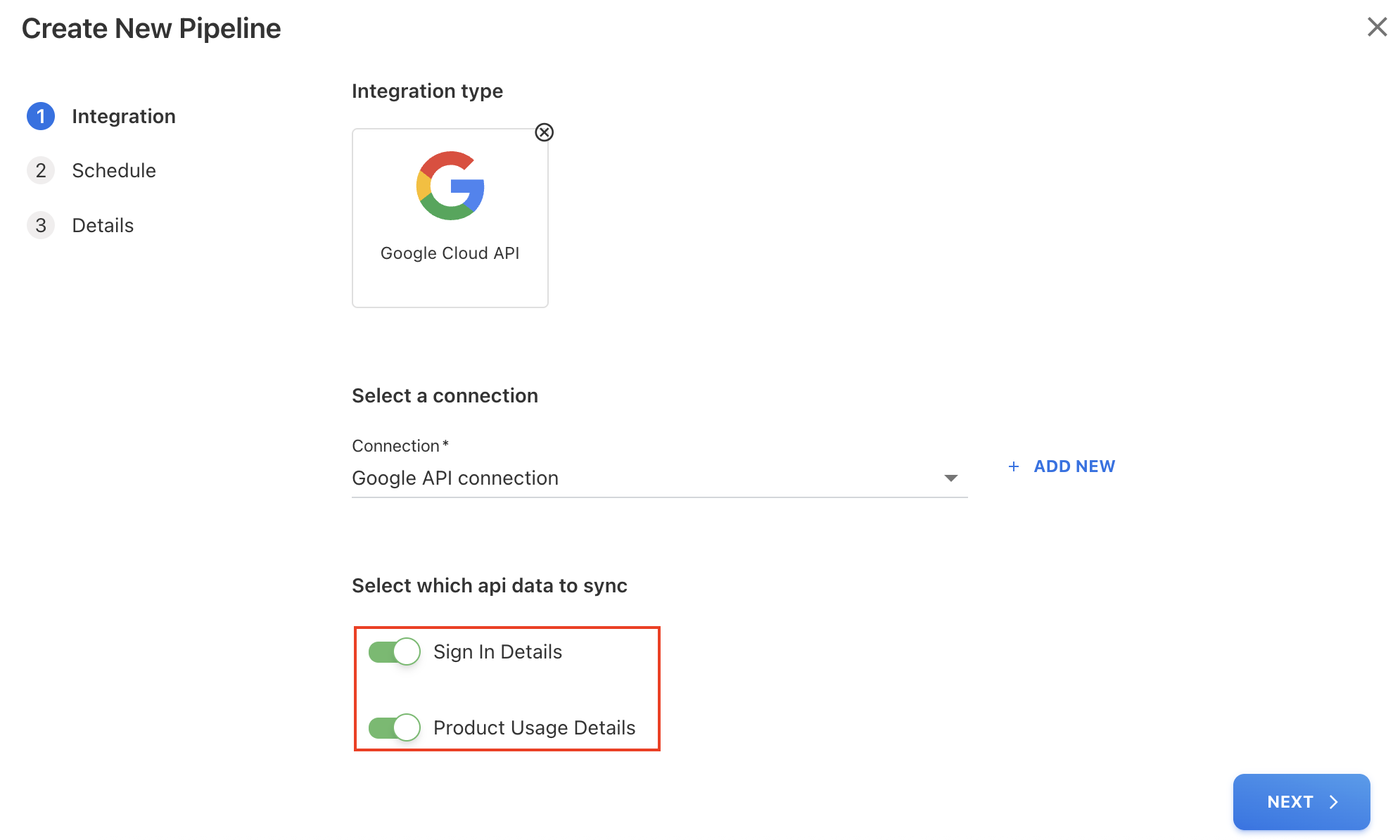
On the Create New Pipeline dialog box, select Google Cloud API and click NEXT.
-
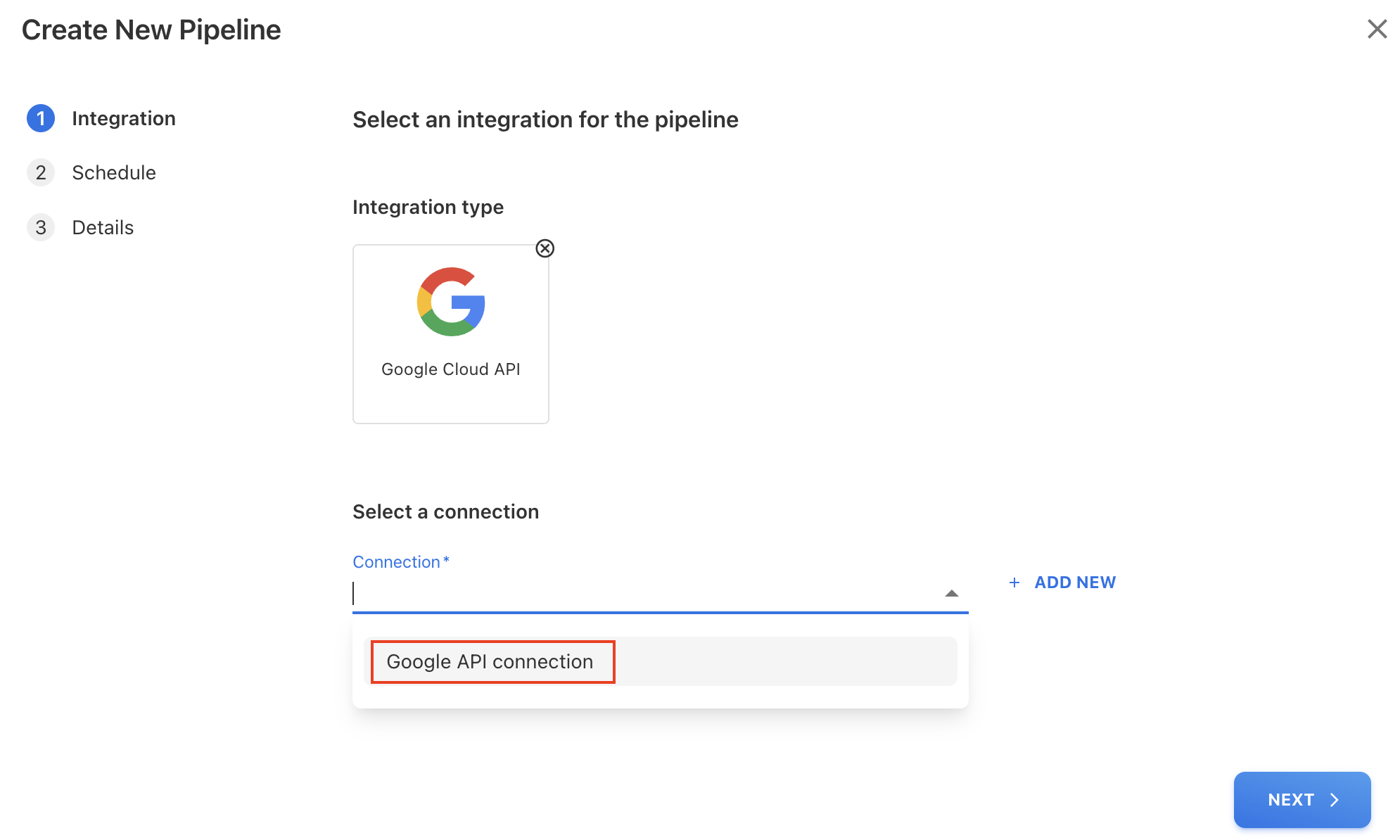
Under Select a connection, click the dropdown icon and select already configured API connection for Google Cloud API.
-
Select the API data to sync and click NEXT:
-
Sign In Details
-
Product Usage Details
-
-
On the Schedule tab, select Monthly frequency and choose Day 7 of every 1 month (recommended).
-
Click NEXT.
-
On the Details tab, enter a Pipeline Name and click SAVE.
-
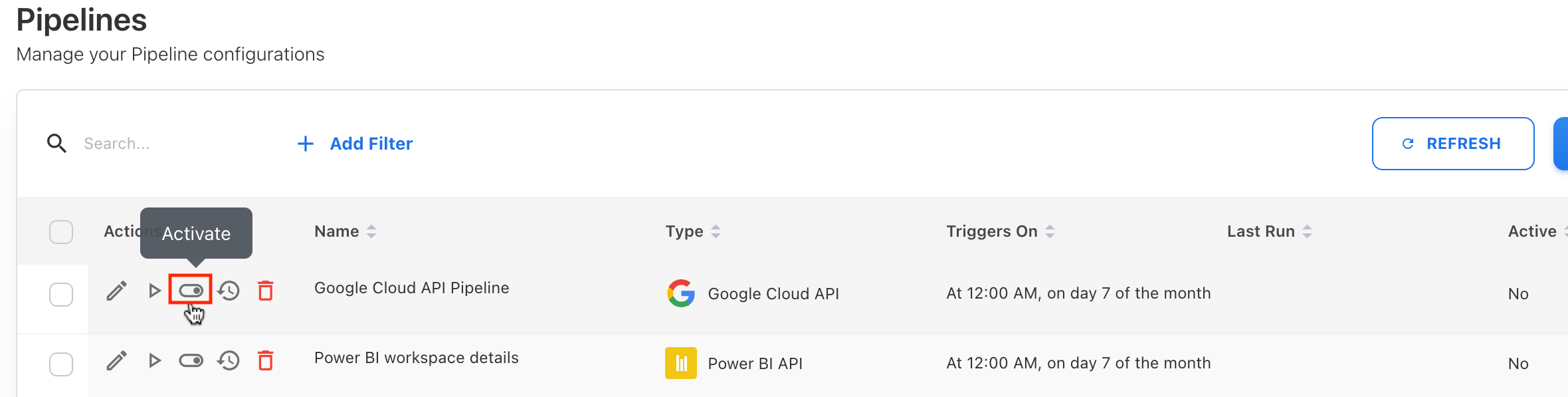
The new pipeline is created in a deactivated state. Activate it using the Activate toggle and click OK on confirmation popup.
-
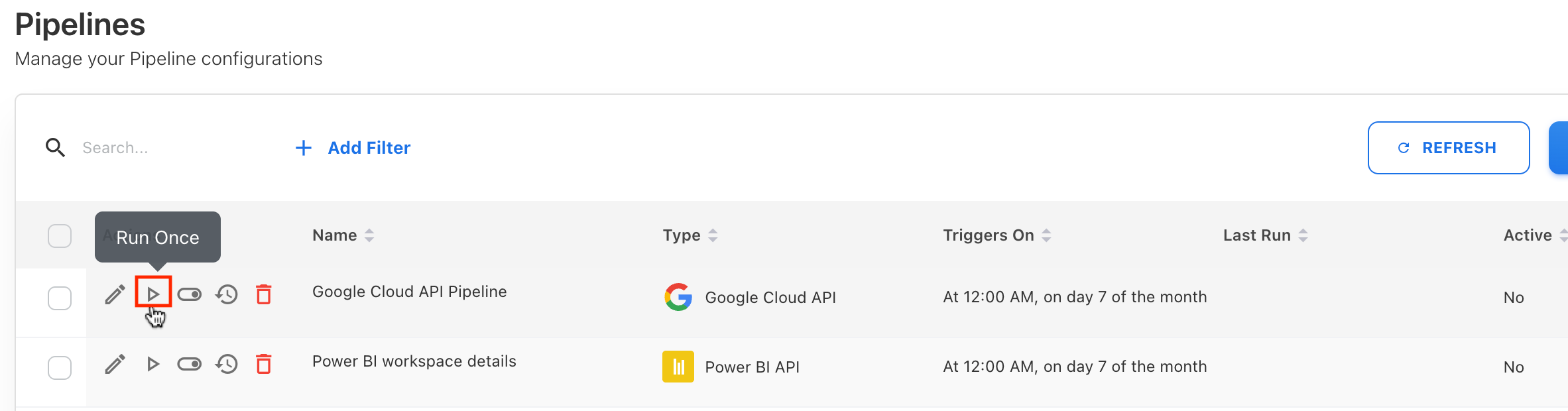
Once activated, the pipeline runs on the scheduled timeframe. You may also use Run Once to trigger an immediate execution.
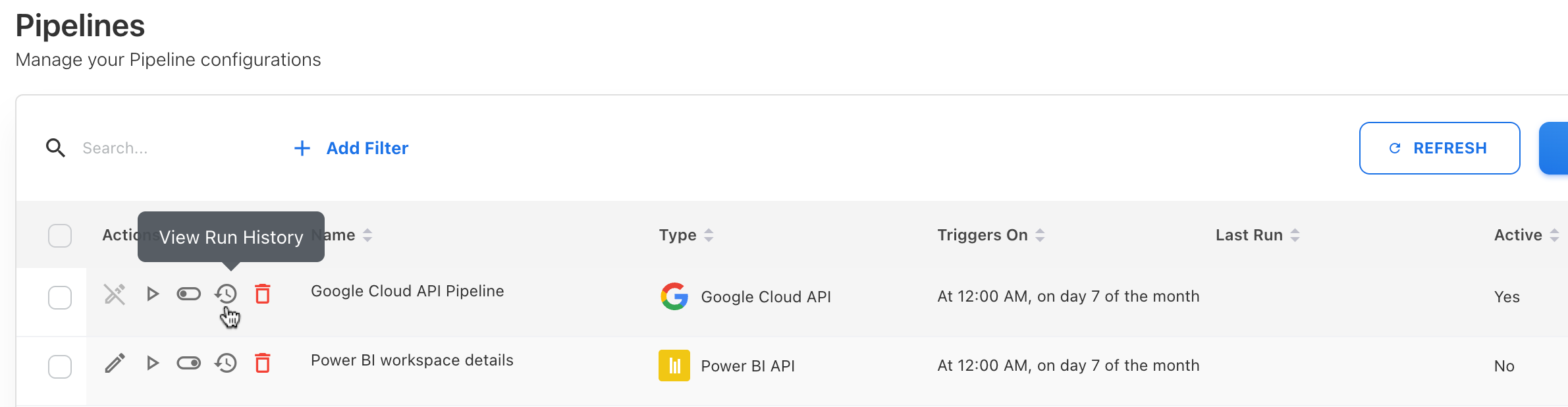
The Yarken application immediately starts fetching data. You can click View Run History icon to check the last running status.
Related content
-
Creating a new Pipeline Connection | Create API Connection using Consent URL
-
Creating a new Pipeline Connection | Create API Connection manually
-
Creating a new Pipeline Connection | Create Cloud Storage Connection (manual only)