
The budget and forecast workflow helps Budget Process Owners and Budget Contributors collaborate on a single planning process. The workflow ensures that budgets and forecasts are created, reviewed, approved, and published in a controlled sequence.
Workflow participants
The workflow includes two main participants:
|
Role |
Responsibility |
|---|---|
|
Budget Process Owner |
Creates, manages, submits, approves, rejects, cancels, resets, and publishes budgets or forecasts. |
|
Budget Contributor |
Reviews and updates assigned cost center budget or forecast items, adds comments, and submits updates for approval. |
Workflow steps
Optional setup: configure additional planning fields and exchange rates
Before creating a budget or forecast, administrators can configure additional planning fields from Settings > Form Configuration. If you need to plan in a foreign currency, enable the Currency field and define planning exchange rates for all required months. For more information refer, Configure forms and currency exchange rates.
1. Create a budget or forecast
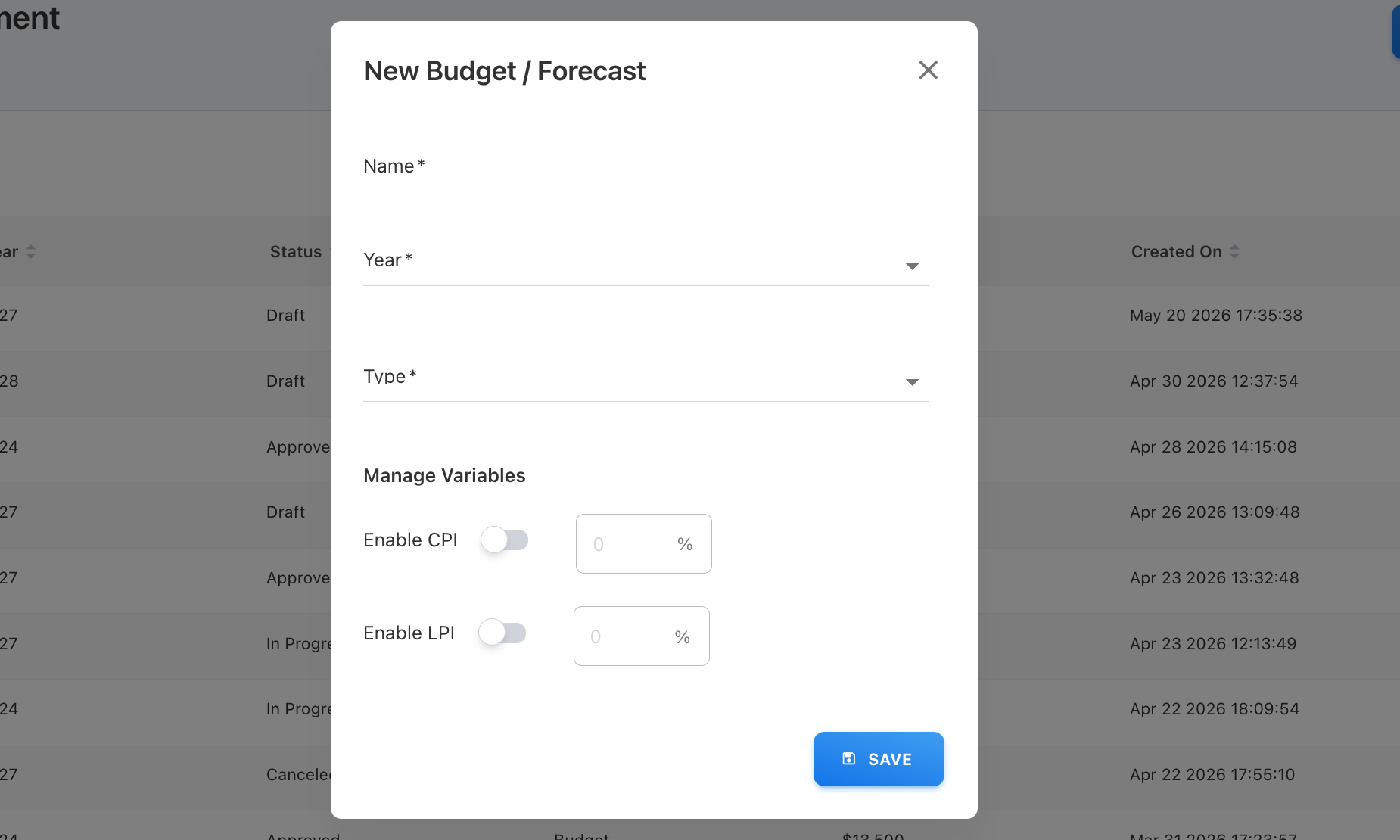
The Budget Process Owner starts the process from Planning > Budgets and Forecast.
The Budget Process Owner selects:
-
Budget or forecast name
-
Fiscal year
-
Planning type: Budget or Forecast
-
CPI or LPI variables, if required
For forecasts, the Budget Process Owner can also select a lock month. Locked months restrict editing for the months from the start of the fiscal year through the selected month.
2. Add planning items
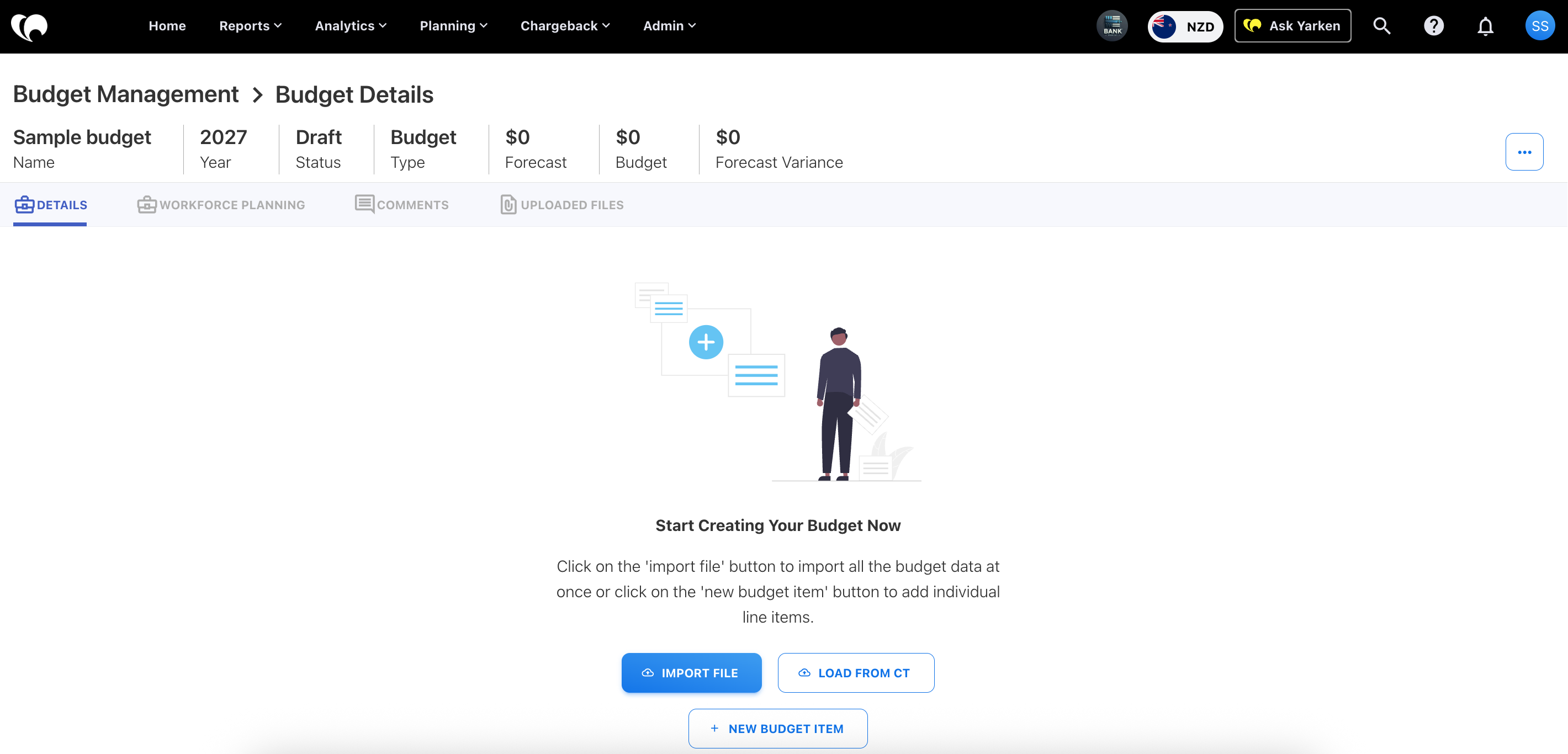
After the plan is created, the Budget Process Owner can add budget or forecast items by:
-
Adding items manually
-
Importing a CSV file
-
Loading values from Cost Transparency
3. Submit to Budget Contributors
After creating the initial plan, the Budget Process Owner submits it to Budget Contributors. Contributors can then review the items assigned to their cost centers.

4. Contributors review and update
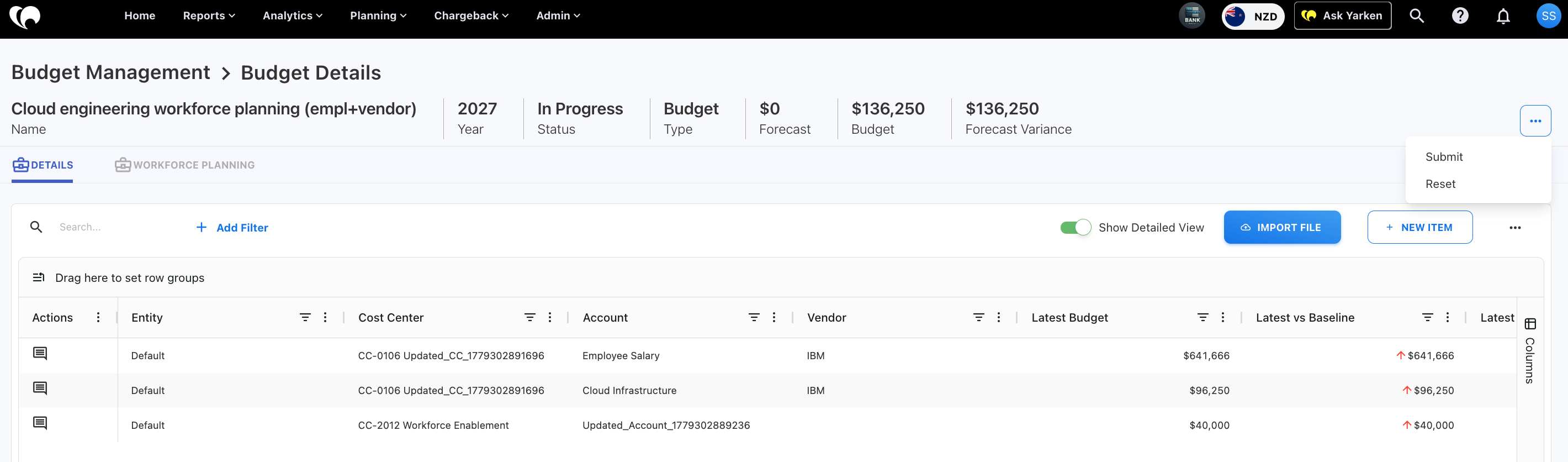
Budget Contributors access assigned items from Planning > Cost Centre Budgets & Forecasts.
They can:
-
Review assigned items
-
Add comments
-
Edit items
-
Add new items
-
Delete or reset items when allowed
-
View monthly details using Show Detailed View
5. Contributors submit for approval
When contributors finish their updates, they submit the budget or forecast back to the Budget Process Owner.
After submission, contributors cannot edit the submitted budget or forecast items unless the plan is returned or reopened as part of the workflow.
6. Budget Process Owner reviews submitted values
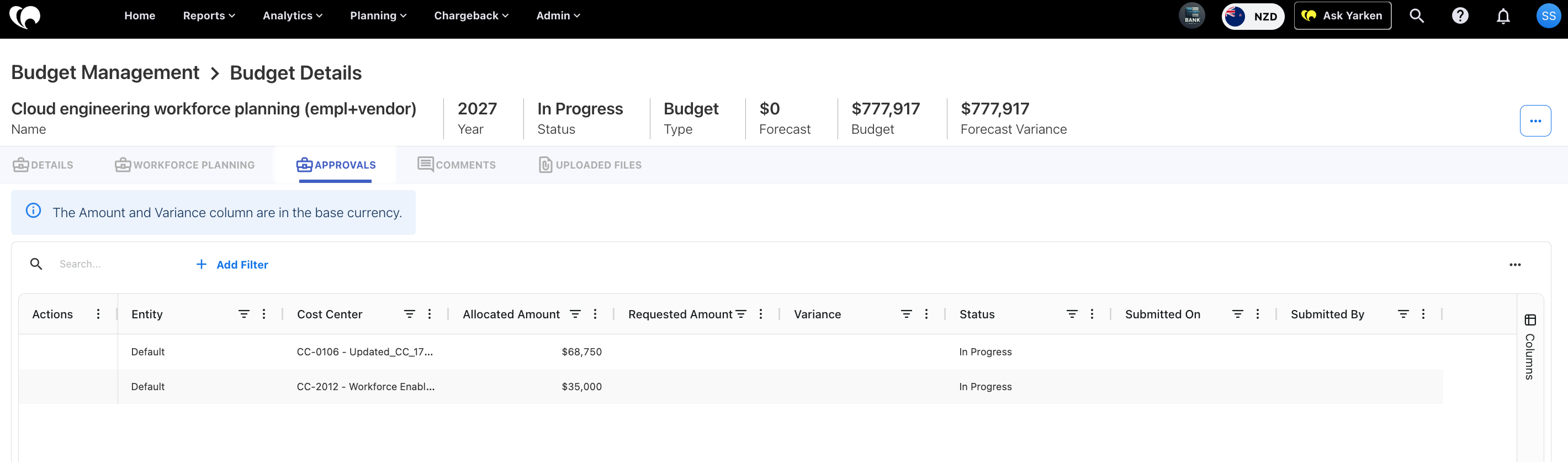
The Budget Process Owner reviews the submitted values on the Budget Details or Forecast Details page.
The requested amount from Budget Contributor appears under the Requested Amount column. It highlights amounts that exceed or fall below the allocated amount.
The Budget Process Owner can approve or reject the budget or forecast.
7. Set as baseline
After approval, the Budget Process Owner can set the budget or forecast as the baseline. This publishes the approved planning values into the Yarken spend model for reporting and variance analysis.
Workflow outcomes
|
Outcome |
Description |
|---|---|
|
Approved and baselined |
The plan is finalized and published to the spend model. |
|
Rejected |
The plan requires updates and must be revised. |
|
Canceled |
The plan is no longer active. |
|
Reset |
Existing line items are removed so planning can restart. |
Next step
Related content: