
Use this article if you are a Budget Process Owner responsible for creating, managing, submitting, approving, or baselining workforce-driven budgets and forecasts.
Budget Process Owner overview
The Budget Process Owner manages the workforce planning lifecycle. This includes creating the budget or forecast, adding workforce planning entries, submitting plans to contributors, reviewing updates, approving or rejecting the plan, and preparing approved data for reporting.
This role has broader access than a Budget Contributor and is responsible for overall planning governance.
Before you create a Workforce Plan
Confirm the following setup is complete:
-
Workforce roles and rates are configured.
-
Roles are mapped to financial accounts.
-
Required cost centers are available.
-
Required entities are available.
-
Required employees or vendors are available.
-
You have Budget Process Owner access.
-
Contributors have access to their assigned cost centers.
Access the Workforce Planning module
Navigation
Go to:
Planning → Budgets and Forecasts
Procedure
-
Open Planning.
-
Select Budgets and Forecasts.
-
Click + NEW BUDGET / FORECAST.
-
In the New Budget / Forecast popup, enter the required details.
-
Click SAVE.
-
Open the Workforce Planning tab.
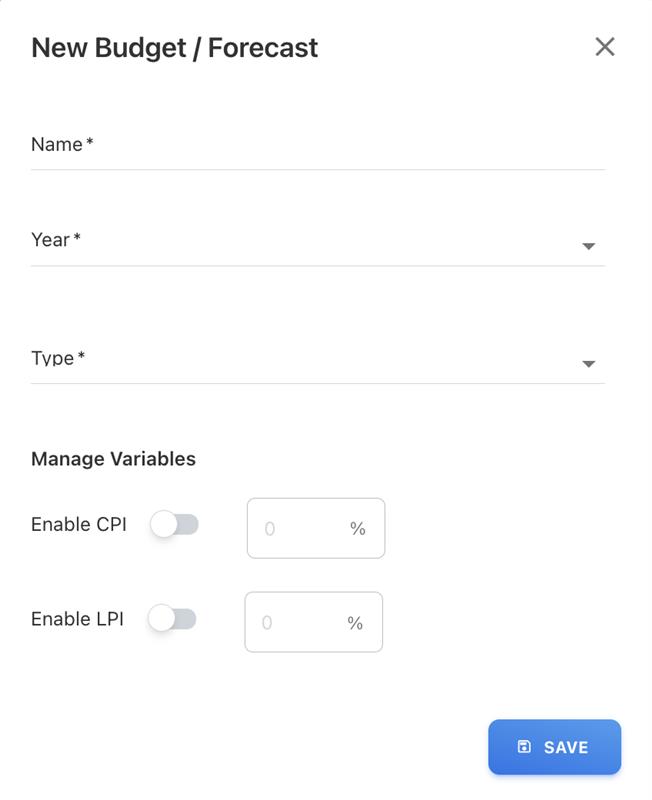
New Budget / Forecast fields
|
Field |
Description |
|---|---|
|
Name |
Name of the budget or forecast plan |
|
Year |
Planning year |
|
Type |
Budget or forecast type configured in Yarken |
|
Planning type |
Select Budget or Forecast |
|
CPI/LPI variables |
Optional variables, if used by your planning process |
After the plan is created, the Workforce Planning tab may initially appear empty. This is expected for a new plan.
Create a workforce entry
A workforce entry is the row where you define the role, ownership, and planning dimensions for a workforce cost.
Procedure
-
Open the Workforce Planning tab.
-
Click in the grid or select the edit icon.
-
Enter the required fields.
-
Save the entry.
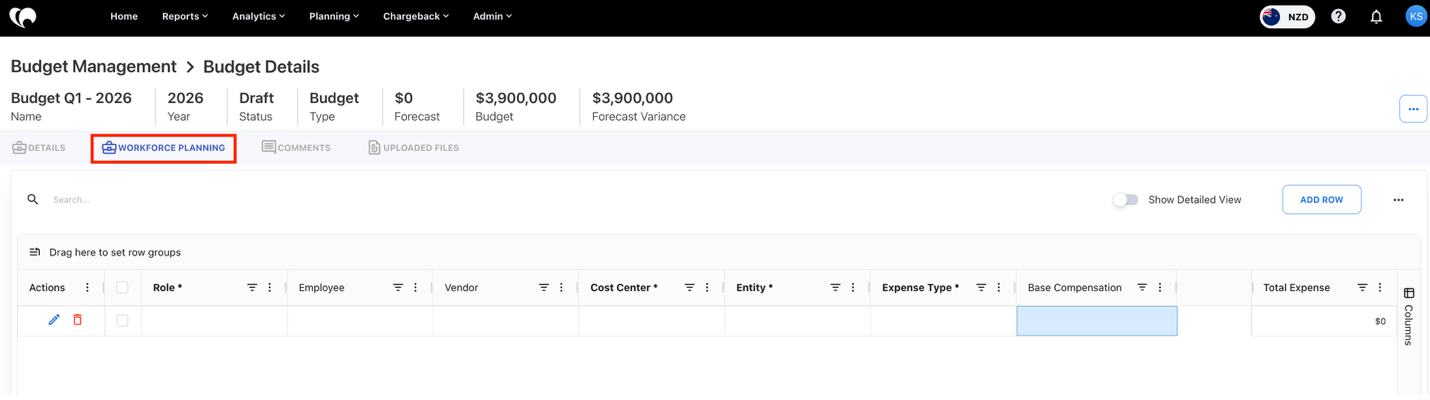

Required fields
|
Field |
Description |
|---|---|
|
Role |
Workforce role being planned |
|
Cost Center |
Cost center responsible for the cost |
|
Entity |
Legal or reporting entity |
|
Expense Type |
CapEx or OpEx |
Depending on your setup, you may also select:
-
Employee
-
Vendor
-
Project
-
SKU
-
Value stream
-
Other extended attributes
After the entry is saved, Yarken applies the selected role’s base compensation and prepares the row for monthly headcount entry.
Add headcount to a workforce entry
Headcount is entered by month in the Workforce Planning grid.
Procedure
-
Open the workforce entry row.
-
Turn on Show Detailed View to display monthly columns.
-
Enter the planned headcount for each month.
-
Review the calculated total expense.
-
Save the plan.

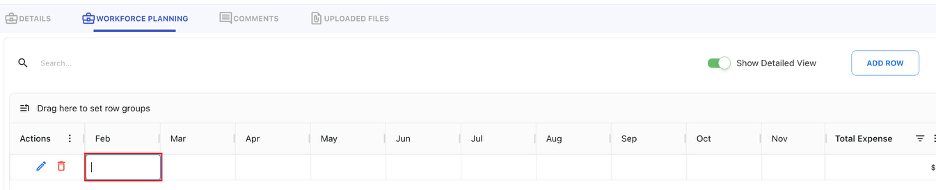
What happens after you enter headcount
Yarken automatically:
-
Calculates workforce cost.
-
Applies account distribution rules.
-
Generates account-level budget or forecast values.
-
Aligns generated values to the selected cost center and entity.
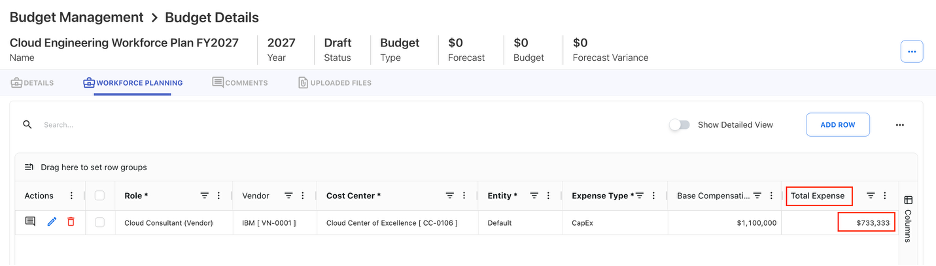
Employee headcount note
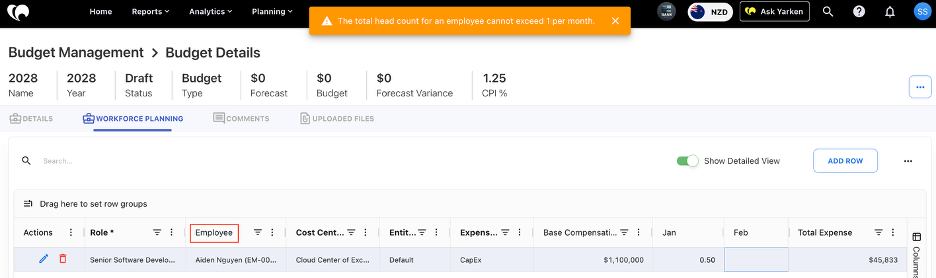
For employee planning, Yarken restricts headcount to a maximum of 1 per employee per month. This prevents the same employee from being counted more than once in the same month.
Vendor headcount note

Vendor planning supports multiple resources per month. This is useful for contractor teams, outsourced work, or project-based staffing.
Review generated financial impact
After entering headcount, review the generated cost impact before submission.
Check:
-
Monthly headcount values.
-
Total expense.
-
Cost center.
-
Entity.
-
Expense type.
-
Account distribution.
-
Generated budget or forecast values.
If generated values look incorrect, review the selected role, role rate, monthly headcount, and account mapping.
Submit a Workforce Plan
When the plan is ready for contributor review, submit it through the plan actions menu.
Procedure
-
Review all workforce entries.
-
Open the three-dot actions menu.
-
Select Submit.
-
Confirm submission.

After submission, the plan is sent to the Budget Contributor or Cost Center Owner for review.
Editing may be disabled for the Budget Process Owner after submission, depending on workflow state. This helps contributors review a consistent version of the plan.
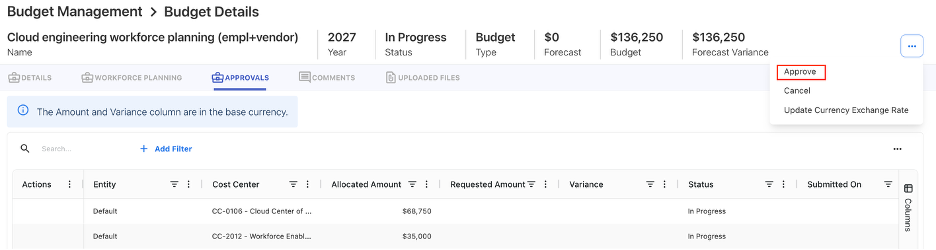
Approve or reject a Budget or Forecast
After contributors submit their review, the Budget Process Owner reviews the plan.
Approve the plan when
-
Headcount assumptions are acceptable.
-
Cost center ownership is correct.
-
Entity and expense type are correct.
-
Account-level financial impact is correct.
-
Comments or changes have been addressed.
Reject the plan when
-
Headcount needs correction.
-
Employee or vendor assignment is wrong.
-
Cost center or entity is incorrect.
-
Account distribution does not match expected output.
-
The contributor needs to make further updates.
When rejecting a plan, add a clear comment explaining what needs to be changed. This reduces confusion and speeds up resubmission.
Set baseline budget or forecast
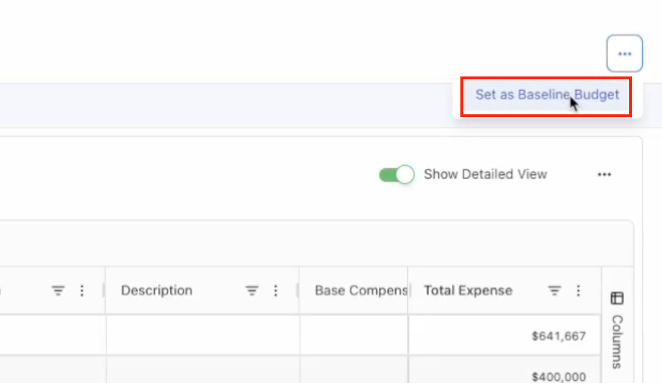
After a budget or forecast has been approved, the Budget Process Owner may set it as the baseline, depending on the organization’s planning process.
A baseline represents the approved planning position used for comparison, reporting, and future variance analysis.
Before setting a baseline, confirm:
-
The plan is approved.
-
All contributor changes are included.
-
Workforce-generated budget values are correct.
-
Account and cost center outputs have been reviewed.
-
The plan is ready for reporting use.
Common issues for Budget Process Owners
The Workforce Planning tab is empty
This is normal for a new budget or forecast. Create a workforce entry to begin planning.
The selected role does not show the expected rate
Ask an Admin to review the role configuration.
Generated budget values are missing
Check whether the selected role has account mapping.
Contributor cannot edit the plan
Review workflow status, cost center assignment, and contributor permissions.
Budget entries cannot be edited directly
Generated budget entries are controlled by Workforce Planning. Update the workforce entry or headcount instead.
Next step
Configure Workforce Planning roles and account mappings
Related articles
Review Workforce Plans as a Budget Contributor
Workforce Planning cost calculations