
Use this article if you are a Budget Contributor or Cost Center Owner responsible for reviewing workforce plans assigned to your cost center.
Budget Contributor overview
Budget Contributors review workforce plans assigned by the Budget Process Owner. In many organizations, the contributor is the Cost Center Owner or a manager responsible for validating headcount and workforce assumptions.
The contributor’s role is to check whether the plan reflects expected staffing needs and submit it back for approval.
Access assigned Workforce Plans
Navigation
Go to:
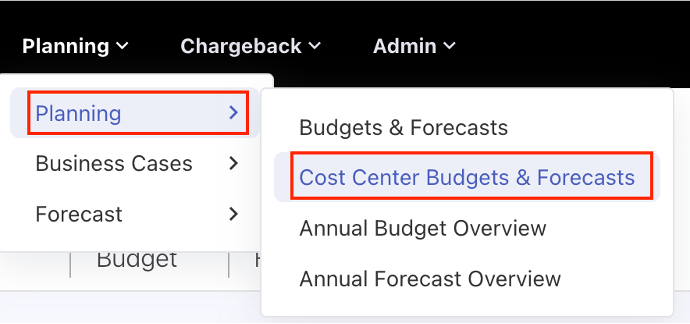
Planning → Cost Centre Budgets & Forecasts
Procedure
-
Open Planning.
-
Select Cost Centre Budgets & Forecasts.
-
Find the assigned budget or forecast.
-
Click the budget or forecast name.
-
Review the workforce and financial items assigned to your cost center.
What to review
Before submitting the plan, review the following:
Headcount assumptions
Check whether monthly headcount values match expected staffing needs.
Review:
-
Planned hires
-
Contractor ramp-up
-
Partial allocations
-
Project staffing periods
-
Full-time versus part-time allocations
Role selection
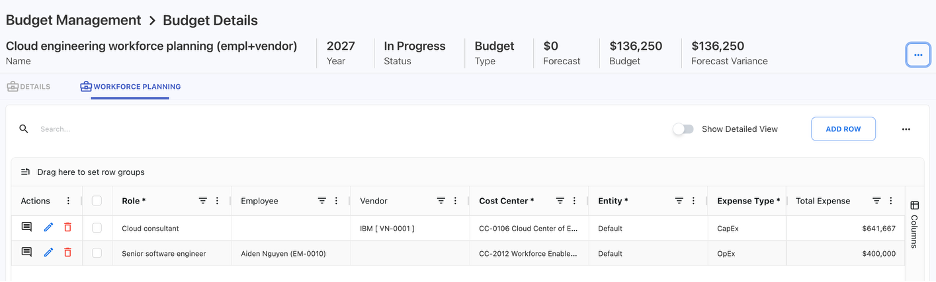
Confirm that the selected role represents the correct type of workforce.
For example, check whether a Senior Developer role should be used instead of a standard Developer role.
Employee or vendor assignment
Confirm whether the entry is planned against the correct employee or vendor.
Cost center
Confirm the cost belongs to your cost center.
Entity
Confirm the correct entity is selected for reporting and access control.
Expense type
Confirm whether the cost should be CapEx or OpEx according to your finance policy.
Financial impact
Review the total expense and generated account-level values. If the amount looks wrong, check headcount first, then ask the Budget Process Owner or Admin to review role rates and account mappings.
Edit a Workforce Plan
Depending on permissions and workflow status, you may be able to edit assigned plan items.
Typical editable items may include:
-
Monthly headcount
-
Comments
-
Certain planning dimensions, if permitted
Some values may be system controlled, such as calculated cost and generated budget entries.
If a calculated value is incorrect, update the planning input rather than the generated financial output.
Add comments
Use comments to explain assumptions, raise questions, or request changes.
Good comments are specific and action-oriented.
Examples
-
“March contractor headcount increased from 2 to 4 due to project ramp-up.”
-
“Please confirm whether this role should be CapEx or OpEx.”
-
“Rate looks higher than expected for this role. Please review the role setup.”
Comments are visible to users with access to the cost center budget, including the Budget Process Owner.
Submit the Budget or Forecast for approval
When the review is complete, submit the plan back to the Budget Process Owner.
Procedure
-
Review all assigned items.
-
Add any required comments.
-
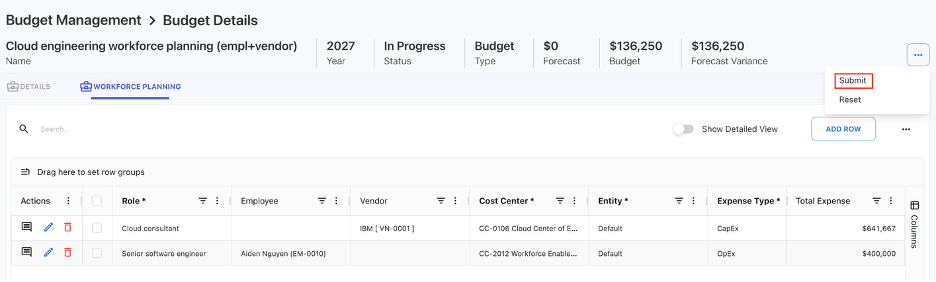
Open the three-dot actions menu.
-
Click Submit.
-
Confirm submission.
After submission, you cannot edit the submitted budget or forecast items unless the workflow returns the plan to you for changes.
Contributor review checklist
Before submitting, confirm:
- Headcount is correct for each month.
- Role selection is correct.
- Employee or vendor assignment is correct.
- Cost center is correct.
- Entity is correct.
- Expense type is correct.
- Total expense looks reasonable.
- Any required comments have been added.
- The plan is ready for Budget Process Owner approval.
Common contributor issues
I cannot see the assigned plan
Check whether the plan has been submitted to you and whether you have access to the assigned cost center.
I cannot edit a plan
The plan may be in a workflow state that does not allow editing, or your role may only allow review.
The cost amount looks wrong
Check the entered headcount first. If headcount is correct, ask the Budget Process Owner or Admin to check the role rate and account mapping.
I submitted the plan but need to make another change
Contact the Budget Process Owner. They may need to return or reject the plan for updates.
Next step
Create and manage Workforce Plans
Related articles
Workforce Planning cost calculations