
Use this article to understand the full Workforce Planning lifecycle before creating or reviewing a workforce plan.
Workforce Planning process overview
Workforce Planning follows a controlled lifecycle. The process starts with Admin configuration and ends when approved plans are published for reporting and analysis.
The lifecycle is:
-
Configure roles and rates.
-
Map roles to financial accounts.
-
Create a budget or forecast plan.
-
Add workforce entries.
-
Enter monthly headcount.
-
Generate budget or forecast values.
-
Submit for review.
-
Review and collaborate.
-
Approve or reject.
10. Publish for reporting.
Each stage builds on the previous stage. If setup is incomplete, planning users may not see the correct roles, rates, accounts, or generated values.
Stage 1: Admin configuration
Before users can create workforce plans, Admins configure the planning foundation.
Admins define:
-
Workforce roles
-
Annual rates or base compensation
-
Role descriptions
-
Role-to-account mappings
-
Distribution percentages
This setup controls how cost is calculated and where financial values are posted.
Why this stage matters
A workforce plan is only as accurate as its setup. If role rates are incorrect or accounts are missing, generated budgets may not reflect the intended financial structure.
Stage 2: Plan creation
A Budget Process Owner creates a new budget or forecast and opens the Workforce Planning tab.
The Budget Process Owner defines the planning context, such as:
-
Budget or forecast name
-
Year
-
Type
-
Planning type
-
Optional variables such as CPI and LPI, where applicable
After the plan is saved, the Workforce Planning tab becomes available for workforce entries.
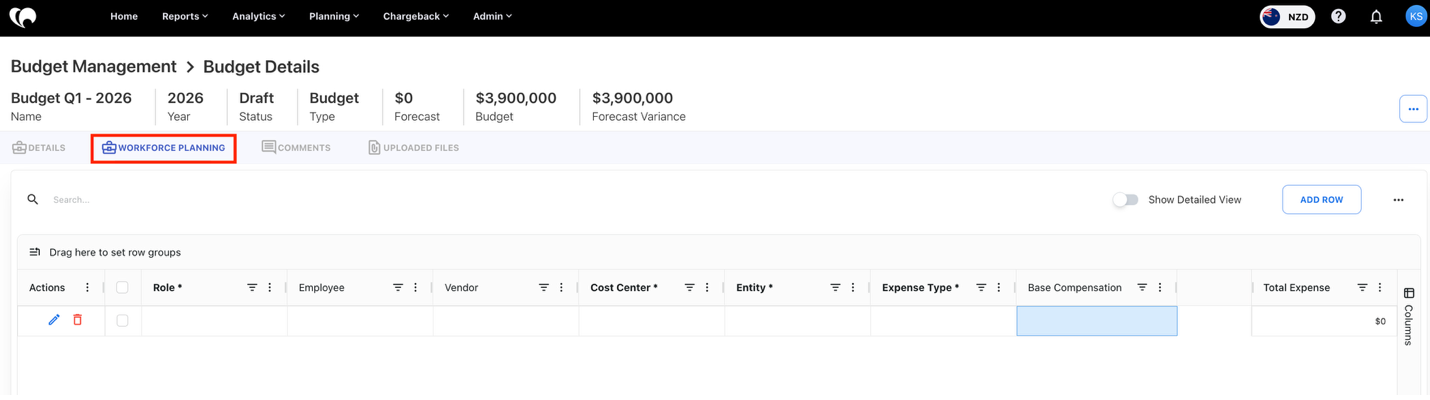
Stage 3: Workforce entry creation
A workforce entry represents a planned workforce cost line.
The Budget Process Owner selects the required fields, including:
-
Role
-
Cost center
-
Entity
-
Expense type
-
Employee or vendor, where applicable
Once the entry is saved, Yarken applies the selected role’s base compensation and prepares the row for monthly headcount input.
Stage 4: Monthly headcount entry
Headcount is entered by month. The user can open the detailed view to see monthly columns and enter the number of resources planned for each month.
As headcount is entered, Yarken calculates workforce cost and generates related financial values based on configuration.
Example
If a role has an annual base compensation of 1,200,000 and the user enters 1 headcount for March:
-
Monthly cost = 1,200,000 ÷ 12 = 100,000
-
March workforce cost = 100,000 × 1 = 100,000
Stage 5: Submission for review
When the Budget Process Owner is ready, the plan is submitted to Budget Contributors or Cost Center Owners for review.
After submission, editing may be restricted for the Budget Process Owner depending on workflow state. This ensures that contributors review a stable version of the plan.
Stage 6: Contributor review and collaboration
Budget Contributors review the assigned budget or forecast from the Cost Centre Budgets & Forecasts area.
Contributors can:
-
Review workforce entries for their cost centers.
-
Validate monthly headcount.
-
Check employee or vendor assumptions.
-
Add comments.
-
Edit permitted items.
-
Submit the plan back for approval.
Comments help maintain context and reduce back-and-forth outside the system.
Stage 7: Approval or rejection
The Budget Process Owner reviews submitted plans and decides whether to approve or reject them.
Approve the plan when:
-
Headcount assumptions are valid.
-
Cost center ownership is correct.
-
Account-level impact is acceptable.
-
Budget or forecast values align with planning goals.
Reject the plan when:
-
Headcount needs correction.
-
Cost distribution is wrong.
-
Cost center or entity is incorrect.
-
The contributor needs to revise assumptions.
Stage 8: Publishing and reporting
After approval, the plan can be published to the selected model for reporting and analysis.
Published workforce data can support:
-
Financial reports
-
Dashboards
-
Budget versus forecast analysis
-
Workforce cost reporting
-
Cost center review
-
Account-level analysis
Status tracking
Workforce Planning uses statuses to show where a plan sits in the workflow.
|
Status |
Meaning |
Typical user action |
|---|---|---|
|
Draft |
Plan is being created |
Add or edit workforce entries |
|
In Progress |
Plan is under review |
Contributors review and submit updates |
|
Approved |
Plan is finalized |
Publish or use for reporting |
|
Canceled |
Plan is discontinued |
No further planning action |
Status names and available actions may vary based on configuration and permissions.
Roles and responsibilities
Budget Process Owner
The Budget Process Owner manages the plan lifecycle.
Responsibilities include:
-
Creating budgets or forecasts.
-
Adding workforce planning entries.
-
Assigning or routing plans to contributors.
-
Reviewing submitted changes.
-
Approving or rejecting plans.
-
Setting baselines where required.
-
Publishing approved plans.
Budget Contributor or Cost Center Owner
The Budget Contributor reviews assigned plans from a cost center perspective.
Responsibilities include:
-
Reviewing workforce assumptions.
-
Updating headcount where permitted.
-
Adding comments.
-
Validating cost center-level impact.
-
Submitting the plan for final approval.
Workforce Planning Workflow (Flowchart)
.png?cb=c8d2e5480bcce3e272d375696b3dffbb)
Next step
Create and manage Workforce Plans
Related articles
Configure Workforce Planning roles and account mappings
Create and manage Workforce Plans
Review Workforce Plans as a Budget Contributor