
Use this article before creating a workforce plan to confirm that configuration, data, and access are ready.
Before you begin
Workforce Planning depends on setup across Admin, Master Data, and Budget/Forecast workflows. Before users begin planning, confirm that the required roles, financial dimensions, and access permissions are available.
If setup is incomplete, users may be able to open the Workforce Planning tab but may not be able to select the correct role, cost center, entity, or account mapping.
Prerequisites
Before creating a workforce plan, confirm the following:
Financial dimensions are configured
The following dimensions should be available in Yarken:
-
Accounts
-
Cost centers
-
Entities
-
Expense types
-
Employees, where employee planning is required
-
Vendors, where vendor planning is required
-
Extended attributes, where used
Workforce roles are configured
Each planned workforce role should exist in Workforce Planning settings.
A role should include:
-
Role code
-
Role name
-
Optional description
-
Annual rate or base compensation
Role-to-account mappings are configured
Each role should be mapped to the financial accounts that should receive generated budget or forecast values.
Each mapping should include:
-
Role
-
Account
-
Distribution percentage
User access is assigned
Users should have the correct role for the action they need to perform.
|
User type |
Required access |
|---|---|
|
Admin |
Configure roles, rates, and account mapping |
|
Budget Process Owner |
Create and manage workforce plans |
|
Budget Contributor |
Review and submit assigned plans |
Where Workforce Planning is located
Budget Process Owners can access Workforce Planning through:
Planning → Budgets and Forecasts → New Budget / Forecast → Workforce Planning
Budget Contributors can access assigned plans through:
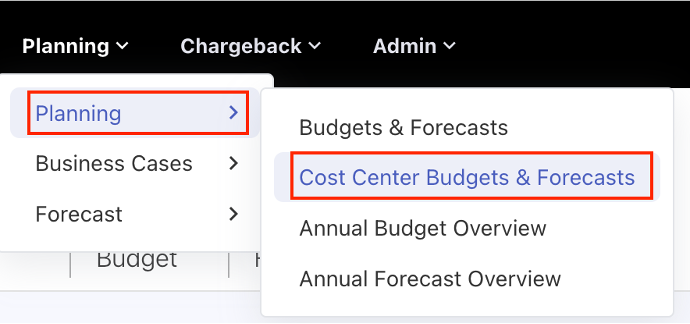
Planning → Cost Centre Budgets & Forecasts
What users should know before entering headcount
Before entering monthly headcount, users should understand:
-
The role rate drives cost calculation.
-
Headcount is entered by month.
-
Employee planning is capped at 1 headcount per employee per month.
-
Vendor planning can support multiple resources per month.
-
Account distributions are configured by Admins.
-
Budget entries are generated automatically.
Generated budget entries should be updated from Workforce Planning rather than edited directly.
Recommended setup sequence
Follow this order for a clean setup:
-
Configure required financial dimensions.
-
Configure workforce roles and rates.
-
Map roles to accounts.
-
Confirm user access.
-
Create a budget or forecast.
-
Open Workforce Planning.
-
Create workforce entries.
-
Enter monthly headcount.
-
Review generated budget values.
10. Submit for review.
Next step
Configure Workforce Planning: Create Roles, Rates, and Account Mappings
Related articles
Create and manage Workforce Plans
Review Workforce Plans as a Budget Contributor