
Ways to allocate spend to Consumers
You can start Consumer allocation using one of the following methods:
-
Add mapping file
-
Copy mapping from another month
-
Map manually
Add Consumer mapping file
This strategy involves a process of uploading a mapping file. You can use the Consumer Mapping template file from Data Dictionary.
Prerequisites
Before uploading, ensure your file includes values in the mandatory columns:
-
Consumer ID
-
Offering ID
-
Usage
Procedure
-
Navigate to Consumers.
-
Select the target month.
-
Click the ellipsis (… ) menu.
-
Select Add Mapping.
-
Upload the mapping file (
.xlsxor.csv). -
Map the required fields in the upload screen.
-
Review the mapping summary.
-
Click FINISH to apply the mapping.
Once uploaded, the mapping is applied to the selected month.
Copy Consumer mapping from another month
Use this option to reuse existing Consumer mappings.
Procedure
-
Navigate to Consumers.
-
Select the target month.
-
Click the ellipsis (… ) menu.
-
Select Add Mapping.
-
Select Copy mapping from another month.
-
Choose the source fiscal year and month.
-
Click COPY MAPPING.
Note: Copying mappings replaces existing Solution mappings for the target month.
Map consumer manually
The manual mapping involves assigning spend directly from Solutions to the appropriate Consumers without relying on file uploads. You can use manual mapping when you find any unmapped cost that does not fit into the predefined rules.
The spend allocation to Consumer is carried out using either:
-
Single consumer - Allocate spend to one consumer at a time.
-
Multiple consumer - Allocate spend to multiple consumers simultaneously.
The application also allows you to distribute the spend to Employees asset.
Single Consumer allocation
Single Consumer allocation is used when the selected spend should be mapped to one Consumer at a time.
Procedure
To map manually,
-
Select a month you want to allocate the spend and click ellipsis (…) menu.
-
Select Add Mapping.
-
Choose Map manually. A list of solution offerings appears.
-
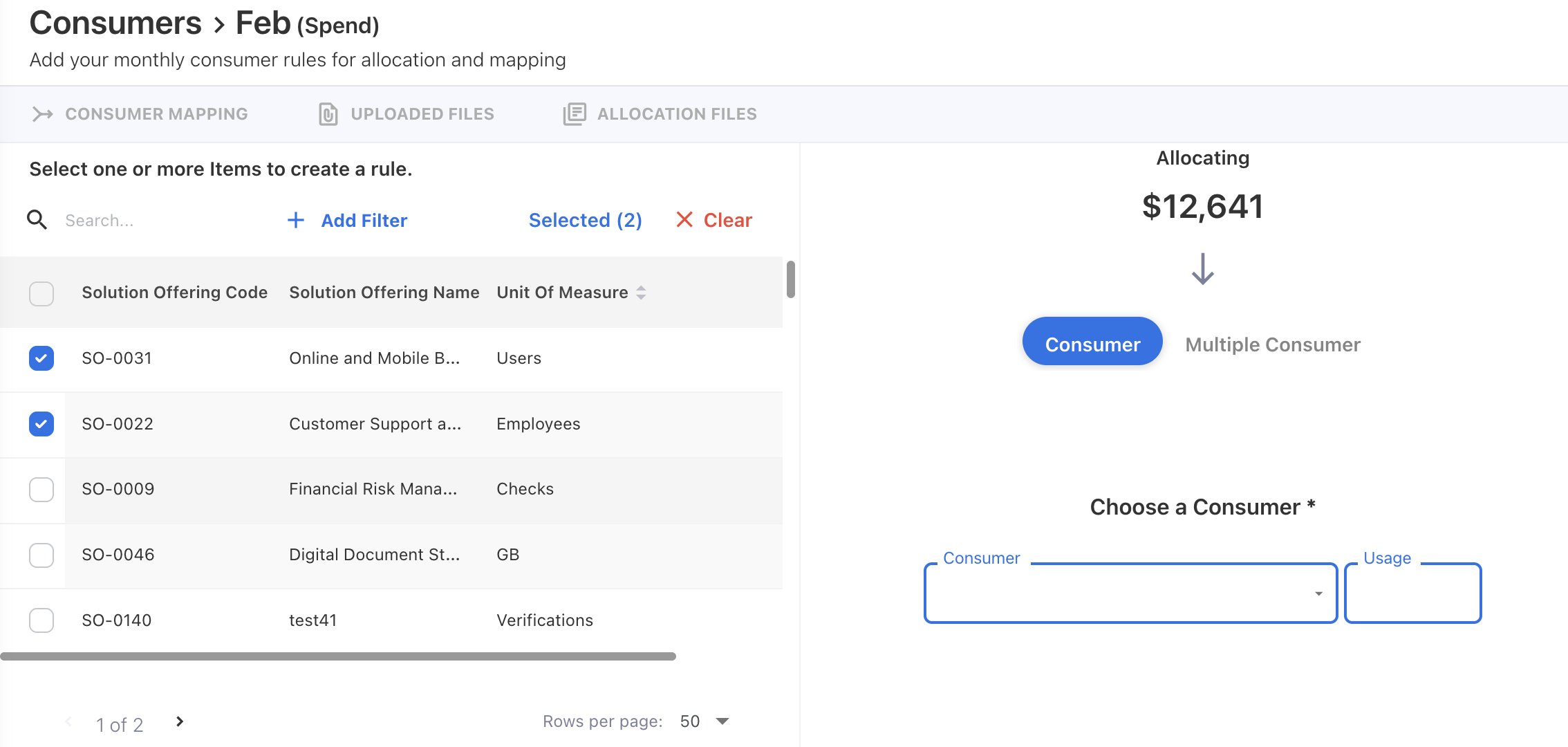
Select one or more offerings that you want to allocate to consumers. Once rows are selected, an allocation wizard opens on the right.
-
Select Consumer from the list.
-
Add Usage.
-
(Optional) If you want to further allocate spend to Employees asset, choose Distribute to Asset and define the Splitting.
-
Click SAVE RULES.
Multiple Consumer allocation
Multi-Consumer allocation is used when selected Solution spend must be split across more than one Consumers.
Yarken supports two ways to perform manual multi-Consumer allocation:
-
Add Consumers manually and assign portions
-
Add Consumers using an allocation file
Add spend to multiple Consumers manually
Procedure
-
Select a month you want to allocate the spend and click ellipsis (…) menu.
-
Select Add Mapping.
-
Choose Map manually. A list of solution offerings appears.
-
Select one or more offerings that you want to allocate to consumers. Once rows are selected, an allocation wizard opens on the right.
-
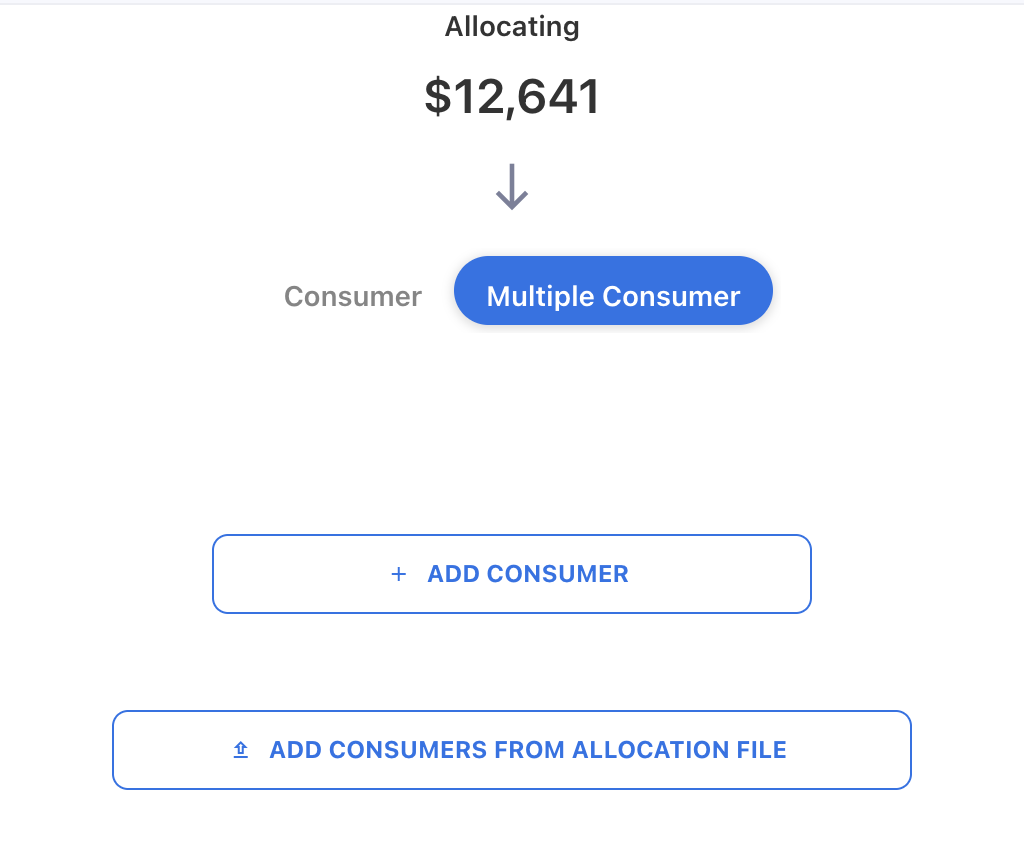
In the allocation panel on the right, select Multiple Consumer.
-
Click + ADD CONSUMER.
-
In the Add Consumer dialog:
-
Select the Consumer.
-
Enter the Usage for that Consumer.
-
(Optional) If you want to further allocate spend to Employees asset, choose Distribute to Asset and define the Splitting.
-
-
Click SAVE RULE.
-
Click SAVE RULES to complete the multi-Tower allocation.
Add multiple Towers manually using allocation file
Before adding towers using allocation file, download the Consumer Mapping template and add required fields.
Prerequisites
Before uploading allocation file,
-
Add the value in the mandatory fields:
-
Offering ID
-
Consumer ID
-
Procedure
-
Select a month you want to allocate the spend and click ellipsis (…) menu.
-
Select Add Mapping.
-
Choose Map manually. A list of solution offerings appears.
-
Select one or more offerings that you want to allocate to consumers. Once rows are selected, an allocation wizard opens on the right.
-
In the allocation panel on the right, select Multiple Consumers.
-
Click + ADD CONSUMERS FROM ALLOCATION FILE.
-
Upload the allocation file.
-
On the Data Preview screen, click NEXT.
-
Click NEXT to apply the allocation.
After the allocation file is uploaded, you can review the applied allocation mapping and the uploaded file details from the ALLOCATION FILES tab.
Manage Consumer mapping
Once Consumer mapping is created for a month, you can manage it to review, reuse, modify, or remove allocation logic.
Consumer mapping is month-specific and any changes apply only to the selected month.
View Consumer mapping
Viewing Consumer mapping allows you to review how solution spend is mapped to Consumers.
Procedure
-
Navigate to Consumers.
-
Select the required month.
-
Click the ellipsis (… ) menu.
-
Select View Mapping.
The CONSUMER MAPPING tab displays:
-
Solution Offering
-
Consumer ID
-
Consumer Name
-
Amount
-
Usage
-
Solution Amount
-
Rule Name
Copy Consumer mapping to another year
Use this option to copy the existing mapping from source year and month to a specific year. Consumer mapping will be copied to all months of the selected year.
Procedure
-
Navigate to Consumers.
-
Select the source month containing the desired mapping.
-
Click the ellipsis (… ) menu.
-
Select Copy Mapping To.
-
Choose the target fiscal year.
-
Click COPY MAPPING.
Note: Copying mapping to another year replaces existing Solution rules of the selected year.
Download Consumer mapping
Downloading Consumer mappings allows you to export mapping details for review or audit.
Procedure
-
Navigate to Consumers.
-
Select the required month.
-
Click the ellipsis (… ) menu.
-
Select Download Mapping.
The downloaded file includes solutions-to-consumer mappings and allocation portions.
Delete Consumer mapping
Deleting Consumer mapping removes all Consumer allocations for the selected month.
Procedure
-
Navigate to Consumers.
-
Select the required month.
-
Click the ellipsis (… ) menu.
-
Select Delete Mapping.
-
Confirm the deletion.
Notes:
-
Deleting mappings clears Consumer-level allocations.
-
This action does not affect upstream Solutions allocations.
-
Changes apply only to the selected month.
Related content