
Managing Cost Pool rules
View Cost Pool rules
You can view both allocated and unallocated spend for each cost pool, along with the allocation percentage, on the monthly tiles.
Before making any changes, review the existing rules and mappings to understand how spend is currently allocated. This helps you assess impact and avoid unintended changes.
To view,
-
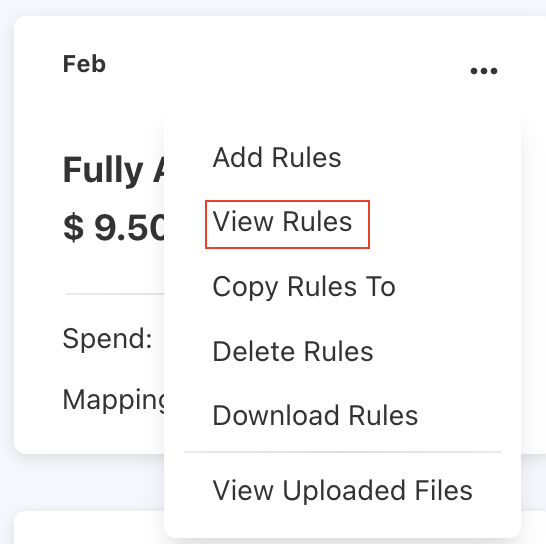
Select a month you want to view the rules and click ellipsis (…) menu.
-
Select View Rules.
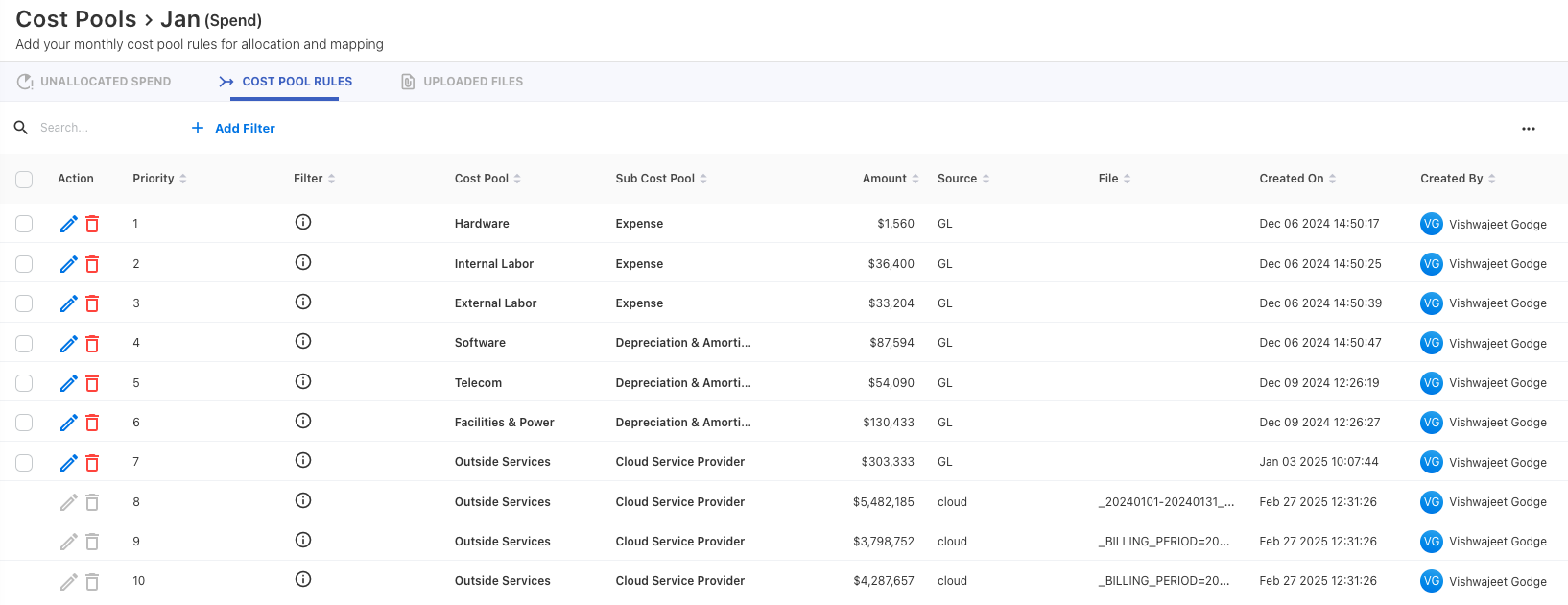
A COST POOL RULES tab opens. You can view the rule details including allocated amount, rule condition, priority, and creation history. Click on the row to view the General Ledger Transactions. The rules list also displays an Enabled status indicator for each rule, showing whether it is active or disabled.
-
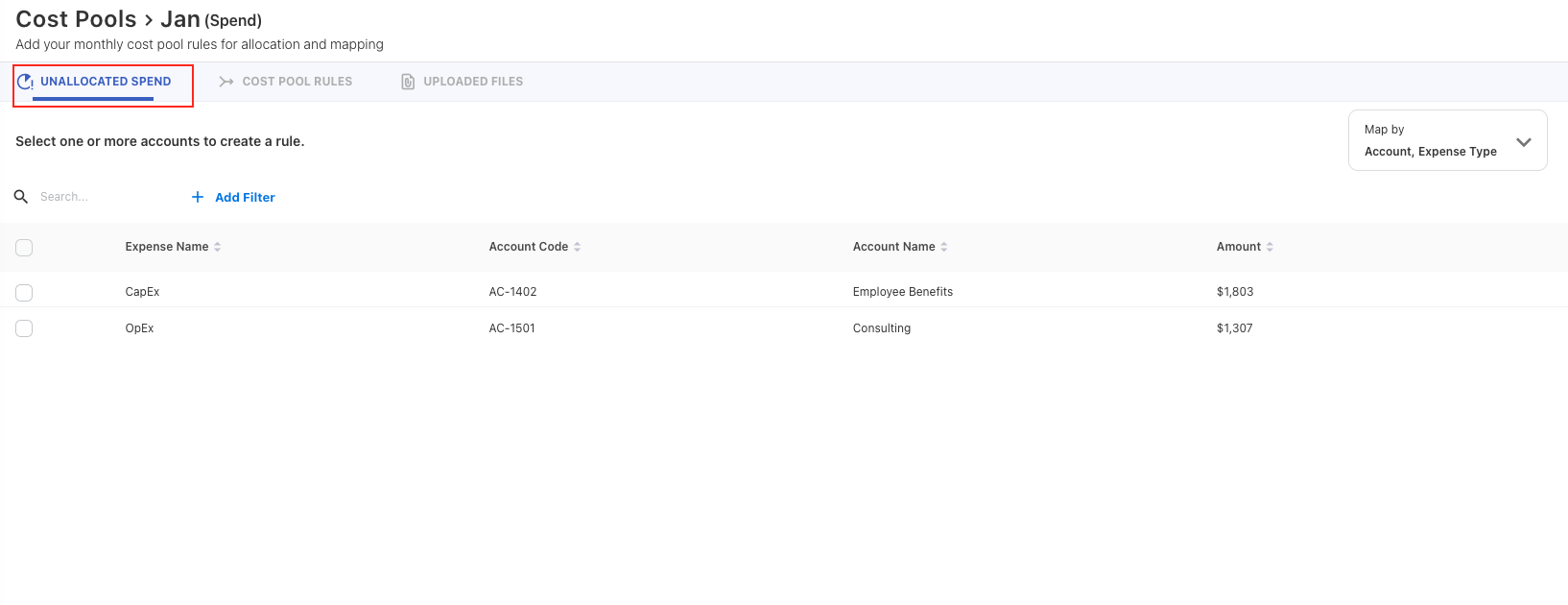
To view unallocated spend, switch to UNALLOCATED SPEND tab and select your preferred strategy. You may change the strategy from to view unallocated spend on other columns.
Editing Cost Pool rules
Notes:
-
Only rules created using GL as the source can be edited.
-
Auto-created rules from uploaded budget or forecast files cannot be edited. To remove these entries, edit the source entries from the Expenses.
-
Rules published from the cloud, budget, or forecast are not editable.
If you need to update or refine the mappings, follow the below steps.
-
Select a month you want to edit the rules and click ellipsis (…) menu.
-
Select View Rules.
-
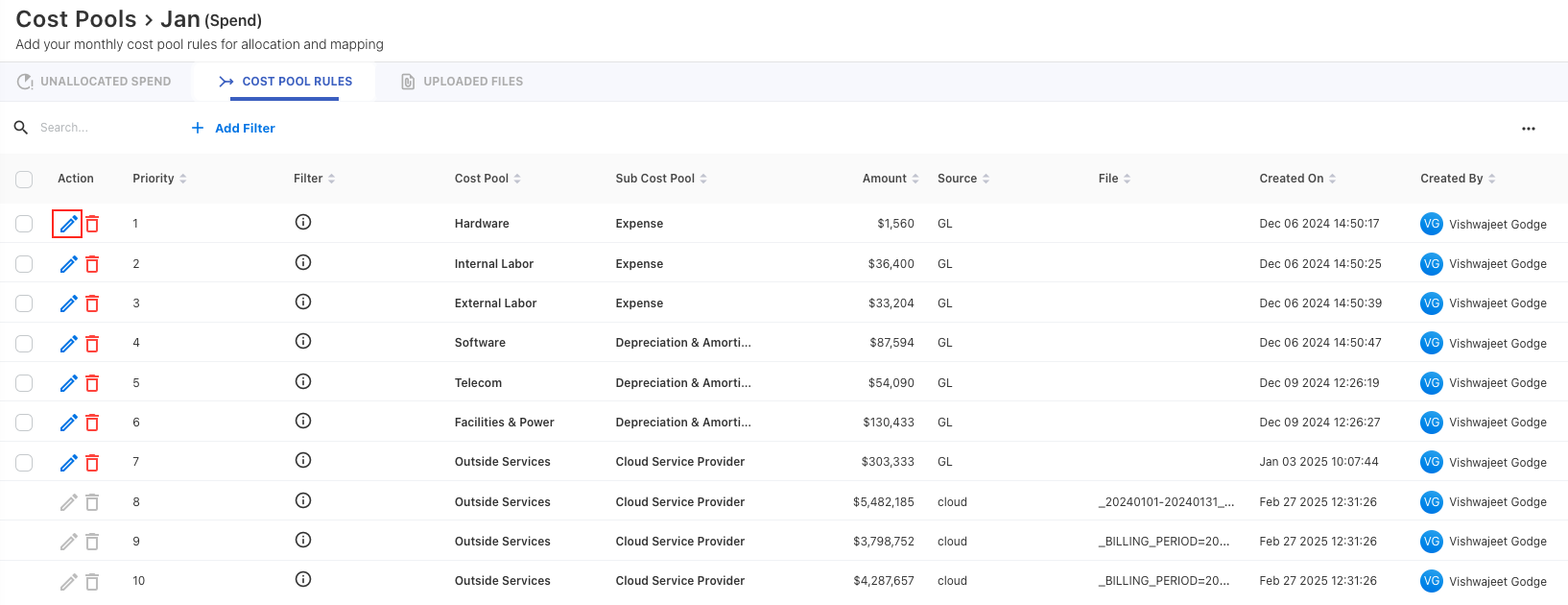
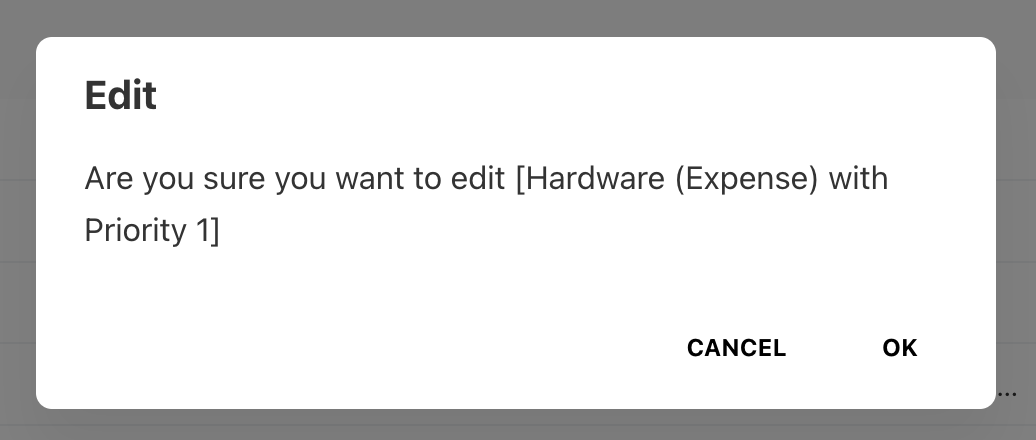
On the COST POOL RULES tab, locate the mapping you want to edit and click edit icon under Action column. An edit confirmation popup appears.
-
Click OK to edit.
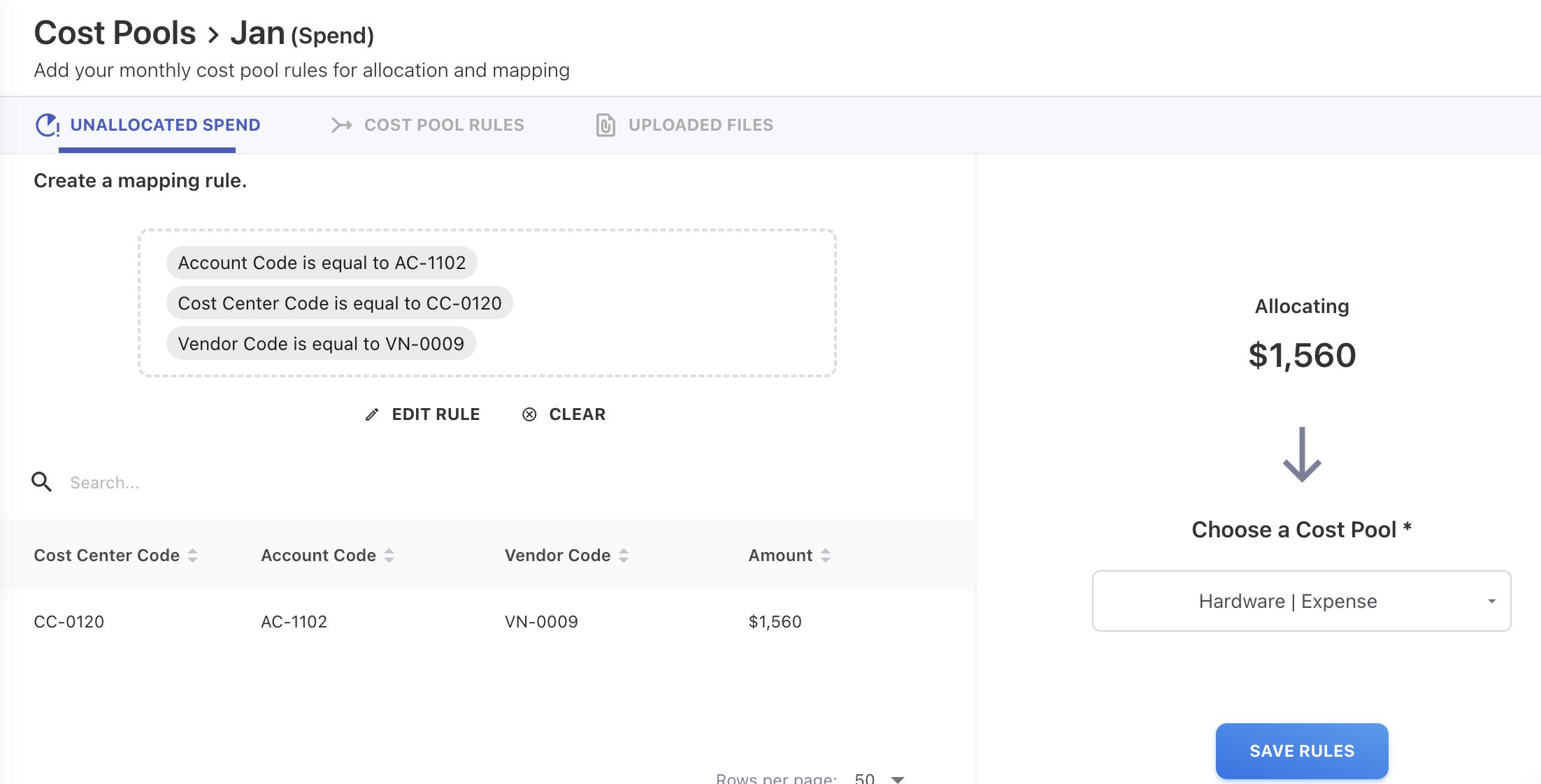
The rule opens in the UNALLOCATED SPEND tab.
-
To edit the rule, click EDIT RULE button. A Conditions for Cost Pool edit popup appears. You can modify, add or delete the rule conditions. Click SAVE button to save the changes on the popup.
-
(Optional) To change the cost pool, click dropdown arrow and select the cost pool from list.
-
Click SAVE RULES to save the changes.
A Rules saved successfully message appears.
Sorting Cost Pool rules
Sorting the mapping rules allows you to change the execution order of the rule. You can define the priority and specify which rules will be executed in which order.
To sort,
-
Select a month you want to edit the rules and click ellipsis (…) menu.
-
Select View Rules.
-
On the COST POOL RULES tab, click ellipsis (…) menu at upper-right corner and select Sort.
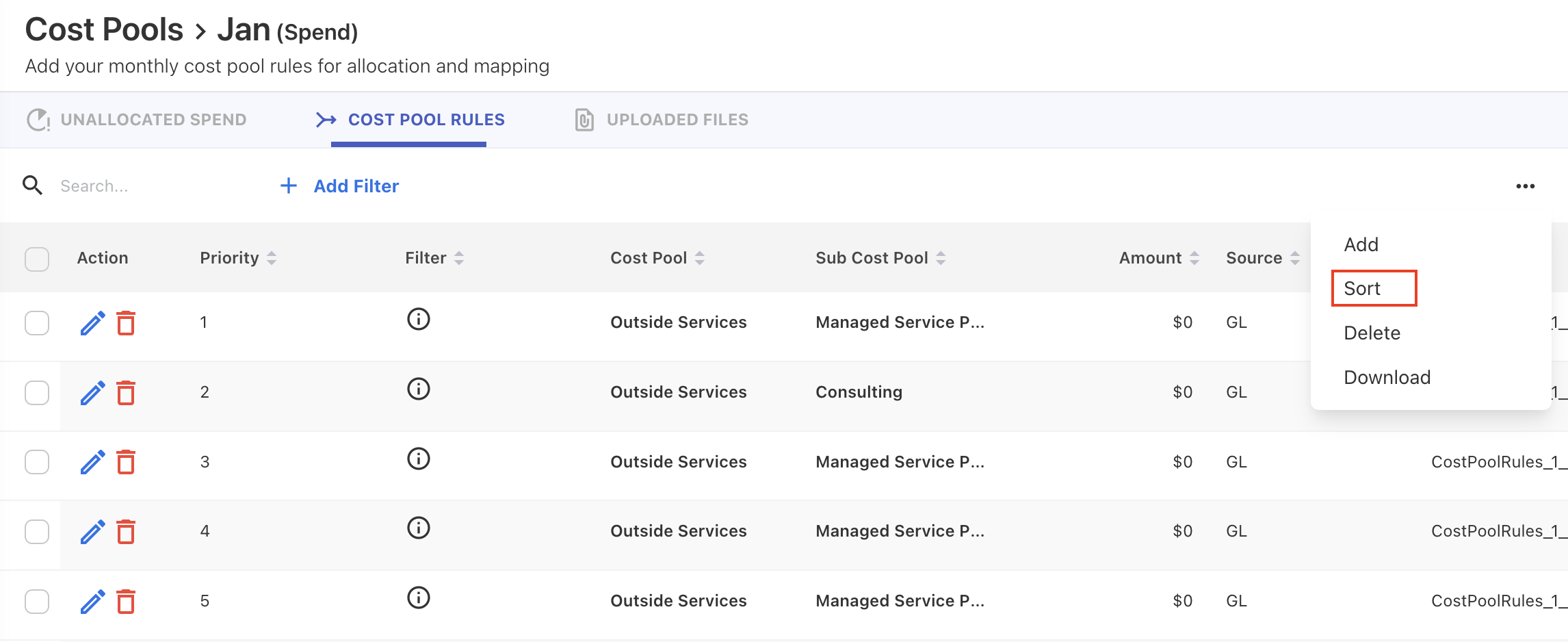
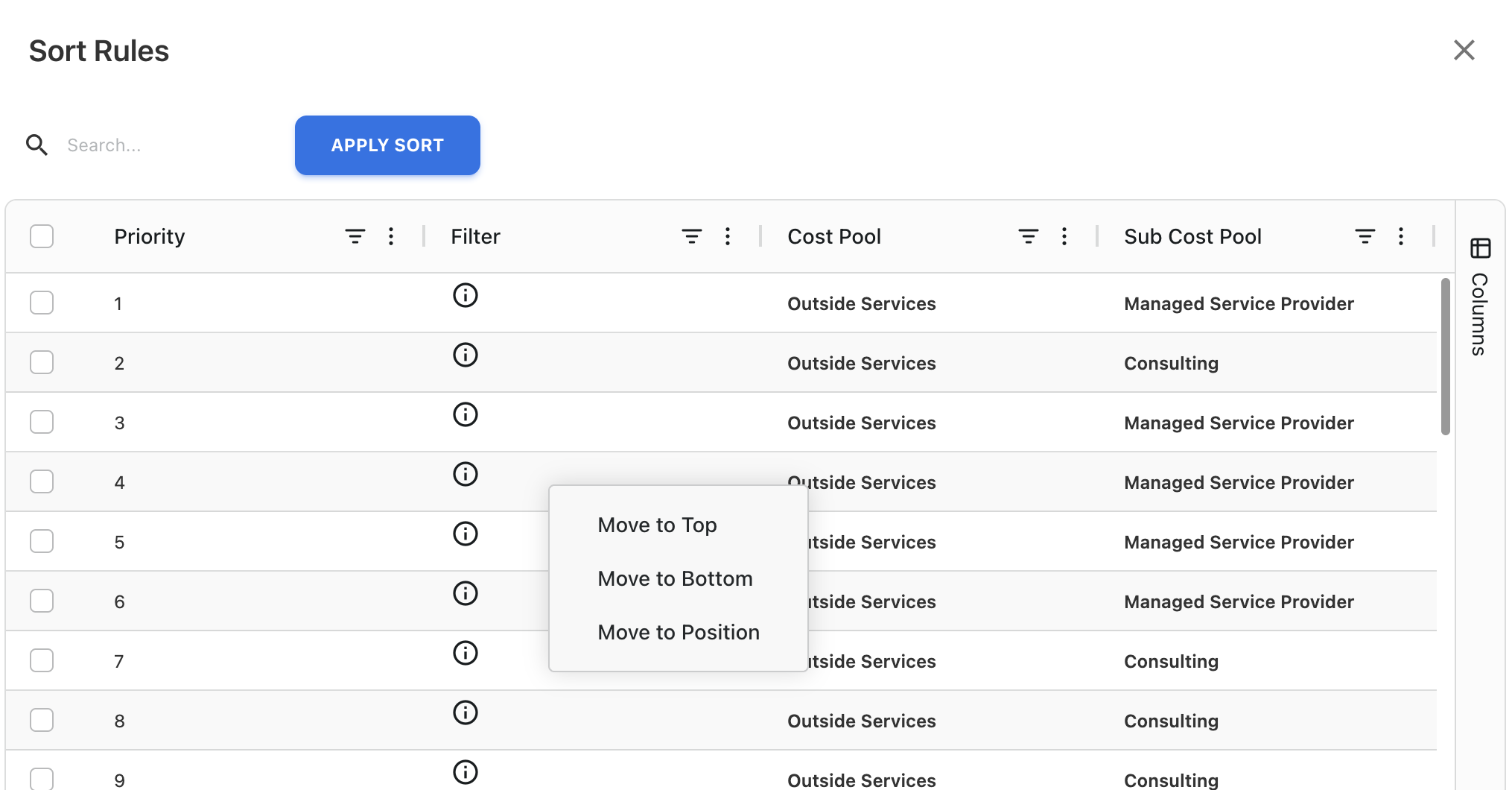
A Sort Rules popup appears.
-
On the popup, drag and drop to reorder them, or use Move to Top, Move to Bottom, or Move to Position.
-
Click APPLY SORT.
The rule priority will change after applying the sorting.
Copying Cost Pool rules to other year
You can copy the existing rules from an individual month to all months in selected year.
Notes:
-
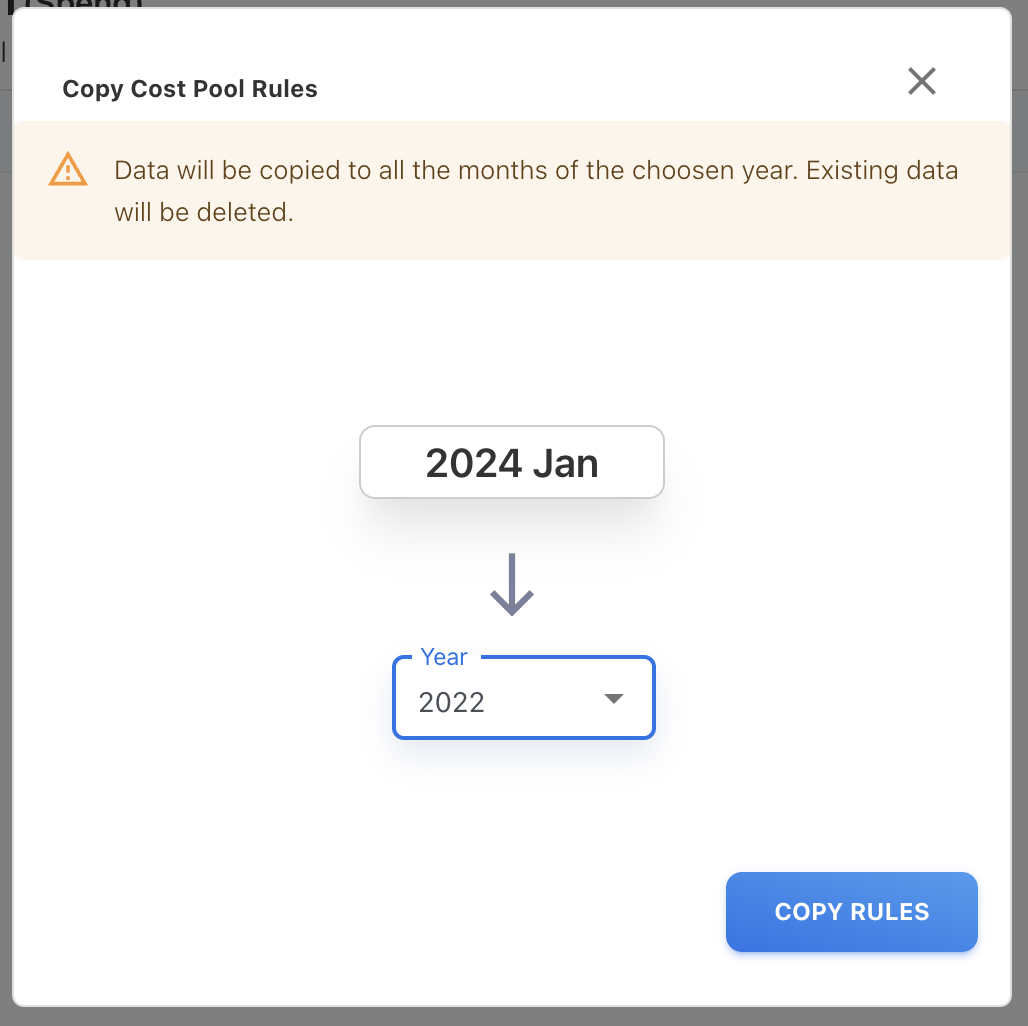
Data will be copied to all the months of the selected year. Existing data in that months will be deleted.
-
The enabled or disabled status of each rule is preserved when copying to another year. Disabled rules in the source month remain disabled in the target months.
To copy,
-
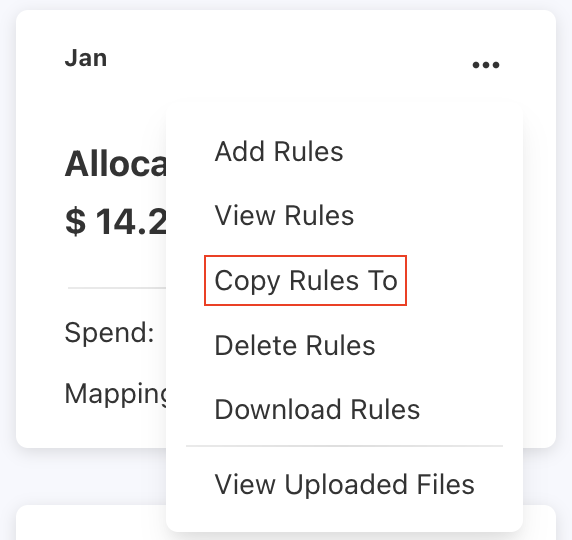
Select a month from which you wish to copy the rules and click ellipsis (…) menu.
-
Select Copy Rules To.
A Copy Cost Pool Rules popup appears.
-
On the popup, select a year from dropdown list.
-
Click COPY RULES.
The rules have been copied successfully message appears.
Duplicating Cost Pool rules
You can duplicate an existing cost pool rule to quickly create a new rule with the same conditions. This is useful when you need a similar rule for a different cost pool or want to make minor adjustments without building a rule from scratch.
-
Select a month containing the rule you want to duplicate and click ellipsis (…) menu.
-
Select View Rules.
-
On the COST POOL RULES tab, locate the rule you want to duplicate and click the Duplicate icon under the Action column.
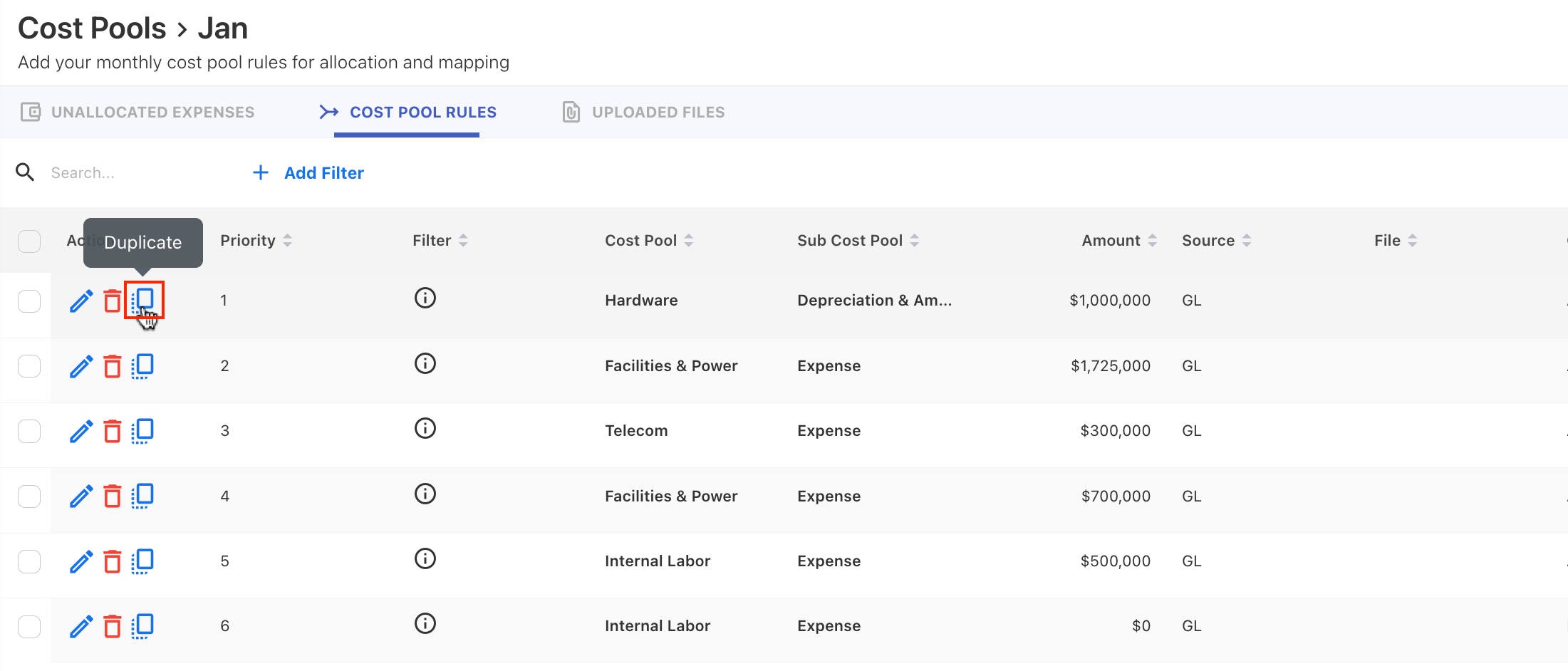
A duplicate confirmation popup appears.
-
Click OK to confirm.
A copy of the rule is created with the same conditions and is added to the rules list.
-
(Optional) Edit the duplicated rule to modify conditions or change the cost pool as needed.
Note: The duplicated rule is assigned the next priority by default. Use Sort to reorder if needed.
Downloading Cost Pool rules
You can download mapping rules for a given month in .csv format.
To download,
-
Select a month you want to download the rules and click ellipsis (…) menu.
-
Select Download Rules.
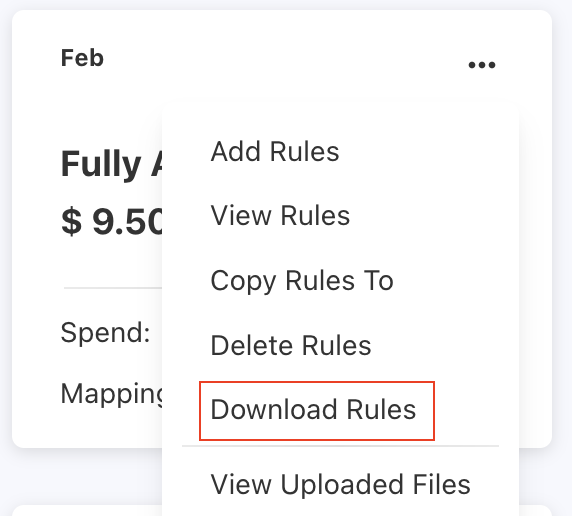
The rules are downloaded in CSV format. You can also download directly from the COST POOL RULES tab.
Deleting Cost Pool rules
If Cost Pool rules are no longer required, you can delete them either at the month level or individually.
Notes:
-
Only rules created using GL as the source can be deleted.
-
Auto-created rules from uploaded budget or forecast files cannot be deleted. To remove these entries, delete the source entries from the Expenses.
-
When Cost Pool rules are deleted, the associated allocated spend for that rule is also removed.
Deleting all rules for a month
-
Select the target month tile.
-
Click the ellipsis (… ) menu and choose Delete Rules.
-
Confirm the action.
All rules for the selected month are deleted, and the allocation is reset.
Deleting an individual rule
-
Select the target month tile.
-
Click the ellipsis (… ) menu and choose View Rules.
-
In the COST POOL RULES tab, locate the rule you want to remove.
-
Click the Delete icon for that rule.
-
Confirm the deletion.
Only the selected rule is removed, and the spend previously allocated by that rule becomes unallocated.
Enable or disable Cost Pool rules
You can enable or disable individual Cost Pool rules to control whether they are applied during allocation processing. Disabled rules are preserved in the system but excluded from spend allocation during data reloads.
Procedure
-
Select the month containing the rules you want to modify.
-
Click the ellipsis (…) menu and select View Rules.
-
On the COST POOL RULES tab, locate the rule you want to enable or disable.
-
Toggle the Enabled switch for that rule.
-
Enabled (default): The rule participates in spend allocation.
-
Disabled: The rule is skipped during allocation processing.
-
Notes:
-
Disabling a rule does not delete it or change its priority.
-
Disabled rules are not evaluated during data reloads — spend matching those criteria remains unallocated unless another rule captures it.
-
When you download rules, the exported CSV includes a Rule Enabled column reflecting each rule's current status.
-
When you copy rules to another month or year, the enabled/disabled status is preserved.
Related content