
Organize Custom Dashboards into folders and publish selected content to the Yarken menu. This makes shared dashboards easier for users to discover and access.
You can:
-
Create folders to organize related dashboards.
-
Move dashboards into folders.
-
Reorder dashboards and folders.
-
Publish an individual dashboard to the Yarken menu.
-
Publish a folder and its dashboards to the menu.
-
Keep dashboards available without displaying them in the menu.
Note: Publishing controls whether a dashboard appears in the Yarken menu. It does not grant users access to the dashboard.
Existing Custom Dashboards are not automatically published to the Yarken menu.
Private dashboards
A private dashboard is available only to its creator. This is different from a shared dashboard that has not been published to the menu.
-
A private dashboard is restricted to its creator.
-
An unpublished shared dashboard does not appear in the Yarken menu, but users with the required access can still access it through supported navigation.
Use dashboard sharing settings to control access. Use menu publishing to control whether the dashboard appears in the Yarken navigation.
Create a folder
Use folders to group related Custom Dashboards and create a clearer navigation structure.
To create a folder:
-
Go to Analytics > Custom Dashboards.
-
Select NEW FOLDER.

-
Enter the required folder details.
-
Save the folder.
Move a dashboard to a folder
To move an existing dashboard:
-
Go to Analytics > Custom Dashboards.
-
Find the dashboard you want to move.
-
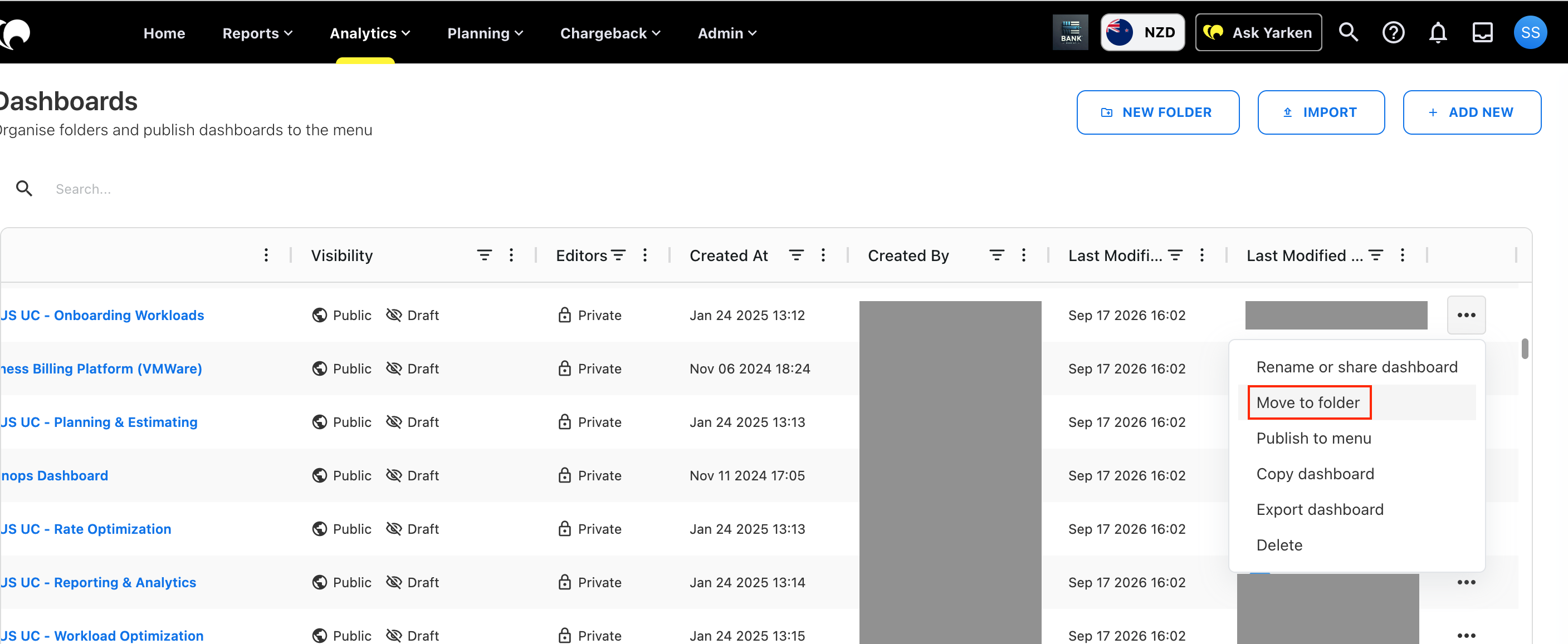
Open the Actions menu (•••).
-
Select Move to folder.
-
Select the required folder.
-
Confirm the change.
The dashboard appears under the selected folder.
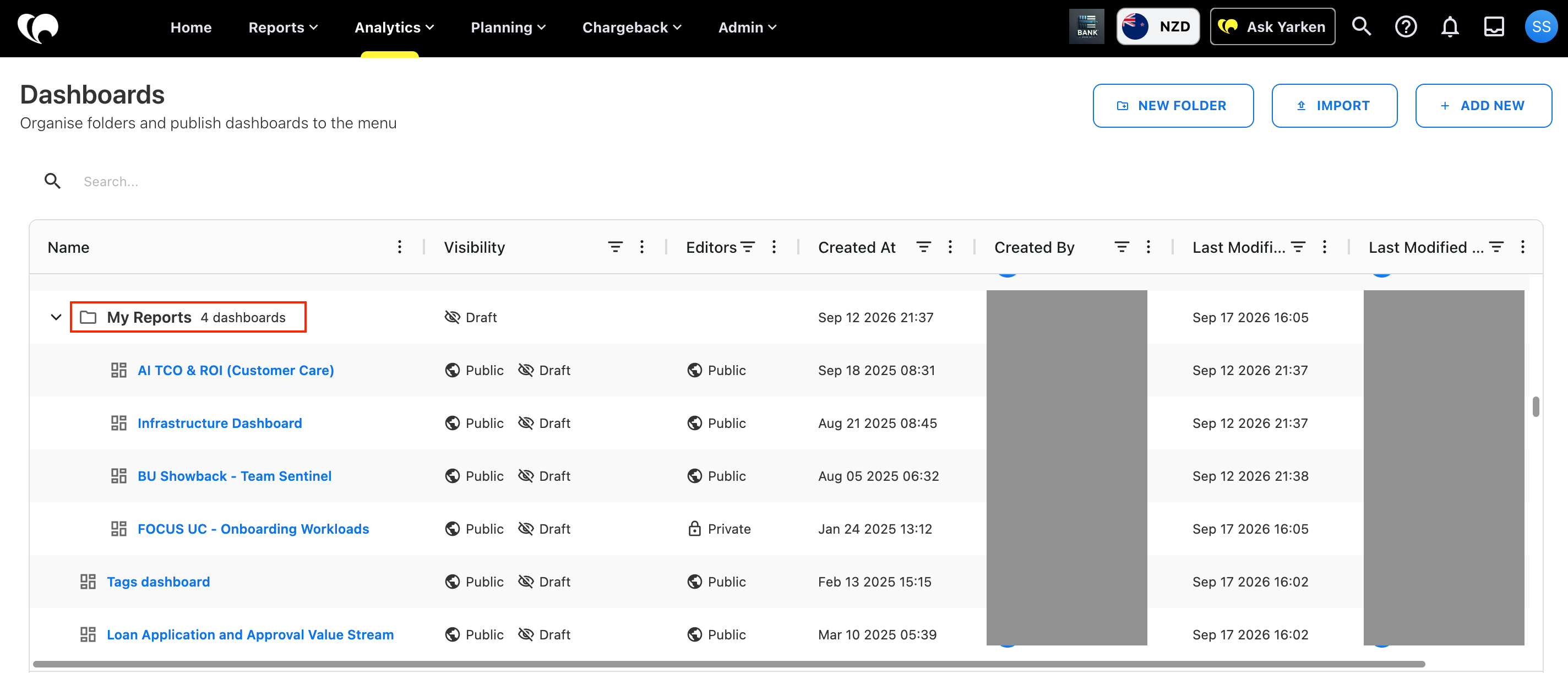
Result: The dashboard appears under the selected folder after the move is confirmed.
Organize dashboards and folders
You can control the order of dashboards and folders to create a logical navigation structure.
Arrange related dashboards together and use an order that helps users find commonly used content. When published, the configured folder structure and ordering are reflected in the Yarken menu.
Tip: Put the most frequently used dashboards first so users can find them quickly from the Yarken menu.
Publish a dashboard to the menu
Publish a dashboard when you want it to appear in the Yarken navigation menu.
To publish a dashboard:
-
Go to Analytics > Custom Dashboards.
-
Find the dashboard you want to publish.
-
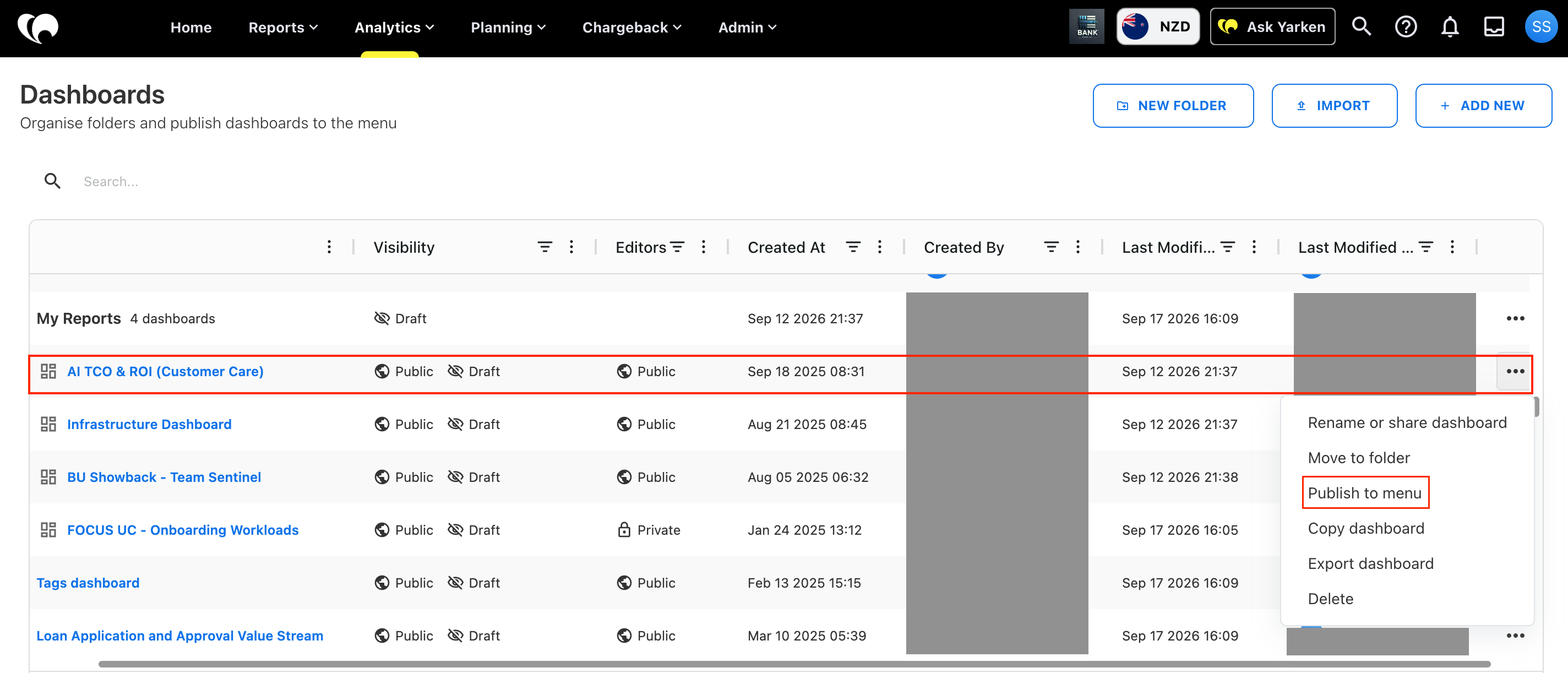
Open the Actions menu (•••).
-
Select Publish to menu.
-
Complete the publishing configuration.
-
Confirm the change.
The dashboard becomes available from the Yarken menu according to its configured folder structure.
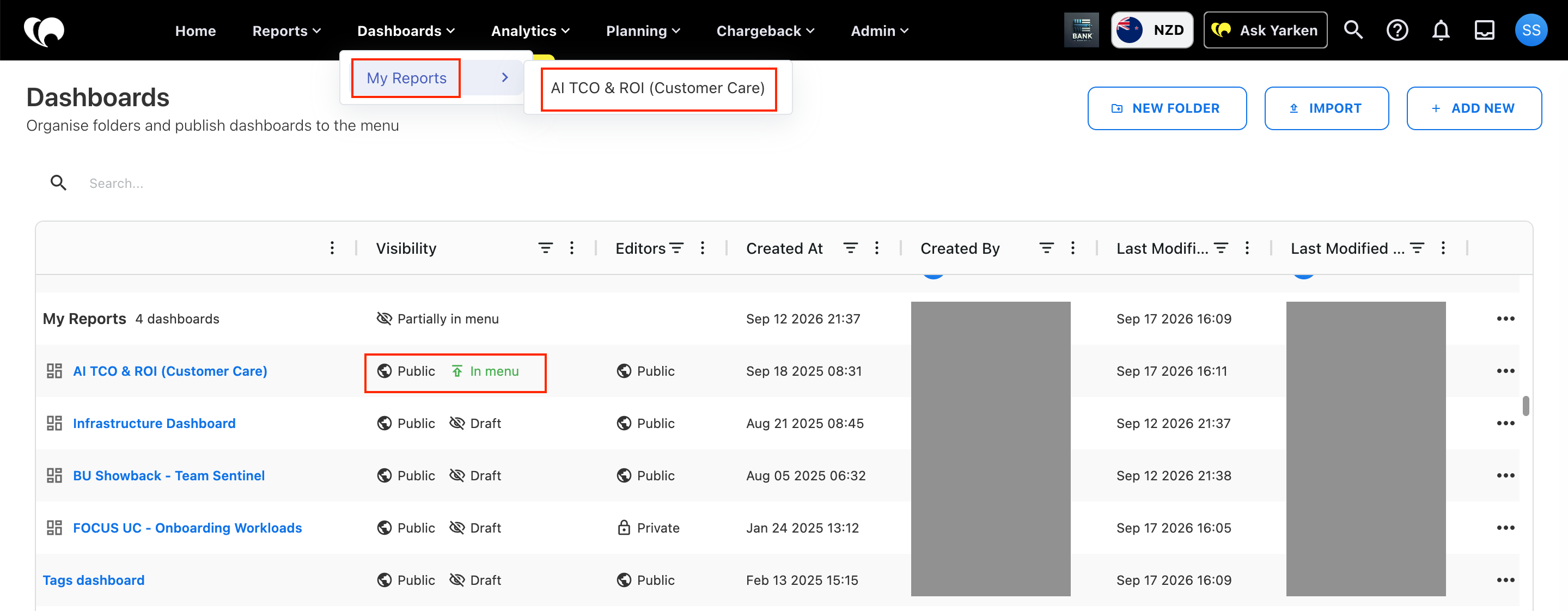
Note: Existing Custom Dashboards are not automatically published to the menu. Publish the required dashboards or folders when you want them to appear in the navigation.
Publish a folder to the menu
You can publish a folder and its dashboards when you want related dashboards to appear together in the Yarken menu.
Important: Only dashboards configured for menu publishing appear in the published folder structure.
Remove content from the menu
If a dashboard or folder no longer needs to appear in the Yarken menu, remove it from the published menu structure.
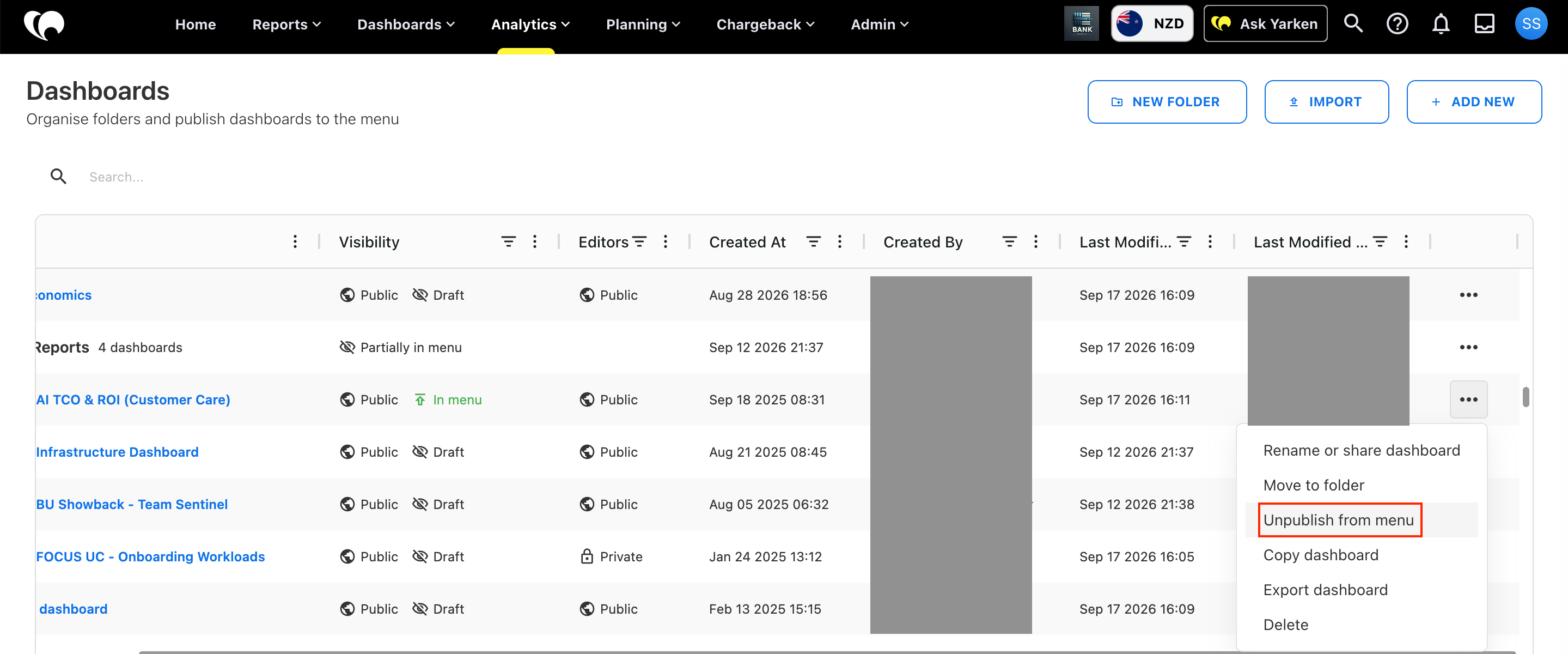
Removing content from the menu does not delete the dashboard. Users who have the required access may still be able to open an unpublished dashboard from Custom Dashboards or through supported dashboard links.
Note: Removing content from the menu changes navigation only. It does not delete dashboards or change their access settings.
Recommended practices
-
Use folders to group dashboards that serve a related purpose or audience.
-
Keep folder and dashboard names clear so users can identify the required content from the menu.
-
Review the order of dashboards and folders before publishing them.
-
Publish only dashboards that users need to discover from the Yarken menu.
-
Use sharing and visibility settings to control access instead of relying on menu publishing.
-
Review published content periodically and remove items that no longer need to appear in the menu.
Related content