
Use Action Types to define findings that agents can raise for people to review and act on. Action Types define card content, required data, default ownership, and how repeat findings are handled. An Automation uses Raise an action to create a card from a configured type.
Open Action Types
-
Go to Admin > Settings > AI > Action Types.
-
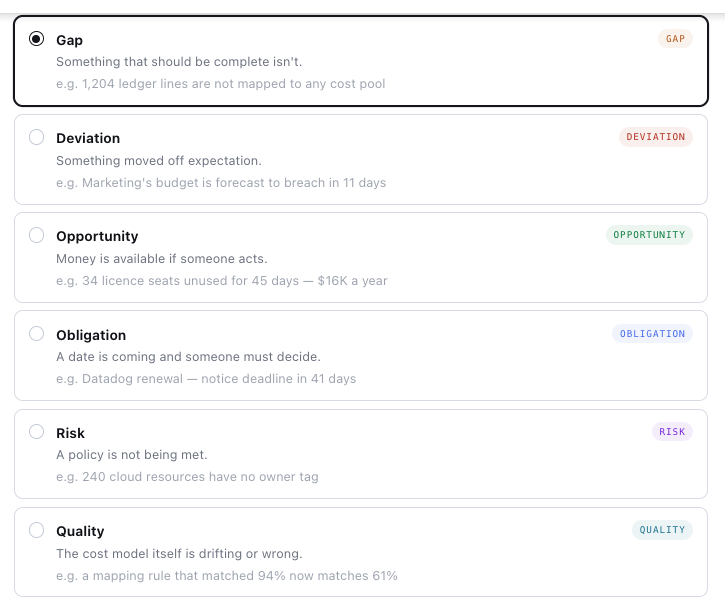
Review existing types grouped by Gap, Deviation, Opportunity, Obligation, Risk, and Quality.
-
Select + Add Action Type.
A type can exist before any Automation produces actions for it. Creating a type does not itself schedule monitoring.
Choose finding shape
|
Shape |
Use when |
Example |
|---|---|---|
|
Gap |
Required work or classification is missing |
Unmapped expense lines need cost-pool assignment |
|
Deviation |
Value or behaviour moves away from expectation |
AI provider spend rises sharply against baseline |
|
Opportunity |
A measurable saving or improvement is available |
Dormant SaaS licences could be reclaimed |
|
Obligation |
A deadline requires a decision |
Contract notice period ends in 41 days |
|
Risk |
A required policy or control is not met |
Cloud resources lack owner tags |
|
Quality |
Data or cost model accuracy has deteriorated |
Mapping coverage falls below expected level |
Choose shape based on what action recipient needs to do, not simply underlying dataset.
What an Action Type defines
Action Type is a template, not an individual action card. Agents populate it when they find something worth attention.
|
Configuration |
What it controls |
|---|---|
|
Shape |
Type of finding and display defaults |
|
Payload contract |
Facts that the producing Automation must supply |
|
Impact field |
Number shown prominently on card |
|
Headline and evidence |
What person should review and why |
|
Ownership |
Recipient person or role |
|
Lifecycle |
Repeat-finding identity, expiry, and open-card limit |
A card is designed to show who found it, what needs attention, impact, evidence, and response options. By default, Found by uses Automation name; use Specialist name only when that Specialist actually made finding.
Example: Rule confidence drops from 94% to 61%. Define Quality Action Type with rule name, previous confidence, current confidence, and affected lines. Show current confidence as impact. Route to Cost Model Manager.
Create Action Type
1. Identity
Enter:
-
Display name: clear label shown in Action Types list and action cards, e.g. AI cost spike.
-
Type name: stable identifier used by Automations, e.g.
ai_cost_spike. -
Description: what finding means and when it should be raised.
Type name can be edited until first action is raised. Choose stable name before using type in active workflows.
2. Payload contract
Select + Add field. Define field name, type and whether required.
Supported field types shown: string, number, currency, boolean, date, datetime, table.
At least one contract field and one required field are needed before creation. Use field names compatible with data produced by upstream Automation steps such as Extract values. Once type has produced actions, contract changes are additive only.
Example payload for AI cost spike:
|
Field |
Type |
Required |
Purpose |
|---|---|---|---|
|
|
string |
Yes |
Provider affected |
|
|
string |
Yes |
Identifies account |
|
|
number |
Yes |
Measured change |
|
|
currency |
No |
Current cost |
These are example field names, not predefined Yarken fields.
3. Card
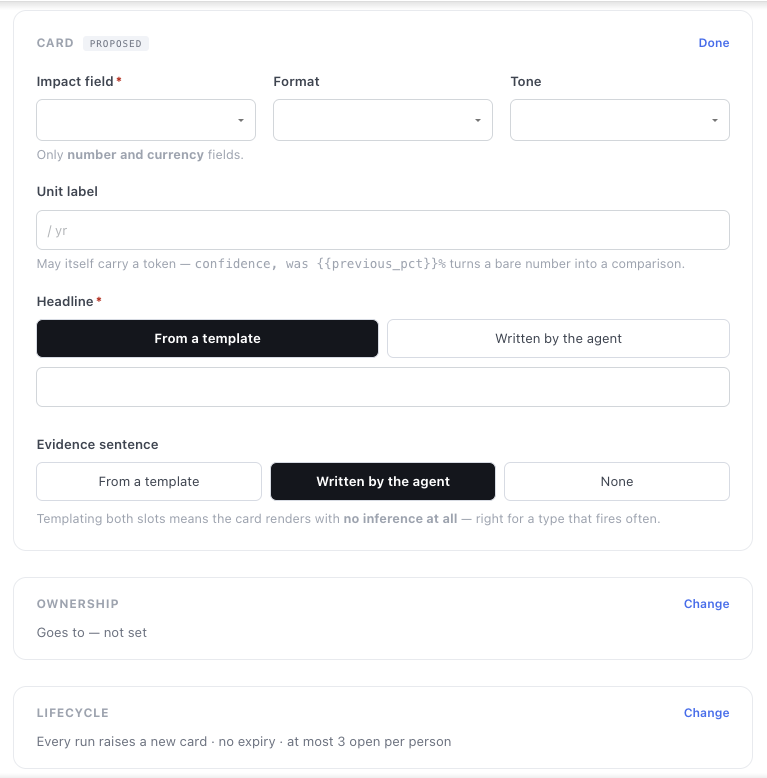
Configure Impact field using a number or currency payload field. Set Format, Tone, and Unit label as needed.
For Headline, choose From a template or Written by the agent. Agent-written headlines are limited to nine words in configuration guidance.
For Evidence sentence, choose From a template, Written by the agent, or None.
Use templates when structure is predictable. Use agent-written text when finding needs context. Template tokens can reference contract fields; for example, {{provider}} or {{increase_pct}}.
4. Ownership
In Ownership, choose whether action goes to A role or One person. Select role or recipient. For a role, available options include Admin, Power User, Cloud Cost Owner, Cloud Engineer, and Cost Model Manager, subject to environment configuration.
An Automation can override default recipient for a specific action when it can identify better owner.
5. Lifecycle and repeat findings
Under Lifecycle, choose fields used to identify same finding in a later run. This is deduplication: matching finding updates existing card instead of creating second card. Subsequent occurrences can be counted on same card. With no matching fields, each run creates new card.
Choose stable identifying fields. For AI cost spike, provider and account_id may identify same issue, while increase_pct changes between runs and should usually not form identity.
Set Expires after (days) if stale cards should expire. Empty means card remains until addressed. Set Max open per person to limit concurrent open cards for recipient.
Choose stable identifiers such as rule ID, software account, or vendor ID. Avoid changing numbers such as confidence, unused seats, or spend variance. Test repeat runs to confirm intended matching.
Example: Match repeat findings
For Insight deviation, configured payload includes rule_id, dimension, dimension_value, total_spend, and other fields. Selecting rule_id, dimension, and dimension_value under When is this the same finding as last time? matches same rule and dimension across runs, while spend may change.
For a provider cost spike, select provider and period when those fields represent the issue's identity. Each Action Type uses its own payload field names. Select fields that remain consistent as the measured values change.
6. Create
Complete required settings and select Create action type. Missing-item notice at bottom lists outstanding requirements.
Test, import, export, and manage Action Types
Test card presentation
-
Open Admin > Settings > AI > Action Types.
-
Open menu next to Action Type and select Send me a test action.
-
Open Inbox and check card headline, impact and unit, evidence, and recipient.
-
Return to Action Type and adjust configuration if needed. Test the producing Automation separately to confirm its mapped values.
Export or import configuration
To export an Action Type, open its menu and select Export. To import, select Import at top of Action Types list, choose a .json file, and select Import. Review imported contract fields, ownership, and Lifecycle before adding type to an Automation.
Edit or disable
Use Action Type menu to Edit or Disable it. Review producing and follow-up Automations before disabling a type in use. Delete may be unavailable when type has dependent actions.
Review Shape defaults
Each Shape supplies suggested impact format, tone, expiry, and headline verbs. These are starting values, not fixed rules. In the current interface, Gap starts with count/warning/30 days; Deviation with percentage/warning/14 days; Opportunity with currency/positive/60 days; Obligation with countdown/neutral/no expiry; Risk with count/warning/30 days; Quality with percentage/warning/no expiry. Change settings in Card and Lifecycle for the finding you are configuring.
Connect producing and handler Automations
Producing Automation: Finds an issue on schedule or event, then uses Raise an action to fill Action Type and assign card.
Handler Automation: Intended to run when assigned person accepts card of that type. It investigates or performs follow-up, with Wait for approval before consequential changes. Accepting card starts work; it does not approve system or financial changes.
Both Automations connect through Action Type, rather than referring to each other directly. Several producers can create same type of finding.
Open Admin > AI Studio > Orchestrate > Automations to configure producing workflow. See Raise an action from an Automation and Review findings with Take Action.
Practical use cases
AI spend anomaly: Schedule monitoring, compare provider costs with baseline, raise Deviation action with provider, account, spend and increase. Assign Cloud Cost Owner. On next run, update same finding while provider and account remain same.
Licence reclaim: Find inactive licences, calculate possible saving, raise Opportunity action with product, unused seats and estimated saving. Route to licence owner.
Contract notice: Read renewal dates and notice periods, raise Obligation action with supplier, notice deadline and contract value. Route to contract owner.
Examples describe possible configurations, not automatically available prebuilt workflows.
If result is unexpected
-
Cannot create type: Check bottom-of-form missing requirements, including required payload field, impact field, headline, deduplication key and owner.
-
Duplicate cards: Review Lifecycle identity fields. Avoid measures that change every run. If no repeat identity is defined, each run may create another card.
-
No action created: Check Automation's required field mappings and Run History.
-
Wrong recipient: Review default ownership and any Automation owner override.
-
Type cannot be renamed: Type name is no longer editable after first action is raised.
Related content