
Use Admin > Settings > AI > Automations to control who can receive Automation notifications and how webhook-triggered Automations are rate-limited.
These settings apply across the environment. To build or edit workflow logic, use Admin > AI Studio > Automations.
Before you begin
You need Admin access to change AI settings.
Open Automation settings
-
Go to Admin > Settings.
-
Under AI, select Automations.
Notification recipients
Allowed Domains for Automation Notifications
Enter a comma-separated list of domains that may receive individual-email Automation notifications.
Example: acme.com, example.org
When additional domains are listed, yarken.com remains allowed.
Leave this field empty when no additional domains need to be allowed.
Enable Specific Email Recipients
Use Enable Specific Email Recipients to allow or prevent Automation notifications from being sent to individual email recipients.
This setting controls recipient availability. The Automation still needs a configured Notify step to send a notification.
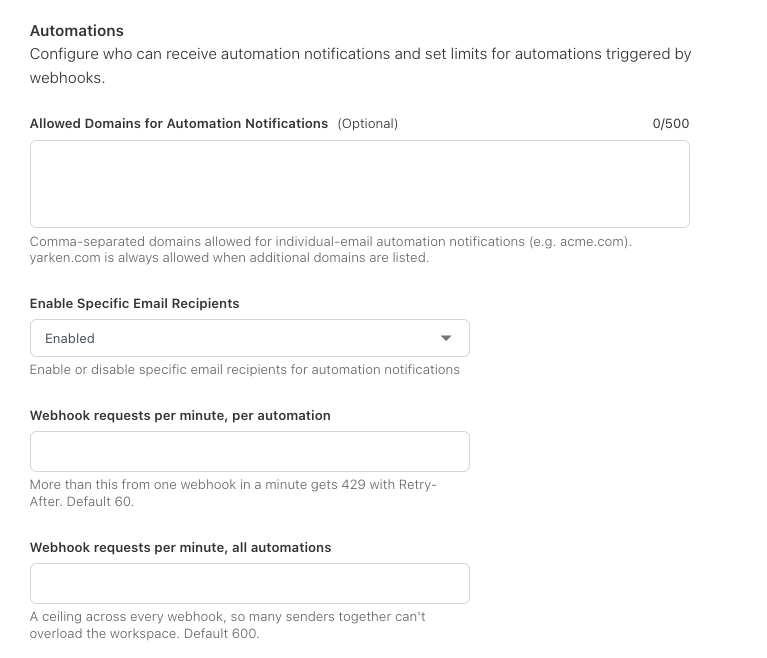
Webhook limits
Webhook limits protect the workspace from excessive request volume. Requests that exceed a configured limit return HTTP 429. Where applicable, the response includes Retry-After guidance.
|
Setting |
What it controls |
Default shown in the product |
|---|---|---|
|
Webhook requests per minute, per automation |
Maximum webhook requests accepted by one Automation in one minute |
60 |
|
Webhook requests per minute, all automations |
Workspace-wide ceiling across all webhook-triggered Automations |
600 |
|
Webhook waiting runs, per automation |
Maximum queued or running webhook-triggered runs for one Automation before new requests are rejected |
50 |
Use lower limits when you need tighter workload control. Raise them only when the expected webhook volume and environment capacity support it.
Check the result
After changing Automation settings:
-
Save the configuration.
-
Run or trigger a representative Automation.
-
Confirm permitted recipients can receive notifications.
-
For webhook Automations, review Run History and verify expected requests are accepted.
-
If a sender receives HTTP 429, check the per-Automation, workspace-wide, and waiting-run limits.
Related content