
Solution allocation is performed monthly, similar to Cost Pools and Towers. Each month maintains its own set of rules and mappings.
All Solution actions are accessed from the ellipsis (…) menu on the month tile.
Ways to add Solution rules
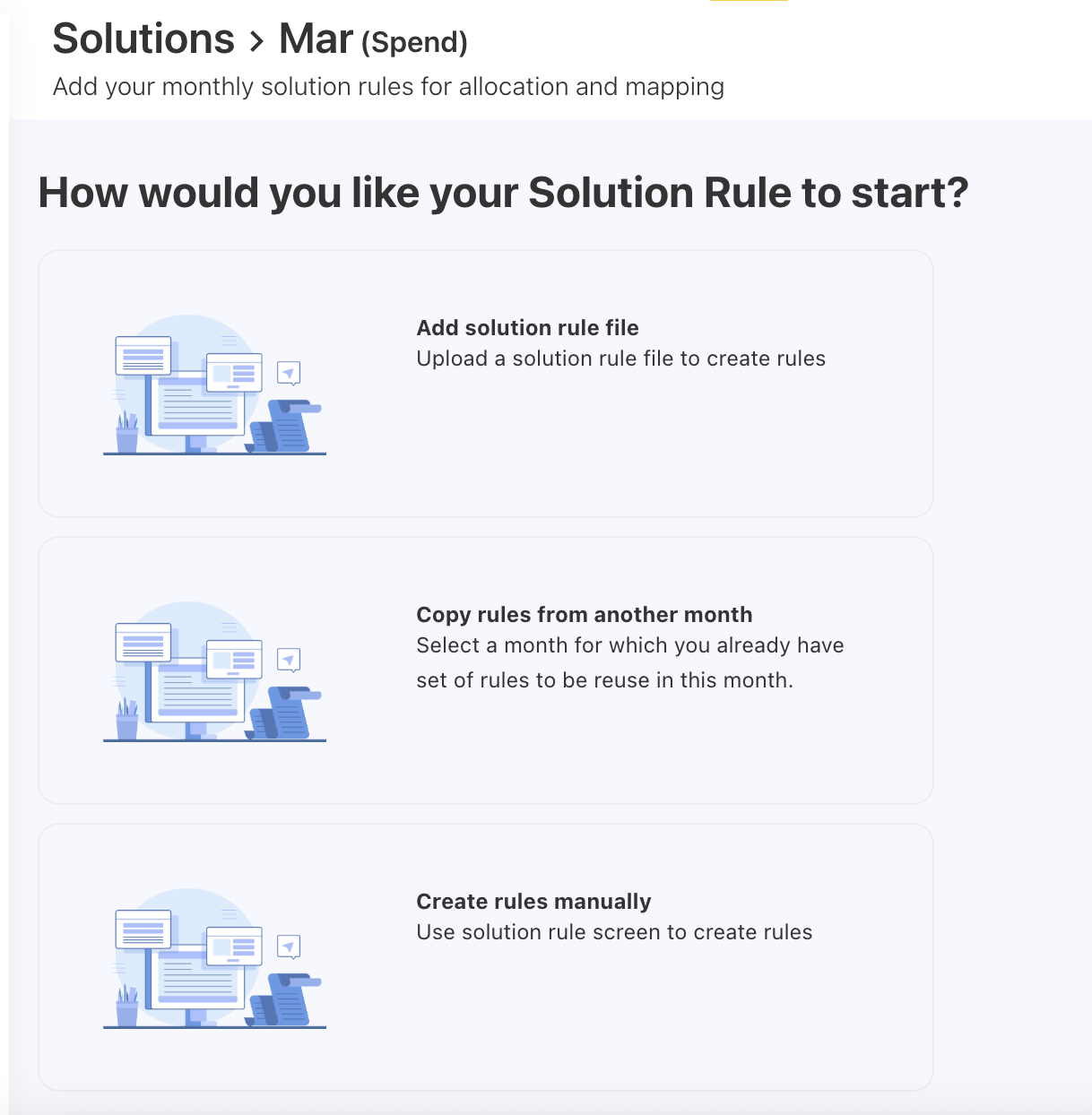
You can start Solution allocation using one of the following options:
-
Add solution rule file
-
Copy rules from another month
-
Create rules manually
Add solution rule file
This strategy involves a process of uploading a mapping file. You can use the Solution Rules template file from Data Dictionary.
Prerequisites
Before uploading, ensure your file includes values in the mandatory columns:
-
Priority
-
From Asset
-
Rule
-
Solution Rules
Procedure
-
Select the target month tile.
Make sure you are in the correct fiscal year by checking the year filter on the top-left.
-
Click the ellipsis (… ) menu and choose Add Rules.
-
Select Add solution rule file.
-
Browse or drag and drop the template file.
-
Review the data and click Next.
Note: If you have aligned to the template headers or loaded your data into the template, you should see “All required fields have been automapped successfully.”
-
Choose FINISH to complete the upload, or Edit Mapping to review and adjust field mappings.
After uploading the file, you can check the file status, loaded records, mapped fields, and other details under the UPLOADED FILES tab.
Copy Solution rules from another month
Use this option when allocation logic remains consistent month over month.
Procedure
-
Select the target month under Solutions.
-
Click the ellipsis (… ) menu.
-
Select Copy Rules From.
-
Choose the source year and month.
-
Click COPY RULES button.
Notes:
-
Copying rule replaces existing Solution rules for the selected month.
-
The enabled/disabled status of each rule is preserved during copy.
Add Solution rules manually
Use this option to manually create the solution rules for distributing spend from single asset to multiple offerings using condition-based logic.
Procedure
-
Navigate to Solutions and select the required month.
-
Click the ellipsis (… ) menu.
-
Select Add Rules.
-
Choose Create rules manually.
-
On the Solution Rules screen, click + ADD NEW.
-
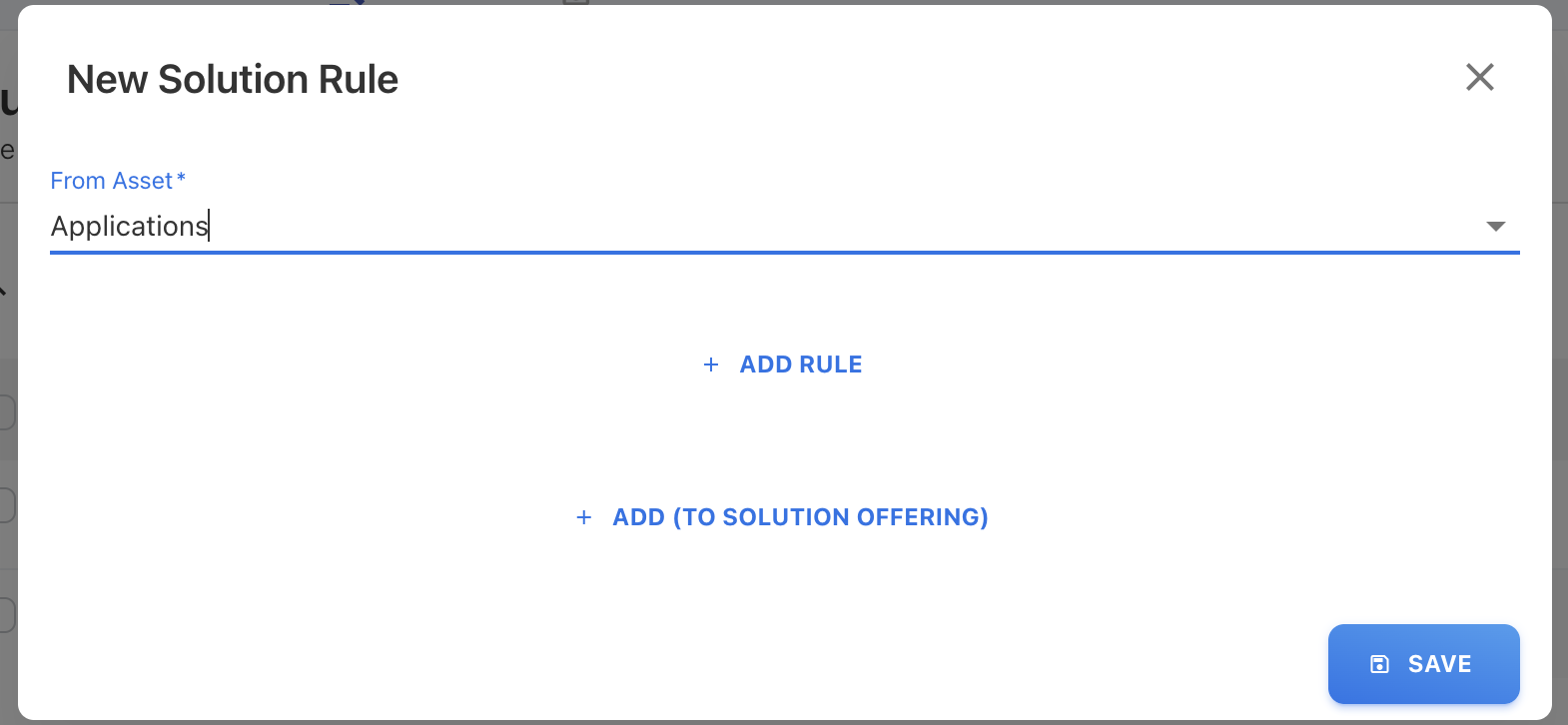
In From Asset field, select the asset from dropdown list.
-
Click + ADD RULE to define the rule conditions using asset attributes.
-
Add conditions for the selected asset and click SAVE.
-
On New Solution Rule popup, click + ADD (TO SOLUTION OFFERING).
-
Select the split type and click SAVE:
-
Equally, or
-
Manually: Add percentage portion.
-
-
Add conditions for the solution offering and click SAVE.
-
On Select Solution Offering, click + ADD to add conditions for offerings.
-
Click SAVE.
After saving, the rule appears in the RULES tab. From this tab, you can view, edit, sort, copy, or download the rules.
Manage Solution rules
Once Solution rules are created for a month, you can manage them to review, reuse, modify, or remove allocation logic.
Solution rules are month-specific and any changes apply only to the selected month.
View Solution rules
Viewing Solution rules helps you understand how spend is currently allocated to Solution Offerings.
Procedure
-
Navigate to Solutions.
-
Select the required fiscal year and month.
-
Click the ellipsis (… ) menu on the month tile.
-
Select View Rules.
Copy Solution rules to another year
Use this option to copy the existing rules from source year and month to a specific year. Solution rules will be copied to all months of the selected year.
Procedure
-
Navigate to Solutions.
-
Select the source month containing the desired rules.
-
Click the ellipsis (… ) menu.
-
Select Copy Rules To.
-
Choose the target fiscal year.
-
Click COPY RULES.
Note: Copying rules to another year replaces existing Solution rules of the selected year.
Edit Solution rules
Editing Solution rules allows you to adjust allocation logic without recreating rules.
Procedure
-
Navigate to Solutions.
-
Select the required month.
-
Click the ellipsis (… ) menu.
-
Select View Rules.
-
Locate the rule you want to modify.
-
Click the Edit icon.
-
Update the required fields:
-
Solution Offering
-
Allocation source
-
Split method or portion
-
-
Click SAVE to apply changes.
Notes:
-
Edited rules take effect immediately for the selected month.
-
Changes do not impact historical months.
Duplicate Solution rules
This option is useful when you want to create a similar rule with minor modifications.
Procedure
-
Select the month tile containing the rule you want to duplicate.
-
Click the ellipsis (… ) menu.
-
Select View Rules.
-
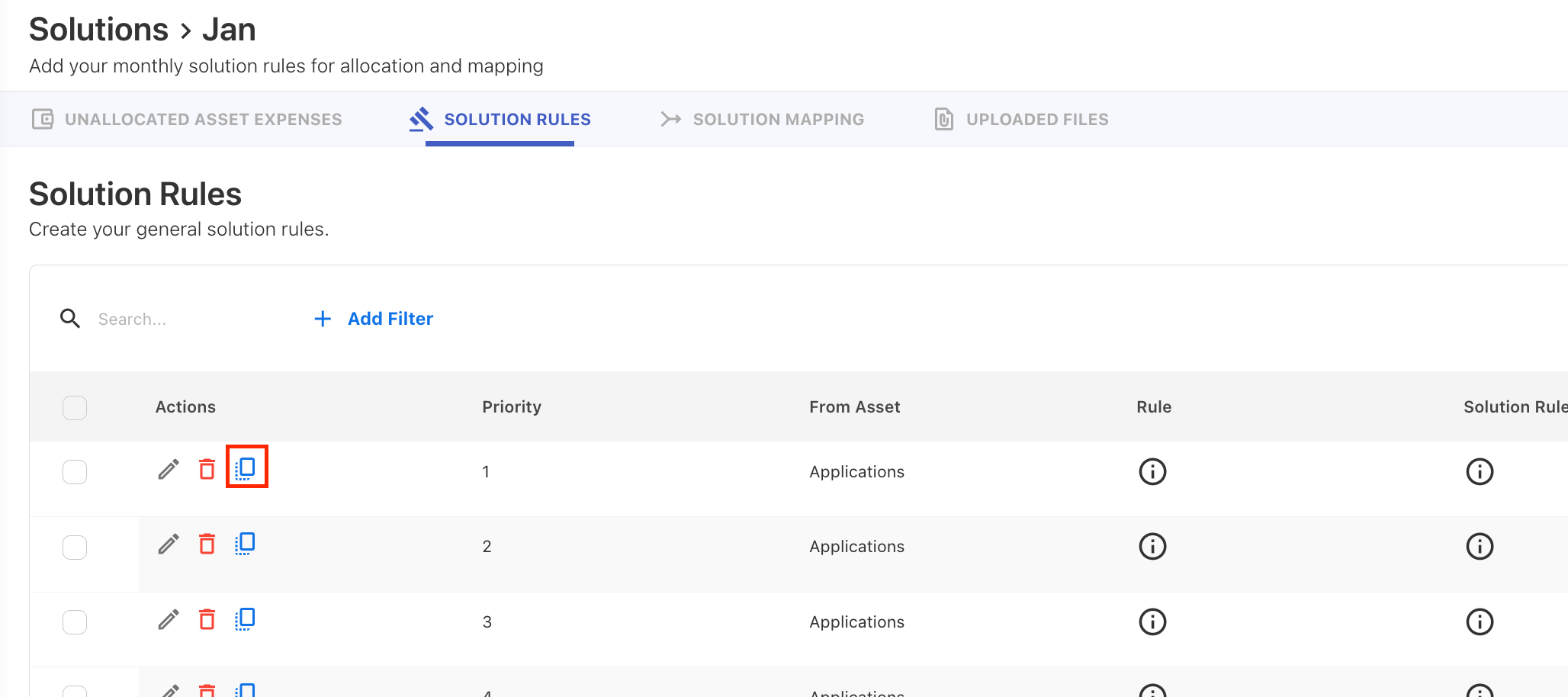
On the SOLUTION RULES tab, locate the rule you want to duplicate.
-
Click the Duplicate icon under the Action column. A confirmation popup appears.
-
Click OK to proceed.
Note: The duplicated rule is assigned the next priority by default. Use Sort to reorder if needed.
Sorting Solution rules
Sorting helps prioritize rules execution when working with a large number of rules.
Procedure
-
Navigate to Solutions.
-
Select the required month.
-
Click the ellipsis (…) menu.
-
Select View Rules.
-
On the upper-right corner, click ellipsis menu and select Sort.
-
Drag and drop rules to reorder them, or use Move to Top / Move to Bottom.
-
Click APPLY SORT.
Download Solution rules
Downloading Solution rules allows you to export allocation logic for review.
Procedure
-
Navigate to Solutions.
-
Select the required month.
-
Click the ellipsis (… ) menu.
-
Select Download Rules.
Delete Solution rules
Deleting Solution rules removes allocation logic for the selected month.
Procedure
-
Navigate to Solutions.
-
Select the required month.
-
Click the ellipsis (… ) menu.
-
Select Delete Rules.
-
Confirm the deletion.
Notes:
-
Deleting rules removes all Solution allocations for that month.
-
Allocated spend is cleared and becomes unallocated at the Solution level.
-
This action does not affect upstream allocations (Cost Pools or Towers).
Enable or disable Solution rules
You can enable or disable individual Solution rules to control whether they are applied during allocation processing. Disabled rules are skipped during data reloads.
Procedure
-
Navigate to Solutions.
-
Select the required month.
-
Click the ellipsis (…) menu.
-
Select View Rules.
-
Locate the rule and toggle the Enabled switch.
Notes:
-
Disabled rules remain in the rules list but do not allocate asset spend to Solution Offerings during processing.
-
The enabled/disabled status is preserved during copy, duplicate, export, and import operations.
-
When you download Solution rules, the exported CSV includes a Rule Enabled column.
Related content