
Use the examples on this page to configure Multi Cube Analytics for specific reporting and analysis scenarios.
Before you begin: If you are new to Multi Cube Analytics, see Create a Multi Cube report. Make sure you understand how to create queries, configure joins, select output columns, and create calculated columns.
Use case 1: Identify overlapping AI tool usage
Use Multi Cube Analytics to identify users with access to overlapping AI tools and compare usage across those tools.
This use case combines AI access and usage data into a single dataset. You can use the resulting Multi Cube with a Proportional Bar visualization to:
-
Identify users with access to pairs of AI tools.
-
Compare the number of users with access to both tools.
-
Compare usage across those users.
-
Understand which tool is used more frequently where access overlaps.
After you configure the Multi Cube, you can use it in Analytics or Custom Dashboards.
Note: The Proportional Bar does not automatically combine AI access and usage data. Complete the Multi Cube configuration before creating the visualization.
Configure the Multi Cube
Step 1 — Create the first AI Consumption query
-
Go to Analytics > Multi Cube.
-
Create a new Multi Cube report.
-
Add the first query.
-
Select AI Consumption as the Analytics cube.
-
Add the required fields: Provider, User, Year, Month, and Users.
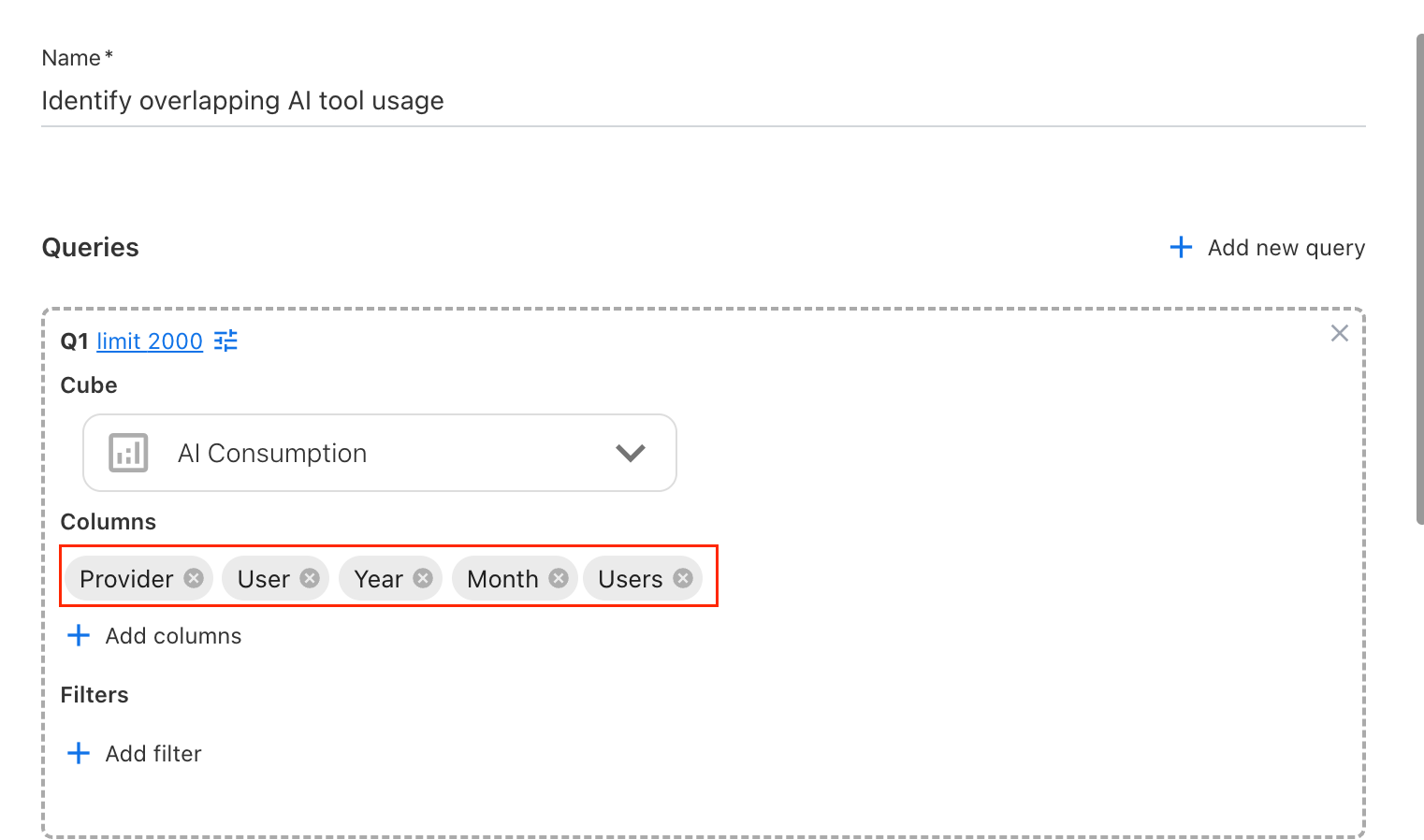
Query 1 -
Add the required filters for the AI tool you want to compare.
-
Save the query.
Step 2 — Create the second AI Consumption query
-
Add another query.
-
Select AI Consumption as the Analytics cube.
-
Add the same required fields: Provider, User, Year, Month, and Users.
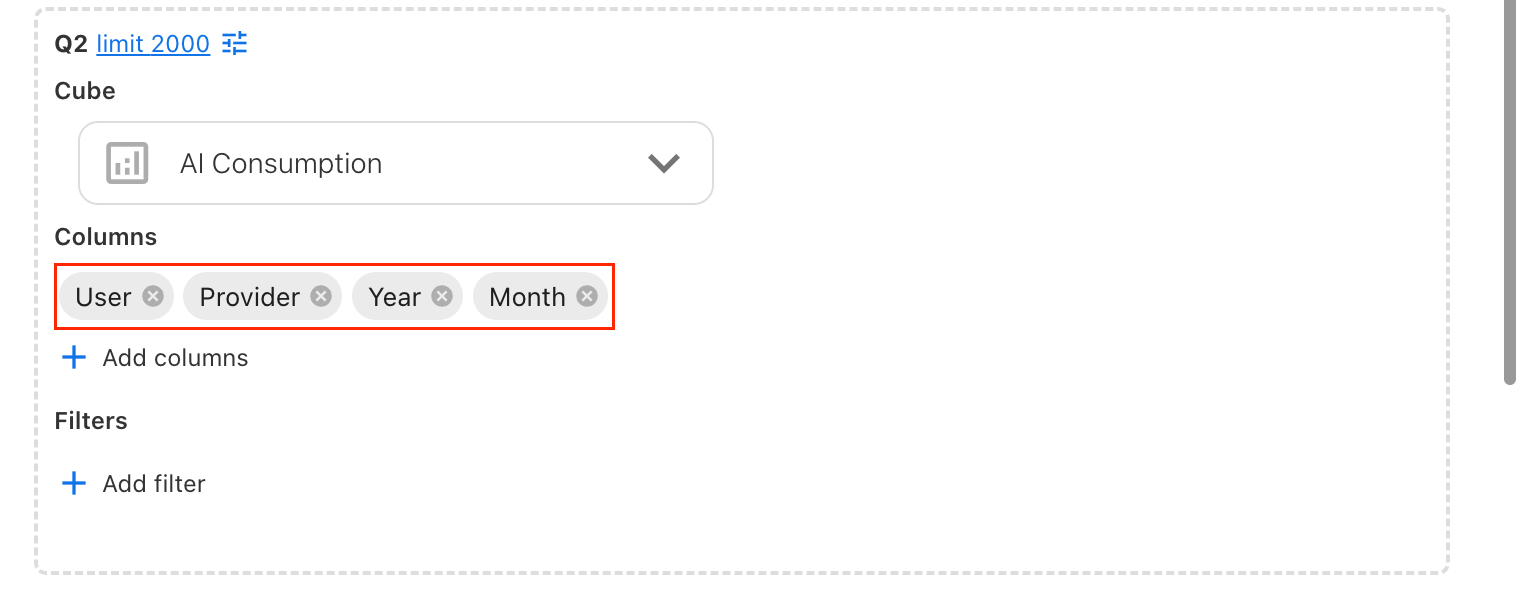
Query 2 -
Add the required filters for the second AI tool.
-
Save the query.
Step 3 — Join the queries
Create a join between the two AI Consumption queries so Yarken can match users across the AI tools being compared.
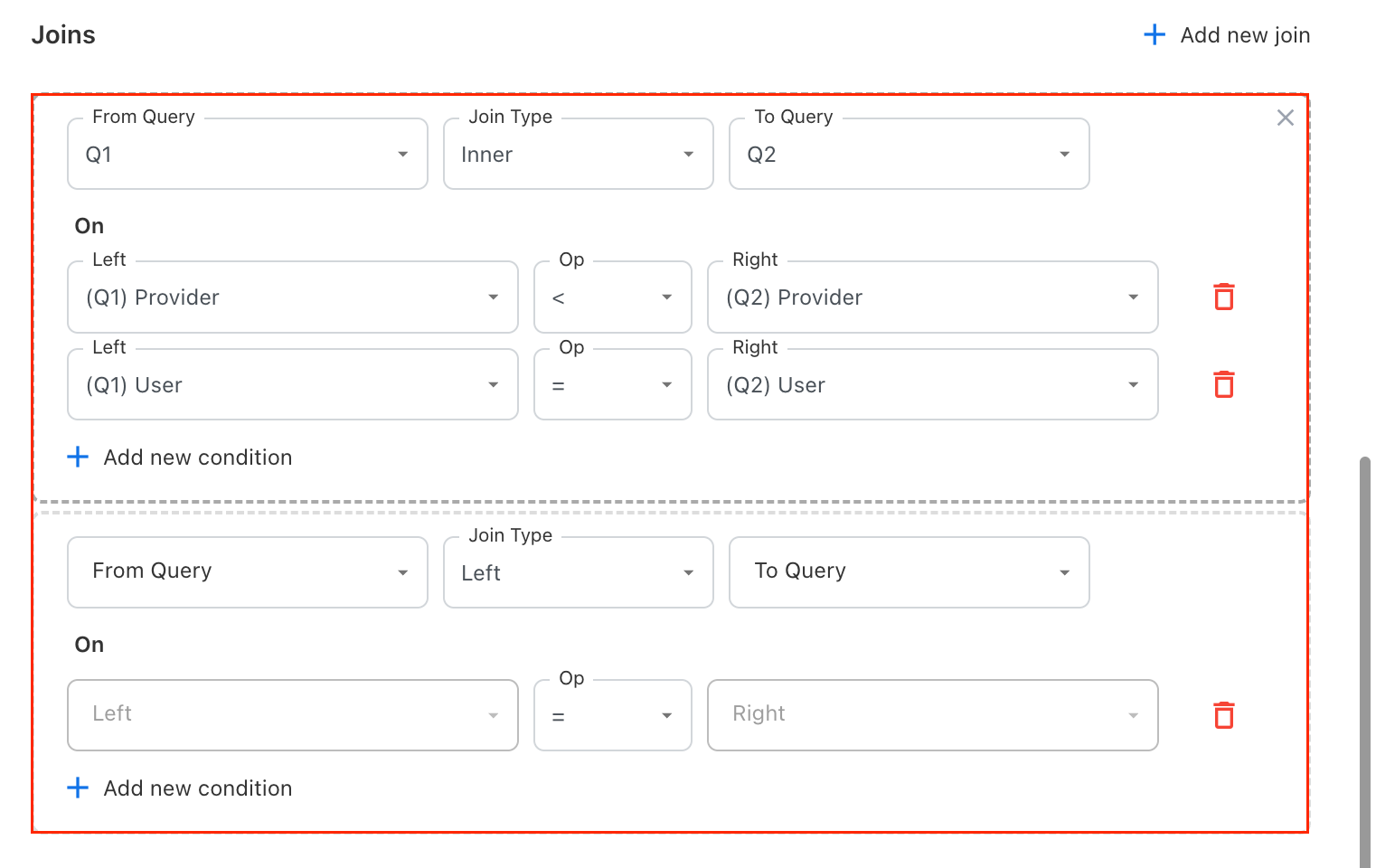
Tip: Use fields that represent the same data in both queries. Incorrect join fields can produce duplicate or mismatched results.
Step 4 — Select the output columns
-
Open the Columns section.
-
Add the fields required for the final analysis from both queries.
-
Include the relevant Provider, User, Year, Month, and Users fields from Query 1.

Note: Only fields added to Columns are available when you build the visualization.
Step 5 — Create the Tools calculated column
-
Add a calculated column.
-
Enter Tools as the name.
-
In Formula, enter:
CONCAT(Q1.AiConsumptions.provider_name, ' + ', Q2.AiConsumptions.provider_name)The formula combines the Provider values from the two AI Consumption queries into a single value. The + separates the provider names so you can identify the pair of AI tools being compared. For example, if Q1 returns Tool A and Q2 returns Tool B, the Tools field displays
Tool A + Tool B.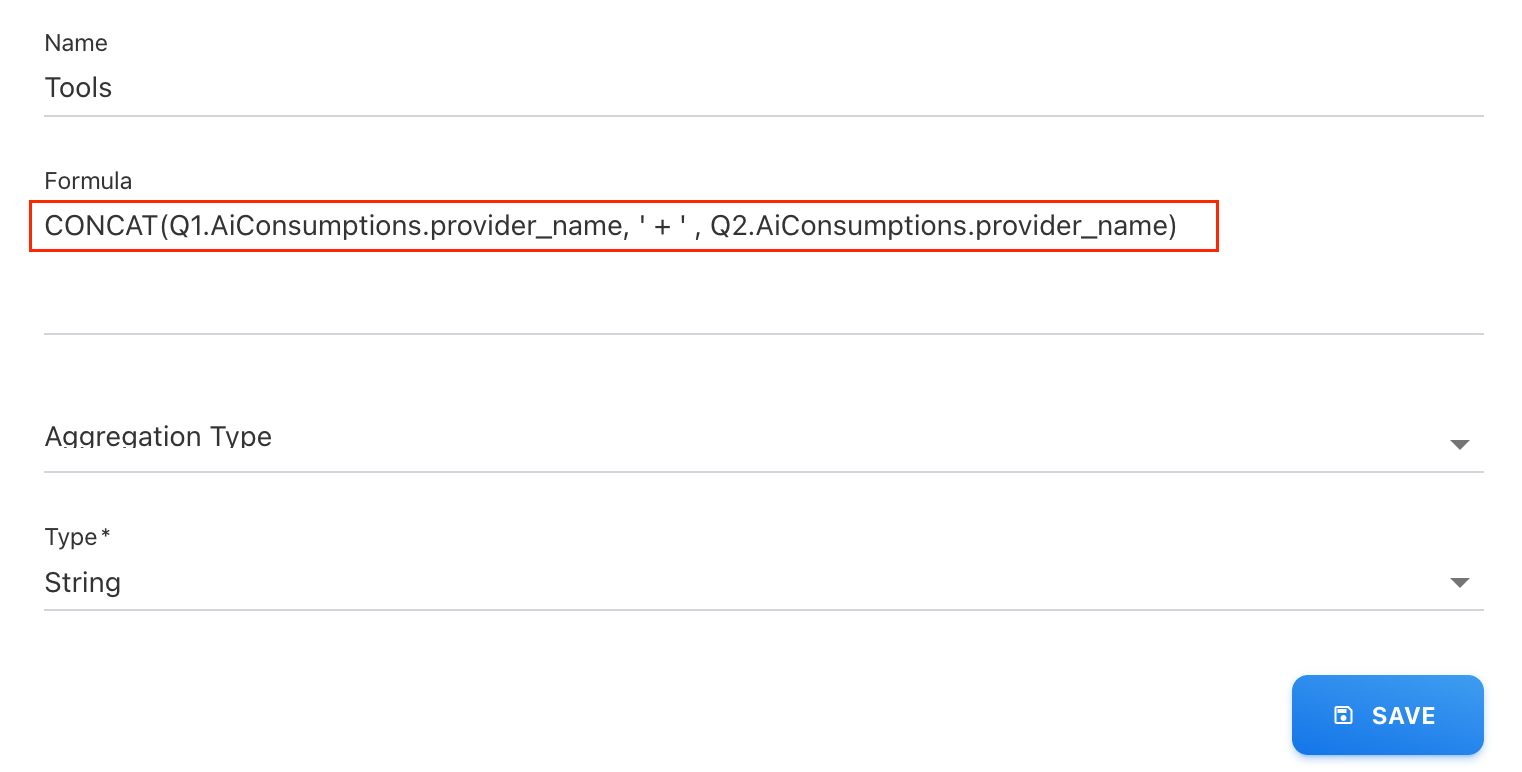
Formula for Calculated Column -
Set Type to String.
-
Keep Aggregation Type unselected.
-
Save the calculated column.
The Tools field represents the pair of AI tools being compared.
Step 6 — Save the Multi Cube
-
Review the queries, joins, output columns, and calculated column.
-
Save the Multi Cube.
The Multi Cube is now available for creating the overlapping AI tool visualization in Analytics or Custom Dashboards.
Create the Proportional Bar visualization
In Analytics
-
Go to Analytics > Multi Cube.
-
Open the Multi Cube created for overlapping AI tool analysis.
-
Select Proportional Bar as the visualization.
-
Add the required fields, including Provider, Users, and Tools.
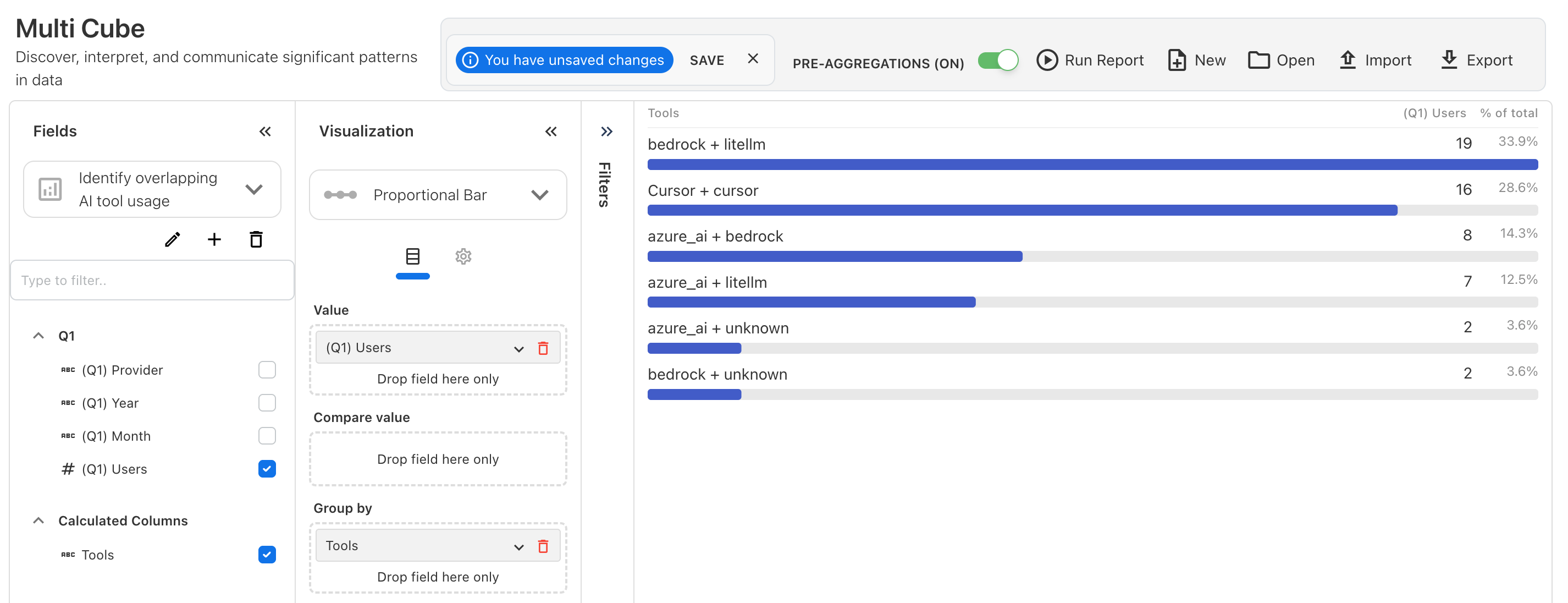
Create a Proportional bar visualization in Analytics -
Configure the visualization as required.
-
Run the report and review the results.
You can use the column settings to control whether the visualization displays column headers, percentages, and measures.
In a Custom Dashboard
-
Open the required Custom Dashboard and select Edit.
-
Add an Analytics widget.
-
Under Analytics Cube, select Multi Cube.
-
Select the Multi Cube created for overlapping AI tool analysis.
-
Under Chart Type, select Proportional Bar.
-
Add Users to Value.
-
Add Tools to Group by.
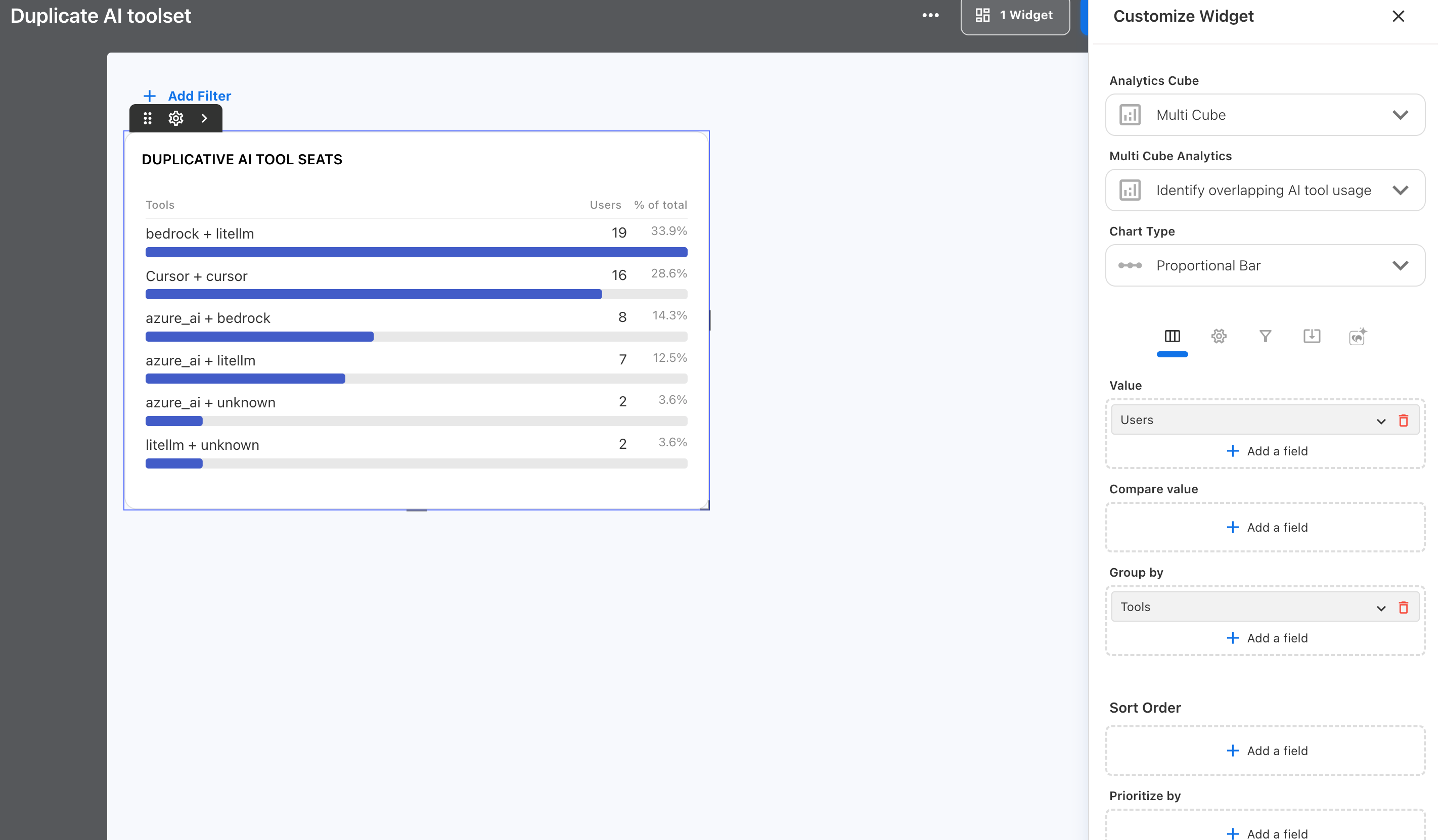
Create a Proportional bar visualization in Custom Dashboard -
Configure the appearance and column settings as required.
-
Review the visualization.
-
Save or finish editing the dashboard.
Interpret the visualization
Use the resulting Proportional Bar to compare AI tool combinations and understand overlapping access and usage.
For example, you can identify users with access to the same pair of AI tools and compare usage across those users to understand which tool is used more frequently.
Related content