
Access Policies let administrators control which Cloud data users can access.
Use them with existing Yarken restrictions to tailor access by supported Cloud attributes.
Each policy contains rules based on supported Cloud attributes. After you create the policy, assign it to a user from User Management > Users.
Before you begin
Before creating a policy:
-
Confirm which Cloud data the users need to access.
-
Identify the Cloud attributes that can define that access.
-
Consider existing account, cost center, entity, and role restrictions that also apply to the users.
-
Remember that only one Access Policy can be assigned to each user.
Access Policies control access to Cloud data. Existing Yarken access restrictions continue to apply alongside the Access Policy. Admin and Cost Model Manager users do not require an Access Policy.
Full Access Policy
Yarken automatically assigns the default Full Access Policy to existing users in roles that require an Access Policy. The Full Access Policy preserves unrestricted Cloud data access and cannot be edited or deleted.
Create a custom Access Policy when you need to restrict a user's Cloud data access.
View Access Policies
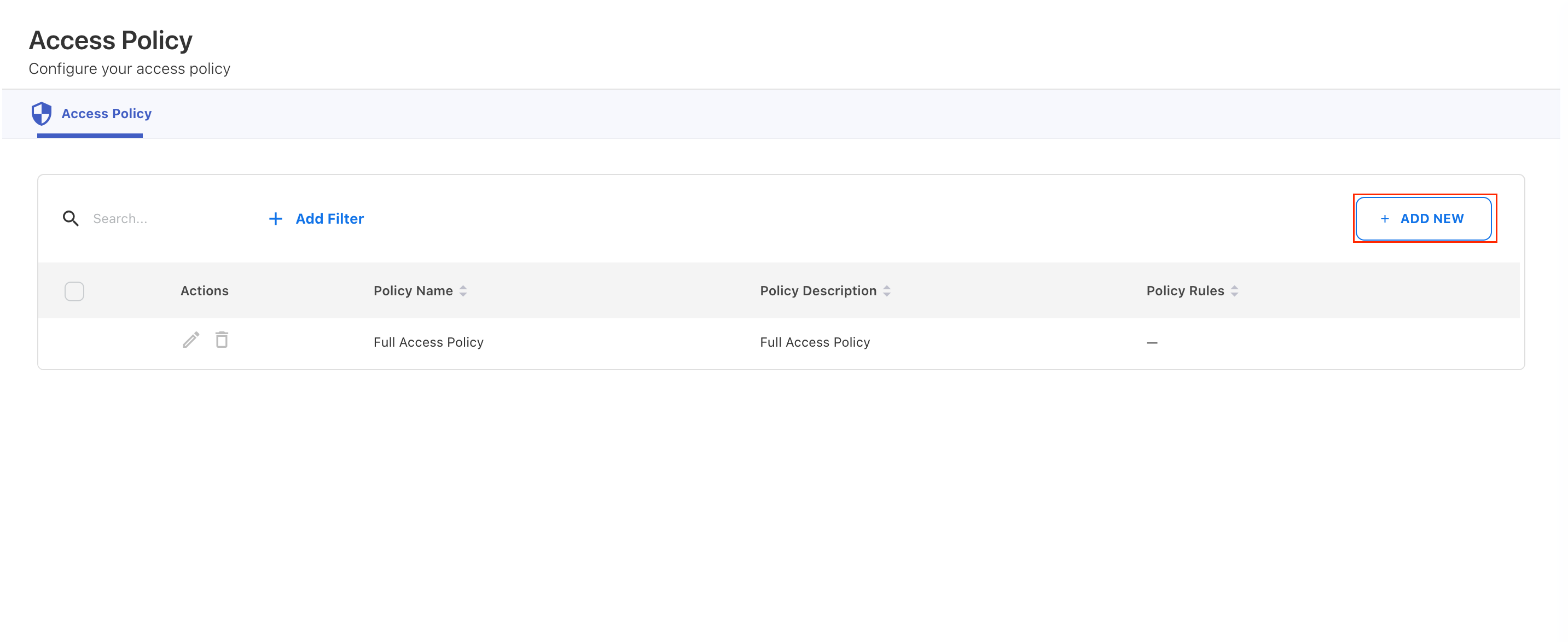
Go to Admin > User Management > Access Policies to view and manage Access Policies.
The page displays:
-
Policy Name — The name of the Access Policy.
-
Policy Description — A short description of the policy purpose.
-
Policy Rules — The rules configured for the policy.
-
Actions — Edit or delete a custom Access Policy.
Use Search or Add Filter to find a policy when required.
Note: Edit and delete actions are unavailable for the default Full Access Policy.
Create an Access Policy
-
Go to Admin > User Management > Access Policies.
-
Click + ADD NEW.
-
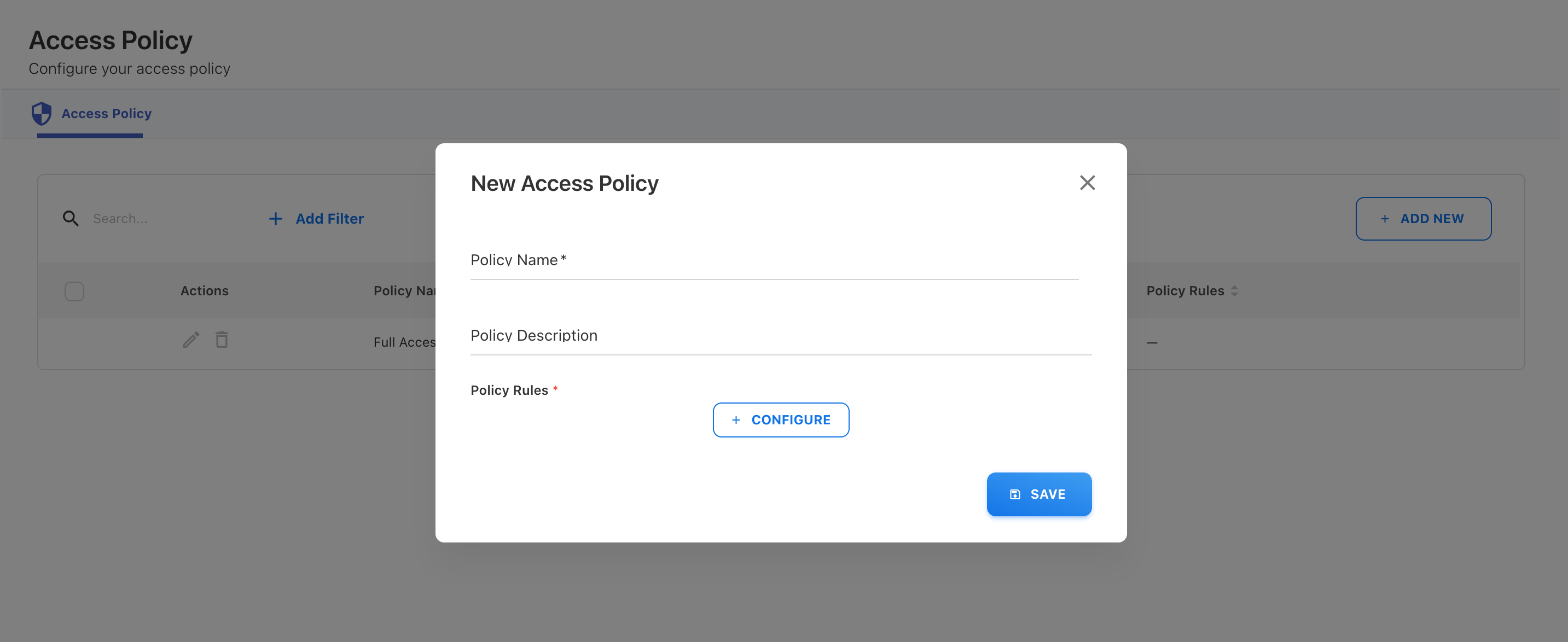
On the New Access Policy dialog, complete the following fields:
-
Policy Name — Enter a name for the policy.
-
Policy Description — Enter a short description of the policy purpose.
-
Policy Rules — Click + CONFIGURE to define the Cloud data that the policy allows or excludes. At least one rule is required.
-
-
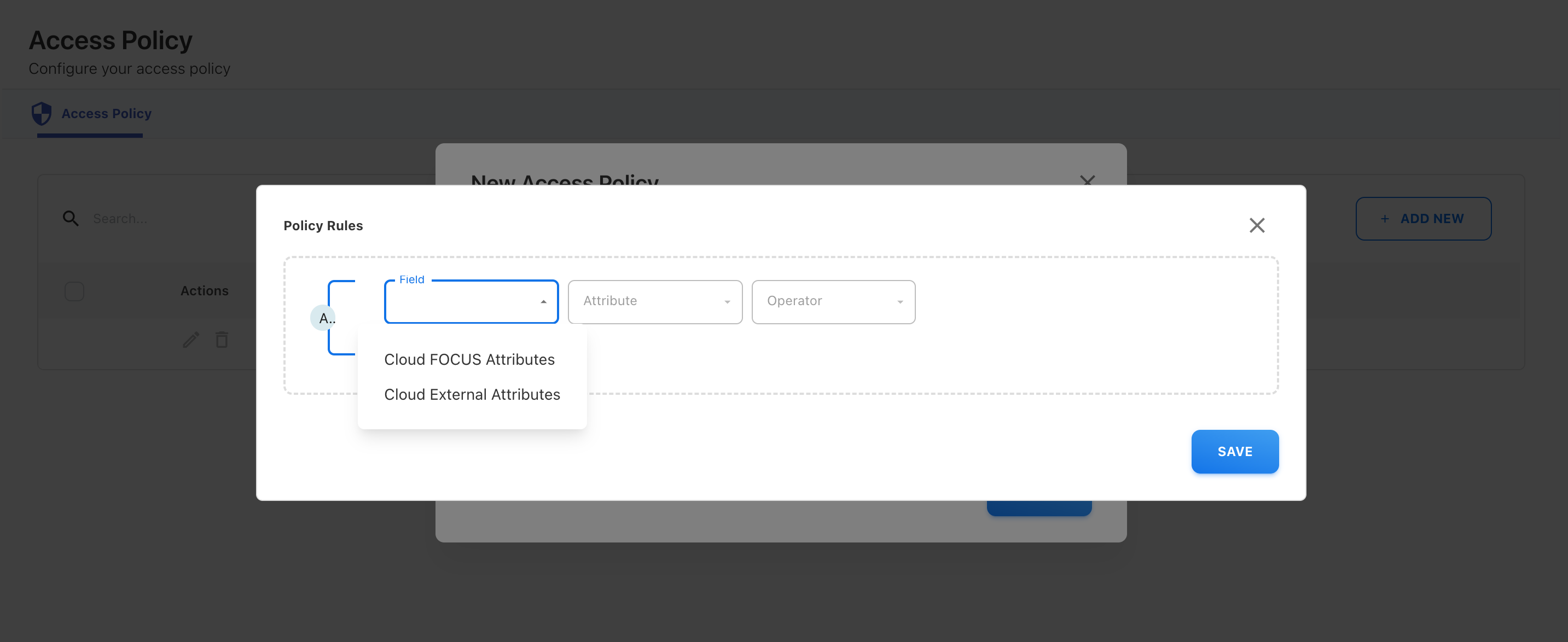
In the Policy Rules dialog, configure the rule:
-
Field — Select Cloud FOCUS Attributes or Cloud External Attributes.
-
Attribute — Select the Cloud attribute that you want to use for the rule.
-
Operator — Select the condition used to match the selected attribute.
-
Select or enter the required value for the condition.
-
-
Click + ADD CONDITION to add another condition, if required.
-
Click SAVE to save the Policy Rules and return to the New Access Policy dialog.
-
Review the policy, then click SAVE.
The new Access Policy appears in the Access Policy list and is available for assignment from User Management > Users.
Define policy rules
Policy Rules determine which Cloud data is available through an Access Policy.
|
Setting |
Description |
|---|---|
|
Field |
Select the attribute source. Available options include Cloud FOCUS Attributes and Cloud External Attributes. |
|
Attribute |
Select the supported Cloud attribute that defines the data scope. |
|
Operator |
Select how Yarken matches the selected attribute against the rule value. |
|
+ ADD CONDITION |
Add another condition to the Policy Rules. |
For example, you might create rules based on cloud provider, billing account, application-related Cloud attributes, or other supported FOCUS or External attribute values.
Use filter conditions
Select the operator that best represents the required access.
Common conditions include:
-
Equals — Match a specific value.
-
Contains — Match values containing specific text.
-
Starts With — Match values that begin with specific text.
Conditions such as Starts With can be useful when accounts or other Cloud values follow a consistent naming convention. This can reduce the need to select each value individually.
Access Policies can also use exclusion conditions when specific Cloud data must be excluded.
Examples
Restrict access to one cloud provider
To allow access only to AWS Cloud data:
-
Add a rule using the cloud provider attribute.
-
Select Equals.
-
Select or enter AWS.
-
Save the policy.
Restrict access by billing account
To allow access to a specific billing account:
-
Select the billing account attribute.
-
Select Equals.
-
Select the required billing account.
-
Save the policy.
Use a naming pattern
If permitted account names begin with FIN-:
-
Select the appropriate account attribute.
-
Select Starts With.
-
Enter
FIN-. -
Save the policy.
The policy matches Cloud data whose selected attribute begins with the specified value.
Edit an Access Policy
You can edit a custom Access Policy when the user's Cloud access requirements change.
Note: The default Full Access Policy cannot be edited.
-
Go to Admin > User Management > Access Policies.
-
Locate the custom Access Policy you want to update.
-
In the Actions column, click the Edit icon.
-
Update the policy name, description, or Policy Rules as required.
-
Click SAVE.
Changes take effect immediately. If the policy is assigned to users, the updated rules immediately change the Cloud data those users can access.
Review the impact on assigned users before changing an existing policy.
Delete an Access Policy
You can delete a custom Access Policy only when it is not assigned to any users.
-
Go to Admin > User Management > Access Policies.
-
Locate the custom Access Policy you want to delete.
-
In the Actions column, click the Delete icon.
If the policy is currently assigned, change or remove those assignments before deleting the policy.
Note: The default Full Access Policy cannot be deleted.
For users in roles that require Access Policies, assign another policy before removing the current one. A user without a required policy cannot access Yarken. Admin and Cost Model Manager users are exempt from this requirement.
Next step
Assign the policy to the required user from User Management.
See Assign and manage a user's Access Policy.
Related content