
What Entities do
Entities help organizations segment data by legal entity, region, business unit, or another operating structure.
In Yarken, entities affect visibility, reporting filters, planning ownership, and access control. They are also used across spend, budgets, forecasts, cloud publishing, and organisational analysis.
Where Entities matter
Entities can affect:
-
User access to data
-
Dashboard and analytics filters
-
Budget and forecast ownership
-
Planning line items and form configuration
-
Allocation and mapping logic
A related planning story also confirms that budgets and forecasts can exist per entity, and that entity can be enabled on planning line items through Form Configuration.
What you can do
-
Create new entities.
-
Edit entity details such as name, description, region, country, and owner.
-
Delete entities that are no longer used.
Create a new entity
Procedure
-
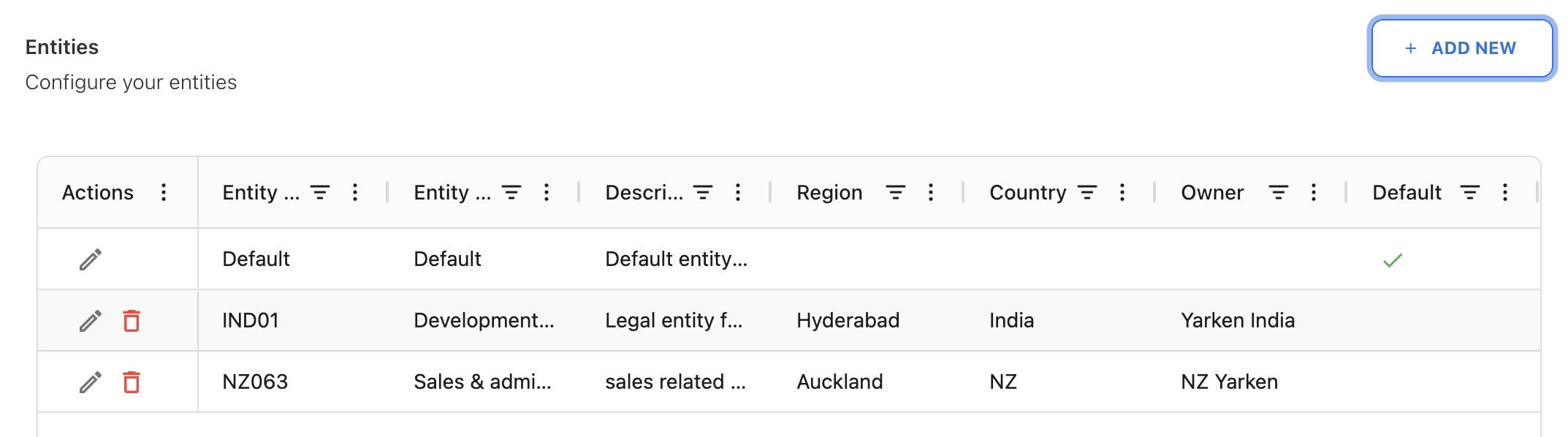
Navigate to Settings → Entities.
-
Click + ADD NEW.
-
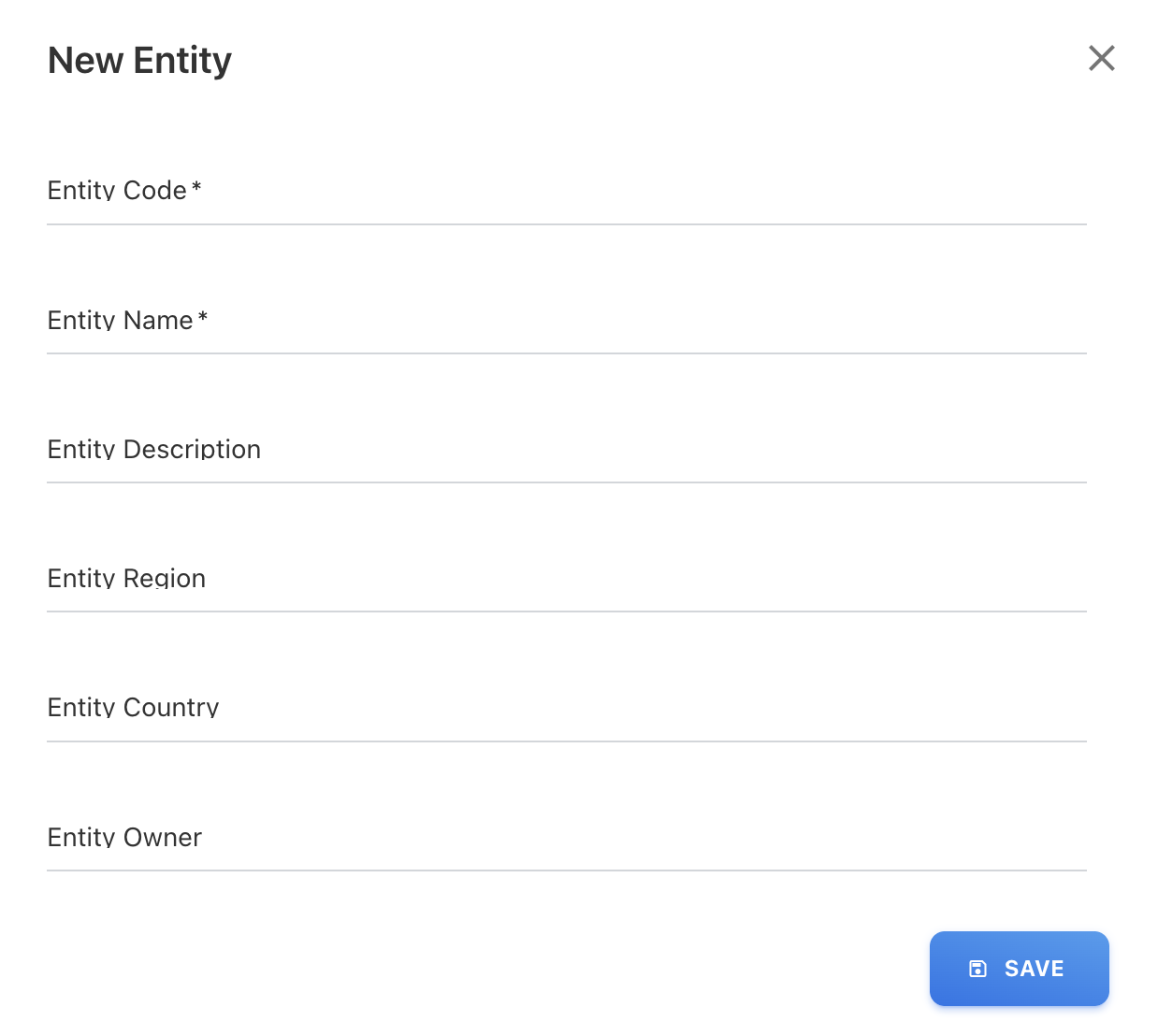
Enter the required details:
Required fields
-
Entity Code - A unique identifier for the entity.
-
Entity Name - The display name of the entity shown in dashboards, reports, and filters.
Optional fields
-
Description - Additional context about the entity’s purpose or scope.
-
Region - The geographical region associated with the entity.
-
Country - The country linked to the entity.
-
Owner - The responsible individual or function for the entity.
-
-
Click SAVE.
The new entity is now available for spend uploads, budgets, forecasts, cloud publishing, reporting, and filtering.
Edit an existing entity
-
Go to Settings → Entities.
-
Locate the entity in the list.
-
Click the Edit (pencil) icon next to the entity.
-
Update the required fields as needed:
-
Entity Name
-
Description
-
Region
-
Country
-
Owner
-
-
Click SAVE.
Notes:
-
The Default entity cannot be deleted, but its name and attributes can be updated.
-
Avoid changing the Entity Code after reporting has started, as it may impact integrations or downstream reporting references.
Delete an entity
-
Go to Settings → Entities.
-
Locate the entity in the list.
-
Click the Delete (trash) icon.
-
Confirm the deletion when prompted.
Before deleting
Ensure that:
-
No spend records reference the entity.
-
No budgets or forecasts are assigned to the entity.
-
No users are assigned to the entity.
-
No upload rules depend on the entity.
If dependent records exist, reassign them to another entity before deleting.
Restrictions
-
The Default entity cannot be deleted.
-
Deleting an entity removes it from filters, reporting, and access control immediately.
Next step
Assign entity access (Admin-only)
Related content