
You can export and import model data in ZIP format to back up a model, move it between environments, or replicate the same model setup for another year or model.
These actions are available in Yarken Designer using the Import Model and Export Model buttons.
What import and export supports
-
Back up model data for a selected model and year
-
Replicate model setup across years or models
-
Restore model data using the exported ZIP format
-
Reuse rules and mappings without rebuilding them manually
-
Preserve rule enabled/disabled status across export and import
Importing model data overwrites existing data for the selected model and year.
Export model data
Export a selected model and year as a ZIP file.
The exported ZIP file contains individual CSV files for model components such as:
-
Cost Pools
-
Towers
-
Solutions
-
Consumers
-
Related rules and mappings
Each rule CSV file includes a Rule Enabled column indicating whether the rule is enabled (Yes) or disabled (No). This preserves the enabled/disabled status of all rules during export.
Each CSV file contains the data required to recreate the selected model structure for that year.
The export does not include Upload Rules for:
-
Expenses
-
Budget
-
Forecast
Before you export, make sure you are in the correct:
-
Model
-
Year
The export uses the currently selected model and year in Designer.
Procedure
-
Open Yarken Designer.
-
Select the required model and year.
-
In the top-right corner, click Export Model. A link to download the Zip file is generated.
-
Click Download Export.
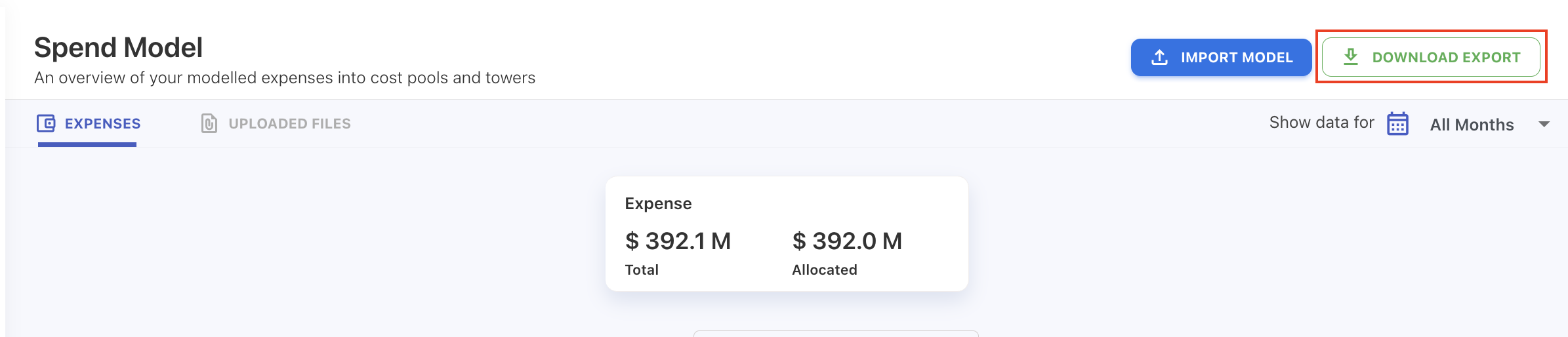
The export is created as a ZIP archive containing multiple CSV files. These files represent the model structure and related rule data for the selected model and year.
Notes:
-
Export works for the selected model and year only
-
The ZIP file can be used later for import
-
Export is useful for:
-
Backup
-
Restore
-
Replication
-
Migration between environments
-
Import model data
Import a previously exported ZIP file to recreate or replicate model data for a selected model and year.
Import restores:
-
Model data
-
Rules
-
Mappings
This makes it easier to reproduce the same configuration without manually rebuilding the model.
Importing a model:
-
Applies to the selected model and year
-
Overwrites existing data for that model and year
Chargeback locked months: If chargeback has been created for a month, that month is locked across all models. Import Model automatically skips the locked chargeback month to preserve locked data. Skipped months are recorded in Background Processes.
For successful replication, ensure that:
-
The correct model and year are selected
-
Master data and asset matches the source model
Prerequisites
Before importing model data, ensure you have:
-
A valid exported ZIP file from Yarken Designer
-
The ZIP file must contain all required CSV files (such as expenditures, cost pool rules, tower rules, and related mappings)
Before importing model data, ensure that the target model contains the same assets as the source model. If required assets are missing or do not match, the import may fail because model rules, mappings, and relationships depend on those assets. To prevent this, copy the required assets first using the Copy From or Copy To asset functionality before starting the Import Model operation.
Procedure
-
Open Yarken Designer.
-
Select the required model and year.
-
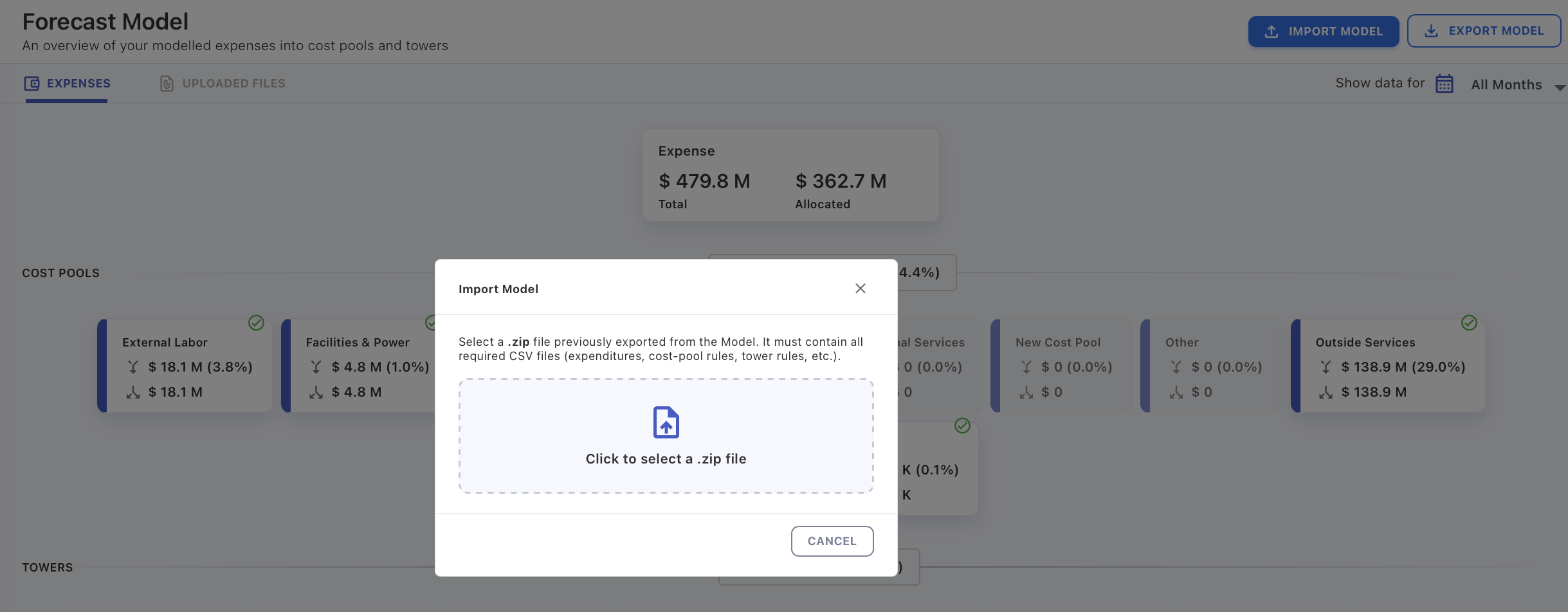
Click Import Model in the top-right corner.
-
In the import window, click to select a ZIP file.
-
Choose the exported model ZIP file.
-
Confirm the import.
After import:
-
Existing data for the selected model and year is replaced.
-
Rules and mappings are restored from the ZIP file.
-
Rule enabled/disabled status is preserved from the imported file. Rules that were disabled at export time remain disabled after import.
Related content