Yarken Help Centre
Breadcrumbs

Manage Master Data

YäRKEN

Master Data

The master data is the core data entities in the YäRKEN application. It represents the foundational information that is used for distributing the spend across various business categories.

In our application, setting up the master data is the initial step. You must configure the master data before proceeding with the distribution of spend. You can either add the master data manually or use the template file to uplod the master data. Only a user with the Admin privilege has access to manage the master data. In YäRKEN, master data is identified by a unique code or ID and includes:


  • Accounts

  • Cost Centers

  • Vendors

  • Solution Offerings

  • Business Units

Accounts

Account is an item of income or expense and are prepared for each type of asset, liability, revenue and expense. Accounts are used to record income and expense items in the general ledger. Its an integral part of any financial record and is a key element in the TBM model.


Account data in YäRKEN comprises the below attributes:


  • Account Code

  • Account Description

  • Active/Inactive Flag


Adding Accounts


Adding the accounts is the initial step to start defining the master data. There are two ways to load the account data: manually adding the individual account details or use the template file to uplod the multiple accounts. The accounts are accessible under the Admin > YäRKEN Designer.


Adding Accounts Manually

Manually adding the account involves filling out the mandatory fields data, such as the account code and description. While adding new accounts, you may choose whether to keep them active or inactive.


Prerequisites


Before adding the account, you should have:


  • Account code

  • Account description


Procedure


To add the account,


  1. From the menubar, select Admin > YäRKEN Designer.

  2. On the left pane, expand the Master Data under the UPLOAD section.

  3. Select Accounts.


att_51_for_514916403.png


On the upper-right corner, click + ADD NEW.

A New Account dialog box appears.


att_17_for_514916403.png


Enter the account data into the below fields:


Field Name

Mandatory

Description

Account Code

Yes

The code that represents the account from the general ledger.

Account Description

Yes

The name of the account from the general ledger.

Active

No

The status of the account. Indicates if the account is currently Active or not.

Note: The default value is Yes when not mapped.


Click SAVE.


After saving, you can view, edit, or delete the accounts.


Note: By default, the system displays the list of all active accounts. However, you can filter out inactive accounts.


Adding Accounts by Uploading a File


You can add multiple accounts by uploading the Excel file. During upload, you can choose which columns in your file map to which application data fields. The upload files must be in.xls,.xlsx, or.csv format. To make data uploading easier using the file, we have provided the data templates under the Admin > Data Templates. These templates include predefined field columns for field mapping.

You can download the Account template file, add the field entries, and then upload to Accounts under the master data section in YäRKEN Designer.


Prerequisites


To add the account using file, you should have:


Account template file containing data for all mandatory fields.


Procedure


  1. From the menubar, select Admin > YäRKEN Designer.

  2. On the left pane, expand the Master Data under the UPLOAD section.

  3. Select Accounts.

  4. On the upper-right corner, click UPLOAD.


att_46_for_514916403.png


On the upload dialog box, click OR BROWSE or drag and drop your file.


att_18_for_514916403.png


Review your data on the Data Preview screen and select NEXT.

Note: If you have aligned to the template headers or loaded your data into the template, you should see “All required fields have been automapped successfully.”

You can choose to FINISH or select EDIT MAPPING to review or map any additional data.


You may refer to the UPLOADED FILES tab to check the loaded file status, total records, errors or view the mapping fields. You can also download the uploaded files from this tab.


Editing Accounts


After adding the account under the master data, you can use the edit option to modify account details. You can also change the account status from Active to Inactive. Editing the existing accounts can have an impact on the dependant data, and rules that are created using account may become invalid.


To edit,


  1. From the menubar, select Admin > YäRKEN Designer.

  2. On the left pane, expand the Master Data under the UPLOAD section.

  3. Select Accounts.

  4. On the ACCOUNTS tab, search for the account you would like to edit.

  5. Select Edit button on the account row.


att_47_for_514916403.png


On the Edit Account dialog box, edit the required fields and click SAVE.


att_58_for_514916403.png


Deleting Accounts

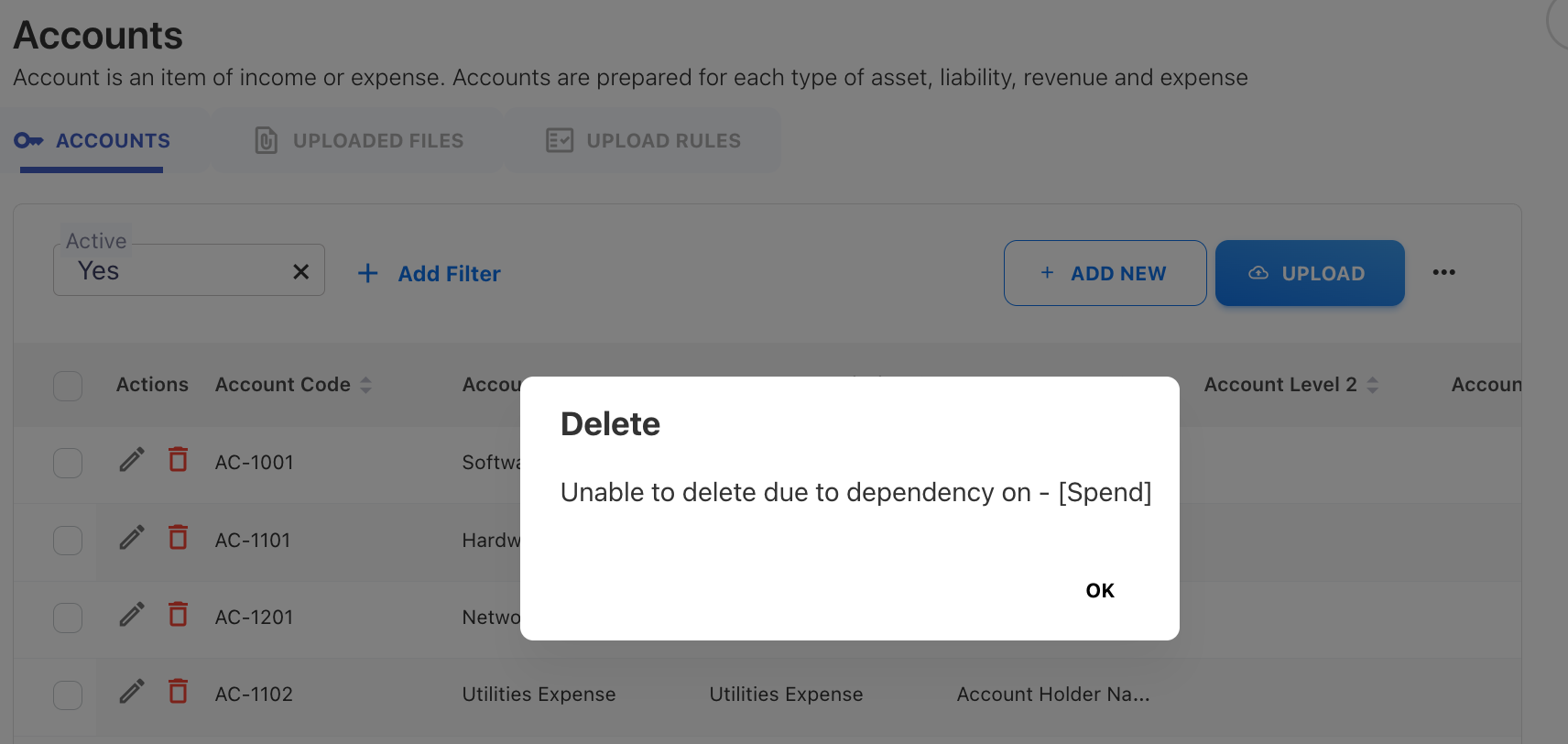
You can delete an accounts only when there are no dependency on spend or other data. The application will not be able to remove an account which is used by the underlying data like GL or budget data. It shows message explaining why a particular account data cannot be removed:


att_19_for_514916403.png


You can delete the multiple accounts by selecting the check boxes against each account.


att_65_for_514916403.png


To delete an account that is not dependant on other data,

  1. Select the account in the ACCOUNTS tab.

  2. Click the Delete icon corresponding to the account that you want to delete.


att_78_for_514916403.png


A message appears to confirm whether you want to delete.

Click OK.

The account is deleted.


Note:

You can delete an account only when:

  • It is not yet associated to Cost Pools, Towers, Solutions, Business Units, or other data.

  • It is not currently used in any rules or the spend distribution.


Filters

All the master data is provided with the pre-defined filters to narrow down the search results. Both the tabs including ACCOUNTS and UPLOADED FILES contains the filter option. By default, only active accounts are shown on the ACCOUNTS tab. However, additional filters can be applied by clicking on the + Add Filter button. You may also perform a free text search in the filters bar by typing into the search box.


att_20_for_514916403.png


Downloading Accounts


You can download the list of accounts or any other master data from their respective screen. The application only allows to downloaded the master data into a CSV file.


To download,


  1. Navigate to the Accounts under the Master Data.

  2. On the upper-right corner of the Accounts screen, select the ellipsis (..) symbol and then select Download.


att_69_for_514916403.png


The file automatically downloads in the background and contains the consolidated records of all accounts.


View Uploaded Files


The UPLOADED FILES tab provides a list of all the uploaded account files. You can use this tab to:


  • View the history and status of uploaded files.

  • Check the number of records in the uploaded file.

  • Find out the mapping errors encountered during uploads.

  • Dowload the uploaded files.


Note: The deletion of the master data files from the UPLOADED FILES tab is currently disabled.


att_52_for_514916403.png


Cost Centers


A Cost Centre is a department within a business to which costs can be allocated. The primary role of a Cost Center is to contribute to the organization's operations by supporting revenue-generating activities. Examples of Cost Centers include administrative departments, IT support, HR, and maintenance teams. Cost Center is an integral part of any financial record and is a key element in the TBM model.


Cost Center data in YäRKEN comprises the below attributes:


  • Cost Center Code

  • Cost Center Description

  • Cost Center Owner

  • Active/Inactive Flag


Adding Cost Centers

Only a user with the Admin privilege has access to manage the master data.

There are two ways to load the cost center data: manually adding the individual cost center details or use the template file to uplod the multiple cost centers. The cost centers are accessible under the Admin > YäRKEN Designer.


Adding Cost Center Manually

Manually adding the cost centers involves filling out the individual fields data. While adding new cost centers, you may choose whether to keep them active or inactive.


Prerequisites


Before adding cost center, you should have:


  • Cost center code

  • Cost center description

  • Cost center owner


Procedure


To add the cost center,


  1. From the menubar, select Admin > YäRKEN Designer.

  2. On the left pane, expand the Master Data under the UPLOAD section.

  3. Select Cost Centers.


att_71_for_514916403.png


On the upper-right corner, click + ADD NEW.

A New Cost Center dialog box appears.


att_40_for_514916403.png


Enter the data into the below fields:


Field Name

Mandatory

Description

Cost Center Code

Yes

The cost center code associated with the cost center name.

Cost Center Description

Yes

The description of the cost center associated with the cost center code.

Cost Center Owner

Yes

The name of the person who is responsible for the budget of the cost center. This is required to drive the cost center owners dashboard.

Active

No

The status of the account. Indicates if the account is currently Active or not.

Note: The default value is Yes when not mapped.


Click SAVE.


After saving, you can view, edit, or delete the cost centers.


Note: By default, the system displays the list of all active cost centers. However, you can filter out inactive cost centers.


Adding Cost Centers by Uploading a File


You can add multiple cost centers by uploading the Excel file. During upload, you can choose which columns in your file map to which application data fields. The upload files must be in.xls,.xlsx, or.csv format. To make data uploading easier using the file, we have provided the data templates under the Admin > Data Templates. These templates include predefined field columns for field mapping. You can download the Cost Center template file, add the field entries, and then upload to Cost Centers under the master data section in YäRKEN Designer.


Prerequisites


To add the cost center using file, you should have:


Cost center template file containing data for all mandatory fields.


Procedure


  1. From the menubar, select Admin > YäRKEN Designer.

  2. On the left pane, expand the Master Data under the UPLOAD section.

  3. Select Cost Centers.

  4. On the upper-right corner, click UPLOAD.


att_75_for_514916403.png


On the upload dialog box, click OR BROWSE or drag and drop your file.


att_53_for_514916403.png


Review your data on the Data Preview screen and select NEXT.

Note: If you have aligned to the template headers or loaded your data into the template, you should see “All required fields have been automapped successfully.”

You can choose to FINISH or select EDIT MAPPING to review or map any additional data.


You may refer to the UPLOADED FILES tab to check the loaded file status, total records, errors or view the mapping fields. You can also download the uploaded files from this tab.


Editing Cost Centers


After adding the account under the master data, you can use the edit option to modify account details. You can also change the account status from Active to Inactive. Editing the existing accounts can have an impact on the dependant data, and rules that are created using account may become invalid.


To edit,


  1. From the menubar, select Admin > YäRKEN Designer.

  2. On the left pane, expand the Master Data under the UPLOAD section.

  3. Select Cost Centers.

  4. On the COST CENTERS tab, search for the cost center you would like to edit.

  5. Select Edit button on the cost center row.

att_70_for_514916403.png


On the Edit Cost Center dialog box, edit the required fields and click SAVE.


att_79_for_514916403.png


Deleting Cost Centers

You can delete cost centers only when there are no dependency on spend or other data. The application will not be able to remove cost center which is used by the underlying data like GL or budget data. It shows message explaining why a particular cost center cannot be removed:


att_21_for_514916403.png


You can delete the multiple cost centers by selecting the check boxes against each cost center.


att_66_for_514916403.png


To delete a cost center that is not dependant on other data,

  1. Select the cost center in the COST CENTERS tab.

  2. Click the Delete icon corresponding to the cost center that you want to delete.


att_83_for_514916403.png


A message appears to confirm whether you want to delete.

Click OK.

The cost center is deleted.


Note:

You can delete a cost center only when:

  • It is not yet associated to Cost Pools, Towers, Solutions, Business Units, or other data.

  • It is not currently used in any rules or the spend distribution.


Filters


All the master data is provided with the pre-defined filters to narrow down the search results. Both the tabs including COST CENTERS and UPLOADED FILES contains the filter option. By default, only active cost centers are shown on the COST CENTER tab. However, additional filters can be applied by clicking on the + Add Filter button. You may also perform a free text search in the filters bar by typing into the search box.


att_29_for_514916403.png


Downloading Cost Centers


You can download the list of cost centers or any other master data from their respective screen. The application only allows to downloaded the master data into a CSV file.


To download,


  1. Navigate to the Cost Centers under the Master Data.

  2. On the upper-right corner of the Accounts screen, select the ellipsis (..) symbol and then select Download.


att_76_for_514916403.png


The file automatically downloads in the background and contains the consolidated records of all cost centers.


Vendors

A vendor is a business entity that sells products or services to another company or individual. Vendors can vary widely in their offerings and can be manufacturers, wholesalers, retailers, or service providers. A vendor is an integral part of any financial record and is a key element in the TBM model.


Vendor data in YäRKEN comprises the below attributes:


  • Vendor Code

  • Vendor Name

  • Vendor Type

  • Vendor Function

  • Vendor Primary Service

  • Vendor Location

  • Service Location

  • User Interaction

  • Vendor Manager

  • Vendor Owner

  • Vendor Family

  • Contract Rate

  • Annual Target Spend

  • SPM Cadence

  • Operational Meetings

  • SPM Meetings

  • Minutes Completed

  • Relationship RAG

  • Active/Inactive Flag


Adding Vendors

Only a user with the Admin privilege has access to manage the master data.

There are two ways to load the vendor data: manually adding the individual vendor details or use the template file to uplod the multiple vendors. The vendors are accessible under the Admin > YäRKEN Designer.


Adding Vendors Manually

Manually adding the vendors involves filling out the individual fields data. While adding new vendors, you may choose whether to keep them active or inactive.


Prerequisites


Before adding vendors, you should have:


  • Vendor code

  • Vendor name


Procedure


To add the vendor,


  1. From the menubar, select Admin > YäRKEN Designer.

  2. On the left pane, expand the Master Data under the UPLOAD section.

  3. Select Vendors.


att_68_for_514916403.png


On the upper-right corner, click + ADD NEW.

A New Vendor dialog box appears.


att_41_for_514916403.png


Enter the data into the below fields:


Field Name

Mandatory

Description

Vendor Code

Yes

The vendor ID used by the financial management system to track the company providing the product or service.

Vendor Name

Yes

The name of the vendor.

Vendor Type

No

A classification of vendors to provide appropriate management and oversight to optimize pricing and risk. Example: Strategic, Preferred and Transactional.

Vendor Function

No

A high-level categorization of the function that the vendor provides. Example: Consulting, Hardware, IaaS/PaaS, Leasing, Managed Service Provider, SaaS, Service Provider, Software, Staff Augmentation.

Vendor Primary Service

No

The service provided by the vendor.

Vendor Location

No

The location of the vendor.

Service Location

No

The location where the service is performed.

User Interaction

No

The interactions between user and vendor.

Vendor Manager

No

The internal person who manages the vendor relationship.

Vendor Owner

No

The internal person who owns the vendor budget.

Vendor Family

No

Categorization of vendors into specific group or families based on shared business domain.

Contract Rate

No

The agreed-upon rate specified in the contract between the vendor and the client.

Annual Target Spend

No

Client-defined annual target spend on a specific vendor.

SPM Cadence

No

The frequency of SPM meetings, often measured in intervals (e.g. monthly, weekly, or yearly).

Operational Meetings

No

The operational meetings occurred with the vendors. This indicates if the meeting takes place or not. By default, the value is blank.

SPM Meetings

No

The Supplier Performance Management (SPM) meetings. This indicates if the SPM meeting takes place or not. By default, the value is blank.

Minutes Completed

No

The completion status of meeting minutes or documentation for the meeting. By default, the value is blank.

Relationship RAG

No

The current state of relationship with the vendor, measured in RAG (Red, Amber, Green) system. By default, the value is blank.

Active

No

The status of the vendor. Indicates if the account is currently Active or not.

Note: The default value is Yes when not mapped.


Click SAVE.


After saving, you can view, edit, or delete the vendors.


Note: By default, the system displays the list of all active vendors. However, you can filter out inactive vendors.


Adding Vendors by Uploading a File


You can add multiple vendors by uploading the Excel file. During upload, you can choose which columns in your file map to which application data fields. The upload files must be in.xls,.xlsx, or.csv format. To make data uploading easier using the file, we have provided the data templates under the Admin > Data Templates. These templates include predefined field columns for field mapping. You can download the Vendor template file, add the field entries, and then upload to Vendors under the master data section in YäRKEN Designer.


Prerequisites


To add the vendor using file, you should have:


Vendor template file containing data for all mandatory fields.


Procedure


  1. From the menubar, select Admin > YäRKEN Designer.

  2. On the left pane, expand the Master Data under the UPLOAD section.

  3. Select Vendors.

  4. On the upper-right corner, click UPLOAD.


att_72_for_514916403.png


On the upload dialog box, click OR BROWSE or drag and drop your file.

att_48_for_514916403.png


Review your data on the Data Preview screen and select NEXT.

Note: If you have aligned to the template headers or loaded your data into the template, you should see “All required fields have been automapped successfully.”

You can choose to FINISH or select EDIT MAPPING to review or map any additional data.


You may refer to the UPLOADED FILES tab to check the loaded file status, total records, errors or view the mapping fields. You can also download the uploaded files from this tab.


Editing Vendors


After adding the vendor under the master data, you can use the edit option to modify vendor details. You can also change the vendor status from Active to Inactive. Editing the existing vendors can have an impact on the dependant data, and rules that are created using vendor may become invalid.


To edit,


  1. From the menubar, select Admin > YäRKEN Designer.

  2. On the left pane, expand the Master Data under the UPLOAD section.

  3. Select Vendors.

  4. On the VENDORS tab, search for the vendor you would like to edit.

  5. Select Edit button on the vendor row.


att_80_for_514916403.png


On the Edit Vendor dialog box, edit the required fields and click SAVE.


att_87_for_514916403.png


Deleting Vendors

You can delete vendors only when there are no dependency on spend or other data. The application will not be able to remove vendor which is used by the underlying data like GL or budget data. It shows message explaining why a particular vendor cannot be removed:


att_22_for_514916403.png


You can delete the multiple vendors by selecting the check boxes against each vendor.


att_54_for_514916403.png


To delete a vendor that is not dependant on other data,

  1. Select the vendor in the COST CENTERS tab.

  2. Click the Delete icon corresponding to the cost center that you want to delete.


att_81_for_514916403.png


A message appears to confirm whether you want to delete.

Click OK.

The vendor is deleted.


Note:

You can delete a vendor only when:

  • It is not yet associated to Cost Pools, Towers, Solutions, Business Units, or other data.

  • It is not currently used in any rules or the spend distribution.


Filters


All the master data is provided with the pre-defined filters to narrow down the search results. Both the tabs including VENDORS and UPLOADED FILES contains the filter option. By default, only active vendors are shown on the VENDORS tab. However, additional filters can be applied by clicking on the + Add Filter button. You may also perform a free text search in the filters bar by typing into the search box.


att_59_for_514916403.png


Downloading Vendors


You can download the list of vendors or any other master data from their respective screen. The application only allows to downloaded the master data into a CSV file.


To download,


  1. Navigate to the Vendors under the Master Data.

  2. On the upper-right corner of the Vendors screen, select the ellipsis (..) symbol and then select Download.


att_84_for_514916403.png


The file automatically downloads in the background and contains the consolidated records of all vendors.


Solution Offerings

Solution offerings within TBM are designed to align IT resources and capabilities with business objectives, providing a clear value proposition to the organization. Solution Offering is an integral part of any financial record and is a key element in the TBM model.


Solution Offerings data in YäRKEN comprises the below attributes:


  • Offering ID

  • Offering Name

  • Solution Name

  • Offering Type

  • Tier

  • Weight

  • Unit Of Measure

  • Active/Inactive Flag

  • Custom Strings

  • Custom Dates

  • Custom Numbers


Adding Solution Offerings

Only a user with the Admin privilege has access to manage the master data.

There are two ways to load the solution offering: manually adding the individual solution offering details or use the template file to uplod the multiple offerings. The solution offerings are accessible under the Admin > YäRKEN Designer.


Adding Solution Offerings Manually

Manually adding the solution offering involves filling out the individual fields data. While adding new offerings, you may choose whether to keep them active or inactive.


Prerequisites


Before adding solution offering, you should have:


  • Offering ID

  • Offering name

  • Solution name


Procedure


To add the solution offering,


  1. From the menubar, select Admin > YäRKEN Designer.

  2. On the left pane, expand the Master Data under the UPLOAD section.

  3. Select Solution Offerings.


att_73_for_514916403.png


On the upper-right corner, click + ADD NEW.

A New Solution Offerings dialog box appears.


att_42_for_514916403.png


Enter the data into the below fields:


Field Name

Mandatory

Description

Offering ID

Yes

The unique identifier of the solution offering.

Offering Name

Yes

The descriptive name of the solution offering.

Solution Name

Yes

Name of the solution where the offering should be distributed.

Offering Type

No

The type of offering that is being provided.

Tier

No

Categorization to split spend by percentage: "Tier 1", "Tier 2", "Tier 3", "Tier 4", "Tier 5".

Weight

No

A numerical value that can be used to spread cost across a list of assets.

Unit of Measure

No

Name of the type of Unit of Measure representing the quantities of the units (For example, Headcount, Licenses, Desktops).

Active

No

The status of the offering. Indicates if the offering is currently Active or not.

Note: The default value is Yes when not mapped.


Click SAVE.


After saving, you can view, edit, or delete the solution offerings.


Note: By default, the system displays the list of all active offerings. However, you can filter out inactive solution offerings.


Adding Solution Offerings by Uploading a File


You can add multiple offerings by uploading the Excel file. During upload, you can choose which columns in your file map to which application data fields. The upload files must be in.xls,.xlsx, or.csv format. To make data uploading easier using the file, we have provided the data templates under the Admin > Data Templates. These templates include predefined field columns for field mapping. You can download the Solution Offering template file, add the field entries, and then upload to Solution Offerings under the master data section in YäRKEN Designer.


Prerequisites


To add the solution offering using file, you should have:


Solution offering template file containing data for all mandatory fields.


Procedure


  1. From the menubar, select Admin > YäRKEN Designer.

  2. On the left pane, expand the Master Data under the UPLOAD section.

  3. Select Solution Offerings.

  4. On the upper-right corner, click UPLOAD.


att_85_for_514916403.png


On the upload dialog box, click OR BROWSE or drag and drop your file.


att_49_for_514916403.png


Review your data on the Data Preview screen and select NEXT.

Note: If you have aligned to the template headers or loaded your data into the template, you should see “All required fields have been automapped successfully.”

You can choose to FINISH or select EDIT MAPPING to review or map any additional data.


You may refer to the UPLOADED FILES tab to check the loaded file status, total records, errors or view the mapping fields. You can also download the uploaded files from this tab.


Editing Solution Offerings


After adding the solution offering under the master data, you can use the edit option to modify details. You can also change status from Active to Inactive. Editing the existing solution offering can have an impact on the dependant data, and rules that are created using offering may become invalid.


To edit,


  1. From the menubar, select Admin > YäRKEN Designer.

  2. On the left pane, expand the Master Data under the UPLOAD section.

  3. Select Solution Offerings.

  4. On the SOLUTION OFFERINGS tab, search for the solution offering you would like to edit.

  5. Select Edit button on the offering row.


att_74_for_514916403.png


On the Edit Solution Offerings dialog box, edit the required fields and click SAVE.


att_60_for_514916403.png


Deleting Solution Offerings

You can delete solution offerings only when there are no dependency on spend or other data. The application will not be able to remove solution offeting which is used by the underlying data like GL or budget data. It shows message explaining why a particular offering cannot be removed:


att_23_for_514916403.png


You can delete the multiple solution offerings by selecting the check boxes against each of them.

att_61_for_514916403.png


To delete a solution offering that is not dependant on other data,

  1. Select the solution offering in the SOLUTION OFFERINGS tab.

  2. Click the Delete icon corresponding to the offering that you want to delete.


att_77_for_514916403.png


A message appears to confirm whether you want to delete.

Click OK.

The solution offering is deleted.


Note:

You can delete a solution offering only when:

  • It is not yet associated to Cost Pools, Towers, Solutions, Business Units, or other data.

  • It is not currently used in any rules or the spend distribution.


Filters


All the master data is provided with the pre-defined filters to narrow down the search results. Both the tabs including SOLUTION OFFERINGS and UPLOADED FILES contains the filter option. By default, only active solution offerings are shown on the SOLUTION OFFERINGS tab. However, additional filters can be applied by clicking on the + Add Filter button. You may also perform a free text search in the filters bar by typing into the search box.


att_67_for_514916403.png


Downloading Solution Offerings


You can download the list of solution offerings or any other master data from their respective screen. The application only allows to downloaded the master data into a CSV file.


To download,


  1. Navigate to the Solution Offerings under the Master Data.

  2. On the upper-right corner of the Solution Offering screen, select the ellipsis (..) symbol and then select Download.


att_86_for_514916403.png


The file automatically downloads in the background and contains the consolidated records of all solution offerings.


Business Units

Business units refer to distinct segments or divisions within an organisation with specific functions, goals, and responsibilities. Each business unit operates semi-independently, focusing on a particular aspect of the company's overall operations, such as marketing, finance, sales, human resources, or product development. The business unit is an integral part of any financial record and is a key element in the TBM data model.


Business Unit data in YäRKEN comprises the below attributes.


  • Business Unit ID

  • Business Unit Name

  • Cost Center

  • Tier

  • Active/Inactive Flag

  • Custom Strings

  • Custom Dates

  • Custom Numbers


Adding Business Unit

Only a user with the Admin privilege has access to manage the master data.

There are two ways to load the business units: manually adding the individual business unit details or use the template file to uplod the multiple business units. The business units are accessible under the Admin > YäRKEN Designer.


Adding Business Units Manually

Manually adding the business unit involves filling out the individual fields data. While adding new business units, you may choose whether to keep them active or inactive.


Prerequisites


Before adding business units, you should have:


  • Business unit ID

  • Business unit name


Procedure


To add the business units,


  1. From the menubar, select Admin > YäRKEN Designer.

  2. On the left pane, expand the Master Data under the UPLOAD section.

  3. Select Business Units.


att_82_for_514916403.png


On the upper-right corner, click + ADD NEW.

A New Solution Offerings dialog box appears.

att_50_for_514916403.png


Enter the data into the below fields:


Field Name

Mandatory

Description

Business Unit ID

Yes

Unique identifier of the business Unit.

Business Unit Name

Yes

Descriptive name of the business Unit.

Cost Center

No

Cost center associated with the business unit.

Tier

No

Categorization to split spend by percentage: "Tier 1", "Tier 2", "Tier 3", "Tier 4", "Tier 5".

Active

No

The status of the business unit. Indicates if it’s currently Active or not.

Note: The default value is Yes when not mapped.


Click SAVE.


After saving, you can view, edit, or delete the solution offerings.


Note: By default, the system displays the list of all active business units. However, you can filter out inactive business units.


Applying Filters


While viewing Business Units filters can be applied to narrow down the search. By default, only active Business Units will be shown by applying a filter (Active = “Yes”) on the list of Business Units. Additional filters can be added by clicking on the “+ Add Filter” button. Clicking on “X” on the filter chip will remove the added filter. Additionally, a free text search can be applied by typing into the search box on the filter bar.


att_43_for_514916403.png


Managing Invoices

An invoice is a document issued by a seller to a buyer, detailing a transaction and requesting payment for goods or services provided. It includes essential information such as the seller and buyer's contact details, a unique invoice number, the date of issue, a description of the items or services, the total amount due, applicable taxes, and payment terms. Invoices are crucial for tracking sales, managing financial records, and ensuring timely payments.


Invoice data in YäRKEN comprises the below attributes.


  • Invoice Number

  • Invoice Description

  • Invoice Date

  • Invoice Amount

  • PO Number

  • Cost Center

  • Vendor

  • Account


Only a user with the Admin privilege has access to manage the master data.


Invoices can be accessed via the YäRKEN Designer sub-menu option under the Admin menu.


att_1_for_514916403.png


Once on the Designer page, the left collapsible panel shows Accounts Payable which has the link to access the Invoices page.


att_24_for_514916403.png


Admin >> YaRKEN Designer >> Spend Model >> Master Data >> Invoices

Adding Invoices

Invoices can be either manually added or uploaded using an Excel or csv file.

Adding Invoices Manually


att_36_for_514916403.png


To add Invoices manually, click on the + ADD NEW button and enter the details. The details of each of the attributes can be found in the YäRKEN data dictionary document or YäRKEN online help.


att_30_for_514916403.png


Uploading Invoices


To upload a file with one or more Invoices click on the ^ UPLOAD button


att_31_for_514916403.png


Choose browse to pick a file or drag a file and drop on the Cloud icon.


The file should have the Invoices in XLS or CSV formats with specific set of required data. The structure of the required data can be downloaded in as a template from the “Data Templates” in the Admin section.


att_2_for_514916403.png


Modifying Invoices

To modify Invoices use the Edit or Delete option against each Invoice.


att_3_for_514916403.png


Edit will open a popup with the existing values for the chosen record, which can be changed and saved.

att_37_for_514916403.png


Delete will remove the corresponding record after confirmation.


att_25_for_514916403.png


Deleting multiple Invoices is also possible by selecting the Check Box against each invoice. The option to delete all or just the selected will be given and the Admin can choose the option as required.


att_44_for_514916403.png


Applying Filters


While viewing Invoices filters can be applied to narrow down the search. Filters can be added by clicking on the “+ Add Filter” button. Clicking on “X” on the filter chip will remove the added filter. Additionally, a free text search can be applied by typing into the search box on the filter bar.


att_45_for_514916403.png

Downloading Invoices

Invoices can be downloaded in the CSV format. By clicking on the three dots menu on the top right corner, the download option is available.


att_4_for_514916403.png

Uploaded Files

A list of all the Uploaded files can be seen by switching to the Uploaded Files tab at the top of the page.


att_5_for_514916403.png


A list of all Invoices files can be seen here.


Exceptions

A list of all Uploaded files can be seen here.


Managing Purchase Orders

Purchase Order data in YäRKEN comprises the below attributes.


  • PO Number

  • PO Description

  • PO Date

  • Requester

  • PO Amount

  • Status

  • Contract Number

  • Cost Center

  • Vendor


Only a user with the Admin privilege has access to manage the master data.


Purchase Orders can be accessed via the YäRKEN Designer sub-menu option under the Admin menu.


att_6_for_514916403.png


Once on the Designer page, the left collapsible panel shows Accounts Payable which has the link to access the Purchase Orders page.


att_7_for_514916403.png


Admin >> YaRKEN Designer >> Spend Model >> Master Data >> Purchase Orders


Adding Purchase Orders

Purchase Orders can be either manually added or uploaded using an Excel or csv file.


Adding Purchase Orders Manually

att_55_for_514916403.png


To add Purchase Orders manually, click on the + ADD NEW button and enter the details. The details of each of the attributes can be found in the YäRKEN data dictionary document or YäRKEN online help.


att_32_for_514916403.png


Uploading Purchase Orders

To upload a file with one or more Purchase click on the ^ UPLOAD button


att_33_for_514916403.png


Choose browse to pick a file or drag a file and drop it on the Cloud icon.


The file should have the Invoices in XLS or CSV formats with specific set of required data. The structure of the required data can be downloaded in as a template from the “Data Templates” in the Admin section.


att_8_for_514916403.png


Modifying Purchase Orders

To modify Purchase Orders use the Edit or Delete option against each Purchase Order.


att_9_for_514916403.png


Edit will open a popup with the existing values for the chosen record, which can be changed and saved.


att_38_for_514916403.png


Delete will remove the corresponding record after confirmation.


att_26_for_514916403.png


Deleting multiple Purchase Orders is also possible by selecting the Check Box against each Purchase Order. The option to delete all or just the selected will be given and the Admin can choose the option as required.


att_56_for_514916403.png


Applying Filters


While viewing Purchase Order filters can be applied to narrow down the search. Filters can be added by clicking on the “+ Add Filter” button. Clicking on “X” on the filter chip will remove the added filter. Additionally, a free text search can be applied by typing into the search box on the filter bar.


att_62_for_514916403.png

Downloading Purchase Orders

Purchase Orders can be downloaded in the CSV format. By clicking on the three dots menu on the top right corner, the download option is available.


att_10_for_514916403.png

Uploaded Files

A list of all the Uploaded files can be seen by switching to the Uploaded Files tab at the top of the page.


att_11_for_514916403.png


A list of all account files can be seen here.


Exceptions

A list of all Uploaded files can be seen here.


Managing Contracts


Contract data in YäRKEN comprises the below attributes.


  • Contract Number

  • Contract Description

  • Contract Amount

  • Contract Spend

  • Actual Spend

  • Start Date

  • End Date

  • Status

  • Cost Center

  • Vendor

Only a user with the Admin privilege has access to manage the master data.


Contracts can be accessed via the YäRKEN Designer sub-menu option under the Admin menu.


att_12_for_514916403.png


Once on the Designer page, the left collapsible panel shows Accounts Payable which has the link to access the Contracts page.


att_27_for_514916403.png


Admin >> YaRKEN Designer >> Spend Model >> Master Data >> Contracts


Adding Contracts

Contracts can be either manually added or uploaded using an Excel or csv file.


Adding Contracts Manually


att_63_for_514916403.png


To add Contracts manually, click on the + ADD NEW button and enter the details. The details of each of the attributes can be found in the YäRKEN data dictionary document or YäRKEN online help.


att_34_for_514916403.png


Uploading Contracts

To upload a file with one or more Invoices click on the ^ UPLOAD button


att_35_for_514916403.png


Choose browse to pick a file or drag a file and drop on the Cloud icon.


The file should have the Invoices in XLS or CSV formats with a specific set of required data. The structure of the required data can be downloaded in as a template from the “Data Templates” in the Admin section.


att_13_for_514916403.png


Modifying Contracts

To modify Contracts use the Edit or Delete option against each Contract.


att_14_for_514916403.png


Edit will open a popup with the existing values for the chosen record, which can be changed and saved.


att_39_for_514916403.png


Delete will remove the corresponding record after confirmation.


att_28_for_514916403.png


Deleting multiple Contracts is also possible by selecting the Check Box against each Contract. The option to delete all or just the selected will be given and the Admin can choose the option as required.


att_57_for_514916403.png


Applying Filters

While viewing Contract filters can be applied to narrow down the search. Filters can be added by clicking on the “+ Add Filter” button. Clicking on “X” on the filter chip will remove the added filter. Additionally, a free text search can be applied by typing into the search box on the filter bar.


att_64_for_514916403.png

Downloading Contracts

Contracts Orders can be downloaded in the CSV format. By clicking on the three dots menu on the top right corner, the download option is available.


att_15_for_514916403.png

Uploaded Files

A list of all the Uploaded files can be seen by switching to the Uploaded Files tab at the top of the page.


att_16_for_514916403.png


A list of all Contract files can be seen here.


Exceptions

A list of all Uploaded files can be seen here.