
After adding users, you can edit user details, update role assignments, manage Access Policies, change the default dashboard, and deactivate users when appropriate.
Edit a user
Use this option to update user details, roles, Access Policy, default dashboard, or active status.
Procedure
-
Locate the user you want to modify.
-
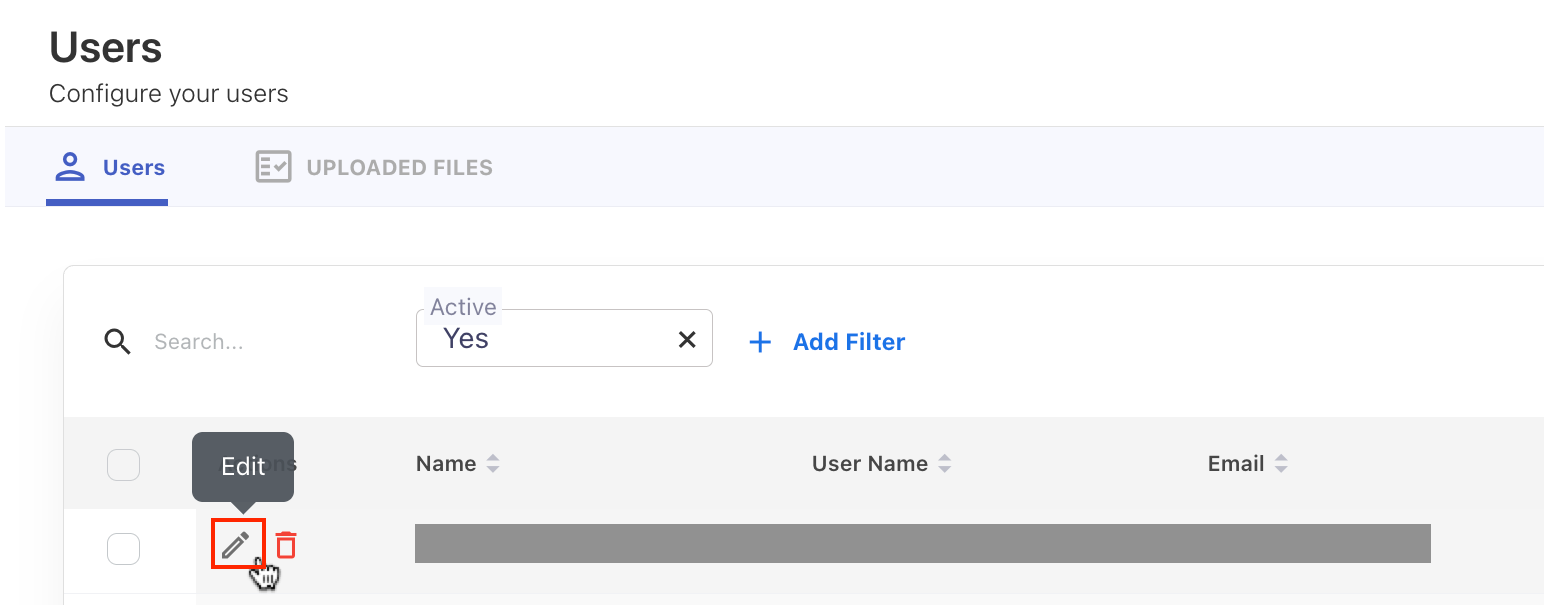
Click the Edit icon in the Actions column.
-
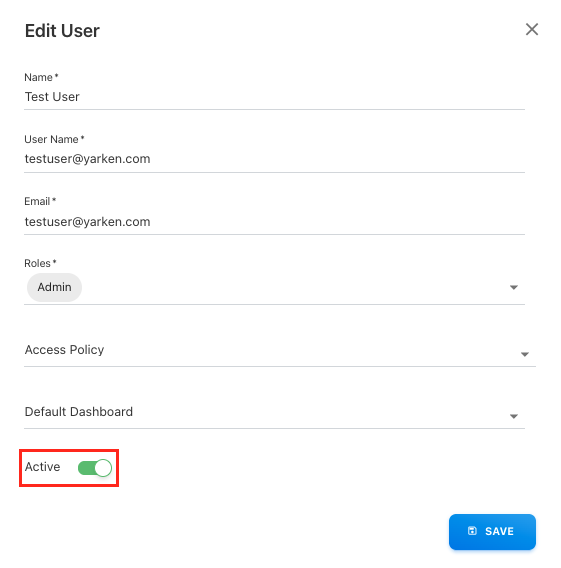
Update the required fields:
-
Name, User Name, and Email
-
Roles — Update the user's assigned roles.
-
Access Policy — Select the Access Policy that determines which Cloud data the user can access. Admin and Cost Model Manager users do not require an Access Policy.
-
Default Dashboard — Change the dashboard shown by default.
-
Active — Activate or deactivate the user account.
-
-
Click SAVE.
Click SAVE to apply the changes. Changes take effect immediately.
Access Policy: If a user's role requires an Access Policy, do not leave the field unassigned. Without a policy, Yarken displays No access policy assigned, and the user cannot access the application. Yarken does not automatically restore the default Full Access Policy after it has been replaced or removed.
Delete a user
Use this option only if the user has not contributed to any data or reports.
Procedure
-
Locate the user you want to remove.
-
Click the Delete icon in the Actions column.
-
Confirm the deletion when prompted.
The Yarken application prevents deletion of users who have contributed to data or reports.
For such users, we recommend disabling the account by setting Active = No instead of deleting it.
Deactivate a user
Deactivating a user prevents them from signing in while preserving their historical contributions, data ownership, and audit records. This is the recommended approach for users who no longer require access but have previously contributed to the system.
Procedure
-
Sign in to the application as an Admin.
-
Navigate to Admin → User Management → Users.
-
Locate the user you want to deactivate.
-
Click the Edit icon in the Actions column.
-
In the Edit User screen, locate the Active toggle.
-
Set Active = No.
-
-
Click OK on confirmation popup.
-
Click SAVE.
The user is deactivated and can no longer sign in.
After deactivating:
-
All historical contributions remain intact.
-
The user account can be reactivated later by setting Active = Yes.
Access Policies
Users in roles that require Access Policies must have a policy assigned to access Yarken. Existing users in applicable roles are initially assigned the default Full Access Policy.
If a required user's policy is removed without a replacement, Yarken displays No access policy assigned, and the user cannot access the application. Yarken does not automatically restore the Full Access Policy.
Admin and Cost Model Manager users do not require an Access Policy.
Related content