
Overview
Yarken uses AWS Access Keys to securely access billing export files stored in Amazon S3.
You will need:
-
Access Key ID
-
Secret Access Key
The Secret Access Key can only be viewed when it is created. Store it securely before closing AWS.
Before you begin
Ensure that the IAM user associated with the Access Key and Secret Key has the following permissions on the S3 bucket used for data export:
Read Access
-
ListBucket
-
GetObject
Write Access
-
PutObject
Delete Access
-
DeleteObject
These permissions are required for the Yarken pipeline to read exported files, write processed data, and manage file lifecycle within the S3 bucket.
Generate Access Keys
-
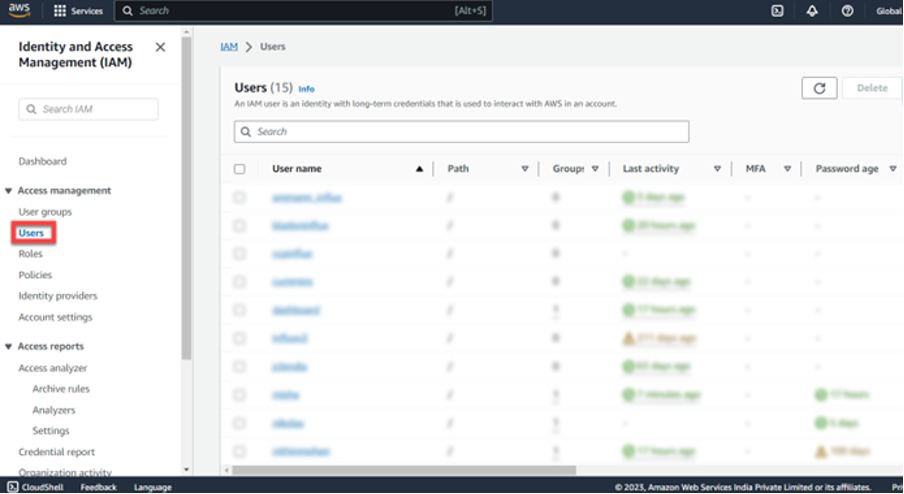
Sign in to the AWS Management Console and open the IAM console.
-
Select Users.
-
Select your username from list of users.
-
On the Summary page of the user, locate your Access Key.

Note: You can have a maximum of two access keys per user.
-
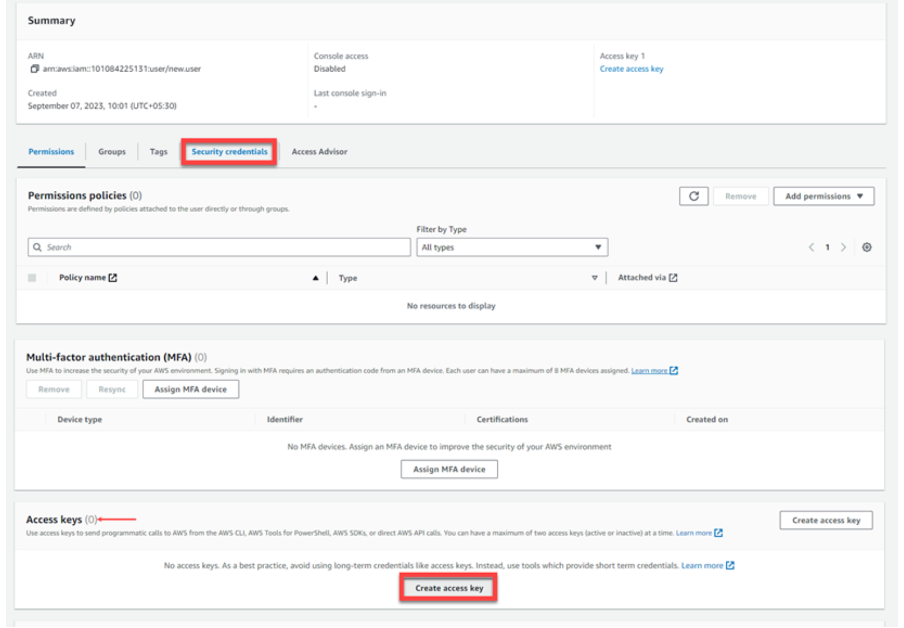
On the Summary page of the user, choose the Security credentials tab.
-
In the Access keys section, choose Create access key.
-
If the option to create access key is disabled, contact your administrator to enable this functionality for your account.
-
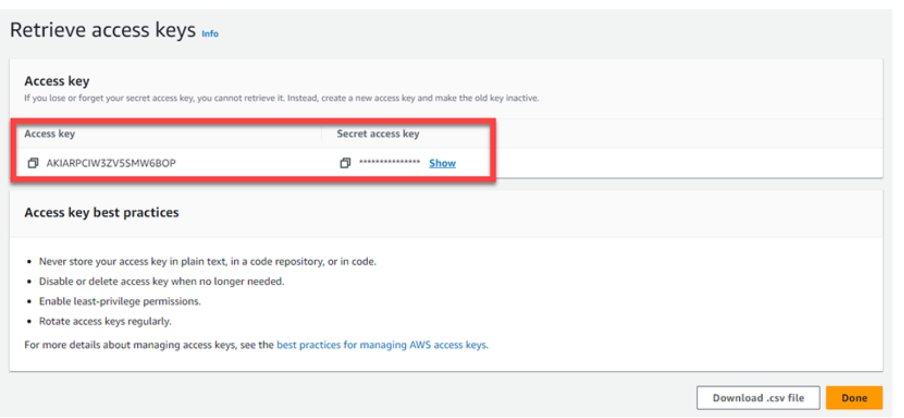
To view the new access key pair, choose Show.
-
Note: You won’t be able to view the secret access key again after closing this dialog box.
-
-
-
Save the keys securely by downloading the .csv file or copying them into a secure location.
-
Click Done.
AWS does not allow the Secret Access Key to be viewed again after creation. If the key is lost, generate a new key pair.
Next step:
Use these credentials when creating the AWS S3 connection in Yarken.
Related content