
Use Rates to maintain monthly prices for AI seats across providers and services in Yarken. Each rate defines the price of one kind of AI seat, using the provider, service, licence type, and licence tier recorded in the AI License Register.
You can create, edit, delete, upload, and download rate records, maintain price validity periods, and report on configured rates in Analytics > License Usage.
Current scope: Rates supports maintaining and reporting AI seat prices. This release does not convert seat records into AI Cost and Usage records, and does not select a rate for a seat using the register date.
Before you begin
Before configuring rates, make sure that you have:
-
Access to Yarken Designer.
-
The Provider Name, Service Name, Licence Type, and Licence Tier values as they appear in the AI License Register.
-
The monthly seat price and its currency.
-
A Valid From date for each price. Valid To is optional for an open-ended rate.
Important: Rate matching requires exact values. A blank Licence Tier matches only AI seats without a tier; it does not match every tier.
Open Rates
-
Go to Yarken Designer.
-
Expand Consumption in the left menu.
-
Select Rates, below AI License Register.
The page contains the following tabs:
|
Tab |
Purpose |
|---|---|
|
RATES |
View, search, add, edit, delete, upload, and download rate records. An empty table means that no rates have been loaded. |
|
UPLOADED FILES |
Review files uploaded to Rates, the number of rows loaded, and rejected records. |
Understand the rate fields
Each row stores the monthly price of one AI seat type.
|
Field |
Required |
Description and format |
|---|---|---|
|
Provider Name |
Yes |
Provider name as recorded in the AI License Register, such as |
|
Service Name |
Yes |
Service name as recorded in the AI License Register, such as |
|
Licence Type |
Yes |
Licence type from the AI License Register. Currently, |
|
Licence Tier |
No |
Tier such as |
|
Monthly Price |
Yes |
Numeric price for one seat for one month. |
|
Currency Code |
Yes |
Three-letter currency code, such as |
|
Valid From |
Yes |
Date when the rate begins. Prefer |
|
Valid To |
No |
Date when the rate ends. Leave blank while the rate remains open. Must be on or after Valid From. |
How a rate is identified
The combination of Provider Name, Service Name, Licence Type, Licence Tier, and Valid From identifies a rate.
Yarken rejects a new manually created row with the same combination. A rate with a blank Licence Tier is a separate rate for seats without a tier.
Validation rules
Yarken checks rate records when you save or upload them. It rejects invalid rows and displays a reason.
|
Validation |
Requirement |
|---|---|
|
Required values |
Provider Name, Service Name, Licence Type, Monthly Price, Currency Code, and Valid From must be present. |
|
Monthly Price |
Must be a number. |
|
Currency Code |
Must contain three letters. |
|
Dates |
Use |
|
Validity period |
Valid To cannot be earlier than Valid From. |
|
Duplicate rate |
A manually added rate cannot repeat the same identifying combination. Uploading that combination replaces the existing rate values instead. |
Add a rate
-
Open Yarken Designer > Consumption > Rates.
-
On the RATES tab, select + ADD NEW.
-
In the New Rate window, complete the required fields.
-
Enter Licence Tier and Valid To, if applicable.
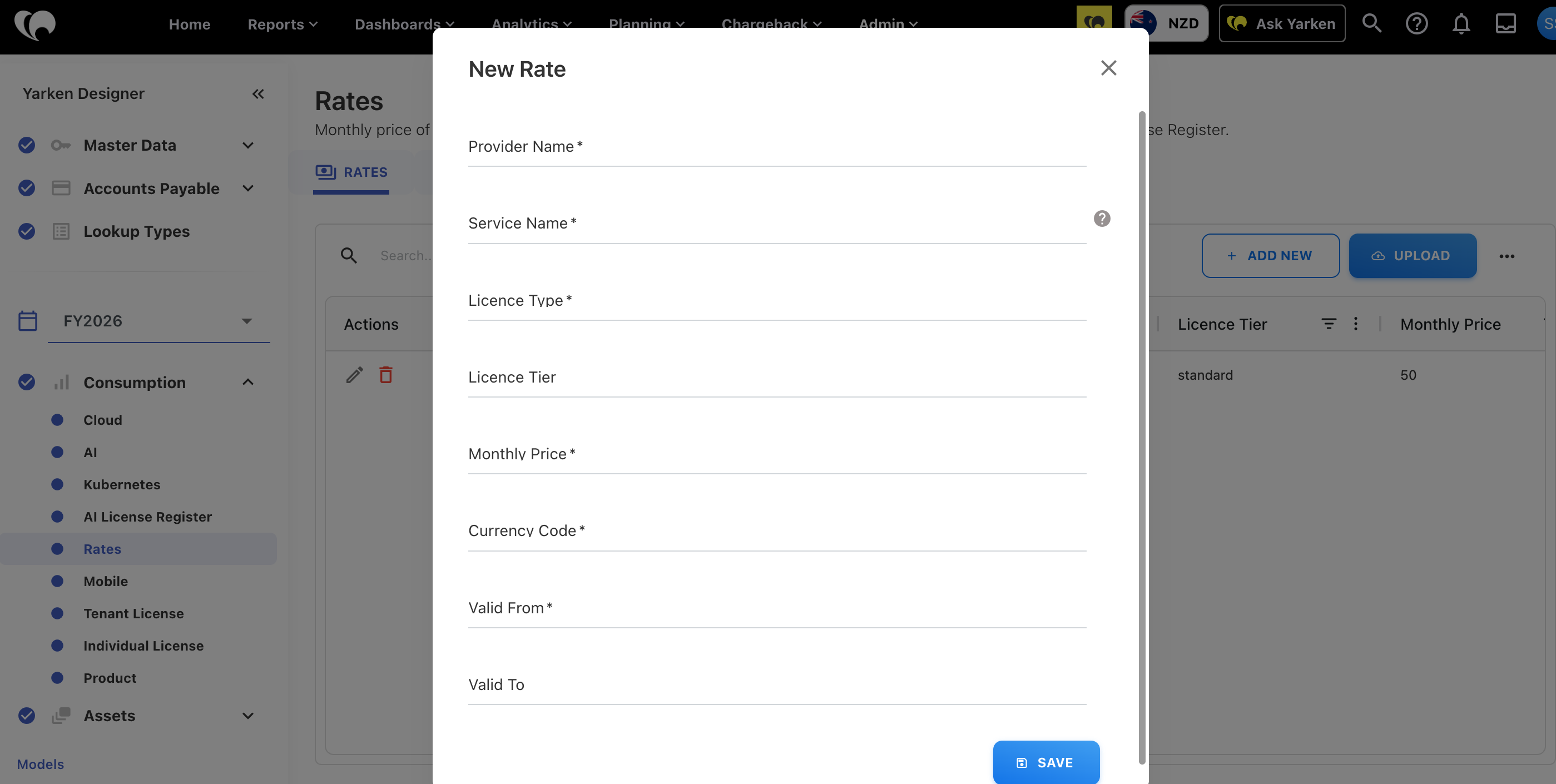
New Rate form and required fields. -
Review the price, currency, and dates.
-
Select SAVE.
Manage existing rates
Edit a rate
-
On the RATES tab, locate the rate.
-
Under Actions, select the Edit icon.
-
Update the necessary fields and save your changes.
Delete a rate
-
On the RATES tab, locate the rate.
-
Under Actions, select the Delete icon.
-
Confirm the deletion if prompted.
Rates does not provide an action that clears every row at once. Remove individual rates from the RATES tab.
Maintain rate changes over time
When the price of the same seat changes, create a new rate with a later Valid From date. Keep the earlier row so the previous price remains on record. Use Valid To to record the end of an earlier rate.
Validity-date limitation: Rates stores Valid From and Valid To, but this release does not automatically select which price applies to a seat based on an AI License Register record date.
Upload rates in bulk
Use UPLOAD to load multiple rate records from a .xlsx or .csv file.
Prepare your file
Include a header row with the required rate fields. When a column header matches a Rates field name, Yarken automatically maps that column during upload.
Upload the file
-
On the RATES tab, select UPLOAD.
-
In Preview, check the first rows of your file, then select Next.
-
In Mapping, map each Rates field to its corresponding file column. Required fields must be mapped before you continue.
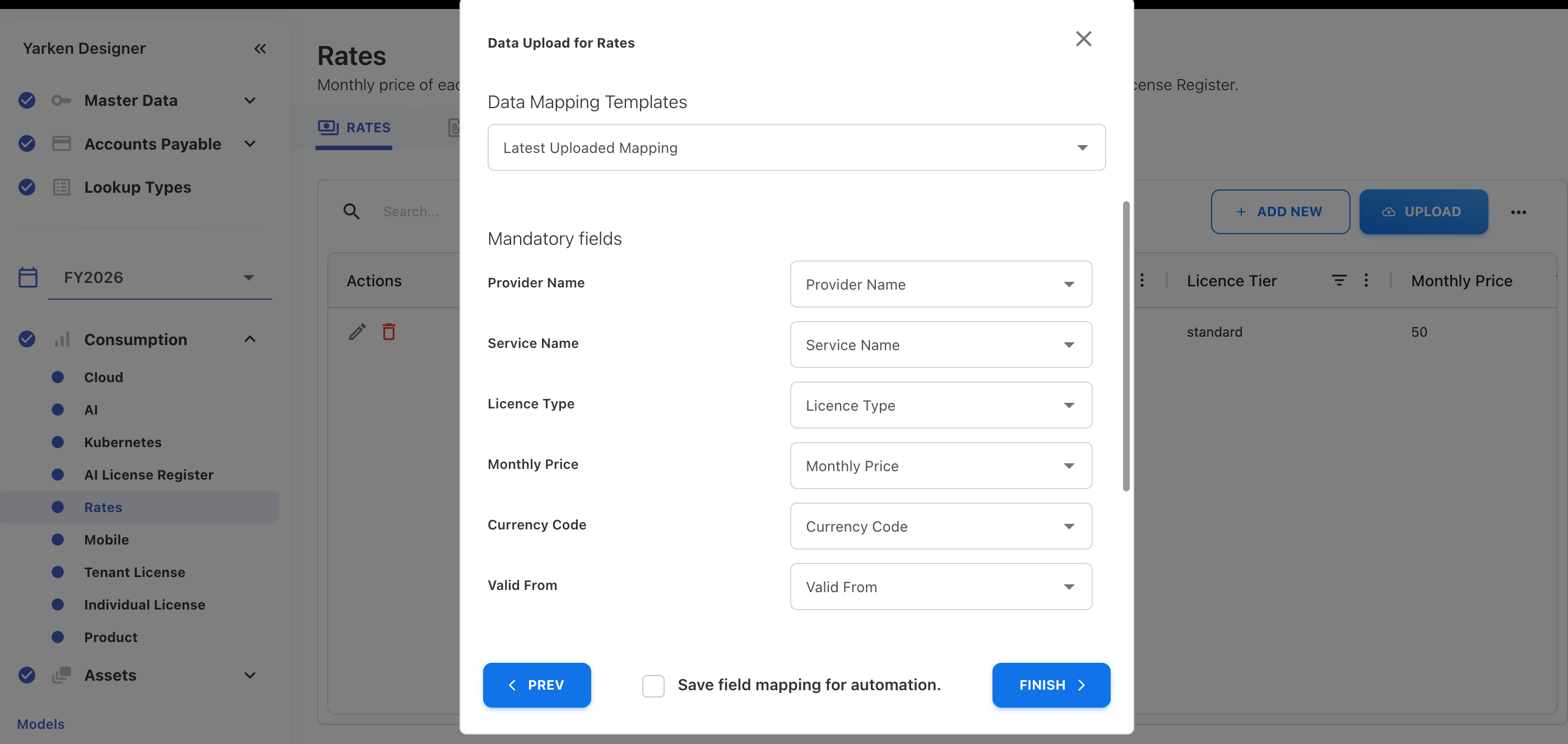
Preview and map rate file columns -
Finish the upload. Yarken processes the file in the background.
-
After processing completes, review the loaded rows in the RATES tab.
How uploads handle existing rates
When an uploaded row has the same Provider Name, Service Name, Licence Type, Licence Tier, and Valid From as an existing rate, Yarken replaces its Monthly Price, Currency Code, and Valid To.
Existing rates that are not included in the file are retained. Uploading a file does not replace or clear the entire Rates table.
Review uploaded files
Open UPLOADED FILES to review the number of rows loaded and any rejected rows.
Deleting an uploaded file does not delete its rate records. Delete unwanted rate rows separately from the RATES tab.
Download rate records
-
Open the RATES tab.
-
Select the More options menu (...).
-
Select Download.
Yarken downloads the rate records as a CSV with the same column names as the upload file. You can edit this file and upload it again.
Match rates to AI License Register seats
A seat receives a matching price only when its Provider Name, Service Name, Licence Type, and Licence Tier match a rate exactly. A seat without a matching combination has no price.
|
Rates field |
AI License Register field |
|---|---|
|
Provider Name |
Provider Name |
|
Service Name |
Service Name |
|
Licence Type |
Licence Type |
|
Licence Tier |
Licence Tier |
After adding a new collector or rate card, review AI License Register combinations that do not have corresponding Rates rows and add the missing rates.
Seats with and without a tier
A blank Licence Tier matches only seats that also have a blank tier. If a collector sends some tiered seats and some without a tier, maintain a separate Rates row for each reported tier and another row with a blank tier.
Configure seat tiers in supported collectors
Claude Enterprise, ChatGPT Workspace, and GitHub Copilot collectors can use these settings to provide a tier for each seat:
|
Setting |
Purpose |
|---|---|
|
Seat tiers |
Enter one |
|
Default seat tier |
Assign a tier to other seats that do not have an explicit entry. |
For example, list premium seats under Seat tiers and set the Default seat tier to standard for everyone else. When each seat has a named tier, a blank-tier rate is not needed for those seats.
Without an explicit or default seat tier, supported collectors use their available API tier or plan values, as shown below.
|
Collector |
Provider Name |
Service Name |
Licence Type |
Licence Tier source or values |
|---|---|---|---|---|
|
Claude Enterprise Admin API |
|
|
|
Seat tiers, spend-limit seat tier (without plan prefix), Default seat tier, or blank; e.g. |
|
ChatGPT Workspace Admin API |
|
|
|
Seat tiers or Default seat tier; otherwise API |
|
GitHub Copilot |
|
|
|
Seat tiers; otherwise plan type such as |
|
Cursor API |
|
|
|
|
Use actual register values: Provider and service names, licence types, and tiers must match the data collected in your environment. Sample or published prices do not replace your organization's configured rate records.
Analyze rates in Analytics
-
Open Analytics > License Usage.
-
Choose the Rates dataset in the Fields panel.
-
Build a report using the supported measures and dimensions.
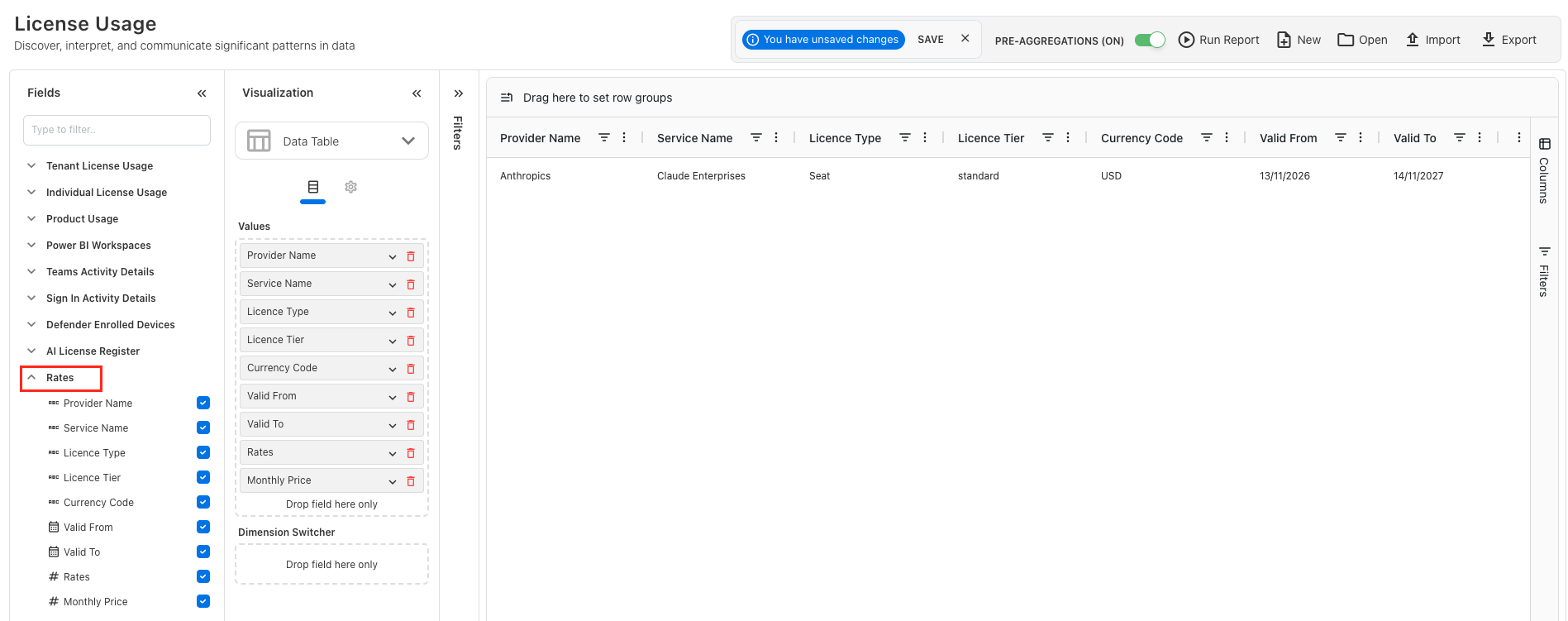
Rates dataset in License Usage Analytics
Available measures
|
Measure |
Description |
|---|---|
|
Rates |
Number of rate rows. |
|
Monthly Price |
Sum of Monthly Price values across selected rate rows. |
Available dimensions
-
Provider Name
-
Service Name
-
Licence Type
-
Licence Tier
-
Currency Code
-
Valid From
-
Valid To
Reporting note: Monthly Price sums configured rate values, not calculated monthly charges for all assigned seats. When comparing rates in different currencies, include Currency Code to distinguish their values.
Newly uploaded rates appear in Analytics after the cube refresh completes, usually within a few minutes.
For more about Analytics reporting, see License Usage.
Current limitations
The current release supports maintaining and reporting AI seat rates. It does not include the following capabilities:
|
Capability |
Current behavior |
|---|---|
|
Rate selection by register date |
Valid From and Valid To are stored, but a rate is not yet selected by the date of an AI License Register record. |
|
Account-specific prices |
Separate prices by billing account are not supported. |
|
Partial-month seats |
Part-month proration is not supported; part-month seats are treated as full-month seats. |
|
Minimum seat commitments |
Unused committed seats are not charged by this feature. |
|
Separate list and contracted prices |
Each rate holds one configured price. |
|
Usage pricing |
Token and credit usage are not priced; Rates covers seats only. |
|
AI Cost and Usage record conversion |
AI seat data is not converted into AI Cost and Usage records in this release. |
Troubleshooting
|
Issue |
What to check |
|---|---|
|
Cannot continue past Mapping |
Map every required field before proceeding. |
|
Monthly Price is rejected |
Use a numeric value. |
|
Currency Code is rejected |
Use a three-letter code, such as |
|
Date values are rejected |
Use |
|
A duplicate rate is rejected |
The identifying combination already exists. Edit that row or upload a matching row to replace its price values. |
|
An AI seat has no price |
Check Provider Name, Service Name, Licence Type, and Licence Tier for an exact match. |
|
Seats without a tier are unmatched |
Add a rate with a blank Licence Tier or configure Seat tiers and Default seat tier on a supported collector. |
|
Old prices remain after upload |
Uploads retain records absent from the file. Delete unwanted rows from RATES. |
|
Rates are not visible in Analytics |
Allow the cube to refresh, then reload License Usage. |