
Use AI License Register to load and manage monthly AI licence-assignment data across providers and services.
The register helps you understand who holds an AI licence, the licence type and tier, its current status, relevant assignment and usage dates, and any configured usage or spend caps.
Go to Yarken Designer > Consumption > AI License Register.
AI License Register and AI Usage Data serve different purposes: Use AI License Register for licence-assignment information. Use Consumption > AI for AI usage and cost data.
What you can do
-
Load monthly AI licence-assignment data.
-
Track licences across AI providers and services.
-
Review licence holders, licence type and tier, roles, and status.
-
Review assignment, removal, and last-used dates.
-
Track configured usage or spend caps.
-
Review uploaded files and upload results.
-
Download or delete monthly register data.
-
Use Upload Rules to refine supported data during ingestion.
-
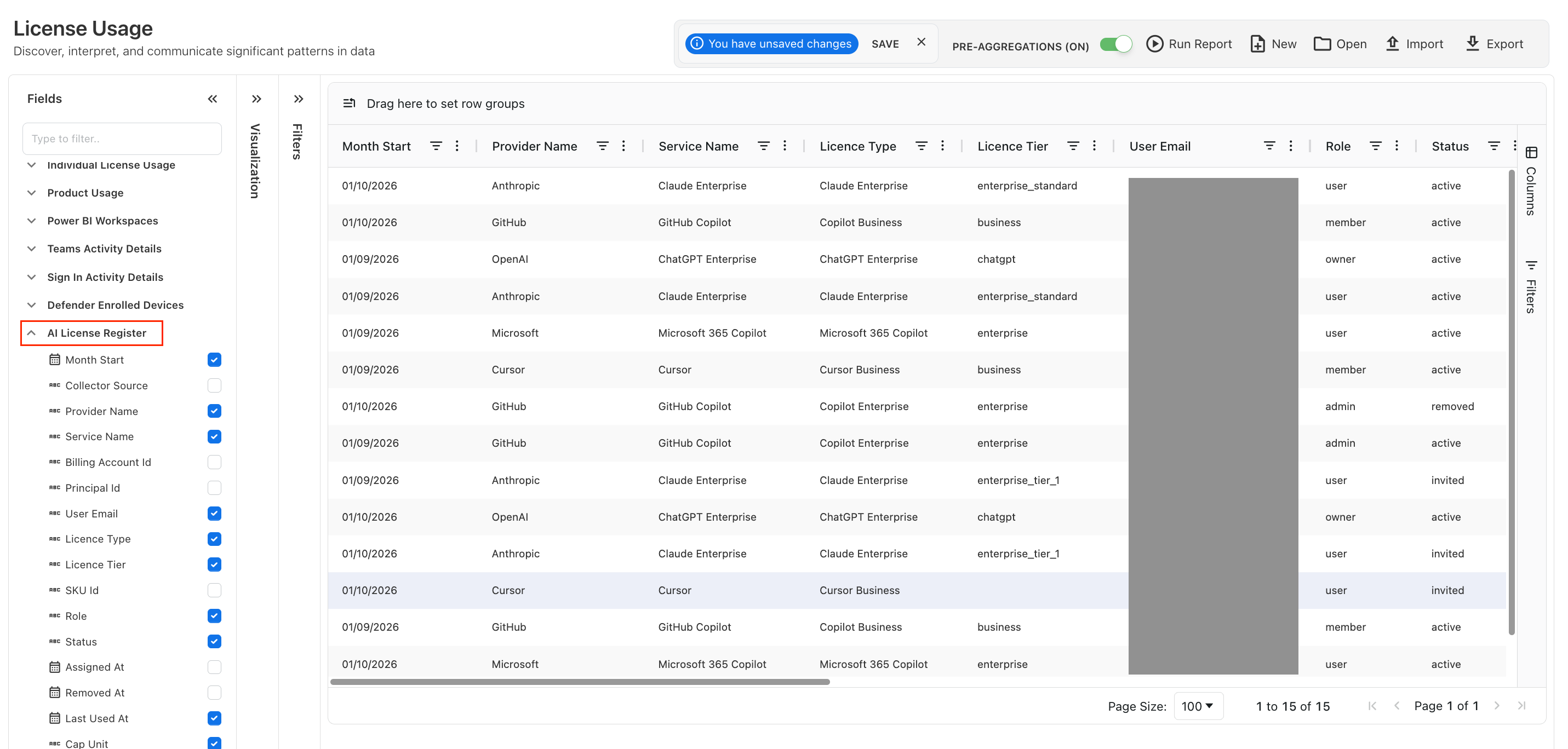
Analyze the register in Analytics > License Usage.
Collect AI licences automatically
Yarken supports automated daily collection of AI seat and licence-assignment data from OpenAI, Anthropic, and GitHub Copilot. Each seat collector uses the provider's existing Advanced Connection but runs through a separate Advanced pipeline dedicated to seat inventory.
The seat pipelines load data into AI License Register. They are separate from the pipelines that collect AI usage and usage-based costs.
Supported seat pipelines
|
Provider |
Advanced pipeline |
|---|---|
|
OpenAI |
ChatGPT Enterprise Seats |
|
Anthropic |
Anthropic Claude Enterprise Seats |
|
GitHub Copilot |
Github Copilot Enterprise Seats |
Run and manage seat pipelines
-
Go to Admin > Pipelines > Connections > ADVANCED.
-
Confirm that the relevant provider Advanced Connection is authorized.
-
Go to Admin > Pipelines > Pipelines > ADVANCED.
-
Locate the required seat pipeline in the list above.
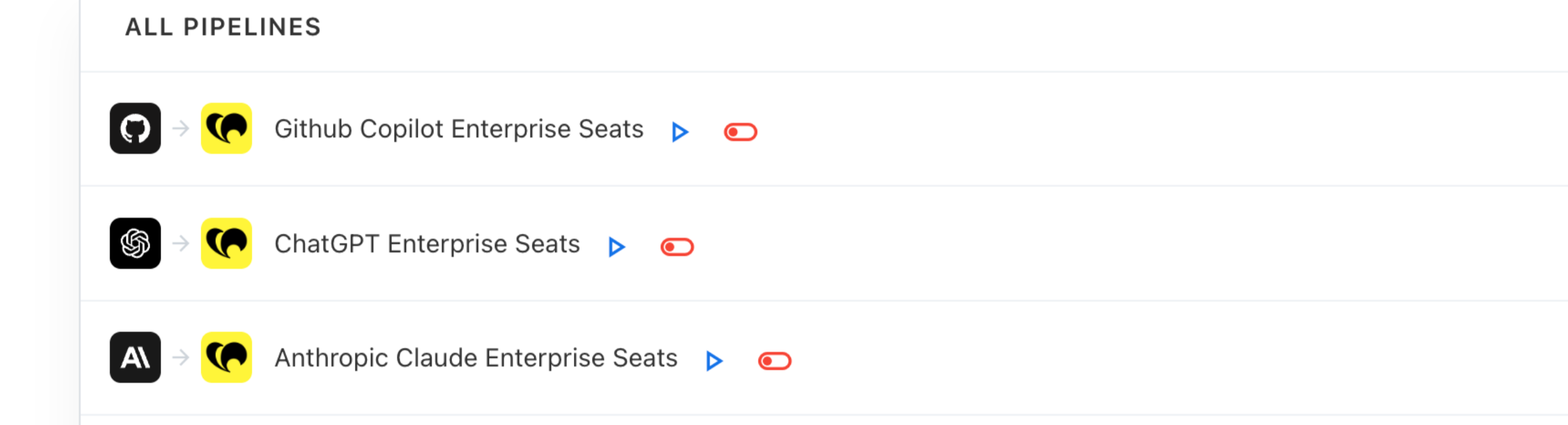
Advanced pipelines for collecting AI seat and licence-assignment data. -
Use the Run control for an on-demand collection, or activate the pipeline for recurring seat collection.
-
Review the pipeline status and run history to verify execution.
-
Open Yarken Designer > Consumption > AI License Register to review the collected records.
Note: Seat collection uses the existing provider connection but a separate seat pipeline. Confirm that the connection has any permissions required for seat data. An inactive pipeline will not perform scheduled daily collection.
For the standard run, activation, and monitoring controls, see Manage Advanced pipelines. For reporting on collected seats, see License Usage.
Reporting scope: AI License Register holds seat and licence-assignment records. Usage-based AI costs remain separate in AI Usage Data. The file-upload procedure below is an alternative ingestion method and is not required for a functioning seat-collection pipeline.
Before you begin
Before uploading AI licence data, confirm that:
-
the file contains one row per licence assignment,
-
the mandatory fields are available in the source data.
-
your source file is in
.xlsxor.csvformat,
Reporting period: The selected month tile determines the reporting year and month. The source file does not need separate Year or Month columns.
Configure rates for AI seats
Use Yarken Designer > Consumption > Rates to maintain monthly pricing for AI seats recorded in the AI License Register. Rates are configured separately from licence-assignment uploads.
A rate matches a seat only when these values match exactly:
|
Rates field |
AI License Register field |
|---|---|
|
Provider Name |
Provider Name |
|
Service Name |
Service Name |
|
Licence Type |
Licence Type |
|
Licence Tier |
Licence Tier |
If an AI licence record has no Licence Tier, the matching Rates row must also have a blank tier. A blank tier is not a wildcard for named tiers such as standard or premium. Seats without a matching combination do not receive a price.
Each rate stores a Monthly Price, Currency Code, Valid From, and an optional Valid To. Use Valid From and Valid To to record pricing periods when rates change.
Current limitation: Validity dates are stored, but Yarken does not yet select a seat's rate using the date of the AI License Register record. This release also does not convert AI seat records into AI Cost and Usage records.
You can report on configured prices in Analytics > License Usage using the Rates dataset. For complete steps, validation rules, bulk upload guidance, and troubleshooting, see Manage AI seat rates.
Prepare your file
Use a header row in the source file. When a source column name matches an AI License Register field name, Yarken can match that column automatically during mapping.
Supported fields
|
Field |
Requirement |
Guidance |
|---|---|---|
|
Record Id |
Required |
Unique identifier for the register record. |
|
Licence Id |
Required |
Licence or seat identifier from the provider. |
|
Month Start |
Required |
First day of the reporting month. |
|
Collector Source |
Required |
Identifies where the record came from, such as admin_api or manual. |
|
Provider Name |
Required |
AI provider, such as OpenAI, Anthropic, Microsoft, or GitHub. |
|
Service Name |
Required |
AI service or product, such as ChatGPT Enterprise, Claude for Work, or Copilot. |
|
Billing Account Id |
Required |
Provider workspace, organization, or billing account. |
|
Principal Id |
Conditional |
Provider user identifier, when the provider has one. |
|
User Email |
Required |
Email address of the licence holder. |
|
Licence Type |
Required |
Licence type, such as seat, enterprise, or team. |
|
Licence Tier |
Optional |
Licence tier, where available. |
|
SKU Id |
Conditional |
Provider product or SKU identifier, where available. |
|
Role |
Optional |
Role associated with the licence, such as owner, admin, or member. |
|
Status |
Required |
Use active, invited, or removed. |
|
Assigned At |
Conditional |
Date and time when the licence was assigned. |
|
Removed At |
Conditional |
Required when Status is removed. |
|
Last Used At |
Optional |
Most recent recorded activity. |
|
Cap Amount |
Optional |
Configured usage or spend cap. |
|
Cap Unit |
Conditional |
Required when Cap Amount is populated, for example USD or tokens. |
|
Cap Period |
Conditional |
Required when Cap Amount is populated, for example monthly. |
|
Cap Source |
Optional |
Identifies where the cap is configured, such as provider or policy. |
|
Snapshot At |
Required |
Date and time when the data was captured. |
|
Tags |
Optional |
Additional attributes in valid JSON format. |
Validation during upload
A row is rejected when:
-
a required field is empty,
-
Status is not
active,invited, orremoved, -
Status is
removedbut Removed At is empty, -
Cap Amount is populated but Cap Unit or Cap Period is missing, or
-
a date does not match the Date format selected during upload.
Date format: Use the same date format for all date fields in the file. ISO 8601 helps avoid day/month ambiguity.
Open AI License Register
-
Go to Yarken Designer.
-
Expand Consumption.
-
Select AI License Register.
-
Select the required financial year.
The OVERVIEW tab displays one tile for each month.
-
Empty tile — No data is loaded yet and an add icon is available.
-
Loaded tile — Shows the loaded provider information and the latest load details.
-
Lock icon — The month is locked for chargeback and cannot be changed.
Upload AI licence data
-
Locate the required month.
-
Select the add icon or drag the source file onto the month tile.
-
In Preview, review the first rows and select Next.
-
In Mapping, map each AI License Register field to the corresponding source column.
-
Confirm all required fields are mapped.
-
Select the Date format used in the source file.
-
Select Finish.
Mapping behavior: No default AI License Register mapping is included. Source headers that match the register field names are mapped automatically. Map other fields manually.
To review record counts and rejected rows after processing, open the month menu and select View Uploaded Files.
If incoming licence data needs repeatable transformation or enrichment, configure the applicable rules from the UPLOAD RULES tab before loading the data. For the standard workflow, see Use Upload Rules.
Manage a loaded month
Open the More options menu on a loaded month.
|
Action |
Use it to |
|---|---|
|
View AI License Register |
Review the month’s AI licence register records. |
|
Download AI License Register |
Download the month as a CSV for review or correction. |
|
View Uploaded Files |
Review uploaded files and load results. |
|
Delete AI License Register |
Remove all AI License Register records for the month. |
|
Add AI License Register |
Upload another file into the same month. |
Deleting data and files: Deleting an uploaded file removes the records loaded by that file. Deleting the AI License Register removes all register rows for the month, while the uploaded files remain listed in Uploaded Files.
Re-upload and correct data
Record Id determines how Yarken handles a re-upload:
-
A row with an existing Record Id is updated with values from the new file.
-
A row with a new Record Id is added.
-
Existing rows that are missing from the new file are kept.
Replace a month completely
-
Open the month’s More options menu.
-
Select Delete AI License Register.
-
Upload the replacement file.
To correct only selected rows, download the month, update those rows while retaining their Record Id values, and upload the file again.
Analyze AI licence data in Analytics
After the data is loaded, go to Analytics > License Usage and expand AI License Register in the Fields panel.
Measures
|
Measure |
Description |
|---|---|
|
Licences |
Number of distinct Licence Id values. |
|
Users |
Number of distinct User Email values. |
|
Cap Amount |
Total configured cap amount. |
Dimensions
AI License Register dimensions include:
-
Month Start
-
Collector Source
-
Provider Name
-
Service Name
-
Billing Account Id
-
Principal Id
-
User Email
-
Licence Type
-
Licence Tier
-
SKU Id
-
Role
-
Status
-
Assigned At
-
Removed At
-
Last Used At
-
Cap Unit
-
Cap Period
-
Cap Source
-
Snapshot At
-
Tags
Use the standard Year and Month dimensions to filter the reporting period.
Example reports
|
Question |
Suggested fields |
|---|---|
|
How many users hold each AI service? |
Users by Service Name |
|
Which licences are invited but not active? |
Licences by Provider Name, filtered by Status |
|
Which active licences have not been used recently? |
User Email, Service Name, Status, Last Used At |
|
How is licence count changing over time? |
Licences by Month and Provider Name |
|
What licence caps are configured? |
Cap Amount by Service Name and Cap Period |
Analytics refresh: New uploads appear in License Usage after the Analytics cube refresh completes.
Troubleshooting
|
Issue |
What to check |
|---|---|
|
Cannot continue past Mapping |
Confirm every required field is mapped. |
|
Date rows are rejected |
Confirm the selected Date format matches the source file. |
|
Status is rejected |
Use only active, invited, or removed. |
|
Removed At is rejected |
Rows with Status removed require Removed At. |
|
Cap fields are rejected |
Populate Cap Unit and Cap Period when Cap Amount is set. |
|
Tags are not loaded |
Confirm Tags contains valid JSON. |
|
Old records remain after re-upload |
Re-upload does not delete missing records. Delete the month first for a complete replacement. |
|
Cannot add or delete data |
Confirm the month is not locked for chargeback. |
|
Data does not appear in Analytics |
Allow the Analytics cube to refresh, then reload the report. |