
Use this page to run and monitor the Advanced pipelines that Yarken has deployed for your environment.
Yarken deploys and maintains the underlying Advanced Integration workflow. You cannot edit the integration logic from this page. You can use the customer-facing controls to run the pipeline, manage its active state, and review execution results.
Before you begin
-
Yarken must have enabled and deployed the required Advanced Integration for your environment.
-
The required Advanced Connection should show Connected.
-
You need the Admin or Cost Model Manager role to manage Advanced pipelines.
For connection authorization, see Authorize Advanced Connections.
Open Advanced pipelines
-
Sign in to Yarken.
-
Go to Admin > Pipelines > Pipelines.
-
Select the ADVANCED tab.
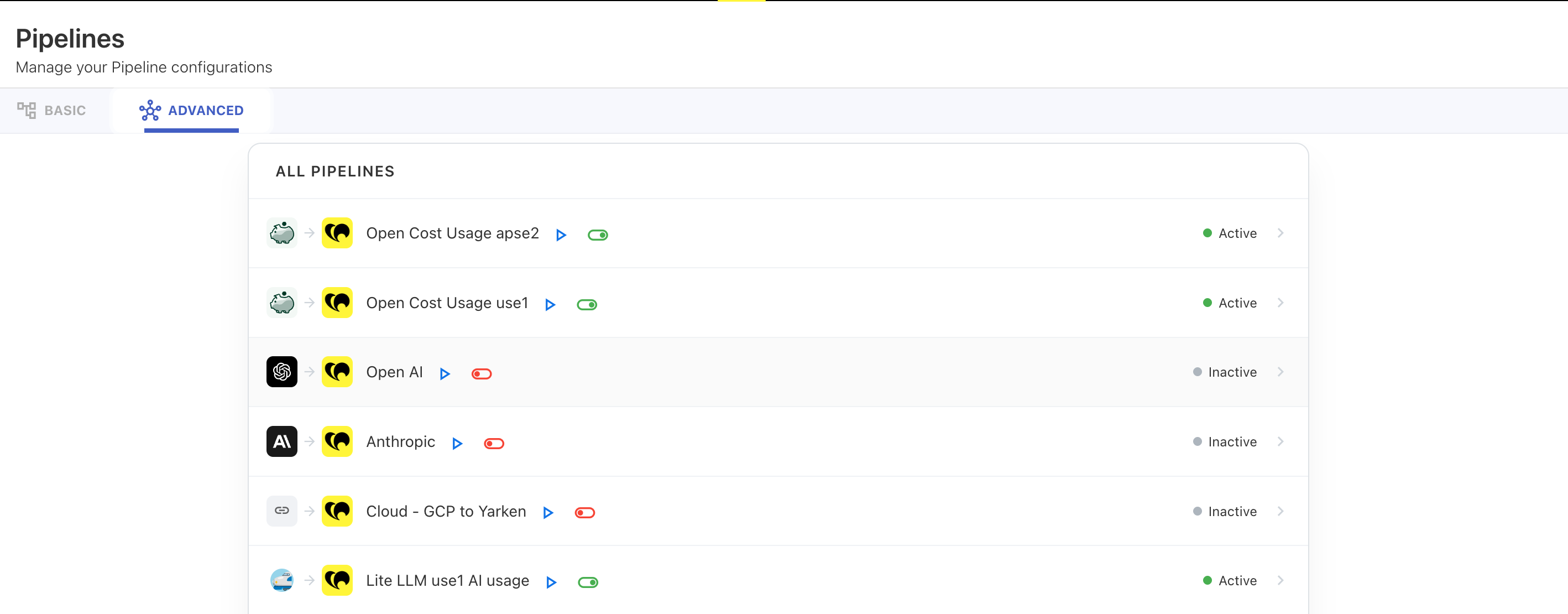
The page displays the Advanced pipelines that Yarken has deployed for your environment.
Understand the Advanced pipeline list
Each row represents a deployed integration between a source provider and Yarken.
|
Item |
What it shows |
|---|---|
|
Source and destination |
The provider used by the integration and the Yarken destination. |
|
Run |
Starts the Advanced pipeline manually. |
|
Active / Inactive |
Shows whether recurring execution is currently enabled for the pipeline. |
The available Advanced pipelines depend on the integrations that Yarken has enabled for your environment.
Run an Advanced pipeline manually
Use Run when you want to start the Advanced pipeline immediately.
-
Go to Admin > Pipelines > Pipelines > ADVANCED.
-
Locate the required Advanced pipeline.
-
Select Run.
-
Open the pipeline to review the resulting run status.
You can run an Advanced pipeline manually even when its recurring execution is inactive. A manual run does not enable recurring execution.
Activate recurring execution
Activate an Advanced pipeline when you want the deployed integration to run on its configured recurring schedule.
When the pipeline is activated:
-
Recurring execution is enabled.
-
The pipeline follows the schedule configured for the integration.
-
You can still use Run when you need an immediate execution.
Deactivate recurring execution
Deactivate an Advanced pipeline when you need to pause its recurring execution without removing the deployed integration.
When the pipeline is deactivated:
-
Recurring execution is paused.
-
The deployed integration remains available.
-
You can still run the pipeline manually when needed.
Deactivating an Advanced pipeline does not remove its Advanced Connection or the Yarken-managed integration workflow.
Review pipeline activity
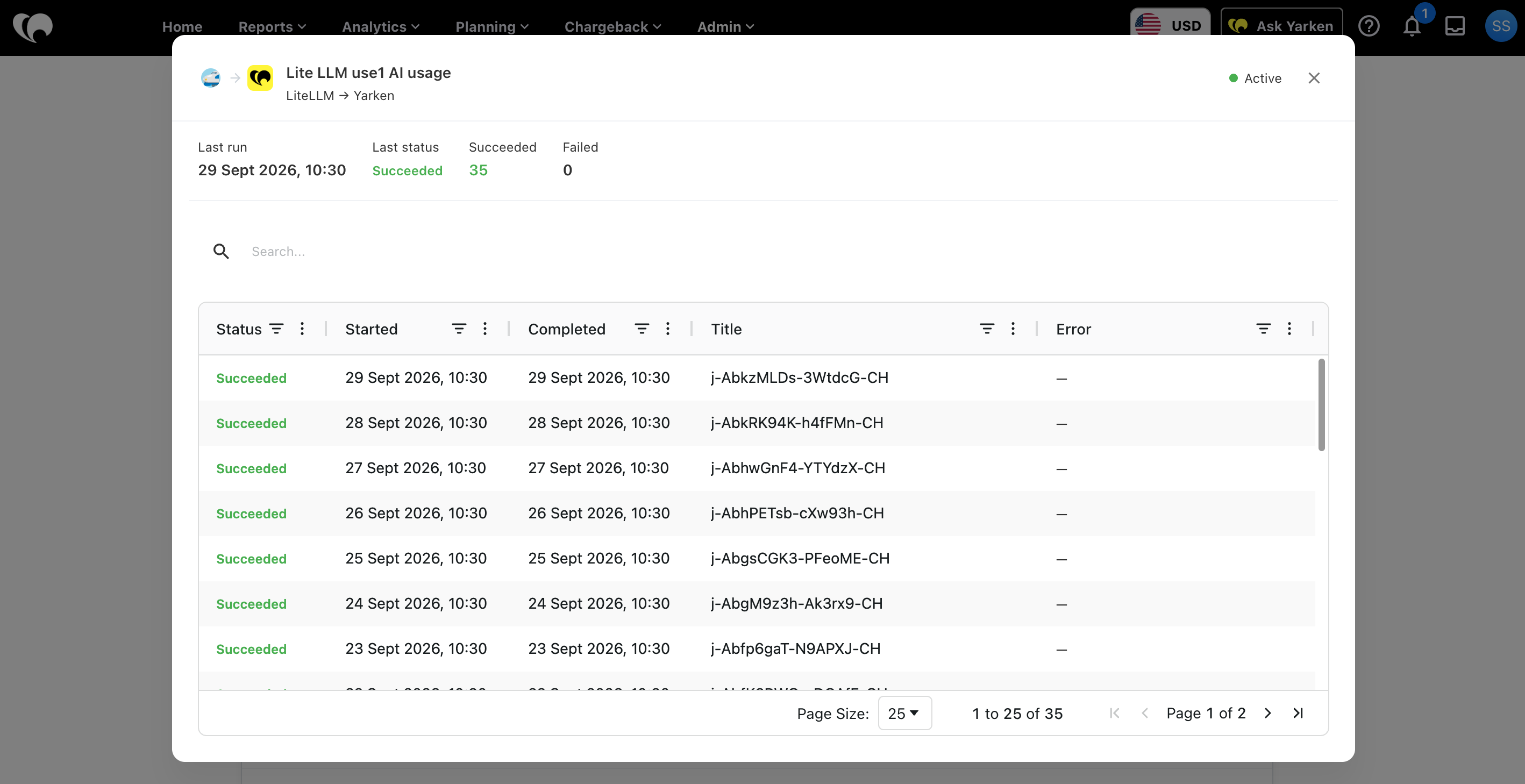
Open an Advanced pipeline to review its latest execution information.
|
Field |
What it means |
|---|---|
|
Last run |
The date and time of the most recent execution. |
|
Last status |
The result of the most recent execution. |
|
Succeeded |
The number of successful executions recorded for the pipeline. |
|
Failed |
The number of failed executions recorded for the pipeline. |
Review run history
The run history lists individual pipeline executions so you can identify successful and failed runs.
|
Column |
What it shows |
|---|---|
|
Status |
Whether the execution succeeded or failed. |
|
Started |
When the execution started. |
|
Completed |
When the execution finished. |
|
Title |
The identifier for the individual execution. |
|
Error |
The error information recorded for a failed execution, when available. |
Review job details
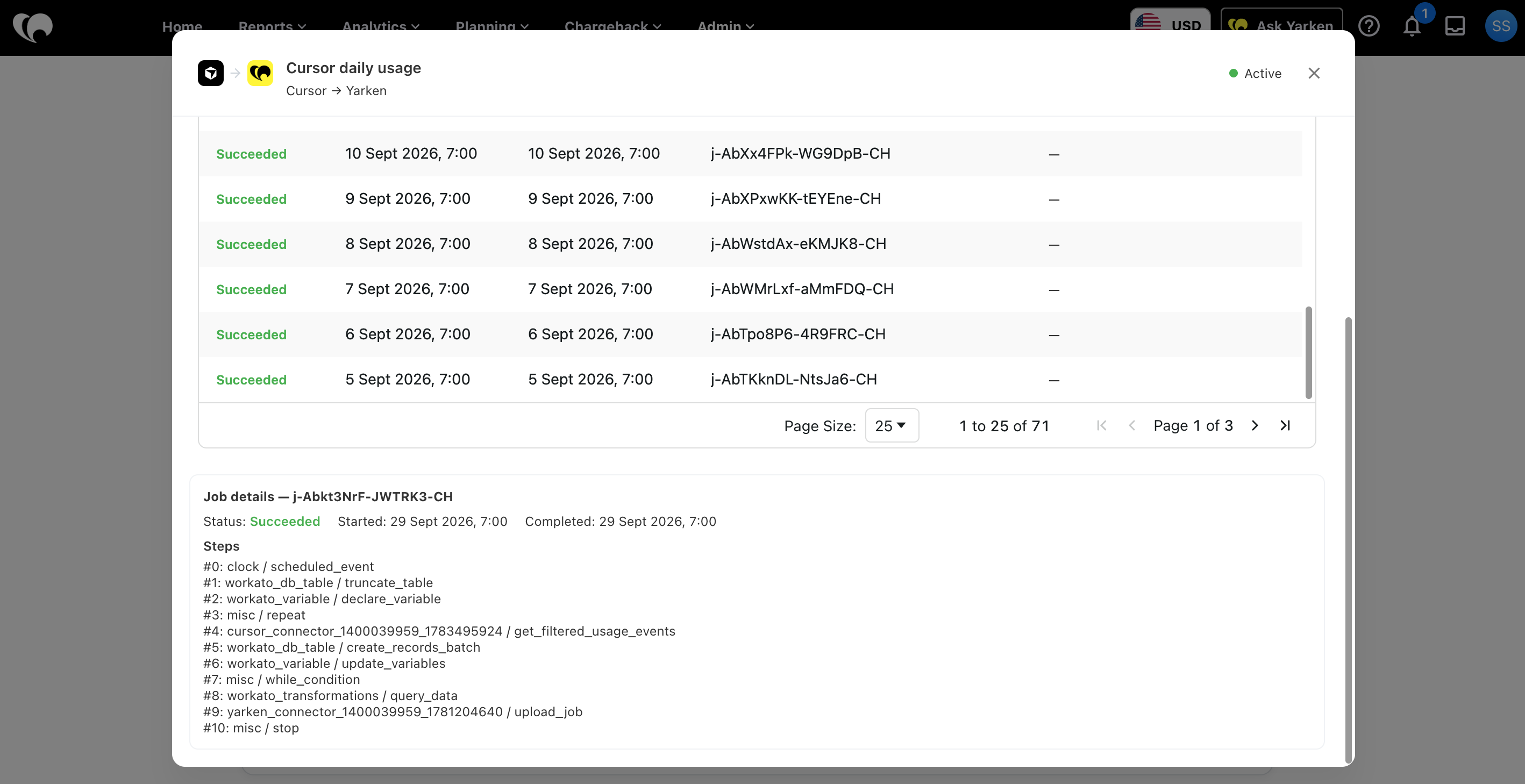
Select a run from the history to review its job details. The details can help you identify where an execution failed before you troubleshoot the connection or provider configuration.
The job details can include implementation-level processing steps. Use them primarily to identify the affected run and displayed error. You do not need to modify the underlying workflow.
Validate a successful run
A successful pipeline status confirms that the Advanced Integration completed its execution. After a successful run, validate that the expected data is available in the destination used by the integration.
The destination varies by integration. For example, an integration can load data into AI Usage Data, Cloud Usage Data, Companion Metrics, Recommendations, or another supported Yarken destination.
When a run fails
If an Advanced pipeline fails:
-
Open the pipeline and review the failed run.
-
Review the displayed Error and job details.
-
Confirm that the required Advanced Connection still shows Connected.
-
Check the provider-specific guide for credential, permission, and source-data requirements.
-
After resolving the issue, select Run to validate the integration again.
For additional guidance, see Troubleshoot Advanced Integrations.
Best practices
-
Confirm required Advanced Connections are Connected before running the pipeline.
-
Review failed executions promptly.
-
Validate the destination data after the first successful run and after credential or provider configuration changes.
-
Use manual Run to validate a change before relying on the next recurring execution.
-
Deactivate recurring execution when an integration should be temporarily paused.
Related content