
Use the OpenCost Advanced Integration to connect Yarken to an OpenCost API service and retrieve supported OpenCost data through a Yarken-managed integration.
OpenCost uses its own data schema in Yarken. This integration is separate from the SaaS and AI usage integrations and does not load into AI Usage Data or Analytics > AI Consumption.
Yarken deploys and maintains the Advanced Integration for your environment. Your organization provides an accessible OpenCost API URL, authorizes the connection, and validates the resulting integration runs and data.
Supported data source
This integration connects to an OpenCost API service. OpenCost provides APIs for reporting Kubernetes resource allocation and infrastructure costs. The exact data sets, attributes, and aggregation rules ingested by Yarken depend on the supported Yarken OpenCost integration configuration.
For background about OpenCost's upstream APIs, see OpenCost API documentation.
What the integration provides
-
An Advanced Connection to the OpenCost API service.
-
A Yarken-managed integration that retrieves the OpenCost data supported by your deployment.
-
An Advanced pipeline for running and monitoring the integration.
-
OpenCost data handled through its own Yarken schema rather than the AI Consumption schema.
Where the data appears
After the OpenCost Advanced pipeline loads data, use Analytics > Consumption Data and the Kubernetes Consumption field group to report on Kubernetes cost and resource consumption. This data is separate from AI Usage Data and Analytics > AI Consumption.
To create a Kubernetes Consumption report:
-
Go to Analytics > Consumption Data.
-
Expand Kubernetes Consumption in the Fields panel.
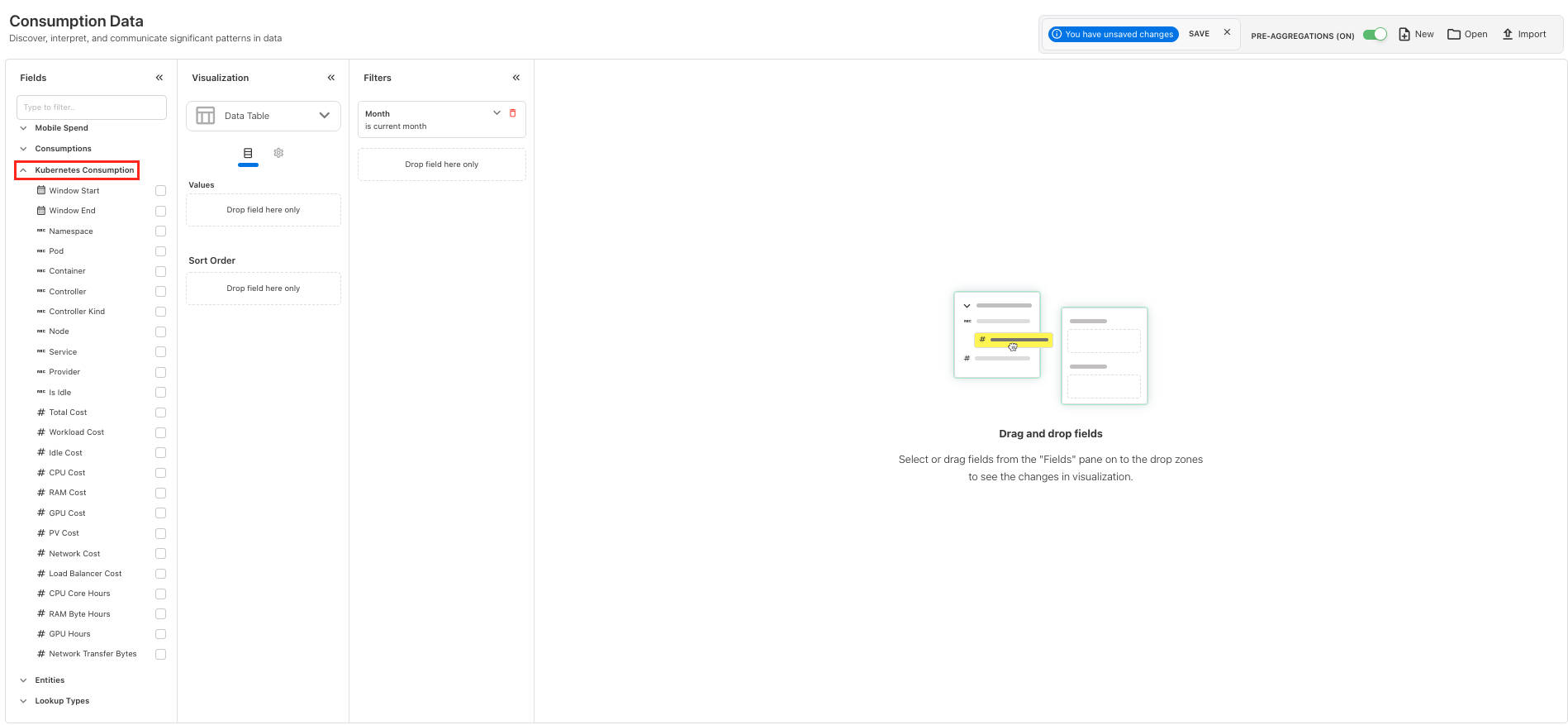
Kubernetes Consumption reporting in Analytics > Consumption Data -
Select or drag the required fields into the Data Table visualization.
-
Apply a Timeline filter, such as Month, when required.
-
Select Run Report to display the results.
Kubernetes Consumption fields available for reporting
|
Category |
Fields visible in the current Yarken UI |
|---|---|
|
Reporting period |
Window Start, Window End |
|
Kubernetes dimensions |
Namespace, Pod, Container, Controller, Controller Kind, Node, Service, Provider, Is Idle |
|
Cost metrics |
Total Cost, Workload Cost, Idle Cost, CPU Cost, RAM Cost, GPU Cost, PV Cost, Network Cost, Load Balancer Cost |
|
Resource consumption |
CPU Core Hours, RAM Byte Hours, GPU Hours, Network Transfer Bytes |
These are the fields visible in the supplied Yarken screenshot. The 34-field OpenCost connector output is not identical to the fields available for reporting. For example, Workload Cost and Idle Cost are reporting measures rather than fields with those names in the connector output.
Kubernetes Consumption reporting limitations:
-
You cannot combine Kubernetes Consumption fields with separate metric or attribute categories such as External Metrics, External Attributes, or Providers. Timeline filters are supported.
-
The Provider field within Kubernetes Consumption is distinct from the separate Providers category.
-
OpenCost ingestion does not currently provide a user-facing uploaded-files view like AI Usage or Cloud Usage Data.
Roles and responsibilities
|
Activity |
Responsibility |
|---|---|
|
Deploy and maintain the Advanced Integration |
Yarken |
|
Maintain data retrieval and transformation logic |
Yarken |
|
Provide the OpenCost API service and its reachable URL |
Your organization, with its OpenCost or infrastructure administrator |
|
Authorize the OpenCost Advanced Connection |
Yarken administrator |
|
Run and monitor the Advanced pipeline |
Admin or Cost Model Manager |
|
Validate source values and imported results |
Your organization, with its infrastructure or reporting team |
Before you begin
|
Requirement |
Details |
|---|---|
|
OpenCost deployment |
Have an OpenCost API service available for the data you want Yarken to retrieve. |
|
API URL |
Obtain the full URL of the OpenCost API service. Use the API endpoint, not the OpenCost UI address. |
|
Network access |
Confirm that the OpenCost API service can be reached from the integration environment through your organization's approved network configuration. |
|
Yarken access |
Use a Yarken administrator account to authorize the Advanced Connection. |
|
Integration availability |
Confirm that Yarken has enabled the OpenCost Advanced Integration for your environment. |
Do not enter the OpenCost UI address in API URL. The connection requires the URL of the API service.
Prepare the OpenCost API endpoint
Your Kubernetes or platform administrator must supply one API URL per cluster. OpenCost must be running with Prometheus (or a compatible metrics store) and a configured cloud-billing or custom pricing source. The connection uses the API service, not the dashboard UI.
-
Find the API service (for example,
kubectl get svc -n opencost). The API normally listens on port9003; the dashboard commonly uses9090. -
Expose the API service over HTTPS and preserve its full base path (for example,
https://opencost.example.com/api). BothGET /allocation(required) andGET /assets(enrichment) should be reachable. -
Allowlist the integration platform's Workato outbound IP addresses, as advised for your deployment. No API key, token, basic auth, or SSO credential is sent by this connector; do not put an authentication/login proxy in front of the endpoint.
-
Ensure the proxy supports large JSON responses and requests lasting at least a minute for busy clusters.
-
Confirm metrics retention covers the historical dates you need, then verify the endpoint from outside your network, not only from inside the Kubernetes cluster.
-
Send Yarken the URL and associated cluster name, pricing source, Prometheus retention period, and endpoint-test results securely. Cluster identity is not included in the connector output rows.
Connection check — expect HTTP 200 and Content-Type: application/json:
curl -i "https://opencost.example.com/api/allocation?window=1d"
curl -i "https://opencost.example.com/api/assets?window=1d"
The OpenCost UI can return HTTP 200 with HTML. If the response is HTML instead of JSON, use the API service address. A 401/403 or login page indicates unsupported proxy authentication.
Authorize the OpenCost connection
-
Sign in to Yarken as an administrator.
-
Go to Admin > Pipelines > Connections.
-
Select the ADVANCED tab.
-
Open the OpenCost connection provided for your environment.
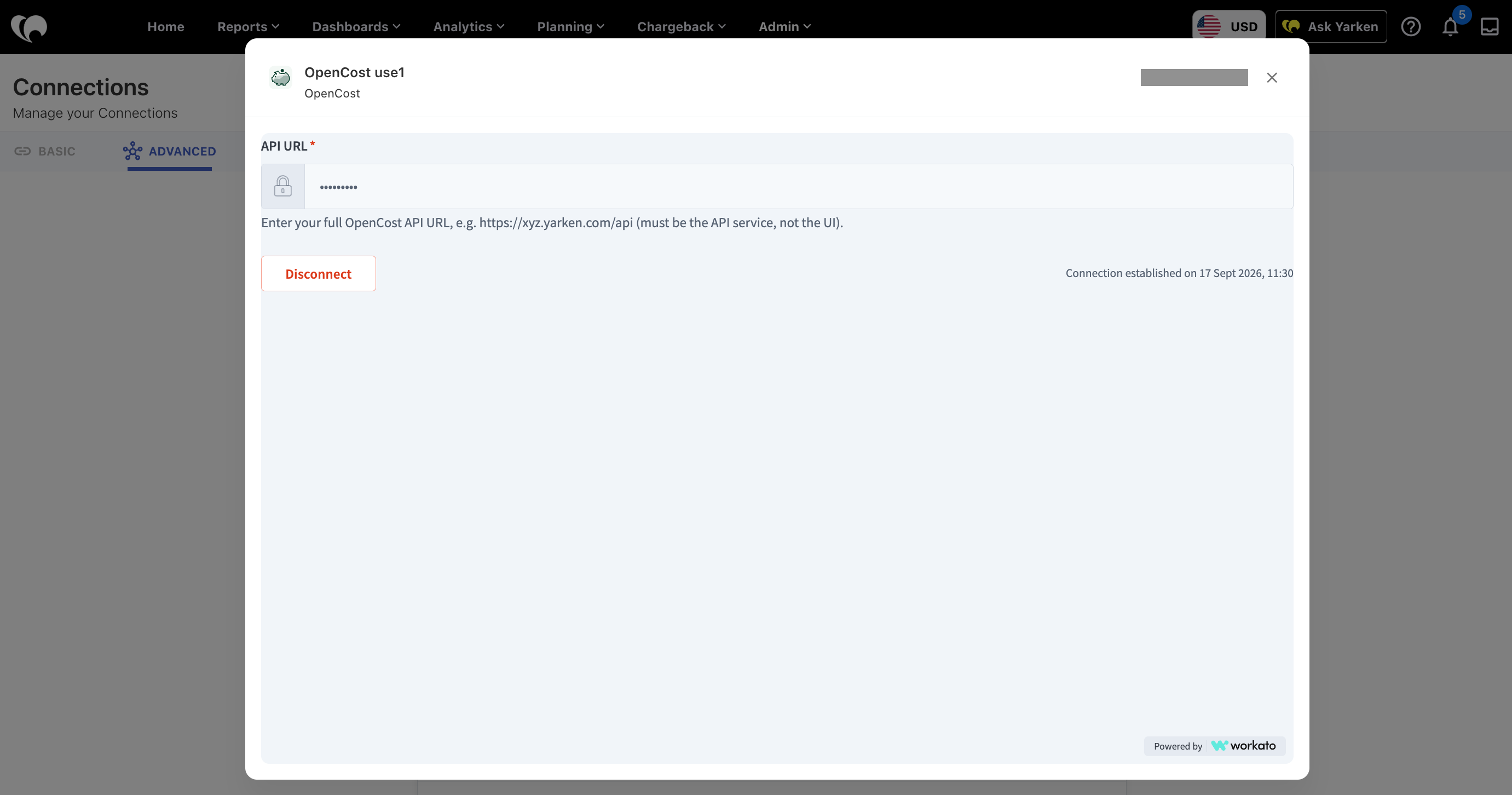
OpenCost Advanced Connection -
Enter the full OpenCost API service address in API URL.
-
Select Connect if the connection has not yet been authorized.
-
Confirm that the connection displays Connected.
|
Field |
Requirement |
Value or guidance |
|---|---|---|
|
API URL |
Required |
Enter the full OpenCost API service URL, for example |
OpenCost Advanced Connection: The UI displays a masked API URL and a Connected status once the connection is authorized.
When the connection is already established, Yarken displays Connected and provides a Disconnect action. Do not disconnect an active integration unless you intend to interrupt its access.
For the general authorization procedure, see Authorize Advanced Connections.
How the integration works
-
The OpenCost API service provides source data.
-
The OpenCost Advanced Connection allows Yarken to reach the configured API service.
-
The Yarken-managed Advanced Integration retrieves and processes the supported source data.
-
The Advanced pipeline runs the integration and records execution activity.
-
The data is processed using the OpenCost-specific Yarken schema.
You do not configure the underlying integration logic or define an Advanced Integration recipe yourself.
Source APIs and processing behavior
|
API |
Purpose |
Failure behavior |
|---|---|---|
|
|
Required cost and resource allocations |
No records; integration stops if it fails |
|
|
Optional provider, provider ID, and project enrichment from Node assets |
Allocation rows still returned; |
The connector requires window_start and window_end in RFC3339 UTC (end exclusive). It calls /allocation with the following fixed parameters. Idle allocations are not spread across workloads.
aggregate=namespace,pod,container,controller,controllerKind,node,service
step=1d
resolution=1h
includeIdle=true
idle=true
shareIdle=false
accumulate=false
The connector flattens every allocation entry in every daily step into an output row. It does not aggregate, deduplicate, or filter these rows. /assets is used only to look up Node provider information. The connector tries the root endpoint first, then /model if the root returns 404 or HTML, but does not retry other API failures.
Data available and ingested
The OpenCost connector returns records[] containing 34 flat output fields. The expandable tables below describe the confirmed OpenCost source-to-connector mappings. They do not establish that every connector field is available as an individual field in Analytics. See the Kubernetes Consumption reporting table above for the fields confirmed in the current user interface.
Data interpretation and limitations
-
OpenCost cost values depend on configured pricing. Without cloud billing or custom pricing, they may be zero or estimates.
-
Idle cost remains a separate
__idle__row; include idle allocation when reconciling total cost. -
Missing or nonnumeric usage and cost values become
null, excepttotal_cost, which defaults to0.0. Empty labels becomenull; present labels are serialized JSON text. -
The connector output does not contain a cluster field. Identify clusters separately by connection or another implementation-approved method.
-
No raw asset costs,
asset_type, orasset_keyare returned;/assetsenriches allocation rows with matching Node identity only. -
Provider and project may be
nullwhen/assetsfails or an allocation does not match a Node. Idle rows commonly have no node. -
Fixed aggregation does not include
label:<key>groupings; labels may therefore be missing. -
History is limited by metrics retention. The connector does not implement paging or automatic retries for
timeouts/5xx; use shorter requested windows for large clusters.
Run and monitor the Advanced pipeline
After the OpenCost connection shows Connected:
-
Go to Admin > Pipelines > Pipelines.
-
Select the ADVANCED tab.
-
Locate the OpenCost pipeline enabled for your environment.
-
Select Run when you need to start an immediate execution.
-
Open the pipeline to review its latest status, run history, and any available error details.
For activation and other supported controls, see Manage Advanced pipelines.
Validate the integration
After the first successful run:
-
Confirm the OpenCost Advanced Connection shows Connected.
-
Confirm the configured API URL points to the OpenCost API service.
-
Verify that the corresponding Advanced pipeline completed successfully.
-
Review the run history for reported errors or missing source data.
-
Go to Analytics > Consumption Data, expand Kubernetes Consumption, choose relevant fields such as Namespace, Pod, Total Cost, Is Idle, and Window Start, then select Run Report. Compare records with OpenCost for the same UTC reporting period.
A Connected status confirms that the connection has been established; it does not, by itself, confirm that the expected data has been loaded. Check the pipeline execution and destination records separately.
Troubleshooting
|
Issue |
What to check |
What to do |
|---|---|---|
|
Connection remains Access requested |
The connection has not completed authorization or the configured API URL is incorrect. |
Confirm the full OpenCost API service URL and complete the connection process. |
|
Connection cannot reach the OpenCost source |
API URL, service availability, or network connectivity. |
Verify that the API service is running and reachable from the integration environment. Use the API service URL rather than the UI URL. |
|
Connection is Connected, but data is missing |
Advanced pipeline execution, source availability, or configured data period. |
Review the Advanced pipeline status, errors, and requested period. Then run a Kubernetes Consumption report in Analytics > Consumption Data, using the appropriate Timeline filter. |
|
The Advanced pipeline fails |
Error details and OpenCost API availability. |
Open the failed run, review the error, correct the source issue where possible, and use Run to validate the result. |
|
OpenCost data is missing from AI Consumption |
Incorrect destination expectation. |
OpenCost is reported in Analytics > Consumption Data > Kubernetes Consumption, not AI Consumption. Select the Kubernetes fields and run a report. |
|
HTML instead of JSON |
OpenCost dashboard URL |
Use the API service URL and verify JSON Content-Type |
|
404 from root and /model |
Wrong path prefix / ingress routing |
Correct the full API path and ingress rules |
|
401 / 403 / login page |
Authentication proxy |
Use network IP allowlisting instead |
|
Timeout / connection refused |
Firewall, DNS, TLS or proxy limits |
Check Workato outbound IP allowlist, TLS and proxy timeouts |
|
Empty or invalid JSON |
Truncated response or upstream error |
Review proxy response buffering and OpenCost API |
|
Successful response but all cost fields are zero |
OpenCost pricing missing |
Configure cloud billing or custom pricing |
|
Provider/project fields empty |
/assets unavailable or no Node match |
Expose /assets and verify Node entries |
|
Historical period empty |
Beyond Prometheus retention |
Query dates with retained metrics |
|
Cluster identity unclear |
Not included in 34-field output |
Maintain URL-to-cluster inventory and confirm Yarken attribution |
Security and access considerations
-
Use an OpenCost API endpoint approved for your organization's integration and network-access policies.
-
Do not expose sensitive internal hostnames, network details, or credentials in public screenshots or support messages.
-
Coordinate endpoint changes with your OpenCost administrator and update the Advanced Connection when necessary.
-
After changing the API URL, validate the connection and run the Advanced pipeline again.
Related content