
Use the Cursor AI usage integration to collect supported Cursor usage and cost data for reporting and analysis in Yarken.
Yarken deploys and maintains the Advanced Integration for your environment. Your organization provides a supported Cursor API key, authorizes the Advanced Connection, and monitors the resulting data.
What the integration provides
The integration can provide Cursor usage information at user, day, and model level for reporting and analysis.
-
Daily AI consumption by user.
-
Usage by model and supported feature.
-
Input and output token usage, with additional token details where Cursor provides them.
-
Cost associated with supported Cursor usage events.
-
User-level usage data for analysis and reporting.
Where the data appears
After ingestion, review the imported data in Designer > Consumption > AI. Use Analytics > AI Consumption for reporting and analysis.
Roles and responsibilities
|
Activity |
Responsibility |
|---|---|
|
Deploy and maintain the Advanced Integration |
Yarken |
|
Maintain the integration and transformation logic |
Yarken |
|
Create and maintain the Cursor Admin API key |
Cursor Team Admin |
|
Authorize the Cursor connection in Yarken |
Yarken administrator |
|
Run and monitor the Advanced pipeline |
Admin or Cost Model Manager |
|
Validate imported usage and cost data |
FinOps and reporting users |
Before you begin
|
Requirement |
Details |
|---|---|
|
Cursor plan |
Your Cursor team must use the Enterprise plan. The Admin API is not available on other plans. |
|
Team Admin |
A Cursor Team Admin must create the API key. Regular team members cannot create a key with access to team usage data. |
|
Supported API key |
Use a Cursor Admin API key created from Dashboard > API Keys with the |
|
Yarken access |
You need a Yarken administrator account to authorize the Cursor Advanced Connection. |
|
Secure storage |
Store the Cursor API key in an organization-approved secrets manager. |
Older team-level API keys are not supported. Use a Cursor Admin API key beginning with crsr_ and make sure it has the admin:* scope.
Create the Cursor Admin API key
Create the key from the Cursor dashboard before you authorize the connection in Yarken.
-
Sign in to cursor.com as a Team Admin.
-
Go to Dashboard > API Keys or open
cursor.com/dashboard/api. -
Select New API Key.
-
Enter a traceable name that identifies the integration and environment.
-
Select the Admin scope (
admin:*). This scope is required for the usage events used by the integration. -
Save the key.
-
Copy the secret immediately and store it in an approved password or secrets manager. The key begins with
crsr_.
A service account key created by a Team Admin is also supported when you do not want the credential tied to a named user.
The secret is displayed only once. If you generated keys that did not work, revoke them before creating a replacement so it is clear which credential is active.
Authorize the Cursor connection
-
Sign in to Yarken as an administrator.
-
Go to Admin > Pipelines > Connections.
-
Select the ADVANCED tab.
-
Open the Cursor connection.
-
Complete the required connection fields.
-
Select Connect.
-
Confirm that the connection status changes to Connected.
|
Field |
Requirement |
Value or guidance |
|---|---|---|
|
Base URI |
Required |
Use |
|
API Key |
Required |
Enter the Cursor Admin API key beginning with |
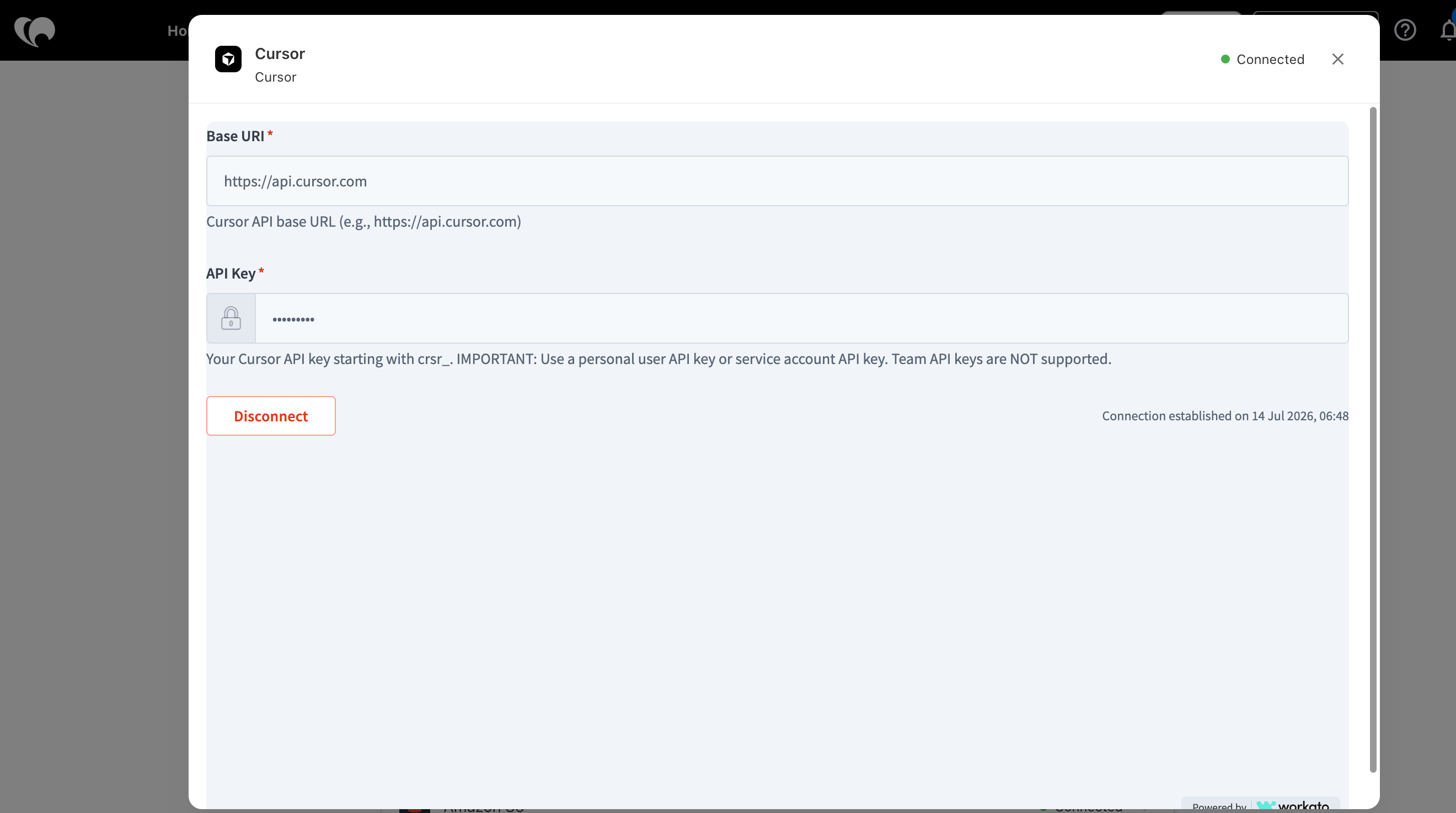
For the common connection workflow, see Authorize Advanced Connections.
How the integration works
-
Cursor provides supported usage and spend data through its API.
-
Cursor Advanced Connection authorizes Yarken using the supported Cursor API key.
-
Yarken-managed integration workflow retrieves and processes the source data.
-
Advanced pipeline runs the integration and records the execution result.
-
AI Consumption makes the imported data available for analysis in Yarken.
Data collected from Cursor
|
Data |
How it is used |
|---|---|
|
Users |
Supports user-level usage analysis. |
|
Daily usage |
Provides a per-day view of activity and consumption. |
|
Models |
Identifies the AI model associated with supported usage events. |
|
Token usage |
Includes input and output tokens, plus cache token details when Cursor provides them. |
|
Cost |
Provides the cost associated with supported usage events for spend analysis. |
Cursor can expose additional event-level attributes, including billing category and other usage metadata. Yarken uses the fields required by the deployed integration for AI consumption reporting.
Data availability and collection behavior
Cursor usage-event data is aggregated hourly. New source data may therefore not be available more frequently than once per hour.
The Advanced pipeline schedule is configured for your environment. Use Run when you need to trigger an immediate execution for validation.
Run and monitor the Advanced pipeline
After the Cursor connection shows Connected:
-
Go to Admin > Pipelines > Pipelines.
-
Select the ADVANCED tab.
-
Locate the Cursor pipeline deployed for your environment.
-
Select Run to start an immediate data pull.
-
Open the pipeline to review the latest status and run history.
See Manage Advanced pipelines for the common pipeline controls.
Validate the integration
After the first successful run, confirm that:
-
The Cursor Advanced Connection shows Connected.
-
The Advanced pipeline completed successfully.
-
Cursor data is available in Analytics > AI Consumption.
-
Expected users are present.
-
Expected models and daily usage are present.
-
Input and output token values are populated where Cursor reports token data.
-
Cost values are available for supported chargeable usage.
Current limitations and considerations
-
Older Cursor team-level API keys are not supported. Use a
crsr_Admin API key with theadmin:*scope. -
Cursor source usage data is aggregated hourly.
-
The fields available for a usage event can vary by event type and billing behavior.
Troubleshooting
|
Issue |
Likely cause |
What to do |
|---|---|---|
|
Connection remains Access requested |
The connection has not been authorized successfully. |
Verify the Base URI, confirm that the key begins with |
|
401 response |
The key is invalid, incomplete, revoked, or an older team-level key was used. |
Re-copy the full |
|
403 response |
The Cursor team is not on the Enterprise plan, or the key does not have the |
Confirm the Enterprise plan. If the plan is correct, create a replacement key with the Admin scope. |
|
429 response |
The Cursor API rate limit was reached. |
Wait at least 60 seconds and retry. Contact Yarken if repeated rate-limit failures continue. |
|
The pipeline succeeds but expected data is missing |
The source period has no supported activity, or new data has not yet reached the hourly aggregation window. |
Confirm that Cursor has activity for the expected period, then run the pipeline again after source data is available. |
Security and credential management
-
Store the Cursor API key in an approved secrets manager.
-
Do not expose the full API key in screenshots, documentation, email, chat, support tickets, or source code.
-
Rotate or revoke the API key according to your organization's security policy.
-
After rotating the key, update the Cursor Advanced Connection and confirm that it returns to Connected.
-
Run the Cursor Advanced pipeline after credential rotation to validate the integration.
Related content